
How do I get the Quick Launch bar back in Windows 11?


Jambon29

Member
Local time
9:35 AM
Posts
18
OS
Windows 11
Hi everyone,

I recently upgrade my Windows 10 Pro PC to Windows 11 and I'm pretty disapointed with the taskbar.
I was used to have a nice quick launch bar in Win 10, but the new Win 11 one sucks
010.png

Anyway after a bit of research online I installed StartAllBack and was able to make things look a bit more like what I'm used to: meaning I can now pin apps in the taskbar like I used to do with the good old Quick Launch bar.

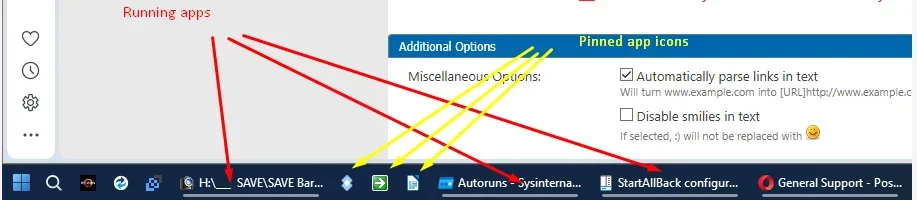
I'm now very closed to what I want, except that I didn't find a way to clearly separate pinned apps to currently opened/running apps: they all appear mixed up in the task bar.
I remember in Win 10 I could right click on the taskbar and do "lock the taskbar" (or something similar, sorry I forgot what it was) and it then clearly put the pinned apps on the left of the task bar, and all opened/running apps on the right., it was really neat and convenient.

Do you know a way of achieving this in Win 11?

Thanks a lot in advance for your help, it's much appreciated.
 
Windows Build/Version
Windows 11 Pro 24H2 26100.6584

Attachments
  • image_2025-09-24_170835511.webp
    image_2025-09-24_170835511.webp
    23.9 KB · Views: 6

My Computer My Computer

At a glance

Windows 11AMD Ryzen Threadripper 3990X128GB G-SkillMSI RTX 3060 VENTUS 2X OC LHR
OS
Windows 11
Computer type
PC/Desktop
Manufacturer/Model
Custom made
CPU
AMD Ryzen Threadripper 3990X
Motherboard
ASUS PRIME TRX40-PRO S
Memory
128GB G-Skill
Graphics Card(s)
MSI RTX 3060 VENTUS 2X OC LHR

You started off asking about the Quick Launch bar but then changed to asking about the position of icons on the Taskbar.

If you want to know about the Quick Launch bar or other Taskbar Toolbars then please post a picture of your Taskbar and say what it is you want to know.
- I used ExplorerPatcher to get back Taskbar Toolbar capabilities in Windows 11 just as you used StartAllBack.
- Once you have Taskbar Toolbar capabilities back in WIndows 11, they look the same as, and can be managed in the same way as, they were in Windows 10. Taskbar Toolbars - Creating and naming, customising, moving [post #20] - TenForumsTutorials


All the best,
Denis
 
Last edited:

My Computer My Computer

At a glance

Windows 11 Home x64 Version 25H2 Build 26200....
OS
Windows 11 Home x64 Version 25H2 Build 26200.8037
I'm now very closed to what I want, except that I didn't find a way to clearly separate pinned apps to currently opened/running apps: they all appear mixed up in the task bar.
They are all mixed up just as they were in Windows 10.
Many apps open a 'wide icon' on the right of the pinned apps when they launch even if, in many cases, that app was a pinned one.
Some pinned apps create their 'wide icon' in the same position as their pinned icon.
The user has no control over how any app behaves in this respect. It seems to be a feature of the design of individual apps. Just as it was in Windows 10.


Denis
 

My Computer My Computer

At a glance

Windows 11 Home x64 Version 25H2 Build 26200....
OS
Windows 11 Home x64 Version 25H2 Build 26200.8037
Sorry, you're right, my main issue is I want to have the Quick Launch bar back.
Does ExplorerPatcher bring back the Quick Launch bar in Windows 11?
 

My Computer My Computer

At a glance

Windows 11AMD Ryzen Threadripper 3990X128GB G-SkillMSI RTX 3060 VENTUS 2X OC LHR

OS
Windows 11
Computer type
PC/Desktop
Manufacturer/Model
Custom made
CPU
AMD Ryzen Threadripper 3990X
Motherboard
ASUS PRIME TRX40-PRO S
Memory
128GB G-Skill
Graphics Card(s)
MSI RTX 3060 VENTUS 2X OC LHR

Last edited:

My Computer My Computer

At a glance

Windows 11 Home x64 Version 25H2 Build 26200....
OS
Windows 11 Home x64 Version 25H2 Build 26200.8037
So I installed and ran ExplorerPatcher but I wasn't able to bring back the Quick Launch bar.
I shut down StartAllBack but it's the same.

Could you tell me how to bring back the Quick Launch bar using ExplorerPatcher?
 

My Computer My Computer

At a glance

Windows 11AMD Ryzen Threadripper 3990X128GB G-SkillMSI RTX 3060 VENTUS 2X OC LHR

OS
Windows 11
Computer type
PC/Desktop
Manufacturer/Model
Custom made
CPU
AMD Ryzen Threadripper 3990X
Motherboard
ASUS PRIME TRX40-PRO S
Memory
128GB G-Skill
Graphics Card(s)
MSI RTX 3060 VENTUS 2X OC LHR

I was adding that as you posted.
The single most important part of its settings is the top line of the Properties, Taskbar dialog - Choose Taskbar style: Windows 10 [ExplorerPatcher]
Then you'll be able to add any Taskbar Toolbar you want; the Quick launch bar is merely one example. I made my own.
The Quick launch bar folder is at
%UserProfile%\AppData\Roaming\Microsoft\Internet Explorer\Quick Launch
so you can paste that into your File explorer address bar and it will take you straight there.

Whichever folder you decide on having as your Taskbar Toolbar, right-click on the Taskbar then select Toolbars..., New toolbar, paste the path I've given you or a path to another folder of your own choosing into the input box. click on the Select folder button.
Taskbar Tooolbar, Quicvk launch.webp


Denis
 
Last edited:

My Computer My Computer

At a glance

Windows 11 Home x64 Version 25H2 Build 26200....
OS
Windows 11 Home x64 Version 25H2 Build 26200.8037
All fixed now?

Denis
 

My Computer My Computer

At a glance

Windows 11 Home x64 Version 25H2 Build 26200....
OS
Windows 11 Home x64 Version 25H2 Build 26200.8037
Yes all fixed, THANKS A LOT! 👍
 

My Computer My Computer

At a glance

Windows 11AMD Ryzen Threadripper 3990X128GB G-SkillMSI RTX 3060 VENTUS 2X OC LHR
OS
Windows 11
Computer type
PC/Desktop
Manufacturer/Model
Custom made
CPU
AMD Ryzen Threadripper 3990X
Motherboard
ASUS PRIME TRX40-PRO S
Memory
128GB G-Skill
Graphics Card(s)
MSI RTX 3060 VENTUS 2X OC LHR
This thread has made me realise that there is no single, complete explanation of what to do with ExplorerPatcher to get back Taskbar Toolbars.
For common subjects, I would normally hope to be able to just post a link to an explanation & wish you good luck. But there was nowhere to link to.
So I'll write one and add it to the main ElevenForum thread about ExplorerPatcher.
When I've done so, I'll give you a link to my post so you can suggest improvements to it.


All the best,
Denis
 

My Computer My Computer

At a glance

Windows 11 Home x64 Version 25H2 Build 26200....
OS
Windows 11 Home x64 Version 25H2 Build 26200.8037

My Computer My Computer

At a glance

Windows 11 Home x64 Version 25H2 Build 26200....
OS
Windows 11 Home x64 Version 25H2 Build 26200.8037

My Computer My Computer

At a glance

Windows 11AMD Ryzen Threadripper 3990X128GB G-SkillMSI RTX 3060 VENTUS 2X OC LHR
OS
Windows 11
Computer type
PC/Desktop
Manufacturer/Model
Custom made
CPU
AMD Ryzen Threadripper 3990X
Motherboard
ASUS PRIME TRX40-PRO S
Memory
128GB G-Skill
Graphics Card(s)
MSI RTX 3060 VENTUS 2X OC LHR
Hi everyone,

I recently upgrade my Windows 10 Pro PC to Windows 11 and I'm pretty disapointed with the taskbar.
I was used to have a nice quick launch bar in Win 10, but the new Win 11 one sucks
010.png

Anyway after a bit of research online I installed StartAllBack and was able to make things look a bit more like what I'm used to: meaning I can now pin apps in the taskbar like I used to do with the good old Quick Launch bar.

I'm now very closed to what I want, except that I didn't find a way to clearly separate pinned apps to currently opened/running apps: they all appear mixed up in the task bar.
I remember in Win 10 I could right click on the taskbar and do "lock the taskbar" (or something similar, sorry I forgot what it was) and it then clearly put the pinned apps on the left of the task bar, and all opened/running apps on the right., it was really neat and convenient.

Do you know a way of achieving this in Win 11?

Thanks a lot in advance for your help, it's much appreciated.
Hi! I'm using StartAllBack but haven't found a way to move the quick launch over to the left side. As long as you have the quick launch bar, why not just remove the pinned apps and add them to the quick launch bar? What I miss is the toolbar in file explorer from Open Shell. I haven't tried running both. I know Explorer Patcher and StartAllBack are not compatible but haven't tested Open Shell.
 

My Computer My Computer

At a glance

Windows 11Intel i516GBIntel Integrated UHD
OS
Windows 11
Computer type
PC/Desktop
Manufacturer/Model
CTO - Lenovo ThinkStation P340
CPU
Intel i5
Memory
16GB
Graphics Card(s)
Intel Integrated UHD
Monitor(s) Displays
2 Samsung 24' curved CR50
Hard Drives
256 SSD & 2T HDD
Keyboard
logiteh mx keys wireless
Mouse
logitech mx ergo (thumb trackball)
Browser
chrome & edge
Antivirus
Vipre Advanced Security

Latest Support Threads

Back
Top Bottom