
How do I make ChatGPT listen and execute commands and reply immediately by using voice commands?


William654

Well-known member
Member
VIP
Local time
11:41 PM
Posts
859
OS
Windows 11
Hi

Currently, I installed ChatGPT as a Windows app but when I press on the mic icon it starts to record voice, and then I must press on the mic icon again to convert into text but I want it to listen and replay or execute commands once I finish speaking. How can I do that ?
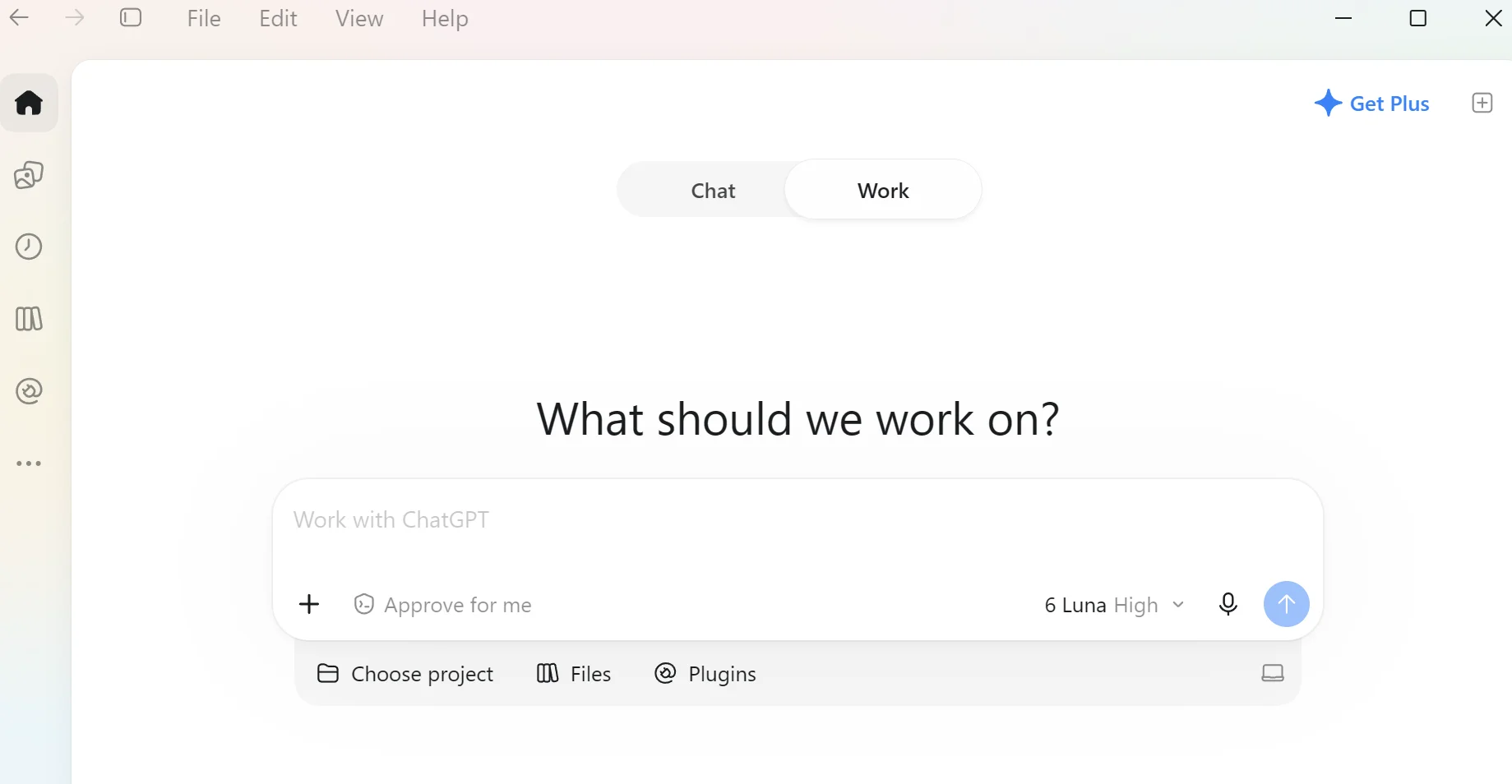
1792958775714.webp


Download link: https://chatgpt.com/download
 
Last edited:

My Computer My Computer

At a glance

Windows 115900x32 GB G.SkillRX 9070 XT
OS
Windows 11
Computer type
PC/Desktop
CPU
5900x
Motherboard
Asus TUF GAMING B550 PLUS WIFI II
Memory
32 GB G.Skill
Graphics Card(s)
RX 9070 XT
Sound Card
Creative Sound Blaster Z
Monitor(s) Displays
BENQ and AOC QHD 120Hz
Screen Resolution
QHD
Hard Drives
2TB Intel 660p and 2TB Sabrent Rokect 4 plus nvme, 4TB HDD HGST
PSU
Corsair RM750
Case
Bloody rage
Cooling
Water cooling gamdias 240
Keyboard
razer ornata
Mouse
razer da v2
Browser
FF and Chrome
Antivirus
Malwarebytes
Search result -

To make ChatGPT listen, execute commands, and reply immediately using voice commands, you need to use the Live Voice mode (Advanced Voice) or set up hands-free shortcuts. Unlike basic dictation, Live Voice supports natural turn-taking, real-time interruptions, and immediate spoken responses. [1, 2]

Step 1: Open ChatGPT Live Voice Mode

  • On iOS and Android: Open the ChatGPT App and tap the Voice icon (resembling a sound wave) in the message bar.
  • On Web: Go to ChatGPT.com, sign in, and select the Voice icon in the prompt window.
  • Microphone Access: Allow microphone permissions if prompted by your device or browser.
  • Verify Live Mode: Look for the small Live label or animated orb at the top of the screen to confirm you are in real-time conversational mode rather than simple voice-to-text dictation. [1, 2]
Step 2: Enable "Start with Voice" for Instant Access

To skip tapping buttons and have ChatGPT start listening immediately upon opening:

  1. Open Settings in the ChatGPT mobile app.
  2. Go to Voice.
  3. Toggle on Start with Voice (and Start automatically in CarPlay if you use Apple CarPlay). [1]
Step 3: Speak Naturally and Intersect

  • No wake word needed: Just start speaking once the Voice interface opens.
  • Immediate replies & interruptions: Live Voice listens and speaks simultaneously. You do not need to wait for it to finish or press a stop button—you can interrupt ChatGPT mid-sentence to change topics or ask it to speed up, slow down, or keep answers brief.
  • Ending the session: Tap the X button when you are done. Your full conversation transcript will remain saved in your chat history. [1, 2, 3]
 

My Computer My Computer

At a glance

Windows 11 Pro 26H2
OS
Windows 11 Pro 26H2
Computer type
Laptop
Manufacturer/Model
Toshiba
Antivirus
Defender
Search result -
I already did this but all the steps are wrong. No Toggle on Start with Voice and no Live Mode. Start with voice is in copilot not chatgpt
 

My Computer My Computer

At a glance

Windows 115900x32 GB G.SkillRX 9070 XT
OS
Windows 11
Computer type
PC/Desktop
CPU
5900x
Motherboard
Asus TUF GAMING B550 PLUS WIFI II
Memory
32 GB G.Skill
Graphics Card(s)
RX 9070 XT
Sound Card
Creative Sound Blaster Z
Monitor(s) Displays
BENQ and AOC QHD 120Hz
Screen Resolution
QHD
Hard Drives
2TB Intel 660p and 2TB Sabrent Rokect 4 plus nvme, 4TB HDD HGST
PSU
Corsair RM750
Case
Bloody rage
Cooling
Water cooling gamdias 240
Keyboard
razer ornata
Mouse
razer da v2
Browser
FF and Chrome
Antivirus
Malwarebytes
So. create a search argument with the exact text of your thread topic, and include in Windows.

Not difficult.
 

My Computer My Computer

At a glance

Windows 11 Pro 26H2
OS
Windows 11 Pro 26H2
Computer type
Laptop
Manufacturer/Model
Toshiba
Antivirus
Defender

Latest Support Threads

Back
Top Bottom




