injecting drivers into a windows 11 iso


The biggest problem is just finding the right drivers. You might think "pnputil /export-driver" from the live system, but the OP's complaining that it's not the right drivers to begin with.
 

My Computer

System One

  • OS
    Windows 7

My Computer

System One

  • OS
    Windows 10
    Computer type
    Laptop
    Manufacturer/Model
    HP
    CPU
    Intel(R) Core(TM) i7-4800MQ CPU @ 2.70GHz
    Motherboard
    Product : 190A Version : KBC Version 94.56
    Memory
    16 GB Total: Manufacturer : Samsung MemoryType : DDR3 FormFactor : SODIMM Capacity : 8GB Speed : 1600
    Graphics Card(s)
    NVIDIA Quadro K3100M; Intel(R) HD Graphics 4600
    Sound Card
    IDT High Definition Audio CODEC; PNP Device ID HDAUDIO\FUNC_01&VEN_111D&DEV_76E0
    Hard Drives
    Model Hitachi HTS727575A9E364
    Antivirus
    Microsoft Defender
    Other Info
    Mobile Workstation
This appeared in AI:

Code:
https://www.google.com/search?q=during+a+clean+install+irst+can+first+be+downloaded+then+extracted+and+saved+on+the+flash+drive+with+the+MCT%2FISO.++during+the+clean+install+load+driver+can+be+clicked+to+load+this+driver.++can+other+drivers+be+loaded+in+this+fashion+like+ethernet+and+wifi+or+is+this+only+for+irst&sca_esv=e5f3872605fd4577&ei=armKacnYEM_9ptQPi9re8AU&biw=1920&bih=953&ved=0ahUKEwjJtdedkM6SAxXPvokEHQutF14Q4dUDCBQ&uact=5&oq=during+a+clean+install+irst+can+first+be+downloaded+then+extracted+and+saved+on+the+flash+drive+with+the+MCT%2FISO.++during+the+clean+install+load+driver+can+be+clicked+to+load+this+driver.++can+other+drivers+be+loaded+in+this+fashion+like+ethernet+and+wifi+or+is+this+only+for+irst&gs_lp=Egxnd3Mtd2l6LXNlcnAimAJkdXJpbmcgYSBjbGVhbiBpbnN0YWxsIGlyc3QgY2FuIGZpcnN0IGJlIGRvd25sb2FkZWQgdGhlbiBleHRyYWN0ZWQgYW5kIHNhdmVkIG9uIHRoZSBmbGFzaCBkcml2ZSB3aXRoIHRoZSBNQ1QvSVNPLiAgZHVyaW5nIHRoZSBjbGVhbiBpbnN0YWxsIGxvYWQgZHJpdmVyIGNhbiBiZSBjbGlja2VkIHRvIGxvYWQgdGhpcyBkcml2ZXIuICBjYW4gb3RoZXIgZHJpdmVycyBiZSBsb2FkZWQgaW4gdGhpcyBmYXNoaW9uIGxpa2UgZXRoZXJuZXQgYW5kIHdpZmkgb3IgaXMgdGhpcyBvbmx5IGZvciBpcnN0SOyvElAAWK2WEnAAeAGQAQCYAXOgAYE7qgEFMTA2LjK4AQPIAQD4AQGYAj2gAu0nwgILEC4YgAQYkQIYigXCAgsQABiABBiRAhiKBcICDhAuGIAEGLEDGNEDGMcBwgILEC4YgAQYsQMYgwHCAgsQLhiABBjRAxjHAcICBRAAGIAEwgILEAAYgAQYsQMYgwHCAg4QABiABBixAxiDARiKBcICGhAuGIAEGJECGIoFGJcFGNwEGN4EGOAE2AEBwgIREC4YgAQYsQMY0QMYgwEYxwHCAggQABiABBixA8ICBRAuGIAEwgISEC4YgAQYsQMY0QMYxwEYChgLwgIMEAAYgAQYsQMYChgLwgILEC4YgAQYxwEYrwHCAhQQLhiABBiXBRjcBBjeBBjfBNgBAcICCBAuGIAEGLEDwgIKEAAYgAQYQxiKBcICFxAuGIAEGLEDGJcFGNwEGN4EGN8E2AEBwgIXEC4YgAQYsQMYlwUY3AQY3gQY4ATYAQHCAhAQABiABBixAxiDARhGGPkBwgIEEAAYA8ICKhAAGIAEGLEDGIMBGEYY-QEYlwUYjAUY3QQYRhj5ARj0Axj1Axj2A9gBAcICBRAAGO8FwgIIEAAYogQYiQXCAgYQABgWGB7CAgUQIRifBcICBRAhGKsCwgIFECEYoAHCAggQABiABBiiBMICCxAAGIAEGIYDGIoFwgIEECEYCpgDALoGBggBEAEYFJIHBDU2LjWgB7r8A7IHBDU2LjW4B-0nwgcLMC4yOS4yNy40LjHIB_YBgAgA&sclient=gws-wiz-serp&zx=1770699586581&no_sw_cr=1


during a clean install irst can first be downloaded then extracted and saved on the flash drive with the MCT/ISO.

during the clean install load driver can be clicked to load this driver.


can other drivers be loaded in this fashion like ethernet and wifi or is this only for irst


Code:
Yes, you can load other drivers like Ethernet and Wi-Fi during a clean install using the "Load driver" button, but it is rarely necessary because the Windows installation environment (WinPE) usually includes basic network drivers.
The "Load driver" feature is primarily intended for storage drivers (IRST)—necessary to detect the SSD/HDD—and is only for drivers with .inf, .sys, or .cat files, not .exe installers.
Key Takeaways for Pre-loading Drivers
Best Practice: The IRST driver is often essential for Intel 11th-gen or newer processors to detect the drive. Other drivers (Wi-Fi/LAN) can usually be installed after Windows is fully installed, as Windows Update will often find them automatically.
How to Load Additional Drivers:
Download and extract the Wifi/Ethernet drivers on your computer.
Copy the extracted folder (containing the .inf files) to the same USB drive as the installation media.
During the "Where do you want to install Windows?" step, click "Load driver".
Browse to the network driver folder and select it.
Alternative Method for Network Drivers: If you cannot get online to install drivers after the installation, you can bypass the network requirement entirely. When prompted to connect to a network, press Shift + F10, type oobe\bypassnro, and hit Enter to restart the setup and skip the step.
When to Load Non-Storage Drivers
You should only pre-load network drivers via "Load driver" if you are using a network-heavy installation method (like a cloud install) or if you want to skip the "oobe\bypassnro" method and have network access immediately upon reaching the desktop.
 

My Computer

System One

  • OS
    Windows 10
    Computer type
    Laptop
    Manufacturer/Model
    HP
    CPU
    Intel(R) Core(TM) i7-4800MQ CPU @ 2.70GHz
    Motherboard
    Product : 190A Version : KBC Version 94.56
    Memory
    16 GB Total: Manufacturer : Samsung MemoryType : DDR3 FormFactor : SODIMM Capacity : 8GB Speed : 1600
    Graphics Card(s)
    NVIDIA Quadro K3100M; Intel(R) HD Graphics 4600
    Sound Card
    IDT High Definition Audio CODEC; PNP Device ID HDAUDIO\FUNC_01&VEN_111D&DEV_76E0
    Hard Drives
    Model Hitachi HTS727575A9E364
    Antivirus
    Microsoft Defender
    Other Info
    Mobile Workstation
The biggest problem is just finding the right drivers. You might think "pnputil /export-driver" from the live system, but the OP's complaining that it's not the right drivers to begin with.
correct i have the asrock drivers from there site i just need to install them while windows is installing itself
 

My Computer

System One

  • OS
    windows 11
    Computer type
    PC/Desktop
    Manufacturer/Model
    custom built
    CPU
    ryzen 7800X3D
    Motherboard
    asrock B650E taichi lite
    Memory
    64GB 6000 Mhz Gskill CL32
    Graphics Card(s)
    asrock challenger 9070
    Sound Card
    soundblasterX AE-5 plus
    Monitor(s) Displays
    ASUS VG2791R
    Screen Resolution
    1920x1080P
    Hard Drives
    sabrent rocket Q4 1TB NVME
    PSU
    seasonic focus gold 1000 WATT from 2019
    Case
    phanteks enthoo primo
    Cooling
    arctic liquid freezer III pro 420mm aio
    Internet Speed
    300Mbps
    Browser
    chrome
    Antivirus
    windows defender
I have a PowerShell script, which can exclude certain HW devices from Windows Update. From the UI, you pick the device(s) which you want to protect and it creates two reg files.

One file blocks the selected devices from WU's driver updates, by using the HW ID's.
One file removes the block.

Windows update keeps installing older Intel Arc graphics drivers

You can still install drivers manually, but it instructs WU to ignore the devices you select. This way you can run WU normally, but don't have to worry about your preferred driver getting clobbered.

From an unattended file, you can "reg load" the first registry file. I'm sure @hsehestedt can help you with that.
 

My Computer

System One

  • OS
    Windows 7
Below is a procedure to allow you to automate the installation of drivers during Windows setup. I show how to export and then subsequently install ALL system drivers, but you can also use this to install individual drivers. Those drivers just need to be extracted with the .INF file available. No image files (.CAB, .ZIP, .ISO, etc.) can be used.

Overview

You can create a folder named $OEM$ with a specific structure. Inside of this structure you will place a script and all of the drivers for your system. Files in this folder will automatically get copied to your Windows installation during setup and the script will be executed. We will use the script to install all drivers. Note that no answer file is needed - this will work even with a manual setup of Windows. However, if you do use an answer file, this will still work fine along with the answer file and no changes need to be made to the answer file.

Likewise, we can use a folder named $WinPeDriver$ and drop that onto the UFD (USB Flash Drive) to automatically load boot critical drivers. Again, no answer file is needed, but you can use one if you wish with no modifications, and this will work with a manual installation of Windows.


Preparation

Create your bootable Windows disk. Use whatever your normal method is to create a Windows UFD.

From the ZIP file included in this post, extract the $OEM$ folder and drop it into the \Sources folder. If you use a dual partition UFD (a small FAT32 partition and a larger NTFS partition for installing Windows), then drop this folder into \sources on the 2nd (NTFS) partition.

You will note that in the #OEM$\$$\Setup\Scripts folder you will find a file named SetupComplete.cmd. This is the script that installs the drivers. Feel free to examine or modify this script to suit your needs.

While your system is still working (prior to starting a clean installation of Windows), we should export all the drivers so that we can drop them into this $OEM$ folder.

NOTE: If you only want to install one or two drivers, you can do this. In this procedure I show you how to install ALL system drivers, but nothing says you have to do this. You can install only those drivers that you want.

Optional - Delete Old Drivers from The System

Before we export drivers, you may want to clean out all your old, unused drivers.
As new drivers are installed onto Windows, the driver store becomes larger and larger because the old drivers are not cleaned up. If you wish to perform a cleanup, do this:

Download Driver Store Explorer (RAPR) and run it. You can download Driver Store Explorer (RAPR) from here:


Choose to export all drivers.
Chose the option to select old drivers and once selected choose to delete those drivers.

NOTE: The only reason that I ask you to export the drivers first was just in case any problem is caused by deleting unused drivers. I have never seen that cause a problem, but I'm not taking a chance with someone else's system :-).

Exit Driver Store Explorer.

END OF OPTIONAL PROCEDURE

EXPORT DRIVERS - METHOD 1

Open Driver Store Explorer and choose the option to export all drivers.
Exit Driver Store Explorer.

END METHOD 1

EXPORT DRIVERS - METHOD 2

This method uses Windows command line to export the drivers.

Open a command prompt and run these commands:

md c:\drivers
pnputil /export-driver * c:\drivers

NOTE: For both commands, you can use any folder in place of C:\drivers. Just make sure to specify the same folder for both commands.

END METHOD 2

Copy (or move) the contents of the folder to which you saved the drivers to \sources\$OEM$\$1\drivers. After doing this, you can delete the folder to which you originally saved the drivers.

Handling Boot Critical Drivers

Boot Critical drivers are drivers that are necessary for Windows Setup to function. For example, if you have a RAID controller for which Windows has no driver, a driver will need to be loaded to allow Windows Setup to see the drives attached to that controller. The Intel IRST driver is a prime candidate for this. Likewise, many laptops require a driver to be loaded in order for the touchpad or touchscreen to function. For touchpads and touchscreens, it is often necessary to load an I2C and/or GPIO driver.

Create a folder on the root of your UFD named $WinPEDriver$.

NOTE: If you are using a dual partition UFD with a small FAT32 partition and a larger NTFS partition for installing Windows, you can drop this folder onto either partition. My preference is to drop it on the second partition since it has more room. Inside this folder, drop your Boot Critical driver(s). Each driver should be in its own folder and the drivers should be extracted with a .INF file available. These drivers will automatically be loaded by Windows Setup.

END PROCEDURE

If you need any clarification on how this works or you just have any questions, please do let me know.
 

Attachments

My Computers

System One System Two

  • OS
    Win11 Pro 25H2 (RTM+)
    Computer type
    PC/Desktop
    Manufacturer/Model
    Acemagic
    CPU
    Intel i7-14650HX
    Memory
    32 GB
    Graphics Card(s)
    No GPU - Built-in Intel Graphics
    Sound Card
    Integrated
    Monitor(s) Displays
    Varies as machine will often be moved to locations with different monitors
    Screen Resolution
    Varies
    Hard Drives
    1 x 1TB Gen 4 NVMe SSD
    PSU
    120W Power Brick
    Keyboard
    Corsair K70 Max RGB Magnetic Keyboard
    Mouse
    Logitech MX Master 3
    Internet Speed
    1Gb Up / 1 Gb Down
    Browser
    Edge
    Antivirus
    Windows Defender
  • Operating System
    Win11 Pro 25H2 (RTM+)
    Computer type
    Laptop
    Manufacturer/Model
    Lenovo ThinkBook 13x Gen 2
    CPU
    Intel i7-1255U
    Memory
    16 GB
    Graphics card(s)
    Intel Iris Xe Graphics
    Sound Card
    Realtek® ALC3306-CG codec
    Monitor(s) Displays
    13.3-inch IPS Display
    Screen Resolution
    WQXGA (2560 x 1600)
    Hard Drives
    2 TB 4 x 4 NVMe SSD
    PSU
    USB-C / Thunderbolt 4 Power / Charging
    Keyboard
    Backlit, spill resistant keyboard
    Mouse
    Buttonless Glass Precision Touchpad
    Internet Speed
    1Gb Up / 1Gb Down
    Browser
    Edge
    Antivirus
    Windows Defender
    Other Info
    WiFi 6e / Bluetooth 5.1 / Facial Recognition / Fingerprint Sensor / ToF (Time of Flight) Human Presence Sensor
Follow up to my post...

If you really want to inject the drivers into a Windows image rather than using the a $OEM$ folder, let me know and I can set you up. I know that @tecknot already gave you a procedure, but I can add to that by showing you an automated way to do this.

My personal preference is to use the $OEM$ method because I find it difficult to manage so many customized ISO images with drivers injected. I used to do it that way, but it took too much storage space for me to carry all those customized images on a UFD and constant maintenance was a nightmare. By using the $OEM$ I can use the same Windows image for all my installations. I simply need to drop the right drivers for any given system into the $OEM$ folder.

Just because something is possible to do, I don't understand why folks make things difficult. I agree with @antspants. For the normal user, I can not see a reason to insert any drivers into an iso.

I agree completely! But bear in mind that many of us are not "normal" users. For example, on some of my machines I reinstall Windows from scratch a minimum of once a week and often 5+ times a week. Yes, this is for testing purposes, but I need automated processes to make this all feasible and practical to do. When installing Windows that frequently, automating driver installation is not making it more difficult - it is making it HUGELY easier.

Just to give you an idea, by automating things, I can go from bare metal to fully installed Windows with all drivers installed, Windows fully customized, all my apps preloaded, and BitLocker enabled on C: BUT with a predefined BitLocker key that I have memorized for easy recovery in probably less than 10 minutes. I really should time it to get an exact timing, but you get the point.
 

My Computers

System One System Two

  • OS
    Win11 Pro 25H2 (RTM+)
    Computer type
    PC/Desktop
    Manufacturer/Model
    Acemagic
    CPU
    Intel i7-14650HX
    Memory
    32 GB
    Graphics Card(s)
    No GPU - Built-in Intel Graphics
    Sound Card
    Integrated
    Monitor(s) Displays
    Varies as machine will often be moved to locations with different monitors
    Screen Resolution
    Varies
    Hard Drives
    1 x 1TB Gen 4 NVMe SSD
    PSU
    120W Power Brick
    Keyboard
    Corsair K70 Max RGB Magnetic Keyboard
    Mouse
    Logitech MX Master 3
    Internet Speed
    1Gb Up / 1 Gb Down
    Browser
    Edge
    Antivirus
    Windows Defender
  • Operating System
    Win11 Pro 25H2 (RTM+)
    Computer type
    Laptop
    Manufacturer/Model
    Lenovo ThinkBook 13x Gen 2
    CPU
    Intel i7-1255U
    Memory
    16 GB
    Graphics card(s)
    Intel Iris Xe Graphics
    Sound Card
    Realtek® ALC3306-CG codec
    Monitor(s) Displays
    13.3-inch IPS Display
    Screen Resolution
    WQXGA (2560 x 1600)
    Hard Drives
    2 TB 4 x 4 NVMe SSD
    PSU
    USB-C / Thunderbolt 4 Power / Charging
    Keyboard
    Backlit, spill resistant keyboard
    Mouse
    Buttonless Glass Precision Touchpad
    Internet Speed
    1Gb Up / 1Gb Down
    Browser
    Edge
    Antivirus
    Windows Defender
    Other Info
    WiFi 6e / Bluetooth 5.1 / Facial Recognition / Fingerprint Sensor / ToF (Time of Flight) Human Presence Sensor
correct i have the asrock drivers from there site i just need to install them while windows is installing itself
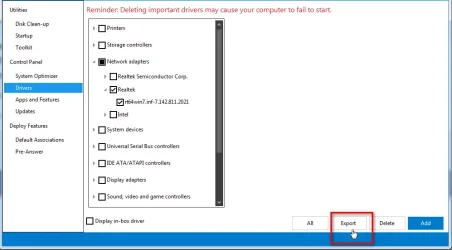
If you have them currently installed you could export them using dism++
you can choose to export only the driver you want by ticking it then click export
need to create a folder to export them to

dism++-export-selcted-driver.webp
 

My Computers

System One System Two

  • OS
    Win7,Win11
    Computer type
    PC/Desktop
    CPU
    i7-9700
    Motherboard
    gigabyte b365m ds3h
    Memory
    2x16gb 3600mhz
    Monitor(s) Displays
    benq gw2480
    PSU
    bequiet pure power 11 400CM
    Cooling
    cryorig m9i
  • Operating System
    win7,win11
    Computer type
    PC/Desktop
    CPU
    i5-8400
    Motherboard
    gigabyte b365m ds3h
    Memory
    2x8gb 3200
    PSU
    xfx pro 450
If you have them currently installed you could export them using dism++
you can choose to export only the driver you want by ticking it then click export
need to create a folder to export them to

View attachment 162745
@SIW2 once i export the driver how do i inject it into my windows 11 boot drive so that during a fresh windows 11 install the os will use those ethernet drivers instead of the microsodt generic drivers
 

My Computer

System One

  • OS
    windows 11
    Computer type
    PC/Desktop
    Manufacturer/Model
    custom built
    CPU
    ryzen 7800X3D
    Motherboard
    asrock B650E taichi lite
    Memory
    64GB 6000 Mhz Gskill CL32
    Graphics Card(s)
    asrock challenger 9070
    Sound Card
    soundblasterX AE-5 plus
    Monitor(s) Displays
    ASUS VG2791R
    Screen Resolution
    1920x1080P
    Hard Drives
    sabrent rocket Q4 1TB NVME
    PSU
    seasonic focus gold 1000 WATT from 2019
    Case
    phanteks enthoo primo
    Cooling
    arctic liquid freezer III pro 420mm aio
    Internet Speed
    300Mbps
    Browser
    chrome
    Antivirus
    windows defender
Follow up to my post...

If you really want to inject the drivers into a Windows image rather than using the a $OEM$ folder, let me know and I can set you up. I know that @tecknot already gave you a procedure, but I can add to that by showing you an automated way to do this.

My personal preference is to use the $OEM$ method because I find it difficult to manage so many customized ISO images with drivers injected. I used to do it that way, but it took too much storage space for me to carry all those customized images on a UFD and constant maintenance was a nightmare. By using the $OEM$ I can use the same Windows image for all my installations. I simply need to drop the right drivers for any given system into the $OEM$ folder.


I agree completely! But bear in mind that many of us are not "normal" users. For example, on some of my machines I reinstall Windows from scratch a minimum of once a week and often 5+ times a week. Yes, this is for testing purposes, but I need automated processes to make this all feasible and practical to do. When installing Windows that frequently, automating driver installation is not making it more difficult - it is making it HUGELY easier.

Just to give you an idea, by automating things, I can go from bare metal to fully installed Windows with all drivers installed, Windows fully customized, all my apps preloaded, and BitLocker enabled on C: BUT with a predefined BitLocker key that I have memorized for easy recovery in probably less than 10 minutes. I really should time it to get an exact timing, but you get the point.
@hsehestedt i simply just wanna install windows 11 and have it use my ethernet driver instead of the microsoft generic driver that way when windows boots for the first time the asrock driver will be installed as the primary driver
 

My Computer

System One

  • OS
    windows 11
    Computer type
    PC/Desktop
    Manufacturer/Model
    custom built
    CPU
    ryzen 7800X3D
    Motherboard
    asrock B650E taichi lite
    Memory
    64GB 6000 Mhz Gskill CL32
    Graphics Card(s)
    asrock challenger 9070
    Sound Card
    soundblasterX AE-5 plus
    Monitor(s) Displays
    ASUS VG2791R
    Screen Resolution
    1920x1080P
    Hard Drives
    sabrent rocket Q4 1TB NVME
    PSU
    seasonic focus gold 1000 WATT from 2019
    Case
    phanteks enthoo primo
    Cooling
    arctic liquid freezer III pro 420mm aio
    Internet Speed
    300Mbps
    Browser
    chrome
    Antivirus
    windows defender
@SIW2 once i export the driver how do i inject it into my windows 11 boot drive so that during a fresh windows 11 install the os will use those ethernet drivers instead of the microsodt generic drivers
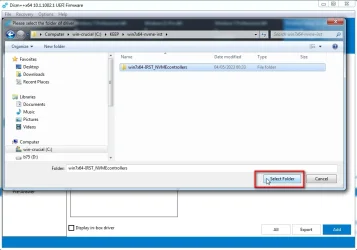
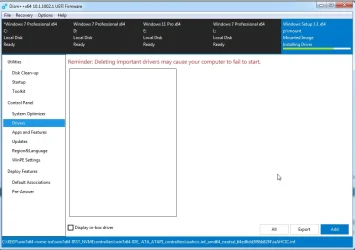
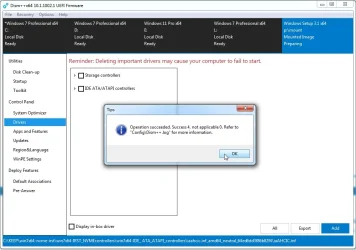
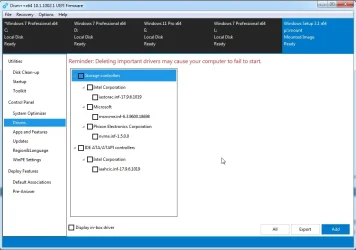
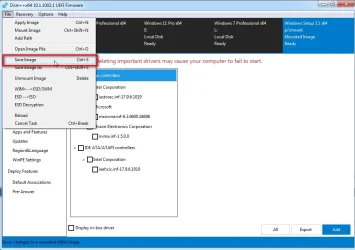
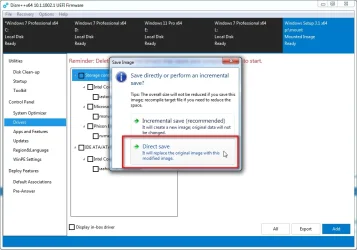
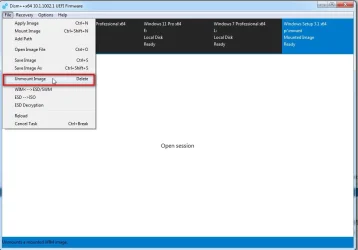
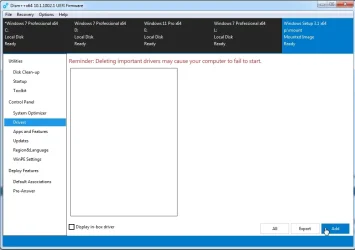
mount the image from install.wim into any empty folder

click open session

click Drivers in the left pane

click ADD

browse to the drivers folder you created

1-2023-05-04_003507.webp


2-2023-05-04_003623.webp


3-2023-05-04_003623-2.webp

4-2023-05-04_003728.webp


5-2023-05-04_003804.webp

6-2023-05-04_003839.webp

7-2023-05-04_003914.webp

8-2023-05-04_004004.webp
 

My Computers

System One System Two

  • OS
    Win7,Win11
    Computer type
    PC/Desktop
    CPU
    i7-9700
    Motherboard
    gigabyte b365m ds3h
    Memory
    2x16gb 3600mhz
    Monitor(s) Displays
    benq gw2480
    PSU
    bequiet pure power 11 400CM
    Cooling
    cryorig m9i
  • Operating System
    win7,win11
    Computer type
    PC/Desktop
    CPU
    i5-8400
    Motherboard
    gigabyte b365m ds3h
    Memory
    2x8gb 3200
    PSU
    xfx pro 450
As an alternative you could simply drop that $OEM$ folder in the \sources folder and add your Ethernet driver. It will be installed automatically during installing. That's why I went through all the effort and time to post my earlier post.

It takes me about 30 to 60 seconds to do this so if I can do it that fast it must really be easy :-)
 

My Computers

System One System Two

  • OS
    Win11 Pro 25H2 (RTM+)
    Computer type
    PC/Desktop
    Manufacturer/Model
    Acemagic
    CPU
    Intel i7-14650HX
    Memory
    32 GB
    Graphics Card(s)
    No GPU - Built-in Intel Graphics
    Sound Card
    Integrated
    Monitor(s) Displays
    Varies as machine will often be moved to locations with different monitors
    Screen Resolution
    Varies
    Hard Drives
    1 x 1TB Gen 4 NVMe SSD
    PSU
    120W Power Brick
    Keyboard
    Corsair K70 Max RGB Magnetic Keyboard
    Mouse
    Logitech MX Master 3
    Internet Speed
    1Gb Up / 1 Gb Down
    Browser
    Edge
    Antivirus
    Windows Defender
  • Operating System
    Win11 Pro 25H2 (RTM+)
    Computer type
    Laptop
    Manufacturer/Model
    Lenovo ThinkBook 13x Gen 2
    CPU
    Intel i7-1255U
    Memory
    16 GB
    Graphics card(s)
    Intel Iris Xe Graphics
    Sound Card
    Realtek® ALC3306-CG codec
    Monitor(s) Displays
    13.3-inch IPS Display
    Screen Resolution
    WQXGA (2560 x 1600)
    Hard Drives
    2 TB 4 x 4 NVMe SSD
    PSU
    USB-C / Thunderbolt 4 Power / Charging
    Keyboard
    Backlit, spill resistant keyboard
    Mouse
    Buttonless Glass Precision Touchpad
    Internet Speed
    1Gb Up / 1Gb Down
    Browser
    Edge
    Antivirus
    Windows Defender
    Other Info
    WiFi 6e / Bluetooth 5.1 / Facial Recognition / Fingerprint Sensor / ToF (Time of Flight) Human Presence Sensor
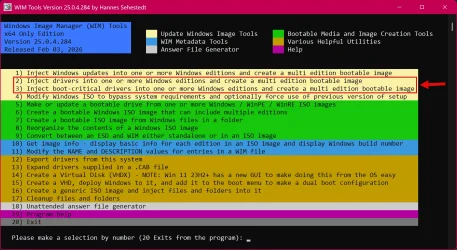
I really don't want to add any confusion here, but if yu are looking for a super easy way to add your driver(s) to a Windows image, you can use my program...

Image1.webp

Is this is of any interest to you, let me know and I will write a step-by-step procedure for you.
 

My Computers

System One System Two

  • OS
    Win11 Pro 25H2 (RTM+)
    Computer type
    PC/Desktop
    Manufacturer/Model
    Acemagic
    CPU
    Intel i7-14650HX
    Memory
    32 GB
    Graphics Card(s)
    No GPU - Built-in Intel Graphics
    Sound Card
    Integrated
    Monitor(s) Displays
    Varies as machine will often be moved to locations with different monitors
    Screen Resolution
    Varies
    Hard Drives
    1 x 1TB Gen 4 NVMe SSD
    PSU
    120W Power Brick
    Keyboard
    Corsair K70 Max RGB Magnetic Keyboard
    Mouse
    Logitech MX Master 3
    Internet Speed
    1Gb Up / 1 Gb Down
    Browser
    Edge
    Antivirus
    Windows Defender
  • Operating System
    Win11 Pro 25H2 (RTM+)
    Computer type
    Laptop
    Manufacturer/Model
    Lenovo ThinkBook 13x Gen 2
    CPU
    Intel i7-1255U
    Memory
    16 GB
    Graphics card(s)
    Intel Iris Xe Graphics
    Sound Card
    Realtek® ALC3306-CG codec
    Monitor(s) Displays
    13.3-inch IPS Display
    Screen Resolution
    WQXGA (2560 x 1600)
    Hard Drives
    2 TB 4 x 4 NVMe SSD
    PSU
    USB-C / Thunderbolt 4 Power / Charging
    Keyboard
    Backlit, spill resistant keyboard
    Mouse
    Buttonless Glass Precision Touchpad
    Internet Speed
    1Gb Up / 1Gb Down
    Browser
    Edge
    Antivirus
    Windows Defender
    Other Info
    WiFi 6e / Bluetooth 5.1 / Facial Recognition / Fingerprint Sensor / ToF (Time of Flight) Human Presence Sensor

Latest Support Threads

Back
Top Bottom