
Hello everyone.
Special thanks to @garlin and @hsehestedt .
1. Download CorrectVersion batch file from following link Download attachment Extract this zip file.
Open CorrectVersion in notepad by right clicking on Edit in Notepad and then add pause at the end of page. Save and exit.
2. Download WIM Tools from link https://github.com/hsehestedt/WIM-Tools/archive/refs/tags/v24.3.3.273.zip Extract this zip file.
Also download wimlib from link https://wimlib.net/downloads/wimlib-1.14.4-windows-x86_64-bin.zip. Extract zip folder. Open wiminfo script by right clicking on it to click Edit in Notepad and then add pause at the end of page. Save and exit. Download Windows 11 iso having install.esd OR install.wim from Microsoft official website.
3 Make new folder in C: drive, give any name say OS BUILD. Copy CorrectVersion.bat and wiminfo to this folder. Mount downloaded Windows 11 iso created by Media creation tool by choosing iso option. Say the virtual drive is N.It will have install.esd in sources folder.
4. Keep internet ON. Run cmd as administrator. Press Enter after each command.
C:\windows\system32>c:
C:>cd OS BUILD
C:\OS BUILD> CorrectVersion "N:\sources\install.esd"
Index Name Arch Edition Update Build
1 Windows 11 Home x64 Core 26100.2033
2 Windows 11 Home N x64 CoreN 26100.2033
3 Windows 11 Home Single Language x64 CoreSingleLanguage 26100.2033
4 Windows 11 Education x64 Education 26100.2033
5 Windows 11 Education N x64 EducationN 26100.2033
6 Windows 11 Pro x64 Professional 26100.2033
7 Windows 11 Pro N x64 ProfessionalN 26100.2033
Note:- Four files are simultaneously downloaded namely wimlib- imagex , libwim-15.dll , offreg.dll and offlinereg-win32 in folder OS BUILD.
6. This is once forever. Now turn internet OFF. CorrectVersion now also works when you turn off internet as the necessary files are already downloaded.
7. Create two folders namely PROJECT and OUTPUT in C: drive. The folder names are to be replaced by user's choice.
8. Install windows kits ADK and PE add on in Windows 11 OS in pc. Run WIM Tools as administrator. Type 9 to convert install.esd to install.wim in Windows 11 iso created by media creation tool by choosing iso option. Name this newly created iso as Wiindows11 ESD2WIM. This step is not necessary if sources folder of windows 11 has install.wim
9 Then use option 4 to modify Wiindows11 ESD2WIM to bypass system requirements to install on unsupported hardware in pc, named as Bypass Windows 11 and saved in folder PROJECT. This step is not necessary for supported hardware in pc for windows 11.
10. Now use option 11 to update name and description of any edition in Windows 11 iso created by following steps 8 and 9 .
To proceed, input the fields in the following messages as below:-
Enter the full path to the ISO image file that you want to work with.
Include the file name and extension: "C:\PROJECT\Bypass Windows 11.iso"
{Right click on Bypass Windows 11.iso in C:\PROJECT and select copy as path and paste in the field asking to include file name and extension.}
Note that you can save your updated image to the same location where the original is located.
You can even use the same file name if you want to update that file in its current location.
Enter the destination path without a file name or extension: "C:\OUTPUT"
Enter the name of the ISO image file to create WITHOUT an extension: Modified Windows 11
Enter the volume name to give the ISO image or press ENTER for none (32 characters maximum).
Volume name or ENTER for none:
Press Enter
> To view a list of available indices along with the current NAME and DESCRIPTION for each, press ENTER.
Otherwise, enter the index number for the edition to be updated and press ENTER.
Index Number: 6
Enter the NAME to assign to this entry: Windows 11 Professioanl
Enter the DESCRIPTION to assign to this entry: v24H2 Build 26100 2033
Do you want to update another Windows edition in the SAME image file? Y
> To view a list of available indices along with the current NAME and DESCRIPTION for each, press ENTER.
Otherwise, enter the index number for the edition to be updated and press ENTER.
Index Number: 1
Enter the NAME to assign to this entry: Windows 11 Home
Enter the DESCRIPTION to assign to this entry: v24H2 Build 26100 2033
Do you want to update another Windows edition in the SAME image file? N
********************************
* Creating the final ISO image *
********************************
*******************************
* Cleaning up temporary files *
*******************************
*********************
* Project completed *
*********************
The final image file can be found here:
Location: C:\OUTPUT\
File name: Modified Windows 11.ISO
Press any key to continue...
Now mount Modified Windows 11 iso to virtual drive by right clicking and clicking Mount. Drive letter is O
Now Run cmd as administrator
Microsoft Windows [Version 10.0.26100.4061]
(c) Microsoft Corporation. All rights reserved.
C:\Windows\System32>cd\
C:\>cd OS BUILD
C:\OS BUILD>wiminfo "O:\sources\install.wim"
WIM Information:
----------------
Path: O:\sources\install.wim
GUID: 0x123fc4e9ca3ac54bbd7d06502c5c7382
Version: 68864
Image Count: 7
Compression: LZX
Chunk Size: 32768 bytes
Part Number: 1/1
Boot Index: 0
Size: 5370570166 bytes
Attributes: Integrity info, Relative path junction
Available Images:
-----------------
Index: 1
Name: Windows 11 Home
Description: v24H2 Build 26100 2033
Directory Count: 28180
File Count: 127662
Total Bytes: 20081105224
Hard Link Bytes: 8780856352
Creation Time: Sat Oct 05 00:45:03 2024 UTC
Last Modification Time: Fri Jun 06 13:51:29 2025 UTC
Architecture: x86_64
Product Name: Microsoft« Windows« Operating System
Edition ID: Core
Installation Type: server
Product Type: WinNT
Product Suite: Terminal Server
Languages: en-US
Default Language: en-US
System Root: WINDOWS
Major Version: 10
Minor Version: 0
Build: 26100
Service Pack Build: 2033
Service Pack Level: 0
Flags: Core
WIMBoot compatible: no
Index: 2
Name: Windows 11 Home N
Description: Windows 11 Home N
Display Name: Windows 11 Home N
Display Description: Windows 11 Home N
Directory Count: 27345
File Count: 121290
Total Bytes: 19525115345
Hard Link Bytes: 8570337367
Creation Time: Sat Oct 05 00:44:14 2024 UTC
Last Modification Time: Fri Jun 06 12:22:10 2025 UTC
Architecture: x86_64
Product Name: Microsoft« Windows« Operating System
Edition ID: CoreN
Installation Type: server
Product Type: WinNT
Product Suite: Terminal Server
Languages: en-US
Default Language: en-US
System Root: WINDOWS
Major Version: 10
Minor Version: 0
Build: 26100
Service Pack Build: 2033
Service Pack Level: 0
Flags: CoreN
WIMBoot compatible: no
Index: 3
Name: Windows 11 Home Single Language
Description: Windows 11 Home Single Language
Display Name: Windows 11 Home Single Language
Display Description: Windows 11 Home Single Language
Directory Count: 28180
File Count: 127663
Total Bytes: 20060920469
Hard Link Bytes: 8780856352
Creation Time: Sat Oct 05 00:48:31 2024 UTC
Last Modification Time: Fri Jun 06 12:24:23 2025 UTC
Architecture: x86_64
Product Name: Microsoft« Windows« Operating System
Edition ID: CoreSingleLanguage
Installation Type: server
Product Type: WinNT
Product Suite: Terminal Server
Languages: en-US
Default Language: en-US
System Root: WINDOWS
Major Version: 10
Minor Version: 0
Build: 26100
Service Pack Build: 2033
Service Pack Level: 0
Flags: CoreSingleLanguage
WIMBoot compatible: no
Index: 4
Name: Windows 11 Education
Description: Windows 11 Education
Display Name: Windows 11 Education
Display Description: Windows 11 Education
Directory Count: 28221
File Count: 127711
Total Bytes: 20542250891
Hard Link Bytes: 9050319851
Creation Time: Sat Oct 05 00:46:38 2024 UTC
Last Modification Time: Fri Jun 06 12:27:03 2025 UTC
Architecture: x86_64
Product Name: Microsoft« Windows« Operating System
Edition ID: Education
Installation Type: server
Product Type: WinNT
Product Suite: Terminal Server
Languages: en-US
Default Language: en-US
System Root: WINDOWS
Major Version: 10
Minor Version: 0
Build: 26100
Service Pack Build: 2033
Service Pack Level: 0
Flags: Education
WIMBoot compatible: no
Index: 5
Name: Windows 11 Education N
Description: Windows 11 Education N
Display Name: Windows 11 Education N
Display Description: Windows 11 Education N
Directory Count: 27396
File Count: 121585
Total Bytes: 19981676599
Hard Link Bytes: 8838413205
Creation Time: Sat Oct 05 00:46:00 2024 UTC
Last Modification Time: Fri Jun 06 12:29:28 2025 UTC
Architecture: x86_64
Product Name: Microsoft« Windows« Operating System
Edition ID: EducationN
Installation Type: server
Product Type: WinNT
Product Suite: Terminal Server
Languages: en-US
Default Language: en-US
System Root: WINDOWS
Major Version: 10
Minor Version: 0
Build: 26100
Service Pack Build: 2033
Service Pack Level: 0
Flags: EducationN
WIMBoot compatible: no
Index: 6
Name: Windows 11 Professioanl
Description: v24H2 Build 26100 2033
Directory Count: 28221
File Count: 127710
Total Bytes: 20562945188
Hard Link Bytes: 9050319851
Creation Time: Sat Oct 05 00:43:09 2024 UTC
Last Modification Time: Fri Jun 06 13:45:05 2025 UTC
Architecture: x86_64
Product Name: Microsoft« Windows« Operating System
Edition ID: Professional
Installation Type: server
Product Type: WinNT
Product Suite: Terminal Server
Languages: en-US
Default Language: en-US
System Root: WINDOWS
Major Version: 10
Minor Version: 0
Build: 26100
Service Pack Build: 2033
Service Pack Level: 0
Flags: Professional
WIMBoot compatible: no
Index: 7
Name: Windows 11 Pro N
Description: Windows 11 Pro N
Display Name: Windows 11 Pro N
Display Description: Windows 11 Pro N
Directory Count: 27396
File Count: 121584
Total Bytes: 20001038222
Hard Link Bytes: 8838413205
Creation Time: Sat Oct 05 00:42:32 2024 UTC
Last Modification Time: Fri Jun 06 12:34:05 2025 UTC
Architecture: x86_64
Product Name: Microsoft« Windows« Operating System
Edition ID: ProfessionalN
Installation Type: server
Product Type: WinNT
Product Suite: Terminal Server
Languages: en-US
Default Language: en-US
System Root: WINDOWS
Major Version: 10
Minor Version: 0
Build: 26100
Service Pack Build: 2033
Service Pack Level: 0
Flags: ProfessionalN
WIMBoot compatible: no
Press any key to continue . . .
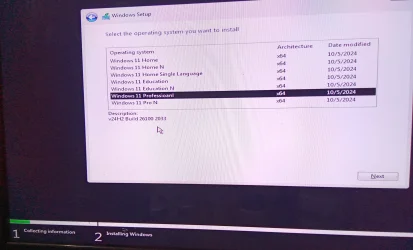
I have applied the description as v24H2 Build 26100 2033 to Windows 11 Professional and Home editions only. Plese see indices 1 and 6 in above wiminfo.
Also , please see images attached herewith which shows default description to Windows 11 Home N and Windows 11 Pro N.
Use Rufus to make bootable usb for Windows 11 v24H2 OS BUILD 26100.2033
Thanks for reading and sharing your valuable time.
Comments/feedback/suggestions are appreciated.
Special thanks to @garlin and @hsehestedt .
1. Download CorrectVersion batch file from following link Download attachment Extract this zip file.
Open CorrectVersion in notepad by right clicking on Edit in Notepad and then add pause at the end of page. Save and exit.
2. Download WIM Tools from link https://github.com/hsehestedt/WIM-Tools/archive/refs/tags/v24.3.3.273.zip Extract this zip file.
Also download wimlib from link https://wimlib.net/downloads/wimlib-1.14.4-windows-x86_64-bin.zip. Extract zip folder. Open wiminfo script by right clicking on it to click Edit in Notepad and then add pause at the end of page. Save and exit. Download Windows 11 iso having install.esd OR install.wim from Microsoft official website.
3 Make new folder in C: drive, give any name say OS BUILD. Copy CorrectVersion.bat and wiminfo to this folder. Mount downloaded Windows 11 iso created by Media creation tool by choosing iso option. Say the virtual drive is N.It will have install.esd in sources folder.
4. Keep internet ON. Run cmd as administrator. Press Enter after each command.
C:\windows\system32>c:
C:>cd OS BUILD
C:\OS BUILD> CorrectVersion "N:\sources\install.esd"
Index Name Arch Edition Update Build
1 Windows 11 Home x64 Core 26100.2033
2 Windows 11 Home N x64 CoreN 26100.2033
3 Windows 11 Home Single Language x64 CoreSingleLanguage 26100.2033
4 Windows 11 Education x64 Education 26100.2033
5 Windows 11 Education N x64 EducationN 26100.2033
6 Windows 11 Pro x64 Professional 26100.2033
7 Windows 11 Pro N x64 ProfessionalN 26100.2033
Note:- Four files are simultaneously downloaded namely wimlib- imagex , libwim-15.dll , offreg.dll and offlinereg-win32 in folder OS BUILD.
6. This is once forever. Now turn internet OFF. CorrectVersion now also works when you turn off internet as the necessary files are already downloaded.
7. Create two folders namely PROJECT and OUTPUT in C: drive. The folder names are to be replaced by user's choice.
8. Install windows kits ADK and PE add on in Windows 11 OS in pc. Run WIM Tools as administrator. Type 9 to convert install.esd to install.wim in Windows 11 iso created by media creation tool by choosing iso option. Name this newly created iso as Wiindows11 ESD2WIM. This step is not necessary if sources folder of windows 11 has install.wim
9 Then use option 4 to modify Wiindows11 ESD2WIM to bypass system requirements to install on unsupported hardware in pc, named as Bypass Windows 11 and saved in folder PROJECT. This step is not necessary for supported hardware in pc for windows 11.
10. Now use option 11 to update name and description of any edition in Windows 11 iso created by following steps 8 and 9 .
To proceed, input the fields in the following messages as below:-
Enter the full path to the ISO image file that you want to work with.
Include the file name and extension: "C:\PROJECT\Bypass Windows 11.iso"
{Right click on Bypass Windows 11.iso in C:\PROJECT and select copy as path and paste in the field asking to include file name and extension.}
Note that you can save your updated image to the same location where the original is located.
You can even use the same file name if you want to update that file in its current location.
Enter the destination path without a file name or extension: "C:\OUTPUT"
Enter the name of the ISO image file to create WITHOUT an extension: Modified Windows 11
Enter the volume name to give the ISO image or press ENTER for none (32 characters maximum).
Volume name or ENTER for none:
Press Enter
> To view a list of available indices along with the current NAME and DESCRIPTION for each, press ENTER.
Otherwise, enter the index number for the edition to be updated and press ENTER.
Index Number: 6
Enter the NAME to assign to this entry: Windows 11 Professioanl
Enter the DESCRIPTION to assign to this entry: v24H2 Build 26100 2033
Do you want to update another Windows edition in the SAME image file? Y
> To view a list of available indices along with the current NAME and DESCRIPTION for each, press ENTER.
Otherwise, enter the index number for the edition to be updated and press ENTER.
Index Number: 1
Enter the NAME to assign to this entry: Windows 11 Home
Enter the DESCRIPTION to assign to this entry: v24H2 Build 26100 2033
Do you want to update another Windows edition in the SAME image file? N
********************************
* Creating the final ISO image *
********************************
*******************************
* Cleaning up temporary files *
*******************************
*********************
* Project completed *
*********************
The final image file can be found here:
Location: C:\OUTPUT\
File name: Modified Windows 11.ISO
Press any key to continue...
Now mount Modified Windows 11 iso to virtual drive by right clicking and clicking Mount. Drive letter is O
Now Run cmd as administrator
Microsoft Windows [Version 10.0.26100.4061]
(c) Microsoft Corporation. All rights reserved.
C:\Windows\System32>cd\
C:\>cd OS BUILD
C:\OS BUILD>wiminfo "O:\sources\install.wim"
WIM Information:
----------------
Path: O:\sources\install.wim
GUID: 0x123fc4e9ca3ac54bbd7d06502c5c7382
Version: 68864
Image Count: 7
Compression: LZX
Chunk Size: 32768 bytes
Part Number: 1/1
Boot Index: 0
Size: 5370570166 bytes
Attributes: Integrity info, Relative path junction
Available Images:
-----------------
Index: 1
Name: Windows 11 Home
Description: v24H2 Build 26100 2033
Directory Count: 28180
File Count: 127662
Total Bytes: 20081105224
Hard Link Bytes: 8780856352
Creation Time: Sat Oct 05 00:45:03 2024 UTC
Last Modification Time: Fri Jun 06 13:51:29 2025 UTC
Architecture: x86_64
Product Name: Microsoft« Windows« Operating System
Edition ID: Core
Installation Type: server
Product Type: WinNT
Product Suite: Terminal Server
Languages: en-US
Default Language: en-US
System Root: WINDOWS
Major Version: 10
Minor Version: 0
Build: 26100
Service Pack Build: 2033
Service Pack Level: 0
Flags: Core
WIMBoot compatible: no
Index: 2
Name: Windows 11 Home N
Description: Windows 11 Home N
Display Name: Windows 11 Home N
Display Description: Windows 11 Home N
Directory Count: 27345
File Count: 121290
Total Bytes: 19525115345
Hard Link Bytes: 8570337367
Creation Time: Sat Oct 05 00:44:14 2024 UTC
Last Modification Time: Fri Jun 06 12:22:10 2025 UTC
Architecture: x86_64
Product Name: Microsoft« Windows« Operating System
Edition ID: CoreN
Installation Type: server
Product Type: WinNT
Product Suite: Terminal Server
Languages: en-US
Default Language: en-US
System Root: WINDOWS
Major Version: 10
Minor Version: 0
Build: 26100
Service Pack Build: 2033
Service Pack Level: 0
Flags: CoreN
WIMBoot compatible: no
Index: 3
Name: Windows 11 Home Single Language
Description: Windows 11 Home Single Language
Display Name: Windows 11 Home Single Language
Display Description: Windows 11 Home Single Language
Directory Count: 28180
File Count: 127663
Total Bytes: 20060920469
Hard Link Bytes: 8780856352
Creation Time: Sat Oct 05 00:48:31 2024 UTC
Last Modification Time: Fri Jun 06 12:24:23 2025 UTC
Architecture: x86_64
Product Name: Microsoft« Windows« Operating System
Edition ID: CoreSingleLanguage
Installation Type: server
Product Type: WinNT
Product Suite: Terminal Server
Languages: en-US
Default Language: en-US
System Root: WINDOWS
Major Version: 10
Minor Version: 0
Build: 26100
Service Pack Build: 2033
Service Pack Level: 0
Flags: CoreSingleLanguage
WIMBoot compatible: no
Index: 4
Name: Windows 11 Education
Description: Windows 11 Education
Display Name: Windows 11 Education
Display Description: Windows 11 Education
Directory Count: 28221
File Count: 127711
Total Bytes: 20542250891
Hard Link Bytes: 9050319851
Creation Time: Sat Oct 05 00:46:38 2024 UTC
Last Modification Time: Fri Jun 06 12:27:03 2025 UTC
Architecture: x86_64
Product Name: Microsoft« Windows« Operating System
Edition ID: Education
Installation Type: server
Product Type: WinNT
Product Suite: Terminal Server
Languages: en-US
Default Language: en-US
System Root: WINDOWS
Major Version: 10
Minor Version: 0
Build: 26100
Service Pack Build: 2033
Service Pack Level: 0
Flags: Education
WIMBoot compatible: no
Index: 5
Name: Windows 11 Education N
Description: Windows 11 Education N
Display Name: Windows 11 Education N
Display Description: Windows 11 Education N
Directory Count: 27396
File Count: 121585
Total Bytes: 19981676599
Hard Link Bytes: 8838413205
Creation Time: Sat Oct 05 00:46:00 2024 UTC
Last Modification Time: Fri Jun 06 12:29:28 2025 UTC
Architecture: x86_64
Product Name: Microsoft« Windows« Operating System
Edition ID: EducationN
Installation Type: server
Product Type: WinNT
Product Suite: Terminal Server
Languages: en-US
Default Language: en-US
System Root: WINDOWS
Major Version: 10
Minor Version: 0
Build: 26100
Service Pack Build: 2033
Service Pack Level: 0
Flags: EducationN
WIMBoot compatible: no
Index: 6
Name: Windows 11 Professioanl
Description: v24H2 Build 26100 2033
Directory Count: 28221
File Count: 127710
Total Bytes: 20562945188
Hard Link Bytes: 9050319851
Creation Time: Sat Oct 05 00:43:09 2024 UTC
Last Modification Time: Fri Jun 06 13:45:05 2025 UTC
Architecture: x86_64
Product Name: Microsoft« Windows« Operating System
Edition ID: Professional
Installation Type: server
Product Type: WinNT
Product Suite: Terminal Server
Languages: en-US
Default Language: en-US
System Root: WINDOWS
Major Version: 10
Minor Version: 0
Build: 26100
Service Pack Build: 2033
Service Pack Level: 0
Flags: Professional
WIMBoot compatible: no
Index: 7
Name: Windows 11 Pro N
Description: Windows 11 Pro N
Display Name: Windows 11 Pro N
Display Description: Windows 11 Pro N
Directory Count: 27396
File Count: 121584
Total Bytes: 20001038222
Hard Link Bytes: 8838413205
Creation Time: Sat Oct 05 00:42:32 2024 UTC
Last Modification Time: Fri Jun 06 12:34:05 2025 UTC
Architecture: x86_64
Product Name: Microsoft« Windows« Operating System
Edition ID: ProfessionalN
Installation Type: server
Product Type: WinNT
Product Suite: Terminal Server
Languages: en-US
Default Language: en-US
System Root: WINDOWS
Major Version: 10
Minor Version: 0
Build: 26100
Service Pack Build: 2033
Service Pack Level: 0
Flags: ProfessionalN
WIMBoot compatible: no
Press any key to continue . . .
I have applied the description as v24H2 Build 26100 2033 to Windows 11 Professional and Home editions only. Plese see indices 1 and 6 in above wiminfo.
Also , please see images attached herewith which shows default description to Windows 11 Home N and Windows 11 Pro N.
Use Rufus to make bootable usb for Windows 11 v24H2 OS BUILD 26100.2033
Thanks for reading and sharing your valuable time.
Comments/feedback/suggestions are appreciated.
Attachments


Last edited:






