The biggest problem is just finding the right drivers. You might think "pnputil /export-driver" from the live system, but the OP's complaining that it's not the right drivers to begin with.
My Computer
At a glance
Windows 7
- OS
- Windows 7

Follow along with the video below to see how to install our site as a web app on your home screen.
Note: This feature may not be available in some browsers.
Doesn't work. You're assuming all Intel driver installers are written the same. There is no extract option.See the extract method used for IRST in this Asus video:
https://www.google.com/search?q=during+a+clean+install+irst+can+first+be+downloaded+then+extracted+and+saved+on+the+flash+drive+with+the+MCT%2FISO.++during+the+clean+install+load+driver+can+be+clicked+to+load+this+driver.++can+other+drivers+be+loaded+in+this+fashion+like+ethernet+and+wifi+or+is+this+only+for+irst&sca_esv=e5f3872605fd4577&ei=armKacnYEM_9ptQPi9re8AU&biw=1920&bih=953&ved=0ahUKEwjJtdedkM6SAxXPvokEHQutF14Q4dUDCBQ&uact=5&oq=during+a+clean+install+irst+can+first+be+downloaded+then+extracted+and+saved+on+the+flash+drive+with+the+MCT%2FISO.++during+the+clean+install+load+driver+can+be+clicked+to+load+this+driver.++can+other+drivers+be+loaded+in+this+fashion+like+ethernet+and+wifi+or+is+this+only+for+irst&gs_lp=Egxnd3Mtd2l6LXNlcnAimAJkdXJpbmcgYSBjbGVhbiBpbnN0YWxsIGlyc3QgY2FuIGZpcnN0IGJlIGRvd25sb2FkZWQgdGhlbiBleHRyYWN0ZWQgYW5kIHNhdmVkIG9uIHRoZSBmbGFzaCBkcml2ZSB3aXRoIHRoZSBNQ1QvSVNPLiAgZHVyaW5nIHRoZSBjbGVhbiBpbnN0YWxsIGxvYWQgZHJpdmVyIGNhbiBiZSBjbGlja2VkIHRvIGxvYWQgdGhpcyBkcml2ZXIuICBjYW4gb3RoZXIgZHJpdmVycyBiZSBsb2FkZWQgaW4gdGhpcyBmYXNoaW9uIGxpa2UgZXRoZXJuZXQgYW5kIHdpZmkgb3IgaXMgdGhpcyBvbmx5IGZvciBpcnN0SOyvElAAWK2WEnAAeAGQAQCYAXOgAYE7qgEFMTA2LjK4AQPIAQD4AQGYAj2gAu0nwgILEC4YgAQYkQIYigXCAgsQABiABBiRAhiKBcICDhAuGIAEGLEDGNEDGMcBwgILEC4YgAQYsQMYgwHCAgsQLhiABBjRAxjHAcICBRAAGIAEwgILEAAYgAQYsQMYgwHCAg4QABiABBixAxiDARiKBcICGhAuGIAEGJECGIoFGJcFGNwEGN4EGOAE2AEBwgIREC4YgAQYsQMY0QMYgwEYxwHCAggQABiABBixA8ICBRAuGIAEwgISEC4YgAQYsQMY0QMYxwEYChgLwgIMEAAYgAQYsQMYChgLwgILEC4YgAQYxwEYrwHCAhQQLhiABBiXBRjcBBjeBBjfBNgBAcICCBAuGIAEGLEDwgIKEAAYgAQYQxiKBcICFxAuGIAEGLEDGJcFGNwEGN4EGN8E2AEBwgIXEC4YgAQYsQMYlwUY3AQY3gQY4ATYAQHCAhAQABiABBixAxiDARhGGPkBwgIEEAAYA8ICKhAAGIAEGLEDGIMBGEYY-QEYlwUYjAUY3QQYRhj5ARj0Axj1Axj2A9gBAcICBRAAGO8FwgIIEAAYogQYiQXCAgYQABgWGB7CAgUQIRifBcICBRAhGKsCwgIFECEYoAHCAggQABiABBiiBMICCxAAGIAEGIYDGIoFwgIEECEYCpgDALoGBggBEAEYFJIHBDU2LjWgB7r8A7IHBDU2LjW4B-0nwgcLMC4yOS4yNy40LjHIB_YBgAgA&sclient=gws-wiz-serp&zx=1770699586581&no_sw_cr=1Yes, you can load other drivers like Ethernet and Wi-Fi during a clean install using the "Load driver" button, but it is rarely necessary because the Windows installation environment (WinPE) usually includes basic network drivers.
The "Load driver" feature is primarily intended for storage drivers (IRST)—necessary to detect the SSD/HDD—and is only for drivers with .inf, .sys, or .cat files, not .exe installers.
Key Takeaways for Pre-loading Drivers
Best Practice: The IRST driver is often essential for Intel 11th-gen or newer processors to detect the drive. Other drivers (Wi-Fi/LAN) can usually be installed after Windows is fully installed, as Windows Update will often find them automatically.
How to Load Additional Drivers:
Download and extract the Wifi/Ethernet drivers on your computer.
Copy the extracted folder (containing the .inf files) to the same USB drive as the installation media.
During the "Where do you want to install Windows?" step, click "Load driver".
Browse to the network driver folder and select it.
Alternative Method for Network Drivers: If you cannot get online to install drivers after the installation, you can bypass the network requirement entirely. When prompted to connect to a network, press Shift + F10, type oobe\bypassnro, and hit Enter to restart the setup and skip the step.
When to Load Non-Storage Drivers
You should only pre-load network drivers via "Load driver" if you are using a network-heavy installation method (like a cloud install) or if you want to skip the "oobe\bypassnro" method and have network access immediately upon reaching the desktop.
correct i have the asrock drivers from there site i just need to install them while windows is installing itselfThe biggest problem is just finding the right drivers. You might think "pnputil /export-driver" from the live system, but the OP's complaining that it's not the right drivers to begin with.

 github.com
 .
.
Just because something is possible to do, I don't understand why folks make things difficult. I agree with @antspants. For the normal user, I can not see a reason to insert any drivers into an iso.

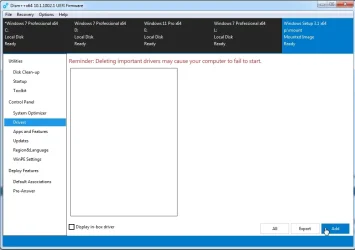
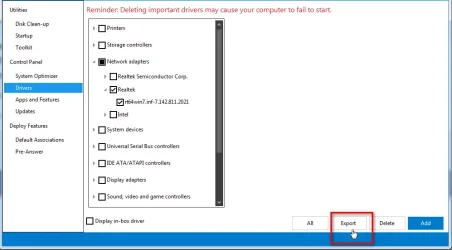
If you have them currently installed you could export them using dism++correct i have the asrock drivers from there site i just need to install them while windows is installing itself
@SIW2 once i export the driver how do i inject it into my windows 11 boot drive so that during a fresh windows 11 install the os will use those ethernet drivers instead of the microsodt generic driversIf you have them currently installed you could export them using dism++
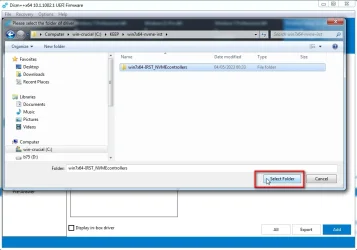
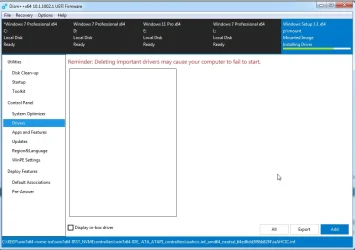
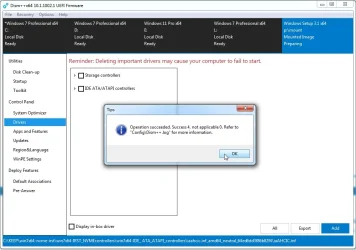
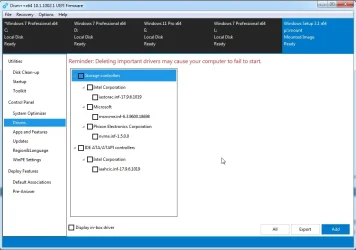
you can choose to export only the driver you want by ticking it then click export
need to create a folder to export them to
View attachment 162745
@hsehestedt i simply just wanna install windows 11 and have it use my ethernet driver instead of the microsoft generic driver that way when windows boots for the first time the asrock driver will be installed as the primary driverFollow up to my post...
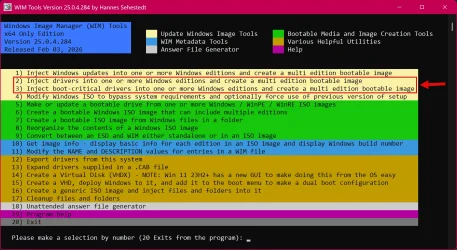
If you really want to inject the drivers into a Windows image rather than using the a $OEM$ folder, let me know and I can set you up. I know that @tecknot already gave you a procedure, but I can add to that by showing you an automated way to do this.
My personal preference is to use the $OEM$ method because I find it difficult to manage so many customized ISO images with drivers injected. I used to do it that way, but it took too much storage space for me to carry all those customized images on a UFD and constant maintenance was a nightmare. By using the $OEM$ I can use the same Windows image for all my installations. I simply need to drop the right drivers for any given system into the $OEM$ folder.
I agree completely! But bear in mind that many of us are not "normal" users. For example, on some of my machines I reinstall Windows from scratch a minimum of once a week and often 5+ times a week. Yes, this is for testing purposes, but I need automated processes to make this all feasible and practical to do. When installing Windows that frequently, automating driver installation is not making it more difficult - it is making it HUGELY easier.
Just to give you an idea, by automating things, I can go from bare metal to fully installed Windows with all drivers installed, Windows fully customized, all my apps preloaded, and BitLocker enabled on C: BUT with a predefined BitLocker key that I have memorized for easy recovery in probably less than 10 minutes. I really should time it to get an exact timing, but you get the point.
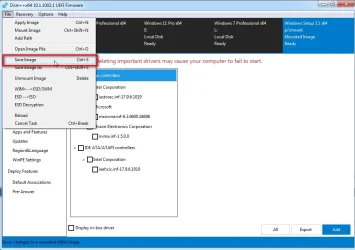
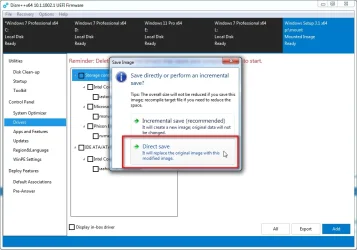
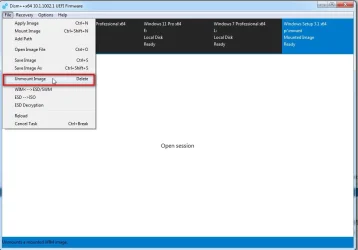
mount the image from install.wim into any empty folder@SIW2 once i export the driver how do i inject it into my windows 11 boot drive so that during a fresh windows 11 install the os will use those ethernet drivers instead of the microsodt generic drivers