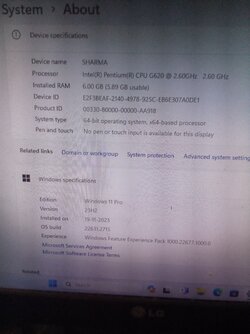
Install Windows 11 v 23H2 on unsupported pc without using command prompt by using bootable usb prepared manually within current Windows OS.


Ramesh Sharma

Well-known member
Member
Local time
2:43 PM
Posts
280
OS
Window 11 v24H2 Build 26100.2033
Please note that following steps are required to prepare bootable usb, manually.
PART A
Run CMD as administrator
C:\Windows\system32>Diskpart
DISKPART>List Disk
DISKPART>Select Disk #
DISKPART>clean
DISKPART>convert mbr
DISKPART>create partition primary size=2048
DISKPART>create partition primary
DISKPART>select partition 1
DISKPART>format fs=fat32 quick label="BOOT"
DISKPART>assign letter=x
DISKPART>active
DISKPART>select partition 2
DISKPART>format fs=ntfs quick label="INSTALL"
DISKPART>assign letter=y
DISKPART>exit
PART B
1. Extract bypass11 compressed zip folder to NTFS (INSTALL) Partition. All six files are extracted to root partition Y: We can copy and paste these files in Y:
2. These files are namely auto, AutoUnattend, Quick_11_iso_esd_wim_TPM_toggle, readme.md, Skip_TPM_Check_on_Dynamic_Update , windows_update_refresh.
3. Right click file auto to run as administrator.
4. Setup starts , proceed quickly checking updates, pc, free enough space, what to keep, without giving any chance to us to select. It is automatic. So as soon as setup completes 100% , quickly cancel the inplace upgrade process by clicking cancel or close button.
5. Even at 0% progress, we can cancell the upgradation. If you want to continue , keep it going on. But backup important data before clicking auto. I have found that , cancelling the installation progress at 0% did not erase anything. It may keep personal files unerased.
6. Bootable usb is ready to clean install Windows 11 23H2 with all 11 editions.
7. Skip or enter product key. If skipped we can select other edition from 11 available editions.
8. All files should always be in NTFS root partition Y: to install Windows 11 23H2 on unsupported pc .

PART C
1. To safely update from within current Windows, right click on file Quick_11_iso_esd_wim_TPM_toggle to run as administrator. This adds send to option to iso in context menu. It means that if we right click on the original iso downloaded from official website of Microsoft, it gives send to Quick_11_iso_esd_wim_TPM_toggle. This patches the working edition of current Windows 11 os.
2. Alternatively we can drag and drop the iso on file Quick_11_iso_esd_wim_TPM_toggle, this patches TPM. But to make bootable usb to clean install , file auto must be run as administrator, from within current Windows running on pc.

Thanks everyone for reading this thread.
 
Windows Build/Version
Windows 11 Home version 23H2 OS Build 22631.2428

Attachments

My Computer My Computer

At a glance

Window 11 v24H2 Build 26100.2033Intel(R) Core(TM) i3-2100 CPU @ 3.10GHz 3.10 GHz4.00 GB (3.89 GB usable)Onboard
OS
Window 11 v24H2 Build 26100.2033
Computer type
PC/Desktop
Manufacturer/Model
ASSEMMBLED
CPU
Intel(R) Core(TM) i3-2100 CPU @ 3.10GHz 3.10 GHz
Motherboard
ZEBRONICS
Memory
4.00 GB (3.89 GB usable)
Graphics Card(s)
Onboard
Sound Card
Onboard
Monitor(s) Displays
LG
Screen Resolution
1366x768
Hard Drives
Toshiba HDD 1 TB
Keyboard
Mechanical
Mouse
Mechanical
Internet Speed
700 kb/s
Browser
Microsoft EDGE, CHROME
Antivirus
Microsoft Defender
Please find compressed zip folder attached herewith.
 

Attachments

My Computer My Computer

At a glance

Window 11 v24H2 Build 26100.2033Intel(R) Core(TM) i3-2100 CPU @ 3.10GHz 3.10 GHz4.00 GB (3.89 GB usable)Onboard
OS
Window 11 v24H2 Build 26100.2033
Computer type
PC/Desktop
Manufacturer/Model
ASSEMMBLED
CPU
Intel(R) Core(TM) i3-2100 CPU @ 3.10GHz 3.10 GHz
Motherboard
ZEBRONICS
Memory
4.00 GB (3.89 GB usable)
Graphics Card(s)
Onboard
Sound Card
Onboard
Monitor(s) Displays
LG
Screen Resolution
1366x768
Hard Drives
Toshiba HDD 1 TB
Keyboard
Mechanical
Mouse
Mechanical
Internet Speed
700 kb/s
Browser
Microsoft EDGE, CHROME
Antivirus
Microsoft Defender
If you use the newly released .ISO in to-day's release of the MS MCTs, and use Rufus to create a bootable USB drive, you can by-pass all the compatibility checks when you iniate Rufus .
 

My Computer My Computer

At a glance

Windows 11 Pro 25H2 (Build 26200.8737)Intel Core Ultra 9 285 5.6 GHz32.00 GBIntel Integrated Graphics (128 MB)
OS
Windows 11 Pro 25H2 (Build 26200.8737)
Computer type
PC/Desktop
Manufacturer/Model
Dell Pro Max Tower T2 FCT2250
CPU
Intel Core Ultra 9 285 5.6 GHz
Motherboard
64-bit operating system, x64-based processor
Memory
32.00 GB
Graphics Card(s)
Intel Integrated Graphics (128 MB)
Sound Card
Realtek Audio
Monitor(s) Displays
Dell P2714H Monitor
Screen Resolution
1920 x 1080
Hard Drives
1 x 512GB M.2 XG10d SED KIOXIA PCIe solid state drive (Internal)
1 x 2TB Seagate ST2000DM008-2UB102 HDD (Internal)
1 x 1TB Seagate STGX4000400 External HDD
1 x 4TB Seagate STGX4000400 External HDD
1 x 6TB WD Elements AE 2689 External HDD
PSU
500 Watts
Cooling
Air
Keyboard
Microsoft Wired Keyboard 600
Mouse
Microsoft USB Basic Optical Mouse v2.0
Browser
Firefox
Antivirus
Windows Defender + Malwarebytes Premium
Other Info
BaseBoard Manufacturer Dell Inc.
BaseBoard Product 022RY57
BaseBoard Version A01
If you use the newly released .ISO in to-day's release of the MS MCTs, and use Rufus to create a bootable USB drive, you can by-pass all the compatibility checks when you iniate Rufus .
Absolute Genius 😎😎😎
 

My Computers My Computers

  • At a glance

    Windows 11 Pro 22631.3810/Windows 11 RP 24H2 VMIntel Celeron N4000 @ 1.10GHz Gemini Lake 14nm8GB RamIntel UHD Graphics 600 (Lenovo)
    OS
    Windows 11 Pro 22631.3810/Windows 11 RP 24H2 VM
    Computer type
    Laptop
    Manufacturer/Model
    Lenovo
    CPU
    Intel Celeron N4000 @ 1.10GHz Gemini Lake 14nm
    Motherboard
    LENOVO LNVNB161216 (U3E1)
    Memory
    8GB Ram
    Graphics Card(s)
    Intel UHD Graphics 600 (Lenovo)
    Sound Card
    Realtek High Definition Audio Intel Display Audio
    Monitor(s) Displays
    Generic PnP Monitor (1920x1080@60Hz)
    Screen Resolution
    1920x1080
    Hard Drives
    512GB Western Digital WDC PC SN530 SDBPMPZ-512G-1101 (Unknown (SSD))
    Keyboard
    Laptop Keyboard
    Mouse
    G5 Gaming Mouse
    Internet Speed
    50mbps/50mbps
    Browser
    Chrome/Edge
    Antivirus
    Microsoft Defender
  • At a glance

    Windows 11 RP 24H2 VMIntel Celeron N4000 @ 1.10GHz Gemini Lake 14nm8GB RamIntel UHD Graphics 600 (Lenovo)
    Operating System
    Windows 11 RP 24H2 VM
    Computer type
    Laptop
    Manufacturer/Model
    Lenovo
    CPU
    Intel Celeron N4000 @ 1.10GHz Gemini Lake 14nm
    Motherboard
    LENOVO LNVNB161216 (U3E1)
    Memory
    8GB Ram
    Graphics card(s)
    Intel UHD Graphics 600 (Lenovo)
    Sound Card
    Realtek High Definition Audio Intel Display Audio
    Monitor(s) Displays
    Generic PnP Monitor (1920x1080@60Hz)
    Screen Resolution
    1920x1080
    Keyboard
    Laptop Keyboard
    Mouse
    G5 Gaming Mouse
    Internet Speed
    50mbps/50mbps
    Browser
    Chrome/Edge
    Antivirus
    Microsoft Defender
I have assumed that all files from mounted iso of Windows 11 v 23H2 are copied to NTFS partition. Excluding sources folder, all files are copied to FAT32 partition. Manually create sources folder in FAT32 partition, cut boot.wim from Y:\sources and paste in X:\sources.
 

My Computer My Computer

At a glance

Window 11 v24H2 Build 26100.2033Intel(R) Core(TM) i3-2100 CPU @ 3.10GHz 3.10 GHz4.00 GB (3.89 GB usable)Onboard
OS
Window 11 v24H2 Build 26100.2033
Computer type
PC/Desktop
Manufacturer/Model
ASSEMMBLED
CPU
Intel(R) Core(TM) i3-2100 CPU @ 3.10GHz 3.10 GHz
Motherboard
ZEBRONICS
Memory
4.00 GB (3.89 GB usable)
Graphics Card(s)
Onboard
Sound Card
Onboard
Monitor(s) Displays
LG
Screen Resolution
1366x768
Hard Drives
Toshiba HDD 1 TB
Keyboard
Mechanical
Mouse
Mechanical
Internet Speed
700 kb/s
Browser
Microsoft EDGE, CHROME
Antivirus
Microsoft Defender
I have assumed that all files from mounted iso of Windows 11 v 23H2 are copied to NTFS partition. Excluding sources folder, all files are copied to FAT32 partition. Manually create sources folder in FAT32 partition, cut boot.wim from Y:\sources and paste in X:\sources.
Rufus does this automatically!
 

My Computer My Computer

At a glance

Windows 11 Pro 25H2 (Build 26200.8737)Intel Core Ultra 9 285 5.6 GHz32.00 GBIntel Integrated Graphics (128 MB)
OS
Windows 11 Pro 25H2 (Build 26200.8737)
Computer type
PC/Desktop
Manufacturer/Model
Dell Pro Max Tower T2 FCT2250
CPU
Intel Core Ultra 9 285 5.6 GHz
Motherboard
64-bit operating system, x64-based processor
Memory
32.00 GB
Graphics Card(s)
Intel Integrated Graphics (128 MB)
Sound Card
Realtek Audio
Monitor(s) Displays
Dell P2714H Monitor
Screen Resolution
1920 x 1080
Hard Drives
1 x 512GB M.2 XG10d SED KIOXIA PCIe solid state drive (Internal)
1 x 2TB Seagate ST2000DM008-2UB102 HDD (Internal)
1 x 1TB Seagate STGX4000400 External HDD
1 x 4TB Seagate STGX4000400 External HDD
1 x 6TB WD Elements AE 2689 External HDD
PSU
500 Watts
Cooling
Air
Keyboard
Microsoft Wired Keyboard 600
Mouse
Microsoft USB Basic Optical Mouse v2.0
Browser
Firefox
Antivirus
Windows Defender + Malwarebytes Premium
Other Info
BaseBoard Manufacturer Dell Inc.
BaseBoard Product 022RY57
BaseBoard Version A01
Or you can use this -

Use Notepad and copy these 3 lines :

Windows Registry Editor Version 5.00
[HKEY_LOCAL_MACHINE\SYSTEM\Setup\MoSetup]
"AllowUpgradesWithUnsupportedTPMOrCPU"=dword:00000001


save as update.reg & doubleclick to add it to your WIN 11 to be updated.

or this -

Bypass Windows 11 System Requirements
 

My Computer My Computer

At a glance

Windows 11 Pro 25H2 (Build 26200.8737)Intel Core Ultra 9 285 5.6 GHz32.00 GBIntel Integrated Graphics (128 MB)
OS
Windows 11 Pro 25H2 (Build 26200.8737)
Computer type
PC/Desktop
Manufacturer/Model
Dell Pro Max Tower T2 FCT2250
CPU
Intel Core Ultra 9 285 5.6 GHz
Motherboard
64-bit operating system, x64-based processor
Memory
32.00 GB
Graphics Card(s)
Intel Integrated Graphics (128 MB)
Sound Card
Realtek Audio
Monitor(s) Displays
Dell P2714H Monitor
Screen Resolution
1920 x 1080
Hard Drives
1 x 512GB M.2 XG10d SED KIOXIA PCIe solid state drive (Internal)
1 x 2TB Seagate ST2000DM008-2UB102 HDD (Internal)
1 x 1TB Seagate STGX4000400 External HDD
1 x 4TB Seagate STGX4000400 External HDD
1 x 6TB WD Elements AE 2689 External HDD
PSU
500 Watts
Cooling
Air
Keyboard
Microsoft Wired Keyboard 600
Mouse
Microsoft USB Basic Optical Mouse v2.0
Browser
Firefox
Antivirus
Windows Defender + Malwarebytes Premium
Other Info
BaseBoard Manufacturer Dell Inc.
BaseBoard Product 022RY57
BaseBoard Version A01
Today I downloaded Windows 11 v23H2 build 22631.2715 from Microsoft website by using Media Creation Tool. It has install.esd which includes 7 editions to install on pc. I had made bootable usb for Windows 11 v 23H2 build 22631.2428 without using Media Creation Tool. This Windows iso has install.wim which includes 11 editions to install on pc.Obviously I used above steps to prepare bootable usb. I kept all six files of zip folder bypass 11 in NTFS root partition.
My pc has more than 4 partitions having mbr style. On one partition , Windows 11 Pro v 22H2 build 22621.2134 was installed on 8th August 23.
Now I decided to in place upgrade this build to Windows 11 Pro v 23H2 build 22631.2715
I used following steps to upgrade Windows 11 Pro v 22H2 build 22621.2134 to Windows 11 Pro v23H2 build 22631.2715 by using newly downloaded Windows 11 iso which was created by using Media Creation Tool to make installation media in ISO output. I opted for ISO option.
Disconnect internet and follow these steps:-
1. I replaced all files in bootable usb of Windows 11 v 23H2 build 22631.2428 prepared earlier as stated in this thread, by files of Windows 11 v23H2 build 22631.2715 on having mounted this iso.
2. Right click on file named auto to run as administrator.
3. See the images attached herewith which shows the patching made by file. Also the final result of upgradation to v23H2 Build 22631.2715.
4. It took less than an hour for in place upgradation.
{Please note that we can keep install.wim of build 22631.2428 along with install.esd of build 22631.2715 in sources folder. On booting from modified bootable usb , install.wim will be in action showing 11 editions to install build 22631.2428.So we can cut and paste it some other location so as to use install.esd which includes 7 editions to install build 22631.2715}
Thanks everyone for reading this thread.
UPGRADATION KEPT ALL MY PERSONAL APPS AND SETTINGS UNERASED.
ABSOLUTELY NO DATA LOSS ON MY PC.
 

Attachments

  • IMG_20231119_124055.jpg
    IMG_20231119_124055.jpg
    802 KB · Views: 7
  • IMG_20231119_113628_052.jpg
    IMG_20231119_113628_052.jpg
    409 KB · Views: 7
Last edited:

My Computer My Computer

At a glance

Window 11 v24H2 Build 26100.2033Intel(R) Core(TM) i3-2100 CPU @ 3.10GHz 3.10 GHz4.00 GB (3.89 GB usable)Onboard
OS
Window 11 v24H2 Build 26100.2033
Computer type
PC/Desktop
Manufacturer/Model
ASSEMMBLED
CPU
Intel(R) Core(TM) i3-2100 CPU @ 3.10GHz 3.10 GHz
Motherboard
ZEBRONICS
Memory
4.00 GB (3.89 GB usable)
Graphics Card(s)
Onboard
Sound Card
Onboard
Monitor(s) Displays
LG
Screen Resolution
1366x768
Hard Drives
Toshiba HDD 1 TB
Keyboard
Mechanical
Mouse
Mechanical
Internet Speed
700 kb/s
Browser
Microsoft EDGE, CHROME
Antivirus
Microsoft Defender
Today I downloaded Windows 11 v23H2 build 22631.2715 from Microsoft website by using Media Creation Tool. It has install.esd which includes 7 editions to install on pc. I had made bootable usb for Windows 11 v 23H2 build 22631.2428 without using Media Creation Tool. This Windows iso has install.wim which includes 11 editions to install on pc.Obviously I used above steps to prepare bootable usb. I kept all six files of zip folder bypass 11 in NTFS root partition.
My pc has more than 4 partitions having mbr style. On one partition , Windows 11 Pro v 22H2 build 22621.2134 was installed on 8th August 23.
Now I decided to in place upgrade this build to Windows 11 Pro v 23H2 build 22631.2715
I used following steps to upgrade Windows 11 Pro v 22H2 build 22621.2134 to Windows 11 Pro v23H2 build 22631.2715 by using newly downloaded Windows 11 iso which was created by using Media Creation Tool to make installation media in ISO output. I opted for ISO option.
Disconnect internet and follow these steps:-
1. I replaced all files in bootable usb of Windows 11 v 23H2 build 22631.2428 prepared earlier as stated in this thread, by files of Windows 11 v23H2 build 22631.2715 on having mounted this iso.
2. Right click on file named auto to run as administrator.
3. See the images attached herewith which shows the patching made by file. Also the final result of upgradation to v23H2 Build 22631.2715.
4. It took less than an hour for in place upgradation.
{Please note that we can keep install.wim of build 22631.2428 along with install.esd of build 22631.2715 in sources folder. On booting from modified bootable usb , install.wim will be in action showing 11 editions to install build 22631.2428.So we can cut and paste it some other location so as to use install.esd which includes 7 editions to install build 22631.2715}
Thanks everyone for reading this thread.
{OR
Just rename install.wim as _install.wim or install2428.wim before booting from usb , in order to use install.esd for installation of Windows 11 build 22631.2715 upon booting. It means we can rename either install.wim or install.esd to have desired installation of Windows 11. We can keep collection of install.esd of previous build by renaming it to installxxxx.esd before replacing old files by new files of ISO of Windows 11 created by Media Creation Tool, provided our usb has enough space to keep them all needed in future. This may be useful if we want to go back to last good known configuration of Windows 11 os build working well in our pc.}
Thanks everyone again.
UPGRADATION KEPT ALL MY PERSONAL APPS AND SETTINGS UNERASED.
ABSOLUTELY NO DATA LOSS ON MY PC.
 
Last edited:

My Computer My Computer

At a glance

Window 11 v24H2 Build 26100.2033Intel(R) Core(TM) i3-2100 CPU @ 3.10GHz 3.10 GHz4.00 GB (3.89 GB usable)Onboard
OS
Window 11 v24H2 Build 26100.2033
Computer type
PC/Desktop
Manufacturer/Model
ASSEMMBLED
CPU
Intel(R) Core(TM) i3-2100 CPU @ 3.10GHz 3.10 GHz
Motherboard
ZEBRONICS
Memory
4.00 GB (3.89 GB usable)
Graphics Card(s)
Onboard
Sound Card
Onboard
Monitor(s) Displays
LG
Screen Resolution
1366x768
Hard Drives
Toshiba HDD 1 TB
Keyboard
Mechanical
Mouse
Mechanical
Internet Speed
700 kb/s
Browser
Microsoft EDGE, CHROME
Antivirus
Microsoft Defender
Back
Top Bottom