Solved Is it there any way to bypass an autounattend.xml answer file when booting Windows installation media?


hsehestedt

Well-known member
Guru
VIP
Local time
11:02 AM
Posts
5,149
Location
Texas, USA
OS
Win11 Pro 25H2 (RTM+)
NOTE: The following scenario is not mine. A friend encountered this situation...

Let's call the two people involved here Bill and John.

Bill has a computer at home where his Windows drive failed. His important data is backed up, but he his backup is NOT an image backup of the C: drive, just a data backup. Bill has no choice but to replace the drive and install Windows from scratch. John offers to help and brings with him a Windows installation UFD from which Windows can be installed. When John arrives at Bill's home, he realizes that his UFD has an answer file that will automatically wipe disk zero and start installing Windows to it with no user intervention as soon as he boots from that drive. However, he is not sure that the Windows drive in Bill's system is in fact disk zero. In addition, his answer file is configured to create user accounts and passwords appropriate for his systems, not for Bill's system. Since Bill has no other system and John didn't bring his laptop with him, John has to go home, remove the answer file, then go back to Bill's house to install Windows.

So, John brings this question to me: Is there any hot key that you can press during the boot from a thumb drive that will tell Windows setup to ignore the autounattend.xml answer file? I have not been able to find any way to do this, but one would think that logically there should be some way to do this.

Is anyone aware of any way to accomplish this?
 

My Computers My Computers

  • At a glance

    Win11 Pro 25H2 (RTM+)Intel i7-14650HX32 GBNo GPU - Built-in Intel Graphics
    OS
    Win11 Pro 25H2 (RTM+)
    Computer type
    PC/Desktop
    Manufacturer/Model
    Acemagic
    CPU
    Intel i7-14650HX
    Memory
    32 GB
    Graphics Card(s)
    No GPU - Built-in Intel Graphics
    Sound Card
    Integrated
    Monitor(s) Displays
    Varies as machine will often be moved to locations with different monitors
    Screen Resolution
    Varies
    Hard Drives
    1 x 1TB Gen 4 NVMe SSD
    PSU
    120W Power Brick
    Keyboard
    Corsair K70 Max RGB Magnetic Keyboard
    Mouse
    Logitech MX Master 3
    Internet Speed
    1Gb Up / 1 Gb Down
    Browser
    Edge
    Antivirus
    Windows Defender
  • At a glance

    Win11 Pro 25H2 (RTM+)Intel i7-1255U16 GBIntel Iris Xe Graphics
    Operating System
    Win11 Pro 25H2 (RTM+)
    Computer type
    Laptop
    Manufacturer/Model
    Lenovo ThinkBook 13x Gen 2
    CPU
    Intel i7-1255U
    Memory
    16 GB
    Graphics card(s)
    Intel Iris Xe Graphics
    Sound Card
    Realtek® ALC3306-CG codec
    Monitor(s) Displays
    13.3-inch IPS Display
    Screen Resolution
    WQXGA (2560 x 1600)
    Hard Drives
    2 TB 4 x 4 NVMe SSD
    PSU
    USB-C / Thunderbolt 4 Power / Charging
    Keyboard
    Backlit, spill resistant keyboard
    Mouse
    Buttonless Glass Precision Touchpad
    Internet Speed
    1Gb Up / 1Gb Down
    Browser
    Edge
    Antivirus
    Windows Defender
    Other Info
    WiFi 6e / Bluetooth 5.1 / Facial Recognition / Fingerprint Sensor / ToF (Time of Flight) Human Presence Sensor
A very happy new year to ElevenForum team and all guests visiting this website.
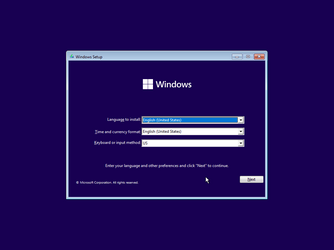
What if we press shift+F10 keys before clicking Install option in bootable drive so as to move autounattend.xml file to other subfolders in root drive or just renaming this file. Then type setup.exe to install Windows 11 manually?
 

My Computer My Computer

At a glance

Window 11 v24H2 Build 26100.2033Intel(R) Core(TM) i3-2100 CPU @ 3.10GHz 3.10 GHz4.00 GB (3.89 GB usable)Onboard
OS
Window 11 v24H2 Build 26100.2033
Computer type
PC/Desktop
Manufacturer/Model
ASSEMMBLED
CPU
Intel(R) Core(TM) i3-2100 CPU @ 3.10GHz 3.10 GHz
Motherboard
ZEBRONICS
Memory
4.00 GB (3.89 GB usable)
Graphics Card(s)
Onboard
Sound Card
Onboard
Monitor(s) Displays
LG
Screen Resolution
1366x768
Hard Drives
Toshiba HDD 1 TB
Keyboard
Mechanical
Mouse
Mechanical
Internet Speed
700 kb/s
Browser
Microsoft EDGE, CHROME
Antivirus
Microsoft Defender
So, John brings this question to me: Is there any hot key that you can press during the boot from a thumb drive that will tell Windows setup to ignore the autounattend.xml answer file? I have not been able to find any way to do this, but one would think that logically there should be some way to do this.

Is anyone aware of any way to accomplish this?
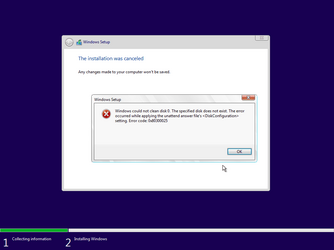
No, but you can unplug all the disks from the system (which is often the advice you hear on this site).

Boot as you normally would, and assuming John followed good practices and wrote <DiskConfiguration><WillShowUI>OnError</WillShowUI> in his unattended file, then Setup will halt (because there are no disks!)

Now you can shift-F10, and run del (or ren) autounattend.xml from the USB drive.

Plug all the disks back into the system. Reboot from USB.
 

Attachments

  • Windows 11 x64-2024-01-01-22-03-24.png
    Windows 11 x64-2024-01-01-22-03-24.png
    13.6 KB · Views: 6
  • Windows 11 x64-2024-01-01-22-03-46.png
    Windows 11 x64-2024-01-01-22-03-46.png
    12.8 KB · Views: 7
  • Windows 11 x64-2024-01-01-22-11-24.png
    Windows 11 x64-2024-01-01-22-11-24.png
    8.9 KB · Views: 6

My Computer My Computer

At a glance

Windows 7
OS
Windows 7
No, but you can unplug all the disks from the system (which is often the advice you hear on this site).

Boot as you normally would, and assuming John followed good practices and wrote <DiskConfiguration><WillShowUI>OnError</WillShowUI> in his unattended file, then Setup will halt (because there are no disks!)

Now you can shift-F10, and run del (or ren) autounattend.xml from the USB drive.

Plug all the disks back into the system. Reboot from USB.
LOL. I had not thought of that. I considered the idea that was often brought up here to unplug all drives EXCEPT the drive to which younwant to install Windows. But I dismissed that idea because the answer file sets up user accounts not valid for this system. But the idea to disconnect ALL drives had not occurred to me.

Thanks for that idea.
 

My Computers My Computers

  • At a glance

    Win11 Pro 25H2 (RTM+)Intel i7-14650HX32 GBNo GPU - Built-in Intel Graphics
    OS
    Win11 Pro 25H2 (RTM+)
    Computer type
    PC/Desktop
    Manufacturer/Model
    Acemagic
    CPU
    Intel i7-14650HX
    Memory
    32 GB
    Graphics Card(s)
    No GPU - Built-in Intel Graphics
    Sound Card
    Integrated
    Monitor(s) Displays
    Varies as machine will often be moved to locations with different monitors
    Screen Resolution
    Varies
    Hard Drives
    1 x 1TB Gen 4 NVMe SSD
    PSU
    120W Power Brick
    Keyboard
    Corsair K70 Max RGB Magnetic Keyboard
    Mouse
    Logitech MX Master 3
    Internet Speed
    1Gb Up / 1 Gb Down
    Browser
    Edge
    Antivirus
    Windows Defender
  • At a glance

    Win11 Pro 25H2 (RTM+)Intel i7-1255U16 GBIntel Iris Xe Graphics
    Operating System
    Win11 Pro 25H2 (RTM+)
    Computer type
    Laptop
    Manufacturer/Model
    Lenovo ThinkBook 13x Gen 2
    CPU
    Intel i7-1255U
    Memory
    16 GB
    Graphics card(s)
    Intel Iris Xe Graphics
    Sound Card
    Realtek® ALC3306-CG codec
    Monitor(s) Displays
    13.3-inch IPS Display
    Screen Resolution
    WQXGA (2560 x 1600)
    Hard Drives
    2 TB 4 x 4 NVMe SSD
    PSU
    USB-C / Thunderbolt 4 Power / Charging
    Keyboard
    Backlit, spill resistant keyboard
    Mouse
    Buttonless Glass Precision Touchpad
    Internet Speed
    1Gb Up / 1Gb Down
    Browser
    Edge
    Antivirus
    Windows Defender
    Other Info
    WiFi 6e / Bluetooth 5.1 / Facial Recognition / Fingerprint Sensor / ToF (Time of Flight) Human Presence Sensor
A very happy new year to ElevenForum team and all guests visiting this website.
What if we press shift+F10 keys before clicking Install option in bootable drive so as to move autounattend.xml file to other subfolders in root drive or just renaming this file. Then type setup.exe to install Windows 11 manually?
There would be no opportunity to press F10 because installation begins by itself automatically immediately upon boot.

Personally, I work around the issue differently. I simply never include a disk to install to in my answer file so that setup pauses, and the user is forced to select the disk to install to. Once the user selects the disk, then installation proceeds fully unattended, but that pause acts as a safety mechanism allowing you to open a command prompt and delete or rename the answer file. But my friend didn't do that, so it just brought up the question out of curiosity as to whether there was a way to interrupt or prevent the installation from running automatically.

Apparently, other than doing something radical like disconnecting all drives, the answer is "no".
 

My Computers My Computers

  • At a glance

    Win11 Pro 25H2 (RTM+)Intel i7-14650HX32 GBNo GPU - Built-in Intel Graphics
    OS
    Win11 Pro 25H2 (RTM+)
    Computer type
    PC/Desktop
    Manufacturer/Model
    Acemagic
    CPU
    Intel i7-14650HX
    Memory
    32 GB
    Graphics Card(s)
    No GPU - Built-in Intel Graphics
    Sound Card
    Integrated
    Monitor(s) Displays
    Varies as machine will often be moved to locations with different monitors
    Screen Resolution
    Varies
    Hard Drives
    1 x 1TB Gen 4 NVMe SSD
    PSU
    120W Power Brick
    Keyboard
    Corsair K70 Max RGB Magnetic Keyboard
    Mouse
    Logitech MX Master 3
    Internet Speed
    1Gb Up / 1 Gb Down
    Browser
    Edge
    Antivirus
    Windows Defender
  • At a glance

    Win11 Pro 25H2 (RTM+)Intel i7-1255U16 GBIntel Iris Xe Graphics
    Operating System
    Win11 Pro 25H2 (RTM+)
    Computer type
    Laptop
    Manufacturer/Model
    Lenovo ThinkBook 13x Gen 2
    CPU
    Intel i7-1255U
    Memory
    16 GB
    Graphics card(s)
    Intel Iris Xe Graphics
    Sound Card
    Realtek® ALC3306-CG codec
    Monitor(s) Displays
    13.3-inch IPS Display
    Screen Resolution
    WQXGA (2560 x 1600)
    Hard Drives
    2 TB 4 x 4 NVMe SSD
    PSU
    USB-C / Thunderbolt 4 Power / Charging
    Keyboard
    Backlit, spill resistant keyboard
    Mouse
    Buttonless Glass Precision Touchpad
    Internet Speed
    1Gb Up / 1Gb Down
    Browser
    Edge
    Antivirus
    Windows Defender
    Other Info
    WiFi 6e / Bluetooth 5.1 / Facial Recognition / Fingerprint Sensor / ToF (Time of Flight) Human Presence Sensor
What's even worse is Setup has a pre-defined search order for unattended files. When I did my testing, my VM had at various times:
- one system disk
- one USB virtual drive
- one ISO drive

If you left both the USB and ISO drives mounted, but booted from the USB device -- Setup wouldn't find any unattended file on the USB drive but would fallback and find it on the available ISO. Which it would then invoke. So you would have to unmount the ISO to prevent it from being visible from the USB boot instance.

That's by design, but most experienced users don't think about it. Which could lead to a disaster...
 

My Computer My Computer

At a glance

Windows 7
OS
Windows 7
What's even worse is Setup has a pre-defined search order for unattended files. When I did my testing, my VM had at various times:
- one system disk
- one USB virtual drive
- one ISO drive

If you left both the USB and ISO drives mounted, but booted from the USB device -- Setup wouldn't find any unattended file on the USB drive but would fallback and find it on the available ISO. Which it would then invoke. So you would have to unmount the ISO to prevent it from being visible from the USB boot instance.

That's by design, but most experienced users don't think about it. Which could lead to a disaster...
Yeah, I actually make use of that when I install Windows to a VM. I attach my Windows ISO image to the VM. Then I also attach a separate ISO image that has nothing but the answer file. This way I can do an unattended install to the VM without having to make a modified version of my Windows ISO image that adds the answer file.
 

My Computers My Computers

  • At a glance

    Win11 Pro 25H2 (RTM+)Intel i7-14650HX32 GBNo GPU - Built-in Intel Graphics
    OS
    Win11 Pro 25H2 (RTM+)
    Computer type
    PC/Desktop
    Manufacturer/Model
    Acemagic
    CPU
    Intel i7-14650HX
    Memory
    32 GB
    Graphics Card(s)
    No GPU - Built-in Intel Graphics
    Sound Card
    Integrated
    Monitor(s) Displays
    Varies as machine will often be moved to locations with different monitors
    Screen Resolution
    Varies
    Hard Drives
    1 x 1TB Gen 4 NVMe SSD
    PSU
    120W Power Brick
    Keyboard
    Corsair K70 Max RGB Magnetic Keyboard
    Mouse
    Logitech MX Master 3
    Internet Speed
    1Gb Up / 1 Gb Down
    Browser
    Edge
    Antivirus
    Windows Defender
  • At a glance

    Win11 Pro 25H2 (RTM+)Intel i7-1255U16 GBIntel Iris Xe Graphics
    Operating System
    Win11 Pro 25H2 (RTM+)
    Computer type
    Laptop
    Manufacturer/Model
    Lenovo ThinkBook 13x Gen 2
    CPU
    Intel i7-1255U
    Memory
    16 GB
    Graphics card(s)
    Intel Iris Xe Graphics
    Sound Card
    Realtek® ALC3306-CG codec
    Monitor(s) Displays
    13.3-inch IPS Display
    Screen Resolution
    WQXGA (2560 x 1600)
    Hard Drives
    2 TB 4 x 4 NVMe SSD
    PSU
    USB-C / Thunderbolt 4 Power / Charging
    Keyboard
    Backlit, spill resistant keyboard
    Mouse
    Buttonless Glass Precision Touchpad
    Internet Speed
    1Gb Up / 1Gb Down
    Browser
    Edge
    Antivirus
    Windows Defender
    Other Info
    WiFi 6e / Bluetooth 5.1 / Facial Recognition / Fingerprint Sensor / ToF (Time of Flight) Human Presence Sensor

Latest Support Threads

Back
Top Bottom