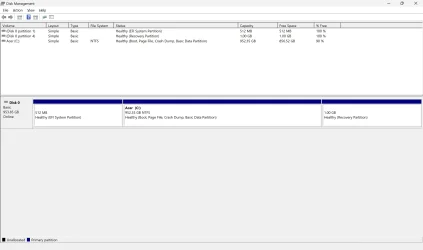
The WD drive has four partitions.
Using disk management three are visible and one is hidden.
Partition ### Type Size Offset
------------- ---------------- ------- -------
Partition 1 System 512 MB 1024 KB
Partition 2 Reserved 16 MB 513 MB
Partition 3 Primary 952 GB 529 MB
Partition 4 Recovery 1024 MB 952 GB
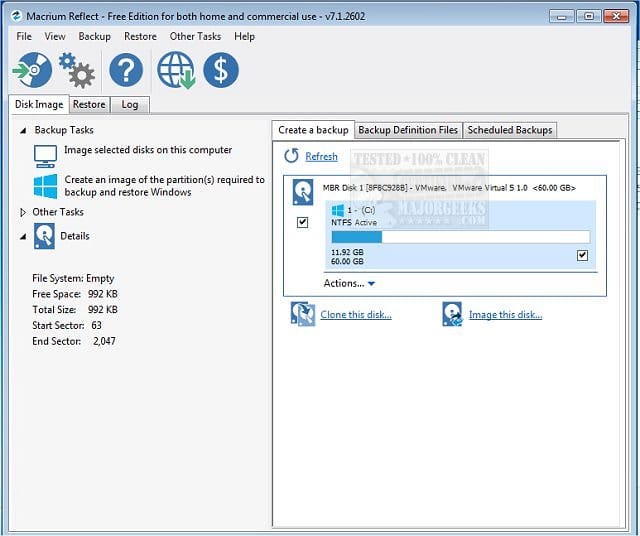
Consider using Macrium to make backup images.
The drive could be replaced if it fails or if you prefer a different one.
An image could be restored for the whole drive.
Or you could clean install Windows 11 with its four default partitions then restore only the primary partition.
(Acronis, Aoemi, EaseUS, Hasleo, Macrium, Paragon, etc.)
Fast, reliable backup and recovery software for Windows, OT, OEM and enterprise environments. Minimize downtime with proven system imaging, rapid restore and simple deployment.

www.macrium.com
With Macrium Reflect Free Edition you'll be able to easily make an accurate and reliable image of your HDD or individual partitions. Using this image you can restore the entire disk, partition or...
www.majorgeeks.com
How to Create and Restore a System Image Backup with Macrium Reflect

www.tenforums.com
These are some additional backup options:
This tutorial will show you how to back up and restore all 3rd party device drivers on your Windows 10 and Windows 11 PC. If you clean install Windows, you will need to install drivers for each device in the system. Some of these device drivers may no longer be available from the manufacturer...

www.elevenforum.com
This tutorial will show you how to enable automatic backup of the system registry to the RegBack folder when the computer restarts in Windows 10 and Windows 11. Starting with Windows 10, version 1803, Windows no longer automatically backs up the system registry to the RegBack folder when the...
www.elevenforum.com
This tutorial will show you how to turn on or off OneDrive folder backup and sync for your Microsoft account across all your Windows 10 and Windows 11 devices you sign in with the same Microsoft account. You can use OneDrive to sync files and folders between your computer and the cloud, so you...
www.elevenforum.com
This tutorial will show you how to backup and restore the Boot Configuration Data (BCD) system store file in Windows 10 and Windows 11. Windows boot options are stored in the Boot Configuration Data (BCD) store. This is used to describe boot applications and boot application settings. Creating...
www.elevenforum.com
Code:
    Disk 0 : SSD. It has 4 partition(s). Model: WD PC

    The script has found the above 1 storage device(s) in total.
=======================================================================

Microsoft DiskPart version 10.0.26100.1150

Copyright (C) Microsoft Corporation.
On computer: LAPTOP-VN828JPE

  Disk ###  Status         Size     Free     Dyn  Gpt
  --------  -------------  -------  -------  ---  ---
  Disk 0    Online          953 GB      0 B        *

  Volume ###  Ltr  Label        Fs     Type        Size     Status     Info
  ----------  ---  -----------  -----  ----------  -------  ---------  --------
  Volume 0     C   Acer         NTFS   Partition    952 GB  Healthy    Boot
  Volume 1         ESP          FAT32  Partition    512 MB  Healthy    System
  Volume 2         Recovery     NTFS   Partition   1024 MB  Healthy    Hidden

Disk 0 is now the selected disk.

WD PC
Disk ID: {}
Type   : NVMe
Status : Online
Path   : 0
Target : 0
LUN ID : 0
Location Path : PCIROOT(0)#PCI(1C00)#PCI(0000)#NVME(P00T00L00)
Current Read-only State : No
Read-only  : No
Boot Disk  : Yes
Pagefile Disk  : Yes
Hibernation File Disk  : No
Crashdump Disk  : Yes
Clustered Disk  : No

  Volume ###  Ltr  Label        Fs     Type        Size     Status     Info
  ----------  ---  -----------  -----  ----------  -------  ---------  --------
  Volume 0     C   Acer         NTFS   Partition    952 GB  Healthy    Boot
  Volume 1         ESP          FAT32  Partition    512 MB  Healthy    System
  Volume 2         Recovery     NTFS   Partition   1024 MB  Healthy    Hidden

  Partition ###  Type              Size     Offset
  -------------  ----------------  -------  -------
  Partition 1    System             512 MB  1024 KB
  Partition 2    Reserved            16 MB   513 MB
  Partition 3    Primary            952 GB   529 MB
  Partition 4    Recovery          1024 MB   952 GB

Partition 1 is now the selected partition.

Partition 1
Type    : c12a7328-f81f-11d2-ba4b-00a0c93ec93b
Hidden  : Yes
Required: No
Attrib  : 0000000000000000
Offset in Bytes: 1048576

  Volume ###  Ltr  Label        Fs     Type        Size     Status     Info
  ----------  ---  -----------  -----  ----------  -------  ---------  --------
* Volume 1         ESP          FAT32  Partition    512 MB  Healthy    System

Partition 2 is now the selected partition.

Partition 2
Type    : e3c9e316-0b5c-4db8-817d-f92df00215ae
Hidden  : Yes
Required: No
Attrib  : 0000000000000000
Offset in Bytes: 537919488

There is no volume associated with this partition.

Partition 3 is now the selected partition.

Partition 3
Type    : ebd0a0a2-b9e5-4433-87c0-68b6b72699c7
Hidden  : No
Required: No
Attrib  : 0000000000000000
Offset in Bytes: 554696704

  Volume ###  Ltr  Label        Fs     Type        Size     Status     Info
  ----------  ---  -----------  -----  ----------  -------  ---------  --------
* Volume 0     C   Acer         NTFS   Partition    952 GB  Healthy    Boot

Partition 4 is now the selected partition.

Partition 4
Type    : de94bba4-06d1-4d40-a16a-bfd50179d6ac
Hidden  : Yes
Required: Yes
Attrib  : 0X8000000000000001
Offset in Bytes: 1023135449088

  Volume ###  Ltr  Label        Fs     Type        Size     Status     Info
  ----------  ---  -----------  -----  ----------  -------  ---------  --------
* Volume 2         Recovery     NTFS   Partition   1024 MB  Healthy    Hidden

===============================================================================

Windows Recovery Environment (Windows RE) and system reset configuration
Information:

    Windows RE status:         Enabled
    Windows RE location:       \\?\GLOBALROOT\device\harddisk0\partition4\Recovery\WindowsRE
    Boot Configuration Data (BCD) identifier: c321321f-ac88-11ef-bc34-00e04c457671
    Recovery image location:
    Recovery image index:      0
    Custom image location:
    Custom image index:        0

REAGENTC.EXE: Operation Successful.

===============================================================================

Firmware Boot Manager
---------------------
identifier              {fwbootmgr}
displayorder            {bootmgr}
                        {c95cbbef-ac88-11ef-9973-806e6f6e6963}
                        {c95cbbf0-ac88-11ef-9973-806e6f6e6963}
                        {c95cbbf1-ac88-11ef-9973-806e6f6e6963}
timeout                 0

Windows Boot Manager
--------------------
identifier              {bootmgr}
device                  partition=\Device\HarddiskVolume1
path                    \EFI\Microsoft\Boot\bootmgfw.efi
description             Windows Boot Manager
locale                  en-US
inherit                 {globalsettings}
default                 {current}
resumeobject            {c321321d-ac88-11ef-bc34-00e04c457671}
displayorder            {current}
toolsdisplayorder       {memdiag}
timeout                 30

Firmware Application (101fffff)
-------------------------------
identifier              {c95cbbef-ac88-11ef-9973-806e6f6e6963}
description             EFI USB Device

Firmware Application (101fffff)
-------------------------------
identifier              {c95cbbf0-ac88-11ef-9973-806e6f6e6963}
description             EFI DVD/CDROM

Firmware Application (101fffff)
-------------------------------
identifier              {c95cbbf1-ac88-11ef-9973-806e6f6e6963}
description             EFI Network

Windows Boot Loader
-------------------
identifier              {current}
device                  partition=C:
path                    \Windows\system32\winload.efi
description             Windows 11
locale                  en-US
inherit                 {bootloadersettings}
recoverysequence        {c321321f-ac88-11ef-bc34-00e04c457671}
displaymessageoverride  Recovery
recoveryenabled         Yes
isolatedcontext         Yes
allowedinmemorysettings 0x15000075
osdevice                partition=C:
systemroot              \Windows
resumeobject            {c321321d-ac88-11ef-bc34-00e04c457671}
nx                      OptIn
bootmenupolicy          Standard
hypervisorlaunchtype    Auto

Windows Boot Loader
-------------------
identifier              {c321321f-ac88-11ef-bc34-00e04c457671}
device                  ramdisk=[\Device\HarddiskVolume4]\Recovery\WindowsRE\Winre.wim,{c3213220-ac88-11ef-bc34-00e04c457671}
path                    \windows\system32\winload.efi
description             Windows Recovery Environment
locale                  en-us
inherit                 {bootloadersettings}
displaymessage          Recovery
osdevice                ramdisk=[\Device\HarddiskVolume4]\Recovery\WindowsRE\Winre.wim,{c3213220-ac88-11ef-bc34-00e04c457671}
systemroot              \windows
nx                      OptIn
bootmenupolicy          Standard
winpe                   Yes

Resume from Hibernate
---------------------
identifier              {c321321d-ac88-11ef-bc34-00e04c457671}
device                  partition=C:
path                    \Windows\system32\winresume.efi
description             Windows Resume Application
locale                  en-US
inherit                 {resumeloadersettings}
recoverysequence        {c321321f-ac88-11ef-bc34-00e04c457671}
recoveryenabled         Yes
isolatedcontext         Yes
allowedinmemorysettings 0x15000075
filedevice              partition=C:
custom:21000026         partition=C:
filepath                \hiberfil.sys
bootmenupolicy          Standard
debugoptionenabled      No

Windows Memory Tester
---------------------
identifier              {memdiag}
device                  partition=\Device\HarddiskVolume1
path                    \EFI\Microsoft\Boot\memtest.efi
description             Windows Memory Diagnostic
locale                  en-US
inherit                 {globalsettings}
badmemoryaccess         Yes

EMS Settings
------------
identifier              {emssettings}
bootems                 No

Debugger Settings
-----------------
identifier              {dbgsettings}
debugtype               Local

RAM Defects
-----------
identifier              {badmemory}

Global Settings
---------------
identifier              {globalsettings}
inherit                 {dbgsettings}
                        {emssettings}
                        {badmemory}

Boot Loader Settings
--------------------
identifier              {bootloadersettings}
inherit                 {globalsettings}
                        {hypervisorsettings}

Hypervisor Settings
-------------------
identifier              {hypervisorsettings}
hypervisordebugtype     Serial
hypervisordebugport     1
hypervisorbaudrate      115200

Resume Loader Settings
----------------------
identifier              {resumeloadersettings}
inherit                 {globalsettings}

Setup Ramdisk Options
---------------------
identifier              {ramdiskoptions}
description             Acer Recovery Management
ramdisksdidevice        partition=C:
ramdisksdipath          \TempHidden\SCD\boot\boot.sdi

Device options
--------------
identifier              {c3213220-ac88-11ef-bc34-00e04c457671}
description             Windows Recovery
ramdisksdidevice        partition=\Device\HarddiskVolume4
ramdisksdipath          \Recovery\WindowsRE\boot.sdi