Solved Is it worthwhile to partition a 1TB SSD?


Partitioning an SSD doesn’t offer any performance benefits, but it can improve system organization, data management, and recovery flexibility. Here’s a breakdown of the pros and cons:

✅ Advantages:

• Selective Formatting: If your operating system encounters issues, you can format only the system partition (typically C:) without affecting other partitions.
• Flexible Encryption: You can enable BitLocker on the system drive while keeping other partitions unencrypted for easier access or faster performance.
• Streamlined Backups: Separating system files from personal data allows for more targeted and efficient backup strategies.
• Multi-OS Booting: Partitioning enables installation of multiple operating systems on separate volumes.
• Data Isolation: Keeping personal files separate from system files reduces the risk of accidental data loss during OS reinstallation.


⚠️ Disadvantages:

• Limited Space on System Drive: Over time, installing many applications and games—along with accumulating temporary files—can lead to space constraints on the C: drive.
• Reduced Flexibility: Fixed partition sizes may lead to wasted space or require resizing tools if your storage needs change.
• Initial Planning Required: Choosing the right partition sizes from the start is important; poor planning can lead to inefficiencies or the need for reformatting.


Don’t forget to reserve some free space for wear leveling (Over provisioning)—it’s important for SSD health.
 

My Computers

System One System Two

  • OS
    Windows 11 Pro 25H2
    Computer type
    Laptop
    Manufacturer/Model
    Huawei MateBook D15
    CPU
    Ryzen 5 3500U
    Memory
    8GB
    Graphics Card(s)
    Vega 8
    Screen Resolution
    FHD
    Hard Drives
    256GB Samsung SSD + 1TB HDD
    Browser
    Microsoft Edge
    Antivirus
    ESET Smart Security Premium
  • Operating System
    Windows 10 Enterprise LTSC 21H2
    Computer type
    Laptop
    Manufacturer/Model
    MSI GS73 6RF Stealth Pro
    CPU
    intel core i7 6700HQ
    Memory
    16GB
    Graphics card(s)
    Nvidia Geforce GTX1060 (6GB)
    Screen Resolution
    FHD
    Hard Drives
    128GB SSD + 1TB HDD
    Browser
    Microsoft Edge
    Antivirus
    Windows Defender
have my 1TB NVMe drive set up as Windows C: drive 25% of drive
then a partition D: drive where i have moved all the data folders
documents, downloads, pictures, videos etc, along with any other personal files/folders.

this way i can, if needed, re-install Windows but all my personal data is still intact
i then have 2x 1TB external drives to 1. back up system files. 2. back up personal files.
That sounds good to me.
 

My Computer

System One

  • OS
    Win 7,8.1,10,11, Mint, Kde Plasma, Debian
    Computer type
    Laptop
    Manufacturer/Model
    Dell
    CPU
    Intel(R) Core(TM) i7-6500U CPU @ 2.50GHz
    Memory
    16 GB
    Graphics Card(s)
    Intel(R) HD Graphics 520/Nvidia GeForce 930M
    Sound Card
    Intel(R) Display Audio/RealtekAudio
    Monitor(s) Displays
    Generic Pnp Monitor
    Screen Resolution
    1366 X 768
    Hard Drives
    ST2000LM024-1EJ164
    Keyboard
    Eng (US)
    Mouse
    Sanwa Supply
    Browser
    Firefox
    Antivirus
    Avast One
    Other Info
    Too many laptops with different system specifications.
These are some WD links:
a) updates
b) diagnostics
c) Acronis
etc.


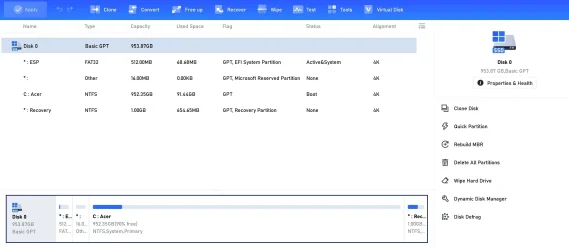
It's a WD drive but I'm not sure if it's one they have listed as "supported products" to use that Acronus Edition for WD. I keep changing my mind but am now leaning toward the Macrium Reflect Free Edition now anyway. Before even getting to imaging I want to partition the drive (as other posters describe) basically an OS partition (25%) & a Data partition (75%) so I just shrink (in w/ easiest partitioning software I can find) the C: partition to 25% & create a 2nd partition as D: the 75% that's left? Not changing the *:ESP (512MB) AND *:Other (16MB) that's seemingly at the beginning of the drive & *:Recovery (1GB) that's seemingly at the end of the drive?
 

My Computer

System One

  • OS
    Windows 11 25H2 (26200.7171)
    Computer type
    Laptop
    Manufacturer/Model
    Acer Swift X 16 (Swift Sf16-51T)
    CPU
    Intel Core Ultra 7 Series 2 256V 2200Mhz 8 Core
    Motherboard
    Milkfish_LNV
    Memory
    16gb LPDDR5X
    Graphics Card(s)
    Integrated Intel Arc
    Monitor(s) Displays
    OLED
    Screen Resolution
    2880 x 1800
    Hard Drives
    1TB SSD
If you were able to set the size for each partition what would be the preferred numbers and in what sequence?

EFI =
Reserved =
C: =
Recovery =
Unallocated or D: =


Current:

System = 512 MB
Reserved = 16 MB
Primary = 952 GB
Recovery = 1024 MB


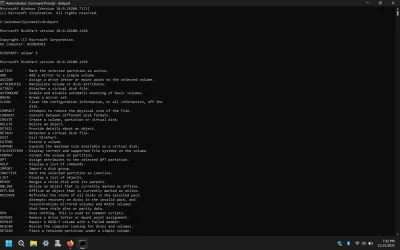
Open administrative command prompt and type or copy and paste: > post a share link

diskpart
sel par 3
shrink querymax
 

My Computer

System One

  • OS
    Windows 10
    Computer type
    Laptop
    Manufacturer/Model
    HP
    CPU
    Intel(R) Core(TM) i7-4800MQ CPU @ 2.70GHz
    Motherboard
    Product : 190A Version : KBC Version 94.56
    Memory
    16 GB Total: Manufacturer : Samsung MemoryType : DDR3 FormFactor : SODIMM Capacity : 8GB Speed : 1600
    Graphics Card(s)
    NVIDIA Quadro K3100M; Intel(R) HD Graphics 4600
    Sound Card
    IDT High Definition Audio CODEC; PNP Device ID HDAUDIO\FUNC_01&VEN_111D&DEV_76E0
    Hard Drives
    Model Hitachi HTS727575A9E364
    Antivirus
    Microsoft Defender
    Other Info
    Mobile Workstation
Open administrative command prompt and type or copy and paste: > post a share link

diskpart
sel par 3
shrink querymax
Untitled3.webp
I've input these commands in every possible variation to no avail. Idk what I'm doing wrong. In AOMEI it shows:
Untitled1.webp
I would have it in this order:
EFI = 512 MB
Reserved = 16 MB
Recovery = 1024 MB
C: = 238.3375 GB (25% of 952.35 GB)
Unallocated or D: = 715.0125 GB (75% of 952.35 GB)

Though maybe recovery has to at end of drive - idk. NO data on the drive yet so was gonna have OS drive about 200-250 GB for it to have enough space to grow. Whatever space is left would the D: (data partition).
 

My Computer

System One

  • OS
    Windows 11 25H2 (26200.7171)
    Computer type
    Laptop
    Manufacturer/Model
    Acer Swift X 16 (Swift Sf16-51T)
    CPU
    Intel Core Ultra 7 Series 2 256V 2200Mhz 8 Core
    Motherboard
    Milkfish_LNV
    Memory
    16gb LPDDR5X
    Graphics Card(s)
    Integrated Intel Arc
    Monitor(s) Displays
    OLED
    Screen Resolution
    2880 x 1800
    Hard Drives
    1TB SSD
View attachment 153137
I've input these commands in every possible variation to no avail. Idk what I'm doing wrong. In AOMEI it shows:
View attachment 153138
I would have it in this order:
EFI = 512 MB
Reserved = 16 MB
Recovery = 1024 MB
C: = 238.3375 GB (25% of 952.35 GB)
Unallocated or D: = 715.0125 GB (75% of 952.35 GB)

Though maybe recovery has to at end of drive - idk. NO data on the drive yet so was gonna have OS drive about 200-250 GB for it to have enough space to grow. Whatever space is left would the D: (data partition).

and adapt for what you want -

or maybe use your diskmgmt.msc for a first test if you do not have any data or applications installed.

Be careful when executing commands in cmd.
 

My Computers

System One System Two

  • OS
    Windows 11 Pro Optimum 24H2 OS Build 26100.7171
    Computer type
    Laptop
    Manufacturer/Model
    Asus VivobooK 15 M1502QA.302
    CPU
    AMD Ryzen 7 5800HS
    Motherboard
    ASUSTeck Computer
    Memory
    Crucial 16Go
    Graphics Card(s)
    Integrated Radeon Vega 8 Graphics
    Sound Card
    Realtek & AMD high audio definition
    Monitor(s) Displays
    SAMSUNG Curv - C24F390
    Screen Resolution
    1920*1080
    Hard Drives
    SSD NVMe 1To Crucial
    SSD 500 Go Crucial MX500
    SSD 128 Go Intel
    HDD 1To WD
    Case
    Asus vivobook
    Cooling
    Integrated Fan
    Keyboard
    Wisfox Gaming
    Mouse
    BT Tecknett
    Internet Speed
    WifFi 6 on 5 gbs fiber ftth
    Browser
    Thorium 130.0.6723.174 (Build officiel) & Zen browser Dev/béta ver.
    Antivirus
    Windows Defender

  • Operating System
    Server /Nas - dietpi v9.13 - debian Bookworm/Trixie based
    Computer type
    PC/Desktop
    Manufacturer/Model
    Beelink Mini PC SER8
    CPU
    Ryzen 7 8845HS
    Memory
    32GB DDR5
    Graphics card(s)
    AMD Radeon 780M 12core 2700MHz
    Screen Resolution
    headless
    Hard Drives
    4TB M.2 PCIe4.0 NVMe
    Cooling
    MSC2.0 cooling system
    Keyboard
    headless
    Mouse
    headless
    Internet Speed
    WiFi6 - 2.5G RJ45
    Browser
    -
    Antivirus
    -
    Other Info
    Just for fun
Years ago I used to partition the drive into multiple partitions but I consider that pointless now days.
I used to partition a drive into multiple partitions is of fixed size. The problem is if I guess wrong and pick the wrong sized then I might have to go in and repartition them again.

For example, I partitioned a 950 GB drive this way: System: 250GB (C:) and Data: 700GB (D:).
Window and programs are installed in C: and my user data is stored in D:
If the C: becomes full and there is enough free space in D: I can resize D: to make it smaller and C: to make it larger.
That wouldn't be unnecessary if C: is the only partition for everything.

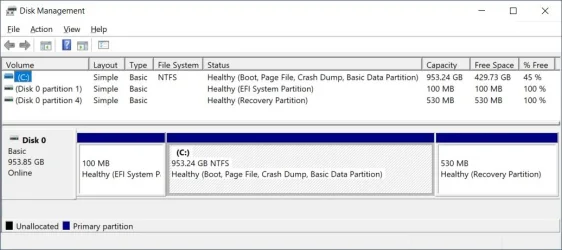
I have an Acer laptop with a 1TB SSD. Other than the 2 system partitions it only has one partition C: (953.24 GB).
In C: I created a folder called XDATA. I keep most of my users files in it. That helps me keep track of my user data. I make weekly backups of the entire drive. Every day I backup select user data which includes important data in XDATA and files on my desktop.

2025-11-16 00_09_21-Disk Management.webp
 

My Computers

System One System Two

  • OS
    Windows 11 Pro 25H2 (26200.6901)
    Computer type
    Laptop
    Manufacturer/Model
    ASUS TUF Gaming A15 (2022)
    CPU
    AMD Ryzen 7 6800H with Radeon 680M GPU (486MB RAM)
    Memory
    Crucial DDR5-4800 (2400MHz) 32GB (2 x 16GB)
    Graphics Card(s)
    NVIDIA RTX 3060 Laptop (6GB RAM)
    Sound Card
    n/a
    Monitor(s) Displays
    15.6-inch
    Screen Resolution
    1920x1080 300Hz
    Hard Drives
    2 x Samsung 990 Evo Plus (2TB M.2 NVME SSD)
    PSU
    n/a
    Mouse
    Wireless Mouse M510
    Internet Speed
    2100Mbps/300Mbps
    Browser
    Firefox
    Antivirus
    Malwarebytes
  • Operating System
    Windows 11 Pro 25H2 (26200.8246)
    Computer type
    PC/Desktop
    Manufacturer/Model
    Custom build
    CPU
    AMD Ryzen 7 5700X3D
    Motherboard
    ASUS ROG Strix B550-F Gaming WiFi II
    Memory
    G.SKILL Flare X 32GB (2x16GB) DDR4
    Graphics card(s)
    ASUS ROG-STRIX-RTX3060TI-08G-V2-GAMING (RTX 3060-Ti, 8GB RAM)
    Monitor(s) Displays
    Samsung G50D IPS 27"
    Screen Resolution
    1440p/180Hz
    Hard Drives
    SAMSUNG 990 EVO Plus (2TB] M.2 NVME SSD
    SAMSUNG 990 EVO Plus (4TB) M.2 NVME SSD
    PSU
    Corsair RM750x (750 watts)
    Case
    Cooler Master MasterCase 5
    Cooling
    Scythe Mugen 6
    Keyboard
    Logitech K520 (MK540 keyboard/mouse combo)
    Mouse
    Logitech M310 (MK540 keyboard/mouse combo)
    Internet Speed
    2100 Mbps down / 300 Mbps up
    Browser
    Firefox, Edge, Chrome
    Antivirus
    Malwarebytes (Premium)
    Other Info
    ASUS Blu-ray Burner BW-16D1HT (SATA) || Western Digital Easystore 20TB USB 3.0 external hard drive used with Acronis True Image 2025 backup software || HP OfficeJet Pro 6975 Printer/Scanner
View attachment 153137
I've input these commands in every possible variation to no avail. Idk what I'm doing wrong. In AOMEI it shows:
View attachment 153138
I would have it in this order:
EFI = 512 MB
Reserved = 16 MB
Recovery = 1024 MB
C: = 238.3375 GB (25% of 952.35 GB)
Unallocated or D: = 715.0125 GB (75% of 952.35 GB)

Though maybe recovery has to at end of drive - idk. NO data on the drive yet so was gonna have OS drive about 200-250 GB for it to have enough space to grow. Whatever space is left would the D: (data partition).


The command was typed incorrectly as selpar 3.

The command must be typed with a space between sel and par.


The partition architecture can be in any sequence however Microsoft recommends that the recovery partition is immediately to the right of C:.


What numbers would you prefer for each:
System = 512 MB
Reserved = 16 MB
Primary = 952 GB
Recovery = 1024 MB
D: =
Unallocated =
 
Last edited:

My Computer

System One

  • OS
    Windows 10
    Computer type
    Laptop
    Manufacturer/Model
    HP
    CPU
    Intel(R) Core(TM) i7-4800MQ CPU @ 2.70GHz
    Motherboard
    Product : 190A Version : KBC Version 94.56
    Memory
    16 GB Total: Manufacturer : Samsung MemoryType : DDR3 FormFactor : SODIMM Capacity : 8GB Speed : 1600
    Graphics Card(s)
    NVIDIA Quadro K3100M; Intel(R) HD Graphics 4600
    Sound Card
    IDT High Definition Audio CODEC; PNP Device ID HDAUDIO\FUNC_01&VEN_111D&DEV_76E0
    Hard Drives
    Model Hitachi HTS727575A9E364
    Antivirus
    Microsoft Defender
    Other Info
    Mobile Workstation
I want easy easy easy!

Leave the drive alone, my Laptop drive has exactly the same partitions.

Meddling with partitions not knowing what you are doing is not sensible.

Imaging - Just image all partitions the whole drive, make sure recovery drive works, job done.

Avoid any free backup offerings from WD, it may lock you in to using WD drives only.
 

My Computer

System One

  • OS
    Windows 11
I'm a desktops user and I know little the laptops. Can you install a second disk in your laptop?

I'm writing from a Win7 computer that uses a partitioned RAID 0 of HDDs. The basic setup was done in 2009 with a single HDD. It's my only computer with this kind of setup, the others have 2 disks, one SSD for Windows and one HDD for the data and Windows images. The data includes texts, pics, etc and sw installers.

In 2009 I was using imaging since more than 10 years before, and collecting files in my data partition (floppies at first) since the early 90s. Since I learnt internal disks (of that age) were the most reliable storage possible (actually eternal and unbreakable for my use case) I use internal disk space for my main copy. I also backup data (currently with a synching app) and Windows disk images to external storage (CDRWs first, DVDRWs after and USB sticks currently). This external backup is and always has been less reliable than the internal disks, but it has the files should the internal disks fail (or even the computer, the only time I recall I had to use the external images backup was for a RAM problem, as for files in the data partition the statistically main reason has been AV false positives).

HDDs are slower (and very bad for a laptop anyway), modern OSs like the whole disk for themselves, and modern disks of any technology are faster but not as reliable. With my current 2 disks setup:

- If the Windows disk dies, I just replace it and restore an image backup. If you have data too in this disk, this fix will be more complicated or impossible (although you'd still get other advantages from partitioning). This hasn't happened until now but my SATA SSDs are from 2020-2022, hence too young to be compared to my HDDs.

- The HDD with the data and Windows images cannot die, but I back up the data and the newer images to external stoage anyway.

My occupied Windows sizes are about 35 GB for Windows 7 and 70 GB for Windows 10/11. Joined to partition imagers compression, this makes very possible to just use pendrives as external backup (curiously, my Win11 partition is less compressable -40 or 45 GB- than my Win10 one -30 GB-, even though 11 has pagefile -8GB RAM- and 10 hasn't -32GB RAM-, both occupy 68-72 GB including the pagefile in Win11, there're only small differences in installed software).

I use 256 GB SSDs for Windows b/c 128 GB ones were slower and only slightly cheaper, but I don't use the free 150 GB or more I have.

I have never used the Windows Documents etc folders basically b/c MS-DOS hadn't them and I was very used to independent storage when starting with Windows 95, the first Windows I've used for production or "production". This only implies being used to D:\ and its folders for saving the files (for every app you only have to choose a different folder once, in general, as it remembers your previous choice). I know the Windows folders aren't "neutral" except the Downloads one (I mean Windows has a special treatment of them that may lead to issues; I consider them as "Windows" as System32, what means 1) I won't move System32 to D:\ 2) I won't store my files in System32 :) ).
 

My Computer

System One

  • OS
    Windows 11
    Manufacturer/Model
    MeLE Quieter 2Q (fanless miniPC)
    CPU
    Celeron J4125 (10th gen)
    Memory
    8GB DDR4
    Monitor(s) Displays
    Samsung SyncMaster T260
    Screen Resolution
    1920x1200
    Hard Drives
    256GB eMMC (Windows)
    2TB USB3 HDD Toshiba (Data)
why cannot I correct my previous post? It should say "Win11 disk" where "Win11 partition" in the last paragraph but two b/c I backup the whole Windows disk, which is another advantage of having a disk for Windows alone.
 

My Computer

System One

  • OS
    Windows 11
    Manufacturer/Model
    MeLE Quieter 2Q (fanless miniPC)
    CPU
    Celeron J4125 (10th gen)
    Memory
    8GB DDR4
    Monitor(s) Displays
    Samsung SyncMaster T260
    Screen Resolution
    1920x1200
    Hard Drives
    256GB eMMC (Windows)
    2TB USB3 HDD Toshiba (Data)
The OP said he has a Acer Swift X 16 (Swift Sf16-51T) laptop. Like my Acer Swift 3 (SF315-41G-R6MP) laptop it only has an M.2 slot for one SSD. That is why I created a folder called XDATA for my data. I don't use the Documents folder because many programs I install put their own data in it.

My ASUS TUF Gaming A15 (2022) laptop has M.2 slots for two SSDs. I label the 1st OS and the 2nd DATA. That way I can keep Windows and programs on one drive and my data on the other drive.
 

My Computers

System One System Two

  • OS
    Windows 11 Pro 25H2 (26200.6901)
    Computer type
    Laptop
    Manufacturer/Model
    ASUS TUF Gaming A15 (2022)
    CPU
    AMD Ryzen 7 6800H with Radeon 680M GPU (486MB RAM)
    Memory
    Crucial DDR5-4800 (2400MHz) 32GB (2 x 16GB)
    Graphics Card(s)
    NVIDIA RTX 3060 Laptop (6GB RAM)
    Sound Card
    n/a
    Monitor(s) Displays
    15.6-inch
    Screen Resolution
    1920x1080 300Hz
    Hard Drives
    2 x Samsung 990 Evo Plus (2TB M.2 NVME SSD)
    PSU
    n/a
    Mouse
    Wireless Mouse M510
    Internet Speed
    2100Mbps/300Mbps
    Browser
    Firefox
    Antivirus
    Malwarebytes
  • Operating System
    Windows 11 Pro 25H2 (26200.8246)
    Computer type
    PC/Desktop
    Manufacturer/Model
    Custom build
    CPU
    AMD Ryzen 7 5700X3D
    Motherboard
    ASUS ROG Strix B550-F Gaming WiFi II
    Memory
    G.SKILL Flare X 32GB (2x16GB) DDR4
    Graphics card(s)
    ASUS ROG-STRIX-RTX3060TI-08G-V2-GAMING (RTX 3060-Ti, 8GB RAM)
    Monitor(s) Displays
    Samsung G50D IPS 27"
    Screen Resolution
    1440p/180Hz
    Hard Drives
    SAMSUNG 990 EVO Plus (2TB] M.2 NVME SSD
    SAMSUNG 990 EVO Plus (4TB) M.2 NVME SSD
    PSU
    Corsair RM750x (750 watts)
    Case
    Cooler Master MasterCase 5
    Cooling
    Scythe Mugen 6
    Keyboard
    Logitech K520 (MK540 keyboard/mouse combo)
    Mouse
    Logitech M310 (MK540 keyboard/mouse combo)
    Internet Speed
    2100 Mbps down / 300 Mbps up
    Browser
    Firefox, Edge, Chrome
    Antivirus
    Malwarebytes (Premium)
    Other Info
    ASUS Blu-ray Burner BW-16D1HT (SATA) || Western Digital Easystore 20TB USB 3.0 external hard drive used with Acronis True Image 2025 backup software || HP OfficeJet Pro 6975 Printer/Scanner
After a busy week finally able to get back to this & figure out my best option.....

@zbook (and @TahitianVibes) - having minimally done things using cmd I'm very leery of trying that method.

I could try diskmgmt.msc having used it to partition several years ago except I do have some applications installed (but no data).

@MisterEd - that's what I was trying to achieve as in your example: an OS partition & a Data partition. So I could only image the OS thus creating much smaller images to store. The audio & video files I'd also have on other devices so don't need backing up. I don't want to fill a single drive w/ a 50GB (or w/e) OS AND say 600GB of data so I end up w/ a 325GB image backup so....

@hsehestedt - if a free version of Macrium allows excluding files/folders from backups might be a simpler option. I'm assuming this WORKS > you can recover using an OS backup but somehow NOT lose the excluded files/folders(??).

@JLArranz - installing a 2nd SSD or HDD is more effort/cost than I wanna invest!

Anyway....more options to choose from than expected so am still debating which way to go!
 

My Computer

System One

  • OS
    Windows 11 25H2 (26200.7171)
    Computer type
    Laptop
    Manufacturer/Model
    Acer Swift X 16 (Swift Sf16-51T)
    CPU
    Intel Core Ultra 7 Series 2 256V 2200Mhz 8 Core
    Motherboard
    Milkfish_LNV
    Memory
    16gb LPDDR5X
    Graphics Card(s)
    Integrated Intel Arc
    Monitor(s) Displays
    OLED
    Screen Resolution
    2880 x 1800
    Hard Drives
    1TB SSD
New laptop has one 1TB SSD with only the system created 512MB EFI System Partition and 1GB Recovery Partition(s). I've not used Windows 11 (25H2) until now. Considering partitioning the drive into C: (EFI, Recovery & OS) of some size and another much larger partition just for data so the backup image of the C: will be smaller vs imaging the entire 1TB SSD. W/e data I have on that partition will already be backed up elsewhere so if lost won't matter much. Did this previously w/ Win7 but wondering if W11's backup & restore functions have improved enough so that this isn't necessary these days?


That's exactly why you want to partition that drive. faster backups. ^^

Never place backups on the same physical drive that the OS is on. If that drive dies, you lose everything.


Here's some things that you may find useful...


And here's ten points for filling out your computer specs. :-)
 
Last edited:

My Computers

System One System Two

  • OS
    Win 11 Home ♦♦♦26200.8457 ♦♦♦♦♦♦♦25H2
    Computer type
    PC/Desktop
    Manufacturer/Model
    Built by Ghot® [May 2020]
    CPU
    AMD Ryzen 7 3700X
    Motherboard
    Asus Pro WS X570-ACE (BIOS 5302)
    Memory
    G.Skill (F4-3200C14D-16GTZKW)
    Graphics Card(s)
    EVGA RTX 2070 (08G-P4-2171-KR)
    Sound Card
    Realtek ALC1220P / ALC S1220A
    Monitor(s) Displays
    Dell U3011 30"
    Screen Resolution
    2560 x 1600
    Hard Drives
    2x Samsung 860 EVO 500GB,
    WD 4TB Black FZBX - SATA III,
    WD 8TB Black FZBX - SATA III,
    DRW-24B1ST CD/DVD Burner
    PSU
    PC Power & Cooling 750W Quad EPS12V
    Case
    Cooler Master ATCS 840 Tower
    Cooling
    CM Hyper 212 EVO (push/pull)
    Keyboard
    Ducky DK9008 Shine II Blue LED
    Mouse
    Logitech Optical M-100
    Internet Speed
    300/300
    Browser
    Firefox (latest)
    Antivirus
    Bitdefender Total Security
    Other Info
    Speakers: Klipsch Pro Media 2.1
  • Operating System
    Windows XP Pro 32bit w/SP3
    Computer type
    PC/Desktop
    Manufacturer/Model
    Built by Ghot® (not in use)
    CPU
    AMD Athlon 64 X2 5000+ (OC'd @ 3.2Ghz)
    Motherboard
    ASUS M2N32-SLI Deluxe Wireless Edition
    Memory
    TWIN2X2048-6400C4DHX (2 x 1GB, DDR2 800)
    Graphics card(s)
    EVGA 256-P2-N758-TR GeForce 8600GT SSC
    Sound Card
    Onboard
    Monitor(s) Displays
    ViewSonic G90FB Black 19" Professional (CRT)
    Screen Resolution
    up to 2048 x 1536
    Hard Drives
    WD 36GB 10,000rpm Raptor SATA
    Seagate 80GB 7200rpm SATA
    Lite-On LTR-52246S CD/RW
    Lite-On LH-18A1P CD/DVD Burner
    PSU
    PC Power & Cooling Silencer 750 Quad EPS12V
    Case
    Generic Beige case, 80mm fans
    Cooling
    ZALMAN 9500A 92mm CPU Cooler
    Keyboard
    Logitech Classic Keybooard 200
    Mouse
    Logitech Optical M-BT96a
    Internet Speed
    300/300
    Browser
    Firefox 3.x ??
    Antivirus
    Symantec (Norton)
    Other Info
    Still assembled, still runs. Haven't turned it on for 15 years?
if a free version of Macrium allows excluding files/folders from backups might be a simpler option. I'm assuming this WORKS > you can recover using an OS backup but somehow NOT lose the excluded files/folders(??).

No. If you exclude files, then obviously you would lose them if you performed a complete disk restore since those files were never backed up in the first place.

My workaround is to do backups like this:

1) Do a complete disk image backup but exclude all unnecessary files. For example, I have a lot of VMs that exist only for testing purposes. They consume hundreds of GB space. I exclude these.

2) I also have some very important folders that contain all my purchased software, programs I have written, documents, personal photos dating back many years, and much more. This amounts to about 210GB of data. I exclude all of that - stick with me, I'll explain why in a minute.

3) I now do 2 separate backups. One is a disk image excluding the files I noted above. The other is a file and folder backup of all my important data (that 210GB of data). Why? If I have a catastrophic failure, I can initially restore just my disk image which is small. That gets me up in mere minutes. I can then take my time and let the other stuff restore in the background while I am productive and actively working on the machine.

Note too that if I am currently working with any of those files in that file and folder backup, I can restore ONLY those files first so I can be productive and then once again let the remainder of the restore happen in the background.

I know that this may seem like a lot, and actually I've provided the simplified version of what I am doing, but the time spent coming up with a backup plan that works well for you is well worth it. First, you only have to make that plan one time and then implement it. But once that inevitable disaster happens, you will be VERY HAPPY that you did it right!

At least for me, losing my data would cost me literally many, many thousands of dollars so I cannot fool around with my data. A good backup plan that is fully tested and debugged is absolutely mandatory for me.
 

My Computers

System One System Two

  • OS
    Win11 Pro 25H2 (RTM+)
    Computer type
    PC/Desktop
    Manufacturer/Model
    Acemagic
    CPU
    Intel i7-14650HX
    Memory
    32 GB
    Graphics Card(s)
    No GPU - Built-in Intel Graphics
    Sound Card
    Integrated
    Monitor(s) Displays
    Varies as machine will often be moved to locations with different monitors
    Screen Resolution
    Varies
    Hard Drives
    1 x 1TB Gen 4 NVMe SSD
    PSU
    120W Power Brick
    Keyboard
    Corsair K70 Max RGB Magnetic Keyboard
    Mouse
    Logitech MX Master 3
    Internet Speed
    1Gb Up / 1 Gb Down
    Browser
    Edge
    Antivirus
    Windows Defender
  • Operating System
    Win11 Pro 25H2 (RTM+)
    Computer type
    Laptop
    Manufacturer/Model
    Lenovo ThinkBook 13x Gen 2
    CPU
    Intel i7-1255U
    Memory
    16 GB
    Graphics card(s)
    Intel Iris Xe Graphics
    Sound Card
    Realtek® ALC3306-CG codec
    Monitor(s) Displays
    13.3-inch IPS Display
    Screen Resolution
    WQXGA (2560 x 1600)
    Hard Drives
    2 TB 4 x 4 NVMe SSD
    PSU
    USB-C / Thunderbolt 4 Power / Charging
    Keyboard
    Backlit, spill resistant keyboard
    Mouse
    Buttonless Glass Precision Touchpad
    Internet Speed
    1Gb Up / 1Gb Down
    Browser
    Edge
    Antivirus
    Windows Defender
    Other Info
    WiFi 6e / Bluetooth 5.1 / Facial Recognition / Fingerprint Sensor / ToF (Time of Flight) Human Presence Sensor
I agree with @hsehestedt. I would never exclude anything.

I follow the widely embraced 3-2-1 backup strategy.

3 copies of my data
2 different backup technologies
1 copy must always be offsite

I'm self-employed, work from home, and my data is vitally important to me.

Every evening I make a Macrium Reflect X image alternating on two 4TB Samsung T9 Portable SSD's each containing 15 rotating daily images. The images are of my entire C: drive, everything, all apps and all data. The SSD's are only connected for the short time it takes to make an image which is currently averaging only 3 minutes. I make the images while I am working in the evening.

I work entirely from my local 1 Terabyte C: Drive and all my data and photos are kept in my OneDrive folder. I'm a Microsoft 365 subscriber which includes 1 Terabyte of OneDrive cloud storage. I have OneDrive set to mirror my local OneDrive folder, thus I always have all my work backed up throughout the day in real-time as I work. This is very important to me. I don't ever want to lose a single byte of anything I'm working on.

That's it. 3-2-1. Three separate copies of my data using Two different technologies. One copy is always offsite in cloud OneDrive and updated in real-time as I work.
 

My Computers

System One System Two

  • OS
    Windows 11 Pro
    Computer type
    Laptop
    Manufacturer/Model
    Dell XPS 16 DA16260
    CPU
    Intel Series 3 Core Ultra X9 388H
    Memory
    64GB LPDDR5x 9600 MT/s
    Graphics Card(s)
    Intel Arc graphics B390 Panther Lake
    Monitor(s) Displays
    16" 3.2K Tandem OLED Infinity Edge
    Screen Resolution
    3200 x 2000 16:10 236 PPI
    Hard Drives
    1 Terabyte M.2 PCIe NVMe SSD
    Case
    Black Anodized Aluminum
    Cooling
    Vapor Chamber Cooling
    Mouse
    None
    Internet Speed
    942 Mbps Netgear Mesh + 2 Satellites
    Browser
    Microsoft Edge (Chromium)
    Antivirus
    Windows Security (Defender)
    Other Info
    NPU delivering 67 TOPS
    Microsoft 365 subscription
    Microsoft OneDrive 1TB Cloud
    Microsoft Visual Studio
    Microsoft Visual Studio Code
    Microsoft Sysinternals Suite
    Microsoft BitLocker
    Microsoft Copilot
    Dell Support Assist
    Dell Command | Update
    Macrium Reflect X subscription
    1Password Password Manager
    Amazon Kindle for PC
    Lightroom/Photoshop subscription
    Interactive Brokers Trader Workstation
  • Operating System
    Windows 11 Pro
    Computer type
    Laptop
    Manufacturer/Model
    Microsoft Surface Laptop 7
    CPU
    Snapdragon® X Elite (12 Core) with Hexagon NPU delivering 45 TOPS
    Memory
    32GB LPDDR5x 8448 MT/s
    Graphics card(s)
    Integrated Adreno GPU
    Sound Card
    Omnisonic speakers with Dolby Atmos spatial sound
    Monitor(s) Displays
    13.8″ PixelSense Flow touchscreen 120 Hz 600 NIT
    Screen Resolution
    2304 × 1536 (201 PPI), 3:2 aspect ratio
    Hard Drives
    1 TB PCIe NVMe Gen 4 SSD
    Case
    Black Anodized Aluminum
    Cooling
    Vapor Chamber Cooling
    Mouse
    None
    Internet Speed
    942 Mbps Netgear Mesh + 2 Satellites
    Browser
    Microsoft Edge (Chromium)
    Antivirus
    Windows Security (Defender)
    Other Info
    Microsoft 365 subscription (Office)
    Microsoft OneDrive 1TB Cloud
    Microsoft Visual Studio 2026
    Microsoft Visual Studio Code
    Interactive Brokers Trader Workstation
    Lightroom/Photoshop subscription
    1Password Password Manager
    Microsoft Sysinternals
    Amazon Kindle for PC
    Microsoft BitLocker
    Microsoft Copilot
installing a 2nd SSD or HDD is more effort/cost than I wanna invest!

And it seems you cannot do it with that laptop anyway. Then it's best to partition. It simplifies a lot the management of what's usually called "data", files that must survive reinstalls of Windows, hw replacements, computer replacements, etc. Actually I've used multiple partitions more years than I've used multiple disks. The former's slightly more difficult with newer OSs but totally possible.

Some of these files may be better in C: for functional reasons, then you'd copy them to D: regularly and from there to external backup storage from time to time. This is what I do myself for my needs.

I've also done partition images excluding files (with an imaging app that allows it in its GUI), concretely of my disk's biggest partition, containing the partition images (I excluded these) and other temporary, provisional, "out of band" etc contents that amount less than 1 GB total. I stored this image in my "data partition" (way smaller that the source partition but with room for such small file and with backups done regularly). But I haven't considered excluding files from C:. In my view everything in C: is "sacred" for the working of Windows and 3rd party apps, and if one or other thing of enough size to be considered isn't clearly "sacred" in that sense, it's a candidate to be in other partitions.

I've also used non-Windows partitions for installing games when I was gamer. My OS partition would have 20 GB and the games one 80 GB. Coincidentally I've never had to restore a games partition image, although it might have happened once or twice. I also did images of the games partition a lot less frequently (about twice per year vs twice per month the Windows partition). So this strategy has saved me a lot of time and hw use when doing images and restores.

Mobile stuff is always weaker by nature, I mean laptops compared to desktops and everything inside them. This applies to disks too. Additionally, manufacturing companies seem to have dropped the idea of eternal duration, even for data and in desktops. If you lose a gfx card you can buy a replacement and there aren't more losses, but if you lose a disk you also lose the data stored. The only prevention of the latter is to have duplicate copies. This is the same with 1 or 10 partitions, but managing the backups may be simpler and less time consuming with better partition and backups strategies for one's case.
 

My Computer

System One

  • OS
    Windows 11
    Manufacturer/Model
    MeLE Quieter 2Q (fanless miniPC)
    CPU
    Celeron J4125 (10th gen)
    Memory
    8GB DDR4
    Monitor(s) Displays
    Samsung SyncMaster T260
    Screen Resolution
    1920x1200
    Hard Drives
    256GB eMMC (Windows)
    2TB USB3 HDD Toshiba (Data)
I decided to do what seemed easiest > just split the C: drive into 2 partitions - OS w/ 250GB (already 92GB used so plenty of extra space left on it - might be overkill) & D: for data. This laptop won't be used for business or other important uses so it doesn't require a more elaborate backup scheme. Anything on the data partition I will have copies of elsewhere. I want to be able to recover the OS easily if an update causes issues or some other snafu.

AOMEI has system backup option including C:, ESP, Recovery or Partition Backup option which is just the C: partition which I'm still trying to figure out. I could always use both ways I suppose. I've done this stuff in years past & it's seemingly so simple but w/ W10 & 11 having the Recovery, reserved, etc it's more confusing (to me anyway).

Thanks to all for the advice!
 

My Computer

System One

  • OS
    Windows 11 25H2 (26200.7171)
    Computer type
    Laptop
    Manufacturer/Model
    Acer Swift X 16 (Swift Sf16-51T)
    CPU
    Intel Core Ultra 7 Series 2 256V 2200Mhz 8 Core
    Motherboard
    Milkfish_LNV
    Memory
    16gb LPDDR5X
    Graphics Card(s)
    Integrated Intel Arc
    Monitor(s) Displays
    OLED
    Screen Resolution
    2880 x 1800
    Hard Drives
    1TB SSD
Back
Top Bottom