
- Local time
- 2:42 PM
- Posts
- 181
- OS
- Windows 11 Pro Education (Insider Release Preview Ring)
Hello!
I'm thinking about updating my GPU driver since it hasn't been updated in 3 years, but Intel's Driver Support Assistant (DSA) is giving me this warning sign. One of you here told me that this warning sign only appears if Intel DSA detects customizations to be present.
Q1. Can you please confirm if this is true? Here is the screen:
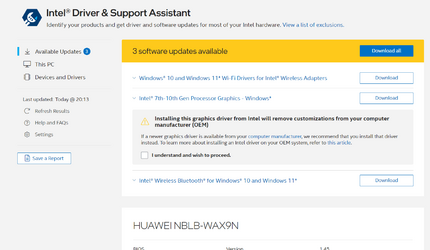
Q2. Is there any way to tell what the customization is, ie. what did Intel DSA detect that results in this warning message? I need to be able to decide if I should upgrade or not.
Q3. Should I update if my system works fine? I normally wouldn't care for an old driver but this system is exposed to the internet on public wifi, and windows 11 is constantly changing its driver frameworks, also apps'games expect new drivers too...
Q4. This update would be a DCH driver I suppose. I remember reading an article from Intel saying that I can update OEM drivers and it will preserve customizations and still provide the latest firmware. And essentially this being-locked-to-ancient-drivers thing is no longer the case.
Windows 10: Intel unlocks graphics drivers so you can now bypass OEM customizations
and then there's this , completely the opposite...
Warning: Installing This Graphics Driver From Intel May Overwrite...
and then, there's the warning message in the screenshot, which is a lot more threatening than in the one in the article. In the article it says 'it might remove', and my warning msg says 'it will remove'
The link in my warning message is this , different from the one above.
According to this, my current driver might not be DCH.
Hardware specification is in my BIO. Link to specs here and NotebookCheck
EDIT: it is reading DCH by the Test intel described :
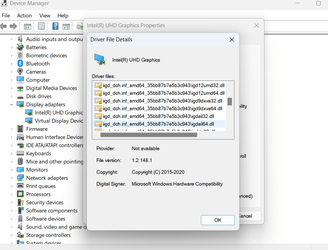
Manufacturer: HUAWEI
Model: NBLB-WAX9N
Processor Name: Intel(R) Core(TM) i5-10210U CPU @ 1.60GHz
Thank you./
I'm thinking about updating my GPU driver since it hasn't been updated in 3 years, but Intel's Driver Support Assistant (DSA) is giving me this warning sign. One of you here told me that this warning sign only appears if Intel DSA detects customizations to be present.
Q1. Can you please confirm if this is true? Here is the screen:
Q2. Is there any way to tell what the customization is, ie. what did Intel DSA detect that results in this warning message? I need to be able to decide if I should upgrade or not.
Q3. Should I update if my system works fine? I normally wouldn't care for an old driver but this system is exposed to the internet on public wifi, and windows 11 is constantly changing its driver frameworks, also apps'games expect new drivers too...
Q4. This update would be a DCH driver I suppose. I remember reading an article from Intel saying that I can update OEM drivers and it will preserve customizations and still provide the latest firmware. And essentially this being-locked-to-ancient-drivers thing is no longer the case.
Windows 10: Intel unlocks graphics drivers so you can now bypass OEM customizations
and then there's this , completely the opposite...
Warning: Installing This Graphics Driver From Intel May Overwrite...
and then, there's the warning message in the screenshot, which is a lot more threatening than in the one in the article. In the article it says 'it might remove', and my warning msg says 'it will remove'
The link in my warning message is this , different from the one above.
According to this, my current driver might not be DCH.
Hardware specification is in my BIO. Link to specs here and NotebookCheck
EDIT: it is reading DCH by the Test intel described :
Manufacturer: HUAWEI
Model: NBLB-WAX9N
Processor Name: Intel(R) Core(TM) i5-10210U CPU @ 1.60GHz
Thank you./
- Windows Build/Version
- 22621.2283
Last edited:
My Computers
-
At a glance
Windows 11 Pro Education (Insider Release Pre...Intel(R) Core(TM) i5-10210U CPU16 GB DDR4Intel UHD 620- OS
- Windows 11 Pro Education (Insider Release Preview Ring)
- Computer type
- Laptop
- Manufacturer/Model
- HUAWEI MateBook D14 (2020)
- CPU
- Intel(R) Core(TM) i5-10210U CPU
- Motherboard
- 53012BMY
- Memory
- 16 GB DDR4
- Graphics Card(s)
- Intel UHD 620
- Monitor(s) Displays
- 14" and HP 25x
- Screen Resolution
- 1920x1080
- Hard Drives
- 512 GB NVMe SSD
- PSU
- HUAWEI 65W SuperCharger
-
At a glance
Windows 11 Pro Education (Insider Release Pre...Intel® Core™ i3-1125G48 GB DDR4Intel Xe- Operating System
- Windows 11 Pro Education (Insider Release Preview Ring)
- Computer type
- Laptop
- Manufacturer/Model
- DELL Latitude 5520
- CPU
- Intel® Core™ i3-1125G4
- Memory
- 8 GB DDR4
- Graphics card(s)
- Intel Xe
- Monitor(s) Displays
- 15.6"
- Screen Resolution
- Full HD
- Hard Drives
- 256 GB NVMe SSD


 . They display that warning whether your computer has an OEM driver or not as a precaution. I get that message even on a clean install with no driver other than the built-in generic Microsoft driver.






