UPDATE 8/29:

 www.elevenforum.com
[UPDATE 8/21] We are releasing Build 26100.5067 (KB5064081) today which is a small update that addresses some issues with the update itself. An additional fix is noted below.
Hello Windows Insiders, today we’re releasing Windows 11Build 26100.5061 (KB5064081) to Insiders in the Release Preview Channel on Windows 11, version 24H2 (Build 26100).
Below is a summary of the new features and improvements included as part of this update separated into two sections: gradual rollout and normal rollout. The bold text within the brackets indicates the item or area of the change we are documenting.
Windows Insider Program Team

 blogs.windows.com
Check Windows Updates
UUP Dump:
64-bit ISO download:

ARM64 ISO download:
 www.elevenforum.com
KB5065426 Windows 11 Insider Release Preview build 26200.6584 (25H2) - Sep. 9
UPDATE 9/12: https://www.elevenforum.com/t/kb5065789-windows-11-insider-release-preview-build-26100-6713-24h2-and-26200-6713-25h2-sep-12.39789/ Microsoft Support: Hello Windows Insiders! Today, we are making this year’s annual feature update Windows 11, version 25H2 (Build 26200.5074)...
www.elevenforum.com
Windows Insider Blog:
[UPDATE 8/21] We are releasing Build 26100.5067 (KB5064081) today which is a small update that addresses some issues with the update itself. An additional fix is noted below.
Hello Windows Insiders, today we’re releasing Windows 11
Below is a summary of the new features and improvements included as part of this update separated into two sections: gradual rollout and normal rollout. The bold text within the brackets indicates the item or area of the change we are documenting.
Gradual rollout
The following features and improvements might not be available to all users because they will roll out gradually. Text bolded in brackets indicate the area of the change being documented. Please note that features and improvements that gradually roll out may not begin rolling out right away nor will they immediately show up right away.- [Recall] New! Recall opens to a personalized homepage that puts your recent activity and top-used apps and websites front and center, making it easy to pick up where you left off. After turning on snapshot collection, the homepage highlights key productivity features like Recent Snapshots, which show the latest snapshots to help you quickly resume tasks, and Top Apps and Websites, which display the three apps and websites you’ve used most in the past 24 hours. You can set filters in Settings to control which apps and websites are saved in snapshots. A new navigation bar on the leftmost side of the screen provides quick access to Home, Timeline, Feedback, and Settings.

Enable or Disable Recall Personalized Homepage in Windows 11
This tutorial will show you how to turn on or off Recall homepage showing a customized experience using your recent snapshots and app usage for your account on Windows 11 Copilot+ PCs. Recall is an experience exclusive to Copilot+ PCs that will help you easily find and remember things you've...
www.elevenforum.com
- [Click to Do] New! When you launch Click to Do for the first time, you’ll see a quick interactive tutorial. It shows how to complete tasks faster by demonstrating actions on both text and images—such as summarizing large blocks of text or removing image backgrounds. To revisit the tutorial later, select More options … > Start tutorial.
Open Click to Do in Windows 11
This tutorial will show you different ways to open Click to Do on a Windows 11 Copilot+ PC. Click to Do (preview) helps you get things done faster by identifying text and images on your screen that you can take actions with. Click to Do analyzes what's on screen and then you can choose the text...
www.elevenforum.com
- [General] New! When an app requests access to location, camera, microphone, or other device capabilities, Windows shows a redesigned system dialog box. The screen dims slightly, and the privacy prompt appears centered on the screen.
- [Taskbar]
- New! The larger clock with seconds is now back in the notification center, displayed above the date and calendar. To turn this option on, go to Settings > Time & language > Date & time, and turn on Show time in the Notification Center.

Add or Remove Time in Notification Center in Windows 11
This tutorial will show you how to turn on or off showing time (clock) in the Notification Center for your account in Windows 11. The Notification Center (Win+N) is a taskbar flyout where you can quickly access notifications, the calendar, and start or end a focus session from. Starting with...
www.elevenforum.com
- Fixed: If you accidentally click down and slide your mouse on the taskbar preview thumbnail, clicking it may stop working.
- Fixed: File Explorer preview windows may appear when hovering over unrelated app icons in the taskbar.
- New! The larger clock with seconds is now back in the notification center, displayed above the date and calendar. To turn this option on, go to Settings > Time & language > Date & time, and turn on Show time in the Notification Center.
- [Search on the Taskbar]
- New! When you use Search from the Windows taskbar, a new grid view will help you more quickly and accurately identify the desired image within your search.
- New! Search on the taskbar now provides clearer status information. If your search results are incomplete while your PC is organizing files in the background, Windows shows a notice with a link to check progress. You can dismiss the notice when you’re done. There is also a status for files and folders, so you can easily tell whether they’re available online (cloud) or stored on your device.

Add or Remove Search Button on Taskbar in Windows 11
This tutorial will show you how to add or remove the Search button on the taskbar for your account or all users in Windows 11. The Search button on the taskbar allows you to quickly use Windows Search (Win+S) to search for apps, documents, email, files, folders, music, people, photos, settings...
www.elevenforum.com
- [Lock screen] New! After rolling this experience out to Windows Insiders in the EEA, we are now beginning to roll out more widget options on the lock screen as well as support for lock screen widget personalization (previously referred to as “Weather and more”) with Insiders in all regions. You can add, remove, and rearrange lock screen widgets such as Weather, Watchlist, Sports, Traffic, and more. Any widget that supports the small sizing option can be added here. To customize your lock screen widgets, navigate to Settings > Personalization > Lock screen.

Add and Remove Widgets on Lock Screen in Windows 11
This tutorial will show you how to add and remove widgets on the lock screen for your account in Windows 11. You can stay informed and efficient with dynamic updates that bring weather, finance, sports, traffic, and app notifications right to your lock screen. Starting with Windows 11 build...
www.elevenforum.com

Rearrange Widgets on Lock Screen in Windows 11
This tutorial will show you how to rearrange widgets on the lock screen for your account in Windows 11. You can stay informed and efficient with dynamic updates that bring weather, finance, sports, traffic, and app notifications right to your lock screen. Starting with Windows 11 build...
www.elevenforum.com
Customize Widgets in Windows 11
This tutorial will show you how to customize a widget on the widgets board and Lock screen for your account in Windows 11. Widgets in Windows are interactive elements that display dynamic content and provide quick access to various apps and features. You can view your location's current weather...
www.elevenforum.com
- [File Explorer]
New!Use AI actions in File Explorer to edit images or summarize documents. Just right click (or Press Shift+F10) on a file and select AI Actions.[UPDATE 8/28] AI actions in File Explorer will roll out in a future update.

Use AI Actions in File Explorer in Windows 11
This tutorial will show you how to use AI actions in File Explorer for your account in Windows 11. Starting with Windows 11 build 262100.6725 (24H2), Microsoft is introducing AI actions in File Explorer. With AI actions in File Explorer, you can interact more deeply with your files by...
www.elevenforum.com
Image actions: You can now use four AI-powered image actions with .jpg, .jpeg, and .png files. Visual Search searches the web using an image instead of text. Blur Background opens the Photos app to highlight the subject and blur the background. Erase Objects removes unwanted elements from your photo. Remove Background uses Paint to change any image leaving a smooth cut out of the subject.AI actions for Microsoft 365 makes it easier to work with your documents. With the Summarize action in Copilot, you can quickly generate summaries of files stored in OneDrive and SharePoint—no need to open each one. This AI action requires an active Microsoft 365 subscription and a Copilot license (Microsoft account and Microsoft Entra ID supported).
New!Dividers now appear between top-level icons in the File Explorer context menu.- New! When you’re signed in with a work or school account (Entra ID), File Explorer will display people icons in the Activity column and the Recommended section at the top of File Explorer Home. Hover over or select a person’s icon to open their Microsoft 365 Live Persona Card, which shows who they are and how they’re connected to the file.

Enable or Disable Show Recommended Section in File Explorer Home in Windows 11
This tutorial will show you how to turn on or off showing the Recommended section instead of Quick access in File Explorer Home for your account in Windows 11. Home in the navigation pane of File Explorer allows you to quickly access and view your pinned locations, frequent folders, and recent...
www.elevenforum.com
- Fixed: If you try to use the unblock open in Properties for a file, it still shows as blocked when you open Properties the next time.
- Windows Hello]
- New! As part of the enhanced passkey features released in September 2023, you’ll see a redesigned Windows Hello interface. These modernized visual updates support fast, clear communication that appear across multiple authentication flows, including the Windows sign-in screen, passkey, Recall, the Microsoft Store, and more. The Windows security credential experience for passkey offers a cleaner, more intuitive interface designed to support fast, secure sign-in. You can now easily switch between authentication options such as passkeys or connected devices.
- Fixed: Windows Hello may recognize your face on the login screen, however it would still fail and then prompt you to enter your pin. If you continue experiencing issues, you may need to go to the Facial Recognition section under Settings > Accounts > Sign-in options, and select Improve recognition.
- Improved: Fingerprint login after standby is now more robust.
[Advanced Settings]New! The redesigned Advanced settings page under Settings > System > Advanced is an update of the For Developers page and makes it easier to find key options. New settings include Enable long paths, which removes MAX_PATH limitations; Virtual workspaces, which let you turn environments like Hyper-V and Windows Sandbox on or off; and File Explorer + version control, which shows Git details such as branch, diff count, and last commit message directly in File Explorer when you select a repository folder.[UPDATE 8/27] This change will roll out in a future update.

Enable or Disable Win32 Long Paths in Windows 11
This tutorial will show you how to enable or disable Win32 long paths for all users in Windows 10 and Windows 11. In the Windows API (with some exceptions), the maximum length for a path is MAX_PATH, which is defined as 260 characters. You can enable long paths to remove the MAX_PATH...
www.elevenforum.com

Enable or Disable Windows Sandbox in Windows 11
This tutorial will show you how to enable or disable the Windows Sandbox feature for all users in Windows 11 Pro, Enterprise, or Education. Windows Sandbox provides a lightweight desktop environment to safely run applications in isolation. Software installed inside the Windows Sandbox...
www.elevenforum.com

Enable or Disable Hyper-V in Windows 11
This tutorial will show you how to enable or disable the Hyper-V feature for all users in Windows 10 and Windows 11. Hyper-V enables running virtualized computer systems in parallel with a physical host. These virtualized systems can be used and managed just as if they were physical computer...
www.elevenforum.com

Add or Remove Repository Folders for File Explorer version control in Windows 11
This tutorial will show you how to add and remove repository folders used for File Explorer version control for your account in Windows 11. File Explorer version control integration provides version control information directly in File Explorer. File Explorer + version control provides the...
www.elevenforum.com
- [Settings]
- New! Windows activation and expiration prompts match the Windows 11 design and appear as system notifications when action is required. There also have been improvements to messaging under Settings > System > Activation.
- New! You can go to Settings > Privacy & security > Text and Image Generation to see which third-party apps have recently used generative AI models provided by Windows. You can also choose which apps are permitted to use them—putting you in charge of your device’s AI experience.

See Text and Image Generation Recent Activity by Apps in Windows 11
This tutorial will show you how to see recent requests by apps to use Text and image generation in the last 7 days in Windows 11. Text and image generation uses on-device generative Al technologies to quickly respond to requests. Starting with Windows 11 build 2610.5074 (24H2), you can now...
www.elevenforum.com
New!You can view the Device Card on the Settings home page. It shows key specifications and usage details of your PC. From the card, go directly to Settings > About page for more detailed information about your PC. This card will show when signed in with your Microsoft account and in the U.S. only.[UPDATE 8/28] This change will roll out in a future update.

Add or Remove Home in Navigation Pane of File Explorer in Windows 11
This tutorial will show you how to add or remove Home in the navigation pane of File Explorer for your account or all users in Windows 11. Home in the navigation pane is the default homepage of File Explorer (Win+E) that allows you to quickly access and view your pinned/frequent locations...
www.elevenforum.com
New!More time, language, and keyboard settings have moved from Control Panel to Settings. You can now add additional clocks, change your time server, and customize date and time formatting—including AM/PM symbols—directly from Settings > Time & language > Date & time. Number and currency formats, Unicode UTF-8 support, and options to copy language and region settings to other accounts are now under Settings > Time & language > Language & region. Keyboard character repeat and cursor blink rate settings are now easier to find under Settings > Accessibility.[UPDATE 8/28] This change will roll out in a future update.

Add or Remove Additional Clocks for Different Time Zones in Windows 11
This tutorial will show you how to setup and show up to two additional clocks for different time zones on the taskbar for your account in Windows 11. Windows can display up to three clocks on the taskbar: one for the local time and two additional clocks for different time zones. After you set...
www.elevenforum.com

Change Internet Time Server in Windows 11
This tutorial will show you how to change the Internet time server (NTP server) used to synchronize your system clock in Windows 10 and Windows 11. Time is a measure in which events can be ordered from the past through the present into the future, and also the measure of durations of events and...
www.elevenforum.com

Change Date Format in Windows 11
This tutorial will show you how to change the date format used for your account in Windows 11. Your regional format settings will influence how your date/time, numeric, and currency data types appear when you apply formatting options. Windows supports a variety of languages, plus currency and...
www.elevenforum.com

Change Time Format in Windows 11
This tutorial will show you how to change the time format used for your account in Windows 11. Your regional format settings will influence how your date/time, numeric, and currency data types appear when you apply formatting options. Windows supports a variety of languages, plus currency and...
www.elevenforum.com

Copy Language and Region Settings to Welcome Screen and New Users in Windows 11
This tutorial will show you how to copy your account's language and region settings to the welcome screen (aka: lock screen), system accounts and new user accounts in Windows 11. You can copy your account's current display language, keyboard input language, date and time regional format, and...
www.elevenforum.com

Change Number Format in Windows 11
This tutorial will show you how to change the number format used for your account in Windows 10 and Windows 11. Your regional format settings will influence how your date/time, numeric, and currency data types appear when you apply formatting options. Windows supports a variety of languages...
www.elevenforum.com

Change Currency Format in Windows 11
This tutorial will show you how to change the currency format used for your account in Windows 10 and Windows 11. Your regional format settings will influence how your date/time, numeric, and currency data types appear when you apply formatting options. Windows supports a variety of languages...
www.elevenforum.com

Enable or Disable Unicode UTF-8 for Worldwide Language Support in Windows 11
This tutorial will show you how to enable or disable Unicode UTF-8 for worldwide language support for all users in Windows 10 and Windows 11. When you change the display language, the text in menus and dialog boxes for some programs might not be in the language that you want. This happens...
www.elevenforum.com

Change Keyboard Character Repeat Rate in Windows 11
This tutorial will show you how to change the keyboard character repeat rate for your account in Windows 10 and Windows 11. You can change the keyboard character repeat delay and rate for when you press and hold down a key. The repeat delay is the pause between pressing a key and when it...
www.elevenforum.com

Change Text Cursor Blink Rate in Windows 11
This tutorial will show you how to change the text cursor blink rate for your account in Windows 7, Windows 8, Windows 10, and Windows 11. The text cursor is that blinking line at the end of what you are typing in Windows. The cursor blink rate is how often the text cursor blinks. The default...
www.elevenforum.com
- New! As part of the Copilot+ PC experience, the agent in Settings helps you quickly find and change settings. Initially available on Snapdragon®-powered Copilot+ PCs, agent in Settings now supports AMD- and Intel™-powered Copilot+ PCs. It currently works only when your primary display language is set to English.

Find a Setting in Settings app in Windows 11
This tutorial will show you how to search to find a setting within the Settings app in Windows 11. Microsoft designed Settings to be beautiful, easy to use and inclusive of all your Microsoft experiences in Windows 11. Settings has left-handed navigation that persists between pages, and...
www.elevenforum.com
- Fixed: Settings may crash if you attempt to add a security key under Settings > Account > Sign-in options.
- [Task Manager] New! Task Manager now uses standard metrics to show CPU workload consistently across all pages, aligning with industry standards and third-party tools. If you prefer the previous view, you can enable a new optional column called CPU Utility in the Details tab to display the earlier CPU usage value shown on the Processes page.

Add or Remove Columns in Task Manager in Windows 11
This tutorial will show you how to add or remove columns for details in Task Manager for your account in Windows 11. Task Manager can be used to view and manage your processes, performance statistics, app history, startup apps, users, process details, and services in Windows 11. Starting with...
www.elevenforum.com
- [Windows Backup for Organizations] New! Windows Backup for Organizations is now generally available! Experience seamless device transitions with enterprise-grade backup and restore. Whether you’re refreshing your organization’s devices, upgrading to Windows 11, or deploying AI-powered PCs, this solution helps sustain productivity with minimal disruption, ensuring business continuity and organizational resilience.
- [PowerShell 2.0] Starting in August 2025, Windows 11, version 24H2, will no longer include Windows PowerShell 2.0.This legacy component was introduced in Windows 7 and officially deprecated in 2017. Most users won’t be affected, as newer versions such as PowerShell 5.1 and PowerShell 7.x remain available and supported. If you use older scripts or tools that depend on PowerShell 2.0, update them to avoid compatibility issues.
- [Live captions] Fixed: Changing the opacity of live captions in Settings > Accessibility > Captions > Caption Style, has no effect.
- [Input]
- Fixed: Attempting to type Chinese with an IME after copying something with CTRL + C can result in the first character not displaying.
- Fixed: An underlying issue related to textinputframework.dll could result in certain apps like Sticky Notes and Notepad crashing.
- [Kerberos] Fixed: There may be an underlying crash in Kerberos when attempting to access a cloud file share.
- [Login] Improved: Addressed some underlying cases which could lead to you seeing a blank white screen, or a screen saying, “just a moment”, for a few minutes when logging in to your PC.
- [dbgcore.dll] Fixed: An underlying issue with dbgcore.dll could result in certain apps, including explorer.exe, crashing.
- [Audio] Improved: Addressed an underlying audio service hang which could impact the ability to play audio in certain cases.
Normal rollout
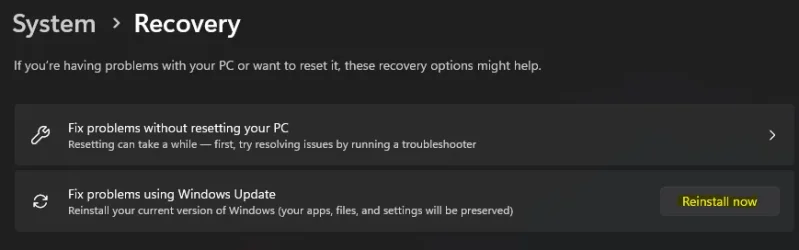
This update includes the following features and improvements that are rolling out as part of this update. Text bolded in brackets indicates the area of the change being documented.- [Device management] Fixed: This update addresses an issue that prevented some system recovery features from working properly due to a temporary file sharing conflict. This affected certain device management tools and disrupted key functions on some devices.
- [File system] Fixed: An issue in Resilient File System (ReFS) where using backup apps with large files could sometimes exhaust system memory.
- [Input]
- Fixed: This update addresses an issue with the Chinese (Simplified) Input Method Editor (IME) where some extended characters appear as empty boxes.
- Fixed: This update addresses an issue that prevents typing on the touch keyboard when using the Microsoft Changjie, Microsoft Bopomofo, or Microsoft Japanese Input Method Editors (IMEs). The issue occurs after switching to a previous version of the IME.
- [Performance] Fixed: This update addresses an issue that slows application installation on ARM64 devices. Some installers might take longer to complete.
- [ADDED 8/21] [Miracast] Fixed: An issue where, on certain devices, audio would initially play but stop a few seconds after casting to a TV.
Windows Insider Program Team
Source:
Releasing Windows 11 Build 26100.5061 to the Release Preview Channel
[UPDATE 8/21] We are releasing Build 26100.5067 (KB5064081) today which is a small update that addresses some issues with the update itself. An additional fix is noted below. Hello Windows Insiders, today we’re re
blogs.windows.com
Check Windows Updates
UUP Dump:
64-bit ISO download:
Select language for Windows 11, version 24H2 (26100.5067) amd64
Select language for Windows 11, version 24H2 (26100.5067) amd64 on UUP dump. UUP dump lets you download Unified Update Platform files, like Windows Insider updates, directly from Windows Update.
uupdump.net
ARM64 ISO download:
Select language for Windows 11, version 24H2 (26100.5067) arm64
Select language for Windows 11, version 24H2 (26100.5067) arm64 on UUP dump. UUP dump lets you download Unified Update Platform files, like Windows Insider updates, directly from Windows Update.
uupdump.net
UUP Dump - Download Windows Insider ISO
UUP Dump is the most practical and easy way to get ISO images of any Insider Windows 10 or Windows 11 version, as soon as Microsoft has released a new build. UUP Dump creates a download configuration file according to your choices, downloads necessary files directly from Microsoft servers, and...
www.elevenforum.com
Last edited:







 Sound by Fosi Audio DA-2120C pushing Magnat Series 503 bookshelf speakers and a SVS SB-1000 Pro subwoofer.