UPDATE 12/05:
 www.elevenforum.com
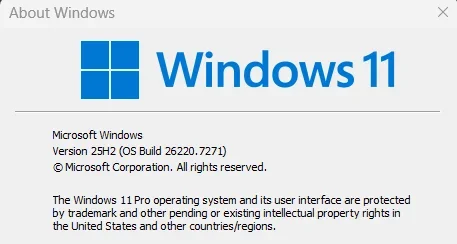
Hello Windows Insiders, today we are releasing Windows 11 Insider Preview Build 26220.7271 (KB5070307) to the Dev & Beta Channels.
As a reminder we are offering the same builds to both the Dev & Beta Channels on Windows 11, version 25H2.
If you are an Insider in the Dev Channel, you now have a window to switch from the Dev Channel to the Beta Channel if you would like. This window will only be open for as long as we’re releasing the same 25H2-based updates across both the Dev and Beta Channels. After we move Dev Channel forward to a higher build number, the opportunity to switch between these channels will close. When the Dev Channel jumps ahead, things might not be as stable as the Dev Channel is today, so we highly encourage you to evaluate which channel you would like to be in during the time in which the window to switch is open.
 www.elevenforum.com
Changes in Dev & Beta Channel builds and updates are documented in two buckets: new features, improvements, and fixes that are being gradually rolled out for Insiders who have turned on the toggle to get the latest updates as they are available (via Settings > Windows Update*) and then new features, improvements, and fixes rolling out to everyone in the Dev & Beta Channels. For more information, see the Reminders section at the bottom of this blog post.
 www.elevenforum.com
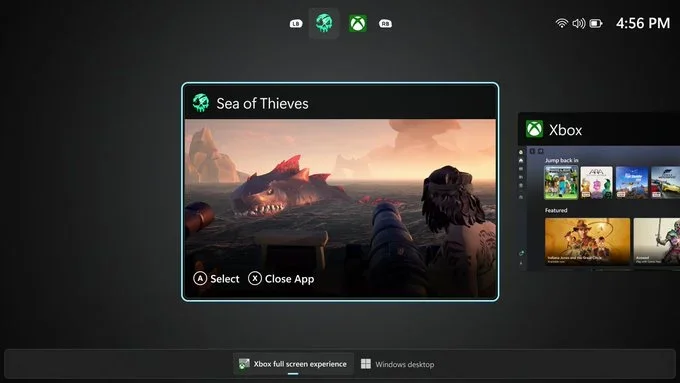
Designed with console-style navigation in mind, the Xbox full screen experience delivers a clean, distraction-free interface for controller-first gaming. Pair a controller to your PC for smooth task switching and a streamlined gaming experience on your desktop, laptop, or tablet.
 www.elevenforum.com
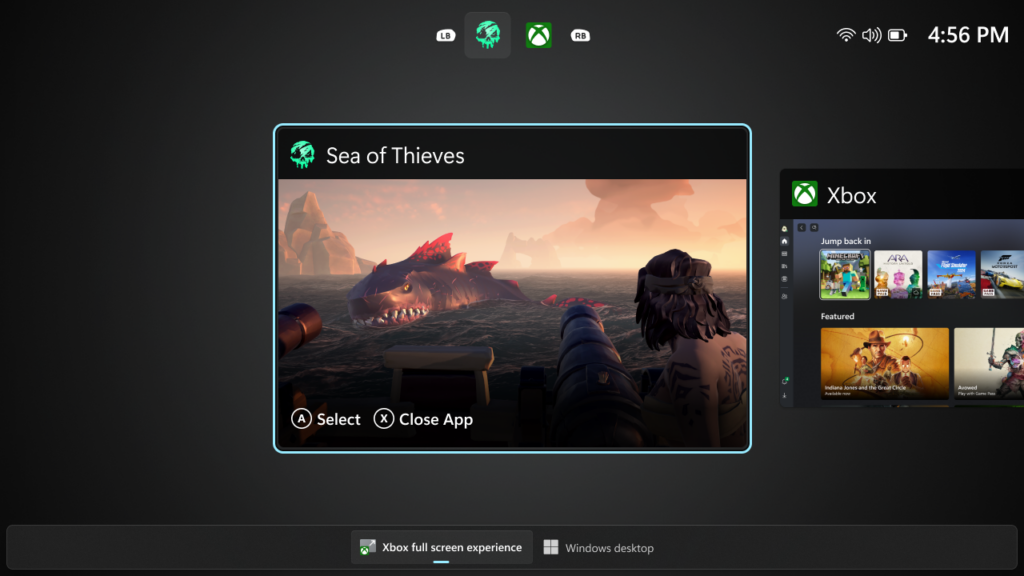
UI showing the Task View in Xbox full screen experience on PC.
How to enter Xbox full screen experience:
You can access Xbox full screen experience from Task View, Game Bar settings, or use Win + F11 hotkey to toggle FSE.
 www.elevenforum.com
 www.elevenforum.com
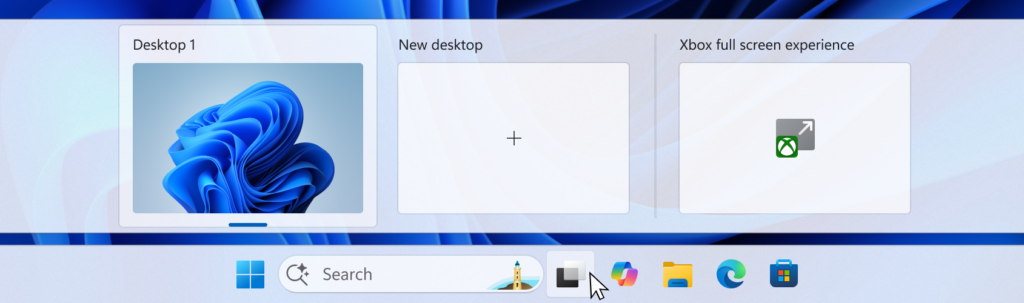
UI of the task view interface showing the option to access Xbox full screen experience.
The Xbox full screen experience begins as a gradual rollout to Windows Insiders on the Dev & Beta Channels, who are also registered Xbox Insiders. We expect to expand this later to all Insiders on Dev & Beta without requiring Xbox program registration. If you want to be among the first to try out these new features on your PC, join the Xbox Insiders Program and opt into the PC gaming preview thru the Xbox Insiders Hub.
For more information about the Xbox full screen experience, visit Full screen experience expands to more Windows 11 PC form factors.
Feedback: Share your thoughts in Feedback Hub (WIN + F) under Gaming and Xbox > Gaming Full Screen Experience.
 www.elevenforum.com
 www.elevenforum.com
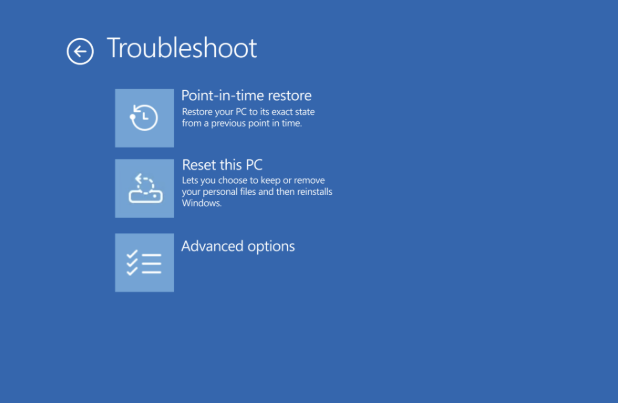
Point-in-time restore shown in the Troubleshoot menu for Windows RE.
Feedback: Share your thoughts in Feedback Hub (WIN + F) under Recovery and Uninstall > Point-in-time restore.
To use it, set focus to a text field and launch voice typing by pressing the Windows key plus H and complete setup if you’re a first-time user. Fluid Dictation is enabled by default—you can check or toggle it via the settings flyout—so all you need to do is start talking!
 www.elevenforum.com

UI showing the Fluid Dictation toggle in the voice typing launcher.
Feedback: Share your thoughts in Feedback Hub (WIN + F) under Input and Language > Voice Typing (Windows key plus H).
 www.elevenforum.com
 www.elevenforum.com
FEEDBACK: Please file feedback in Feedback Hub (WIN + F) under Devices and Drivers > Linked Phone.
 www.elevenforum.com

UI showing the uninstall functionality for Store-managed apps from the Store’s library page.
Windows Insiders across all channels running Microsoft Store version 22510.1401.x.x and higher will see this improvement.
FEEDBACK: Please file feedback in Feedback Hub (WIN + F) under Microsoft Store.
Windows Insider Program Team

 blogs.windows.com
Check Windows Updates
UUP Dump:
64-bit ISO download:

ARM64 ISO download:
 www.elevenforum.com
KB5070316 Windows 11 Insider Dev and Beta build 26220.7344 (25H2) - Dec. 5
Windows Insider Blog: Source: https://blogs.windows.com/windows-insider/2025/12/05/announcing-windows-11-insider-preview-build-26220-7344-dev-beta-channels/ Check Windows Updates UUP Dump: 64-bit ISO download: https://uupdump.net/selectlang.php?id=27f3da62-5704-4fbe-9356-c433ea4606b2...
www.elevenforum.com
Windows Insider Blog:
Hello Windows Insiders, today we are releasing Windows 11 Insider Preview Build 26220.7271 (KB5070307) to the Dev & Beta Channels.
As a reminder we are offering the same builds to both the Dev & Beta Channels on Windows 11, version 25H2.
If you are an Insider in the Dev Channel, you now have a window to switch from the Dev Channel to the Beta Channel if you would like. This window will only be open for as long as we’re releasing the same 25H2-based updates across both the Dev and Beta Channels. After we move Dev Channel forward to a higher build number, the opportunity to switch between these channels will close. When the Dev Channel jumps ahead, things might not be as stable as the Dev Channel is today, so we highly encourage you to evaluate which channel you would like to be in during the time in which the window to switch is open.
Change Windows Insider Program Channel in Windows 11
This tutorial will show you how to change your Windows Insider Program channel to the Beta, Experimental, or Release Preview channel to get Insider preview builds of Windows 11 on your PC. Flighting is the process of running Windows Insider Preview Builds on your device. When you run these...
www.elevenforum.com
Changes in Dev & Beta Channel builds and updates are documented in two buckets: new features, improvements, and fixes that are being gradually rolled out for Insiders who have turned on the toggle to get the latest updates as they are available (via Settings > Windows Update*) and then new features, improvements, and fixes rolling out to everyone in the Dev & Beta Channels. For more information, see the Reminders section at the bottom of this blog post.
Enable or Disable Get Latest Updates as soon as available in Windows 11
This tutorial will show you how to turn on or off "Get the latest updates as soon as they are available" in Windows 11. Starting with Windows 11 build 22621.1635, Microsoft added a new "Get the latest updates as soon as they are available" toggle under Settings > Windows Update. When you turn...
www.elevenforum.com
Introducing the Xbox full screen experience for PC
Alongside today’s general availability of the Xbox full screen experience (FSE) on more Windows handhelds, today’s preview to Windows Insiders also expands availability of FSE to additional Windows 11 PC form factors.Designed with console-style navigation in mind, the Xbox full screen experience delivers a clean, distraction-free interface for controller-first gaming. Pair a controller to your PC for smooth task switching and a streamlined gaming experience on your desktop, laptop, or tablet.
Full screen experience expands to more Windows 11 PC form factors for Windows Insiders
Windows Insider Blog: Hello Windows Insiders! We appreciate the excitement around the latest Windows handhelds and have heard feedback (and seen the creativity!) from those wanting this experience on more devices. Today, we’re excited to begin previewing a new experience for gaming on Windows 11...
www.elevenforum.com
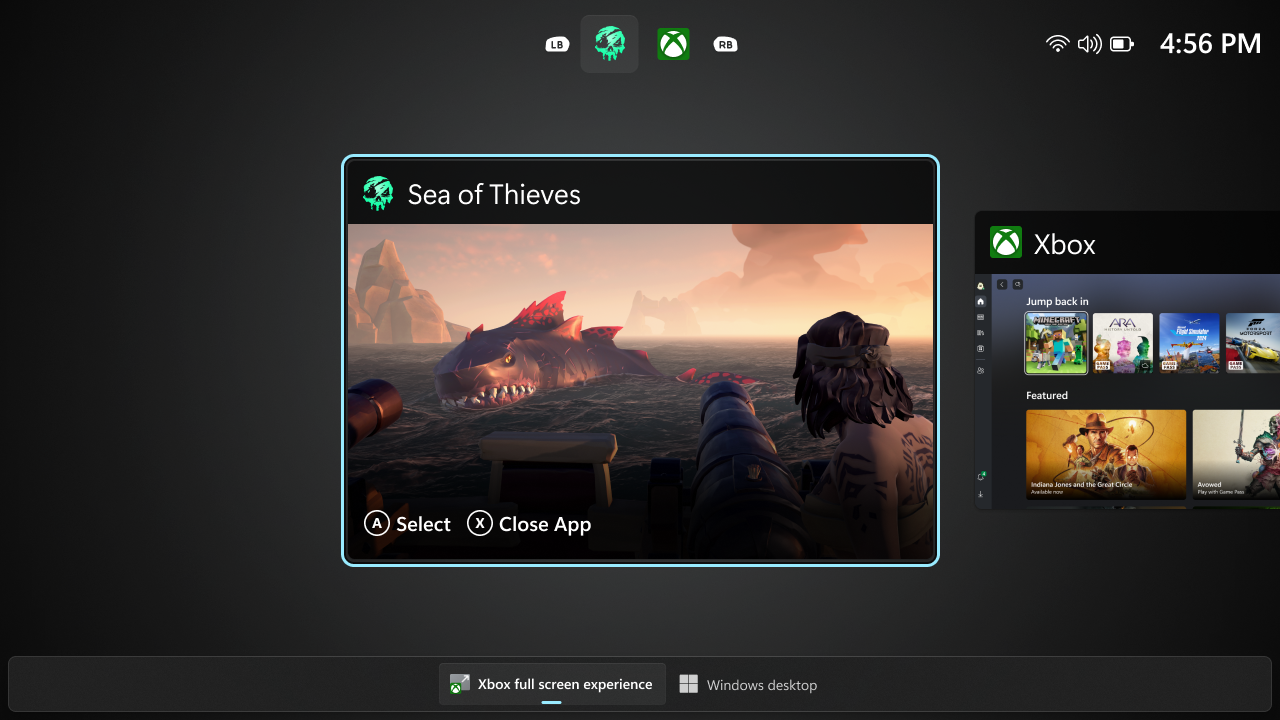
UI showing the Task View in Xbox full screen experience on PC.
How to enter Xbox full screen experience:
You can access Xbox full screen experience from Task View, Game Bar settings, or use Win + F11 hotkey to toggle FSE.
Enter and Exit Xbox Mode in Windows 11
This tutorial will show you how to enter and exit Xbox mode for full screen gaming for your account on Windows 11. Starting with Windows 11 build 26100.8328 (24H2), build 26200.8328 (25H2), and build 28000.2179 (26H1), Xbox mode is now available on Windows 11 PCs, including laptops, desktops...
www.elevenforum.com
Enable or Disable Xbox Mode in Windows 11
This tutorial will show you how to enable or disable Xbox mode for full screen gaming for your account on Windows 11. Starting with Windows 11 build 26100.8328 (24H2), build 26200.8328 (25H2), and build 28000.2179 (26H1), Xbox mode is now available on Windows 11 PCs, including laptops...
www.elevenforum.com
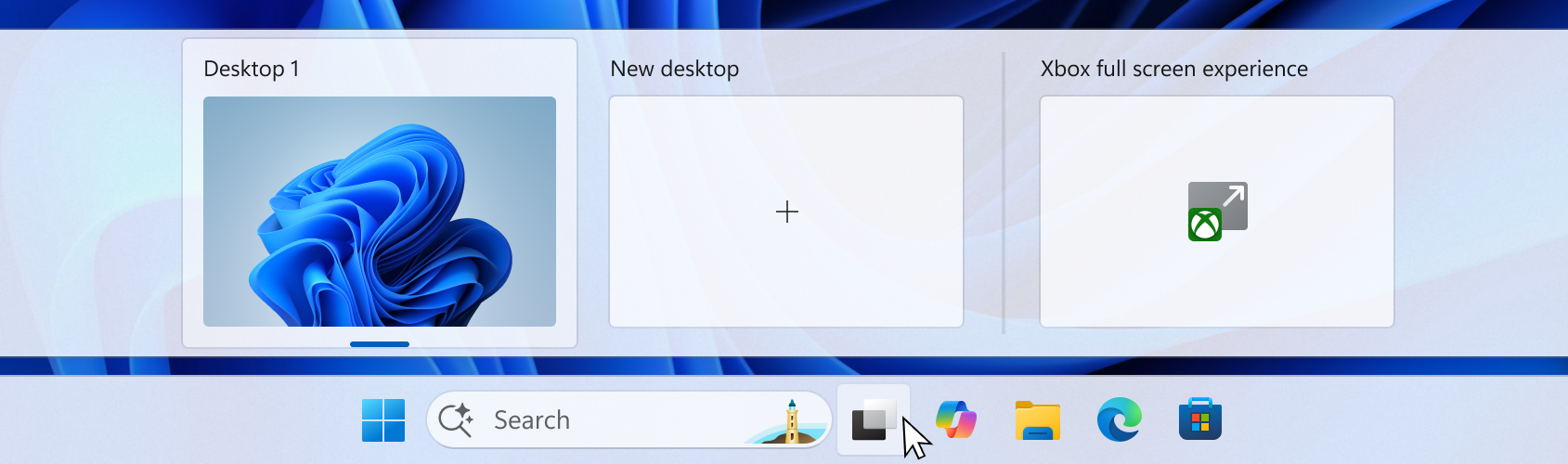
UI of the task view interface showing the option to access Xbox full screen experience.
The Xbox full screen experience begins as a gradual rollout to Windows Insiders on the Dev & Beta Channels, who are also registered Xbox Insiders. We expect to expand this later to all Insiders on Dev & Beta without requiring Xbox program registration. If you want to be among the first to try out these new features on your PC, join the Xbox Insiders Program and opt into the PC gaming preview thru the Xbox Insiders Hub.
For more information about the Xbox full screen experience, visit Full screen experience expands to more Windows 11 PC form factors.
Feedback: Share your thoughts in Feedback Hub (WIN + F) under Gaming and Xbox > Gaming Full Screen Experience.
New features gradually being rolled out with toggle on*
Point-in-time restore for Windows
We’re excited to introduce point-in-time restore for Windows, now available to Insiders in the Beta and Dev Channels! This flexible recovery feature empowers you to quickly roll your device back to a previous state—helping minimize downtime and simplify troubleshooting when disruptions strike. Whether you’re dealing with a widespread outage or a one-off issue, point-in-time restore helps recover your system (including apps, settings, and user files) to get you back to productivity faster. For more details, check out our documentation.
Enable or Disable Point-in-time Restore in Windows 11
This tutorial will show you how to turn on or off the point-in-time restore feature in Windows 11. Starting with Windows 11 build 26100.8737 (24H2), build 26200.8737 (25H2), and build 28000.2340 (26H1), Microsoft introduced point-in-time restore for Windows. This flexible recovery feature...
www.elevenforum.com
Perform Point-in-time Restore of Windows 11
This tutorial will show you how to use the point-in-time restore feature to restore your Windows 11 PC to the exact state it was at an earlier point in time using restore points. Starting with Windows 11 build 26100.8737 (24H2), build 26200.8737 (25H2), and build 28000.2340 (26H1), Microsoft...
www.elevenforum.com
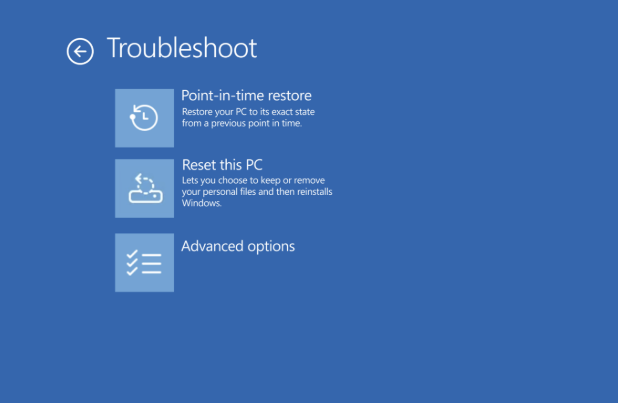
Point-in-time restore shown in the Troubleshoot menu for Windows RE.
Feedback: Share your thoughts in Feedback Hub (WIN + F) under Recovery and Uninstall > Point-in-time restore.
Introducing Fluid Dictation in Voice Typing
Following the introduction of Fluid dictation for voice access users, we’re also now introducing it for voice typing users on NPU devices. Fluid dictation makes voice-based dictation smoother and smarter by automatically correcting grammar, punctuation, and filler words as you speak, reducing the need for manual editing. Powered by on-device small language models (SLMs), it ensures fast and private processing.To use it, set focus to a text field and launch voice typing by pressing the Windows key plus H and complete setup if you’re a first-time user. Fluid Dictation is enabled by default—you can check or toggle it via the settings flyout—so all you need to do is start talking!
Enable or Disable Fluid Dictation in Voice Typing on Windows 11
This tutorial will show you how to turn on or off the fluid dictation feature in voice typing for your account on Windows 11 Copilot+ PCs. Voice typing allows you to enter text on your PC by speaking. You can use voice typing commands to manually insert punctuation marks. Starting with...
www.elevenforum.com
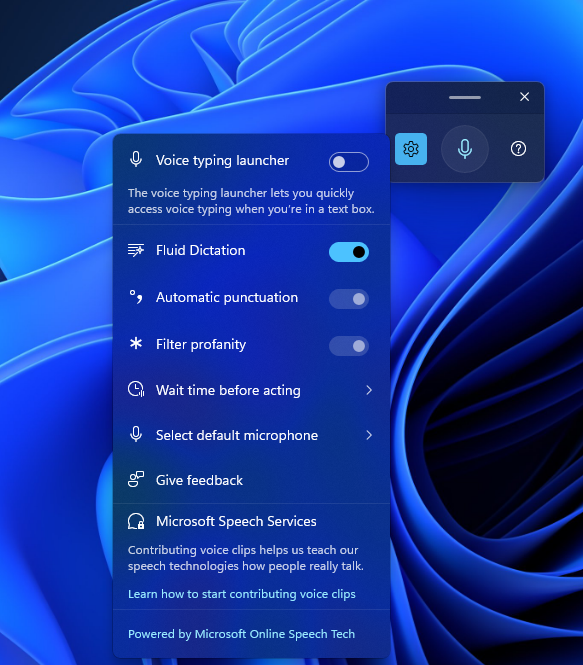
UI showing the Fluid Dictation toggle in the voice typing launcher.
Feedback: Share your thoughts in Feedback Hub (WIN + F) under Input and Language > Voice Typing (Windows key plus H).
Changes and Improvements gradually being rolled out with toggle on*
[Seamlessly resume more apps from your Android phone to your PC]
- Following the ability to resume Spotify tracks from your phone onto your PC, we’re excited to share that:
- vivo Android phone users can also now continue your browsing activity from vivo Browser on your phone, onto your default browser on your PC.
- Honor, Huawei, Oppo, Samsung and vivo Android phone users can also now continue online files opened on M365 Copilot app from your phone onto your PC. Word, Excel, and PowerPoint files will open in the respective app on your PC if you have it installed, or if you don’t they’ll open in the default browser on your PC. Note – offline files (stored locally on the phone) are not currently supported. [UPDATE 11/25] Huawei was removed from this section and Xiaomi was added.
Resume Apps from Android Phone on Windows 11 PC
This tutorial will show you how to seamlessly resume using your favorite apps from your Android phone on your Windows 11 PC. Starting with Windows 11 build 26200.5761 (Dev 25H2), build 26120.5761 (Beta 24H2), and build 28020.1619 (Canary 26H1), Microsoft is beginning to gradually roll out the...
www.elevenforum.com
Enable or Disable Resume App from Device and Continue on Windows 11 PC
This tutorial will show you how to enable or disable cross device Resume (aka: Hand Off) apps for your account or all users in Windows 11. Resume (aka: Hand Off) allows you to start something in an app on one device (ex: Android phone) and continue on your PC. Starting with Windows 11 build...
www.elevenforum.com
FEEDBACK: Please file feedback in Feedback Hub (WIN + F) under Devices and Drivers > Linked Phone.
[Click to Do]
- We’re testing and refining the Click-to-Do top bar to determine the best experience for future updates. Functionality will vary by device and market.

Use Click to Do in Windows 11
This tutorial will show you how to use Click to Do to perform AI actions with text and images for your account on a Windows 11 Copilot+ PC. Click to Do (preview) helps you get things done faster by identifying text and images on your screen that you can take actions with. Click to Do analyzes...
www.elevenforum.com
[File Explorer]
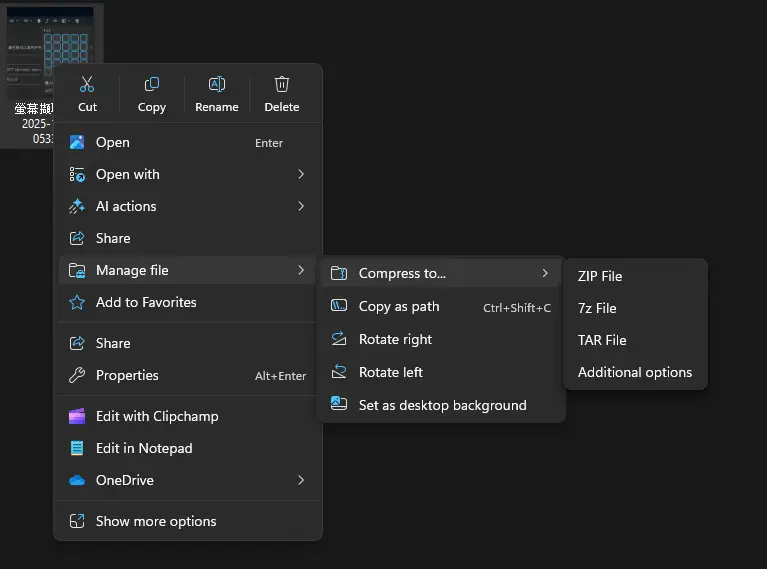
- We’re making a few refinements to the context menu aimed at reducing the space taken by less commonly used actions, while keeping them easy to access. We’ve also updated the ordering of actions to group similar tasks. This includes:
- We’ve moved Compress to ZIP file, Copy as Path, Set as Desktop Background, and Rotate Right, and Rotate Left into a new Manage file flyout.
- We’ve moved cloud provider options, like Always Keep on this Device and Free Up Space, into their relevant cloud provider flyout.
- We’ve moved Send to My Phone next to the cloud provider options.
- We’ve moved Open Folder Location to now be next to Open and Open with.

The image on the left shows the “before” experience before and the image on the right shows the “after” experience.
Note, the name Manage file may change in a future Insider update. If you have feedback, please file it in the Feedback Hub under Desktop Environment > Right-Click Context Menu - We’re exploring preloading File Explorer in the background to help improve File Explorer launch performance. This shouldn’t be visible to you, outside of File Explorer hopefully launching faster when you need to use it. If you have the change, if needed there is an option you can uncheck to disable this called “Enable window preloading for faster launch times” in File Explorer’s Folder Options, under View. Looking forward to your feedback! If you do encounter any issues, please file them in the Feedback Hub under Files Folders and Online Storage > File Explorer Performance, or Files Folders and Online Storage > File Explorer.
Enable or Disable Preloading File Explorer in Windows 11
This tutorial will show you how to turn on or off File Explorer window preloading for faster launch times for your account in Windows 11. Starting with Windows 11 build 26220.7271 (Dev and Beta 25H2), Microsoft is exploring preloading File Explorer in the background to help improve File...
www.elevenforum.com
[Microsoft Store]
Based on user feedback, we have added support for uninstalling Store-managed apps from the Store’s library page. Simply find an installed app in your library, click the three-dot menu, and click uninstall. Please let us know what you think!
Uninstall Apps in Windows 11
This tutorial will show you how to uninstall apps for your account, all users, or new users in Windows 11. If you no longer want or use an app, then you could uninstall the app to remove it and free up space on the drive. Desktop apps are traditional programs installed by a user. These will...
www.elevenforum.com
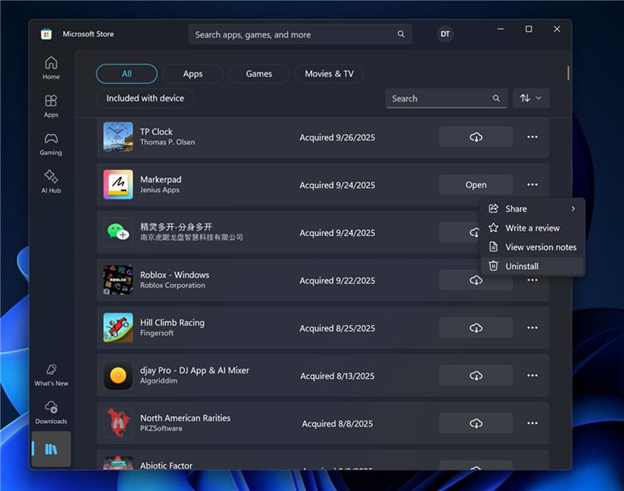
UI showing the uninstall functionality for Store-managed apps from the Store’s library page.
Windows Insiders across all channels running Microsoft Store version 22510.1401.x.x and higher will see this improvement.
FEEDBACK: Please file feedback in Feedback Hub (WIN + F) under Microsoft Store.
Fixes gradually being rolled out with toggle on*
[Taskbar and System Tray]
- Fixed an issue which could cause the taskbar to hang after receiving certain notifications.
- Fixed an issue where the battery icon in the taskbar might unexpectedly show its own backplate when hovering over the icon in the system tray (instead of combined with wi-fi and volume).
[Internet]
- Made some underlying improvements to help address an issue which could lead to not having internet after resuming from disconnected standby. Please don’t hesitate to file feedback under Network and Internet in the Feedback Hub if you continue experiencing issues.
[Settings]
- Fixed an issue where if you opened the Recycle bin and had “Empty recycle bin” visible in the command bar, it might stay showing after you navigated away.
[Settings]
- Fixed an issue where Settings might crash when navigating to Privacy & Security > Camera, Location, or Microphone.
[Display and Graphics]
- Fixed an issue where recently certain games might show a message saying “Unsupported graphics card detected”, although a supported graphics card was being used.
[Task Manager]
- If you’re using Die or CAMM memory form factor, Task Manager will now show that in Performance under Memory > Form Factor, instead of a blank.
[.NET Framework and Visual Studio]
- The issue causing Insiders with ARM64 PCs to potentially observe crashes with Visual Studio or applications that depend on .NET Framework should be resolved if you have installed the latest .NET Framework update.
Known issues
[Xbox full screen experience for PC]
- [NEW] The virtual keyboard is not shown for controller users on devices without a touch screen. Please use the physical keyboard as a workaround for now.
- [NEW] Some apps may behave unexpectedly when using FSE, particularly those that expect to be locked to a given size or launch additional windows.
[Taskbar & System Tray]
- We’re investigating an issue which is causing the Start menu to not open for some Insiders on click, although it will open if you press the Windows key. It’s believed this issue may also potentially impact the notification center (which you can open with WIN + N).
- We’re investigating an issue where for some Insiders apps aren’t showing in the system tray when they should be.
[File Explorer]
- Scrollbar and footer are missing and showing a white block instead when text is scaled in dark mode version of the copy dialog.
- [NEW] We’re investigating an issue where File Explorer has started showing a white flash when navigating between pages after the previous flight.
[Bluetooth]
- [NEW] We’re investigating an issue causing Bluetooth device battery level to not show for some Insiders.
Reminders for Windows Insiders in the Dev & Beta Channels
- Updates are based on Windows 11, version 25H2 via an enablement package (Build 26220.xxxx).
- Many features are rolled out using Controlled Feature Rollout technology, starting with a subset of Insiders and ramping up over time as we monitor feedback to see how they land before pushing them out to everyone in this channel.
- For Windows Insiders who want to be the first to get features gradually rolled out to you, you can turn ON the toggle to get the latest updates as they are available via Settings > Windows Update*. Over time, we will increase the rollouts of features to everyone with the toggle turned on. Should you keep this toggle off, new features will gradually be rolled out to your PC over time once they are ready.
- Features and experiences included in these builds may never get released as we try out different concepts and get feedback. Features may change over time, be removed, or replaced and never get released beyond Windows Insiders. Some of these features and experiences could show up in future Windows releases when they’re ready.
- Some features in active development we preview with Windows Insiders may not be fully localized and localization will happen over time as features are finalized. As you see issues with localization in your language, please report those issues to us via Feedback Hub.
- Check out Flight Hub for a complete look at what build is in which Insider channel.
Windows Insider Program Team
Source:
Announcing Windows 11 Insider Preview Build 26220.7271 (Dev & Beta Channels)
Hello Windows Insiders, today we are releasing Windows 11 Insider Preview Build 26220.7271 (KB5070307) to the Dev & Beta Channels. As a reminder we are offering the same builds to both the Dev & Beta Channel
blogs.windows.com
Check Windows Updates
UUP Dump:
64-bit ISO download:
Select language for Windows 11 Insider Preview Feature Update (26220.7271) amd64
Select language for Windows 11 Insider Preview Feature Update (26220.7271) amd64 on UUP dump. UUP dump lets you download Unified Update Platform files, like Windows Insider updates, directly from Windows Update.
uupdump.net
ARM64 ISO download:
Select language for Windows 11 Insider Preview Feature Update (26220.7271) arm64
Select language for Windows 11 Insider Preview Feature Update (26220.7271) arm64 on UUP dump. UUP dump lets you download Unified Update Platform files, like Windows Insider updates, directly from Windows Update.
uupdump.net
UUP Dump - Download Windows Insider ISO
UUP Dump is the most practical and easy way to get ISO images of any Insider Windows 10 or Windows 11 version, as soon as Microsoft has released a new build. UUP Dump creates a download configuration file according to your choices, downloads necessary files directly from Microsoft servers, and...
www.elevenforum.com
Last edited: