Win Update KB5077181 Windows 11 Cumulative Update build 26100.7840 (24H2) and 26200.7840 (25H2) - Feb. 10


UPDATE 2/24:


 Microsoft Support:

February 10, 2026 - KB5077181 (OS Builds 26200.7840 and 26100.7840)​

This cumulative update for Windows 11, version 25H2 and 24H2 (KB5077181), includes the latest security fixes and improvements, along with non-security updates from last month’s optional preview release. To learn more about differences between security updates, optional non-security preview updates, out-of-band (OOB) updates, and continuous innovation, see Windows monthly updates explained. For information on Windows update terminology, see the different types of Windows software updates.

To view the latest updates about this release, visit the Windows release health dashboard or the update history page for Windows 11, version 25H2 and 24H2.


Announcements and messages

This section provides key notifications related to this release, including announcements, change logs, and end-of-support notices.

Windows Secure Boot certificate expiration​

Important: Secure Boot certificates used by most Windows devices are set to expire starting in June 2026. This might affect the ability of certain personal and business devices to boot securely if not updated in time. To avoid disruption, we recommend reviewing the guidance and taking action to update certificates in advance. For details and preparation steps, see Windows Secure Boot certificate expiration and CA updates.


Microsoft Store apps updates​

Windows Updates do not include updates for Microsoft Store apps.

If you're an enterprise user, see Microsoft Store apps - Configuration Manager.

If you're a consumer user, see Get updates for apps and games in Microsoft Store.

Change log​


Change dateChange description
February 24, 2026Update: In the “How to get this update” section, under Catalog, the second MSU file listed in Method 2: Install each MSU file individually has been updated.

Improvements

This security update contains fixes and quality improvements from KB5074109 (released January 13, 2026). KB5077744 (released January 17, 2026), and KB5078127 (released January 24, 2026). The following summary outlines key issues addressed by this update. Also, included are available new features. The bold text within the brackets indicates the item or area of the change.
  • [Gaming] Fixed: This update addresses an issue that determines device eligibility for the full-screen gaming experience.
  • [Networking] Fixed: This update addresses an issue that prevented some devices from connecting to certain WPA3‑Personal Wi‑Fi networks. The issue might occur after you install KB5074105.
  • [Secure Boot] With this update, Windows quality updates include a broad set of targeting data that identifies devices and their ability to receive new Secure Boot certificates. Devices will receive the new certificates only after they show sufficient successful update signals, which helps ensures a safe and phased rollout.
If you've already installed previous updates, your device will download and install only the new updates included in this package.

For more information about security vulnerabilities, see the Security Update Guide and the February 2026 Security Updates.

AI Components

This release updates the following AI components:

AI ComponentVersion
Image Search1.2601.1268.0
Content Extraction1.2601.1268.0
Semantic Analysis1.2601.1268.0
Settings Model1.2601.1268.0

Windows 11 servicing stack update (KB5077869)- 26100.7839

This update makes quality improvements to the servicing stack, which is the component that installs Windows updates. Servicing stack updates (SSU) ensure that you have a robust and reliable servicing stack so that your devices can receive and install Microsoft updates. To learn more about SSUs, see Simplifying on-premises deployment of servicing stack updates.

Known issues in this update

Microsoft is not currently aware of any issues with this update.

How to get this update

Before you install this update

Microsoft combines the latest servicing stack update (SSU) for your operating system with the latest cumulative update (LCU). For general information about SSUs, see Servicing stack updates and Servicing Stack Updates (SSU): Frequently Asked Questions.

Install this update

To install this update, use one of the following Windows and Microsoft release channels.

AvailableNext Step
Included
This update downloads and installs automatically from Windows Update and Microsoft Update.
Yes 1Before you install this update

To get the standalone package(s) for this update, go to the Microsoft Update Catalog website. This KB contains one or more MSU files that require installation in a specific order.

Install this update

Method 1: Install all MSU files together


Download all MSU files for KB5077181 from Microsoft Update Catalog and place them in the same folder (for example, C:/Packages). Use Deployment Image Servicing and Management (DISM.exe) to install the target update. DISM will use the folder specified in PackagePath to discover and install one or more prerequisite MSU files as needed.

Updating Windows PC

To apply this update to a running Windows PC, run the following command from an elevated Command Prompt:

DISM /Online /Add-Package /PackagePath:c:\packages\Windows11.0-KB5077181-x64.msu

Or, run the following command from an elevated Windows PowerShell prompt:

Add-WindowsPackage -Online -PackagePath "c:\packages\Windows11.0-KB5077181-x64.msu"

Or use Windows Update Standalone Installer to install the target update.

Updating Windows Installation media

To apply this update to Windows Installation media, see Update Windows installation media with Dynamic Update.

Note: When downloading other Dynamic Update packages, ensure they match the same month as this KB. If the SafeOS Dynamic Update or Setup Dynamic Update is not available for the same month as this KB, use the most recently published version of each.

To add this update to a mounted image, run the following command from an elevated Command Prompt:

DISM /Image:mountdir /Add-Package /PackagePath:Windows11.0-KB5077181-x64.msu

Or, run the following command from an elevated Windows PowerShell prompt:

Add-WindowsPackage -Path "c:\offline" -PackagePath "Windows11.0-KB5077181-x64.msu" -PreventPending

Method 2: Install each MSU file individually, in order

Download and install each MSU file individually either using DISM or Windows Update Standalone Installer in the following order:
  1. windows11.0-kb5043080-x64_953449672073f8fb99badb4cc6d5d7849b9c83e8.msu
  2. windows11.0-kb5077181-x64_33d38563662e659ceb84fb8b65aa05ce5876f5a4.msu
1 This latest cumulative update includes updates for AI components. Even though the AI component updates are included in the update, the AI components are only applicable to Windows Copilot+ PCs and will not install on Windows PC or Windows Server.

If you want to remove the LCU

To remove the LCU after installing the combined SSU and LCU package, use the DISM/Remove-Package command line option with the LCU package name as the argument. You can find the package name by using this command: DISM /online /get-packages.

Running Windows Update Standalone Installer (wusa.exe) with the /uninstall switch on the combined package will not work because the combined package contains the SSU. You cannot remove the SSU from the system after installation.

File information

For a list of the files provided in this update, download the file information for cumulative update 5077181.

For a list of the files provided in the servicing stack update, download the file information for the SSU (KB5077869) - version 26100.7839.


 Source:


Check Windows Updates


ISO from Microsoft Media Creation Tool (MCT):

UUP Dump:

64-bit ISO download:

ARM64 ISO download:

 
Last edited:

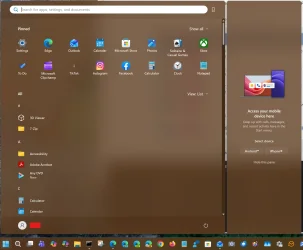
With much anticipation, I just checked. Both System One and System Two still have the old Start Menu.
Microsoft finally enabled the new Start menu on Feb 21, 2026, on the last machine that still had the old one.
All my other machines had that already months ago.

1771695985245.webp

The one they enabled today is the top one 47205210. 👍
Why did they take so long to roll it out on this specific machine? 😵‍💫🤷‍♂️
1771729485851.webp
 
Last edited:

My Computer

System One

  • OS
    Windows 11 Pro 25H2
    Computer type
    PC/Desktop
    Manufacturer/Model
    Dell XPS 8930
    CPU
    Intel I9-9900K
    Memory
    64GB
    Graphics Card(s)
    NVIDIA RTX 2060
    Sound Card
    NVIDIA High Definition Audio
    Monitor(s) Displays
    4k Samsung
    Screen Resolution
    3840 x 2160
    Hard Drives
    512GB NVMe, ADATA SU 800, 2TB HDD
System One just now got the new Start Menu.

System Two still does not have the new Start Menu.
 

My Computers

System One System Two

  • OS
    Windows 11 Pro
    Computer type
    Laptop
    Manufacturer/Model
    Dell XPS 16 DA16260
    CPU
    Intel Series 3 Core Ultra X9 388H
    Memory
    64GB LPDDR5x 9600 MT/s
    Graphics Card(s)
    Intel Arc graphics B390 Panther Lake
    Monitor(s) Displays
    16" 3.2K Tandem OLED Infinity Edge
    Screen Resolution
    3200 x 2000 16:10 236 PPI
    Hard Drives
    1 Terabyte M.2 PCIe NVMe SSD
    Case
    Black Anodized Aluminum
    Cooling
    Vapor Chamber Cooling
    Mouse
    None
    Internet Speed
    942 Mbps Netgear Mesh + 2 Satellites
    Browser
    Microsoft Edge (Chromium)
    Antivirus
    Windows Security (Defender)
    Other Info
    NPU delivering 67 TOPS
    Microsoft 365 subscription
    Microsoft OneDrive 1TB Cloud
    Microsoft Visual Studio
    Microsoft Visual Studio Code
    Microsoft Sysinternals Suite
    Microsoft BitLocker
    Microsoft Copilot
    Dell Support Assist
    Dell Command | Update
    Macrium Reflect X subscription
    1Password Password Manager
    Amazon Kindle for PC
    Lightroom/Photoshop subscription
    Interactive Brokers Trader Workstation
  • Operating System
    Windows 11 Pro
    Computer type
    Laptop
    Manufacturer/Model
    Microsoft Surface Laptop 7
    CPU
    Snapdragon® X Elite (12 Core) with Hexagon NPU delivering 45 TOPS
    Memory
    32GB LPDDR5x 8448 MT/s
    Graphics card(s)
    Integrated Adreno GPU
    Sound Card
    Omnisonic speakers with Dolby Atmos spatial sound
    Monitor(s) Displays
    13.8″ PixelSense Flow touchscreen 120 Hz 600 NIT
    Screen Resolution
    2304 × 1536 (201 PPI), 3:2 aspect ratio
    Hard Drives
    1 TB PCIe NVMe Gen 4 SSD
    Case
    Black Anodized Aluminum
    Cooling
    Vapor Chamber Cooling
    Mouse
    None
    Internet Speed
    942 Mbps Netgear Mesh + 2 Satellites
    Browser
    Microsoft Edge (Chromium)
    Antivirus
    Windows Security (Defender)
    Other Info
    Microsoft 365 subscription (Office)
    Microsoft OneDrive 1TB Cloud
    Microsoft Visual Studio 2026
    Microsoft Visual Studio Code
    Interactive Brokers Trader Workstation
    Lightroom/Photoshop subscription
    1Password Password Manager
    Microsoft Sysinternals
    Amazon Kindle for PC
    Microsoft BitLocker
    Microsoft Copilot
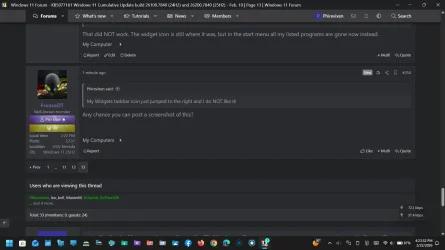
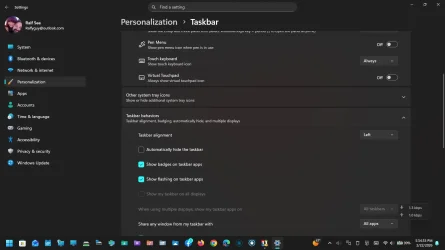
My Widgets taskbar icon just jumped to the right and I do NOT like it!
 

My Computer

System One

  • OS
    Windows 11 Pro 25H2
    Computer type
    Laptop
    Manufacturer/Model
    HP
    CPU
    Gen 11 Core i5
    Memory
    16GB

My Computer

System One

  • OS
    26200.8037
    Computer type
    PC/Desktop
    CPU
    i5-11400F
    Motherboard
    Gigabyte
    Memory
    32GB
    Graphics Card(s)
    Geforce GT-1030
    Keyboard
    Logitech K400
    Mouse
    Logitech M720
    Internet Speed
    600 Mb
    Browser
    Edge
I read it's a new "FEATURE" and no way to reverse it!
Yes there is.
ViVeTool.exe /enable /id:47205210
ViVeTool.exe /disable /id:47205210

I find it strange that MS has so much difficulty implementing this Category menu. It was not automatically turned on in 7840. I see random behavior. At some systems it is switched on and on others switched off while this feature has been there for a long time. (since 2025) Only not turned on. I for myself had to have to turn this on myself. It seems that the status has been switch from Experimental to Production.

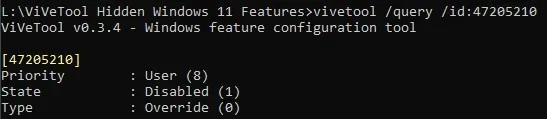
If I query this ID now; there has been a change from Experimental to Override. (it switch also from Service to User settings. It's intended to be altered by the user in this way; No more a hidden feature.)


temp.webp

That ViVeTool can switch this setting from Enabled (2) to Disabled (1) and back again. (Reboot to see the change)

It's to bad there is nothing to choose from inside the "Settings -Personalization - Start". When:
Turned On; No 3 possible Menu behaviors. (Done inside the start menu itself)
Turned Off; 3 possible Menu behaviors.

If you want to switch between the 2 you expected that you can do this inside "Settings - Personalization - Start" rather then use the ViVeTool.....

Thoughts anyone??
 

My Computer

System One

  • OS
    Win 11 Pro "25H2" Build 26200.8524, Zorin OS Pro
    Computer type
    PC/Desktop
    Manufacturer/Model
    Self built
    CPU
    Intel® Core™ i7-12700KF 12th Gen.
    Motherboard
    ASUS Prime Z690-A, BIOS v4505
    Memory
    32GB DDR5 5600-36 Vengeance
    Graphics Card(s)
    PCIe4.0 Asus NVIDIA RTX3060Ti
    Sound Card
    Onboard; Realtek
    Monitor(s) Displays
    34" LG 34UC79G-B Curved 21:9 144Hz
    Screen Resolution
    2560x1080 (No HDR)
    Hard Drives
    250Gb Samsung 870PRO NVMe (Win 11 Pro)
    1Tb Samsung 980PRO NVMe
    1Tb Samsung 970EVO NVMe
    2Tb Samsung 990PRO NVMe with heatsink.
    4Tb WDC WD40EZRZ Blue SATA (Int.)
    4Tb WDC WD40EZRZ Blue SATA (Int.)
    3Tb WDC WD30EFRZ Red SATA (Int.)
    256Gb Samsung 840PRO SSD (RHEL 9,5)
    256Gb Samsung 850PRO SSD (Zorin OS Pro 18)
    PSU
    Coolermaster 850W V2 Gold with internal 12cm exaust fan
    Case
    Be-Quiet Pure Base 600.
    Cooling
    3x Be-Quiet! 12/14cm "Silent Wings 4" casefans, 1x Arctic Freezer i35 CPU towerblock with fan.
    Keyboard
    Steelseries APEX 7 keyboard.
    Mouse
    Logitech G-502 Hero
    Internet Speed
    1Gb
    Browser
    Brave
    Antivirus
    F-Secure
    Other Info
    No Noise system.
    256Gb Kingston Travler USB 3.0 drive.
    64Gb Sandisk USB 3.2 drive. (Ventoy)
    8Gb Philips USB 3.0 drive. (Win. Inst.)
    8Gb Philips USB 3.0 drive. (Rescue disk)
    2Tb WD USB 3.0 Passport drive.
    USB Ext. 500Gb WD SATA drive.
    External USB 3.0 C.A. CD/DVD* burner.
Yes there is.
ViVeTool.exe /enable /id:47205210
ViVeTool.exe /disable /id:47205210

I find it strange that MS has so much difficulty implementing this Category menu. It was not automatically turned on in 7840. I see random behavior. At some systems it is switched on and on others switched off while this feature has been there for a long time. (since 2025) Only not turned on. I for myself had to have to turn this on myself. It seems that the status has been switch from Experimental to Production.

If I query this ID now; there has been a change from Experimental to Override. (it switch also from Service to User settings. It's intended to be altered by the user in this way; No more a hidden feature.)


View attachment 164026

That ViVeTool can switch this setting from Enabled (2) to Disabled (1) and back again. (Reboot to see the change)

It's to bad there is nothing to choose from inside the "Settings -Personalization - Start". When:
Turned On; No 3 possible Menu behaviors. (Done inside the start menu itself)
Turned Off; 3 possible Menu behaviors.

If you want to switch between the 2 you expected that you can do this inside "Settings - Personalization - Start" rather then use the ViVeTool.....

Thoughts anyone??
3 possible Menu behaviors in "all apps" ?
 

My Computer

System One

  • OS
    26200.8037
    Computer type
    PC/Desktop
    CPU
    i5-11400F
    Motherboard
    Gigabyte
    Memory
    32GB
    Graphics Card(s)
    Geforce GT-1030
    Keyboard
    Logitech K400
    Mouse
    Logitech M720
    Internet Speed
    600 Mb
    Browser
    Edge
3 possible Menu behaviors in "all apps" ?
???? Did you check? (Settings - Personalization - Start) "More Pins", "Default" and "More recommendations" Alle depending of the 6 switches below that, that allows you to turn things on or off. If it isn't there; than that Category, Grid, List function in the start menu is already turned on. (Also depending on those 6 switches I mentioned earlier) Windows has no function to switch between those 2 "modes" You have to use the ViVeTool for that....

Note: It is not necessary to quote the complete post; Just show the lines where you have a question about.
 

My Computer

System One

  • OS
    Win 11 Pro "25H2" Build 26200.8524, Zorin OS Pro
    Computer type
    PC/Desktop
    Manufacturer/Model
    Self built
    CPU
    Intel® Core™ i7-12700KF 12th Gen.
    Motherboard
    ASUS Prime Z690-A, BIOS v4505
    Memory
    32GB DDR5 5600-36 Vengeance
    Graphics Card(s)
    PCIe4.0 Asus NVIDIA RTX3060Ti
    Sound Card
    Onboard; Realtek
    Monitor(s) Displays
    34" LG 34UC79G-B Curved 21:9 144Hz
    Screen Resolution
    2560x1080 (No HDR)
    Hard Drives
    250Gb Samsung 870PRO NVMe (Win 11 Pro)
    1Tb Samsung 980PRO NVMe
    1Tb Samsung 970EVO NVMe
    2Tb Samsung 990PRO NVMe with heatsink.
    4Tb WDC WD40EZRZ Blue SATA (Int.)
    4Tb WDC WD40EZRZ Blue SATA (Int.)
    3Tb WDC WD30EFRZ Red SATA (Int.)
    256Gb Samsung 840PRO SSD (RHEL 9,5)
    256Gb Samsung 850PRO SSD (Zorin OS Pro 18)
    PSU
    Coolermaster 850W V2 Gold with internal 12cm exaust fan
    Case
    Be-Quiet Pure Base 600.
    Cooling
    3x Be-Quiet! 12/14cm "Silent Wings 4" casefans, 1x Arctic Freezer i35 CPU towerblock with fan.
    Keyboard
    Steelseries APEX 7 keyboard.
    Mouse
    Logitech G-502 Hero
    Internet Speed
    1Gb
    Browser
    Brave
    Antivirus
    F-Secure
    Other Info
    No Noise system.
    256Gb Kingston Travler USB 3.0 drive.
    64Gb Sandisk USB 3.2 drive. (Ventoy)
    8Gb Philips USB 3.0 drive. (Win. Inst.)
    8Gb Philips USB 3.0 drive. (Rescue disk)
    2Tb WD USB 3.0 Passport drive.
    USB Ext. 500Gb WD SATA drive.
    External USB 3.0 C.A. CD/DVD* burner.
Yes there is.
ViVeTool.exe /enable /id:47205210
ViVeTool.exe /disable /id:47205210

I find it strange that MS has so much difficulty implementing this Category menu. It was not automatically turned on in 7840. I see random behavior. At some systems it is switched on and on others switched off while this feature has been there for a long time. (since 2025) Only not turned on. I for myself had to have to turn this on myself. It seems that the status has been switch from Experimental to Production.

If I query this ID now; there has been a change from Experimental to Override. (it switch also from Service to User settings. It's intended to be altered by the user in this way; No more a hidden feature.)


View attachment 164026

That ViVeTool can switch this setting from Enabled (2) to Disabled (1) and back again. (Reboot to see the change)

It's to bad there is nothing to choose from inside the "Settings -Personalization - Start". When:
Turned On; No 3 possible Menu behaviors. (Done inside the start menu itself)
Turned Off; 3 possible Menu behaviors.

If you want to switch between the 2 you expected that you can do this inside "Settings - Personalization - Start" rather then use the ViVeTool.....

Thoughts anyone??
That did NOT work. The widget icon is still where it was, but in the start menu all my listed programs are gone now instead.
 

My Computer

System One

  • OS
    Windows 11 Pro 25H2
    Computer type
    Laptop
    Manufacturer/Model
    HP
    CPU
    Gen 11 Core i5
    Memory
    16GB

My Computers

System One System Two

  • OS
    Windows 11 25H2
    Computer type
    Laptop
    Manufacturer/Model
    Alienware 18 Area-51
    CPU
    Intel Core Ultra 9 275HX (24-Core)
    Motherboard
    Alienware
    Memory
    64GB DDR5 6400MT/s
    Graphics Card(s)
    NVIDIA GeForce RTX 5080 and Intel UHD Graphics
    Sound Card
    Onboard, Realtek high-performance Audio chips (ALC3329 & ALC1708))
    Monitor(s) Displays
    300HZ 18-inch QHD 500 nit Comfort View+
    Screen Resolution
    2560 x 1600
    Hard Drives
    2TB NVMe M.2 PCIe Gen 5 SSD
    Case
    Magnesium Alloy
    Cooling
    Advanced Cryo-Tech Quad-Fan Cooling system & large vapor chamber
    Keyboard
    Cherry MX ultra low profile mechanical keyboard with per key AlienFX RGB lighting
    Mouse
    Logitech MX Master 4
    Browser
    Vivaldi (main), Firefox, Chrome, Edge
    Antivirus
    MS Defender and Malwarebytes Free
  • Operating System
    Windows 11 25H2
    Computer type
    Laptop
    Manufacturer/Model
    Microsoft Surface Laptop 7
    CPU
    Qualcomm Snapdragon X Elite (12 Core) ARM based CPU
    Motherboard
    Microsoft Corp.
    Memory
    16GB LPDDR5
    Graphics card(s)
    Qualcomm Adreno X1-85
    Sound Card
    Omnisonic speakers with Dolby Atmos spatial sound
    Monitor(s) Displays
    120 Hz 13.8-inch 600 nit PixelSense Flow touchscreen
    Screen Resolution
    2304x1536
    Hard Drives
    1TB NVMe Gen 4 SSD
    Case
    Anodized Aluminum
    Cooling
    Traditional active cooling fan system
    Keyboard
    Mechanical QWERTY, backlit when in use
    Mouse
    Logitech MX Master 4 and Surface Arc Mouse
    Browser
    Vivaldi (main), Firefox, Chrome, Edge
    Antivirus
    MS Defender and Malwarebytes Free

Attachments

  • Screenshot 2026-02-22 162510.webp
    Screenshot 2026-02-22 162510.webp
    81.4 KB · Views: 2

My Computer

System One

  • OS
    Windows 11 Pro 25H2
    Computer type
    Laptop
    Manufacturer/Model
    HP
    CPU
    Gen 11 Core i5
    Memory
    16GB
Choose to put Start back to Center and watch what happens.
 
Last edited:

My Computers

System One System Two

  • OS
    Windows 11 Pro
    Computer type
    Laptop
    Manufacturer/Model
    Dell XPS 16 DA16260
    CPU
    Intel Series 3 Core Ultra X9 388H
    Memory
    64GB LPDDR5x 9600 MT/s
    Graphics Card(s)
    Intel Arc graphics B390 Panther Lake
    Monitor(s) Displays
    16" 3.2K Tandem OLED Infinity Edge
    Screen Resolution
    3200 x 2000 16:10 236 PPI
    Hard Drives
    1 Terabyte M.2 PCIe NVMe SSD
    Case
    Black Anodized Aluminum
    Cooling
    Vapor Chamber Cooling
    Mouse
    None
    Internet Speed
    942 Mbps Netgear Mesh + 2 Satellites
    Browser
    Microsoft Edge (Chromium)
    Antivirus
    Windows Security (Defender)
    Other Info
    NPU delivering 67 TOPS
    Microsoft 365 subscription
    Microsoft OneDrive 1TB Cloud
    Microsoft Visual Studio
    Microsoft Visual Studio Code
    Microsoft Sysinternals Suite
    Microsoft BitLocker
    Microsoft Copilot
    Dell Support Assist
    Dell Command | Update
    Macrium Reflect X subscription
    1Password Password Manager
    Amazon Kindle for PC
    Lightroom/Photoshop subscription
    Interactive Brokers Trader Workstation
  • Operating System
    Windows 11 Pro
    Computer type
    Laptop
    Manufacturer/Model
    Microsoft Surface Laptop 7
    CPU
    Snapdragon® X Elite (12 Core) with Hexagon NPU delivering 45 TOPS
    Memory
    32GB LPDDR5x 8448 MT/s
    Graphics card(s)
    Integrated Adreno GPU
    Sound Card
    Omnisonic speakers with Dolby Atmos spatial sound
    Monitor(s) Displays
    13.8″ PixelSense Flow touchscreen 120 Hz 600 NIT
    Screen Resolution
    2304 × 1536 (201 PPI), 3:2 aspect ratio
    Hard Drives
    1 TB PCIe NVMe Gen 4 SSD
    Case
    Black Anodized Aluminum
    Cooling
    Vapor Chamber Cooling
    Mouse
    None
    Internet Speed
    942 Mbps Netgear Mesh + 2 Satellites
    Browser
    Microsoft Edge (Chromium)
    Antivirus
    Windows Security (Defender)
    Other Info
    Microsoft 365 subscription (Office)
    Microsoft OneDrive 1TB Cloud
    Microsoft Visual Studio 2026
    Microsoft Visual Studio Code
    Interactive Brokers Trader Workstation
    Lightroom/Photoshop subscription
    1Password Password Manager
    Microsoft Sysinternals
    Amazon Kindle for PC
    Microsoft BitLocker
    Microsoft Copilot
Choose to put Start back to Center and watch what happens.
I never had start in the center. I tried that and I like it even less. I had Start left aligned all the time and I just don't understand why there is no option to change it. Also how weird was that it just moved out of the blue after a reboot. I know it might not be a big deal for most people, but this just pi$$e$ me off. There has to be a way to revert this.
 

My Computer

System One

  • OS
    Windows 11 Pro 25H2
    Computer type
    Laptop
    Manufacturer/Model
    HP
    CPU
    Gen 11 Core i5
    Memory
    16GB
I never had start in the center. I tried that and I like it even less. I had Start left aligned all the time and I just don't understand why there is no option to change it. Also how weird was that it just moved out of the blue after a reboot. I know it might not be a big deal for most people, but this just pi$$e$ me off. There has to be a way to revert this.
So I'm guessing this is what your referring to? I use center so hadn't noticed till just trying it.
 

Attachments

  • Screenshot (5).webp
    Screenshot (5).webp
    327.2 KB · Views: 2
  • Screenshot (6).webp
    Screenshot (6).webp
    142.9 KB · Views: 1

My Computers

System One System Two

  • OS
    Windows 11 25H2
    Computer type
    Laptop
    Manufacturer/Model
    Alienware 18 Area-51
    CPU
    Intel Core Ultra 9 275HX (24-Core)
    Motherboard
    Alienware
    Memory
    64GB DDR5 6400MT/s
    Graphics Card(s)
    NVIDIA GeForce RTX 5080 and Intel UHD Graphics
    Sound Card
    Onboard, Realtek high-performance Audio chips (ALC3329 & ALC1708))
    Monitor(s) Displays
    300HZ 18-inch QHD 500 nit Comfort View+
    Screen Resolution
    2560 x 1600
    Hard Drives
    2TB NVMe M.2 PCIe Gen 5 SSD
    Case
    Magnesium Alloy
    Cooling
    Advanced Cryo-Tech Quad-Fan Cooling system & large vapor chamber
    Keyboard
    Cherry MX ultra low profile mechanical keyboard with per key AlienFX RGB lighting
    Mouse
    Logitech MX Master 4
    Browser
    Vivaldi (main), Firefox, Chrome, Edge
    Antivirus
    MS Defender and Malwarebytes Free
  • Operating System
    Windows 11 25H2
    Computer type
    Laptop
    Manufacturer/Model
    Microsoft Surface Laptop 7
    CPU
    Qualcomm Snapdragon X Elite (12 Core) ARM based CPU
    Motherboard
    Microsoft Corp.
    Memory
    16GB LPDDR5
    Graphics card(s)
    Qualcomm Adreno X1-85
    Sound Card
    Omnisonic speakers with Dolby Atmos spatial sound
    Monitor(s) Displays
    120 Hz 13.8-inch 600 nit PixelSense Flow touchscreen
    Screen Resolution
    2304x1536
    Hard Drives
    1TB NVMe Gen 4 SSD
    Case
    Anodized Aluminum
    Cooling
    Traditional active cooling fan system
    Keyboard
    Mechanical QWERTY, backlit when in use
    Mouse
    Logitech MX Master 4 and Surface Arc Mouse
    Browser
    Vivaldi (main), Firefox, Chrome, Edge
    Antivirus
    MS Defender and Malwarebytes Free
Looking at your screenshot, you really aren't actually left-aligned. My guess is that you've simply continued to pin icons to your taskbar until there finally wasn't room on the left for your Widget and it moved to the right.
 

My Computers

System One System Two

  • OS
    Windows 11 Pro
    Computer type
    Laptop
    Manufacturer/Model
    Dell XPS 16 DA16260
    CPU
    Intel Series 3 Core Ultra X9 388H
    Memory
    64GB LPDDR5x 9600 MT/s
    Graphics Card(s)
    Intel Arc graphics B390 Panther Lake
    Monitor(s) Displays
    16" 3.2K Tandem OLED Infinity Edge
    Screen Resolution
    3200 x 2000 16:10 236 PPI
    Hard Drives
    1 Terabyte M.2 PCIe NVMe SSD
    Case
    Black Anodized Aluminum
    Cooling
    Vapor Chamber Cooling
    Mouse
    None
    Internet Speed
    942 Mbps Netgear Mesh + 2 Satellites
    Browser
    Microsoft Edge (Chromium)
    Antivirus
    Windows Security (Defender)
    Other Info
    NPU delivering 67 TOPS
    Microsoft 365 subscription
    Microsoft OneDrive 1TB Cloud
    Microsoft Visual Studio
    Microsoft Visual Studio Code
    Microsoft Sysinternals Suite
    Microsoft BitLocker
    Microsoft Copilot
    Dell Support Assist
    Dell Command | Update
    Macrium Reflect X subscription
    1Password Password Manager
    Amazon Kindle for PC
    Lightroom/Photoshop subscription
    Interactive Brokers Trader Workstation
  • Operating System
    Windows 11 Pro
    Computer type
    Laptop
    Manufacturer/Model
    Microsoft Surface Laptop 7
    CPU
    Snapdragon® X Elite (12 Core) with Hexagon NPU delivering 45 TOPS
    Memory
    32GB LPDDR5x 8448 MT/s
    Graphics card(s)
    Integrated Adreno GPU
    Sound Card
    Omnisonic speakers with Dolby Atmos spatial sound
    Monitor(s) Displays
    13.8″ PixelSense Flow touchscreen 120 Hz 600 NIT
    Screen Resolution
    2304 × 1536 (201 PPI), 3:2 aspect ratio
    Hard Drives
    1 TB PCIe NVMe Gen 4 SSD
    Case
    Black Anodized Aluminum
    Cooling
    Vapor Chamber Cooling
    Mouse
    None
    Internet Speed
    942 Mbps Netgear Mesh + 2 Satellites
    Browser
    Microsoft Edge (Chromium)
    Antivirus
    Windows Security (Defender)
    Other Info
    Microsoft 365 subscription (Office)
    Microsoft OneDrive 1TB Cloud
    Microsoft Visual Studio 2026
    Microsoft Visual Studio Code
    Interactive Brokers Trader Workstation
    Lightroom/Photoshop subscription
    1Password Password Manager
    Microsoft Sysinternals
    Amazon Kindle for PC
    Microsoft BitLocker
    Microsoft Copilot
Looking at your screenshot, you really aren't actually left-aligned. My guess is that you've simply continued to pin icons to your taskbar until there finally wasn't room on the left for your Widget and it moved to the right.
What screenshot are you referring too?
 

My Computers

System One System Two

  • OS
    Windows 11 25H2
    Computer type
    Laptop
    Manufacturer/Model
    Alienware 18 Area-51
    CPU
    Intel Core Ultra 9 275HX (24-Core)
    Motherboard
    Alienware
    Memory
    64GB DDR5 6400MT/s
    Graphics Card(s)
    NVIDIA GeForce RTX 5080 and Intel UHD Graphics
    Sound Card
    Onboard, Realtek high-performance Audio chips (ALC3329 & ALC1708))
    Monitor(s) Displays
    300HZ 18-inch QHD 500 nit Comfort View+
    Screen Resolution
    2560 x 1600
    Hard Drives
    2TB NVMe M.2 PCIe Gen 5 SSD
    Case
    Magnesium Alloy
    Cooling
    Advanced Cryo-Tech Quad-Fan Cooling system & large vapor chamber
    Keyboard
    Cherry MX ultra low profile mechanical keyboard with per key AlienFX RGB lighting
    Mouse
    Logitech MX Master 4
    Browser
    Vivaldi (main), Firefox, Chrome, Edge
    Antivirus
    MS Defender and Malwarebytes Free
  • Operating System
    Windows 11 25H2
    Computer type
    Laptop
    Manufacturer/Model
    Microsoft Surface Laptop 7
    CPU
    Qualcomm Snapdragon X Elite (12 Core) ARM based CPU
    Motherboard
    Microsoft Corp.
    Memory
    16GB LPDDR5
    Graphics card(s)
    Qualcomm Adreno X1-85
    Sound Card
    Omnisonic speakers with Dolby Atmos spatial sound
    Monitor(s) Displays
    120 Hz 13.8-inch 600 nit PixelSense Flow touchscreen
    Screen Resolution
    2304x1536
    Hard Drives
    1TB NVMe Gen 4 SSD
    Case
    Anodized Aluminum
    Cooling
    Traditional active cooling fan system
    Keyboard
    Mechanical QWERTY, backlit when in use
    Mouse
    Logitech MX Master 4 and Surface Arc Mouse
    Browser
    Vivaldi (main), Firefox, Chrome, Edge
    Antivirus
    MS Defender and Malwarebytes Free
No it's always been LEFT aligned forever. The Widget Icon has ALWAYS been between the Start and MS Store button for years and I have not added any icons in a very long time. It just did it on it's own for no reason. I installed update for Intel Wireless and it wanted me to reboot, so I did so. It looked like this after that. And FrancoDT, yes that it is NOW, and I want it back the way it was before.
 

Attachments

  • Screenshot 2026-02-22 175458.webp
    Screenshot 2026-02-22 175458.webp
    73.9 KB · Views: 3

My Computer

System One

  • OS
    Windows 11 Pro 25H2
    Computer type
    Laptop
    Manufacturer/Model
    HP
    CPU
    Gen 11 Core i5
    Memory
    16GB
The one I posted in post #251.
And that post is definitely NOT left-aligned. The Start icon is not smack against the left side of your screen.
 

My Computers

System One System Two

  • OS
    Windows 11 Pro
    Computer type
    Laptop
    Manufacturer/Model
    Dell XPS 16 DA16260
    CPU
    Intel Series 3 Core Ultra X9 388H
    Memory
    64GB LPDDR5x 9600 MT/s
    Graphics Card(s)
    Intel Arc graphics B390 Panther Lake
    Monitor(s) Displays
    16" 3.2K Tandem OLED Infinity Edge
    Screen Resolution
    3200 x 2000 16:10 236 PPI
    Hard Drives
    1 Terabyte M.2 PCIe NVMe SSD
    Case
    Black Anodized Aluminum
    Cooling
    Vapor Chamber Cooling
    Mouse
    None
    Internet Speed
    942 Mbps Netgear Mesh + 2 Satellites
    Browser
    Microsoft Edge (Chromium)
    Antivirus
    Windows Security (Defender)
    Other Info
    NPU delivering 67 TOPS
    Microsoft 365 subscription
    Microsoft OneDrive 1TB Cloud
    Microsoft Visual Studio
    Microsoft Visual Studio Code
    Microsoft Sysinternals Suite
    Microsoft BitLocker
    Microsoft Copilot
    Dell Support Assist
    Dell Command | Update
    Macrium Reflect X subscription
    1Password Password Manager
    Amazon Kindle for PC
    Lightroom/Photoshop subscription
    Interactive Brokers Trader Workstation
  • Operating System
    Windows 11 Pro
    Computer type
    Laptop
    Manufacturer/Model
    Microsoft Surface Laptop 7
    CPU
    Snapdragon® X Elite (12 Core) with Hexagon NPU delivering 45 TOPS
    Memory
    32GB LPDDR5x 8448 MT/s
    Graphics card(s)
    Integrated Adreno GPU
    Sound Card
    Omnisonic speakers with Dolby Atmos spatial sound
    Monitor(s) Displays
    13.8″ PixelSense Flow touchscreen 120 Hz 600 NIT
    Screen Resolution
    2304 × 1536 (201 PPI), 3:2 aspect ratio
    Hard Drives
    1 TB PCIe NVMe Gen 4 SSD
    Case
    Black Anodized Aluminum
    Cooling
    Vapor Chamber Cooling
    Mouse
    None
    Internet Speed
    942 Mbps Netgear Mesh + 2 Satellites
    Browser
    Microsoft Edge (Chromium)
    Antivirus
    Windows Security (Defender)
    Other Info
    Microsoft 365 subscription (Office)
    Microsoft OneDrive 1TB Cloud
    Microsoft Visual Studio 2026
    Microsoft Visual Studio Code
    Interactive Brokers Trader Workstation
    Lightroom/Photoshop subscription
    1Password Password Manager
    Microsoft Sysinternals
    Amazon Kindle for PC
    Microsoft BitLocker
    Microsoft Copilot
The one I posted in post #251.
Weird, this is what your post #251 shows for screenshot: Edit I see it now, is small! I was expecting the full weather widget like mine shows.

Screenshot 2026-02-22 162510.webp
 

My Computers

System One System Two

  • OS
    Windows 11 25H2
    Computer type
    Laptop
    Manufacturer/Model
    Alienware 18 Area-51
    CPU
    Intel Core Ultra 9 275HX (24-Core)
    Motherboard
    Alienware
    Memory
    64GB DDR5 6400MT/s
    Graphics Card(s)
    NVIDIA GeForce RTX 5080 and Intel UHD Graphics
    Sound Card
    Onboard, Realtek high-performance Audio chips (ALC3329 & ALC1708))
    Monitor(s) Displays
    300HZ 18-inch QHD 500 nit Comfort View+
    Screen Resolution
    2560 x 1600
    Hard Drives
    2TB NVMe M.2 PCIe Gen 5 SSD
    Case
    Magnesium Alloy
    Cooling
    Advanced Cryo-Tech Quad-Fan Cooling system & large vapor chamber
    Keyboard
    Cherry MX ultra low profile mechanical keyboard with per key AlienFX RGB lighting
    Mouse
    Logitech MX Master 4
    Browser
    Vivaldi (main), Firefox, Chrome, Edge
    Antivirus
    MS Defender and Malwarebytes Free
  • Operating System
    Windows 11 25H2
    Computer type
    Laptop
    Manufacturer/Model
    Microsoft Surface Laptop 7
    CPU
    Qualcomm Snapdragon X Elite (12 Core) ARM based CPU
    Motherboard
    Microsoft Corp.
    Memory
    16GB LPDDR5
    Graphics card(s)
    Qualcomm Adreno X1-85
    Sound Card
    Omnisonic speakers with Dolby Atmos spatial sound
    Monitor(s) Displays
    120 Hz 13.8-inch 600 nit PixelSense Flow touchscreen
    Screen Resolution
    2304x1536
    Hard Drives
    1TB NVMe Gen 4 SSD
    Case
    Anodized Aluminum
    Cooling
    Traditional active cooling fan system
    Keyboard
    Mechanical QWERTY, backlit when in use
    Mouse
    Logitech MX Master 4 and Surface Arc Mouse
    Browser
    Vivaldi (main), Firefox, Chrome, Edge
    Antivirus
    MS Defender and Malwarebytes Free
Back
Top Bottom