UPDATE 1/29:

 www.elevenforum.com
To view the latest updates about this release, visit the Windows release health dashboard or the update history page for Windows 11, version 25H2 and 24H2.
If you have turned on Get the latest updates as soon as they're available in Windows Update settings (Settings > Windows Update), you will automatically receive this update. If the toggle is off on your device, you can install the update manually by going to Settings > Windows Update and selecting Download & install.
Note IT administrators using Microsoft Intune or Windows Autopatch should follow the guidance below for installing the OOB update via Windows Update.
Symptoms
After installing the August 2025 non-security preview update (KB5064081) or later updates, you might notice that the password icon is not visible in the sign-in options on the lock screen. If you hover over the space where the icon should appear, you’ll see that the password button is still available. Select this placeholder to open the password text box and enter your password. After entering your password, you can sign in normally.
Individuals using Windows Home or Pro editions on personal devices are very unlikely to experience this issue. This issue primarily affects enterprise or managed IT environments.
Workaround
This issue is mitigated using Known Issue Rollback (KIR).
For enterprise-managed devices managed by IT departments that have installed the affected update and encountered this issue, IT administrators can resolve it by installing and configuring the Group policy listed below. The special Group Policy can be found in Computer Configuration > Administrative Templates > <Group Policy name listed below>.
For information on deploying and configuring these special Group Policy, please see How to use Group Policy to deploy a Known Issue Rollback.
Group Policy downloads with Group Policy name:
We are working on a resolution in a future Windows update and will provide more information when it is available.
Microsoft now combines the latest servicing stack update (SSU) for your operating system with the latest cumulative update (LCU). For general information about SSUs, see Servicing stack updates and Servicing Stack Updates (SSU): Frequently Asked Questions.
Install this update
To install this update, use one of the following Windows and Microsoft release channels.
1 This latest cumulative update includes updates for AI components. Even though the AI component updates are included in the update, the AI components are only applicable to Windows Copilot+ PCs and will not install on Windows PC or Windows Server.
If you want to remove the LCU
To remove the LCU after installing the combined SSU and LCU package, use the DISM/Remove-Package command line option with the LCU package name as the argument. You can find the package name by using this command: DISM /online /get-packages.
Running Windows Update Standalone Installer (wusa.exe) with the /uninstall switch on the combined package will not work because the combined package contains the SSU. You cannot remove the SSU from the system after installation.
File Information
For a list of the files provided in this update, download the file information for cumulative update 5078127.
For a list of the files provided in the servicing stack update, download the file information for the SSU (KB5071142) - version 26100.7295.
 support.microsoft.com
Check Windows Updates
UUP Dump:
64-bit ISO download:

ARM64 ISO download:
 www.elevenforum.com
KB5074105 Windows 11 Cumulative Update Preview build 26100.7705 (24H2) and 26200.7705 (25H2) - Jan. 29
UPDATE 2/10: https://www.elevenforum.com/t/kb5077181-windows-11-cumulative-update-build-26100-7840-24h2-and-26200-7840-25h2-feb-10.44462/ Microsoft Support: January 29, 2026 - KB5074105 (OS Builds 26200.7705 and 26100.7705) Preview This non-security update for Windows 11, version 25H2 and 24H2...
www.elevenforum.com
Microsoft Support:
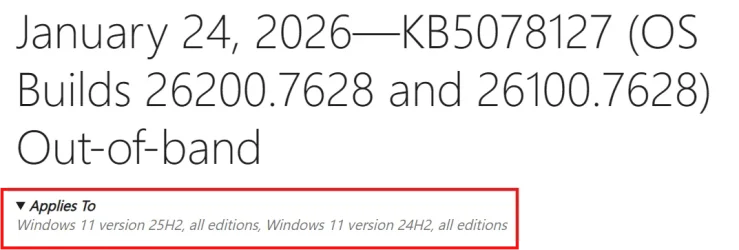
January 24, 2026 - KB5078127 (OS Builds 26200.7628 and 26100.7628) Out-of-band
Summary
This out-of-band update for Windows 11, version 25H2 and 24H2 (KB5078127) is cumulative. It includes updates from previous security and non-security releases, along with an additional fix. To learn more about differences between security updates, optional non-security preview updates, out-of-band (OOB) updates, and continuous innovation, see Windows monthly updates explained. For information on Windows update terminology, see the different types of Windows software updates.To view the latest updates about this release, visit the Windows release health dashboard or the update history page for Windows 11, version 25H2 and 24H2.
Improvements
This OOB update includes quality improvements. This update is cumulative and includes security fixes and improvements from the January 13, 2026, security update (KB5074109) and the out-of-band update (KB5077744) from January 17, 2026, in addition to the following:- [File System] Fixed: After installing the Windows update released on and after January 13, 2026, some applications became unresponsive or encountered unexpected errors when opening files from or saving files to cloud-based storage, such as OneDrive or Dropbox. In certain Outlook configurations that store PST files on OneDrive, Outlook may hang and fail to reopen unless the process is terminated or the system is restarted. Users may also see missing sent Items or previously downloaded emails being re‑downloaded.
If you have turned on Get the latest updates as soon as they're available in Windows Update settings (Settings > Windows Update), you will automatically receive this update. If the toggle is off on your device, you can install the update manually by going to Settings > Windows Update and selecting Download & install.
Note IT administrators using Microsoft Intune or Windows Autopatch should follow the guidance below for installing the OOB update via Windows Update.
- Expedite Windows quality updates in Microsoft Intune
- Deploy an expedited quality update using Windows Autopatch
AI Components
This release updates the following AI components:AI Component | Version |
|---|---|
| Image Search | 1.2511.1224.0 |
| Content Extraction | 1.2511.1224.0 |
| Semantic Analysis | 1.2511.1224.0 |
| Settings Model | 1.2511.1224.0 |
Windows 11 servicing stack update (KB5071142)- 26100.7295
This update makes quality improvements to the servicing stack, which is the component that installs Windows updates. Servicing stack updates (SSU) ensure that you have a robust and reliable servicing stack so that your devices can receive and install Microsoft updates. To learn more about SSUs, see Simplifying on-premises deployment of servicing stack updates.Known issues in this update
1 Password icon might be missing or invisible in the lock screen sign-in options
Symptoms
After installing the August 2025 non-security preview update (KB5064081) or later updates, you might notice that the password icon is not visible in the sign-in options on the lock screen. If you hover over the space where the icon should appear, you’ll see that the password button is still available. Select this placeholder to open the password text box and enter your password. After entering your password, you can sign in normally.
Individuals using Windows Home or Pro editions on personal devices are very unlikely to experience this issue. This issue primarily affects enterprise or managed IT environments.
Workaround
This issue is mitigated using Known Issue Rollback (KIR).
For enterprise-managed devices managed by IT departments that have installed the affected update and encountered this issue, IT administrators can resolve it by installing and configuring the Group policy listed below. The special Group Policy can be found in Computer Configuration > Administrative Templates > <Group Policy name listed below>.
For information on deploying and configuring these special Group Policy, please see How to use Group Policy to deploy a Known Issue Rollback.
Group Policy downloads with Group Policy name:
- Download for Windows 11 version 24H2, Windows 11 version 25H2: Windows 11 24H2, Windows 11 25H2 and Windows Server 2025 KB5072033 251202_18051 Known Issue Rollback
We are working on a resolution in a future Windows update and will provide more information when it is available.
How to get this update
Before you install this updateMicrosoft now combines the latest servicing stack update (SSU) for your operating system with the latest cumulative update (LCU). For general information about SSUs, see Servicing stack updates and Servicing Stack Updates (SSU): Frequently Asked Questions.
Install this update
To install this update, use one of the following Windows and Microsoft release channels.
| Available | Next Step |
|---|---|

| This update will be downloaded and installed automatically from Windows Update. |
| Yes | Before you install this update To get the standalone package(s) for this update, go to the Microsoft Update Catalog website. This KB contains one or more MSU files that require installation in a specific order. Install this update Method 1: Install all MSU files together Download all MSU files for KB5078127 from Microsoft Update Catalog and place them in the same folder (for example, C:/Packages). Use Deployment Image Servicing and Management (DISM.exe) to install the target update. DISM will use the folder specified in PackagePath to discover and install one or more prerequisite MSU files as needed. Updating Windows PC To apply this update to a running Windows PC, run the following command from an elevated Command Prompt: DISM /Online /Add-Package /PackagePath:c:\packages\Windows11.0-KB5078127-x64.msuOr, run the following command from an elevated Windows PowerShell prompt: Add-WindowsPackage -Online -PackagePath "c:\packages\Windows11.0-KB5078127-x64.msu"Or use Windows Update Standalone Installer to install the target update. Updating Windows Installation media To apply this update to Windows Installation media, see Update Windows installation media with Dynamic Update. Note: When downloading other Dynamic Update packages, ensure they match the same month as this KB. If the SafeOS Dynamic Update or Setup Dynamic Update is not available for the same month as this KB, use the most recently published version of each. To add this update to a mounted image, run the following command from an elevated Command Prompt: DISM /Image:mountdir /Add-Package /PackagePath:Windows11.0-KB5078127-x64.msuOr, run the following command from an elevated Windows PowerShell prompt: Add-WindowsPackage -Path "c:\offline" -PackagePath "Windows11.0-KB5078127-x64.msu" -PreventPendingMethod 2: Install each MSU file individually, in order Download and install each MSU file individually either using DISM or Windows Update Standalone Installer in the following order:
|
If you want to remove the LCU
To remove the LCU after installing the combined SSU and LCU package, use the DISM/Remove-Package command line option with the LCU package name as the argument. You can find the package name by using this command: DISM /online /get-packages.
Running Windows Update Standalone Installer (wusa.exe) with the /uninstall switch on the combined package will not work because the combined package contains the SSU. You cannot remove the SSU from the system after installation.
File Information
For a list of the files provided in this update, download the file information for cumulative update 5078127.
For a list of the files provided in the servicing stack update, download the file information for the SSU (KB5071142) - version 26100.7295.
Source:
January 24, 2026—KB5078127 (OS Builds 26200.7628 and 26100.7628) Out-of-band | Microsoft Support
January 24, 2026—KB5078127 (OS Builds 26200.7628 and 26100.7628) Out-of-band
support.microsoft.com
Check Windows Updates
UUP Dump:
64-bit ISO download:
Select language for Windows 11, version 24H2 (26100.7628) amd64
Select language for Windows 11, version 24H2 (26100.7628) amd64 on UUP dump. UUP dump lets you download Unified Update Platform files, like Windows Insider updates, directly from Windows Update.
uupdump.net
Select language for Windows 11, version 25H2 (26200.7628) amd64
Select language for Windows 11, version 25H2 (26200.7628) amd64 on UUP dump. UUP dump lets you download Unified Update Platform files, like Windows Insider updates, directly from Windows Update.
uupdump.net
ARM64 ISO download:
Select language for Windows 11, version 24H2 (26100.7628) arm64
Select language for Windows 11, version 24H2 (26100.7628) arm64 on UUP dump. UUP dump lets you download Unified Update Platform files, like Windows Insider updates, directly from Windows Update.
uupdump.net
Select language for Windows 11, version 25H2 (26200.7628) arm64
Select language for Windows 11, version 25H2 (26200.7628) arm64 on UUP dump. UUP dump lets you download Unified Update Platform files, like Windows Insider updates, directly from Windows Update.
uupdump.net
UUP Dump - Download Windows Insider ISO
UUP Dump is the most practical and easy way to get ISO images of any Insider Windows 10 or Windows 11 version, as soon as Microsoft has released a new build. UUP Dump creates a download configuration file according to your choices, downloads necessary files directly from Microsoft servers, and...
www.elevenforum.com
Last edited: