Solved Local Disk (D) is emptied… can I delete it?


If partition #2 was not modified it is hidden in disk management.

The recovery partition is on partition #3 recovery.

Was the reserved partition modified?


These are examples of commands for a new recovery partition 1280 MB (1.25 GB) and a deleted 5th partition (D:): (commands need to be modified pending the diskpar info results)


reagentc /info
reagentc /disable
reagentc /info


Code:
diskpart

sel dis 0

det dis

sel par 5

det par

del par override

sel par 4

det par

del par override

sel par 3

det par

extend

shrink minimum=1280

create partition primary

format quick fs=ntfs label="Recovery"

set id=de94bba4-06d1-4d40-a16a-bfd50179d6ac

gpt attributes=0x8000000000000001

lis vol

lis par

exit

reagentc /enable

reagentc /info


Post a share link.
 
Last edited:

My Computer My Computer

At a glance

Windows 10Intel(R) Core(TM) i7-4800MQ CPU @ 2.70GHz16 GB Total: Manufacturer : Samsung MemoryTyp...NVIDIA Quadro K3100M; Intel(R) HD Graphics 4600
OS
Windows 10
Computer type
Laptop
Manufacturer/Model
HP
CPU
Intel(R) Core(TM) i7-4800MQ CPU @ 2.70GHz
Motherboard
Product : 190A Version : KBC Version 94.56
Memory
16 GB Total: Manufacturer : Samsung MemoryType : DDR3 FormFactor : SODIMM Capacity : 8GB Speed : 1600
Graphics Card(s)
NVIDIA Quadro K3100M; Intel(R) HD Graphics 4600
Sound Card
IDT High Definition Audio CODEC; PNP Device ID HDAUDIO\FUNC_01&VEN_111D&DEV_76E0
Hard Drives
Model Hitachi HTS727575A9E364
Antivirus
Microsoft Defender
Other Info
Mobile Workstation
If there is no reserved partition then:


Code:
diskpart

sel dis 0

det dis

sel par 4

det par

del par override

sel par 3

det par

del par override

sel par 2

det par

extend

shrink minimum=1280

create partition primary

format quick fs=ntfs label="Recovery"

set id=de94bba4-06d1-4d40-a16a-bfd50179d6ac

gpt attributes=0x8000000000000001

lis vol

lis par

exit

reagentc /enable

reagentc /info
 

My Computer My Computer

At a glance

Windows 10Intel(R) Core(TM) i7-4800MQ CPU @ 2.70GHz16 GB Total: Manufacturer : Samsung MemoryTyp...NVIDIA Quadro K3100M; Intel(R) HD Graphics 4600
OS
Windows 10
Computer type
Laptop
Manufacturer/Model
HP
CPU
Intel(R) Core(TM) i7-4800MQ CPU @ 2.70GHz
Motherboard
Product : 190A Version : KBC Version 94.56
Memory
16 GB Total: Manufacturer : Samsung MemoryType : DDR3 FormFactor : SODIMM Capacity : 8GB Speed : 1600
Graphics Card(s)
NVIDIA Quadro K3100M; Intel(R) HD Graphics 4600
Sound Card
IDT High Definition Audio CODEC; PNP Device ID HDAUDIO\FUNC_01&VEN_111D&DEV_76E0
Hard Drives
Model Hitachi HTS727575A9E364
Antivirus
Microsoft Defender
Other Info
Mobile Workstation
Apparently your first partition is mislabelled, it should be something like "EFI System Partition" if you have UEFI configured boot, as should be in Windows 11. However, if it works as EFI, terminological difference is unimportant.
 

My Computer My Computer

At a glance

Windows 11 Pro 25H2AMD Rysen 5 4600H32 GB (2 x 16 GB Samsung SO-DIMM DDR4-3200)GeForce GTX 1650 Ti, 4 GB GDDR6
OS
Windows 11 Pro 25H2
Computer type
Laptop
Manufacturer/Model
Lenovo Legion 5-15ARH05
CPU
AMD Rysen 5 4600H
Memory
32 GB (2 x 16 GB Samsung SO-DIMM DDR4-3200)
Graphics Card(s)
GeForce GTX 1650 Ti, 4 GB GDDR6
Screen Resolution
1920x1080
Hard Drives
SSD M.2 512 GB SAMSUNG MZALQ512; SSD M.2 1 TB Seagate FireCuda 530
Mouse
Logitech M650L in Bluetooth mode
Do you have a modified BIOS or unsupported installation?

No reserved partition?

Active system partition?


Please post a share link for post #11 or run:


diskpart
lis dis
lis vol
sel dis 0
det dis
lis par
sel par 1
det par
sel par 2
det par
sel par 3
det par
sel par 4
det par
 

My Computer My Computer

At a glance

Windows 10Intel(R) Core(TM) i7-4800MQ CPU @ 2.70GHz16 GB Total: Manufacturer : Samsung MemoryTyp...NVIDIA Quadro K3100M; Intel(R) HD Graphics 4600
OS
Windows 10
Computer type
Laptop
Manufacturer/Model
HP
CPU
Intel(R) Core(TM) i7-4800MQ CPU @ 2.70GHz
Motherboard
Product : 190A Version : KBC Version 94.56
Memory
16 GB Total: Manufacturer : Samsung MemoryType : DDR3 FormFactor : SODIMM Capacity : 8GB Speed : 1600
Graphics Card(s)
NVIDIA Quadro K3100M; Intel(R) HD Graphics 4600
Sound Card
IDT High Definition Audio CODEC; PNP Device ID HDAUDIO\FUNC_01&VEN_111D&DEV_76E0
Hard Drives
Model Hitachi HTS727575A9E364
Antivirus
Microsoft Defender
Other Info
Mobile Workstation
To delete a recovery partition in Windows and reclaim unallocated space, open an elevated command prompt as administrator, run the diskpart tool, select your target disk and recovery partition numbers, and execute the delete partition override command.

Open Start, search for Command Prompt or PowerShell, right-click, and pick Run as administrator.

Type diskpart and press Enter. Type list disk and press Enter to view available drives. Type select disk X (replace X with your correct disk number) and press Enter.

Type list partition and press Enter to find your recovery partition number. Type select partition Y (replace Y with the recovery partition number) and press Enter.

Type delete partition override and press Enter to bypass protection and remove it.


Once deleted, the partition turns into unallocated space which you can merge into an adjacent drive using Disk Management.

In this video, i will take you through the steps to create a Windows recovery partition in a Windows 10 or Windows 11 PC installed in UEFI mode with GPT partition style.


My Computer My Computer

At a glance

Windows 11AMD Ryzen 7 5700GMicron Technology DDR4-3200 16GBNVIDIA GeForce RTX 3060
OS
Windows 11
Computer type
PC/Desktop
Manufacturer/Model
HP Pavilion
CPU
AMD Ryzen 7 5700G
Motherboard
Erica6
Memory
Micron Technology DDR4-3200 16GB
Graphics Card(s)
NVIDIA GeForce RTX 3060
Sound Card
Realtek ALC671
Monitor(s) Displays
Samsung SyncMaster U28E590
Screen Resolution
3840 x 2160
Hard Drives
SAMSUNG MZVLQ1T0HALB-000H1
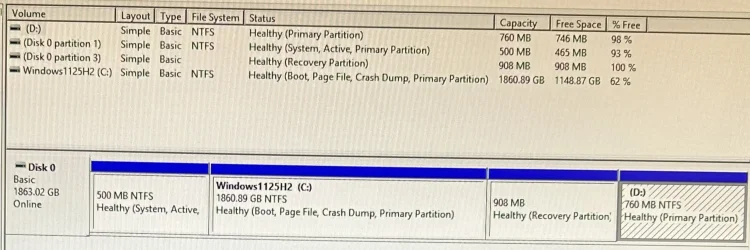
I don’t understand why disk D is showing up and it is emptied. Can I delete this? Disk D is part of Disk 0.

Legacy BIOS/MBR installation (not UEFI/GPT):
- 500 MB NTFS — System, Active, Primary Partition: contains boot-related files.
- C: 1860 GB — the Windows installation.
- 908 MB Recovery Partition
- D: 760 MB NTFS — Healthy (Primary Partition), almost completely empty.

The interesting one is D:. A 760 MB partition at the very end of the disk is much more likely to be a leftover OEM/recovery partition that accidentally has a drive letter than an intentionally created data drive.

Instead of deleting D:, remove its drive letter. That makes it disappear from File Explorer while leaving the partition intact.

In Disk Management:
- Right-click the 760 MB (D:) partition
- Select Change Drive Letter and Paths…
- Click Remove

Edit:

This applies only to MBR disks; GPT disks do not have an active partition.

Windows will not boot if there is no active partition on the primary disk (either the System partition or the Windows partition).

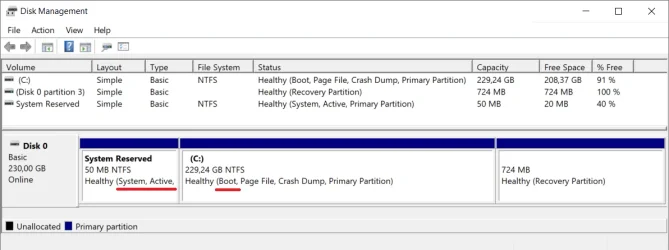
The "System" partition on a Windows computer contains the files necessary to "boot" the system. It is typically the first partition on the first disk, as set in the BIOS settings. The "Boot" partition contains the files for the Windows operating system.

- System partition (System, Active)
- Windows partition (Boot)

Disk Management.webp

Screenshot 2026-08-10 104258.webp
 
Last edited:

My Computers My Computers

  • At a glance

    Windows 11 ProAMD Ryzen 9 9950X3DKingston FURY Beast 64GB (2x32GB) DDR5 6000MT/sASUS TUF Gaming Radeon RX 9070 OC Edition 16G...
    OS
    Windows 11 Pro
    Computer type
    PC/Desktop
    CPU
    AMD Ryzen 9 9950X3D
    Motherboard
    ASRock B650E Taichi Lite
    Memory
    Kingston FURY Beast 64GB (2x32GB) DDR5 6000MT/s
    Graphics Card(s)
    ASUS TUF Gaming Radeon RX 9070 OC Edition 16GB GDDR6
    Hard Drives
    Solidigm P44 Pro 2TB M.2 NVMe SSD
  • At a glance

    Windows 11 HomeIntel Core Ultra 9 275HX64GB (2x 32GB) DDR5-6400NVIDIA GeForce RTX 5080 16GB GDDR7 Laptop GPU
    Operating System
    Windows 11 Home
    Computer type
    Laptop
    Manufacturer/Model
    Lenovo Legion Pro 7i Gen 10 16"
    CPU
    Intel Core Ultra 9 275HX
    Memory
    64GB (2x 32GB) DDR5-6400
    Graphics card(s)
    NVIDIA GeForce RTX 5080 16GB GDDR7 Laptop GPU
    Hard Drives
    2x 1TB M.2 NVMe SSD (SK Hynix)
Can I merge these two partitions without causing the windows startup?

View attachment 179173
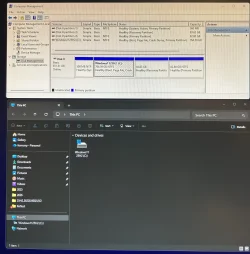
No need to use a third-party tool. Open any File Explorer windows and right-click on This PC icon. Select Manage to open Computer Management. Wait to open, then click on the Disk Management section. Right-click on the D: partition to Add or modify drive letter and remove the D: drive letter. The partition will immediately disappear from File Explorer.

I am not sure if you can do something similar on a standard (GPT partition style, UEFI mode boot) Windows 11 installation, but on an unsupported system you can bypass compatibility check and select to install Windows 11 in Legacy BIOS mode (for modern computers with CSM enabled or old computers without UEFI firmware). In that case, Setup will normally create a small system partition and the rest space is the Windows partition. You can force the whole space being the Windows partition (recovery data are copied to a folder in that partition) if you DON'T let Setup format the drive, but you do it yourself in advance. One way to do it is to press SHIFT+F10 to open a Command Prompt BEFORE proceeding with Setup and execute this code:

Code:
diskpart
list disk
select disk 0
clean
convert MBR
create partition primary
select partition 1
format fs=NTFS quick
exit
exit

This assumes you have only one hard disk in your computer (disk 0). If you have more make sure you replace 0 with the appropriate disk number to avoid accidentally wiping another disk. Even better, disconnect all other disks.

Then proceed Setup to the disk selection window and click on the NTFS partition and proceed. DON'T format the disk again otherwise Setup will add the small system partition. This trick is very useful for systems with small eMMC 64GB disks or small SSD disks such as 120GB. Why waste valuable disk space for extra partitions? That's why I also prefer MBR in these systems rather than GPT, provided they support booting on Legacy BIOS mode. To install Windows 11 in Legacy BIOS mode make sure you select MBR in Rufus when creating the USB and of course bypass compatibility check.
 

My Computers My Computers

  • At a glance

    Windows 11 Pro 23H2 (5699), 25H2 (9168)Mobile DualCore Intel Core 2 Duo T7250, 2000 MHz4GBMobile Intel(R) GMA 4500M (Mobile 4 series)
    OS
    Windows 11 Pro 23H2 (5699), 25H2 (9168)
    Computer type
    Laptop
    Manufacturer/Model
    Acer Extensa 5630EZ
    CPU
    Mobile DualCore Intel Core 2 Duo T7250, 2000 MHz
    Motherboard
    Acer Extensa 5630
    Memory
    4GB
    Graphics Card(s)
    Mobile Intel(R) GMA 4500M (Mobile 4 series)
    Sound Card
    Realtek ALC268 @ Intel 82801IB ICH9 - High Definition Audio Controller
    Monitor(s) Displays
    1
    Screen Resolution
    1280x800
    Hard Drives
    Samsung SSD 850 EVO 250GB SATA Device (250 GB, SATA-III)
    Internet Speed
    802.11g wireless 54 Mbps
    Browser
    MICROSOFT EDGE
    Antivirus
    WINDOWS DEFENDER
    Other Info
    Legacy MBR installation, no TPM, no Secure Boot, no WDDM 2.0 graphics drivers, no SSE4.2, cannot get more unsupported ;) This is only my test laptop. I had installed Windows 11 here before upgrading my main PC. For my main PC I use everyday see my 2nd system specs.
  • At a glance

    Windows 11 Pro v25H2 (build 26200.9168)Intel Core-i7 3770 3.40GHz s1155 (3rd generat...2x Kingston Hyper-X Blu 8GB DDR3-1600GIGABYTE GeForce RTX 3050 WINDFORCE OC V2 6GB...
    Operating System
    Windows 11 Pro v25H2 (build 26200.9168)
    Computer type
    PC/Desktop
    Manufacturer/Model
    Custom-built PC
    CPU
    Intel Core-i7 3770 3.40GHz s1155 (3rd generation)
    Motherboard
    Asus P8H61 s1155 ATX
    Memory
    2x Kingston Hyper-X Blu 8GB DDR3-1600
    Graphics card(s)
    GIGABYTE GeForce RTX 3050 WINDFORCE OC V2 6GB (GV-N3050WF2OCV2-6GD)
    Sound Card
    Realtek HD audio (ALC887)
    Monitor(s) Displays
    Sony Bravia KDL-19L4000 19" LCD TV via VGA
    Screen Resolution
    1440x900 32-bit 60Hz
    Hard Drives
    WD Blue SA510 2.5 1000GB SSD as system disk, Western Digital Caviar Purple 4TB SATA III (WD40PURZ) as second
    PSU
    Thermaltake Litepower RGB 550W Full Wired
    Case
    SUPERCASE MIDI-TOWER
    Cooling
    Deepcool Gamma Archer CPU cooler, 1x 8cm fan at the back
    Keyboard
    Mitsumi 101-key PS/2
    Mouse
    Microsoft Compact Optical Mouse
    Internet Speed
    802.11ac 5GHz wireless 260Mpbs
    Browser
    Microsoft Edge, Mozilla Firefox
    Antivirus
    Microsoft Windows Defender
    Other Info
    Legacy BIOS (MBR) installation, no TPM, no Secure Boot, WDDM 3.0 graphics drivers, WEI score 7.4
That's why I also prefer MBR in these systems rather than GPT, provided they support booting on Legacy BIOS mode. To install Windows 11 in Legacy BIOS mode make sure you select MBR in Rufus when creating the USB and of course bypass compatibility check.
This indeed works, but you may have problems in the future with version upgrade because of lack of full compatibility, so you will need to use other upgrade options, or repair installation, or somehow avoid this check again, which is more time consuming than typical WU. Sure, it's a disadvantage of a small SSD.
 

My Computer My Computer

At a glance

Windows 11 Pro 25H2AMD Rysen 5 4600H32 GB (2 x 16 GB Samsung SO-DIMM DDR4-3200)GeForce GTX 1650 Ti, 4 GB GDDR6
OS
Windows 11 Pro 25H2
Computer type
Laptop
Manufacturer/Model
Lenovo Legion 5-15ARH05
CPU
AMD Rysen 5 4600H
Memory
32 GB (2 x 16 GB Samsung SO-DIMM DDR4-3200)
Graphics Card(s)
GeForce GTX 1650 Ti, 4 GB GDDR6
Screen Resolution
1920x1080
Hard Drives
SSD M.2 512 GB SAMSUNG MZALQ512; SSD M.2 1 TB Seagate FireCuda 530
Mouse
Logitech M650L in Bluetooth mode
This indeed works, but you may have problems in the future with version upgrade because of lack of full compatibility, so you will need to use other upgrade options, or repair installation, or somehow avoid this check again, which is more time consuming than typical WU. Sure, it's a disadvantage of a small SSD.
I do that since Windows 11 21H2, never had issues upgrading to the next version. All I need to do is download the next version ISO and bypass compatibility check to upgrade. Since I bypass compatibility check Setup doesn't care if it is UEFI boot or Legacy BIOS installation, it just proceeds as normal. Also I can download and install all Windows updates that don't upgrade to a newer version without any compatibility check. What I am not offered in Windows update is the upcoming 26H2 Enablement Package. I will have to download that manually and run it. Also I am not offered an upgrade from one Windows 11 version to the next. I have to download the respective ISO (if there is no Enablement Package) and bypass compatibility check to upgrade.
 

My Computers My Computers

  • At a glance

    Windows 11 Pro 23H2 (5699), 25H2 (9168)Mobile DualCore Intel Core 2 Duo T7250, 2000 MHz4GBMobile Intel(R) GMA 4500M (Mobile 4 series)
    OS
    Windows 11 Pro 23H2 (5699), 25H2 (9168)
    Computer type
    Laptop
    Manufacturer/Model
    Acer Extensa 5630EZ
    CPU
    Mobile DualCore Intel Core 2 Duo T7250, 2000 MHz
    Motherboard
    Acer Extensa 5630
    Memory
    4GB
    Graphics Card(s)
    Mobile Intel(R) GMA 4500M (Mobile 4 series)
    Sound Card
    Realtek ALC268 @ Intel 82801IB ICH9 - High Definition Audio Controller
    Monitor(s) Displays
    1
    Screen Resolution
    1280x800
    Hard Drives
    Samsung SSD 850 EVO 250GB SATA Device (250 GB, SATA-III)
    Internet Speed
    802.11g wireless 54 Mbps
    Browser
    MICROSOFT EDGE
    Antivirus
    WINDOWS DEFENDER
    Other Info
    Legacy MBR installation, no TPM, no Secure Boot, no WDDM 2.0 graphics drivers, no SSE4.2, cannot get more unsupported ;) This is only my test laptop. I had installed Windows 11 here before upgrading my main PC. For my main PC I use everyday see my 2nd system specs.
  • At a glance

    Windows 11 Pro v25H2 (build 26200.9168)Intel Core-i7 3770 3.40GHz s1155 (3rd generat...2x Kingston Hyper-X Blu 8GB DDR3-1600GIGABYTE GeForce RTX 3050 WINDFORCE OC V2 6GB...
    Operating System
    Windows 11 Pro v25H2 (build 26200.9168)
    Computer type
    PC/Desktop
    Manufacturer/Model
    Custom-built PC
    CPU
    Intel Core-i7 3770 3.40GHz s1155 (3rd generation)
    Motherboard
    Asus P8H61 s1155 ATX
    Memory
    2x Kingston Hyper-X Blu 8GB DDR3-1600
    Graphics card(s)
    GIGABYTE GeForce RTX 3050 WINDFORCE OC V2 6GB (GV-N3050WF2OCV2-6GD)
    Sound Card
    Realtek HD audio (ALC887)
    Monitor(s) Displays
    Sony Bravia KDL-19L4000 19" LCD TV via VGA
    Screen Resolution
    1440x900 32-bit 60Hz
    Hard Drives
    WD Blue SA510 2.5 1000GB SSD as system disk, Western Digital Caviar Purple 4TB SATA III (WD40PURZ) as second
    PSU
    Thermaltake Litepower RGB 550W Full Wired
    Case
    SUPERCASE MIDI-TOWER
    Cooling
    Deepcool Gamma Archer CPU cooler, 1x 8cm fan at the back
    Keyboard
    Mitsumi 101-key PS/2
    Mouse
    Microsoft Compact Optical Mouse
    Internet Speed
    802.11ac 5GHz wireless 260Mpbs
    Browser
    Microsoft Edge, Mozilla Firefox
    Antivirus
    Microsoft Windows Defender
    Other Info
    Legacy BIOS (MBR) installation, no TPM, no Secure Boot, WDDM 3.0 graphics drivers, WEI score 7.4
The recovery partition is on partition #3 recovery.

Be careful with that! The recovery partition is likely actually partition #4. It looks like it is partition #3 in in Disk Management but that is because Disk Management hides the MSR partition. This is why I suggested in my procedure verifying the partition number with Diskpart.
 

My Computers My Computers

  • At a glance

    Win11 Pro 25H2 (RTM+)Intel i7-14650HX32 GBNo GPU - Built-in Intel Graphics
    OS
    Win11 Pro 25H2 (RTM+)
    Computer type
    PC/Desktop
    Manufacturer/Model
    Acemagic
    CPU
    Intel i7-14650HX
    Memory
    32 GB
    Graphics Card(s)
    No GPU - Built-in Intel Graphics
    Sound Card
    Integrated
    Monitor(s) Displays
    Varies as machine will often be moved to locations with different monitors
    Screen Resolution
    Varies
    Hard Drives
    1 x 1TB Gen 4 NVMe SSD
    PSU
    120W Power Brick
    Keyboard
    Corsair K70 Max RGB Magnetic Keyboard
    Mouse
    Logitech MX Master 3
    Internet Speed
    1Gb Up / 1 Gb Down
    Browser
    Edge
    Antivirus
    Windows Defender
  • At a glance

    Win11 Pro 25H2 (RTM+)Intel i7-1255U16 GBIntel Iris Xe Graphics
    Operating System
    Win11 Pro 25H2 (RTM+)
    Computer type
    Laptop
    Manufacturer/Model
    Lenovo ThinkBook 13x Gen 2
    CPU
    Intel i7-1255U
    Memory
    16 GB
    Graphics card(s)
    Intel Iris Xe Graphics
    Sound Card
    Realtek® ALC3306-CG codec
    Monitor(s) Displays
    13.3-inch IPS Display
    Screen Resolution
    WQXGA (2560 x 1600)
    Hard Drives
    2 TB 4 x 4 NVMe SSD
    PSU
    USB-C / Thunderbolt 4 Power / Charging
    Keyboard
    Backlit, spill resistant keyboard
    Mouse
    Buttonless Glass Precision Touchpad
    Internet Speed
    1Gb Up / 1Gb Down
    Browser
    Edge
    Antivirus
    Windows Defender
    Other Info
    WiFi 6e / Bluetooth 5.1 / Facial Recognition / Fingerprint Sensor / ToF (Time of Flight) Human Presence Sensor
This indeed works, but you may have problems in the future with version upgrade because of lack of full compatibility, so you will need to use other upgrade options, or repair installation, or somehow avoid this check again, which is more time consuming than typical WU. Sure, it's a disadvantage of a small SSD.

Yeah, I have a whole lot of other problems with running in legacy BIOS mode if UEFI is available. First of all, legacy BIOS does not support drives larger than 2TB. UEFI can boot significantly faster. UEFI provides far greater security. Also, be careful using NVMe drives with legacy BIOS. Many legacy BIOS don't handle NVMe drives properly or outright fail to support it at all without third-party drivers.
 

My Computers My Computers

  • At a glance

    Win11 Pro 25H2 (RTM+)Intel i7-14650HX32 GBNo GPU - Built-in Intel Graphics
    OS
    Win11 Pro 25H2 (RTM+)
    Computer type
    PC/Desktop
    Manufacturer/Model
    Acemagic
    CPU
    Intel i7-14650HX
    Memory
    32 GB
    Graphics Card(s)
    No GPU - Built-in Intel Graphics
    Sound Card
    Integrated
    Monitor(s) Displays
    Varies as machine will often be moved to locations with different monitors
    Screen Resolution
    Varies
    Hard Drives
    1 x 1TB Gen 4 NVMe SSD
    PSU
    120W Power Brick
    Keyboard
    Corsair K70 Max RGB Magnetic Keyboard
    Mouse
    Logitech MX Master 3
    Internet Speed
    1Gb Up / 1 Gb Down
    Browser
    Edge
    Antivirus
    Windows Defender
  • At a glance

    Win11 Pro 25H2 (RTM+)Intel i7-1255U16 GBIntel Iris Xe Graphics
    Operating System
    Win11 Pro 25H2 (RTM+)
    Computer type
    Laptop
    Manufacturer/Model
    Lenovo ThinkBook 13x Gen 2
    CPU
    Intel i7-1255U
    Memory
    16 GB
    Graphics card(s)
    Intel Iris Xe Graphics
    Sound Card
    Realtek® ALC3306-CG codec
    Monitor(s) Displays
    13.3-inch IPS Display
    Screen Resolution
    WQXGA (2560 x 1600)
    Hard Drives
    2 TB 4 x 4 NVMe SSD
    PSU
    USB-C / Thunderbolt 4 Power / Charging
    Keyboard
    Backlit, spill resistant keyboard
    Mouse
    Buttonless Glass Precision Touchpad
    Internet Speed
    1Gb Up / 1Gb Down
    Browser
    Edge
    Antivirus
    Windows Defender
    Other Info
    WiFi 6e / Bluetooth 5.1 / Facial Recognition / Fingerprint Sensor / ToF (Time of Flight) Human Presence Sensor
Yeah, I have a whole lot of other problems with running in legacy BIOS mode if UEFI is available. First of all, legacy BIOS does not support drives larger than 2TB. UEFI can boot significantly faster. UEFI provides far greater security. Also, be careful using NVMe drives with legacy BIOS. Many legacy BIOS don't handle NVMe drives properly or outright fail to support it at all without third-party drivers.
Yes, MBR has a limit of 2TB, but larger than 2TB SSD are too expensive for using one as the Windows disk, so I didn't mention it. Also most NVMe controllers won't boot the disk in Legacy BIOS mode, they only support UEFI boot. Unsupported MBR installation is intended for older SATA or IDE or eMMC disks that can boot in Legacy BIOS mode. As for NVMe loading faster, I cannot confirm that, unless I dual boot UEFI and Legacy at the same computer and see for myself. Also fast SSD disk will likely make the difference very small to perceive. So keep old stuff for old computers, use new stuff with new Windows 11 compliant computers, unless you want to experiment and face any possible issues.
 

My Computers My Computers

  • At a glance

    Windows 11 Pro 23H2 (5699), 25H2 (9168)Mobile DualCore Intel Core 2 Duo T7250, 2000 MHz4GBMobile Intel(R) GMA 4500M (Mobile 4 series)
    OS
    Windows 11 Pro 23H2 (5699), 25H2 (9168)
    Computer type
    Laptop
    Manufacturer/Model
    Acer Extensa 5630EZ
    CPU
    Mobile DualCore Intel Core 2 Duo T7250, 2000 MHz
    Motherboard
    Acer Extensa 5630
    Memory
    4GB
    Graphics Card(s)
    Mobile Intel(R) GMA 4500M (Mobile 4 series)
    Sound Card
    Realtek ALC268 @ Intel 82801IB ICH9 - High Definition Audio Controller
    Monitor(s) Displays
    1
    Screen Resolution
    1280x800
    Hard Drives
    Samsung SSD 850 EVO 250GB SATA Device (250 GB, SATA-III)
    Internet Speed
    802.11g wireless 54 Mbps
    Browser
    MICROSOFT EDGE
    Antivirus
    WINDOWS DEFENDER
    Other Info
    Legacy MBR installation, no TPM, no Secure Boot, no WDDM 2.0 graphics drivers, no SSE4.2, cannot get more unsupported ;) This is only my test laptop. I had installed Windows 11 here before upgrading my main PC. For my main PC I use everyday see my 2nd system specs.
  • At a glance

    Windows 11 Pro v25H2 (build 26200.9168)Intel Core-i7 3770 3.40GHz s1155 (3rd generat...2x Kingston Hyper-X Blu 8GB DDR3-1600GIGABYTE GeForce RTX 3050 WINDFORCE OC V2 6GB...
    Operating System
    Windows 11 Pro v25H2 (build 26200.9168)
    Computer type
    PC/Desktop
    Manufacturer/Model
    Custom-built PC
    CPU
    Intel Core-i7 3770 3.40GHz s1155 (3rd generation)
    Motherboard
    Asus P8H61 s1155 ATX
    Memory
    2x Kingston Hyper-X Blu 8GB DDR3-1600
    Graphics card(s)
    GIGABYTE GeForce RTX 3050 WINDFORCE OC V2 6GB (GV-N3050WF2OCV2-6GD)
    Sound Card
    Realtek HD audio (ALC887)
    Monitor(s) Displays
    Sony Bravia KDL-19L4000 19" LCD TV via VGA
    Screen Resolution
    1440x900 32-bit 60Hz
    Hard Drives
    WD Blue SA510 2.5 1000GB SSD as system disk, Western Digital Caviar Purple 4TB SATA III (WD40PURZ) as second
    PSU
    Thermaltake Litepower RGB 550W Full Wired
    Case
    SUPERCASE MIDI-TOWER
    Cooling
    Deepcool Gamma Archer CPU cooler, 1x 8cm fan at the back
    Keyboard
    Mitsumi 101-key PS/2
    Mouse
    Microsoft Compact Optical Mouse
    Internet Speed
    802.11ac 5GHz wireless 260Mpbs
    Browser
    Microsoft Edge, Mozilla Firefox
    Antivirus
    Microsoft Windows Defender
    Other Info
    Legacy BIOS (MBR) installation, no TPM, no Secure Boot, WDDM 3.0 graphics drivers, WEI score 7.4
Be careful with that! The recovery partition is likely actually partition #4. It looks like it is partition #3 in in Disk Management but that is because Disk Management hides the MSR partition.

This is not correct. There is no hidden MSR partition present as there is no GPT involved in this disk. This is Windows 11 running on MBR. Therefore there is also no EFI System Partition missing as there is System Reserved (with no label).

This is an MBR disk holding the maximum of 4 primary partitions. There is no use for and nothing to worry about drive D. The partition is 98% free.

It has been verified that the Recovery Partition in use is partition 3.

Partition 4 is safe to delete and partition 3 is free to be extended.
 

My Computer My Computer

At a glance

Windows 10
OS
Windows 10
Yes, MBR has a limit of 2TB, but larger than 2TB SSD are too expensive for using one as the Windows disk, so I didn't mention it.

I was lucky. I snapped up a few 4TB SSDs back when they were dirt cheap. I got one NVMe 4TB for $156 (that's in US dollars). I strongly regret not having snapped up more of them back then, but I was expecting prices to go even lower :-). Shows how little I knew.

 

My Computers My Computers

  • At a glance

    Win11 Pro 25H2 (RTM+)Intel i7-14650HX32 GBNo GPU - Built-in Intel Graphics
    OS
    Win11 Pro 25H2 (RTM+)
    Computer type
    PC/Desktop
    Manufacturer/Model
    Acemagic
    CPU
    Intel i7-14650HX
    Memory
    32 GB
    Graphics Card(s)
    No GPU - Built-in Intel Graphics
    Sound Card
    Integrated
    Monitor(s) Displays
    Varies as machine will often be moved to locations with different monitors
    Screen Resolution
    Varies
    Hard Drives
    1 x 1TB Gen 4 NVMe SSD
    PSU
    120W Power Brick
    Keyboard
    Corsair K70 Max RGB Magnetic Keyboard
    Mouse
    Logitech MX Master 3
    Internet Speed
    1Gb Up / 1 Gb Down
    Browser
    Edge
    Antivirus
    Windows Defender
  • At a glance

    Win11 Pro 25H2 (RTM+)Intel i7-1255U16 GBIntel Iris Xe Graphics
    Operating System
    Win11 Pro 25H2 (RTM+)
    Computer type
    Laptop
    Manufacturer/Model
    Lenovo ThinkBook 13x Gen 2
    CPU
    Intel i7-1255U
    Memory
    16 GB
    Graphics card(s)
    Intel Iris Xe Graphics
    Sound Card
    Realtek® ALC3306-CG codec
    Monitor(s) Displays
    13.3-inch IPS Display
    Screen Resolution
    WQXGA (2560 x 1600)
    Hard Drives
    2 TB 4 x 4 NVMe SSD
    PSU
    USB-C / Thunderbolt 4 Power / Charging
    Keyboard
    Backlit, spill resistant keyboard
    Mouse
    Buttonless Glass Precision Touchpad
    Internet Speed
    1Gb Up / 1Gb Down
    Browser
    Edge
    Antivirus
    Windows Defender
    Other Info
    WiFi 6e / Bluetooth 5.1 / Facial Recognition / Fingerprint Sensor / ToF (Time of Flight) Human Presence Sensor
This is not correct. There is no hidden MSR partition present as there is no GPT involved in this disk. This is Windows 11 running on MBR. Therefore there is also no EFI System Partition missing as there is System Reserved (with no label).

Ah yes, you are correct, of course. I'm just so used to working with UEFI based systems that I neglected to take that into account. So, partition #3 was in fact correct, not partition #4 as I suggested it might be.
 

My Computers My Computers

  • At a glance

    Win11 Pro 25H2 (RTM+)Intel i7-14650HX32 GBNo GPU - Built-in Intel Graphics
    OS
    Win11 Pro 25H2 (RTM+)
    Computer type
    PC/Desktop
    Manufacturer/Model
    Acemagic
    CPU
    Intel i7-14650HX
    Memory
    32 GB
    Graphics Card(s)
    No GPU - Built-in Intel Graphics
    Sound Card
    Integrated
    Monitor(s) Displays
    Varies as machine will often be moved to locations with different monitors
    Screen Resolution
    Varies
    Hard Drives
    1 x 1TB Gen 4 NVMe SSD
    PSU
    120W Power Brick
    Keyboard
    Corsair K70 Max RGB Magnetic Keyboard
    Mouse
    Logitech MX Master 3
    Internet Speed
    1Gb Up / 1 Gb Down
    Browser
    Edge
    Antivirus
    Windows Defender
  • At a glance

    Win11 Pro 25H2 (RTM+)Intel i7-1255U16 GBIntel Iris Xe Graphics
    Operating System
    Win11 Pro 25H2 (RTM+)
    Computer type
    Laptop
    Manufacturer/Model
    Lenovo ThinkBook 13x Gen 2
    CPU
    Intel i7-1255U
    Memory
    16 GB
    Graphics card(s)
    Intel Iris Xe Graphics
    Sound Card
    Realtek® ALC3306-CG codec
    Monitor(s) Displays
    13.3-inch IPS Display
    Screen Resolution
    WQXGA (2560 x 1600)
    Hard Drives
    2 TB 4 x 4 NVMe SSD
    PSU
    USB-C / Thunderbolt 4 Power / Charging
    Keyboard
    Backlit, spill resistant keyboard
    Mouse
    Buttonless Glass Precision Touchpad
    Internet Speed
    1Gb Up / 1Gb Down
    Browser
    Edge
    Antivirus
    Windows Defender
    Other Info
    WiFi 6e / Bluetooth 5.1 / Facial Recognition / Fingerprint Sensor / ToF (Time of Flight) Human Presence Sensor
Wow I couldn’t believed all the great responses!
Thank you ! I will try all the methods mentioned on my extra working windows bootup SSD which I had cloned or imaged from a working computer.
 

My Computer My Computer

At a glance

Wind 11 Pro 24H2 (Dev Channel)/23H2Beta (offl...2 Intel Xeon 5680120 GbMSI(Nvidia) GeForce GTX 970
OS
Wind 11 Pro 24H2 (Dev Channel)/23H2Beta (offline)
Computer type
PC/Desktop
Manufacturer/Model
DELL T7500
CPU
2 Intel Xeon 5680
Memory
120 Gb
Graphics Card(s)
MSI(Nvidia) GeForce GTX 970
Monitor(s) Displays
Dell S2719DGF
Screen Resolution
2560 x 1440 (155Hz)
Hard Drives
Samsung 2TB 870 (24H2 Device)
Samsung 1TB 860 (23H2 Beta)
PSU
Dell 1100W
Antivirus
Premium Malwarebyte, AdwCleaner (Malwarebyte)
Wow I couldn’t believed all the great responses!
Thank you ! I will try all the methods mentioned on my extra working windows bootup SSD which I had cloned or imaged from a working computer.
Legacy BIOS/MBR installation (not UEFI/GPT):
- 500 MB NTFS — System, Active, Primary Partition: contains boot-related files.
- C: 1860 GB — the Windows installation.
- 908 MB Recovery Partition
- D: 760 MB NTFS — Healthy (Primary Partition), almost completely empty.

The interesting one is D:. A 760 MB partition at the very end of the disk is much more likely to be a leftover OEM/recovery partition that accidentally has a drive letter than an intentionally created data drive.

Instead of deleting D:, remove its drive letter. That makes it disappear from File Explorer while leaving the partition intact.

In Disk Management:
- Right-click the 760 MB (D:) partition
- Select Change Drive Letter and Paths…
- Click Remove

Edit:

This applies only to MBR disks; GPT disks do not have an active partition.

Windows will not boot if there is no active partition on the primary disk (either the System partition or the Windows partition).

The "System" partition on a Windows computer contains the files necessary to "boot" the system. It is typically the first partition on the first disk, as set in the BIOS settings. The "Boot" partition contains the files for the Windows operating system.

- System partition (System, Active)
- Windows partition (Boot)

View attachment 179190

View attachment 179191
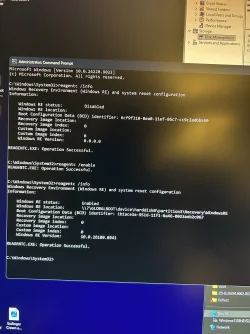
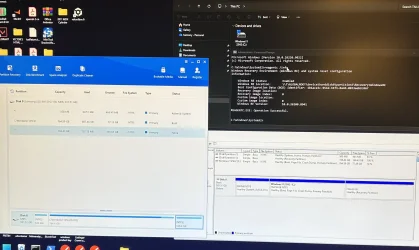
ok disk d is deleted and windows bootup fine. However, when I run reagentc /info it was disabled. It was enabled before I deleted disk D.
I enabled winRE again.
 

Attachments

  • IMG_6795.webp
    IMG_6795.webp
    1.2 MB · Views: 1
  • IMG_6797.webp
    IMG_6797.webp
    855.6 KB · Views: 1
Last edited:

My Computer My Computer

At a glance

Wind 11 Pro 24H2 (Dev Channel)/23H2Beta (offl...2 Intel Xeon 5680120 GbMSI(Nvidia) GeForce GTX 970
OS
Wind 11 Pro 24H2 (Dev Channel)/23H2Beta (offline)
Computer type
PC/Desktop
Manufacturer/Model
DELL T7500
CPU
2 Intel Xeon 5680
Memory
120 Gb
Graphics Card(s)
MSI(Nvidia) GeForce GTX 970
Monitor(s) Displays
Dell S2719DGF
Screen Resolution
2560 x 1440 (155Hz)
Hard Drives
Samsung 2TB 870 (24H2 Device)
Samsung 1TB 860 (23H2 Beta)
PSU
Dell 1100W
Antivirus
Premium Malwarebyte, AdwCleaner (Malwarebyte)
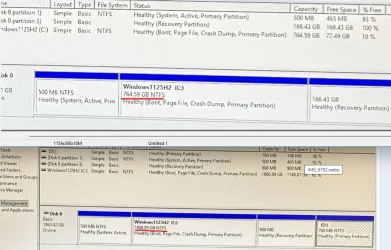
Ok. I am using MiniTool Wizard to merge Healthy (Recovery Partition) and Healthy (Primary Partition)
and here is the result. Windows restarted without any issue. Next I want to extend Health (boot partition) to right. Is it possible?
 

Attachments

  • IMG_6801.webp
    IMG_6801.webp
    371.4 KB · Views: 1

My Computer My Computer

At a glance

Wind 11 Pro 24H2 (Dev Channel)/23H2Beta (offl...2 Intel Xeon 5680120 GbMSI(Nvidia) GeForce GTX 970
OS
Wind 11 Pro 24H2 (Dev Channel)/23H2Beta (offline)
Computer type
PC/Desktop
Manufacturer/Model
DELL T7500
CPU
2 Intel Xeon 5680
Memory
120 Gb
Graphics Card(s)
MSI(Nvidia) GeForce GTX 970
Monitor(s) Displays
Dell S2719DGF
Screen Resolution
2560 x 1440 (155Hz)
Hard Drives
Samsung 2TB 870 (24H2 Device)
Samsung 1TB 860 (23H2 Beta)
PSU
Dell 1100W
Antivirus
Premium Malwarebyte, AdwCleaner (Malwarebyte)
What happened to your C: Drive ???

WTFhapnd.webp
 

My Computer My Computer

At a glance

Win11 24H2 IOT LTSC / Win11 Pro 25H2AMD Ryzen 7 8700G / Ryzen 7 8700G / Ryzen 8600GF5-6000J3636F16GX2-FX5 32GB / Lexar Ares RGB ...internal
OS
Win11 24H2 IOT LTSC / Win11 Pro 25H2
Computer type
PC/Desktop
Manufacturer/Model
Gigabyte x2 / Asus = Home builds
CPU
AMD Ryzen 7 8700G / Ryzen 7 8700G / Ryzen 8600G
Motherboard
Gigabyte B650 AORUS ELITE AX V2 / ASUS TUF GAMING B650-PLUS / B650 GAMING X AX V2
Memory
F5-6000J3636F16GX2-FX5 32GB / Lexar Ares RGB LD5BU016G-R6000GDLA 32GB / Kingston FURY Beast 32 GB DDR5-5600
Graphics Card(s)
internal
Sound Card
Realtek
Monitor(s) Displays
BenQ 27 L EW2780
Screen Resolution
1920x1080
Hard Drives
Many M.2's (WD)
PSU
be quiet! Pure Power 13 M 550W
Case
Chieftec HC-10B-OP
Cooling
Gelid Solutions Tranquillo 5, many Noctua's 12x12
Keyboard
Microsoft
Mouse
Cherry
Internet Speed
500 mbs
Browser
Vivaldi
Antivirus
Eset
Other Info
PC builder / repair / Trouble-shooter etc.
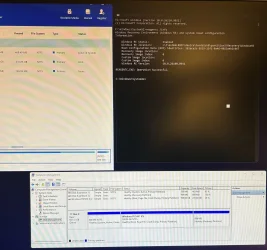
I think I am happy with this.
I used Minitool to accomplish this.
I merged Healthy (Recovery Partition) and Healthy (Primary Partition) and then
I extended Health (boot partition) to right.

IMG_6802.webp
 

My Computer My Computer

At a glance

Wind 11 Pro 24H2 (Dev Channel)/23H2Beta (offl...2 Intel Xeon 5680120 GbMSI(Nvidia) GeForce GTX 970
OS
Wind 11 Pro 24H2 (Dev Channel)/23H2Beta (offline)
Computer type
PC/Desktop
Manufacturer/Model
DELL T7500
CPU
2 Intel Xeon 5680
Memory
120 Gb
Graphics Card(s)
MSI(Nvidia) GeForce GTX 970
Monitor(s) Displays
Dell S2719DGF
Screen Resolution
2560 x 1440 (155Hz)
Hard Drives
Samsung 2TB 870 (24H2 Device)
Samsung 1TB 860 (23H2 Beta)
PSU
Dell 1100W
Antivirus
Premium Malwarebyte, AdwCleaner (Malwarebyte)

Latest Support Threads

Back
Top Bottom