Solved Location Settings / Microsoft Edge Incorrect App Name


PilotGW

Member
Local time
8:39 PM
Posts
13
OS
Windows 11 Pro
Hi,

I'm having an issue, albeit a small, 'cosmetic' issue with the location menu that I cannot figure out and I was wondering if anyone else has any ideas.

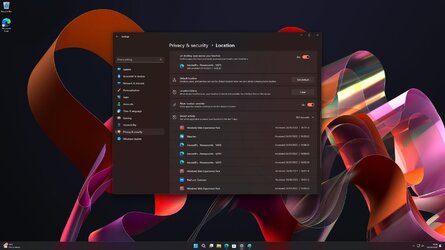
I stumbled into the location settings menu today and I saw that a specific program, 'Aerosoft's - Honeycomb - MSFS', was accessing my location. This program is a Microsoft Flight Simulator joystick application. I uninstalled it a while back, so I was slightly confused as to why it would be accessing my location at all.

I then noticed that it has the Microsoft Edge icon. Sure enough, opening Edge causes an icon to pop up in the tray area, saying that 'Aerosoft's - Honeycomb - MSFS' is accessing my location, rather than 'Microsoft Edge'.

It seems that the location menu is identifying Edge as this program that no longer exists. Everywhere else (start menu, task bar, add / remove programs, 'open with' menu etc), Edge is identified correctly.

I've tried:
It's not a huge issue, I just can't fathom why it's happening and where it's pulling that name from, especially considering I've removed said program.

Any help would be much appreciated!
 
Windows Build/Version
Windows 11 Pro Version 22H2 (OS Build 22621.675)

Attachments
  • Location Settings.jpg
    Location Settings.jpg
    202.3 KB · Views: 2

My Computer My Computer

At a glance

Windows 11 ProIntel i7 10700K32GB Corsair Vengeance RGB 3600MHzASUS Strix RTX 3080 LHR
OS
Windows 11 Pro
Computer type
PC/Desktop
CPU
Intel i7 10700K
Motherboard
ASUS Maximus XII Hero Wi-Fi
Memory
32GB Corsair Vengeance RGB 3600MHz
Graphics Card(s)
ASUS Strix RTX 3080 LHR
Monitor(s) Displays
ASUS TUF Gaming VG27AQL1A
Screen Resolution
2560x1440
Hard Drives
Samsung 970 EVO Plus 500 GB
Samsung 860 EVO 2TB
Samsung 850 EVO 1TB (x2)
PSU
Corsair HX1200i
Case
Corsair 5000D Airflow
Keyboard
Corsair K70 RGB Mk. II
Mouse
Corsair Dark Core Pro
Go to Start/Search and type Regedit. First Backup your Registry
Then go to the Toolbar to Find/Find What and type in Aerosoft's - Honeycomb - MSFS and press Find Next. It will search the Registry and stop on a line. Press the Del key on the keyboard, then press Enter to acknowledge the deletion, and press F3 to continue searching the Registry. Do these last 3 steps until you get the message Finish Searching the Registry. Reboot and see how it goes. If it searches and doesn't find anything, reedit the search removing the word Aerosoft, also, eliminate any spaces in the search.
 

My Computer My Computer

At a glance

Windows 11 Pro Insider 64 bit 25H2 26200.5742Intel Core i7 9700K 3.6016 GBnVidia GEForce RTX 2060 Super
OS
Windows 11 Pro Insider 64 bit 25H2 26200.5742
Computer type
PC/Desktop
Manufacturer/Model
Gigabyte Z390 UD
CPU
Intel Core i7 9700K 3.60
Motherboard
Gigabyte Z390 UD
Memory
16 GB
Graphics Card(s)
nVidia GEForce RTX 2060 Super
Sound Card
onboard
Monitor(s) Displays
Two 27" Dell 4K monitors
Screen Resolution
3840 x 2160
Hard Drives
M.2 NVME SSD, 500 GB; Two 2TB Mechanical HDD's
PSU
850w PSU
Case
Cyberpower PC
Cooling
Water cooled
Keyboard
Backlit Cyberpower gaming keyboard
Mouse
Backlit Cyberpower gaming mouse
Internet Speed
1 GB mbps
Browser
Brave
Antivirus
Windows Security
Thank you for the reply!

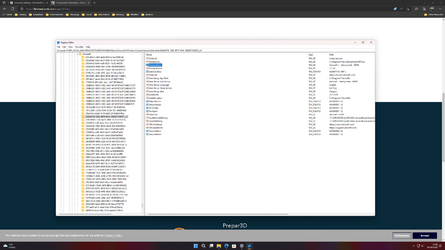
Since posting I tried reinstalling the program in question. The only time I've seen the name written out exactly like that ('Aerosoft's - Honeycomb - MSFS') is in the add / remove programs list. There is also one registry entry reflecting this, but it gets removed when it uninstalls.

I uninstalled the program again and searched for "Aerosoft's - Honeycomb - MSFS", but as stated it was already removed and nothing else was found. I then searched for "Honeycomb" and deleted any results (mostly leftover references to its uninstaller program by the looks of things).

No change unfortunately. :(

I also tried accessing the Microphone using Microsoft Edge, and it affects that menu too. I'm assuming there's some sort of separate cache somewhere and it's gotten 'confused' somehow.
 

Attachments

  • Screenshot (3).png
    Screenshot (3).png
    126.6 KB · Views: 2

My Computer My Computer

At a glance

Windows 11 ProIntel i7 10700K32GB Corsair Vengeance RGB 3600MHzASUS Strix RTX 3080 LHR
OS
Windows 11 Pro
Computer type
PC/Desktop
CPU
Intel i7 10700K
Motherboard
ASUS Maximus XII Hero Wi-Fi
Memory
32GB Corsair Vengeance RGB 3600MHz
Graphics Card(s)
ASUS Strix RTX 3080 LHR
Monitor(s) Displays
ASUS TUF Gaming VG27AQL1A
Screen Resolution
2560x1440
Hard Drives
Samsung 970 EVO Plus 500 GB
Samsung 860 EVO 2TB
Samsung 850 EVO 1TB (x2)
PSU
Corsair HX1200i
Case
Corsair 5000D Airflow
Keyboard
Corsair K70 RGB Mk. II
Mouse
Corsair Dark Core Pro
Strangely enough, this morning it seems to have magically fixed itself. :what:

Not sure what did it. I restarted and power cycled multiple times yesterday, so it wasn't the result of it being restarted.

I did notice my time was running a few seconds behind (maybe because I had unplugged my PC completely for an entire day due to heavy thunderstorms the day before), so I synced it manually. I don't think that would have done it personally as it really was only a few seconds out. I also received an update for MicrosoftWindows.Client.WebExperience, but that failed according to reliability history (0x80073D02).
 

My Computer My Computer

At a glance

Windows 11 ProIntel i7 10700K32GB Corsair Vengeance RGB 3600MHzASUS Strix RTX 3080 LHR
OS
Windows 11 Pro
Computer type
PC/Desktop
CPU
Intel i7 10700K
Motherboard
ASUS Maximus XII Hero Wi-Fi
Memory
32GB Corsair Vengeance RGB 3600MHz
Graphics Card(s)
ASUS Strix RTX 3080 LHR
Monitor(s) Displays
ASUS TUF Gaming VG27AQL1A
Screen Resolution
2560x1440
Hard Drives
Samsung 970 EVO Plus 500 GB
Samsung 860 EVO 2TB
Samsung 850 EVO 1TB (x2)
PSU
Corsair HX1200i
Case
Corsair 5000D Airflow
Keyboard
Corsair K70 RGB Mk. II
Mouse
Corsair Dark Core Pro
Sounds like you pretty much have it sorted. Keep an eye on your time, if it starts loosing time, you should replace the CMOS battery.
 

My Computer My Computer

At a glance

Windows 11 Pro Insider 64 bit 25H2 26200.5742Intel Core i7 9700K 3.6016 GBnVidia GEForce RTX 2060 Super
OS
Windows 11 Pro Insider 64 bit 25H2 26200.5742
Computer type
PC/Desktop
Manufacturer/Model
Gigabyte Z390 UD
CPU
Intel Core i7 9700K 3.60
Motherboard
Gigabyte Z390 UD
Memory
16 GB
Graphics Card(s)
nVidia GEForce RTX 2060 Super
Sound Card
onboard
Monitor(s) Displays
Two 27" Dell 4K monitors
Screen Resolution
3840 x 2160
Hard Drives
M.2 NVME SSD, 500 GB; Two 2TB Mechanical HDD's
PSU
850w PSU
Case
Cyberpower PC
Cooling
Water cooled
Keyboard
Backlit Cyberpower gaming keyboard
Mouse
Backlit Cyberpower gaming mouse
Internet Speed
1 GB mbps
Browser
Brave
Antivirus
Windows Security
Back
Top Bottom