Intune Customer Success:
We’ve heard organizations want Windows deployment to be simple for employees and predictable for IT admins. But before a device enrolls, how does the organization know that the device is really one of its own - and how can IT make sure the right experience and policy reach that device regardless of who signs in?
Today, we're announcing device association for Windows Autopilot device preparation, a new way to bind a physical Windows 11 device to your organization before enrollment begins.
Device association uses hardware-backed attestation to create a trusted relationship between the device and your tenant at the start of the provisioning journey. That relationship helps Windows Autopilot device preparation recognize the device during the out-of-box experience (OOBE), automatically treat it as corporate-owned, and apply the experience and policy intended for that specific device.
The result is a more secure, more consistent, and more device-centric onboarding flow.
Start with the device, not just the user
Windows Autopilot device preparation already gives IT teams a straightforward way to configure new Windows devices with the apps, scripts, and policies employees need. Device association extends that experience by allowing IT to target a device preparation policy directly to a device before it enrolls.This is especially valuable when the deployment experience needs to follow the hardware rather than the person signing in. For example, one employee can enroll multiple devices that serve different purposes, and each device can receive its own device preparation policy. When both device-based and user-based assignments are available, the device-based assignment takes precedence.
That gives administrators greater confidence that the correct configuration reaches the correct device from the beginning of its lifecycle.
Create a simpler out-of-box experience
Because an associated device is recognized before enrollment, IT can configure more of the Windows setup experience in advance.Device association enables organizations to:
- Configure Language and region.
- Automatically configure the keyboard and skip the keyboard selection page. When the device uses a Wi-Fi network connection during OOBE, the language and keyboard selection screens aren't hidden.
- Hide the Microsoft Software License Terms page.
- Hide privacy settings during OOBE.
- Apply a device name template that uses the serial number or a randomized value.
- Hide account-change options on company sign-in and domain error pages.
Strengthen trust before enrollment
Device association isn't only an experience improvement. It establishes device trust earlier in the deployment process.The association uses hardware-based attestation and TPM-backed cryptographic validation to verify the device's identity. Tenant affinity is stored in the device's UEFI firmware, where it persists across a Windows reset, operating system reinstallation, or removal of enrollment.
This durable, hardware-backed relationship helps ensure that the device presenting itself for preparation is the device the organization intended to onboard.
Associated devices are also automatically marked as corporate-owned. If your organization blocks personally owned Windows devices with Intune enrollment restrictions, device association can be used instead of uploading a separate corporate identifier. You can continue to use corporate identifiers where they fit your process, but an associated device doesn't need both.
How the device association flow works
Device association is designed as a clear workflow that starts with IT and finishes automatically during OOBE:- Create the device preparation policy. Configure the apps, scripts, deployment settings, OOBE experience, and optional device name template that should apply.
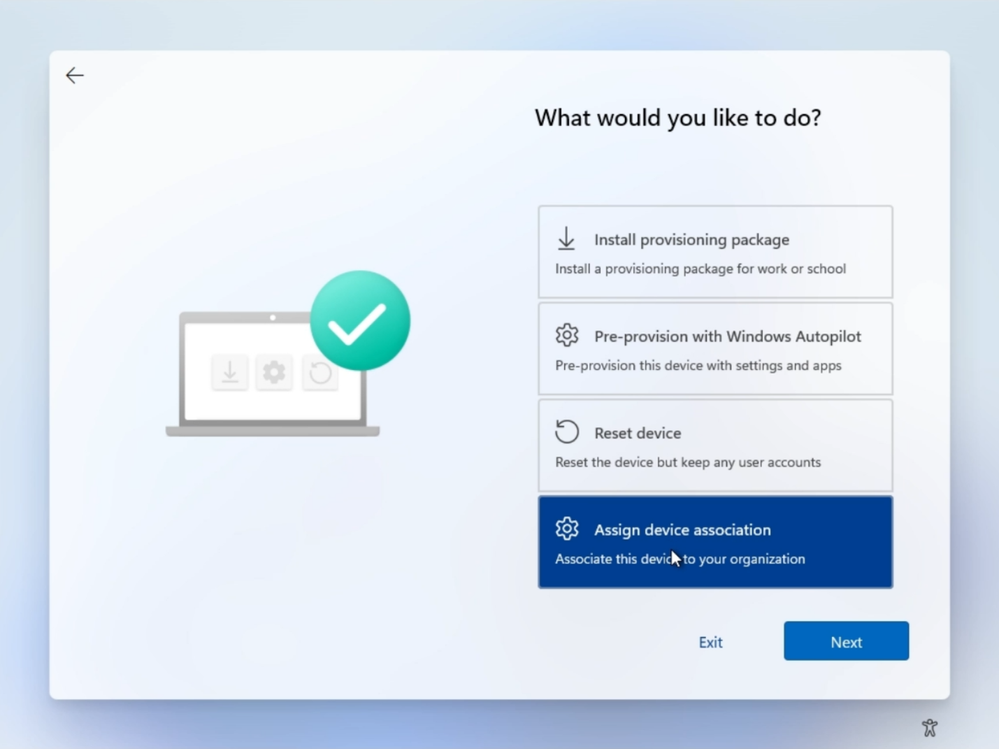
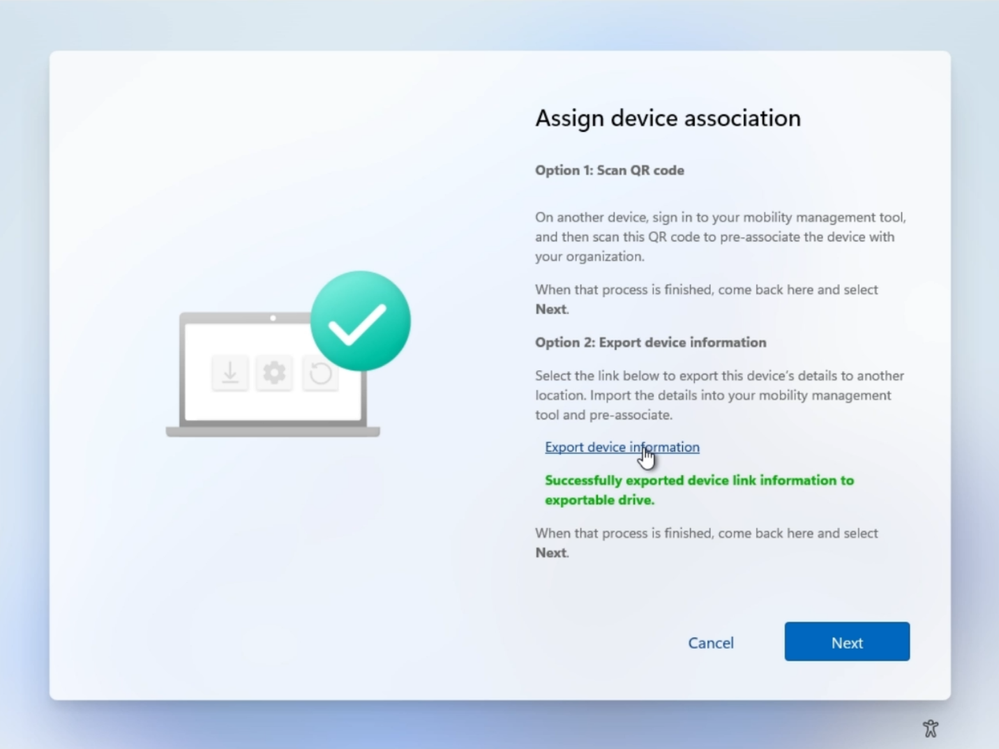
- Export the device information. During OOBE, a technician opens the Autopilot menu and exports the DeviceLink CSV with the device information required for pre-association to a USB. For an existing device, the same information can be collected from Autopilot diagnostic logs.
Figure 1. The Windows Autopilot menu with Assign device association selected.
Figure 2. The Assign device association screen confirms that device link information was exported to a removable drive.
- Pre-associate the device in Intune. In the Microsoft Intune admin center, go to Devices > Enrollment > Device association > Devices, upload the CSV, and optionally assign a device preparation policy directly to the device.
Figure 3. The Associated devices page in the Microsoft Intune admin center shows a successfully uploaded pre-associated device.
- Complete association. When the device connects to a network in OOBE, it finds the pre-association record and completes association automatically. A technician can also trigger this step manually from the Autopilot menu.
- Enroll and prepare the device. The device receives the applicable device-targeted policy, is marked as corporate-owned, and presents the configured OOBE experience.
- Monitor the deployment. Administrators can review association state and assigned policy in the Device association blade and filter devices by state, policy, manufacturer, or model.
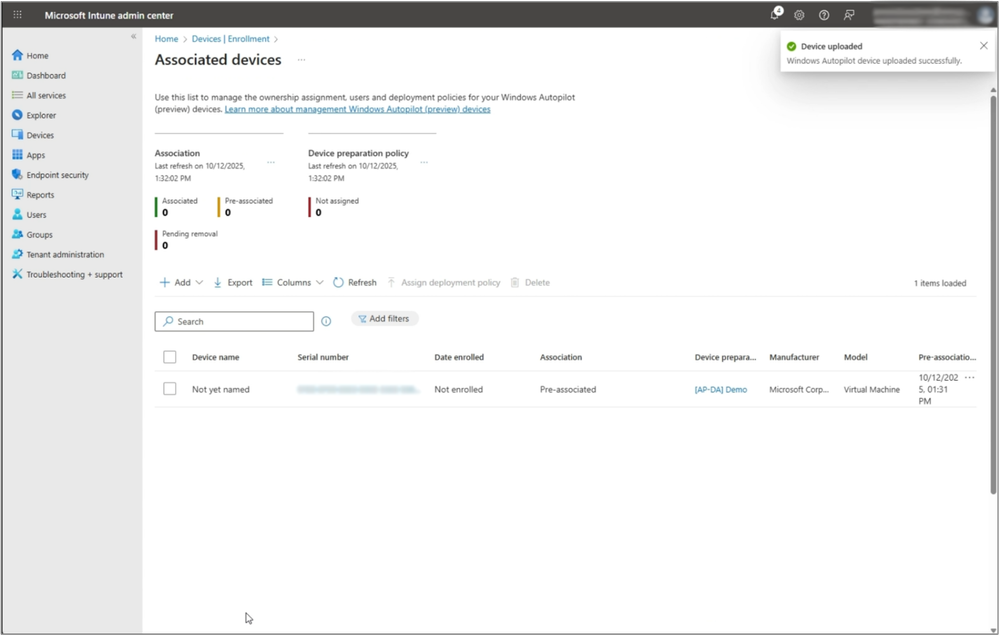
- Pre-associated: The device was added on the service side and is waiting to complete association in OOBE.
- Associated: The device completed association by writing the tenant affinity to UEFI and is ready for enrollment. This happens automatically when a pre-associated device syncs with an MDM provider.
- Pending removal: A request to remove the pre-association is being processed.
Manage the full device lifecycle
The association remains with the device through reset and reinstallation, helping preserve the organization's intended provisioning path when a device is redeployed internally.When a device permanently leaves the organization - for example, when it's sold, recycled, or transferred—the association should be removed as part of decommissioning. Because the tenant affinity is stored on the device, clearing a completed association can be performed via script locally on the physical device, without access to the service.
This lifecycle model is intentional: association is durable during normal reuse inside the organization, while permanent removal can be completed by an admin or partner who has control of the physical device.
Designed to work alongside your existing Windows Autopilot strategy
Device association is part of Windows Autopilot device preparation and can coexist with traditional Windows Autopilot deployments in the same organization.For a device already registered with Windows Autopilot, the association state determines which deployment runs. If the device isn't associated, its Windows Autopilot registration takes precedence. If it is associated, the Windows Autopilot device preparation deployment takes precedence.
This gives organizations a practical path to introduce device association while continuing to support existing Windows Autopilot investments.
Get started
To use device association, you'll need a supported physical Windows 11 device with TPM 2.0 enabled and in a healthy state. Virtual machines aren't supported because device association relies on hardware-backed identity verification.Start by reviewing the Windows Autopilot device association requirements, then create or update your Windows Autopilot device preparation policy. From there, export the device information, pre-associate the device in Intune, and let Windows complete the trusted association during OOBE.
With device association, Windows Autopilot device preparation moves device trust, targeting, and customization earlier in the deployment journey - before enrollment and before the employee reaches the desktop.
That means fewer setup decisions for users, more predictable deployments for IT, and stronger confidence that the right device is joining the right organization with the right configuration.
Source:
Introducing device association for Windows Autopilot device preparation | Microsoft Community Hub
By: Maggie Dakeva, Senior Product Manager - Microsoft Intune We’ve heard organizations want Windows deployment to be simple for employees and predictable for...
 techcommunity.microsoft.com