Microsoft OneDrive Blog:
OneDrive on macOS is getting a major update to how it syncs! The Native Sync Engine is rolling out to Insiders today with version 26.098. It's up to 2x faster on initial sync and on-disk state changes, uses less CPU, memory, and battery, and removes the hidden cache folder that's been the source of most reliability issues since 2022.
It's the latest in an ongoing effort to make OneDrive feel native on Mac. Earlier this year we shipped a redesigned Activity Center with Liquid Glass and native dialogs, and the Native Sync Engine is a major step in that journey.
The cache folder problem
When we moved OneDrive to Apple's File Provider platform in 2022, we needed a way to bridge the existing sync engine with how File Provider expected things to work. Broadly, there are two parts to OneDrive sync: the sync engine itself, and the code that OneDrive uses to work with files. To support File Provider, we had to change how OneDrive interacted with the file system. However, to reduce risk, we decided to use a hidden cache folder that mirrored your OneDrive contents, so the sync engine could remain largely unchanged.That cache folder solved the immediate problem and unlocked features like Known Folder Move. Over time, however, feedback and telemetry showed us that it was root cause of many of the reliability and performance issues users have reported since. The Native Sync Engine removes it.
What’s changed
Over the past several years, we’ve been working behind the scenes on the Native Sync Engine. Building it required us to completely rebuild large portions of our code and build a new sync platform that allows OneDrive to work better with the File Provider system.The Native Sync Engine provides the fastest, most reliable experience we’ve ever delivered on the Mac. It has a simplified architecture, eliminates entire classes of errors, and integrates more deeply with macOS. In our performance testing, the new system is about 2x faster for initial sync and on-disk state changes. It also uses fewer system resources, helping preserve your Mac’s battery life while improving overall responsiveness. We’ve also put the new system through multiple tests that simulate usage well beyond what the average user would ever do, and it has held up extremely well in those scenarios. It’s a massive improvement, and one we are very excited to bring to you.
On the surface, the Native Sync Engine looks and feels very similar to what we had before, but there are a few important changes. Let’s walk through a few of them.
Hidden folders no longer hold data
OneDrive's hidden folders now contain metadata only. Your file data only lives in the OneDrive folder you interact with directly.There are a few cases where a copy of file data will exist in the hidden folder:
- Files you've created or changed that haven't uploaded yet. The copy is removed once the file has fully synced to the cloud.
- OneNote shortcuts and similar "link" file types. These are typically a few hundred bytes at most, and we retain them in the hidden folder indefinitely.
- Some kinds of macOS packages, such as GarageBand files, .app bundles, and certain older iWork files. Copies of these files are retained for longer than most files.
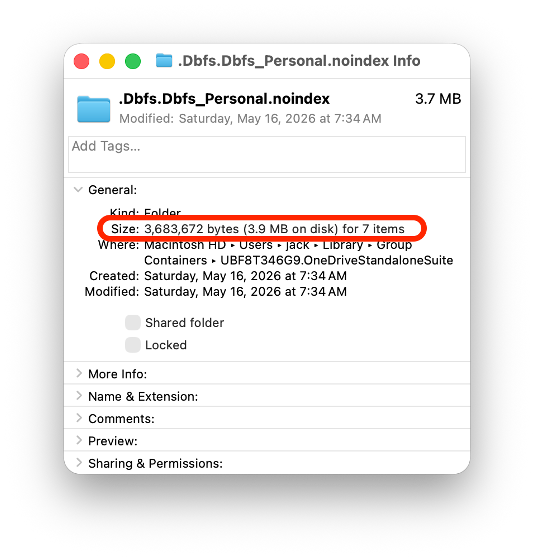
The Native Sync Engine's metadata folder, for a consumer OneDrive account with about 10,000 items, all available locally. Only using a little bit of space for metadata!
Files and folders are always browsable
Files in a folder used to be created on disk only the first time the folder was accessed. That led to Finder showing "Loading..." while you browsed and apps hanging while they waited for folders to materialize.Now, every folder and file is always browsable on disk. Navigating your OneDrive folder feels like navigating any other folder. It’s snappy, responsive, and just works.
Note that Files On-Demand is unchanged with the Native Sync Engine. Files you haven't opened remain online-only unless you either open them or mark them Always On This Device.
External drive support
The Native Sync Engine also supports external drives, such as USB drives you can plug into your Mac. If your system and your external drive meet the requirements, all of your files and OneDrive's metadata folder will be placed on this drive. On older versions of macOS and on drives that don't meet the requirements, your files and OneDrive metadata will be stored on the home volume.Syncing shared folders and libraries
If your organization has disabled the “Sync” button on SharePoint and your users are using “Add shortcut to My Files”, you can skip this section, as you are already in the ideal state!If you are still using synced libraries, each synced library now appears as its own root in the Finder sidebar, instead of nested under a single tenant entry. Add shortcut to OneDrive remains the modern way to access shared content. Admins can hide the Sync button via aka.ms/HideSyncButton.
Identifying the Native Sync Engine
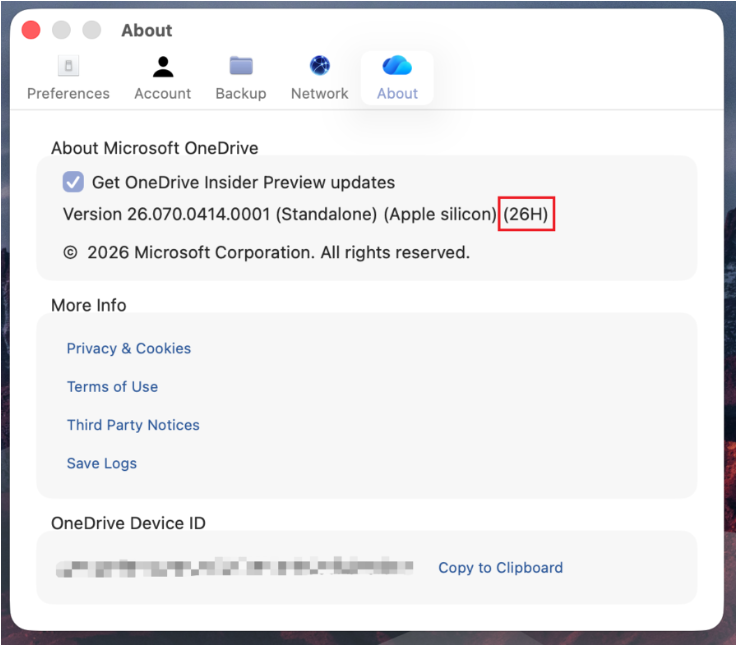
You can identify whether your Mac is using the Native Sync Engine by inspecting the OneDrive version in the Preferences dialog:- If the version ends with a value such as "(26K)", you are running the Native Sync Engine.
- If the version ends with the version of macOS, you are not yet running the Native Sync Engine.
Mac Sync Settings showing the version number, including the Native Sync Engine build.
Rollout
Starting today, we’ll be gradually rolling out this new experience to our Insiders audience. This rollout will take several weeks to complete. If you aren't already in Insiders and want to try the new update, simply open OneDrive preferences, click on the About tab, and check the box to join the Insiders program.Your Mac will upgrade to the Native Sync Engine automatically when it receives the update. It might take a couple of minutes for OneDrive to complete the upgrade, and a little while longer for File Provider to finish with the upgrade, but you can still use your OneDrive while this is taking place.
We would love to hear your feedback, good or bad. Just click “Send Feedback” in the OneDrive Activity Center and share your thoughts!
Source:
Making Mac OneDrive Faster and More Reliable | Microsoft Community Hub
OneDrive on macOS is getting a major update to how it syncs! The Native Sync Engine is rolling out to Insiders today with version 26.098. It's up to 2x...
 techcommunity.microsoft.com