Windows Blogs:
In our commitment to Windows quality, we outlined our plans to deliver improvements in performance, reliability, and craft. We are also committed to being transparent about the work behind those efforts, including what we are shipping, why we prioritized those features, and where we still have more work to do.
Start and taskbar are some of the most visible and frequently used experiences in Windows, so we are focused on improving their quality and giving you more flexibility to personalize them to meet your needs.
Let’s walk through where we’re making meaningful progress against the feedback we’ve heard from you, rolling out to Windows Insiders in the Experimental channel over the coming weeks, including several rolling out today.
KB5089499 Windows 11 Insider Experimental (25H2) build 26300.8493 - May 15
UPDATE 5/22: https://www.elevenforum.com/t/windows-11-insider-experimental-25h2-build-26300-8497-may-22.46994/ Windows Insider Blog: As a reminder, these release notes apply to those who are in the Experimental channel, formerly known as the Dev Channel. As we begin the transition to the new...
 www.elevenforum.com
Bringing more personalization to the taskbar
The taskbar is where your PC experience comes to life. Just like a well-organized workspace, having it tailored to your needs helps you stay productive, so we’re introducing more ways to customize it.Taskbar positions
Location, location, location. The ability to move the taskbar to the top or sides of the screen has been one of the most requested features, and we are bringing it to Windows 11.Starting today, Windows Insiders in the Experimental channel will be able to:
- Position the taskbar on any edge of the screen: Top, bottom, left, or right (see figure 1).
Change Taskbar Position on Screen in Windows 11
This tutorial will show you how to change the taskbar position to any edge of the screen for your account in Windows 11. Starting with Windows 11 build 26100.9278 (24H2), build 26200.9278 (25H2), and build 2800.3086 (26H1), you can now change the position of taskbar on your screen. You can...
www.elevenforum.com
- Choose icon alignment for every taskbar position: Top-aligned or centered when the taskbar is on the left or right, and left-aligned or centered when the taskbar is on the top or bottom.
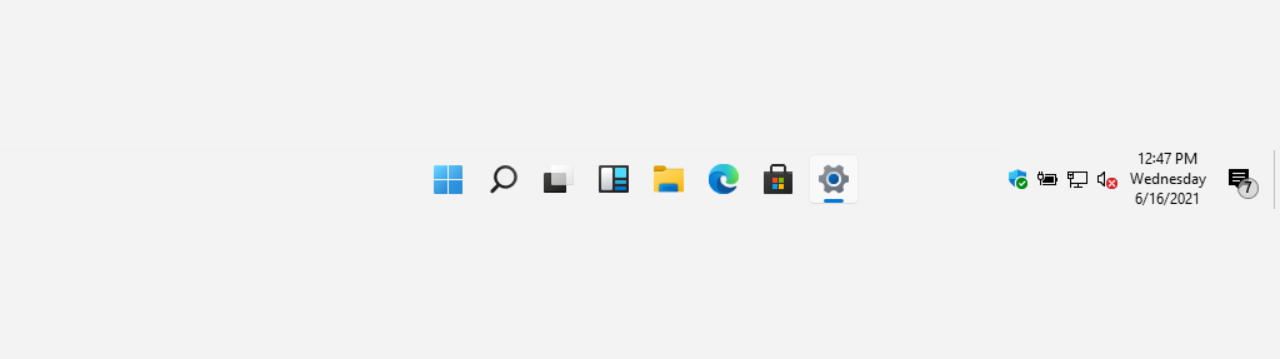
Change Taskbar Icon Alignment in Windows 11
This tutorial will show you how to change how your icons are positioned on the taskbar for your account in Windows 11. Icons on the taskbar are center aligned by default in Windows 11 instead of to the left like in previous Windows. You can choose icon alignment for every taskbar position...
www.elevenforum.com
- Use Start, Search, and other flyouts relative to the taskbar location: For example, when the taskbar is on the top, Start opens from the top (see figure 2).
- See every window at a glance: When using a vertical taskbar with “Never combine” taskbar buttons and show labels enabled, each app window appears as a separate labeled button, making it easier to identify and switch between windows (see figure 3).
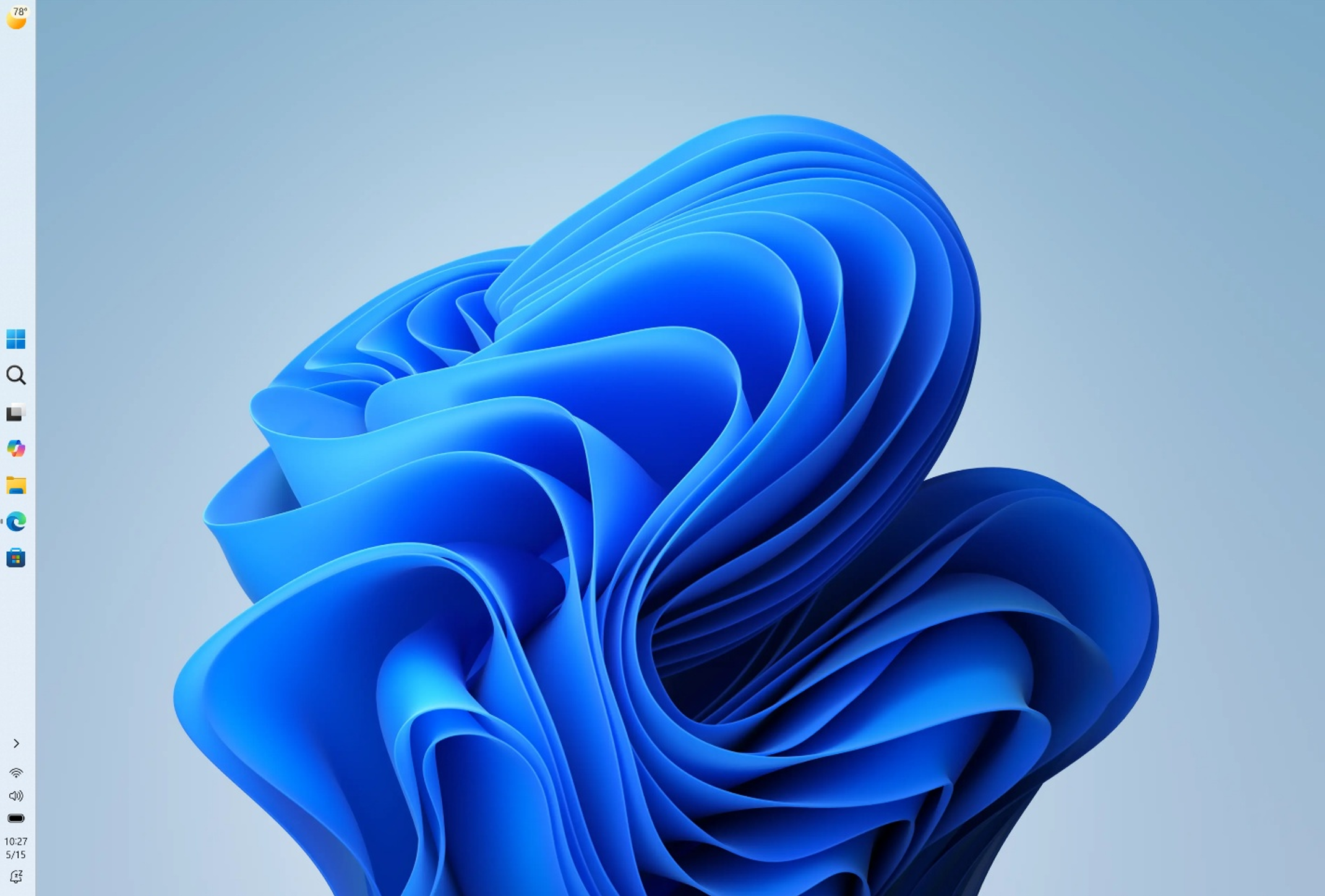
(Figure 1) Screenshot of the taskbar in the left-aligned position.
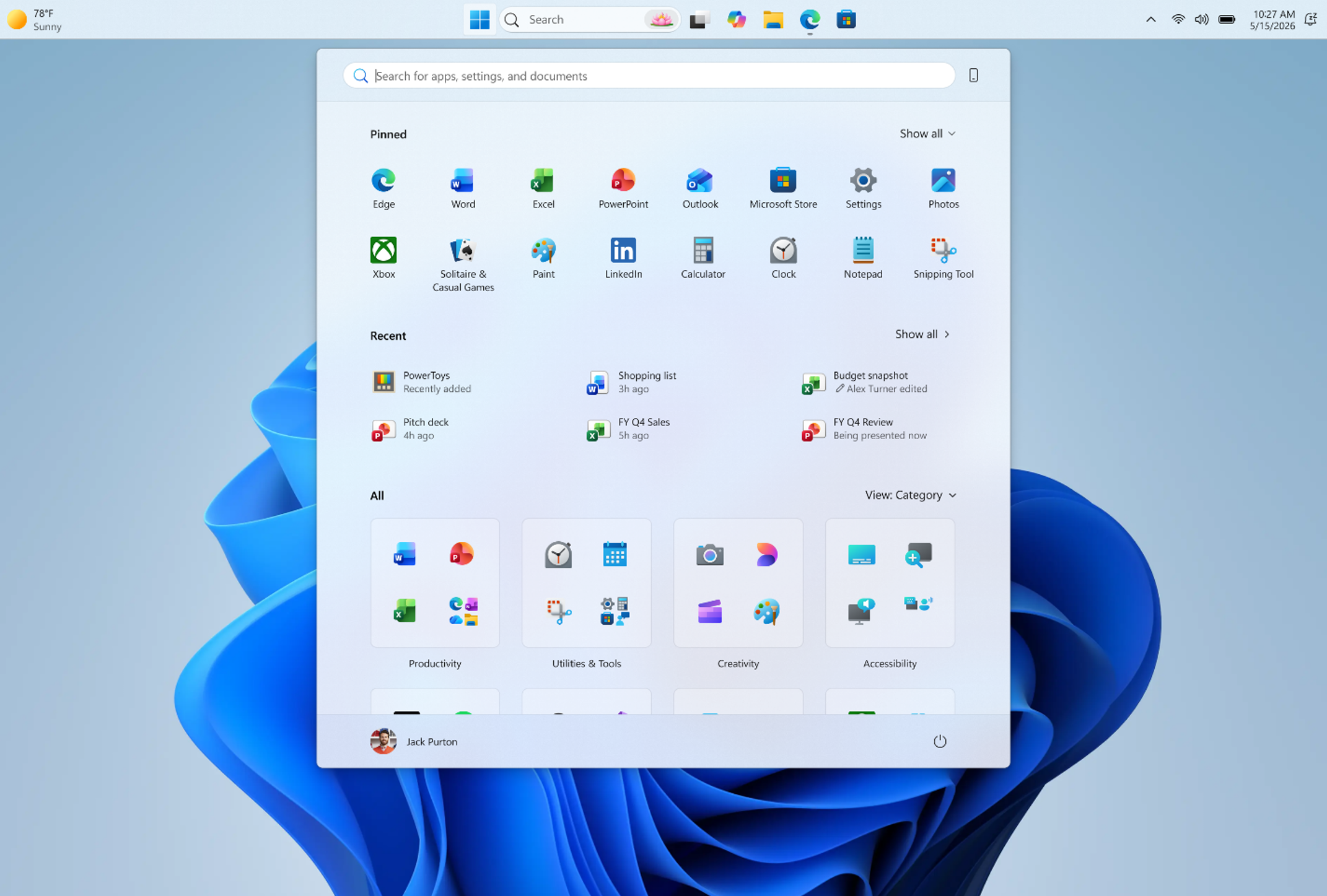
(Figure 2) Screenshot of the taskbar in the top-aligned position, with Start opening from the top.
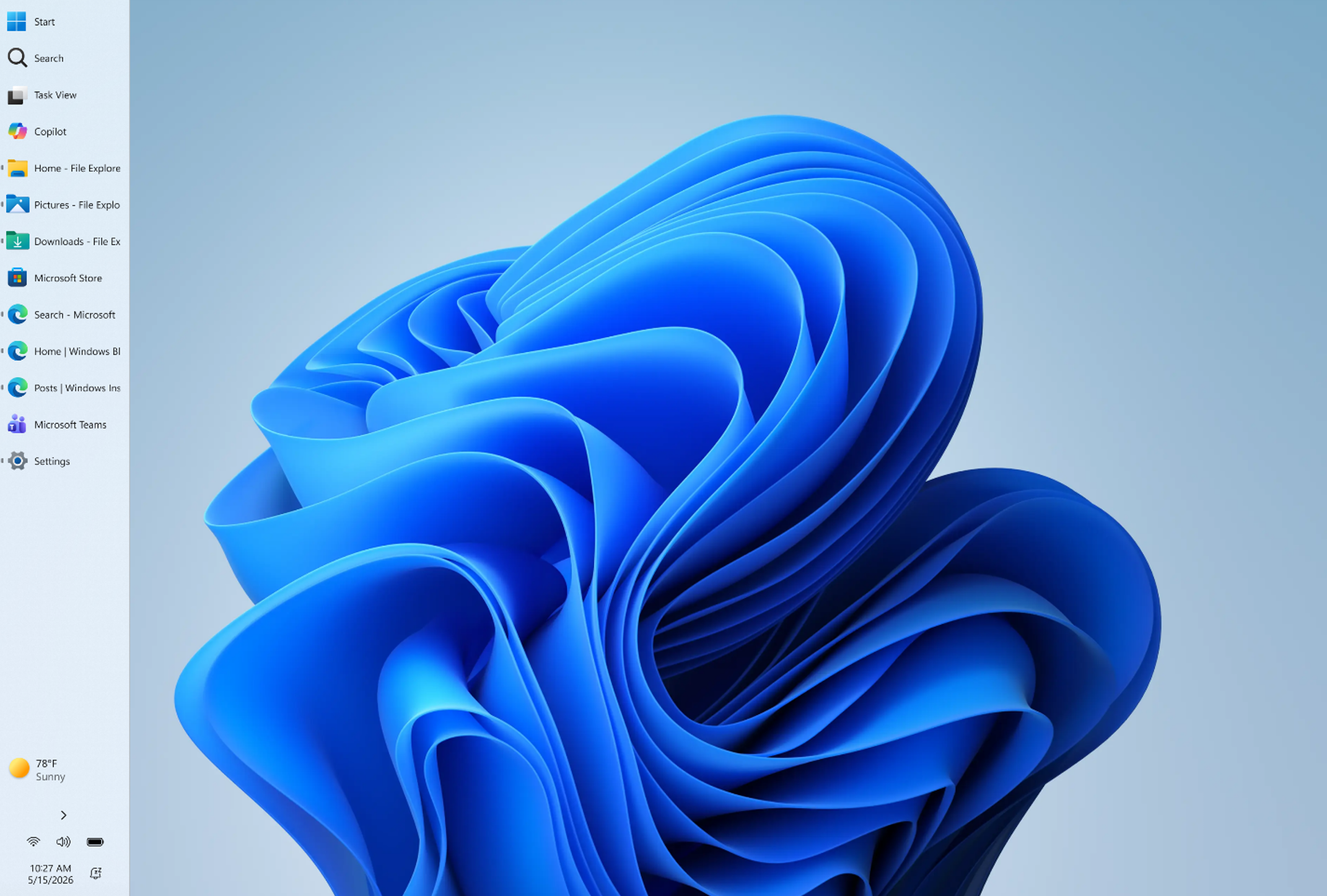
(Figure 3) Screenshot of the taskbar in the left-aligned position with buttons never combined and labels shown.
To change the taskbar position, go to Settings > Personalization > Taskbar > Taskbar behaviors, where you will find the new option alongside taskbar icon alignment.
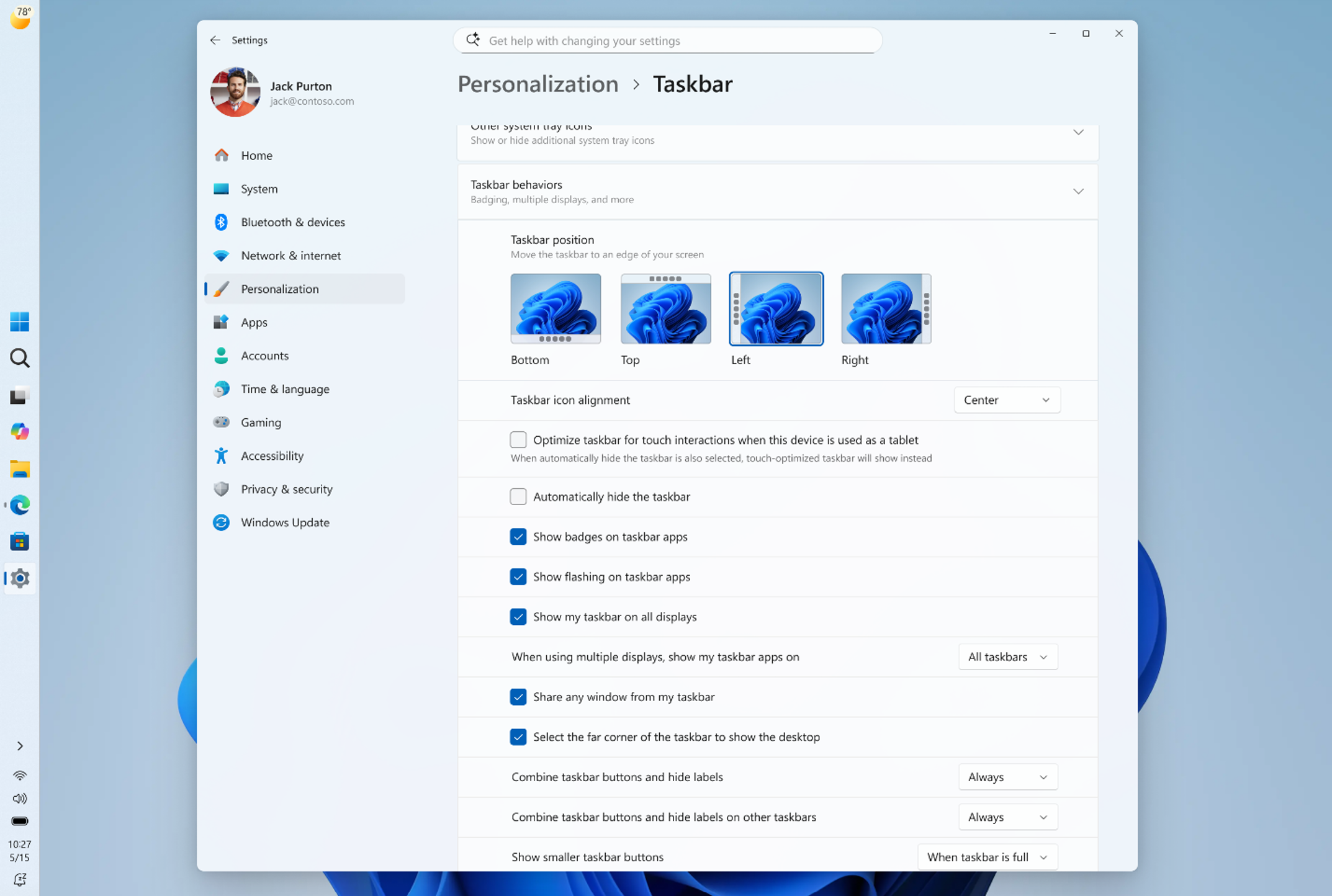
(Figure 4) Screenshot of the new Settings > Personalization > Taskbar page showing the taskbar position options.
We’re excited to hear your feedback. We’re still working through additional visual polish, performance improvements, and a few known issues, and there are also some features that are not yet included in this release but are coming soon:
- Auto-hide and tablet-optimized taskbar are not yet supported in alternate positions.
- Touch gestures for alternate positions are still in progress.
- Search boxes are not yet supported in alternate positions and will appear as a search icon for now.
Smaller taskbar
Windows 11 introduced a roomier taskbar to support more states and features while also improving touch targets.On smaller screens, that extra height can take away from your usable workspace. We are adding the option to switch to a more compact taskbar for times when every pixel counts.
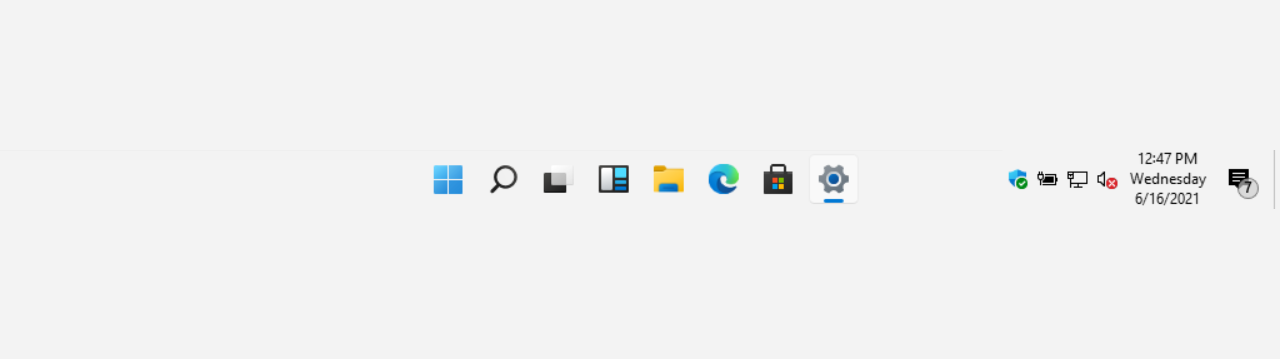
With this update, when small taskbar is enabled, you get smaller icons, a shorter taskbar, and more vertical space for your apps (see video below). No restart or sign-out is required.
This experience is rolling out today in the Experimental channel. To change your taskbar size, go to Settings > Personalization > Taskbar > Taskbar behaviors > Show smaller taskbar buttons. When set to Always, both the icons and the taskbar height become smaller.
Change Size of Taskbar Icons in Windows 11
This tutorial will show you how to change when to show small icons on the taskbar for your account, all users, or specific users in Windows 11. Starting with Windows 11 build 26100.4484 (24H2), build 28120.2387 (Experimental 26H1), build 26220.9022 (Beta 25H2), and build 28020.2623 (Beta 26H1)...
www.elevenforum.com
Putting you in control of Start
There is a unique Start for everyone, whether you want a minimal experience with just your pinned apps, quick access to recent files, everything in one place, or something in between.We are making changes in two areas to support this. First, we are giving you easier ways to shape your Start menu. Second, we are improving the quality of what appears there by default.
More control over your layout
Today, customizing Start can require navigating multiple settings in different places. Turning off the Recommended section involves toggling several settings, and clearing pinned apps means unpinning them one by one. We are simplifying this experience.Over the coming weeks, Insiders will get:
- Section-level toggles to independently show or hide Pinned, Recommended, and All. One toggle per section that is simple and clear.
Add or Remove Pinned Section on Start Menu in Windows 11
This tutorial will show you how to add or remove the Pinned apps section on the Start menu for your account in Windows 11. The Start menu in Windows 11 is comprised of three sections: Pinned, Recent, and All apps. The section at the top of the Start menu is called the Pinned section. This...
www.elevenforum.com
Add or Remove Recommended Section on Start Menu in Windows 11
This tutorial will show you how to add or remove the Recommended (Recent) section from the Start Menu for your account, specific users, or all users in Windows 11. The Start menu in Windows 11 is comprised of three sections: Pinned, Recent, and All apps. The Recommended section on the Start...
www.elevenforum.com
Add or Remove All Apps Section on Start Menu in Windows 11
This tutorial will show you how to add or remove the All apps section on the Start menu for your account, specific users, or all users in Windows 11. The Start menu in Windows 11 is comprised of three sections: Pinned, Recent, and All apps. The All apps section on the Start menu shows all your...
www.elevenforum.com
- A separate control for file recommendations. Today, turning off Recommended in Start also turns off jump lists and recent files in File Explorer. With this change, you can disable file recommendations in Start without affecting recent files in other places.
Hide or Show Recent Files on Start Menu in Windows 11
This tutorial will show you how to add (show) or remove (hide) recent files on the Start menu for your account in Windows 11. The Start menu in Windows 11 is comprised of three sections: Pinned, Recent, and All apps. The Recommended section on the Start menu shows a list of your recently added...
www.elevenforum.com
- Start menu size settings that let you choose your preferred size. Today, Start adapts to your display. With this update, you can choose Small or Large so your preference stays consistent across displays whenever possible.
Change Start Menu Size in Windows 11
This tutorial will show you how to change the size of the Start Menu for your account in Windows 11. The Start menu in Windows 11 is comprised of three sections: Pinned, Recent, and All apps. Starting with Windows 11 build 26100.9278 (24H2), build 26200.9278 (25H2), and build 2800.3086 (26H1)...
www.elevenforum.com
- The option to hide your name and profile picture in Start for added privacy when sharing your screen, presenting, or streaming.
Hide or Show Account Name and Profile Picture on Start Menu in Windows 11
This tutorial will show you how to turn on or off hiding your account name and profile picture on the Start menu for your account in Windows 11. The Start menu in Windows 11 is comprised of three sections: Pinned, Recent, and All apps. Starting with Windows 11 build 26100.9278 (24H2) and build...
www.elevenforum.com
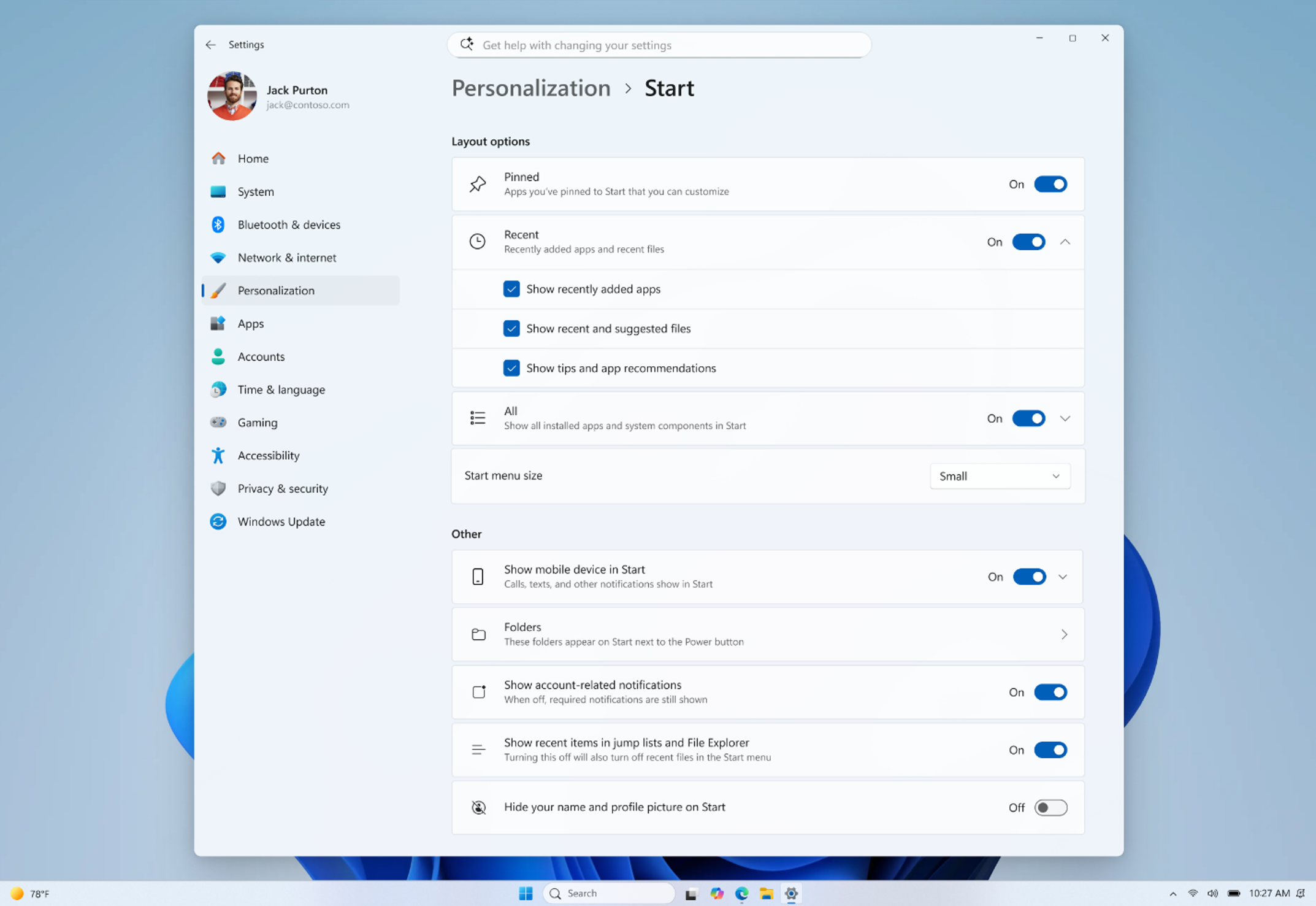
(Figure 5) Screenshot of the updated Start settings showing the new section-level toggles.
These controls are designed to work together. If you want a Start menu with just your pinned apps, you can turn off Recommended and All. If you want a full Start that shows everything, you can leave it all on. The goal is simple: it is your choice, and it should be easy to make.
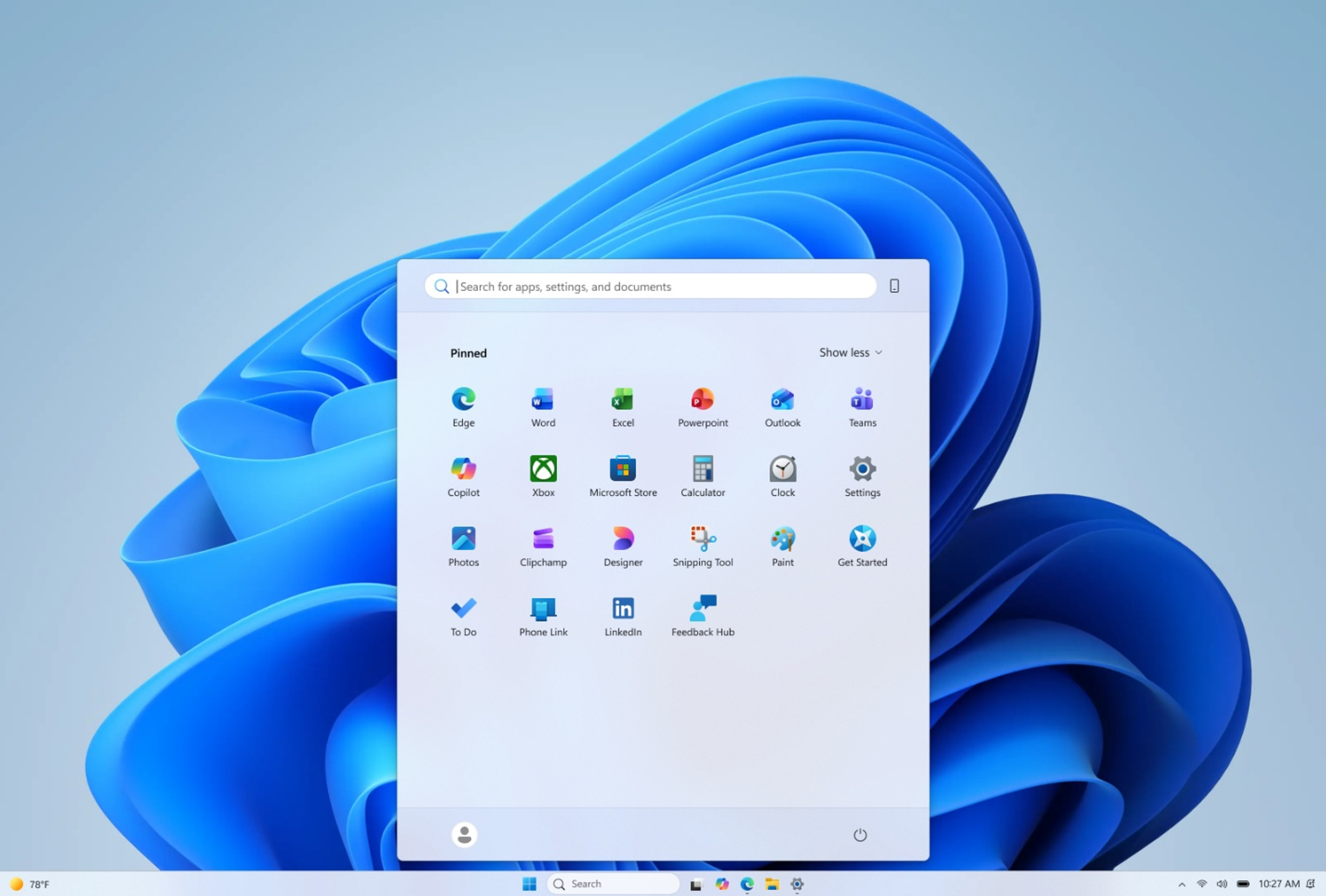
(Figure 6) Screenshot showing Start in a minimal “pins only” configuration with hidden name and profile picture.
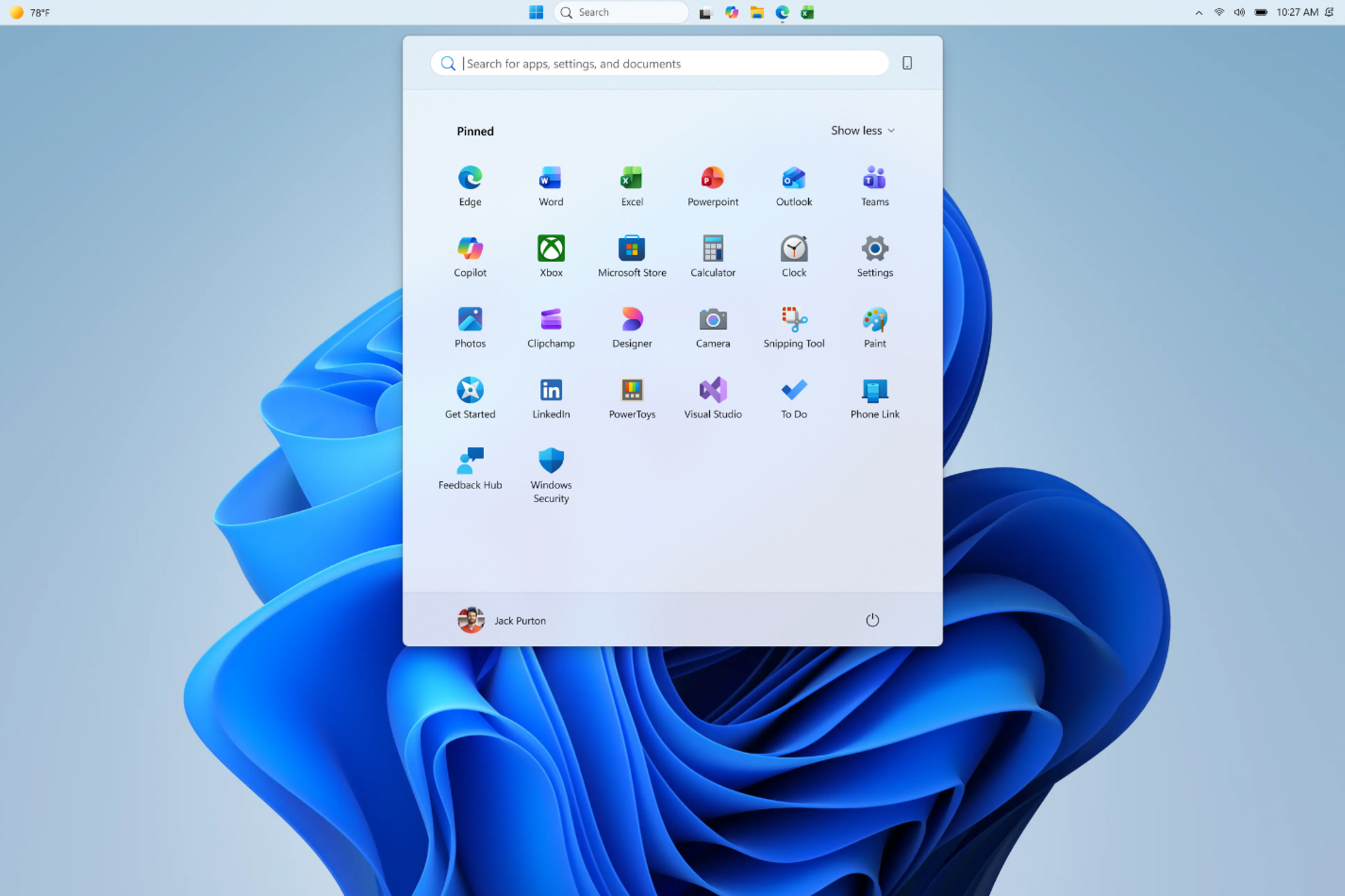
(Figure 7) Screenshot showing top-aligned small taskbar with Start in a minimal “pins only” configuration.
Improving recommendation quality
We are also improving the content that appears in this section for people who choose to keep it on.We are renaming Recommended to Recent to better reflect what the section primarily shows, including recently installed apps and recently used files.
We are keeping recently installed apps visible, as this remains one of the primary ways people discover newly installed apps alongside the Microsoft Store. Both users and developers have told us this visibility is important.
In addition, we are improving file relevancy. We are refining which files appear and how they are ordered to reduce less relevant items and better reflect what you have been working on.
What’s next
Everything described will roll out to Windows Insiders in the Experimental channel over the coming weeks, including several in today’s flight.We have talked about earning trust through steady and visible progress. Start and taskbar are where that trust is tested most, every time you sit down at your PC.
Please share your feedback in Feedback Hub by pressing WIN + F. The Windows Insider community plays a critical role in shaping Windows, and as these features become available, we encourage you to explore them and share what is working and what is not. This work is ongoing, and our goal is to build it together with you.
Thanks,
Diego
Source:
Improving Windows quality: Making Taskbar and Start more personal
In our commitment to Windows quality, we outlined our plans to deliver improvements in performance, reliability, and craft. We are also committed to
 blogs.windows.com
Last edited: