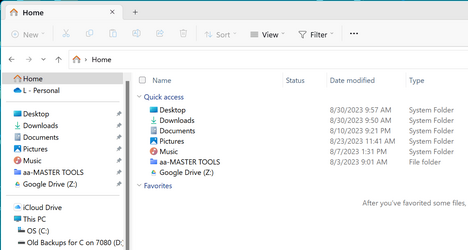
move Downloads folder in File Explorer


BEH

Active member
Member
Local time
4:32 AM
Posts
35
OS
Windows 11 HOME
Hi. I would like to move the Downloads folder which currently is not displayed in the File Explorer window,
to the upper left corner under my personal folder (which does show some folders e.g. Documents).

I followed a procedure I located on the web up to the point where I was asked a Q about redirection.
I'm not overly familiar with Windows 11 and was surprised that this folder and Music as well did not
display when I started File Explorer.

My concern is the part about not being able to restore defaults.

See attached for the popup window posing the redirection Q.

I'm old school, if I'm not sure, I don't hit the 'enter' key.

Any help and advice when I'm doing this will be greatly appreciated.
 

My Computer

System One

  • OS
    Windows 11 HOME
    Computer type
    Laptop
    Manufacturer/Model
    HP LAPTOP 17 - cn3xxx
    CPU
    13th Gen Intel(R) Core(TM) i5-1335U 1.30 GHz
    Memory
    32.0 GB (31.7 GB usable)
    Hard Drives
    2 TB
If you create a new Downloads folder on another drive (other than C:, assuming you have that 2TB drive partitioned), you can pin it to Quick Access and set your browsers to save downloads to IT, rather than to the Users ... Downloads folder. Actually, I never use a special downloads folder. I have a catch-all folder on my D: drive where I put things I want quick access to (temporarily). I call it AATemp, so that it's at the top of the D: File Explorer window. Both of my browsers send all downloads to AATemp. Just a thought.
 

My Computers

System One System Two

  • OS
    11 Pro 24H2 26100.2454
    Computer type
    PC/Desktop
    Manufacturer/Model
    Lenovo ThinkCentre M920S SFF
    CPU
    i7-9700 @ 3.00GHz
    Motherboard
    Lenovo 3132
    Memory
    32GBDDR4 @ 2666MHz
    Graphics Card(s)
    Intel HD 630 Graphics onboard
    Sound Card
    Realtek HD Audio
    Monitor(s) Displays
    LG E2442
    Screen Resolution
    1920x1080
    Hard Drives
    1 x Samsung 970 EVO PLUS 500GB NVMe SSD, 1 x WD_BLACK SN770
    250GB NVMe SSD (OS and programs), 1 x WD_BLACK SN770
    500GB NVMe SSD (Data)
    Case
    Lenovo SFF
    Keyboard
    Cherry Stream TKL JK-8600US-2 Wired
    Mouse
    LogiTech M510 wireless
    Internet Speed
    Fast (for fixed wireless!)
    Browser
    Chrome, sometimes Firefox
    Antivirus
    Malwarebytes Premium & Defender (working together beautifully!)
  • Operating System
    11 Pro 24H2 26100.2454
    Computer type
    PC/Desktop
    Manufacturer/Model
    Lenovo ThinkCentre M920S SFF
    CPU
    i5-8400 @ 2.80GHz
    Motherboard
    Lenovo 3132
    Memory
    32GB DDR4 @ 2600MHz
    Graphics card(s)
    Intel HD 630 Graphics onboard
    Sound Card
    Realtek High Definition Audio onboard
    Monitor(s) Displays
    LG FULL HD (1920x1080@59Hz)
    Screen Resolution
    1920 x 1080
    Hard Drives
    1 x Samsung 970 EVO PLUS NVMe; 1 x Samsung 980 NVMe SSD
    Case
    Lenovo Think Centre SFF
    Keyboard
    Cherry Stream TKL JK-8600US-2 Wired
    Mouse
    LogiTech M510 wireless
    Internet Speed
    Fast (for fixed wireless!)
    Browser
    Chrome
    Antivirus
    Malwarebytes Premium and MS Defender, beautiful together
I have attached the file which should have been attached as part of my initial post.
 

Attachments

My Computer

System One

  • OS
    Windows 11 HOME
    Computer type
    Laptop
    Manufacturer/Model
    HP LAPTOP 17 - cn3xxx
    CPU
    13th Gen Intel(R) Core(TM) i5-1335U 1.30 GHz
    Memory
    32.0 GB (31.7 GB usable)
    Hard Drives
    2 TB
I am surprised the Downloads and Music folders are not present. As you say I thought they were default folders as well. I see these folders in my File Explorer and when I highlight them there is no option to delete them so, if they are fixed in place owned and by the OS I don't know how you could have deleted them by accident. Maybe your OS is corrupt? As a first step try running this batch file and if that doesn't work then consider in an-place upgrade. See Repair Install Windows 11 with an In-place Upgrade Tutorial .
 

Attachments

Last edited:

My Computers

System One System Two

  • OS
    Windows 11 Pro
    Computer type
    PC/Desktop
    Manufacturer/Model
    GMKtec K11
    CPU
    AMD Ryzen 9 8945HS
    Memory
    32GB DDR5 SO-DIMM
    Graphics Card(s)
    Integrated AMD Radeon 780M (4.00 GHz)
    Monitor(s) Displays
    Benq 2250HM
    Screen Resolution
    1920 x 1080
    Hard Drives
    1 TB PCIe 4.0 NVMe M.2 SSD
  • Operating System
    Windows 11 Home
    Computer type
    Laptop
    Manufacturer/Model
    ASUS Zenbook 14 OLED 14" Laptop - UX3405CA-QL192W
    CPU
    Intel® Core™ Ultra 7 - 255H processor
    Memory
    16 GB LPDDR5 SDRAM
    Graphics card(s)
    Intel Arc 140T onboard graphics
    Screen Resolution
    1920 x 1200 (16:10 WUXGA resolution) OLED Touchscreen
    Hard Drives
    1TB SSD
The screenshot indicates to me that you have manipulated the navigation pane in some way. The pinned items section is missing.
It appears you have removed quick access, leaving only Favorites and recent. Re-enable Quick Access to see if the pinned section returns. If it does , pin the Downloads and Music folders to quick access and they will show up in your Home folder as well.

Normally when you click on HOME, you see this. Notice that the items I have pinned also show up in the Home folder. (middle section of navigation pane. The sections are divided by the horizontal lines) Note: I have Recent Items turned off. That's why you do not see it in the Home folder.
Home folder.png

When a MS account is used to login, desktop, documents, and pictures folders are located in Onedrive by default.
However, Music and Downloads folder do not default to Onedrive but default to the user account folder, the reason being these 2 folders use so much data, your 5gb free onedrive space will run out quickly unless you either buy more onedrive storage or use Office365 which allows you a lot of storage. Most people who do not want Downloads or Music to be located on their system drive, move these folders to a secondary drive, but not Onedrive, for the reason I just mentioned.
 

My Computers

System One System Two

  • OS
    Windows 11 Pro 25H2 26200.8655
    Computer type
    PC/Desktop
    Manufacturer/Model
    Dell Optiplex 7080
    CPU
    i9-10900 10 core 20 threads
    Motherboard
    DELL 0J37VM
    Memory
    32 gb
    Graphics Card(s)
    none-Intel UHD Graphics 630
    Sound Card
    Integrated Realtek
    Monitor(s) Displays
    Benq 27
    Screen Resolution
    2560x1440
    Hard Drives
    2x1tb Solidigm m.2 nvme /External drives 512gb Samsung m.2 sata+2tb Kingston m2.nvme
    PSU
    500w
    Case
    MT
    Cooling
    Dell Premium
    Keyboard
    Logitech wired
    Mouse
    Logitech wireless
    Internet Speed
    so slow I'm too embarrassed to tell
    Browser
    #1 Edge #2 Firefox
    Antivirus
    Defender+MWB Premium
  • Operating System
    Windows 11 Pro 24H2 26200.8457
    Computer type
    PC/Desktop
    Manufacturer/Model
    Beelink Mini PC SER5
    CPU
    AMD Ryzen 7 6800U
    Memory
    32 gb
    Graphics card(s)
    integrated
    Sound Card
    integrated
    Monitor(s) Displays
    Benq 27
    Screen Resolution
    2560x1440
    Hard Drives
    1TB Crucial nvme
    Keyboard
    Logitech wired
    Mouse
    Logitech wireless
    Internet Speed
    still too embarrassed to tell
    Browser
    Firefox
    Antivirus
    Defender
    Other Info
    System 3 is non compliant Dell 9020 i7-4770/24gb ram Win11 PRO 26200.8457
Back
Top Bottom