Need to be spoonfed a basic batch script to change system audio


paradoxum

Sublimed
Member
Local time
7:38 PM
Posts
187
OS
Windows 11 [22H2] [22621.2428]
Not sure where to post help for things like this, it's kind of a customization thing but I didn't think it'd fit there..

Anyway I have an alternative boot sound I use, but the boot sound uses windows system audio in the mixer, which I normally have at '1', because the slider for it has been uneven for years and anything higher is way too loud (not just me right?).

Anyway I'd like a script that I can add to task scheduler or something that will set the windows system volume to 50%, and then after 10 seconds set it to 1%, then I will have scheduler run it every hour after the first run, and if possible I'd like it to keep setting the system volume to 1% across all output devices then, because, I'm not sure what it is it could be anything from plugging my headset dongle into a different USB port, but my system volume is constantly being reset to 100% and I'm greeted with the loud DADUNNGGGG noise when there's a windows error popup.

I tried to get started myself and I won't even go into the actual script cause things I pulled from stackexchange and tried editing nothing worked, but I found this tool SoundVolumeView and it has extensive command line args;
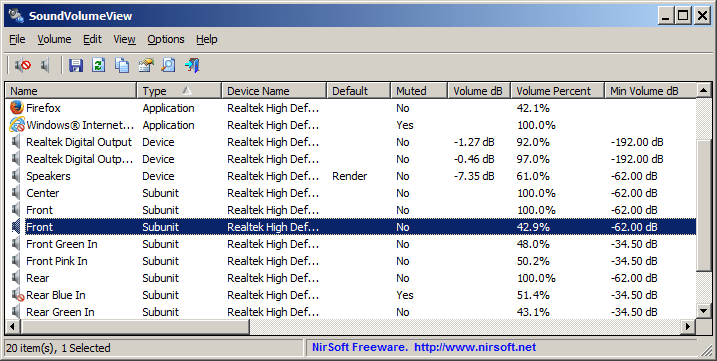
I've been just trying things like
>
:: Mute/Unmute
svcl.exe /SetVolume "System Sounds" 75
Etc.

And a little mockup of what I'm looking for;
:: Mute/Unmute
svcl.exe /GetMute "Headphones"
if muted
svcl.exe /Unmute "Headphones"
svcl.exe /SetVolume "System Sounds" 50
wait 5s
svcl.exe /SetVolume "System Sounds" 1
every 60min repeat line 7
 
Windows Build/Version
22631.2715

My Computer My Computer

At a glance

Windows 11 [22H2] [22621.2428]Intel Core i9-14900K 3.2 GHz 24-Core ProcessorG.Skill Trident Z5 RGB 32 GB (2 x 16 GB) DDR5...AMD Radeon RX 6950 XT
OS
Windows 11 [22H2] [22621.2428]
Computer type
PC/Desktop
Manufacturer/Model
Culture-Virus v7.0
CPU
Intel Core i9-14900K 3.2 GHz 24-Core Processor
Motherboard
Asus ROG MAXIMUS Z790 APEX ENCORE ATX LGA1700 Motherboard
Memory
G.Skill Trident Z5 RGB 32 GB (2 x 16 GB) DDR5-7200 CL34 Memory
Graphics Card(s)
AMD Radeon RX 6950 XT
Monitor(s) Displays
AOC CQ27G2U/BK
Screen Resolution
2560x1440
Hard Drives
M.2 1: Samsung SSD 990 PRO 2TB
M.2 2: Samsung SSD 970 EVO Plus 2TB
PSU
Corsair RM1000X SHIFT
Case
Phanteks NV9
Cooling
Custom Water / Direct-Die Cooling
Keyboard
Corsair K95 RGB PLATINUM XT Wired Gaming Keyboard
Mouse
ROCCAT LEADR Optical
Internet Speed
500mb Direct Fiber
Browser
Chrome
Forgot to say thanks if anyone can help. I really struggle with cmd line stuff and things like regex etc. (I know this has no regex but it often comes with making batch files.)
 

My Computer My Computer

At a glance

Windows 11 [22H2] [22621.2428]Intel Core i9-14900K 3.2 GHz 24-Core ProcessorG.Skill Trident Z5 RGB 32 GB (2 x 16 GB) DDR5...AMD Radeon RX 6950 XT
OS
Windows 11 [22H2] [22621.2428]
Computer type
PC/Desktop
Manufacturer/Model
Culture-Virus v7.0
CPU
Intel Core i9-14900K 3.2 GHz 24-Core Processor
Motherboard
Asus ROG MAXIMUS Z790 APEX ENCORE ATX LGA1700 Motherboard
Memory
G.Skill Trident Z5 RGB 32 GB (2 x 16 GB) DDR5-7200 CL34 Memory
Graphics Card(s)
AMD Radeon RX 6950 XT
Monitor(s) Displays
AOC CQ27G2U/BK
Screen Resolution
2560x1440
Hard Drives
M.2 1: Samsung SSD 990 PRO 2TB
M.2 2: Samsung SSD 970 EVO Plus 2TB
PSU
Corsair RM1000X SHIFT
Case
Phanteks NV9
Cooling
Custom Water / Direct-Die Cooling
Keyboard
Corsair K95 RGB PLATINUM XT Wired Gaming Keyboard
Mouse
ROCCAT LEADR Optical
Internet Speed
500mb Direct Fiber
Browser
Chrome
Code:
:begin
set isMuted=svcl.exe /GetMute "Headphones"
if %isMuted% equ 1 goto muted
:muted
svcl.exe /Unmute "Headphones"
svcl.exe /SetVolume "System Sounds" 50
timeout /t 5 /nobreak
svcl.exe /SetVolume "System Sounds" 1
timeout /t 3600 /nobreak
goto begin

I haven't written a batch file in years but the above should work? Otherwise it might be better to write it using PowerShell instead.
 

My Computer My Computer

At a glance

Windows 11, Windows 10, Linux Fedora Cinnamon
OS
Windows 11, Windows 10, Linux Fedora Cinnamon
Haven't done this personally but maybe this will help? I think @x BlueRobot probably has it correct.
 

My Computer My Computer

At a glance

WindowsXP/7/8/8.1/10/11,Linux,Android,FreeBSD...Intel® Core™ i7-8750H 8th Gen 2.2Ghz up to 4....64GB using 2x32GB CL16 Mushkin redLine modulesIntel UHD 630 & NVIDIA GeForce GTX 1050 Ti wi...
OS
WindowsXP/7/8/8.1/10/11,Linux,Android,FreeBSD Unix
Computer type
Laptop
Manufacturer/Model
Dell XPS 15 9570
CPU
Intel® Core™ i7-8750H 8th Gen 2.2Ghz up to 4.1Ghz
Motherboard
Dell XPS 15 9570
Memory
64GB using 2x32GB CL16 Mushkin redLine modules
Graphics Card(s)
Intel UHD 630 & NVIDIA GeForce GTX 1050 Ti with 4GB DDR5
Sound Card
Realtek ALC3266-CG
Monitor(s) Displays
15.6" 4K Touch UltraHD 3840x2160 made by Sharp
Screen Resolution
3840x2160 4K UltraHD
Hard Drives
Samsung MZ-V9P4T0B/AM 990 PRO 4TB PCIe®4.0 NVMe™ M.2 SSD was Toshiba KXG60ZNV1T02 NVMe 1TB SSD
PSU
Dell XPS 15 9570
Case
Dell XPS 15 9570
Cooling
Stock
Keyboard
Stock
Mouse
SwitftPoint ProPoint
Internet Speed
Comcast/XFinity 1.44Gbps/42.5Mbps
Browser
Microsoft EDGE (Chromium based) & Google Chrome
Antivirus
Windows Defender that came with Windows
 

My Computer My Computer

At a glance

Windows 11 Pro
OS
Windows 11 Pro
I haven't tested this myself yet but this should work?

Code:
# Executable File Path
$exe = "svcl.exe"

# Sound Sources
$headPhones = "Headphones"
$speakers = "System Sounds"

# Checks if the sound source is muted
function IsMuted {
    [Parameter(Mandatory=$true)]
    param([string]$soundSource)
    Start-Process -FilePath $exe -ArgumentList "/GetMute $soundSource"
}

# Unmutes the specified sound source
function Unmute {
    [Parameter(Mandatory=$true)]
    param([string]$soundSource)
    Start-Process -FilePath $exe -ArgumentList "/Unmute $soundSource"
}

# Sets the volume of the specified sound source to the desired level
function Set-Volume {
    [Parameter(Mandatory=$true)]
    param([string]$soundSource, [int]$level)
    Start-Process -FilePath $exe -ArgumentList "/SetVolume $soundSource $level"
}

# Sets the script to "sleep" for the desired timeout period
function SleepScript {
    [Parameter(Mandatory=$true)]
    param([int]$period)
    Start-Sleep -Seconds $period
}

while (true) {
    $isMuted = IsMuted -soundSource $headPhones
    if ($isMuted) {
        Unmute -soundSource $headPhones
        Set-Volume -soundSource $speakers -level 50
        SleepScript -period 5
        Set-Volume -soundSource $speakers -level 1
        SleepScript -period 3600
    }
}
 

Attachments

My Computer My Computer

At a glance

Windows 11, Windows 10, Linux Fedora Cinnamon
OS
Windows 11, Windows 10, Linux Fedora Cinnamon
Sorry for some reaon I wasn;'t getting email replies so I thought noboby replied. Will get back to this in a bit going to to walk dogs thank you.
 

My Computer My Computer

At a glance

Windows 11 [22H2] [22621.2428]Intel Core i9-14900K 3.2 GHz 24-Core ProcessorG.Skill Trident Z5 RGB 32 GB (2 x 16 GB) DDR5...AMD Radeon RX 6950 XT
OS
Windows 11 [22H2] [22621.2428]
Computer type
PC/Desktop
Manufacturer/Model
Culture-Virus v7.0
CPU
Intel Core i9-14900K 3.2 GHz 24-Core Processor
Motherboard
Asus ROG MAXIMUS Z790 APEX ENCORE ATX LGA1700 Motherboard
Memory
G.Skill Trident Z5 RGB 32 GB (2 x 16 GB) DDR5-7200 CL34 Memory
Graphics Card(s)
AMD Radeon RX 6950 XT
Monitor(s) Displays
AOC CQ27G2U/BK
Screen Resolution
2560x1440
Hard Drives
M.2 1: Samsung SSD 990 PRO 2TB
M.2 2: Samsung SSD 970 EVO Plus 2TB
PSU
Corsair RM1000X SHIFT
Case
Phanteks NV9
Cooling
Custom Water / Direct-Die Cooling
Keyboard
Corsair K95 RGB PLATINUM XT Wired Gaming Keyboard
Mouse
ROCCAT LEADR Optical
Internet Speed
500mb Direct Fiber
Browser
Chrome
audioctl.exe is a Windows audio control utility (pycaw/comtypes-based) with a scriptable CLI and an optional GUI.

It lets you automate common audio tasks like listing devices, setting default playback/recording endpoints, changing volume, mute/unmute, toggling “Listen to this device”, and managing Enhancements.

A key feature is learning vendor/driver toggles: audioctl can watch what Windows or your driver changes in the registry when you flip an enhancement or FX setting, save that behavior, and then reproduce it later, even if there’s no official API. Once learned, you can toggle individual effects (e.g. Bass Boost, Loudness) on demand.

It also has fast, read-only commands to safely query current audio state for scripts, hotkeys, or status displays.

The GUI is optional and just a helper layer, useful right-click menu for actions and guided learning, while the CLI remains the source of truth and is built for repeatability and automation.


My Computer My Computer

At a glance

Windows 11
OS
Windows 11
Computer type
PC/Desktop
Manufacturer/Model
Asus

Latest Support Threads

Back
Top Bottom