Microsoft 365 Insider Blog:
Copilot is evolving to become a true thought partner inside Word, Excel, PowerPoint and other Microsoft apps and services such as Teams, Outlook, and SharePoint. The ability for Copilot to better connect to your content when using a keyboard and screen readers has been part of that evolution.
We heard from many of you that you’re unsure how to start engaging with Copilot. We’re now offering proactive suggestions right from the Copilot button. Simply hover over it or leverage keyboard shortcuts and start engaging. Before you know it, Copilot will be editing your content directly from conversation.
How Copilot shows up
To streamline access to Copilot and proactive suggestions, we’re reducing the number of entry points to two locations:- A Copilot icon at the bottom-right corner of the screen.
- A contextual entry point when you interact with content, such as selecting text.
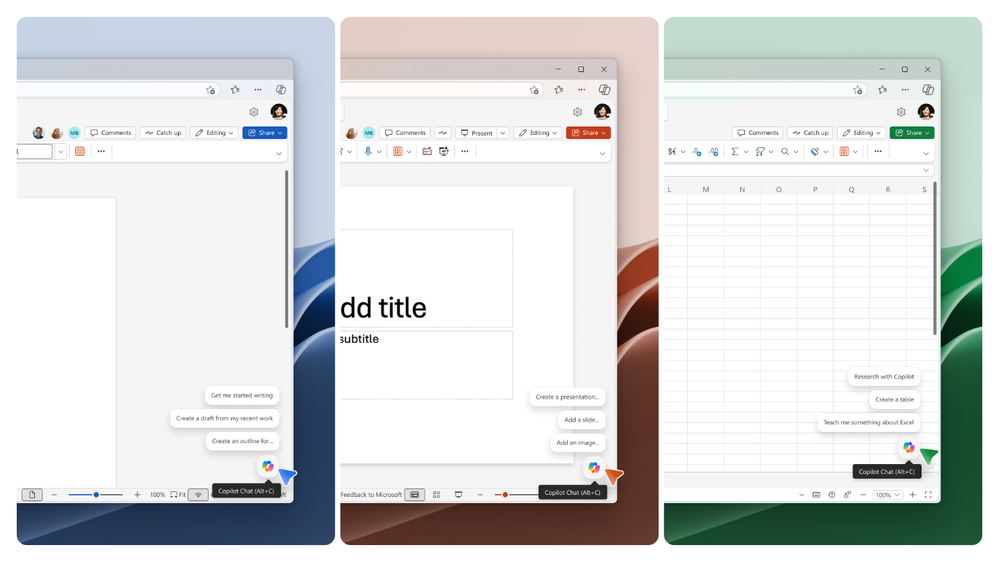
Smart suggestions to get you started
Alongside the new canvas entry point, you'll see curated suggestions designed to help you understand how Copilot can take action or what improvements can be made to your content.As you refine content, suggestions evolve from helping you decide what to write to shaping how it’s written, and finally to validate whether it’s ready to share. As you select more specific content—the whole document, a section, a paragraph, a sentence, or even just a word—the suggestions become increasingly targeted, moving from broad drafting guidance to precise edits, rewrites, and fixes for the selected text.
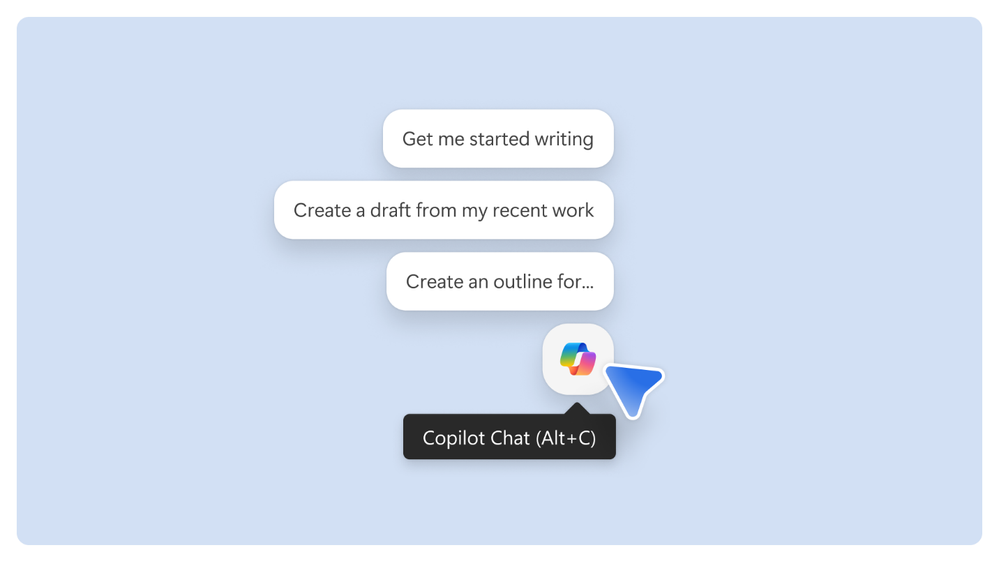
Updated keyboard shortcuts
For those of you who have been using Alt + H, F, X to open the Copilot pane, you can now just press F6 instead to give focus to the Copilot button. Then, use the up arrow to move between suggested prompts.Copilot keyboard shortcuts are being unified across Microsoft 365 apps and services, as well as across platforms, bringing consistency and supporting keyboard-first users and anyone using a screen reader. They are available in Outlook and Word for Windows and Mac in English today. Other apps are coming soon.
Platform | Shortcut | Action |
|---|---|---|
| Windows (Win32 and Web) | Alt + C | Sets focus on the Copilot button in the canvas. If the Copilot Chat pane is already open, focus moves to the chat edit box so you can begin typing immediately. |
| Mac (Desktop and Web) | Cmd + Control + I | Sets focus on the Copilot button in the canvas. |
| All platforms | F6 | Moves focus to the Copilot button in the canvas. |
Availability
The new Copilot button and updated shortcuts are rolling out to Word, Excel, and PowerPoint for Windows and Mac, with web coming soon. They will reach general availability by early June.- Windows: Build 2606 (Version 19822.20182) or later
- Mac: Build 16.108 (Version 26050324) or later
Source:

A more discoverable Copilot experience in Word, Excel, and PowerPoint
The ability for Copilot to better connect to your content when using a keyboard and screen readers has evolved.
 techcommunity.microsoft.com