OBS recording


wojtekmazgaj

Member
Local time
9:49 PM
Posts
39
OS
Windows 11
Using OBS screen capture and the recording tab, I record streams—for example, from Netflix, YouTube, TV channels, etc. (naturally, with hardware acceleration disabled to avoid a black screen). In Windows 11, for audio enhancements, is it better to set this to "Device Default Effects" or to turn it off entirely?
 

My Computer My Computer

At a glance

Windows 11
OS
Windows 11
Computer type
PC/Desktop
For recording streams via OBS, it is highly recommended to turn off audio enhancements entirely.
Here is why:
  • Prevents Double Processing: If you bake enhancements (like bass boost or loudness equalization) into the video, anyone watching your recording will have their own system effects applied on top of yours, causing distorted or muddy sound.
  • Preserves Original Mix: Streams from Netflix or YouTube are already professionally mixed. Leaving enhancements on allows Windows to artificially alter the audio before OBS captures it.
  • Avoids Capture Bugs: Spatial sound and "Device Default Effects" can sometimes cause phase issues, echo, or stereo glitches when captured by OBS.
How to change it:
Go to Settings > System > Sound, click on your playback device, and change the Audio Enhancements dropdown to Off.
Keeping it "Off" ensures OBS captures a clean, exact replica of the original stream that will play back perfectly on any device.
 

My Computers My Computers

  • At a glance

    Windows 11 Homei7-14700k2X16 GBNVIDIA GeForce RTX 5070 12gb Founders Edition
    OS
    Windows 11 Home
    Computer type
    PC/Desktop
    Manufacturer/Model
    DELL XPS 8960
    CPU
    i7-14700k
    Motherboard
    GENUINE DELL XPS 8960 DESKTOP MOTHERBOARD INTEL SOCKET LGA1700 XD433 Intel Z690 chipset.
    Memory
    2X16 GB
    Graphics Card(s)
    NVIDIA GeForce RTX 5070 12gb Founders Edition
    Sound Card
    ON BOARD 7.1 CHANNEL DIGITAL AUDIO
    Monitor(s) Displays
    Dell UltraSharp 32 4K Thunderbolt Hub, High-end Productivity Monitor - U3225QE & ASUS ROG Swift pg32ucdmr 32 4K OLED 4K UHD (3840 x 2160 pixels) at 240hz Gaming Monitor
    Screen Resolution
    Native Resolution: 3840 x 2160 at 120 Hz & 240 Hz
    Hard Drives
    Samsung SSD 990 PRO 2TB, PCIe 4.0 M.2 2280 (Boot-Drive) & Samsung SSD 990 PRO 2TB, PCIe 4.0 M.2 2280 (Storage-Drive)
    PSU
    1000W
    Case
    DELL
    Cooling
    DELL 125W CPU Liquid Water Cooling Fan System (2G44F)
    Keyboard
    ROG Azoth Gaming Keyboard
    Mouse
    Razer Naga Left-Handed Edition MMO Gaming Mouse
    Internet Speed
    Internet Speed 300 Mbps
    Browser
    Microsoft Edge, Google Chrome, Brave
    Antivirus
    Windows Defender
    Other Info
    Logitech Z906 5.1 Surround Sound Speaker System
  • At a glance

    Windows 11 RetailAMD Ryzen 7 9800X3D 4.7 GHz 8-Core ProcessorKingston FURY Beast RGB 32GB (2 x 16GB) DDR5-...ROG Strix GeForce RTX™ 5070 Ti 16GB GDDR7 OC ...
    Operating System
    Windows 11 Retail
    Computer type
    PC/Desktop
    Manufacturer/Model
    "Custom", "Self-Built"
    CPU
    AMD Ryzen 7 9800X3D 4.7 GHz 8-Core Processor
    Motherboard
    ROG STRIX X870E-E GAMING WIFI
    Memory
    Kingston FURY Beast RGB 32GB (2 x 16GB) DDR5-6000 PC5-48000 CL30 Dual Channel Desktop Memory Kit KF560C30BBEAK2-32 - Black
    Graphics card(s)
    ROG Strix GeForce RTX™ 5070 Ti 16GB GDDR7 OC Edition
    Sound Card
    ON BOARD 7.1 CHANNEL DIGITAL AUDIO
    Monitor(s) Displays
    Dell UltraSharp 32 4K Thunderbolt Hub, High-end Productivity Monitor - U3225QE & ASUS ROG Swift pg32ucdmr 32 4K OLED 4K UHD (3840 x 2160 pixels) at 240hz Gaming Monitor
    Screen Resolution
    120Hz, and 240Hz
    Hard Drives
    Samsung 9100 Pro 1 TB M.2-2280 PCIe 5.0 X4 NVME Solid State Drive, Samsung 9100 Pro 2 TB M.2-2280 PCIe 5.0 X4 NVME Solid State Drive
    PSU
    Lian Li Edge Platinum V2 1350 W 80+ Platinum Certified Fully Modular ATX Power Supply
    Case
    Lian Li O11D EVO RGB ATX Mid Tower Case
    Cooling
    Lian Li HydroShift II OLED Curved 360TL 90.1 CFM Liquid CPU Cooler
    Keyboard
    ROG Azoth Gaming Keyboard
    Mouse
    Razer Naga Left-Handed Edition MMO Gaming Mouse
    Internet Speed
    300 mbps
    Browser
    Microsoft Edge, Google Chrome, Brave
    Antivirus
    Microsoft defender
    Other Info
    Fans and wireless Controller: Lian Li UNI FAN TL LCD FLEX 63 CFM 120 mm Fans 3-Pack (Side Panel), Lian Li UNI FAN TL LCD FLEX 63 CFM 120 mm Fans 3-Pack (Bottom), Lian Li UNI FAN TL LCD FLEX 66 CFM 120 mm Fan (Rear Exhaust)
    Lian Li UNI Fan L-Wireless Controller for Computer Fans, Works with SL-Infinity Wireless, CL Wireless, SL & TL Wireless, Strimer Wireless, and Hydroshift II - Black
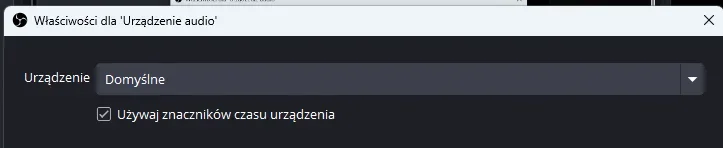
Should the "Use device timestamps" option be checked (enabled) or unchecked (disabled)?
 

Attachments

  • Zrzut ekranu 2026-10-28 203647.webp
    Zrzut ekranu 2026-10-28 203647.webp
    5.9 KB · Views: 1

My Computer My Computer

At a glance

Windows 11
OS
Windows 11
Computer type
PC/Desktop
It is highly recommended to leave "Use device timestamps" unchecked (disabled) in OBS.
Here is why:
  • Prevents Desync Bugs: Using device timestamps relies on your audio hardware's internal clock. If the hardware clock drifts even slightly from your system clock, your audio and video will slowly drift out of sync over long recordings.
  • OBS System Clock is Safer: Disabling it forces OBS to use its own internal system clock to stamp the audio. This ensures the audio tracks stay perfectly locked to the video frames.
  • Eliminates Audio Stutter: Some hardware drivers pass faulty timestamps to Windows, which can cause OBS to drop audio packets, leading to micro-stutters or crackling in your final file.
Bottom line: Keep it unchecked unless you are using a specialized, high-end external audio interface that specifically requires hardware clock synchronization.
 

My Computers My Computers

  • At a glance

    Windows 11 Homei7-14700k2X16 GBNVIDIA GeForce RTX 5070 12gb Founders Edition
    OS
    Windows 11 Home
    Computer type
    PC/Desktop
    Manufacturer/Model
    DELL XPS 8960
    CPU
    i7-14700k
    Motherboard
    GENUINE DELL XPS 8960 DESKTOP MOTHERBOARD INTEL SOCKET LGA1700 XD433 Intel Z690 chipset.
    Memory
    2X16 GB
    Graphics Card(s)
    NVIDIA GeForce RTX 5070 12gb Founders Edition
    Sound Card
    ON BOARD 7.1 CHANNEL DIGITAL AUDIO
    Monitor(s) Displays
    Dell UltraSharp 32 4K Thunderbolt Hub, High-end Productivity Monitor - U3225QE & ASUS ROG Swift pg32ucdmr 32 4K OLED 4K UHD (3840 x 2160 pixels) at 240hz Gaming Monitor
    Screen Resolution
    Native Resolution: 3840 x 2160 at 120 Hz & 240 Hz
    Hard Drives
    Samsung SSD 990 PRO 2TB, PCIe 4.0 M.2 2280 (Boot-Drive) & Samsung SSD 990 PRO 2TB, PCIe 4.0 M.2 2280 (Storage-Drive)
    PSU
    1000W
    Case
    DELL
    Cooling
    DELL 125W CPU Liquid Water Cooling Fan System (2G44F)
    Keyboard
    ROG Azoth Gaming Keyboard
    Mouse
    Razer Naga Left-Handed Edition MMO Gaming Mouse
    Internet Speed
    Internet Speed 300 Mbps
    Browser
    Microsoft Edge, Google Chrome, Brave
    Antivirus
    Windows Defender
    Other Info
    Logitech Z906 5.1 Surround Sound Speaker System
  • At a glance

    Windows 11 RetailAMD Ryzen 7 9800X3D 4.7 GHz 8-Core ProcessorKingston FURY Beast RGB 32GB (2 x 16GB) DDR5-...ROG Strix GeForce RTX™ 5070 Ti 16GB GDDR7 OC ...
    Operating System
    Windows 11 Retail
    Computer type
    PC/Desktop
    Manufacturer/Model
    "Custom", "Self-Built"
    CPU
    AMD Ryzen 7 9800X3D 4.7 GHz 8-Core Processor
    Motherboard
    ROG STRIX X870E-E GAMING WIFI
    Memory
    Kingston FURY Beast RGB 32GB (2 x 16GB) DDR5-6000 PC5-48000 CL30 Dual Channel Desktop Memory Kit KF560C30BBEAK2-32 - Black
    Graphics card(s)
    ROG Strix GeForce RTX™ 5070 Ti 16GB GDDR7 OC Edition
    Sound Card
    ON BOARD 7.1 CHANNEL DIGITAL AUDIO
    Monitor(s) Displays
    Dell UltraSharp 32 4K Thunderbolt Hub, High-end Productivity Monitor - U3225QE & ASUS ROG Swift pg32ucdmr 32 4K OLED 4K UHD (3840 x 2160 pixels) at 240hz Gaming Monitor
    Screen Resolution
    120Hz, and 240Hz
    Hard Drives
    Samsung 9100 Pro 1 TB M.2-2280 PCIe 5.0 X4 NVME Solid State Drive, Samsung 9100 Pro 2 TB M.2-2280 PCIe 5.0 X4 NVME Solid State Drive
    PSU
    Lian Li Edge Platinum V2 1350 W 80+ Platinum Certified Fully Modular ATX Power Supply
    Case
    Lian Li O11D EVO RGB ATX Mid Tower Case
    Cooling
    Lian Li HydroShift II OLED Curved 360TL 90.1 CFM Liquid CPU Cooler
    Keyboard
    ROG Azoth Gaming Keyboard
    Mouse
    Razer Naga Left-Handed Edition MMO Gaming Mouse
    Internet Speed
    300 mbps
    Browser
    Microsoft Edge, Google Chrome, Brave
    Antivirus
    Microsoft defender
    Other Info
    Fans and wireless Controller: Lian Li UNI FAN TL LCD FLEX 63 CFM 120 mm Fans 3-Pack (Side Panel), Lian Li UNI FAN TL LCD FLEX 63 CFM 120 mm Fans 3-Pack (Bottom), Lian Li UNI FAN TL LCD FLEX 66 CFM 120 mm Fan (Rear Exhaust)
    Lian Li UNI Fan L-Wireless Controller for Computer Fans, Works with SL-Infinity Wireless, CL Wireless, SL & TL Wireless, Strimer Wireless, and Hydroshift II - Black
It is highly recommended to leave "Use device timestamps" unchecked (disabled) in OBS.
Here is why:
  • Prevents Desync Bugs: Using device timestamps relies on your audio hardware's internal clock. If the hardware clock drifts even slightly from your system clock, your audio and video will slowly drift out of sync over long recordings.
  • OBS System Clock is Safer: Disabling it forces OBS to use its own internal system clock to stamp the audio. This ensures the audio tracks stay perfectly locked to the video frames.
  • Eliminates Audio Stutter: Some hardware drivers pass faulty timestamps to Windows, which can cause OBS to drop audio packets, leading to micro-stutters or crackling in your final file.
Bottom line: Keep it unchecked unless you are using a specialized, high-end external audio interface that specifically requires hardware clock synchronization.
I have Logitech speakers and I have the cables connected to the green 3.5mm jack on the back of my desktop computer. I have Realtek R audio speakers. Should I leave the device's time stamp unchecked (disabled)?
 

My Computer My Computer

At a glance

Windows 11
OS
Windows 11
Computer type
PC/Desktop
Back
Top Bottom