This tutorial will show you how to open and use the Edit command line text editor in Windows Terminal in Windows 11.
Starting with Windows 11 build 26100.6725 (24H2) and build 26200.6725 (25H2), Windows now includes Edit, a text editor you can use from the command line in Windows Terminal.
Edit is open source and is also available on GitHub.
The need for a default CLI text editor in 64-bit versions of Windows motivated Microsoft to build Edit. Microsoft choose to build a modeless editor to provide a low barrier of entry for new users.
References:

Edit command line text editor
Learn how to use Edit, a command-line text editor, in Windows.
learn.microsoft.com

Edit is now open source
Edit is a new command-line text editor in Windows. Edit is open source, so you can build the code or install the latest version from GitHub!
 devblogs.microsoft.com
You can reload this page to replay the GIF images below.
Here's How:
1 Open Windows Terminal or Windows Terminal (Admin), and select either Windows PowerShell or Command Prompt.
2 Type
edit or edit <your-file-name> in the command line, and press Enter.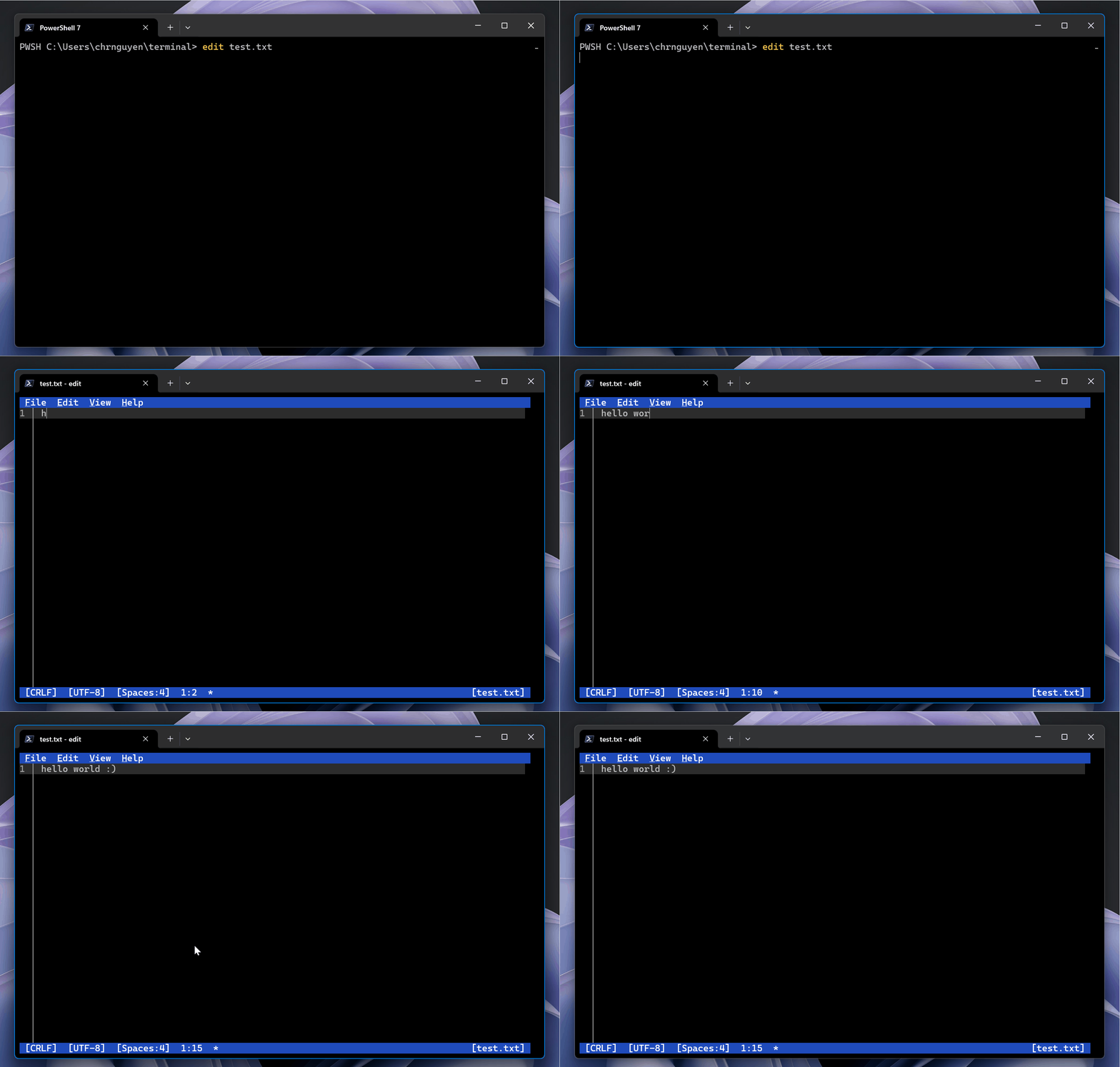
3 Edit has several features out of the box:
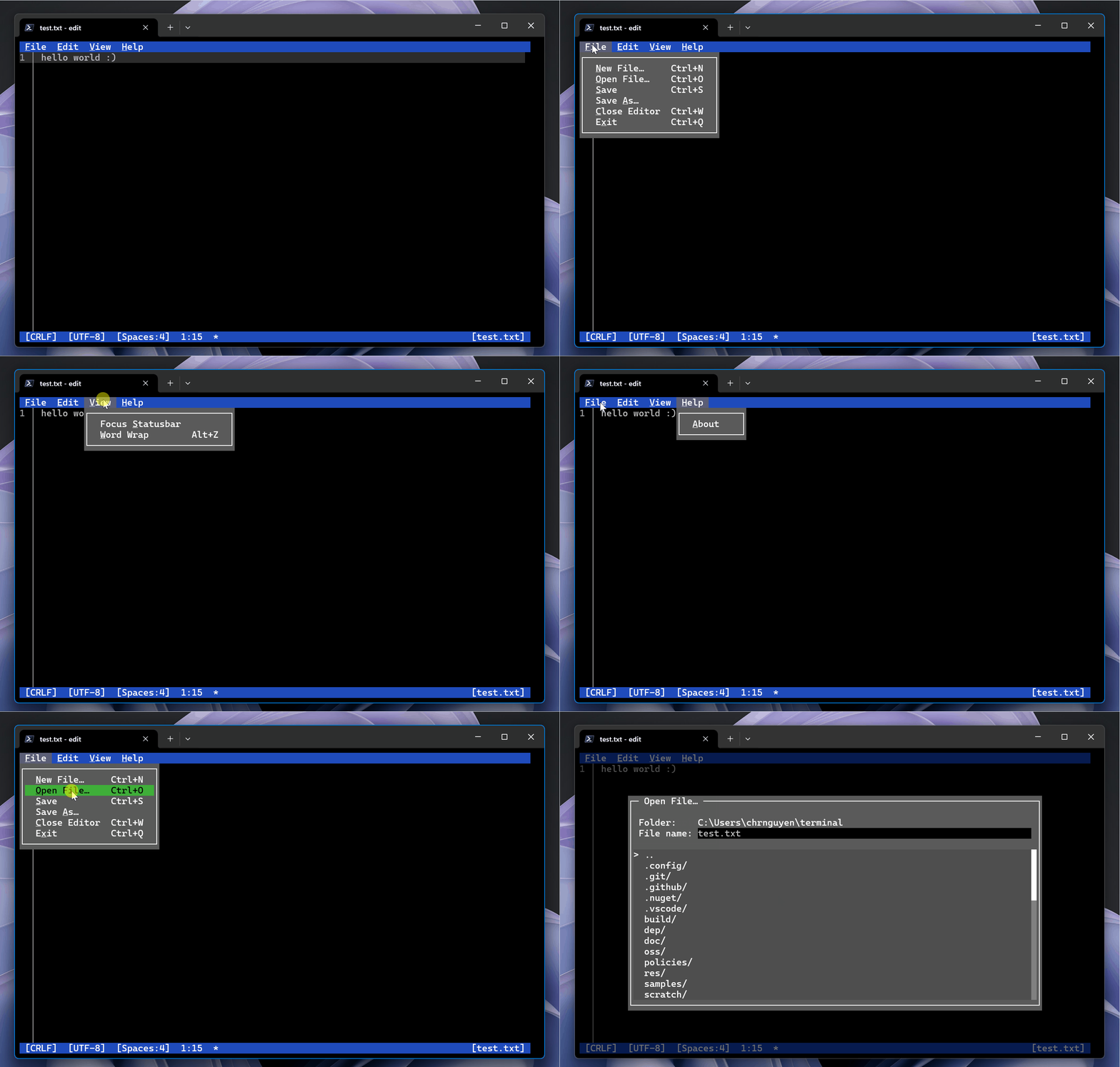
Mouse-Mode Support: Edit is a modeless editor with a Text User Interface (TUI). All the menu options in Edit also comes with preconfigured keybindings.
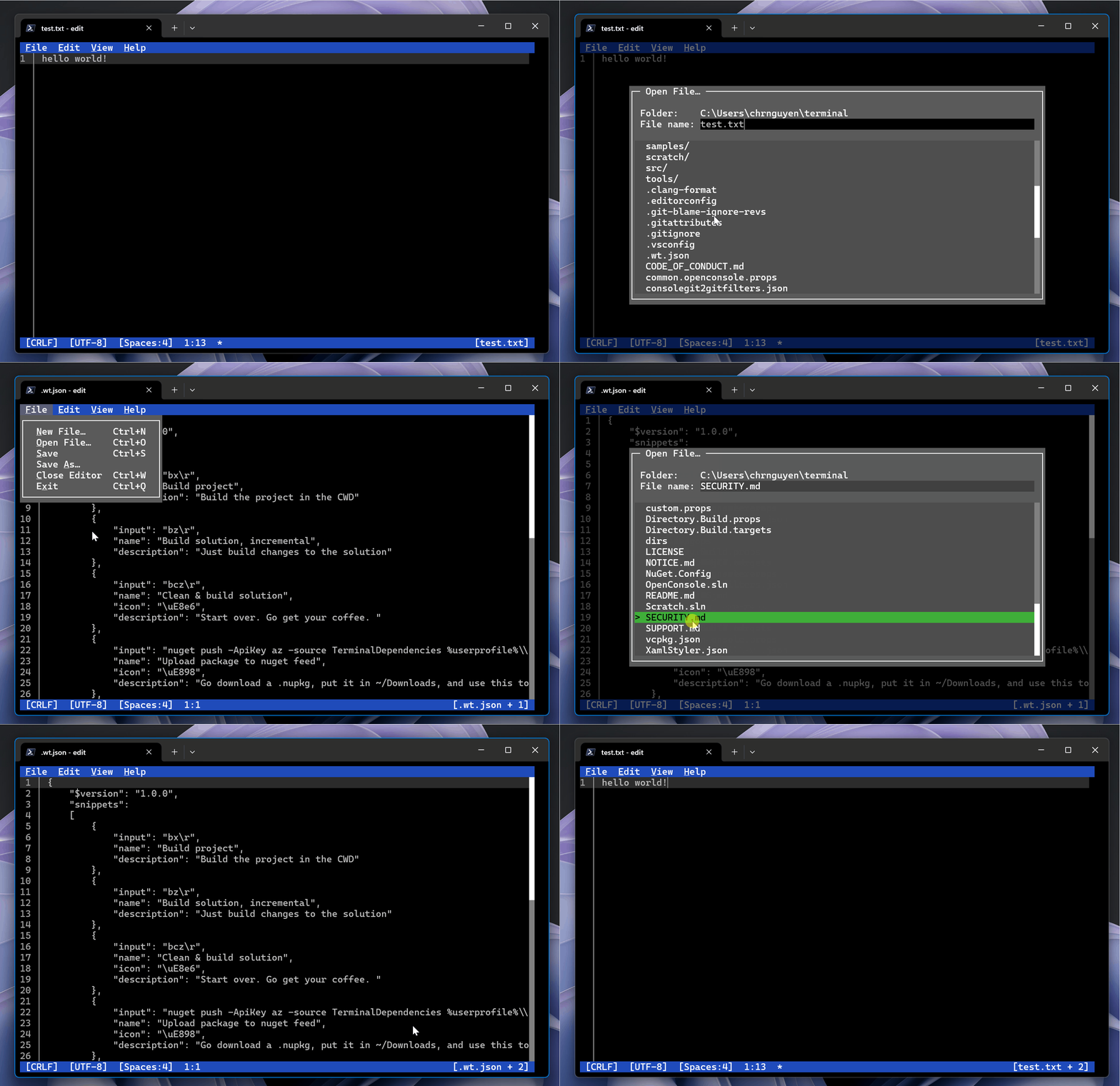
Open Multiple Files: You can open multiple files in Edit and switch between them with Ctrl+P (or by clicking the file list on the lower-right).
Find & Replace: You can find and replace text with Ctrl+F or select Edit > Find in the TUI menu. There is also Match Case, Whole Word, and Regular Expression support as well.

Word Wrap: You can use Word Wrap with Alt+Z or select View > Word Wrap in the TUI menu.

That's it,
Shawn Brink
Last edited:


 .
.