Solved Printer problems


esebm

Well-known member
Member
Local time
2:55 PM
Posts
181
OS
win 11
Guys, my PC (win 11-25H2, Brother DCP-L2540DW) has stopped printing. PC is connected via Ethernet (router), my wife's Laptop is connected via Wi_Fi, does not print either.
Her desktop is connected via USB, prints fine.
The printer Wi-Fi is set up, SSID, router key, green Wi-Fi light is on.
I have tried all kinds of things but no dice.
The PC lists the printer as default, new driver installed, does not print test page. The print queue shows entries, but with an error message.
Can someone please help?
 

My Computer

System One

  • OS
    win 11
    Computer type
    PC/Desktop
    Manufacturer/Model
    Home build
    CPU
    Ryzen 5600G
    Motherboard
    B450 Tomahawk Max
    Memory
    32 GB DDR4
    Graphics Card(s)
    on board
    Monitor(s) Displays
    LG 27MR400
    Screen Resolution
    1280 x 1024
    Hard Drives
    SSD
    Internet Speed
    3MB/s
    Browser
    Opera
    Antivirus
    Windows
This answer is under the assumption that on the 2 devices that will not print, your printer is set up as direct wireless and NOT
as a shared printer by name.( ie by the computer name/printer name of the device connected to the printer with usb)

Since the PC connected to the printer can print but network computers can't print, it indicates a wireless networking problem in the printer, most likely its ip address has changed and the computers are looking for its old ip address. I always assign a static ip address to the wifi side of my wireless printers to prevent this from happening. Here are some things to try. Check to see if you can print after each one.

On the computers that will not print, run the troubleshooter. Setting>system>troubleshoot>other troubleshooters>Printer>Run

On the computers that will not print wirelessly, restart Print Spooler Search for Services, select Services System from search results, select run as administrator. Find "Print Spooler" in the list of services and restart the service.

Try Power Cycle Everything : Turn off the printer, all computers, and router. Wait 30 seconds. Turn the router back on and wait for internet connectivity, then turn on the printer and computers. That may well straighten it out.

Ensure your computer is connected to the exact same Wi-Fi network as the printer. Most have 2.4GHz and 5GHz bands; ensure both devices are on the same band.

If any computer still will not print wirelessly, uninstall the printer on that computer, restart, then reinstall printer.
 

My Computers

System One System Two

  • OS
    Windows 11 Pro 25H2 26200.8655
    Computer type
    PC/Desktop
    Manufacturer/Model
    Dell Optiplex 7080
    CPU
    i9-10900 10 core 20 threads
    Motherboard
    DELL 0J37VM
    Memory
    32 gb
    Graphics Card(s)
    none-Intel UHD Graphics 630
    Sound Card
    Integrated Realtek
    Monitor(s) Displays
    Benq 27
    Screen Resolution
    2560x1440
    Hard Drives
    2x1tb Solidigm m.2 nvme /External drives 512gb Samsung m.2 sata+2tb Kingston m2.nvme
    PSU
    500w
    Case
    MT
    Cooling
    Dell Premium
    Keyboard
    Logitech wired
    Mouse
    Logitech wireless
    Internet Speed
    so slow I'm too embarrassed to tell
    Browser
    #1 Edge #2 Firefox
    Antivirus
    Defender+MWB Premium
  • Operating System
    Windows 11 Pro 24H2 26200.8457
    Computer type
    PC/Desktop
    Manufacturer/Model
    Beelink Mini PC SER5
    CPU
    AMD Ryzen 7 6800U
    Memory
    32 gb
    Graphics card(s)
    integrated
    Sound Card
    integrated
    Monitor(s) Displays
    Benq 27
    Screen Resolution
    2560x1440
    Hard Drives
    1TB Crucial nvme
    Keyboard
    Logitech wired
    Mouse
    Logitech wireless
    Internet Speed
    still too embarrassed to tell
    Browser
    Firefox
    Antivirus
    Defender
    Other Info
    System 3 is non compliant Dell 9020 i7-4770/24gb ram Win11 PRO 26200.8457
glasskuter: Thanks for the detailed advice. Right now I'd like to concentrate on my PC, connected via router, putting the Wi-Fi connected laptop on the back burner. I went through the troubleshooter and the power cycle thing but without any success. Print spooler service is turned on.
 

My Computer

System One

  • OS
    win 11
    Computer type
    PC/Desktop
    Manufacturer/Model
    Home build
    CPU
    Ryzen 5600G
    Motherboard
    B450 Tomahawk Max
    Memory
    32 GB DDR4
    Graphics Card(s)
    on board
    Monitor(s) Displays
    LG 27MR400
    Screen Resolution
    1280 x 1024
    Hard Drives
    SSD
    Internet Speed
    3MB/s
    Browser
    Opera
    Antivirus
    Windows
glasskuter: Thanks for the detailed advice. Right now I'd like to concentrate on my PC, connected via router, putting the Wi-Fi connected laptop on the back burner. I went through the troubleshooter and the power cycle thing but without any success. Print spooler service is turned on.
Is the printer also connected via ethernet or just WiFi?
 

My Computer

System One

  • OS
    Windows 11 25H2
    Computer type
    PC/Desktop
    Manufacturer/Model
    EVGA home brew
    CPU
    Broadwell-e 6850K 4.5ghz @1.36v
    Motherboard
    EVGA X99 FTW K
    Memory
    32GB Corsair LPM 3600 C16
    Graphics Card(s)
    EVGA RTX 3080Ti FTW
    Sound Card
    Asus Centurion true 7.1 headset. (5 speakers in each earpeice)
    Monitor(s) Displays
    LG C4 55"
    Screen Resolution
    4K 144hz
    Hard Drives
    Various models of SSDs ~10TB No HDDs installed.
    PSU
    be quiet! BN516 Straight Power 12-1000w 80 Plus Platinum
    Case
    Corsair 780T modified to dual 200mm intake fans
    Cooling
    Corsair H110i
    Keyboard
    Corsair K95 Platinum
    Mouse
    Corsair M65 RGB Elite
    Internet Speed
    50Mbs
My PC is connected via router/ethernet.
 

My Computer

System One

  • OS
    win 11
    Computer type
    PC/Desktop
    Manufacturer/Model
    Home build
    CPU
    Ryzen 5600G
    Motherboard
    B450 Tomahawk Max
    Memory
    32 GB DDR4
    Graphics Card(s)
    on board
    Monitor(s) Displays
    LG 27MR400
    Screen Resolution
    1280 x 1024
    Hard Drives
    SSD
    Internet Speed
    3MB/s
    Browser
    Opera
    Antivirus
    Windows
My PC is connected via router/ethernet.
I am asking how the printer is connected to the network. I believe you said you're using both USB and WiFi printing?
 

My Computer

System One

  • OS
    Windows 11 25H2
    Computer type
    PC/Desktop
    Manufacturer/Model
    EVGA home brew
    CPU
    Broadwell-e 6850K 4.5ghz @1.36v
    Motherboard
    EVGA X99 FTW K
    Memory
    32GB Corsair LPM 3600 C16
    Graphics Card(s)
    EVGA RTX 3080Ti FTW
    Sound Card
    Asus Centurion true 7.1 headset. (5 speakers in each earpeice)
    Monitor(s) Displays
    LG C4 55"
    Screen Resolution
    4K 144hz
    Hard Drives
    Various models of SSDs ~10TB No HDDs installed.
    PSU
    be quiet! BN516 Straight Power 12-1000w 80 Plus Platinum
    Case
    Corsair 780T modified to dual 200mm intake fans
    Cooling
    Corsair H110i
    Keyboard
    Corsair K95 Platinum
    Mouse
    Corsair M65 RGB Elite
    Internet Speed
    50Mbs
As I have mentioned in post #1, my PC (does not print) is connected via Router/Ethernet, my wife's PC (prints fine) is connected via USB, her laptop is connected via Wi-Fi, does not print. All 3 machines have printed just fine for years, until 2 of them stopped.
Right now I am concentrating to get my PC going.
The printer is connected to the router via ethernet cable.
 

My Computer

System One

  • OS
    win 11
    Computer type
    PC/Desktop
    Manufacturer/Model
    Home build
    CPU
    Ryzen 5600G
    Motherboard
    B450 Tomahawk Max
    Memory
    32 GB DDR4
    Graphics Card(s)
    on board
    Monitor(s) Displays
    LG 27MR400
    Screen Resolution
    1280 x 1024
    Hard Drives
    SSD
    Internet Speed
    3MB/s
    Browser
    Opera
    Antivirus
    Windows
As I have mentioned in post #1, my PC (does not print) is connected via Router/Ethernet, my wife's PC (prints fine) is connected via USB, her laptop is connected via Wi-Fi, does not print. All 3 machines have printed just fine for years, until 2 of them stopped.
Right now I am concentrating to get my PC going.
The printer is connected to the router via ethernet cable.
Okay. From what I have read on your model, you cannot use both Wifi and ethernet together. You can have only one active network connection on the printer at a time.
 

My Computer

System One

  • OS
    Windows 11 25H2
    Computer type
    PC/Desktop
    Manufacturer/Model
    EVGA home brew
    CPU
    Broadwell-e 6850K 4.5ghz @1.36v
    Motherboard
    EVGA X99 FTW K
    Memory
    32GB Corsair LPM 3600 C16
    Graphics Card(s)
    EVGA RTX 3080Ti FTW
    Sound Card
    Asus Centurion true 7.1 headset. (5 speakers in each earpeice)
    Monitor(s) Displays
    LG C4 55"
    Screen Resolution
    4K 144hz
    Hard Drives
    Various models of SSDs ~10TB No HDDs installed.
    PSU
    be quiet! BN516 Straight Power 12-1000w 80 Plus Platinum
    Case
    Corsair 780T modified to dual 200mm intake fans
    Cooling
    Corsair H110i
    Keyboard
    Corsair K95 Platinum
    Mouse
    Corsair M65 RGB Elite
    Internet Speed
    50Mbs
If that is correct, why has the printer worked on all 3 machines for years?
The Wi-Fi connection as well as the ethernet connection come from the same router, isn't that one active network?
And, as I had mentioned before, right now the ethernet connected PC has to be fixed, Wi-Fi for now is on the back burner.
 

My Computer

System One

  • OS
    win 11
    Computer type
    PC/Desktop
    Manufacturer/Model
    Home build
    CPU
    Ryzen 5600G
    Motherboard
    B450 Tomahawk Max
    Memory
    32 GB DDR4
    Graphics Card(s)
    on board
    Monitor(s) Displays
    LG 27MR400
    Screen Resolution
    1280 x 1024
    Hard Drives
    SSD
    Internet Speed
    3MB/s
    Browser
    Opera
    Antivirus
    Windows
You said "Her desktop is connected via USB, prints fine." To my way of thinking that means the printer is connected to her desktop using usb. Therefore her device is NOT printing over the network but printing directly.

You said "The printer Wi-Fi is set up, SSID, router key, green Wi-Fi light is on" Now you say the printer is also connected with ethernet. @HeavyHemi is correct. The proper way to network a printer should be one way or the other, not both.

You then indicated the networked devices, yours being connected through ethernet, the other connected wifi, can not print.
IMO that puts the probem toward the network or network settings either in the printer or the network settings in the devices connecting to the printer over the network , not the printer hardware

Everything points to an ip mismatch. Did you do any of the things I suggested in my previous post? Did you uninstall the printer on both your PC and her laptop, restart, then reinstall the printer as I suggested which should have picked up any ip change.

Print the Network Configuration report​

  1. On most Brother laser models (e.g., DCP‑L series):
    • MenuPrint ReportsNetwork ConfigOK/Start.
  2. On the report, note:
    • Active interface: Wired (Ethernet) or Wireless (Wi‑Fi).
    • IP address (e.g., 192.168.1.50).
    • Subnet mask and Gateway (usually match your LAN).
Keep this page next to you.


3. Test basic network reachability​

  1. From a Windows PC on the same network:
    • Press Win+R, type cmd, press Enter.
  2. Ping the printer:
    • Open command prompt as admin and ping the printer. Example: ping 192.168.1.50 . Use the ip address from the network report.
  3. Interpret the result:
    • Replies (0–1 loss): Network path is OK.
    • Request timed out / 100% loss: PC cannot reach the printer—fix network before touching drivers.
a successful ping verifies the printer is reachable.

  • If using Wi‑Fi: Make sure printer is connected to the correct SSID and not guest/VLAN.
  • If using Ethernet: Try another router port/cable and reprint the Network Config to see if IP changes.

4. Verify the Windows printer port​

Do this on each PC that should print to the Brother OVER THE NETWORK.

  1. Open printer properties:
    • SettingsBluetooth & devicesPrinters & scanners.
    • Click your Brother printer → Printer properties (not “Properties” at the bottom).
  2. Check the Ports tab:
    • Look for a checked port like Standard TCP/IP Port or IP_xxx.xxx.xxx.xxx.
    • Compare the IP in the port with the IP on the Network Config page.
  3. If the IPs don’t match:
    • Click Configure Port… and update the IP to match the printer’s current IP,or
    • Create a new port:
      • Add Port…Standard TCP/IP PortNew Port…
      • Enter the printer’s current IP → follow the wizard → finish → select that new port.
Test printing again after this.

 

My Computers

System One System Two

  • OS
    Windows 11 Pro 25H2 26200.8655
    Computer type
    PC/Desktop
    Manufacturer/Model
    Dell Optiplex 7080
    CPU
    i9-10900 10 core 20 threads
    Motherboard
    DELL 0J37VM
    Memory
    32 gb
    Graphics Card(s)
    none-Intel UHD Graphics 630
    Sound Card
    Integrated Realtek
    Monitor(s) Displays
    Benq 27
    Screen Resolution
    2560x1440
    Hard Drives
    2x1tb Solidigm m.2 nvme /External drives 512gb Samsung m.2 sata+2tb Kingston m2.nvme
    PSU
    500w
    Case
    MT
    Cooling
    Dell Premium
    Keyboard
    Logitech wired
    Mouse
    Logitech wireless
    Internet Speed
    so slow I'm too embarrassed to tell
    Browser
    #1 Edge #2 Firefox
    Antivirus
    Defender+MWB Premium
  • Operating System
    Windows 11 Pro 24H2 26200.8457
    Computer type
    PC/Desktop
    Manufacturer/Model
    Beelink Mini PC SER5
    CPU
    AMD Ryzen 7 6800U
    Memory
    32 gb
    Graphics card(s)
    integrated
    Sound Card
    integrated
    Monitor(s) Displays
    Benq 27
    Screen Resolution
    2560x1440
    Hard Drives
    1TB Crucial nvme
    Keyboard
    Logitech wired
    Mouse
    Logitech wireless
    Internet Speed
    still too embarrassed to tell
    Browser
    Firefox
    Antivirus
    Defender
    Other Info
    System 3 is non compliant Dell 9020 i7-4770/24gb ram Win11 PRO 26200.8457
Wow, that is quite a list. I will work through it first thing tomorrow morning and report back.
Thanks for the effort, it's much appreciated.
 

My Computer

System One

  • OS
    win 11
    Computer type
    PC/Desktop
    Manufacturer/Model
    Home build
    CPU
    Ryzen 5600G
    Motherboard
    B450 Tomahawk Max
    Memory
    32 GB DDR4
    Graphics Card(s)
    on board
    Monitor(s) Displays
    LG 27MR400
    Screen Resolution
    1280 x 1024
    Hard Drives
    SSD
    Internet Speed
    3MB/s
    Browser
    Opera
    Antivirus
    Windows
I think you are making things harder than they need to be. For example, if your printer has the option of being connected by USB, Ethernet or Wi-Fi then pick one and use it. Do not connected the printer more than one way. If you do then you will complicate things.

I have using a printer with multiple computers for over 30 years. Up to about 15 years ago I connected the printer to one computer with USB. I then configured that computer to share the printer over my network. I could then print to it from any computer on my network. Now I connect my printer using Wi-Fi to the router. I can then print to it from any computer on my network. Note to get full functionality you need to run the manufacturer supplied setup program on each computer you want to print from.
 

My Computers

System One System Two

  • OS
    Windows 11 Pro 25H2 (26200.6901)
    Computer type
    Laptop
    Manufacturer/Model
    ASUS TUF Gaming A15 (2022)
    CPU
    AMD Ryzen 7 6800H with Radeon 680M GPU (486MB RAM)
    Memory
    Crucial DDR5-4800 (2400MHz) 32GB (2 x 16GB)
    Graphics Card(s)
    NVIDIA RTX 3060 Laptop (6GB RAM)
    Sound Card
    n/a
    Monitor(s) Displays
    15.6-inch
    Screen Resolution
    1920x1080 300Hz
    Hard Drives
    2 x Samsung 990 Evo Plus (2TB M.2 NVME SSD)
    PSU
    n/a
    Mouse
    Wireless Mouse M510
    Internet Speed
    2100Mbps/300Mbps
    Browser
    Firefox
    Antivirus
    Malwarebytes
  • Operating System
    Windows 11 Pro 25H2 (26200.8246)
    Computer type
    PC/Desktop
    Manufacturer/Model
    Custom build
    CPU
    AMD Ryzen 7 5700X3D
    Motherboard
    ASUS ROG Strix B550-F Gaming WiFi II
    Memory
    G.SKILL Flare X 32GB (2x16GB) DDR4
    Graphics card(s)
    ASUS ROG-STRIX-RTX3060TI-08G-V2-GAMING (RTX 3060-Ti, 8GB RAM)
    Monitor(s) Displays
    Samsung G50D IPS 27"
    Screen Resolution
    1440p/180Hz
    Hard Drives
    SAMSUNG 990 EVO Plus (2TB] M.2 NVME SSD
    SAMSUNG 990 EVO Plus (4TB) M.2 NVME SSD
    PSU
    Corsair RM750x (750 watts)
    Case
    Cooler Master MasterCase 5
    Cooling
    Scythe Mugen 6
    Keyboard
    Logitech K520 (MK540 keyboard/mouse combo)
    Mouse
    Logitech M310 (MK540 keyboard/mouse combo)
    Internet Speed
    2100 Mbps down / 300 Mbps up
    Browser
    Firefox, Edge, Chrome
    Antivirus
    Malwarebytes (Premium)
    Other Info
    ASUS Blu-ray Burner BW-16D1HT (SATA) || Western Digital Easystore 20TB USB 3.0 external hard drive used with Acronis True Image 2025 backup software || HP OfficeJet Pro 6975 Printer/Scanner
Glasscuter: I went through your list as far as I could get.
1. Printed the network config. IP 192.168.1.7
2. Opened cmd as admin, pinged, general failure
3. Checked printer properties, the printer is connected to standard TCP/IP port 192.168.1.5
4. Changed the port to 192.168.1.7
5 Tried another ping, failure, no test page

I also added a new port 192.168.1.7 but still no ping and no test page
 
Last edited:

My Computer

System One

  • OS
    win 11
    Computer type
    PC/Desktop
    Manufacturer/Model
    Home build
    CPU
    Ryzen 5600G
    Motherboard
    B450 Tomahawk Max
    Memory
    32 GB DDR4
    Graphics Card(s)
    on board
    Monitor(s) Displays
    LG 27MR400
    Screen Resolution
    1280 x 1024
    Hard Drives
    SSD
    Internet Speed
    3MB/s
    Browser
    Opera
    Antivirus
    Windows
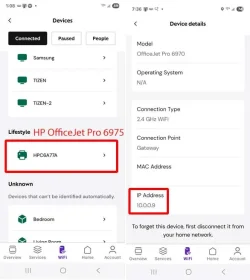
Can you access your router configuration page? If so, list connected devices. Your printer should be in that list.

For example, I can access my router configuration using an app on my phone.

I can see my printer in that list. I then show its details.

I can see that its IP address is 10.0.0.9

HPW.webp

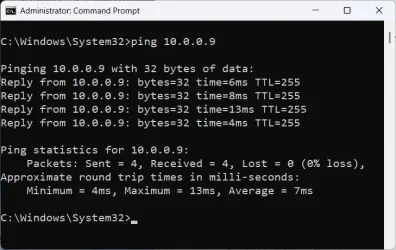
I can ping that address from the command line.

HP Ping.webp

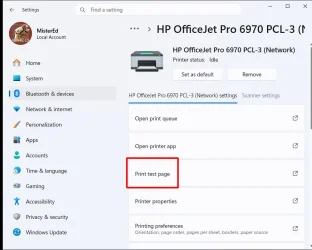
Once you know your printer is seen by Windows you can print a test page in Settings

Print Test Page.webp
 

My Computers

System One System Two

  • OS
    Windows 11 Pro 25H2 (26200.6901)
    Computer type
    Laptop
    Manufacturer/Model
    ASUS TUF Gaming A15 (2022)
    CPU
    AMD Ryzen 7 6800H with Radeon 680M GPU (486MB RAM)
    Memory
    Crucial DDR5-4800 (2400MHz) 32GB (2 x 16GB)
    Graphics Card(s)
    NVIDIA RTX 3060 Laptop (6GB RAM)
    Sound Card
    n/a
    Monitor(s) Displays
    15.6-inch
    Screen Resolution
    1920x1080 300Hz
    Hard Drives
    2 x Samsung 990 Evo Plus (2TB M.2 NVME SSD)
    PSU
    n/a
    Mouse
    Wireless Mouse M510
    Internet Speed
    2100Mbps/300Mbps
    Browser
    Firefox
    Antivirus
    Malwarebytes
  • Operating System
    Windows 11 Pro 25H2 (26200.8246)
    Computer type
    PC/Desktop
    Manufacturer/Model
    Custom build
    CPU
    AMD Ryzen 7 5700X3D
    Motherboard
    ASUS ROG Strix B550-F Gaming WiFi II
    Memory
    G.SKILL Flare X 32GB (2x16GB) DDR4
    Graphics card(s)
    ASUS ROG-STRIX-RTX3060TI-08G-V2-GAMING (RTX 3060-Ti, 8GB RAM)
    Monitor(s) Displays
    Samsung G50D IPS 27"
    Screen Resolution
    1440p/180Hz
    Hard Drives
    SAMSUNG 990 EVO Plus (2TB] M.2 NVME SSD
    SAMSUNG 990 EVO Plus (4TB) M.2 NVME SSD
    PSU
    Corsair RM750x (750 watts)
    Case
    Cooler Master MasterCase 5
    Cooling
    Scythe Mugen 6
    Keyboard
    Logitech K520 (MK540 keyboard/mouse combo)
    Mouse
    Logitech M310 (MK540 keyboard/mouse combo)
    Internet Speed
    2100 Mbps down / 300 Mbps up
    Browser
    Firefox, Edge, Chrome
    Antivirus
    Malwarebytes (Premium)
    Other Info
    ASUS Blu-ray Burner BW-16D1HT (SATA) || Western Digital Easystore 20TB USB 3.0 external hard drive used with Acronis True Image 2025 backup software || HP OfficeJet Pro 6975 Printer/Scanner
I think you are making things harder than they need to be. For example, if your printer has the option of being connected by USB, Ethernet or Wi-Fi then pick one and use it. Do not connected the printer more than one way. If you do then you will complicate things.

That is more or less what I was going to say, pick one method, in this case Network connected (wired or WiFi) is the logical choice.

However, there are 2 ways of using WiFi:
1. WiFi Direct. If you like, that is the wireless equivalent of USB.
2. WiFi Network (via Router - WiFi Network/Ethernet).

2. Networked is the way to go for simplicity reasons.

I then configured that computer to share the printer over my network. I could then print to it from any computer on my network. Now I connect my printer using Wi-Fi to the router. I can then print to it from any computer on my network. Note to get full functionality you need to run the manufacturer supplied setup program on each computer you want to print from.

Exactly.

Both my HP and Canon AIO printer only allow for one method at a time, the specs say so.
 

My Computer

System One

  • OS
    Windows 11
I'll have to figure out how to access the router config page. No clue at this moment, sorry.
 

My Computer

System One

  • OS
    win 11
    Computer type
    PC/Desktop
    Manufacturer/Model
    Home build
    CPU
    Ryzen 5600G
    Motherboard
    B450 Tomahawk Max
    Memory
    32 GB DDR4
    Graphics Card(s)
    on board
    Monitor(s) Displays
    LG 27MR400
    Screen Resolution
    1280 x 1024
    Hard Drives
    SSD
    Internet Speed
    3MB/s
    Browser
    Opera
    Antivirus
    Windows
Ok, got into router config, printer is listed there with the correct IP address, No ping, destination host is unreachable.
And, btw, I got the wife's laptop (via Wi-Fi) to print.
 

My Computer

System One

  • OS
    win 11
    Computer type
    PC/Desktop
    Manufacturer/Model
    Home build
    CPU
    Ryzen 5600G
    Motherboard
    B450 Tomahawk Max
    Memory
    32 GB DDR4
    Graphics Card(s)
    on board
    Monitor(s) Displays
    LG 27MR400
    Screen Resolution
    1280 x 1024
    Hard Drives
    SSD
    Internet Speed
    3MB/s
    Browser
    Opera
    Antivirus
    Windows
Had this problem the other night on my daughter's wireless printer. The very first troubleshooting step I did was to unplug the power of the printer and plug it back in to reset network connection. And it worked right away after a reset.
 

My Computers

System One System Two

  • OS
    Windows 11 Pro
    Computer type
    PC/Desktop
    CPU
    AMD Ryzen 7 9800X3D
    Motherboard
    MSI PRO B850-P Wifi
    Memory
    32GB DDR5 CL30 Kingston Fury
    Graphics Card(s)
    ASUS Prime Radeon RX 9060 XT OC Edition 16GB
    Monitor(s) Displays
    LG Ultrawide 34" + LG 27" 1080p
    Screen Resolution
    3440x1440
    Hard Drives
    Main Boot Drive : 512GB Adata XPG RGB Gen3x4 NVMe M.2 SSD
    PSU
    EVGA 750 Watts 80+ Gold
    Case
    Deepcool Genome II
    Cooling
    Thermalright Burst Assassin 120
    Internet Speed
    1Gbps
    Browser
    Chrome
    Antivirus
    "Moderna"
  • Operating System
    Windows 11 Pro
    Computer type
    PC/Desktop
    CPU
    i7-4790K
    Motherboard
    ASRock Xtreme6 Z97
    Memory
    16GB Corsair Vengeance Pro
    Graphics card(s)
    MSI R9 290
    Monitor(s) Displays
    LG Ultrawide 34"
    Screen Resolution
    3440x1440
    Hard Drives
    500GB Adata SSD (OS Only)
    PSU
    Thermaltake 475 Watts 80 Bronze
    Case
    Thermaltake Commander I Snow Edition
    Cooling
    Deep Cool Archer Air Cooler
    Keyboard
    Armageddon MKA-5R RGB-Hornet
    Mouse
    Logitech G402
    Internet Speed
    1Gbps
    Browser
    Chrome
    Antivirus
    Moderna :)
Have done that numerous times, no luck.
 

My Computer

System One

  • OS
    win 11
    Computer type
    PC/Desktop
    Manufacturer/Model
    Home build
    CPU
    Ryzen 5600G
    Motherboard
    B450 Tomahawk Max
    Memory
    32 GB DDR4
    Graphics Card(s)
    on board
    Monitor(s) Displays
    LG 27MR400
    Screen Resolution
    1280 x 1024
    Hard Drives
    SSD
    Internet Speed
    3MB/s
    Browser
    Opera
    Antivirus
    Windows
Just pinged the printer again, it worked and the test page printed. Go figure, I have not the foggiest idea why.
Looks like this issue has been resolved and I'd like to thank y'all for your efforts to be helpful. It's much appreciated.
 

My Computer

System One

  • OS
    win 11
    Computer type
    PC/Desktop
    Manufacturer/Model
    Home build
    CPU
    Ryzen 5600G
    Motherboard
    B450 Tomahawk Max
    Memory
    32 GB DDR4
    Graphics Card(s)
    on board
    Monitor(s) Displays
    LG 27MR400
    Screen Resolution
    1280 x 1024
    Hard Drives
    SSD
    Internet Speed
    3MB/s
    Browser
    Opera
    Antivirus
    Windows

Latest Support Threads

Back
Top Bottom