You said "Her desktop is connected via USB, prints fine." To my way of thinking that means the
printer is connected to her desktop using usb. Therefore her device is NOT printing over the network but printing directly.
You said "The printer Wi-Fi is set up, SSID, router key, green Wi-Fi light is on" Now you say the printer is also connected with ethernet.
@HeavyHemi is correct. The proper way to network a printer should be one way or the other, not both.
You then indicated the networked devices, yours being connected through ethernet, the other connected wifi, can not print.
IMO that puts the probem toward the network or network settings either in the printer or the network settings in the devices connecting to the printer over the network , not the printer hardware
Everything points to an ip mismatch. Did you do any of the things I suggested in my previous post? Did you uninstall the printer on both your PC and her laptop, restart, then reinstall the printer as I suggested which should have picked up any ip change.
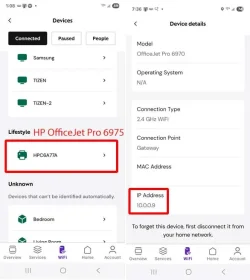
Print the Network Configuration report
- On most Brother laser models (e.g., DCP‑L series):
- Menu → Print Reports → Network Config → OK/Start.
- On the report, note:
- Active interface: Wired (Ethernet) or Wireless (Wi‑Fi).
- IP address (e.g., 192.168.1.50).
- Subnet mask and Gateway (usually match your LAN).
Keep this page next to you.
3. Test basic network reachability
- From a Windows PC on the same network:
- Press Win+R, type cmd, press Enter.
- Ping the printer:
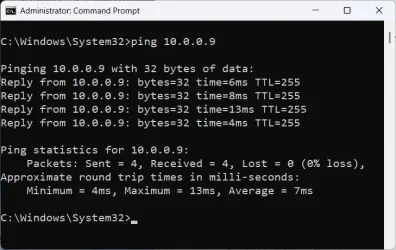
- Open command prompt as admin and ping the printer. Example: ping 192.168.1.50 . Use the ip address from the network report.
- Interpret the result:
- Replies (0–1 loss): Network path is OK.
- Request timed out / 100% loss: PC cannot reach the printer—fix network before touching drivers.
a successful ping verifies the printer is reachable.
- If using Wi‑Fi: Make sure printer is connected to the correct SSID and not guest/VLAN.
- If using Ethernet: Try another router port/cable and reprint the Network Config to see if IP changes.
4. Verify the Windows printer port
Do this on each PC that should print to the Brother
OVER THE NETWORK.
- Open printer properties:
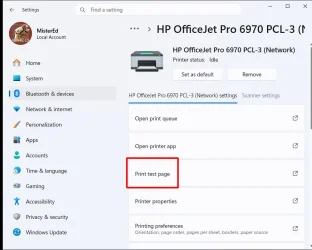
- Settings → Bluetooth & devices → Printers & scanners.
- Click your Brother printer → Printer properties (not “Properties” at the bottom).
- Check the Ports tab:
- Look for a checked port like Standard TCP/IP Port or IP_xxx.xxx.xxx.xxx.
- Compare the IP in the port with the IP on the Network Config page.
- If the IPs don’t match:
- Click Configure Port… and update the IP to match the printer’s current IP,or
- Create a new port:
- Add Port… → Standard TCP/IP Port → New Port…
- Enter the printer’s current IP → follow the wizard → finish → select that new port.
Test printing again after this.