Proton Mail Noification.


Pnokio

Well-known member
Member
Local time
3:05 AM
Posts
331
Location
Scotland UK
OS
Windows 11 Home 25H2 64-Bit
I have a free version of Proton Mail on my Laptop with the App on my Phone.
If I get an email, the pc version does not give a notification, only on my phone.
I have attempted to allow Push Notification but it fails to work.
I get notified if a login is made even when it's me, but the email only shows on the App.
My main mail is Gmail.
 

My Computer

System One

  • OS
    Windows 11 Home 25H2 64-Bit
    Computer type
    Laptop
    Manufacturer/Model
    asus f515ja
    CPU
    Intel(R) Core(TM) i5-1035G1 CPU @ 1.00GHz 1.19 GHz
    Motherboard
    ASUSTeK COMPUTER INC. X515JA (U3E1)
    Memory
    8.00GB HDD
    Graphics Card(s)
    Standard Monitor on Intel UHD Graphics
    Sound Card
    Realtek HDA
    Screen Resolution
    1366 x 768 x 60
    Hard Drives
    1HDD 2 Partitions
    Mouse
    Logitech Cordless
    Internet Speed
    38mbps
    Browser
    Chrome+FF
    Antivirus
    Malwarebytes (Premium)
    Other Info
    When I find it.
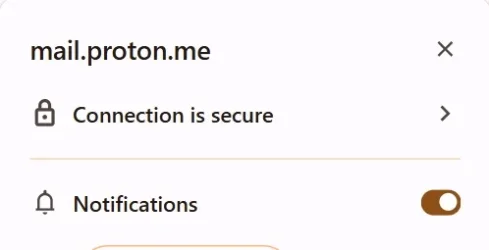
Check Browser Permissions:
Click the small padlock or settings icon immediately to the left of the website URL in your address bar. Ensure that Notifications are set to Allow.
 

My Computer

System One

  • OS
    Windows 11
    Computer type
    PC/Desktop
    Manufacturer/Model
    Custom Built
This is all I get.10.webp
 

My Computer

System One

  • OS
    Windows 11 Home 25H2 64-Bit
    Computer type
    Laptop
    Manufacturer/Model
    asus f515ja
    CPU
    Intel(R) Core(TM) i5-1035G1 CPU @ 1.00GHz 1.19 GHz
    Motherboard
    ASUSTeK COMPUTER INC. X515JA (U3E1)
    Memory
    8.00GB HDD
    Graphics Card(s)
    Standard Monitor on Intel UHD Graphics
    Sound Card
    Realtek HDA
    Screen Resolution
    1366 x 768 x 60
    Hard Drives
    1HDD 2 Partitions
    Mouse
    Logitech Cordless
    Internet Speed
    38mbps
    Browser
    Chrome+FF
    Antivirus
    Malwarebytes (Premium)
    Other Info
    When I find it.
Your a genius, it worked.
 

My Computer

System One

  • OS
    Windows 11 Home 25H2 64-Bit
    Computer type
    Laptop
    Manufacturer/Model
    asus f515ja
    CPU
    Intel(R) Core(TM) i5-1035G1 CPU @ 1.00GHz 1.19 GHz
    Motherboard
    ASUSTeK COMPUTER INC. X515JA (U3E1)
    Memory
    8.00GB HDD
    Graphics Card(s)
    Standard Monitor on Intel UHD Graphics
    Sound Card
    Realtek HDA
    Screen Resolution
    1366 x 768 x 60
    Hard Drives
    1HDD 2 Partitions
    Mouse
    Logitech Cordless
    Internet Speed
    38mbps
    Browser
    Chrome+FF
    Antivirus
    Malwarebytes (Premium)
    Other Info
    When I find it.
Hi pepanee, have you any idea how to restore Gmail new mail notifications? I have been trying to find how to do it with no luck.
I have been forced to use Checker Plus for Gmail. Your solution for Proton Mail did not work.


My Computer

System One

  • OS
    Windows 11 Home 25H2 64-Bit
    Computer type
    Laptop
    Manufacturer/Model
    asus f515ja
    CPU
    Intel(R) Core(TM) i5-1035G1 CPU @ 1.00GHz 1.19 GHz
    Motherboard
    ASUSTeK COMPUTER INC. X515JA (U3E1)
    Memory
    8.00GB HDD
    Graphics Card(s)
    Standard Monitor on Intel UHD Graphics
    Sound Card
    Realtek HDA
    Screen Resolution
    1366 x 768 x 60
    Hard Drives
    1HDD 2 Partitions
    Mouse
    Logitech Cordless
    Internet Speed
    38mbps
    Browser
    Chrome+FF
    Antivirus
    Malwarebytes (Premium)
    Other Info
    When I find it.

1. Enable Notifications Inside Gmail​

Gmail has its own built-in notification switch that must be turned on first.
  1. Open Gmail in your browser.
  2. Click the Settings gear icon in the top right corner, then select See all settings.
  3. Scroll down the General tab until you find the Desktop notifications section.
  4. Select New mail notifications on (or Important mail notifications on if you only want alerts for priority messages).
  5. Customize your alert sound using the dropdown menu right below it if you want an audio cue.
  6. Scroll to the very bottom of the page and click Save Changes.

2. Grant Browser Permission to Gmail​

Even if Gmail is trying to send alerts, your browser might be blocking them.
  1. While looking at your Gmail inbox, look at the address bar at the top of your browser.
  2. Click the padlock, sliders, or info icon immediately to the left of mail.google.com.
  3. Locate Notifications in the dropdown menu and change the setting to Allow.
  4. If you don't see it there, click Site settings, find Notifications in the list, and change it to Allow.
  5. Refresh the Gmail tab to apply the changes.

3. Check Windows System Settings​

If both Gmail and your browser are configured correctly but you still aren't seeing banners, Windows might be suppressing them.

  1. Open your Windows Settings menu (Win + I).
  2. Go to System > Notifications.
  3. Make sure the main Notifications toggle is turned On.
  4. Scroll down the list of apps to find your browser (e.g., Google Chrome or Microsoft Edge) and ensure its toggle is set to On.
  5. Click on the browser's name in that list and ensure Show notification banners is checked.
  6. Check that Do Not Disturb or Focus sessions are turned off in your system tray (bottom-right corner by the clock), as these will completely hide incoming alerts.


Try that for Gmail.
Regarding Proton Mail, I don't know what else to suggest.
 

My Computer

System One

  • OS
    Windows 11
    Computer type
    PC/Desktop
    Manufacturer/Model
    Custom Built
Back
Top Bottom