Personalization Reset and Re-register Windows Spotlight in Windows 11


Windows_Spotlight-new_header.webp

This tutorial will show you how to reset and re-register Windows Spotlight for your account in Windows 11.

In Windows 11, you can have Windows Spotlight as a theme and display different background images on your desktop and lock screen, and occasionally offers suggestions on the lock screen.

If Windows Spotlights stops working and/or stops changing the background image, you can reset and re-register Windows Spotlight to fix it.

Windows Spotlight will not work while connected to a metered network (ethernet or wireless), or in Battery Saver mode.

Windows Spotlight requires Background Apps to be turned on.

Country or region and Device setup region must be the same for Spotlight to work.
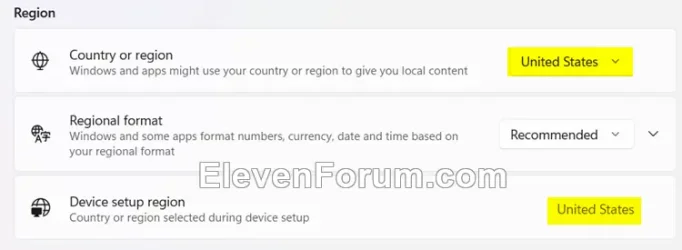
Region.webp


Sometimes it may take 24 to 48 hours after resetting for Windows Spotlight to sync again.


Another option is to use the Windows spotlight, dynamic images theme.

OR:


EXAMPLE: Windows Spotlight on Desktop and Lock screen

Windows_Spotlight_desktop_background.jpg
Windows_Spotlight_lock_screen.jpg


Here's How:

1 Change your desktop background to something other than Windows Spotlight. (see screenshot below)


Windows_Spotlight_desktop_background-1.png

2 Change your lock screen background to something other than Windows Spotlight. (see screenshot below)


Windows_Spotlight_lock_screen_background-1.png

3 Click/tap on the download button below to download the file below.

Reset_and_re-register_Windows_Spotlight.zip


(Contents of BAT file for reference)
Code:
:: Turn on background apps
reg delete "HKEY_CURRENT_USER\Software\Microsoft\Windows\CurrentVersion\BackgroundAccessApplications" /v GlobalUserDisabled /f
reg delete "HKEY_CURRENT_USER\Software\Microsoft\Windows\CurrentVersion\Search" /v BackgroundAppGlobalToggle /f

:: Reset Windows Spotlight
DEL /F /S /Q /A "%USERPROFILE%/AppData\Local\Packages\MicrosoftWindows.Client.CBS_cw5n1h2txyewy\LocalCache\Microsoft\IrisService"
DEL /F /S /Q /A "%USERPROFILE%/AppData\Local\Packages\Microsoft.Windows.ContentDeliveryManager_cw5n1h2txyewy\LocalCache\Microsoft\IrisService"
DEL /F /S /Q /A "%USERPROFILE%/AppData\Local\Packages\Microsoft.Windows.ContentDeliveryManager_cw5n1h2txyewy\LocalState\Assets"
DEL /F /S /Q /A "%USERPROFILE%/AppData\Local\Packages\Microsoft.Windows.ContentDeliveryManager_cw5n1h2txyewy\Settings"

:: Re-register Windows Spotlight
PowerShell -Command "Get-AppxPackage -AllUsers *Microsoft.Windows.ContentDeliveryManager* | Reset-AppxPackage"
PowerShell -Command "Get-AppxPackage -AllUsers *MicrosoftWindows.Client.CBS* | Reset-AppxPackage"

PowerShell -ExecutionPolicy Unrestricted -Command "& {$manifest = (Get-AppxPackage *ContentDeliveryManager*).InstallLocation + '\AppxManifest.xml' ; Add-AppxPackage -DisableDevelopmentMode -Register $manifest}"
PowerShell -ExecutionPolicy Unrestricted -Command "& {$manifest = (Get-AppxPackage *MicrosoftWindows.Client.CBS*).InstallLocation + '\AppxManifest.xml' ; Add-AppxPackage -DisableDevelopmentMode -Register $manifest}"

4 Save the ZIP file to your desktop.

5 Unblock the ZIP file.

6 Extract the BAT file from the ZIP file.

7 Run the BAT file.

8 Restart the computer to apply.

9 After you sign in, you can change your desktop background back to Windows Spotlight if wanted. (see screenshot below)


Windows_Spotlight_desktop_background-2.png

10 Change your lock screen background back to Windows Spotlight if wanted. (see screenshot below)


Windows_Spotlight_lock_screen_background-2.png


That's it,
Shawn Brink


Attachments

Last edited:

@Osmium 24 hours just past and what happened is that thing I had long time ago when I stopped using spotlight:

The desktop image changed only on one of the desktops (I have 4 virtual of them), in the Settings app it changed to "Picture" instead of the "spotlight" for desktop. Now if I choose "Spotlight" in desktop it changes to "picture" instantly again. Even though it has downloaded 4 new images to "Local\Packages\MicrosoftWindows.Client.CBS_cw5n1h2txyewy\LocalCache\Microsoft\IrisService"
As for the lock screen it seems to be working as I didn't want to wait and changed the photo myself by disliking, so now I have to wait one more day to be sure...

But this is exactly what it has been doing a year ago when I just couldn't fight any more and started using the Dynamic Theme app.

Meanwhile I'm still waiting to see what shall my second newly created test profile would bring today, I have to wait few hours more to see if it's gonna be the same bug, or not.

By the way, @Osmium I wanted to ask if you've done these 2 reset prompts as well together with reregistering?:

:: Re-register Windows Spotlight
PowerShell -Command "Get-AppxPackage -AllUsers *Microsoft.Windows.ContentDeliveryManager* | Reset-AppxPackage"
PowerShell -Command "Get-AppxPackage -AllUsers *MicrosoftWindows.Client.CBS* | Reset-AppxPackage"


Yes, in the second new test profile I've created yesterday both desktop and lock screen spotlight work and it loaded the images after 24 hours too. There is also the "learn about this picture" button in the second profile and I can change to any of 4 images no probs.

So, somehow it doesn't want to work with my main profile... Only one thing I haven't tries yet to do those 2 prompts above, otherwise I don't know what to do else

Also, I notices that there is no "roaming.lock" file in my main profile's "%USERPROFILE%/AppData\Local\Packages\Microsoft.Windows.ContentDeliveryManager_cw5n1h2txyewy\Settings" folder but in the test user it has such file.
 
Last edited:

My Computer My Computer

At a glance

Windows 11 Pro 25H2
OS
Windows 11 Pro 25H2
I have significantly cut back on my use of the package reset command; in my (possibly unique to me) case, something got broken somewhere between %LOCALAPPDATA%\Packages and the files in C:\Windows\SystemApps, where both Client.CBS and CDM keep their binaries and the reset did nothing useful because of that broken pipeline. After rebooting, the %LOCALAPPDATA% folder that was deleted during the reset had been dutifully recreated, but there were many things missing inside.

So, your mileage will vary depending on your problem's root cause. A reset could fix it or just reinstate the issue. Mine was so deeply rooted that nothing short of a Windows Update repair could fix it - and, as radical a remedy as it was, it did a much more thorough job than a mere reset and Windows did feel snappier at the end of it.

One thing you could do is go from one user account to the other and compare the structures and contents of the following registry entries:
Computer\HKEY_CURRENT_USER\Software\Microsoft\Windows\CurrentVersion\DesktopSpotlight
Computer\HKEY_CURRENT_USER\Software\Microsoft\Windows\CurrentVersion\ContentDeliveryManager
Computer\HKEY_CURRENT_USER\Software\Microsoft\Windows\CurrentVersion\IrisService
Computer\HKEY_CURRENT_USER\Software\Microsoft\Windows\CurrentVersion\Lock Screen
Computer\HKEY_LOCAL_MACHINE\SOFTWARE\Microsoft\Windows\CurrentVersion\Authentication\LogonUI\Creative\***SID***
Just for starters.
Note that some of the entries (like timestamps), as I mentioned earlier, are merely for record-keeping and manually changing them doesn't really trick Windows into updating sooner.

(note: you can find the current user account's SID by executing Get-LocalUser -Name $env:USERNAME | Select-Object SID in PowerShell)
 

My Computers My Computers

  • At a glance

    Windows 11 25H2 ProAMD Ryzen 7 9700X32GB Crucial Pro DDR5-6000-CL36 UDIMM OC Gami...ASUS Prime GeForce RTX 4070 Super OC
    OS
    Windows 11 25H2 Pro
    Computer type
    PC/Desktop
    Manufacturer/Model
    Custom
    CPU
    AMD Ryzen 7 9700X
    Motherboard
    Asus ROG Strix X870E-E Gaming Wifi7 NEO
    Memory
    32GB Crucial Pro DDR5-6000-CL36 UDIMM OC Gaming Memory (2 x CP16G60C36U5B), CL36-38-38-80
    Graphics Card(s)
    ASUS Prime GeForce RTX 4070 Super OC
    Monitor(s) Displays
    LG UltraGear 27GS85Q-B/EU 27'' Fast IPS
    Screen Resolution
    2560x1440
    Hard Drives
    1 Kingston Fury Renegade (gen4) 1TB + 1 Kingston Fury Renegade G5 2TB + 1 WD_Black SN850X 1TB + 1 Samsung 870 EVO 1TB + 3 x Western Digital Green 2TB
    PSU
    Be Quiet! Pure Power 12M 850W + Be Quiet! 12V-2X6/12VHPWR 90° Reversed cable
    Case
    Lian Li Lancool III Black
    Cooling
    Thermalright Phantom Spirit 120 SE ARGB
    Keyboard
    Logitech Deluxe 250
    Mouse
    Logitech G502X Black
    Other Info
    Work in progress. Hoping to upgrade to a Zen 7 and 60/70-series GPU in the future...if either scenario ever eventuates.
  • At a glance

    Windows 10 Pro 22H2Intel Core i5-25008GB Kingston HyperX Black DDR3-1600 (KHX16C9B...MSI GeForce GTX970 GAMING 4G
    Operating System
    Windows 10 Pro 22H2
    Computer type
    PC/Desktop
    CPU
    Intel Core i5-2500
    Motherboard
    Asus P8P67LE B3 LGA1155
    Memory
    8GB Kingston HyperX Black DDR3-1600 (KHX16C9B1BK2/8X)
    Graphics card(s)
    MSI GeForce GTX970 GAMING 4G
    Monitor(s) Displays
    ASUS VS238N 24''
    Screen Resolution
    1920x1080px
    Hard Drives
    1 x Samsung 850 Pro 128GB MZ-7KE128 2.5'' SATA SSD
    1 x Western Digital Green 2TB WD20EZRX-00DC0B0 3.5'' SATA HDD
    2 x Western Digital Green 2TB WD20EZRX-00D8PB0 3.5'' SATA HDD
    PSU
    Be Quiet! Pure Power L8-630W 80+ Bronze
    Case
    CoolerMaster Gladiator 600
    Cooling
    CoolerMaster Hyper 212 EVO single-tower CPU air cooler
    Keyboard
    Logitech 250 Deluxe
    Mouse
    Logitech M500
    Other Info
    Bought in summer of 2012. Permanently decommissioned and stripped of its parts in January 2025.
    RIP old boy.
@Osmium thanks, I compared the entries and the most that differs is the following: Computer\HKEY_CURRENT_USER\Software\Microsoft\Windows\CurrentVersion\Lock Screen

In my main user's there is a lot more information, rather then in the new one and there are values about the Dynamic Theme App which I have installed, is there any chance that it may be the reason why the OS's desktop spotlight is not working in my user?

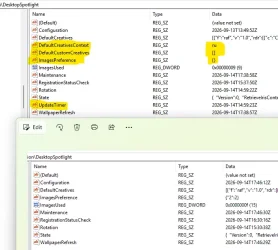
Oh, I have also found that there are more values in my main profile in the "Computer\HKEY_CURRENT_USER\Software\Microsoft\Windows\CurrentVersion\DesktopSpotlight" and it's exactly the localization info which should be EN. You can check the screenshot and there is in the upper part my main profile (broken) and in the lower the new working profile. Apparently that info was left after some OS updates (25H2)... Can I try to just remove those additional valuse?
 

Attachments

  • Screenshot 2026-09-15 115647.webp
    Screenshot 2026-09-15 115647.webp
    54.2 KB · Views: 1
Last edited:

My Computer My Computer

At a glance

Windows 11 Pro 25H2
OS
Windows 11 Pro 25H2
Guys, just a quick update, I'm still trying to solve the issue with my main user and I can't make the desktop to work, so only lock screen is working. In the meantime the newly created working test user works fine (they are both local users) as for the lock screen as for the desktop. I've even deleted the DefaultCreatives registry value in "HKEY_CURRENT_USER\Software\Microsoft\Windows\CurrentVersion\DesktopSpotlight"' and after a restart the OS has recreated it in English and finally the button "Learn about this picture" switched to the English localization too but still photos are not fetched to the desktop after 24 hours as they are in the new temp user. So, it seems the only working method for me is to create a new user and reconfigure it, but I'm still wondering if there are any other ways of resetting, or reinstalling the CBS then doing these:

PowerShell -Command "Get-AppxPackage -AllUsers *MicrosoftWindows.Client.CBS* | Reset-AppxPackage"

PowerShell -ExecutionPolicy Unrestricted -Command "& {$manifest = (Get-AppxPackage *MicrosoftWindows.Client.CBS*).InstallLocation + '\AppxManifest.xml' ; Add-AppxPackage -DisableDevelopmentMode -Register $manifest -Verbose}"

It seems that CBS is stuck in the 24H2 "unworking state" for my main user profile, so perhaps only a more drastic reset or rebuild will fix the issue.
 
Last edited:

My Computer My Computer

At a glance

Windows 11 Pro 25H2
OS
Windows 11 Pro 25H2

Latest Support Threads

Back
Top Bottom