Say Hello to Windows 11 Administrator Protection: Secure Your Admins!
Windows 11’s Administrator Protection: Secure Your Admins!
 patchmypc.com
We all know admin rights are essential, but they’re also one of the biggest security risks. With Windows 11 introducing Administrator Protection in Canary Build 27718, we now have a smarter way to manage elevated privileges.

Instead of permanent admin accounts with too many privileges that hang around long after they’re needed, this new approach uses a System Managed Admin Account, AKA Super Admin account, that dynamically handles privileges only when they’re needed.
What Makes This Administrator Protection a Game-Changer?
Traditionally, when a user is given admin rights on a Windows device, whether it’s a local account or a Microsoft account, those privileges are always active, making the device an attractive target for attackers. If the account is compromised, attackers can immediately use those rights to install malware or gain even more control over the system.Legacy UAC
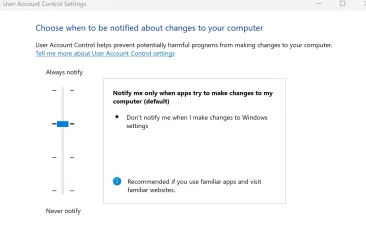
That’s where the good old User Account Control (UAC) tries to add some protection. When a user with admin privileges signs in, UAC creates a “split token” for the session. This split token divides the user’s identity into two separate parts: a standard user token and an admin token.
By default, the user operates under the standard token, think of it as being in “Clark Kent” mode. While the admin rights exist in the second token, they stay inactive until an action requiring admin rights is performed.
To activate the admin privileges (switch to “Superman” mode), the user must do something that needs higher permissions, like running a program as an administrator. This triggers a UAC prompt, asking the user to confirm if they want to use their full admin rights. Until the user says yes, those admin powers remain turned off, minimizing the risk if an attacker only gains access to the standard token.
Admin Approval Mode with Administrator Protection
But even with UAC’s split token system, attackers can still find ways to bypass it or manipulate the UAC prompt. This is where Administrator Protection changes the game. When enabled, instead of using the regular admin account for elevated actions, Administrator Protection creates a separate, hidden system managed admin account linked to the user but with one major twist: this hidden account only activates when elevated rights are needed.This means its privileges are inactive until a secure request is made. Once the task is complete, the privileges are locked away again, making it nearly impossible for malicious actors to take advantage of these temporary admin rights. By isolating these admin actions into a separate profile, Administrator Protection provides an extra layer of security, ensuring that even if an attacker gains access to the regular admin account, they can’t misuse the hidden admin privileges.
How Do You Enable It?
Setting It Up with Group Policy:
- Open Group Policy Management Console.
- Go to Computer Configuration -> Windows Settings -> Security Settings -> Local Policies -> Security Options.
- Find the option User Account Control: Configure Type of Admin Approval Mode and set it to Admin Approval Mode With Administrator Protection

Deploying with Intune:
- Create a Device Configuration Profile.
- Choose Windows 10 and later as the platform.
- In the Settings Catalog, search for
User Account Control Type of Admin Approval Mode: “Admin Approval Mode with Administrator Protection”.
User Account Control Behavior Of The Elevation Prompt: “Prompt for consent on the secure desktop”.

What Does Administrator Protection Look Like in Action?
When Administrator Protection is turned on, and you try to run something as a local administrator, you’ll notice a change. Instead of seeing the usual User Account Control (UAC) screen, you’ll be greeted by the Windows Security prompt.
With this visual change, it’s easy to see at a glance when Administrator Protection is active and handling your elevation requests, making security much more transparent and easier to manage for admins and users alike!
This new prompt signals that Windows is using the System Managed Admin Account to process elevation requests, providing an extra layer of security. It not only enhances the protection for admin tasks but also makes it clear when isolated admin rights are being used, setting it apart from standard UAC prompts.
But how does this magic work?
How Does Administrator Protection Really Work?
When you enable *Administrator Protection, Windows automatically creates a System Managed Admin Account for any user accounts with local admin rights (except for your Windows LAPS account). This system-managed administrator account remains hidden and inactive until it’s specifically needed. Instead of simply elevating the privileges of the logged-in user, Windows now switches to this separate, isolated admin account to perform the requested action.

This change ensures that no admin privileges are directly tied to the user’s account, reducing the risk of misuse or exploitation. You can see a detailed breakdown of how this flow works in the illustration below, showing how Windows securely handles elevation requests through this system-managed account rather than the standard UAC process.
*Requirement: Windows Canary Build 27718
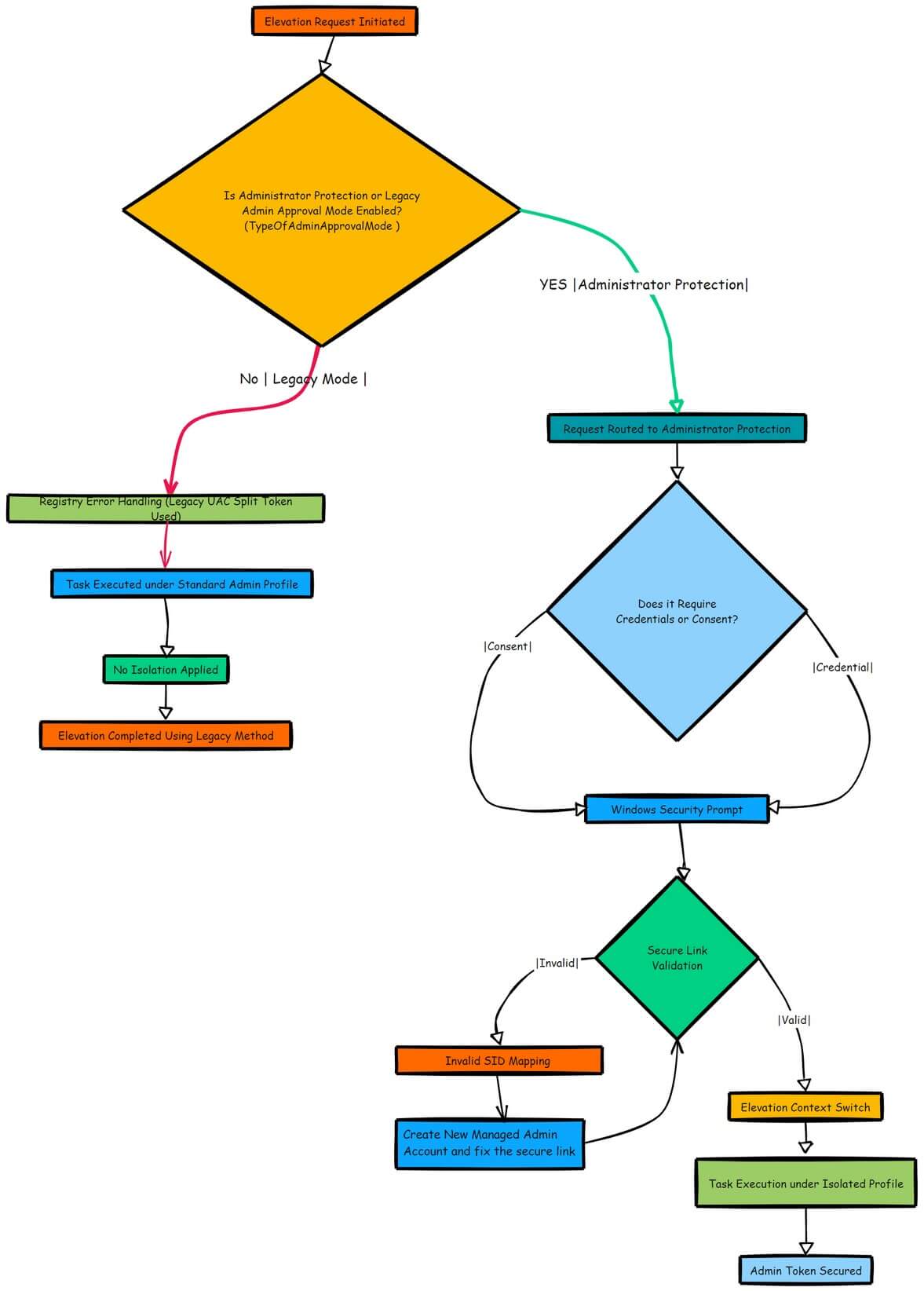
After the elevated task is done, the session ends, and the privileges are immediately revoked. This approach is like turning on a spotlight for a second, just enough to illuminate the task at hand, before plunging everything back into darkness.
Breaking Down the Benefits
- Reduces Risk of Privilege Escalation: With the new system-managed account, admin tokens are no longer lingering around for the entire session. Instead, they’re granted just-in-time and only for the exact duration needed, making it much harder for attackers to exploit them.
- Minimizes Attack Surface: Attackers can’t target what doesn’t exist. By limiting the active lifespan of these admin privileges, the system minimizes opportunities for malicious actors to gain a foothold.
- Stronger Compliance: Enforcing a least privilege model is difficult when admin rights are always active. With Administrator Protection, elevated permissions are only active when required, ensuring you can confidently follow a true “need-to-use” basis for admin access.
What’s the Impact on Your Environment?
Think of the typical user who has been given admin rights for maintenance tasks or local troubleshooting. With Administrator Protection enabled, they can still perform these tasks, but when they do elevate a process, the process will be executed in the additional system managed account.
Even if malware tries to hijack the session, it won’t be able to use those elevated privileges, because the System Managed Admin Account only activates in a controlled manner. This not only helps in stopping lateral movement but also significantly cuts down the chance of privilege escalation attacks.
The Bottom Line: A Safer, Smarter Way to Handle Admin Rights
The introduction of Administrator Protection is part of a larger trend of moving away from static and always-on permissions to more dynamic, session-based management of privileges. It’s a major shift that aligns with modern security practices like Zero Trust, where you never trust a device or user blindly.If you want to know more about how this feature operates behind the scenes, including technical details on session isolation and privilege management within some funny-looking DLL files, check out the detailed technical analysis in this blog post here.