This tutorial will show you how to set up Voice Access for your account in Windows 11.
Voice access in Windows 11 enables everyone, including people with mobility disabilities, to control their PC and author text using their voice. For example, you can open and switch between apps, browse the web, and read and author emails using your voice. Voice access uses modern, on-device speech recognition to accurately recognize speech and works even without the internet.
When you open voice access for the first time, you’ll see a welcome screen that explains how the feature works and what it needs to help you get started. Reviewing this information helps you understand how your microphone and speech are used so you can make an informed choice before continuing.
To complete the initial set up of voice access in Windows 11, you need an internet connection.
When voice access is active after setup, you will see the Voice access bar at the top of your screen.
Reference:
Set up voice access | Microsoft Support
 support.microsoft.com
Here's How:
1 Turn on Voice Access.
2 Select your preferred language for voice access, and click/tap on Agree and continue. (see screenshot below)
Voice access is currently available in the following languages and dialects: English–US, English–UK, English–India, English–New Zealand, English–Canada, English–Australia, Spanish–Spain, Spanish–Mexico, German–Germany, French–France, French–Canada, Simplified Chinese–China, Traditional Chinses–Taiwan, Japanese, and Italian.
If you display language isn't supported, you can still select from the list of supported languages in voice access and use it.
You can install, change, and uninstall different languages for voice access afterwards.
3 The selected language for voice access will now download and install. (see screenshot below)
You’ll need an internet connection to complete this step. The download may take a few minutes. You can cancel or exit setup at any time. If you exit before the download finishes, you’ll need to restart the setup process the next time you open voice access.
4 If a default microphone you want to use for voice access is already selected and connected, click/tap Continue. (see screenshot below)
If you have multiple microphones, you can click/tap on the View more devices link to choose a different one.
You can click/tap on the Add device button to connect a new microphone.
You can click/tap on the Sound settings links to make changes to your microphone settings.
5 Voice access is now finished. You can now click/tap on Done. (see screenshot below)
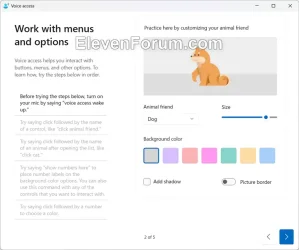
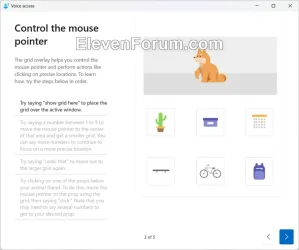
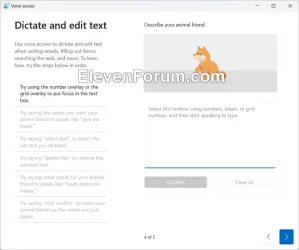
If you click/tap on Start guide, you will be guided through a short interactive guide below that shows you how to start controlling your PC with your voice. This step is optional – whether you continue or exit, you can begin using voice access right away.

That's it,
Shawn Brink