This tutorial will show you different ways to sign out of your account or other users in Windows 11.
When you sign out of Windows, all your open windows and apps are closed, but the computer is not turned off. Another user can sign in without needing to restart the computer.
Reference:
User Account Access in Windows | Microsoft Support
Learn how to sign in, sign out, lock, and switch user account in Windows.
 support.microsoft.com
Contents
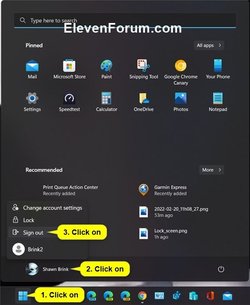
- Option One: Sign out of your Account from Start Menu
- Option Two: Sign out of your Account from Win+X Quick Link Menu
- Option Three: Sign out of your Account from Alt+F4 Shut Down Windows Dialog
- Option Four: Sign out of your Account from Ctrl+Alt+Del Screen
- Option Five: Sign out Other User from Task Manager
- Option Six: Sign out of your Account using "Shutdown" Command
- Option Seven: Sign out of your Account using "Logoff" Command
- Option Eight: Sign out Specific User using "Logoff" Command
- Option Nine: Sign out All Users Except your Account in PowerShell
- Option Ten: Sign out of your Account from Game Bar
1 Open the Start menu
 .
.2 Click/tap on the User tile. (see screenshot below)
3 Click/tap on Sign out.
1 Perform one of the following actions: (see screenshot below)
- Open the Win+X Quick Link Menu, click/tap on Shut down or sign out, and click/tap on Sign out.
- Press the Win + X keys, press U, and press i.
1 Click/tap on your desktop (Win+D) to make it the current focused (active) window.
2 Press the Alt + F4 keys to open the Shut Down Windows dialog.
This will only work if you did step 1. Otherwise, it will close the current active window instead of the desktop.
3 Select Sign out in the drop menu, and click/tap on OK. (see screenshot below)
1 Press the Ctrl + Alt + Del keys.
2 Click/tap on Sign out. (see screenshot below)
You must be signed in as an administrator to use this option.
1 Open Task Manager (Ctrl+Shift+Esc).
2 Click/tap on the Users tab, right click on the signed in user (ex: "Brink2") you want to sign out, and click/tap on Sign off. (see screenshot below)
3 Click/tap on Sign out user to confirm. (see screenshot below)
4 You can now close Task Manager if you like.
1 Open Windows Terminal, and select either Windows PowerShell or Command Prompt.
2 Copy and paste the
shutdown /L /F command into Windows Terminal, and press Enter.1 Open Windows Terminal, and select either Windows PowerShell or Command Prompt.
2 Copy and paste the
Loggoff command into Windows Terminal, and press Enter.You must be signed in as an administrator to use this option.
1 Open Windows Terminal (Admin), and select either Windows PowerShell or Command Prompt.
2 Copy and paste the
query user command into Windows Terminal (Admin), and press Enter. (see screenshot below step 3)3 Make note of the session ID (ex: "2") of the USERNAME (ex: "brink2") you want to sign out. (see screenshot below)
4 Type the command below you want to use into Windows Terminal (Admin), and press Enter. (see screenshot below)
(sign out user without details)
logoff <ID>OR
(sign out user with details)
logoff <ID> /vSubstitute <ID> in the command above with the session ID (ex: "2") from step 3.
For example: logoff 2 /v
5 You can now close Windows Terminal (Admin) if you like.
You must be signed in as an administrator to use this option.
1 Open Windows Terminal (Admin), and select Windows PowerShell.
2 Copy and paste the command below into Windows Terminal (Admin), and press Enter. (see screenshot below)
quser | Select-String "Disc" | ForEach {logoff ($_.tostring() -split ' +')[2]}3 You can now close Windows Terminal (Admin) if you like.
1 Open the Game Bar (
+G).2 Click/tap on the Settings (gear) icon on the Home Bar. (see screenshot below)
3 Click/tap on Power in Settings.
4 Click/tap on Sign out in the Power menu.
That's it,
Shawn Brink
Related Tutorials
- Sign out of your Microsoft Account Everywhere
- Switch User in Windows 11
- Lock Computer in Windows 11
- Sign in to Windows 11
- See All Signed in Users in Windows 11
- Add or Remove Sign out on User Tile in Start Menu in Windows 11
- Add or Remove Sign out on Alt+F4 and Ctrl+Alt+Del screen in Windows 11
- Add or Remove Sign out on Alt+F4, Win+X, and Start Menu in Windows 11
Attachments
Last edited: