Struggling to install Windows 11 from bootable USB, receive error about disk.


tonyphones

New member
Local time
1:48 PM
Posts
1
OS
Windows 11
Hello, I come to you all after a series of unfortunate events. Recently, I had attempted to install Linux Mint onto my computer, and while all went well on that front, I encountered issues in regards to partition size. To counter this, I used GPARTED and went to boot it into a live session, yet ran into problems where I kept being told it could not authenticate my login.

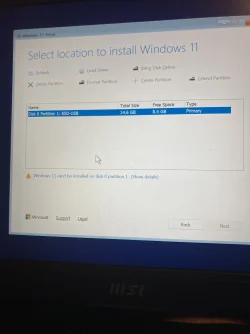
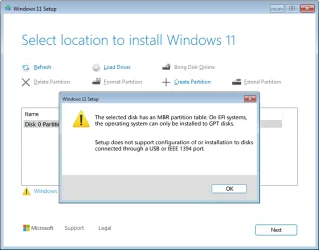
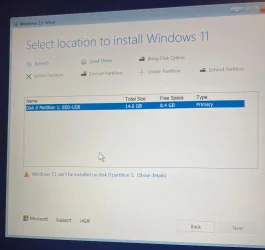
Now, I am trying to install a fresh Windows 11 onto my desktop, and have experienced issues regarding that. While most of the setup runs fine and I can boot to the setup, I encounter an error where it tells me that the partition I am attempting to install to isn’t properly formatted(MBR not GPT). I am not sure how to fix this, much less reconcile with laptop so that it will love me again. Ive attached files of my error screens below, thank you so much for your help.

For device information, I am on an MSI laptop with a Gen 13 Intel Core—I believe it’s the Stealth, but I will double check if needed.
 

Attachments
  • IMG_3136.webp
    IMG_3136.webp
    1.6 MB · Views: 1
  • IMG_3131.webp
    IMG_3131.webp
    763 KB · Views: 1

My Computer

System One

  • OS
    Windows 11
    Computer type
    Laptop
You are not following the clean install procedure.

The install is not seeing your system drive which will be your nvme drive. This usually indicates that you either must install your storage controller driver (Intel Rapid Storage Controller) at the "add driver" step 10 of the clean install procedure (highlighted in yellow). Clean Install Windows 11
OR You can work around this easily by going into UEFI bios and disabling RAID. (IE: changing disk mode from RAID to AHCI )and starting the install again

Once the system drive is recognized, you MUST delete all partitions on the system drive and install Windows on unallocated space. (also noted in step 10)
 

My Computers

System One System Two

  • OS
    Windows 11 Pro 25H2 26200.8655
    Computer type
    PC/Desktop
    Manufacturer/Model
    Dell Optiplex 7080
    CPU
    i9-10900 10 core 20 threads
    Motherboard
    DELL 0J37VM
    Memory
    32 gb
    Graphics Card(s)
    none-Intel UHD Graphics 630
    Sound Card
    Integrated Realtek
    Monitor(s) Displays
    Benq 27
    Screen Resolution
    2560x1440
    Hard Drives
    2x1tb Solidigm m.2 nvme /External drives 512gb Samsung m.2 sata+2tb Kingston m2.nvme
    PSU
    500w
    Case
    MT
    Cooling
    Dell Premium
    Keyboard
    Logitech wired
    Mouse
    Logitech wireless
    Internet Speed
    so slow I'm too embarrassed to tell
    Browser
    #1 Edge #2 Firefox
    Antivirus
    Defender+MWB Premium
  • Operating System
    Windows 11 Pro 24H2 26200.8457
    Computer type
    PC/Desktop
    Manufacturer/Model
    Beelink Mini PC SER5
    CPU
    AMD Ryzen 7 6800U
    Memory
    32 gb
    Graphics card(s)
    integrated
    Sound Card
    integrated
    Monitor(s) Displays
    Benq 27
    Screen Resolution
    2560x1440
    Hard Drives
    1TB Crucial nvme
    Keyboard
    Logitech wired
    Mouse
    Logitech wireless
    Internet Speed
    still too embarrassed to tell
    Browser
    Firefox
    Antivirus
    Defender
    Other Info
    System 3 is non compliant Dell 9020 i7-4770/24gb ram Win11 PRO 26200.8457
If you're flexible with dual boot: Windows / Linux please see this link:


Set firmware to UEFI-only > (Make sure that it is UEFI native (without CSM) and NOT UEFI hybrid (UEFI with CSM))

Code:
Set firmware to UEFI-only:

If your motherboard supports both UEFI and Legacy (CSM), it’s best to turn off Legacy mode in the BIOS before you start the Linux installer.

This ensures the system boots in UEFI mode only, which avoids situations where Debian or Ubuntu might fall back to Legacy boot.

Mixing the two can create unnecessary complications.

On modern hardware, sticking with UEFI-only gives a cleaner setup, better compatibility, and fewer headaches down the road.


Code:
Install Windows first:

If you haven’t installed anything yet, install Windows before Linux.

Windows installers don’t gracefully detect Linux, whereas Linux installers will detect Windows and set up a bootloader for both.

The general best practice is Windows first, Linux second for dual-boot setups.


My Computer

System One

  • OS
    Windows 10
    Computer type
    Laptop
    Manufacturer/Model
    HP
    CPU
    Intel(R) Core(TM) i7-4800MQ CPU @ 2.70GHz
    Motherboard
    Product : 190A Version : KBC Version 94.56
    Memory
    16 GB Total: Manufacturer : Samsung MemoryType : DDR3 FormFactor : SODIMM Capacity : 8GB Speed : 1600
    Graphics Card(s)
    NVIDIA Quadro K3100M; Intel(R) HD Graphics 4600
    Sound Card
    IDT High Definition Audio CODEC; PNP Device ID HDAUDIO\FUNC_01&VEN_111D&DEV_76E0
    Hard Drives
    Model Hitachi HTS727575A9E364
    Antivirus
    Microsoft Defender
    Other Info
    Mobile Workstation
if you use Rufus to burn your Windows install image to a bootable USB stick
you can set the image you want to install using GPT boot and partitioning.

this link is to install Rufus from the Microsoft store

this link is a direct download from the Rufus site

best of luck Steve ..
 

My Computers

System One System Two

  • OS
    Debian 13 KDE .. Windows 11 Home
    Computer type
    PC/Desktop
    Manufacturer/Model
    HP 24" AiO
    CPU
    Ryzen 7 5825u
    Motherboard
    HP
    Memory
    64GB DDR4 3200
    Graphics Card(s)
    Ryzen 7 5825u
    Sound Card
    RealTek
    Monitor(s) Displays
    24" HP AiO
    Screen Resolution
    1920 x 1080 @60 Hz
    Hard Drives
    1TB WD Blue SN580 M2 SSD Partitioned.
    2x 1TB USB HDD External Backup/Storage.
    PSU
    90W external power brick
    Case
    24" All in One
    Cooling
    Default Air Cooling
    Keyboard
    HP WiFi UK extended
    Mouse
    HP WiFi 3 Button
    Internet Speed
    1GB full fibre
    Browser
    Edge & Firefox
    Antivirus
    AVG Internet Security/Windows Defender
    Other Info
    Mainly Open Source Software
  • Operating System
    Ubuntu 22.04.5 LTS
    Computer type
    Laptop
    Manufacturer/Model
    Dell 13" Latitude 2017
    CPU
    i5 7200u
    Motherboard
    Dell
    Memory
    16GB DDR4
    Graphics card(s)
    Intel
    Sound Card
    Intel
    Monitor(s) Displays
    13" Dell Laptop
    Hard Drives
    250GB Crucial 2.5" SSD
    Mouse
    Generic WiFi 3 button
    Internet Speed
    WiFi only
    Browser
    Firefox
    Antivirus
    ClamAV TK
    Other Info
    Mainly Open Source Software
Converting an MBR (Master Boot Record) disk to a GPT (GUID Partition Table) disk is often necessary to support disks larger than 2TB or to meet the requirements for modern UEFI-based operating systems like Windows 11.

This method is best for secondary drives or if you are performing a clean Windows installation. This will erase all data on the disk.

  1. Open Command Prompt as an Administrator.
  2. Type diskpart and press Enter.
  3. List your disks to identify the target: list disk
  4. Select the disk you want to convert (e.g., Disk 1): select disk 1
  5. Wipe the partition information: clean
  6. Convert to GPT: convert gpt
  7. Type exit to close the utility.
restart your computer.
 

My Computer

System One

  • OS
    Windows 11
    Computer type
    PC/Desktop
    Manufacturer/Model
    HP Pavilion
    CPU
    AMD Ryzen 7 5700G
    Motherboard
    Erica6
    Memory
    Micron Technology DDR4-3200 16GB
    Graphics Card(s)
    NVIDIA GeForce RTX 3060
    Sound Card
    Realtek ALC671
    Monitor(s) Displays
    Samsung SyncMaster U28E590
    Screen Resolution
    3840 x 2160
    Hard Drives
    SAMSUNG MZVLQ1T0HALB-000H1
Converting an MBR (Master Boot Record) disk to a GPT (GUID Partition Table) disk is often necessary
Converting an MBR (Master Boot Record) disk to a GPT (GUID Partition Table) disk is not applicable in this case.
The disk selected is the InstallUSB not the intended target disk - see the OP's posted diagrams.
For the action to take, see glasskuter's post #2.


Denis
 

My Computer

System One

  • OS
    Windows 11 Home x64 Version 25H2 Build 26200.8037
Setup does not support configuration of or installation to disks connected through a USB or I...webp

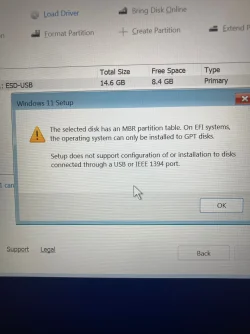
"The selected disk has an MBR partition table. On EFI systems, the operating system can only be installed to GPT disks.

Setup does not support configuration of or installation to disks connected through a USB or IEEE 1394 port."

This error message means:

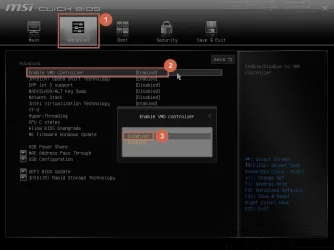
Windows Setup is unable to properly detect or access the internal storage drive because the Intel Rapid Storage Technology (IRST) VMD controller driver is missing. As a result, the installer may misidentify the disk or report misleading errors (such as MBR/GPT issues or unsupported installation locations).

To fix this, you can either:

- Disable VMD (Volume Management Device) in the BIOS, then install Windows 11 normally, or

- Load the Intel RST (IRST) VMD driver during Windows Setup, so the installer can correctly detect the internal drive.

For device information, I am on an MSI laptop with a Gen 13 Intel Core

On many newer MSI laptops (including yours), storage is managed through Intel VMD, and Windows Setup doesn’t include the driver by default.

VMD controller.webp
 
Last edited:

My Computers

System One System Two

  • OS
    Windows 11 Pro
    Computer type
    PC/Desktop
    CPU
    AMD Ryzen 9 9950X3D
    Motherboard
    ASRock B650E Taichi Lite
    Memory
    Kingston FURY Beast 64GB (2x32GB) DDR5 6000MT/s
    Graphics Card(s)
    ASUS TUF Gaming Radeon RX 9070 OC Edition 16GB GDDR6
    Hard Drives
    Solidigm P44 Pro 2TB M.2 NVMe SSD
  • Operating System
    Windows 11 Home
    Computer type
    Laptop
    Manufacturer/Model
    Lenovo Legion Pro 7i Gen 10 16"
    CPU
    Intel Core Ultra 9 275HX
    Memory
    64GB (2x 32GB) DDR5-6400
    Graphics card(s)
    NVIDIA GeForce RTX 5080 16GB GDDR7 Laptop GPU
    Hard Drives
    2x 1TB M.2 NVMe SSD (SK Hynix)
Hello, I come to you all after a series of unfortunate events. Recently, I had attempted to install Linux Mint onto my computer, and while all went well on that front, I encountered issues in regards to partition size. To counter this, I used GPARTED and went to boot it into a live session, yet ran into problems where I kept being told it could not authenticate my login.

Now, I am trying to install a fresh Windows 11 onto my desktop, and have experienced issues regarding that. While most of the setup runs fine and I can boot to the setup, I encounter an error where it tells me that the partition I am attempting to install to isn’t properly formatted(MBR not GPT). I am not sure how to fix this, much less reconcile with laptop so that it will love me again. Ive attached files of my error screens below, thank you so much for your help.

For device information, I am on an MSI laptop with a Gen 13 Intel Core—I believe it’s the Stealth, but I will double check if needed.
Are you trying to install on a Desktop or Laptop?
From the images you posted, you're trying to install on the Win 11 USB installation drive, not on the NVMe drive.
Follow glasskuter's post #2.
 

My Computers

System One System Two

  • OS
    Windows 11 Pro - Windows 7 HP 64 - Lubuntu
    Computer type
    PC/Desktop
    Manufacturer/Model
    custom build
    CPU
    i5 6600K - 800MHz to 4400MHz
    Motherboard
    GA-Z170-HD3P
    Memory
    4+4G GSkill DDR4 3000
    Graphics Card(s)
    IG - Intel 530
    Monitor(s) Displays
    Samsung 226BW
    Screen Resolution
    1680x1050
    Hard Drives
    (1) -1 SM951 – 128GB M.2 AHCI PCIe SSD drive for Win 11
    (2) -1 WD SATA 3 - 1T for Data
    (3) -1 WD SATA 3 - 1T for backup
    (4) -1 BX500 SSD - 256G for Windows 7 and Lubuntu
    PSU
    Thermaltake 450W TR2 gold
    Keyboard
    Old and good Chicony mechanical keyboard
    Mouse
    Logitech mX performance - 9 buttons (had to disable some)
    Internet Speed
    500 Mb/s
    Browser
    Firefox 64
  • Operating System
    Windows 11 Pro
    Computer type
    Laptop
    Manufacturer/Model
    Asus Q550LF
    CPU
    i7-4500U 800- 3000MHz
    Motherboard
    Asus Q550LF
    Memory
    (4+4)G DDR3 1600
    Graphics card(s)
    IG intel 4400 + NVIDIA GeForce GT 745M
    Sound Card
    Realtek
    Monitor(s) Displays
    LG Display LP156WF4-SPH1
    Screen Resolution
    1920 x 1080
    Hard Drives
    BX500 120G SSD for Windows and programs
    & 1T HDD for data
    Internet Speed
    500 Mb/s
    Browser
    Firefox 64
"The selected disk has an MBR partition table. On EFI systems, the operating system can only be installed to GPT disks.

Setup does not support configuration of or installation to disks connected through a USB or IEEE 1394 port.
"

Correction: I noticed that the error message above appears even when there is no actual issue with the disk configuration, for example, when the Windows 11 installation USB is selected instead of the internal drive. In the OP's case, the following instruction is more accurate:

VMD controller enabled.webp

If the "Select location to install Windows 11" screen shows only the Windows 11 installation USB and the internal storage is not visible at all, this usually indicates that the system is using Intel Rapid Storage Technology (IRST) with VMD (Volume Management Device).

On many newer laptops, the internal storage is managed by the VMD controller by default, and the Windows 11 installer does not include the required driver.

To resolve this issue, you can:

Disable the VMD controller in the BIOS (UEFI) settings, then install Windows 11 normally.

or

Load the VMD/IRST driver during Windows Setup, so the installer can detect the internal storage.
 

My Computers

System One System Two

  • OS
    Windows 11 Pro
    Computer type
    PC/Desktop
    CPU
    AMD Ryzen 9 9950X3D
    Motherboard
    ASRock B650E Taichi Lite
    Memory
    Kingston FURY Beast 64GB (2x32GB) DDR5 6000MT/s
    Graphics Card(s)
    ASUS TUF Gaming Radeon RX 9070 OC Edition 16GB GDDR6
    Hard Drives
    Solidigm P44 Pro 2TB M.2 NVMe SSD
  • Operating System
    Windows 11 Home
    Computer type
    Laptop
    Manufacturer/Model
    Lenovo Legion Pro 7i Gen 10 16"
    CPU
    Intel Core Ultra 9 275HX
    Memory
    64GB (2x 32GB) DDR5-6400
    Graphics card(s)
    NVIDIA GeForce RTX 5080 16GB GDDR7 Laptop GPU
    Hard Drives
    2x 1TB M.2 NVMe SSD (SK Hynix)
Back
Top Bottom