Trigger BitLocker login from folder shortcut


Witterings

Member
Local time
8:13 PM
Posts
36
OS
Windows 11
Is there any way BitLocker can be set to ask for a login if I try and access a folder on the encrypted drive?

I'm using a local account as opposed to Microsoft account, I've installed a 2nd drive in my PC which I've switched on BitLocker for and use that for work files.
I have a number of shortcuts on my desktop to folders on the drive and if I haven't previously unlocked it and double click on any of them I get a "Drive or network connection is unavailable" message.
If I go into This PC and double click the drive, it then asks for my password as it should and the folder shortcuts all work after that until the machine's rebooted.

I know it's a 1st world issue but it's something I do a lot and also try to navigate to the folder to attach documents to e-mails, if there was some way to trigger the login request when trying to access the folder would be awful useful.

Any help much appreciated.
 

My Computers

System One System Two

  • OS
    Windows 11
    Computer type
    Laptop
    Manufacturer/Model
    Lenovo Yoga 7 Gen10
    CPU
    Intel(R) Core(TM) Ultra 7 258V (2.20 GHz)
    Memory
    32gb
    Hard Drives
    1tb
  • Operating System
    Windows 11 Pro
    Computer type
    PC/Desktop
    Manufacturer/Model
    Dell Optiplex 7090
    CPU
    Intel i7
    Memory
    Currently 16gb ... may upgrade to 32gb+
    Hard Drives
    NVME 512gb
    Internet Speed
    1tb
    Browser
    Chrome
    Antivirus
    Windows Defender
Usually if you are going to Bitlocker protect a drive other than the Windows drive you would set those drives to auto unlock when you log into that system. Note that in order to auto unlock any drive other than the Windows drive, the Windows drive must be Bitlocker protected. If it is not, then auto unlock cannot be set on the data drives. The idea is that since the Windows drive is already protected and you have successfully signed on to the machine you have already proved your identity, so it is then OK to automatically unlock any other drives in the system that are Bitlocker protected. You can also set external drives to auto unlock and that is done on a drive by drive basis. As an example, I have several thumb drives that are Bitlocker protected but when I plug in one of those drives, they automatically unlock and so it's completely transparent to me.

If your Windows drive is not Bitlocker protected, then I think you should be able to do this:

Modify your shortcuts so that they run a batch file or PowerShell script. The shortcut would start by running a manage-bde command to unlock the data drive and then take you to the location that you want on that drive. I am not currently in front of a machine where I have other data drives that I can test with, but I can do that later this morning. In the meantime, the example below is just off the top of my head but I haven't tested it. But I think that this should work. So here is an example of using Manage-bde to unlock a drive and then take you to the location that the short cut would have normally pointed to.

@echo off
manage-bde -unlock D: -pw
explorer "D:\MyFolder"

In the above example, the only lines that really matter are the 2nd and 3rd lines. The second uses the command line Bitlocker command to unlock the D: drive. That command will prompt you for the password to unlock that drive. Then, after the drive is unlocked the 3rd line runs explorer and opens a specific folder on that drive. That should be the same location that your previous shortcut pointed to.

One thing that I will need to test is what happens if you were to run that batch file a 2nd time. After you run it the first time that drive would already be unlocked so I'm not sure if the command to unlock the drive would complain or throw an error message because the drive is already unlocked.

Again, I am not in front of a machine where I can test this right now, but I will do so later this morning. In the meantime, maybe this gives you something to experiment with or gives you some ideas. I'll check back in with you later this morning when I am in front of another machine. Unfortunately, that will only be about 2.5 hours or so from now.

For now, if you could just tell me if your C: drive is Bitlocker protected that would help a lot. If it is then we can just set up auto unlock on the data drives and that would solve the whole problem in the easiest possible way.
 

My Computers

System One System Two

  • OS
    Win11 Pro 25H2 (RTM+)
    Computer type
    PC/Desktop
    Manufacturer/Model
    Acemagic
    CPU
    Intel i7-14650HX
    Memory
    32 GB
    Graphics Card(s)
    No GPU - Built-in Intel Graphics
    Sound Card
    Integrated
    Monitor(s) Displays
    Varies as machine will often be moved to locations with different monitors
    Screen Resolution
    Varies
    Hard Drives
    1 x 1TB Gen 4 NVMe SSD
    PSU
    120W Power Brick
    Keyboard
    Corsair K70 Max RGB Magnetic Keyboard
    Mouse
    Logitech MX Master 3
    Internet Speed
    1Gb Up / 1 Gb Down
    Browser
    Edge
    Antivirus
    Windows Defender
  • Operating System
    Win11 Pro 25H2 (RTM+)
    Computer type
    Laptop
    Manufacturer/Model
    Lenovo ThinkBook 13x Gen 2
    CPU
    Intel i7-1255U
    Memory
    16 GB
    Graphics card(s)
    Intel Iris Xe Graphics
    Sound Card
    Realtek® ALC3306-CG codec
    Monitor(s) Displays
    13.3-inch IPS Display
    Screen Resolution
    WQXGA (2560 x 1600)
    Hard Drives
    2 TB 4 x 4 NVMe SSD
    PSU
    USB-C / Thunderbolt 4 Power / Charging
    Keyboard
    Backlit, spill resistant keyboard
    Mouse
    Buttonless Glass Precision Touchpad
    Internet Speed
    1Gb Up / 1Gb Down
    Browser
    Edge
    Antivirus
    Windows Defender
    Other Info
    WiFi 6e / Bluetooth 5.1 / Facial Recognition / Fingerprint Sensor / ToF (Time of Flight) Human Presence Sensor
Of course I would have another idea right after I committed my previous response. You could set Task Scheduler to automatically run the Manage-bde commands to unlock your data drives upon logon. Those commands would still prompt you for the passwords to unlock those drives but you would only need to do so once upon initial logon.
 

My Computers

System One System Two

  • OS
    Win11 Pro 25H2 (RTM+)
    Computer type
    PC/Desktop
    Manufacturer/Model
    Acemagic
    CPU
    Intel i7-14650HX
    Memory
    32 GB
    Graphics Card(s)
    No GPU - Built-in Intel Graphics
    Sound Card
    Integrated
    Monitor(s) Displays
    Varies as machine will often be moved to locations with different monitors
    Screen Resolution
    Varies
    Hard Drives
    1 x 1TB Gen 4 NVMe SSD
    PSU
    120W Power Brick
    Keyboard
    Corsair K70 Max RGB Magnetic Keyboard
    Mouse
    Logitech MX Master 3
    Internet Speed
    1Gb Up / 1 Gb Down
    Browser
    Edge
    Antivirus
    Windows Defender
  • Operating System
    Win11 Pro 25H2 (RTM+)
    Computer type
    Laptop
    Manufacturer/Model
    Lenovo ThinkBook 13x Gen 2
    CPU
    Intel i7-1255U
    Memory
    16 GB
    Graphics card(s)
    Intel Iris Xe Graphics
    Sound Card
    Realtek® ALC3306-CG codec
    Monitor(s) Displays
    13.3-inch IPS Display
    Screen Resolution
    WQXGA (2560 x 1600)
    Hard Drives
    2 TB 4 x 4 NVMe SSD
    PSU
    USB-C / Thunderbolt 4 Power / Charging
    Keyboard
    Backlit, spill resistant keyboard
    Mouse
    Buttonless Glass Precision Touchpad
    Internet Speed
    1Gb Up / 1Gb Down
    Browser
    Edge
    Antivirus
    Windows Defender
    Other Info
    WiFi 6e / Bluetooth 5.1 / Facial Recognition / Fingerprint Sensor / ToF (Time of Flight) Human Presence Sensor
Just waiting to hear back whether you have your Windows drive (C:) Bitlocker encrypted.
 

My Computers

System One System Two

  • OS
    Win11 Pro 25H2 (RTM+)
    Computer type
    PC/Desktop
    Manufacturer/Model
    Acemagic
    CPU
    Intel i7-14650HX
    Memory
    32 GB
    Graphics Card(s)
    No GPU - Built-in Intel Graphics
    Sound Card
    Integrated
    Monitor(s) Displays
    Varies as machine will often be moved to locations with different monitors
    Screen Resolution
    Varies
    Hard Drives
    1 x 1TB Gen 4 NVMe SSD
    PSU
    120W Power Brick
    Keyboard
    Corsair K70 Max RGB Magnetic Keyboard
    Mouse
    Logitech MX Master 3
    Internet Speed
    1Gb Up / 1 Gb Down
    Browser
    Edge
    Antivirus
    Windows Defender
  • Operating System
    Win11 Pro 25H2 (RTM+)
    Computer type
    Laptop
    Manufacturer/Model
    Lenovo ThinkBook 13x Gen 2
    CPU
    Intel i7-1255U
    Memory
    16 GB
    Graphics card(s)
    Intel Iris Xe Graphics
    Sound Card
    Realtek® ALC3306-CG codec
    Monitor(s) Displays
    13.3-inch IPS Display
    Screen Resolution
    WQXGA (2560 x 1600)
    Hard Drives
    2 TB 4 x 4 NVMe SSD
    PSU
    USB-C / Thunderbolt 4 Power / Charging
    Keyboard
    Backlit, spill resistant keyboard
    Mouse
    Buttonless Glass Precision Touchpad
    Internet Speed
    1Gb Up / 1Gb Down
    Browser
    Edge
    Antivirus
    Windows Defender
    Other Info
    WiFi 6e / Bluetooth 5.1 / Facial Recognition / Fingerprint Sensor / ToF (Time of Flight) Human Presence Sensor
@hsehestedt ... Cheers for those ..... I'm an advanced user who's not afraid to trying thing so that's not something I'm familiar with and it's for my g drive

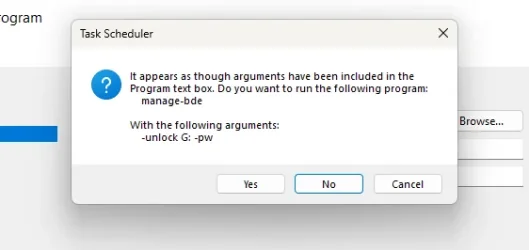
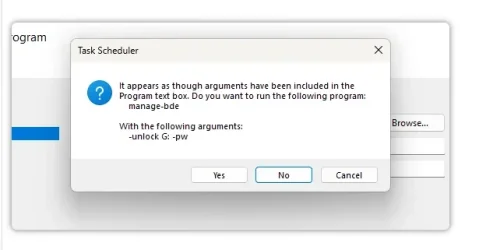
I tried going into task scheduler, create basic task on the write, giving it a name then next, Trigger = when computer starts, Action = start a program and copied / pasted manage-bde -unlock G: -pw and hitting next and got the following message which went over my head

1758213408209.webp

I then putting the same question onto chat gpt and received this reply and whilst I was able to copy the script in part 2 i dodn't know what I should then do with it / where to put it.

🧪 Step 2: Create an Unlock Script​


Create a PowerShell script that attempts to access G:, prompting BitLocker to request a password if it is locked.


🔸 Script:​


<span># Access the drive to trigger BitLocker unlock prompt<br>$drive = "G:\"<br>if (!(Test-Path $drive)) {<br> Write-Output "Drive $drive not found."<br> exit<br>}<br><br># Try to access a file or directory to trigger the unlock<br>Get-ChildItem "$drive" &gt; $null 2&gt;&amp;1<br></span>

📌 This will trigger Windows to prompt for the password if G: is locked.


🕓 Step 3: Create a Scheduled Task​


  1. Open Task Scheduler
  2. Click Create Task (not Basic Task)
  3. Under General:
    • Name: Prompt for G Drive Unlock
    • Select Run only when user is logged on
    • Check Run with highest privileges
  4. Go to Triggers tab:
    • Click New...
    • Begin the task: At log on
    • Select user: Your username
  5. Go to Actions tab:
    • Click New...
    • Action: Start a program
    • Program/script: powershell.exe
    • Add arguments:


      <span><span>-ExecutionPolicy Bypass -File </span><span><span>"C:\Path\To\Unlock-GDrive.ps1"</span></span><span><br></span></span>
  6. Go to Conditions and Settings — adjust as needed (defaults are OK)
  7. Click OK and enter admin password if prompted


✅ Result:​


When you log into Windows, the Task Scheduler will run the PowerShell script, attempt to access G:\, and if it's locked, Windows will display a BitLocker unlock prompt.
 

My Computers

System One System Two

  • OS
    Windows 11
    Computer type
    Laptop
    Manufacturer/Model
    Lenovo Yoga 7 Gen10
    CPU
    Intel(R) Core(TM) Ultra 7 258V (2.20 GHz)
    Memory
    32gb
    Hard Drives
    1tb
  • Operating System
    Windows 11 Pro
    Computer type
    PC/Desktop
    Manufacturer/Model
    Dell Optiplex 7090
    CPU
    Intel i7
    Memory
    Currently 16gb ... may upgrade to 32gb+
    Hard Drives
    NVME 512gb
    Internet Speed
    1tb
    Browser
    Chrome
    Antivirus
    Windows Defender
Just waiting to hear back whether you have your Windows drive (C:) Bitlocker encrypted.

No, may main drive isn't, I've used a local account and it goes straight into my home screen, I installed a 2nd drive G which is the encrypted one .... I was typing my reply above as you sent this further message :-)
 

My Computers

System One System Two

  • OS
    Windows 11
    Computer type
    Laptop
    Manufacturer/Model
    Lenovo Yoga 7 Gen10
    CPU
    Intel(R) Core(TM) Ultra 7 258V (2.20 GHz)
    Memory
    32gb
    Hard Drives
    1tb
  • Operating System
    Windows 11 Pro
    Computer type
    PC/Desktop
    Manufacturer/Model
    Dell Optiplex 7090
    CPU
    Intel i7
    Memory
    Currently 16gb ... may upgrade to 32gb+
    Hard Drives
    NVME 512gb
    Internet Speed
    1tb
    Browser
    Chrome
    Antivirus
    Windows Defender
No, may main drive isn't, I've used a local account and it goes straight into my home screen
Bear in mind that just because it goes straight in does not mean that the drive is not BitLocker encrypted. You would never be prompted for a password or see anything different than if the drive was not BitLocker encrypted. It would be 100% transparent to you if it is BitLocker encrypted.

But, for now, I'll simply take your word that C: is not BitLocker encrypted.

As for the message you are seeing, I suspect that may be because you are not running the task with higest priveledges. But let me set it up here so that I can provide a step-by-step.

Since that test will require me to logoff and back on again, I need to wait a little while because my PC is running a task right now that will take about anouther hour. So I won't be able to test it for roughly that long. I'll replay back again as soon as I can.
 

My Computers

System One System Two

  • OS
    Win11 Pro 25H2 (RTM+)
    Computer type
    PC/Desktop
    Manufacturer/Model
    Acemagic
    CPU
    Intel i7-14650HX
    Memory
    32 GB
    Graphics Card(s)
    No GPU - Built-in Intel Graphics
    Sound Card
    Integrated
    Monitor(s) Displays
    Varies as machine will often be moved to locations with different monitors
    Screen Resolution
    Varies
    Hard Drives
    1 x 1TB Gen 4 NVMe SSD
    PSU
    120W Power Brick
    Keyboard
    Corsair K70 Max RGB Magnetic Keyboard
    Mouse
    Logitech MX Master 3
    Internet Speed
    1Gb Up / 1 Gb Down
    Browser
    Edge
    Antivirus
    Windows Defender
  • Operating System
    Win11 Pro 25H2 (RTM+)
    Computer type
    Laptop
    Manufacturer/Model
    Lenovo ThinkBook 13x Gen 2
    CPU
    Intel i7-1255U
    Memory
    16 GB
    Graphics card(s)
    Intel Iris Xe Graphics
    Sound Card
    Realtek® ALC3306-CG codec
    Monitor(s) Displays
    13.3-inch IPS Display
    Screen Resolution
    WQXGA (2560 x 1600)
    Hard Drives
    2 TB 4 x 4 NVMe SSD
    PSU
    USB-C / Thunderbolt 4 Power / Charging
    Keyboard
    Backlit, spill resistant keyboard
    Mouse
    Buttonless Glass Precision Touchpad
    Internet Speed
    1Gb Up / 1Gb Down
    Browser
    Edge
    Antivirus
    Windows Defender
    Other Info
    WiFi 6e / Bluetooth 5.1 / Facial Recognition / Fingerprint Sensor / ToF (Time of Flight) Human Presence Sensor
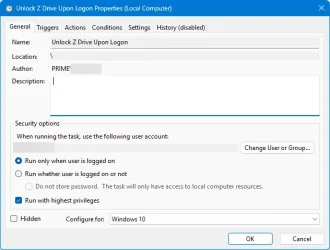
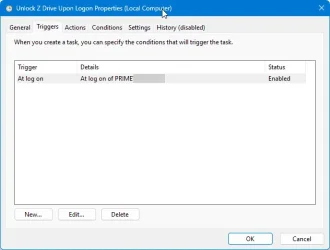
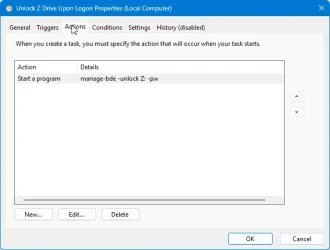
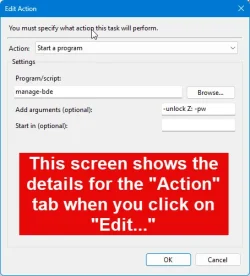
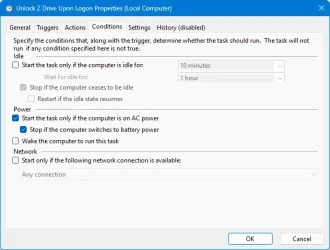
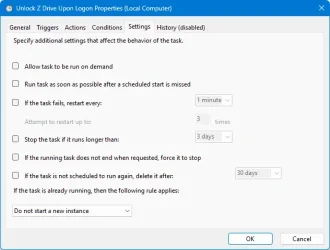
Sorry for the delay, got pulled into something else. The screenshots below show how I tested this, and yes, this worked flawlessly for me.

If you have any questions at all, please do let me know.

Image1.webp

Image2.webp

Image3.webp

Image3a.webp

Image4.webp

Image5.webp
 

My Computers

System One System Two

  • OS
    Win11 Pro 25H2 (RTM+)
    Computer type
    PC/Desktop
    Manufacturer/Model
    Acemagic
    CPU
    Intel i7-14650HX
    Memory
    32 GB
    Graphics Card(s)
    No GPU - Built-in Intel Graphics
    Sound Card
    Integrated
    Monitor(s) Displays
    Varies as machine will often be moved to locations with different monitors
    Screen Resolution
    Varies
    Hard Drives
    1 x 1TB Gen 4 NVMe SSD
    PSU
    120W Power Brick
    Keyboard
    Corsair K70 Max RGB Magnetic Keyboard
    Mouse
    Logitech MX Master 3
    Internet Speed
    1Gb Up / 1 Gb Down
    Browser
    Edge
    Antivirus
    Windows Defender
  • Operating System
    Win11 Pro 25H2 (RTM+)
    Computer type
    Laptop
    Manufacturer/Model
    Lenovo ThinkBook 13x Gen 2
    CPU
    Intel i7-1255U
    Memory
    16 GB
    Graphics card(s)
    Intel Iris Xe Graphics
    Sound Card
    Realtek® ALC3306-CG codec
    Monitor(s) Displays
    13.3-inch IPS Display
    Screen Resolution
    WQXGA (2560 x 1600)
    Hard Drives
    2 TB 4 x 4 NVMe SSD
    PSU
    USB-C / Thunderbolt 4 Power / Charging
    Keyboard
    Backlit, spill resistant keyboard
    Mouse
    Buttonless Glass Precision Touchpad
    Internet Speed
    1Gb Up / 1Gb Down
    Browser
    Edge
    Antivirus
    Windows Defender
    Other Info
    WiFi 6e / Bluetooth 5.1 / Facial Recognition / Fingerprint Sensor / ToF (Time of Flight) Human Presence Sensor
I tried it again but made sure I'd opened Task Scheduler as administrator and got the same message as the screenshot pasted below again, should I click yes to that?
1758271338623.webp
 

My Computers

System One System Two

  • OS
    Windows 11
    Computer type
    Laptop
    Manufacturer/Model
    Lenovo Yoga 7 Gen10
    CPU
    Intel(R) Core(TM) Ultra 7 258V (2.20 GHz)
    Memory
    32gb
    Hard Drives
    1tb
  • Operating System
    Windows 11 Pro
    Computer type
    PC/Desktop
    Manufacturer/Model
    Dell Optiplex 7090
    CPU
    Intel i7
    Memory
    Currently 16gb ... may upgrade to 32gb+
    Hard Drives
    NVME 512gb
    Internet Speed
    1tb
    Browser
    Chrome
    Antivirus
    Windows Defender
Okay, I can look into that. In the meantime, what happens if you select "Yes"?
 

My Computers

System One System Two

  • OS
    Win11 Pro 25H2 (RTM+)
    Computer type
    PC/Desktop
    Manufacturer/Model
    Acemagic
    CPU
    Intel i7-14650HX
    Memory
    32 GB
    Graphics Card(s)
    No GPU - Built-in Intel Graphics
    Sound Card
    Integrated
    Monitor(s) Displays
    Varies as machine will often be moved to locations with different monitors
    Screen Resolution
    Varies
    Hard Drives
    1 x 1TB Gen 4 NVMe SSD
    PSU
    120W Power Brick
    Keyboard
    Corsair K70 Max RGB Magnetic Keyboard
    Mouse
    Logitech MX Master 3
    Internet Speed
    1Gb Up / 1 Gb Down
    Browser
    Edge
    Antivirus
    Windows Defender
  • Operating System
    Win11 Pro 25H2 (RTM+)
    Computer type
    Laptop
    Manufacturer/Model
    Lenovo ThinkBook 13x Gen 2
    CPU
    Intel i7-1255U
    Memory
    16 GB
    Graphics card(s)
    Intel Iris Xe Graphics
    Sound Card
    Realtek® ALC3306-CG codec
    Monitor(s) Displays
    13.3-inch IPS Display
    Screen Resolution
    WQXGA (2560 x 1600)
    Hard Drives
    2 TB 4 x 4 NVMe SSD
    PSU
    USB-C / Thunderbolt 4 Power / Charging
    Keyboard
    Backlit, spill resistant keyboard
    Mouse
    Buttonless Glass Precision Touchpad
    Internet Speed
    1Gb Up / 1Gb Down
    Browser
    Edge
    Antivirus
    Windows Defender
    Other Info
    WiFi 6e / Bluetooth 5.1 / Facial Recognition / Fingerprint Sensor / ToF (Time of Flight) Human Presence Sensor
Okay, I can look into that. In the meantime, what happens if you select "Yes"?
I'll give it a try but may ne Monday before I do as it's on my work PC ..... thank you for all your help though, I do appreciate!
 

My Computers

System One System Two

  • OS
    Windows 11
    Computer type
    Laptop
    Manufacturer/Model
    Lenovo Yoga 7 Gen10
    CPU
    Intel(R) Core(TM) Ultra 7 258V (2.20 GHz)
    Memory
    32gb
    Hard Drives
    1tb
  • Operating System
    Windows 11 Pro
    Computer type
    PC/Desktop
    Manufacturer/Model
    Dell Optiplex 7090
    CPU
    Intel i7
    Memory
    Currently 16gb ... may upgrade to 32gb+
    Hard Drives
    NVME 512gb
    Internet Speed
    1tb
    Browser
    Chrome
    Antivirus
    Windows Defender
I'll give it a try but may ne Monday before I do as it's on my work PC ..... thank you for all your help though, I do appreciate!

Sounds good. Have a good weekend!
 

My Computers

System One System Two

  • OS
    Win11 Pro 25H2 (RTM+)
    Computer type
    PC/Desktop
    Manufacturer/Model
    Acemagic
    CPU
    Intel i7-14650HX
    Memory
    32 GB
    Graphics Card(s)
    No GPU - Built-in Intel Graphics
    Sound Card
    Integrated
    Monitor(s) Displays
    Varies as machine will often be moved to locations with different monitors
    Screen Resolution
    Varies
    Hard Drives
    1 x 1TB Gen 4 NVMe SSD
    PSU
    120W Power Brick
    Keyboard
    Corsair K70 Max RGB Magnetic Keyboard
    Mouse
    Logitech MX Master 3
    Internet Speed
    1Gb Up / 1 Gb Down
    Browser
    Edge
    Antivirus
    Windows Defender
  • Operating System
    Win11 Pro 25H2 (RTM+)
    Computer type
    Laptop
    Manufacturer/Model
    Lenovo ThinkBook 13x Gen 2
    CPU
    Intel i7-1255U
    Memory
    16 GB
    Graphics card(s)
    Intel Iris Xe Graphics
    Sound Card
    Realtek® ALC3306-CG codec
    Monitor(s) Displays
    13.3-inch IPS Display
    Screen Resolution
    WQXGA (2560 x 1600)
    Hard Drives
    2 TB 4 x 4 NVMe SSD
    PSU
    USB-C / Thunderbolt 4 Power / Charging
    Keyboard
    Backlit, spill resistant keyboard
    Mouse
    Buttonless Glass Precision Touchpad
    Internet Speed
    1Gb Up / 1Gb Down
    Browser
    Edge
    Antivirus
    Windows Defender
    Other Info
    WiFi 6e / Bluetooth 5.1 / Facial Recognition / Fingerprint Sensor / ToF (Time of Flight) Human Presence Sensor

Latest Support Threads

Back
Top Bottom