
This tutorial will show you how to to turn on or off cross-device copy and paste in the Phone Link app for your account in Windows 10 and Windows 11.
With the Phone Link app on your PC linked to your iPhone or Android phone, you can copy and paste or drag and drop content between your Android device and your Windows 10 or Windows 11 PC.
Cross-device copy and paste is supported on Surface Duo and Android devices that are running One UI version 2.1 or above. On your Android device, go to Settings > About > Software Information. A few examples of devices with this version are: Samsung Galaxy Note20 5G, Samsung Galaxy Note20 Ultra 5G, Samsung Galaxy S21 5G, Samsung Galaxy S21+ 5G, Samsung Galaxy S21 Ultra 5G, and Samsung Galaxy Z Flip devices.
It is only possible to copy text and images between your devices currently. Images above 1MB in size will be resized.
File drag and drop supports the transfer of all file types except for folders and files backed up to the cloud. You can transfer up to 100 files at a time, of any type. No single file can be larger than 512MB in size.
You can copy content and paste it into a Secure Folder, but you can't copy and paste content from a Secure Folder onto your PC. Copying something from a Secure Folder will still replace any content you have on your PC clipboard.
Every time you copy something on either device, what you copy will replace the clipboard content on both of your devices.
The apps you may be copying from and to may have different capabilities in how they read copied text, so you may occasionally lose your formatting.
While you can drag content between your phone and your PC, not all apps will accept content you want to transfer. If an app doesn’t accept your content, you can try using phone screen to transfer it instead. You can’t drag and drop files between your mobile apps from your PC.
Cross-device copy and paste requires the exchange of data between your PC and Android device. If you’ve allowed your devices to sync over mobile data, and you’re not connected to a Wi-Fi network, then copy and paste will use data. If the Use mobile data setting is turned off, you’ll only be able to copy and paste when both your Android device or Surface Duo and PC are connected to a Wi-Fi network.
Before using cross-device copy and paste, you will need to make sure the feature is turned on.
References:
Seamlessly transfer content between your devices | Microsoft Support
Learn how to use drag and drop to transfer content between your Android device and PC.
 support.microsoft.com
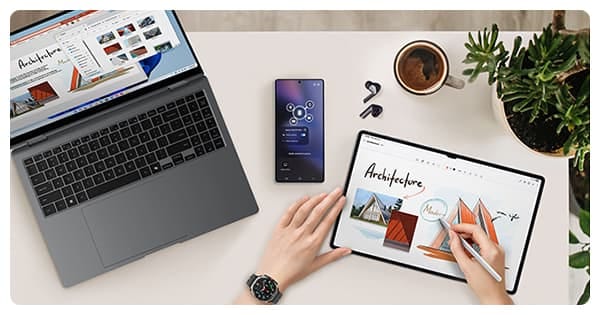
Connected Experience | Samsung Australia
Galaxy connected devices are perfect together, opening up new ways to seamlessly communicate, work, play and stay healthy.
 www.samsung.com
Contents
- Option One: Turn On or Off Cross-device Copy and Paste for Android Mobile Devices in Phone Link app
- Option Two: Turn On or Off Cross-device Copy and Paste for Android Mobile Devices in Settings
EXAMPLE: Cross-device Copy and Paste with supported Samsung devices
1 Open the Phone Link app on your Windows 10/11 PC.
2 Click/tap on the Settings (gear) icon. (see screenshots below)
3 Click/tap on Features in the middle Settings pane.
4 Perform an available option below:
- (OLD) In the right Features pane under "Additional settings", turn On (default) or Off Cross-device copy and paste for what you want.
- (NEW) In the right Features pane under "Related settings", click/tap on Manage other cross-device features on this PC to expand it open, click/tap on the Cross-device copy and paste link, and go to step 4 in Option Two.
1 Open Settings (Win+I).
2 Click/tap on Bluetooth & devices on the left side, and click/tap on Mobile devices on the right side. (see screenshot below)
3 Under Mobile devices, click/tap on an added phone you want to manage. (see screenshot below)
Mobile devices you added will not be listed if Allow this PC to access content and capabilities from your mobile devices is turned off.
4 Turn On (default) or Off Cross-device copy and paste for what you want. (see screenshot below)
5 You can now close the "Manage mobile devices" and Settings windows if you like.
That's it,
Shawn Brink
Last edited:














