Solved Unable to safely eject and power down external drives (This device is currently in use...)


JaxTD

New member
Local time
11:03 PM
Posts
25
OS
Windows 11
Hi, everyone!

While I'm far from being a tech wiz, I've dealt with Windows for quite some time so I know a thing or two, but I've been dealing with this issue that I can't resolve for a while.

I have an ASUS laptop (VivoBook Pro K6500ZC) and what I usually do is download the Media Creation Tool, create a bootable flash drive, then go to ''Recovery->Advanced Startup->choose the flash drive and I get to the part where I'm able to format and delete partitions (I format and delete them all) so it's a very clean install of Windows. For some reason, 25H2 doesn't seem to have the step where it says the drivers are being downloaded, but that was never an issue as it still pulls all the drivers and the device manager shows everything right.

I had performed a clean install of Windows the way I described above around mid-October and the system was stable - everything was working well. I had pretty much everything up-to-date and for like 3 weeks everything was running smoothly. No issues whatsoever.

Then, on November 4th, without tweaking any settings, installing anything, no system errors, nothing, I was unable to safely remove external drives. I plugged in an external SSD via type-C and when I tried to eject it it gave the ''This device is currently in use...'' error. I thought it had something to do with the external itself but then I plugged in another one (SSD via Type-C) and I got the same error. Then tried other externals (HDD via USB) and the same outcome. Windows gives me that error and doesn't power down the externals. Maybe once or twice it doesn't. 45 times out of 50, so to speak, it does.

Only flash drives are unaffected by this behavior.

It's odd as this happened a week before the November cumulative update came out, so there were no major changes to the system (I can't rule out silent micro updates that I don't know they're happening) but I'm certain of the timeline since the day before (November 3rd) I recall plugging in an external and I was able to eject and power it down safely.

I then tried to perform a clean install and no cigar. Then tried installing the preview of the November cumulative update and nothing. Then performed another clean install with the MCT already including the November update and nothing. Then the preview of the December update and nothing. Then today, the December update and...yup, you guessed it.

Thought this could be some hardware issue so I even tried the power cycle trick where you unplug the charger and all peripherals and hold down the power button for like 60s and nope. Had lengthily conversations with AI to try to troubleshoot this and nothing has worked. I always close the file explorer and make sure I wait a few seconds before clicking ''eject''. I even tried disabling Defender but it's a system thing.

Then it occurred to me to reset the laptop to factory settings through MyASUS in WinRE and 23H2 was automatically installed and the externals ejected properly. So this must be an issue pertaining to some changes in 25H2 and even so some sneaky update that messed things up for me. I have an older laptop running 25H2 (Windows installed in the same fashion and same build) and the externals work fine. I used the Feedback Hub to report the issue 3 weeks ago or so and nothing has been done regarding this.

Could this have been caused by some changes Windows silently made? Will the system start working well again after some monthly updates? Will Windows silently fix this?

I'd really appreciate your feedback and guidance. Thanks for reading.

 
Windows Build/Version
Windows 11 (25H2)

My Computer My Computer

At a glance

Windows 11
OS
Windows 11
Computer type
Laptop
Manufacturer/Model
ASUS
Did you check if your security app scanning that drives when you try to remove external drives?

You can add your external drives to Defender Exclusions for testing.

Even I dont use security app for long time, sometimes I get this message when i try to remove external drives that plugged in.

From Windows 10 1909 to Windows 11 25H2, still i am getting this message sometimes.
 

My Computer My Computer

At a glance

Windows 11 25H2 Home Single Language (26200.8...Intel Core i3-1115G48GBon-board
OS
Windows 11 25H2 Home Single Language (26200.8037)
Computer type
Laptop
Manufacturer/Model
LENOVO IdeaPad 5 15ITL05
CPU
Intel Core i3-1115G4
Motherboard
There is no such a God, I only know mother-Earth
Memory
8GB
Graphics Card(s)
on-board
Sound Card
on-board
Monitor(s) Displays
(s) is too ambitious for me
Screen Resolution
1920*1080
Hard Drives
256GB (SSD)
PSU
I was very young when I last saw a PSU
Case
...
Cooling
My coldness is enough to cool the computer
Keyboard
A broken and very clean keyboard
Mouse
Rat
Internet Speed
Slowest internet connection in Europe
Browser
ChromePortable / FirefoxPortable / TorBrowser
Antivirus
G-Virus
Other Info
I can simply say that I took the red pill and I am not happy with it.
There may be some app or background process has a handle on the drive. If that process ends up being Windows explorer, there's not much you can do about it. What I would do the next time you encounter this is do a quick restart of Windows Explorer.
open Task Manager.
If you see a simple view, click "More details".
Go to the Processes tab.
Scroll down to find Windows Explorer (or File Explorer).
Right-click on "Windows Explorer" and choose Restart. Your taskbar and desktop icons will disappear briefly. Explorer should restart on its own.

See if you can safely eject. If you still can't it's some other app or process holding the drive hostage.
---------------------------------------------
If you really want to go to the trouble and dig deep, use Resource Monitor to find the handle.
Try this, courtesy of co-pilot so consider the source. Just passing it on.

Step 1: Open Resource Monitor​

  • Press Win + R
  • Type resmon and hit Enter
  • Resource Monitor will open with several tabs (CPU, Memory, Disk, Network)
🔍 Step 2: Go to the CPU Tab
  • Click on the CPU tab at the top
  • Look for the section called Associated Handles (near the bottom)
🔎 Step 3: Search for Your Drive
  • In the Associated Handles search box, type your drive letter (for example, E: or F:)
  • Resource Monitor will filter and show all processes currently holding handles (open files or folders) on that drive
🛠 Step 4: Identify the Process
  • You’ll see a list of processes (e.g., explorer.exe, antivirus software, backup tools)
  • These are the programs preventing safe ejection
🛑 Step 5: Close or End the Process
  • If it’s a program you opened (like a media player), close it normally
  • If it’s something like explorer.exe or another background process, you can right‑click and choose End Process (only if you’re sure it’s safe — Explorer will restart automatically if closed)

✅ Step 6: Retry Safe Eject​

  • Once the locking process is closed, try ejecting the drive again from the system tray
💡 Tip: If you consistently see explorer.exe or system processes holding the drive, that’s a strong indicator of a Windows 11 25H2 bug

You can go even deeper with the command‑line method using Microsoft’s Sysinternals tool handle.exe. This is more powerful than Resource Monitor because it shows all open file handles, even hidden ones.

🛠 Step 1: Download Handle
  1. Go to the official Microsoft Sysinternals site: Handle - Sysinternals
  2. Download the ZIP file and extract it somewhere easy (like C:\Tools\Handle).

🛠 Step 2: Open Command Prompt​

  • Press Win + S, type cmd, right‑click Command Prompt, and choose Run as administrator.

Step 3: Run Handle​

  • Navigate to the folder where you extracted Handle:


    cd C:\Tools\Handle
  • Run Handle with your drive letter. For example, if your external drive is E::


    handle E:

🔎 Step 4: Interpret Results​

  • You’ll see a list of processes and the files they’re holding open on that drive.
  • Example output:


    explorer.exe pid: 1234 type: File E:\Documents\report.docx<br>antivirus.exe pid: 5678 type: File E:\System Volume Information<br>
  • This tells you exactly which program is locking the drive.

🛑 Step 5: Close or Kill the Process​

  • If it’s a normal app (like Word or VLC), close it.
  • If it’s a background process, you can use command line run as admin:

    taskkill /PID 1234 /F
    (replace 1234 with the process ID from Handle’s output).

✅ Step 6: Retry Safe Eject​

Once the locking process is gone, try ejecting the drive again.


My Computers My Computers

  • At a glance

    Windows 11 Pro 25H2 26200.8655i9-10900 10 core 20 threads32 gbnone-Intel UHD Graphics 630
    OS
    Windows 11 Pro 25H2 26200.8655
    Computer type
    PC/Desktop
    Manufacturer/Model
    Dell Optiplex 7080
    CPU
    i9-10900 10 core 20 threads
    Motherboard
    DELL 0J37VM
    Memory
    32 gb
    Graphics Card(s)
    none-Intel UHD Graphics 630
    Sound Card
    Integrated Realtek
    Monitor(s) Displays
    Benq 27
    Screen Resolution
    2560x1440
    Hard Drives
    2x1tb Solidigm m.2 nvme /External drives 512gb Samsung m.2 sata+2tb Kingston m2.nvme
    PSU
    500w
    Case
    MT
    Cooling
    Dell Premium
    Keyboard
    Logitech wired
    Mouse
    Logitech wireless
    Internet Speed
    so slow I'm too embarrassed to tell
    Browser
    #1 Edge #2 Firefox
    Antivirus
    Defender+MWB Premium
  • At a glance

    Windows 11 Pro 24H2 26200.8457AMD Ryzen 7 6800U32 gbintegrated
    Operating System
    Windows 11 Pro 24H2 26200.8457
    Computer type
    PC/Desktop
    Manufacturer/Model
    Beelink Mini PC SER5
    CPU
    AMD Ryzen 7 6800U
    Memory
    32 gb
    Graphics card(s)
    integrated
    Sound Card
    integrated
    Monitor(s) Displays
    Benq 27
    Screen Resolution
    2560x1440
    Hard Drives
    1TB Crucial nvme
    Keyboard
    Logitech wired
    Mouse
    Logitech wireless
    Internet Speed
    still too embarrassed to tell
    Browser
    Firefox
    Antivirus
    Defender
    Other Info
    System 3 is non compliant Dell 9020 i7-4770/24gb ram Win11 PRO 26200.8457
Did you check if your security app scanning that drives when you try to remove external drives?

You can add your external drives to Defender Exclusions for testing.

Even I dont use security app for long time, sometimes I get this message when i try to remove external drives that plugged in.

From Windows 10 1909 to Windows 11 25H2, still i am getting this message sometimes.
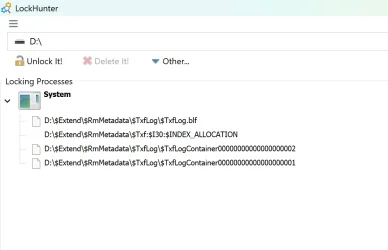
I only use Windows Defender, but even when disabled, I still get the error. I used an app to check if there were processes interfering with the ejection and the ''culprit'' was the most generic one, I don't recall the name, but basically ''system'' or something
 

My Computer My Computer

At a glance

Windows 11
OS
Windows 11
Computer type
Laptop
Manufacturer/Model
ASUS
There may be some app or background process has a handle on the drive. If that process ends up being Windows explorer, there's not much you can do about it. What I would do the next time you encounter this is do a quick restart of Windows Explorer.
open Task Manager.
If you see a simple view, click "More details".
Go to the Processes tab.
Scroll down to find Windows Explorer (or File Explorer).
Right-click on "Windows Explorer" and choose Restart. Your taskbar and desktop icons will disappear briefly. Explorer should restart on its own.

See if you can safely eject. If you still can't it's some other app or process holding the drive hostage.
---------------------------------------------
If you really want to go to the trouble and dig deep, use Resource Monitor to find the handle.
Try this, courtesy of co-pilot so consider the source. Just passing it on.

Step 1: Open Resource Monitor​

  • Press Win + R
  • Type resmon and hit Enter
  • Resource Monitor will open with several tabs (CPU, Memory, Disk, Network)
🔍 Step 2: Go to the CPU Tab
  • Click on the CPU tab at the top
  • Look for the section called Associated Handles (near the bottom)
🔎 Step 3: Search for Your Drive
  • In the Associated Handles search box, type your drive letter (for example, E: or F:)
  • Resource Monitor will filter and show all processes currently holding handles (open files or folders) on that drive
🛠 Step 4: Identify the Process
  • You’ll see a list of processes (e.g., explorer.exe, antivirus software, backup tools)
  • These are the programs preventing safe ejection
🛑 Step 5: Close or End the Process
  • If it’s a program you opened (like a media player), close it normally
  • If it’s something like explorer.exe or another background process, you can right‑click and choose End Process (only if you’re sure it’s safe — Explorer will restart automatically if closed)

✅ Step 6: Retry Safe Eject​

  • Once the locking process is closed, try ejecting the drive again from the system tray
💡 Tip: If you consistently see explorer.exe or system processes holding the drive, that’s a strong indicator of a Windows 11 25H2 bug
You can go even deeper with the command‑line method using Microsoft’s Sysinternals tool handle.exe. This is more powerful than Resource Monitor because it shows all open file handles, even hidden ones.

🛠 Step 1: Download Handle
  1. Go to the official Microsoft Sysinternals site: Handle - Sysinternals
  2. Download the ZIP file and extract it somewhere easy (like C:\Tools\Handle).

🛠 Step 2: Open Command Prompt​

  • Press Win + S, type cmd, right‑click Command Prompt, and choose Run as administrator.

Step 3: Run Handle​

  • Navigate to the folder where you extracted Handle:


    cd C:\Tools\Handle
  • Run Handle with your drive letter. For example, if your external drive is E::


    handle E:

🔎 Step 4: Interpret Results​

  • You’ll see a list of processes and the files they’re holding open on that drive.
  • Example output:


    explorer.exe pid: 1234 type: File E:\Documents\report.docx<br>antivirus.exe pid: 5678 type: File E:\System Volume Information<br>
  • This tells you exactly which program is locking the drive.

🛑 Step 5: Close or Kill the Process​

  • If it’s a normal app (like Word or VLC), close it.
  • If it’s a background process, you can use command line run as admin:

    taskkill /PID 1234 /F
    (replace 1234 with the process ID from Handle’s output).

✅ Step 6: Retry Safe Eject​

Once the locking process is gone, try ejecting the drive again.

Thank you very much for the detailed guide and the effort you put into it. I'm certain some of the steps above would be able to smash the interfering Windows process but it's incredibly painful to have to resort to the ''hammer approach'' to simply eject devices when it's something that has always worked fine and started happening out of the blue. I believe users shouldn't have to resort to such methods to be able to use such a key feature. Windows must've made some changes (silent update that updated USB drivers?) that are incompatible with my device. It's frustrating that they haven't tested them out properly, if it's the case.
 

My Computer My Computer

At a glance

Windows 11
OS
Windows 11
Computer type
Laptop
Manufacturer/Model
ASUS
I only use Windows Defender, but even when disabled, I still get the error. I used an app to check if there were processes interfering with the ejection and the ''culprit'' was the most generic one, I don't recall the name, but basically ''system'' or something

In that case, you may have to reboot (or turn off) the machine and unplug it while it's re-booting (or tuned off).

If I'm in a hurry with self-powered USB drives, I hot unplug them and haven't lost any info yet. But I also don't leave them plugged in all the time, either. I only plug them in when I need them.
 

My Computers My Computers

  • At a glance

    Windows 11 Pro 25H2 build: (26200.7623)32GB
    OS
    Windows 11 Pro 25H2 build: (26200.7623)
    Computer type
    Laptop
    Manufacturer/Model
    Microsoft Surface Pro
    Memory
    32GB
  • At a glance

    Microsoft 25H2 ProIntel Core Ultra 764GBIntel Integrated Graphics
    Operating System
    Microsoft 25H2 Pro
    Computer type
    Laptop
    Manufacturer/Model
    Dell Pro 14 - PC14250
    CPU
    Intel Core Ultra 7
    Memory
    64GB
    Graphics card(s)
    Intel Integrated Graphics
    Hard Drives
    Micron 1TB SSD

My Computer My Computer

At a glance

Windows 11
OS
Windows 11
Computer type
Laptop
Manufacturer/Model
ASUS
In that case, you may have to reboot (or turn off) the machine and unplug it while it's re-booting (or tuned off).

If I'm in a hurry with self-powered USB drives, I hot unplug them and haven't lost any info yet. But I also don't leave them plugged in all the time, either. I only plug them in when I need them.
I really detest that method. I know the chances of data loss are low, especially because I wait a few seconds before clicking ''eject'', but it's bugging me that this doesn't work when I really didn't change anything. :-)
 

My Computer My Computer

At a glance

Windows 11
OS
Windows 11
Computer type
Laptop
Manufacturer/Model
ASUS
see if hotswap allows ejecting them


My Computer My Computer

At a glance

Windows 11 Pro
OS
Windows 11 Pro
see if hotswap allows ejecting them

I'm not able to test this properly at the moment, but I believe I tried something similar when the issue first appeared. ''Brute force'' methods seem to work, but I'm not looking for a workaround per se. I believe this is a feature that should work properly without having to install or tweaking anything. I'm just baffled how this happens and if Windows may deliver some update to the USB drivers or something that may definitely resolve the issue.
 

My Computer My Computer

At a glance

Windows 11
OS
Windows 11
Computer type
Laptop
Manufacturer/Model
ASUS
I'm not able to test this properly at the moment, but I believe I tried something similar when the issue first appeared. ''Brute force'' methods seem to work, but I'm not looking for a workaround per se. I believe this is a feature that should work properly without having to install or tweaking anything. I'm just baffled how this happens and if Windows may deliver some update to the USB drivers or something that may definitely resolve the issue.
its a portable app that opens to the tray. was just wanting you to test it. if not thats fine
 

My Computer My Computer

At a glance

Windows 11 Pro
OS
Windows 11 Pro
its a portable app that opens to the tray. was just wanting you to test it. if not thats fine
I hope my reply didn't come across as rude. I really appreciate the help. It's just that I'm excluding the use of apps or tweaks until I get to the bottom of the issue, which in my opinion points to changes made by Windows updates to the stack. I'm just not sure if they'll fix it or if the changes they made are incompatible with my laptop and they won't even know (despite having submitted a bug report).
 

My Computer My Computer

At a glance

Windows 11
OS
Windows 11
Computer type
Laptop
Manufacturer/Model
ASUS
I really detest that method. I know the chances of data loss are low, especially because I wait a few seconds before clicking ''eject'', but it's bugging me that this doesn't work when I really didn't change anything. :-)

I agree it's not the best, but I've been running into the same issue with Windows as far back as Windows 98, so this problem isn't unique to you.

Apparently, it's the nature of the way Windows is. After 25 years, they haven't come up with a proper solution.
 

My Computers My Computers

  • At a glance

    Windows 11 Pro 25H2 build: (26200.7623)32GB
    OS
    Windows 11 Pro 25H2 build: (26200.7623)
    Computer type
    Laptop
    Manufacturer/Model
    Microsoft Surface Pro
    Memory
    32GB
  • At a glance

    Microsoft 25H2 ProIntel Core Ultra 764GBIntel Integrated Graphics
    Operating System
    Microsoft 25H2 Pro
    Computer type
    Laptop
    Manufacturer/Model
    Dell Pro 14 - PC14250
    CPU
    Intel Core Ultra 7
    Memory
    64GB
    Graphics card(s)
    Intel Integrated Graphics
    Hard Drives
    Micron 1TB SSD
I agree it's not the best, but I've been running into the same issue with Windows as far back as Windows 98, so this problem isn't unique to you.

Apparently, it's the nature of the way Windows is. After 25 years, they haven't come up with a proper solution.
I had no idea this issue went all the way back to Win98. It's really frustrating that they haven't been able to clearly come up with a solution that encompasses all devices. In my case, I kinda would've understood if after installing 25H2 the externals stopped ejecting properly. I'd think it was some 25H2 incompatibility due to new ''features'' or whatever. But everything was working fine on 25H2 and the externals stopped ejecting properly before any major updates (monthly). Literally one day it was working and the following it wasn't. :grrr::grrr:
 

My Computer My Computer

At a glance

Windows 11
OS
Windows 11
Computer type
Laptop
Manufacturer/Model
ASUS
I had no idea this issue went all the way back to Win98. It's really frustrating that they haven't been able to clearly come up with a solution that encompasses all devices. In my case, I kinda would've understood if after installing 25H2 the externals stopped ejecting properly. I'd think it was some 25H2 incompatibility due to new ''features'' or whatever. But everything was working fine on 25H2 and the externals stopped ejecting properly before any major updates (monthly). Literally one day it was working and the following it wasn't. :grrr::grrr:

Well if you plug in an external while you're logged in, you should see a little USB icon appear in the service tray. Right mouse-clicking it should give you an option to eject. You can also eject through Windows Explorer by right mouse clicking the drive itself in there, and selecting the eject option.

- With USB stick, that's generally been no problem.
- With self-powered SSD and HDD drives plugged in after you've booted up and while you're running, it should also be no problem.
- With powered drives, ejecting can be a problem.
- For any peripheral plugged in while the computer is turned off and then gets active when you've cold-booted up and turned back on, ejection can be a problem.

That's how I've been running into it the last 25 years.
 

My Computers My Computers

  • At a glance

    Windows 11 Pro 25H2 build: (26200.7623)32GB
    OS
    Windows 11 Pro 25H2 build: (26200.7623)
    Computer type
    Laptop
    Manufacturer/Model
    Microsoft Surface Pro
    Memory
    32GB
  • At a glance

    Microsoft 25H2 ProIntel Core Ultra 764GBIntel Integrated Graphics
    Operating System
    Microsoft 25H2 Pro
    Computer type
    Laptop
    Manufacturer/Model
    Dell Pro 14 - PC14250
    CPU
    Intel Core Ultra 7
    Memory
    64GB
    Graphics card(s)
    Intel Integrated Graphics
    Hard Drives
    Micron 1TB SSD
@JaxTD, I have exactly the same issue with my HP Laptop, don't know exactly when it started but I think in the last few weeks. Same as you, started happening out of the blue.
The CU on the 9th didn't resolve it.
 

My Computer My Computer

At a glance

Windows 11 Pro 25H212th Gen Intel(R) Core(TM) i7-1255U (1.70 GHz16.0 GBIntel iRIS Xe
OS
Windows 11 Pro 25H2
Computer type
Laptop
Manufacturer/Model
HP 15s-fq5xxx
CPU
12th Gen Intel(R) Core(TM) i7-1255U (1.70 GHz
Memory
16.0 GB
Graphics Card(s)
Intel iRIS Xe
Screen Resolution
1920 x 1080
Hard Drives
Samsung SSD 512 GB
Mouse
Logitech Pebble
Internet Speed
500/50 Mb/sec
Browser
Chrome
Antivirus
Defender
@JaxTD, I have exactly the same issue with my HP Laptop, don't know exactly when it started but I think in the last few weeks. Same as you, started happening out of the blue.
The CU on the 9th didn't resolve it.
I'm sorry to hear you're expericencing the same issue. It's really annoying when Windows starts acting up when we didn't give it any reasons to.
In the meantime, I'd suggest using the Feedback Hub app to report the issue. The form takes like 2 minutes to fill out. Maybe Microsoft will take a look at the issue and undo or fix whatever they did.
 

My Computer My Computer

At a glance

Windows 11
OS
Windows 11
Computer type
Laptop
Manufacturer/Model
ASUS
Update:
I had performed a clean install of 25H2 earlier this month on an older ASUS laptop model (8th gen processor) and it was working as intended.
Yesterday, I decided to perform another clean install on the same laptop an it also started to give me the ''This device is currently in use...'' error when ejecting externals. Tried the externals on another old laptop MSI (9th gen) and they eject fine. I had also recently installed 25H2 on that device.
My takeaway from now is that it's an issue pertaining to 25H2 and that it's mainly affecting ASUS laptops...
 

My Computer My Computer

At a glance

Windows 11
OS
Windows 11
Computer type
Laptop
Manufacturer/Model
ASUS
"mainly affecting ASUS laptops" My Acer laptop running 25H2 same eject issue. No issue with my Windows 10 Acer laptop.
 

My Computer My Computer

At a glance

Windows 11
OS
Windows 11
Computer type
Laptop
Manufacturer/Model
Acer

Latest Support Threads

Back
Top Bottom