This tutorial will show you how to completely uninstall the Windows Subsystem for Linux (WSL) feature in Windows 10 and Windows 11.
Windows Subsystem for Linux lets developers run a GNU/Linux environment -- including most command-line tools, utilities, and applications -- directly on Windows, unmodified, without the overhead of a traditional virtual machine or dualboot setup.
You must be signed in as an administrator to uninstall WSL.
Contents
- Option One: Uninstall Windows Subsystem for Linux (WSL) in Settings
- Option Two: Manually Uninstall Windows Subsystem for Linux (WSL)
This option is still slowly rolling out in the latest Windows Insider Beta and Dev builds (26300.7674 and 26220.7670).
This will install the WSL app, WSL Settings app, and Ubuntu app.
If you don't have this option available in the Insider channels above yet and would like to try it now, then you can run the ViVeTool command below to enable this feature.
vivetool.exe /enable /id:58182453

Enable or Disable Hidden Feature Flags in Windows 11
This tutorial will show you how to enable or disable hidden experimental feature flags in Windows 11. ViVeTool is an open source tool that can be used to enable hidden features that are part of controlled feature roll-outs or A/B testing in Insider builds of Windows 11. Starting with Windows...
 www.elevenforum.com
2 Click/tap on System on the left side, and click/tap on Advanced on the right side. (see screenshot below)
3 Click/tap on Virtual Workspaces. (see screenshot below)
4 Turn off Windows Subsystem for Linux. (see screenshot below)
5 Click/tap on Yes if prompted by UAC.
6 You can close Settings once WSL has finished uninstalling.
1 Open the Start menu
 .
.2 Click/tap on the All apps button. (see screenshot below)
3 Perform the following steps to uninstall all installed Linux distros: (see screenshots below)
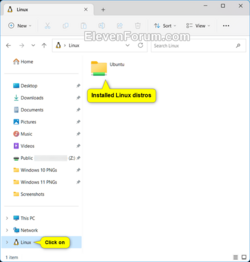
You can open File Explorer (Win+E), and click/tap on Linux in the navigation pane to see all your installed Linux distros to uninstall.
- Right click on the Linux distro (ex: "Ubuntu on Windows").
- Click/tap on Uninstall.
- Click/tap on Uninstall to confirm.
4 Perform the following steps to uninstall the Windows Subsystem for Linux app: (see screenshots below)
- Right click on the Windows Subsystem for Linux app.
- Click/tap on Uninstall.
- Click/tap on Uninstall to confirm.
5 Open Windows Features (OptionalFeatures.exe).
6 Uncheck Windows Subsystem for Linux, and click/tap on OK. (see screenshot below)
7 Click/tap on Restart now when ready to restart the computer to finish uninstalling WSL. (see screenshot below)
That's it,
Shawn Brink
Related Tutorials
- Install Windows Subsystem for Linux (WSL) in Windows 11
- Find Windows Subsystem for Linux (WSL) Installed App Version in Windows 11
- Add "Show Linux" on Navigation Pane to Folder Options in Windows 11
- Add or Remove Linux in Navigation Pane of File Explorer in Windows 11
- Uninstall Windows Subsystem for Linux (WSL) Distro in Windows 11
Last edited: