Updating Microsoft Secure Boot keys before expiration in June 2026


UPDATE 4/02:

UPDATE 2/10:


 Windows IT Pro Blog:

Secure Boot playbook for certificates expiring in 2026

The first set of tools and steps are now available to help you proactively update your Secure Boot certificates before they expire in June of 2026.

Secure Boot is more mature and robust today than it was some years ago. Coupled with the Unified Extensible Firmware Interface (UEFI) firmware signing process, Secure Boot uses cryptographic keys, known as certificate authorities (CAs), to validate that firmware modules come from a trusted source. This helps prevent malware from running early in the startup sequence of a Windows device.

Secure Boot certificates have always had expiration dates. New certificates help ensure that your devices stay up to date with the latest security protections. That is why your organization will need to install the 2023 CAs before the 2011 CAs start expiring in June of 2026.

Note: Need a refresher on why updating Secure Boot certificates is so important?
Many Windows PCs manufactured since 2024 already have the updated 2023 certificates. For the remaining devices, Microsoft is delivering new Secure Boot certificates through Windows monthly updates, with partner original equipment manufacturers (OEMs) making firmware updates available to help ensure compatibility.

If you wish to proactively update your Secure Boot certificates, this post contains initial steps you can take and tools you can use, with more scalable approaches coming soon. At a minimum, we encourage you to monitor the progress of your device fleet from the start.

Let’s get started. Here’s a summary of what you can do today to prepare:
  • Step 1: Inventory and prepare your environment
  • Step 2: Monitor and check your devices for Secure Boot status
  • Step 3: Apply OEM firmware updates before Microsoft updates
  • Step 4: Plan and pilot Secure Boot certificate deployments
  • Step 5: Troubleshoot and remediate common issues

Step 1: Inventory and prepare your environment​

For most devices in your organization, Microsoft will automatically update high-confidence devices via Windows Update. However, you can validate and actively roll out these updates, in which case, you would start by conducting an inventory.

Inventory

Most devices manufactured since 2012 have Secure Boot enabled, but you should always verify that. You should also check the status of the Secure Boot certificates with sample inventory PowerShell commands or by checking the value of the UEFICA2023Status registry key (it should ultimately be “updated”). Out of the devices that show up as not updated, build a small, representative sample. We recommend that you focus on the less common devices, for which high confidence determination isn’t automatic. Then follow the rest of the steps outlined in this post to pilot the certificate updates and help ensure that deployment is successful

Prepare select devices

To prepare devices for Secure Boot certificate deployment, consider how you’ll manage it. There are several approaches to managing Secure Boot certificate updates. Today, you can use registry keys or Group Policy. A Configuration Service Provider (CSP) for mobile device management (MDM), such as Microsoft Intune, is coming soon. Bookmark Windows Secure Boot certificate expiration and CA updates - Microsoft Support for the latest updates.
  1. The primary method is to deploy the certificates to devices that have been validated as ready for the update. See Step 4 when you’re ready to deploy these updates!
  2. For the more common device configurations in your environment, you can utilize two “assists” to manage your deployment:
    • Get new certificates through monthly Windows updates for high-confidence devices. This option is enabled by default for devices that are ready for new certificates. Microsoft will update these devices for you unless you opt out. To opt out, set the HighConfidenceOptOut registry key<a href="Secure Boot playbook for certificates expiring in 2026 - Windows IT Pro Blog" target="_self" rel="nofollow noopener noreferrer">ii</a> value to 1 or set the Automatic Certificate Deployment via Updates Group Policy to Disabled.
    • Opt devices in to Microsoft-managed controlled feature rollout. With registry keys, set the value of MicrosoftUpdateManagedOptIn to 1 to opt in to Microsoft-managed controlled feature rollout. The value of 0 or non-existent key means that you’re opted out. With Group Policy, configure the Certificate Deployment via Controlled Feature Rollout policy to Enabled. Note: To opt in, please configure devices to share required diagnostic data with Microsoft.
Important: All Secure Boot registry keys are under these two paths:

HKEY_LOCAL_MACHINE\SYSTEM\CurrentControlSet\Control\SecureBoot
HKEY_LOCAL_MACHINE\SYSTEM\CurrentControlSet\Control\SecureBoot\Servicing


See Registry key updates for Secure Boot: Windows devices with IT-managed updates for more details.

Group Policy settings are available to you under the following path: Computer Configuration > Administrative Templates > Windows Components > Secure Boot. To get the updates that include the Group Policy for deploying Secure Boot certificate updates, download the latest Administrative Templates (.admx) for Windows 11 and Windows Server.

Step 2: Monitor and check your devices for Secure Boot status​

Check the Secure Boot status of your devices before and after deployment. Soon, you will be able to use your preferred management and reporting tools. For now, you can use registry keys or Windows Event Log events to identify which devices already have new certificates and which ones need attention.

Deployment progress

The text value of the UEFICA2023Status registry key will indicate if your certificate deployment status is not started, in progress, or updated. The value will change progressively until all new certificates and the new boot manager have been deployed successfully.

Successful deployment
  • Audit the Windows System Event Log events for Event ID 1808. This informational event indicates that the device has the required new Secure Boot certificates applied to the device’s firmware.
  • Audit the UEFICA2023Error registry key for issues. This key should not exist unless an error is pending.
  • Check that the text value of the UEFICA2023Status registry key reads as “Updated.”
Errors during deployment
  • Audit the Windows System Event Log for Event ID 1801.This error event indicates that the updated certificates have not been applied to the device. Analyze details specific to the device, including device attributes, that will help you in correlating which devices still need updating.
  • Check if the UEFICA2023Error registry key exists. If so, it indicates an error in certificate deployment. The error itself won’t appear in the Event Log. Trace related issues through Secure Boot DB and DBX variable update events.

Step 3: Apply OEM firmware updates before Microsoft updates​

Updated firmware can help prevent compatibility problems and ensure new Secure Boot certificates are accepted. If your organization has identified Secure Boot update issues or your OEM recommends a firmware update, apply the latest BIOS/UEFI update before installing Secure Boot–related Windows updates.

Some OEMs provide firmware updates that include important fixes and updated certificate stores. These updates help Secure Boot function correctly with new Windows certificates. Microsoft works closely with OEM partners to ensure these updates integrate smoothly with Windows.

Step 4: Plan and pilot Secure Boot certificate deployments​

As you’ve seen in Step 1, Microsoft can assist with your Secure Boot updates if you enable diagnostic data.

You can also deploy new Secure Boot certificates yourself for devices that don’t already have them. Choose a way to do this with registry keys, via Windows Configuration System (WinCS) command-line interface (CLI), or using Group Policy today. Pilot your desired method first on a representative set of devices to gain confidence.

In a typical enterprise deployment, whatever option you choose, allow approximately 48 hours and one or more restarts after changing configuration for updates to fully apply. See How updates are deployed for more details. For testing scenarios, you can accelerate the experience by following the steps outlined in Device Testing Using Registry Keys.

Important: Avoid mixing deployment methods on the same device. For additional technical recommendations to help you plan and deploy your Secure Boot updates, see Deployment strategies.

Option 1: Deploy certificates with registry keys​

Find the AvailableUpdates registry key located under this registry path:

HKEY_LOCAL_MACHINE\SYSTEM\CurrentControlSet\Control\SecureBoot

Set its value to 0x5944 to deploy all needed certificates and update to the Windows UEFI CA 2023 signed boot manager. This key corresponds to the Group Policy setting Enable Secure Boot certificate deployment. For details, see Registry key updates for Secure Boot: Windows devices with IT-managed updates.

Option 2: Deploy certificates via Windows Configuration System (WinCS)​

New command-line tools are now available for domain-joined clients on Windows 11, versions 25H2, 24H2, and 23H2.

These include both a traditional executable and a PowerShell module to query and apply Secure Boot configurations locally to a device. For step-by-step guidance, see Windows Configuration System (WinCS) APIs for Secure Boot.

Deploy the Secure Boot updates via WinCS:
  • Feature name: Feature_AllKeysAndBootMgrByWinCS
  • WinCS key value: F33E0C8E002
  • Secure Boot configuration state: Enabled

Option 3: Deploy certificates using Group Policy​

Group Policy settings are available by navigating to Computer Configuration > Administrative Templates > Windows Components > Secure Boot.

To apply Secure Boot updates to devices using Group Policy, set the Enable Secure Boot certificate deployment policy to Enabled. This lets Windows automatically begin the certificate deployment process. This setting corresponds to the registry key AvailableUpdates.

Be sure to get the latest version of the .admx for Windows 11 and Windows Server. For more details, see Group Policy Objects (GPO) method of Secure Boot for Windows devices with IT-managed updates.

Option 4: Deploy certificates using mobile device management (coming soon)​

Soon, you’ll be able to manage Secure Boot updates using MDM solutions, such as Microsoft Intune. When this method is available, we will post updated guidance at Windows Secure Boot certificate expiration and CA updates - Microsoft Support.

Step 5. Troubleshoot and remediate common issues​

You can also use registry keys and Windows Event Log events to identify and resolve common issues:
  • The UEFICA2023Error registry key doesn’t exist if there are no errors. If it exists with a value other than 0, check your remediation recommendations in Secure Boot DB and DBX variable update events.
  • The AvailableUpdates registry key on a device is set to 0x4104. If it doesn’t clear the 0x0004 bit even after multiple restarts, the device doesn’t progress past deploying the new Key Exchange Key (KEK) certificate. If you encounter this error, check with your OEM to confirm they have followed the steps outlined in Windows Secure Boot Key Creation and Management Guidance.
  • If Event Viewer Windows Logs for System registers an Event ID 1795, it means that there was an error when Windows attempted to hand off the certificates to firmware. Check with the OEM to see if there is a firmware update available for the device to resolve this issue.

Your update strategy begins today​

Today, you can start preparing, monitoring, deploying, and troubleshooting Secure Boot certificates in advance of the June 2026 expiration date. The new registry keys, WinCS, Group Policy, and Windows Log tools are here to support you and are just the beginning. More tools for additional scenarios are in development.

For the latest information, bookmark Windows Secure Boot certificate expiration and CA updates. Looking for a specific topic?

 Source:


 Windows IT Pro Blog:

Updating Microsoft Secure Boot keys​

Microsoft, in collaboration with our ecosystem partners, is preparing to roll out replacement certificates that’ll set new Unified Extensible Firmware Interface (UEFI) Certificate Authorities (CAs) trust anchors in Secure Boot for the future. Look out for Secure Boot database updates rolling out in phases to add trust for the new database (DB) and Key Exchange Key (KEK) certificates. This new DB update is available as an optional servicing update for all Secure Boot enabled devices from February 13, 2024.

What is Secure Boot?​

Secure Boot is a security feature in the UEFI that helps ensure that only trusted software runs during the system’s boot sequence. It works by verifying the digital signature of any software against a set of trusted digital keys stored in the UEFI. As an industry standard, UEFI’s Secure Boot defines how platform firmware manages certificates, authenticates firmware, and how the operating system (OS) interfaces with this process. For more details on UEFI and Secure Boot, please refer to this article.

Secure Boot was first introduced to Windows systems with the Windows 8 release to protect against the emerging pre-boot malware (bootkit) threat at that time. Since then, Secure Boot has continued to be a part of Microsoft's Trusted Boot security architecture. Secure Boot authenticates modules such as UEFI firmware drivers, bootloaders, applications, and option ROMs (Read-Only Memory), which are firmware run by the PC BIOS during platform initialization, before they are all executed. As the final step of the Secure Boot process, the firmware verifies the Windows boot loader is trusted by Secure Boot and then passes control to the boot loader which in turn verifies, loads into memory, and launches Windows. This process coupled with the UEFI firmware signing process helps to ensure that only verified code executes before Windows, preventing attackers from utilizing the boot path as an attack vector. To learn more about how Secure Boot fits in with the overall Windows chip-t-cloud security, please refer to the Windows Security Book RWMyFE.

Trust and authenticity in Secure Boot are built using the Public-Key Infrastructure (PKI). This establishes a certificate management system which utilizes CAs to store digital certificates. These CAs, consisting of Original Equipment Manufacturer (OEM) or their delegates and Microsoft, generate key pairs that form the root of trust of a system.
bS00MDU1MzI0LTU1MTA0OWlGOEI2MDY4MzMyRDJDNzBC


Secure Boot “root of trust”: Setting trust anchors for the future​

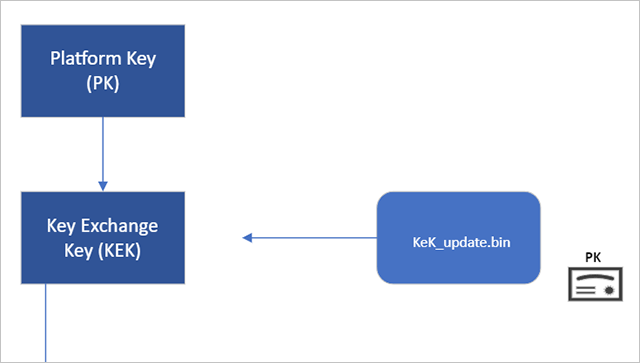
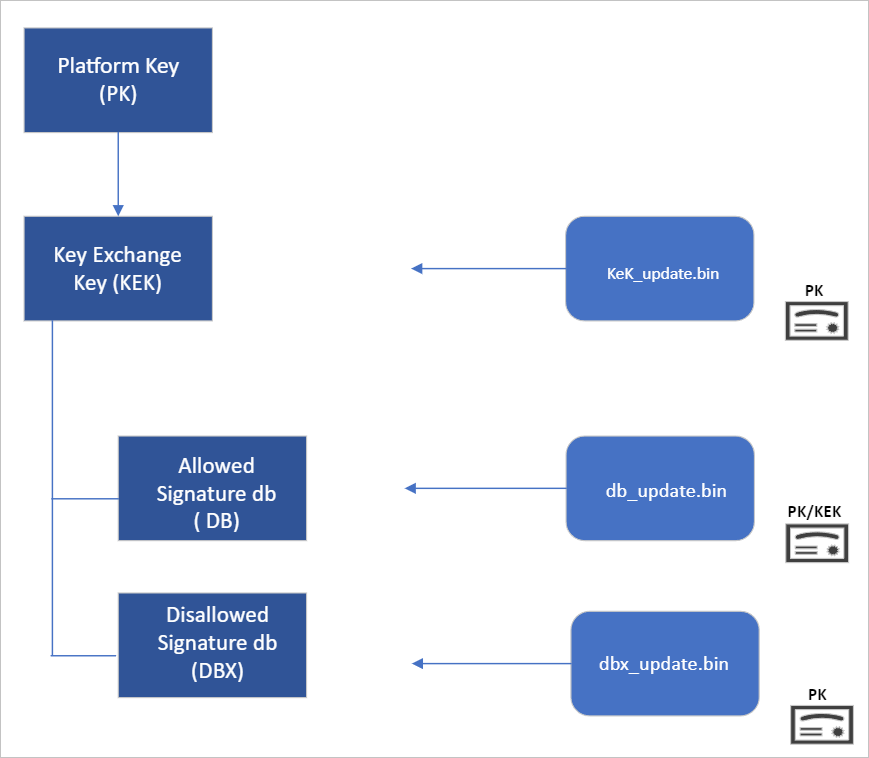
Secure Boot’s root of trust utilizes a hierarchical system, where the Platform Key (PK) is typically managed by the OEM and used to sign updates to the KEK database. The KEK in turn signs updates to both the Allowed Signature DB and the Forbidden Signature Database (DBX).

The Secure Boot Allowed Signature DB and the DBX are integral to the functionality of Secure Boot. Bootloader modules’ signing authority must be allowlisted by the Secure Boot DB, while the DBX is used for revoking previously trusted boot components. Updates to the DB and DBX must be signed by a KEK in the Secure Boot KEK database.

The configuration of Secure Boot DB and KEK for Windows devices has remained the same since Windows 8. Microsoft requires every OEM to include the same three certificates managed by Microsoft for Windows and in support of the third-party hardware and OS ecosystem. These include the Microsoft Corporation KEK CA 2011 stored in the KEK database, and two certificates stored in the DB called the Microsoft Windows Production PCA 2011, which signs the Windows bootloader, and the Microsoft UEFI CA 2011 (or third-party UEFI CA), which signs third-party OS and hardware driver components.

All three of these Microsoft certificates expire in 2026. So, in collaboration with our ecosystem partners, Microsoft is preparing to roll out replacement certificates that will set new UEFI CA trust anchors for the future. Microsoft will be rolling out Secure Boot database updates in phases to add trust for the new DB and KEK certificates. The first DB update will add the Microsoft Windows UEFI CA 2023 to the system DB. The new Microsoft Windows UEFI CA 2023 will be used to sign Windows boot components prior to the expiration of the Windows Production CA 2011. This DB update will be optional for the February 2024 servicing and preview updates, and can be manually applied to devices. Microsoft will slowly roll out this DB update as we validate devices and firmware compatibility globally. The full DB update’s controlled-rollout process to all Windows customers will begin during the 2024 April servicing and preview updates, ahead of the certificate expiration in 2026. Meanwhile, efforts to update the Microsoft UEFI CA 2011 (aka third-party UEFI CA) and Microsoft Corporation KEK CA 2011 will begin late 2024, and will follow a similar controlled rollout process as this DB update.

While Microsoft has frequently performed DBX updates globally since the inception of Secure Boot, this will be the first DB update performed on such a large scale. We’re actively collaborating with our OEM partners to identify and address bugs in firmware implementation that could result in unbootable systems or render a device unreceptive to the DB update. To ensure a successful rollout, devices with identified issues will be suspended from receiving the update until a fix is released.

Microsoft is taking a very deliberate and cautious approach to rolling out this update. With this DB update, Microsoft will sustain its ability to service all Windows devices’ boot components.

Guidance to manually apply DB update​

The DB update is available on February 13, 2024, along with manual steps to allow customers to test for firmware compatibility, especially for organizations with fleets of devices. If you would like to manually apply the DB update to validate that your system is compatible, please read the following instructions. These actions should be completed with non-critical hardware representing devices in your environment.

Pre-requisite checks​

Before attempting the DB update, please ensure to perform the necessary pre-requisite checks:
  1. If you intend to manually apply this update to a large group of devices, we advise that you begin by rolling out to individual devices with the same firmware and specifications first to minimize the risks in the case of firmware bugs in your devices.
  2. Please verify that your UEFI firmware version is the most recent available version by your firmware vendor or OEM.
  3. For data backup steps, please refer to this guide.
  4. If you use BitLocker or if your enterprise has deployed BitLocker on your machine, ensure to backup BitLocker Keys:

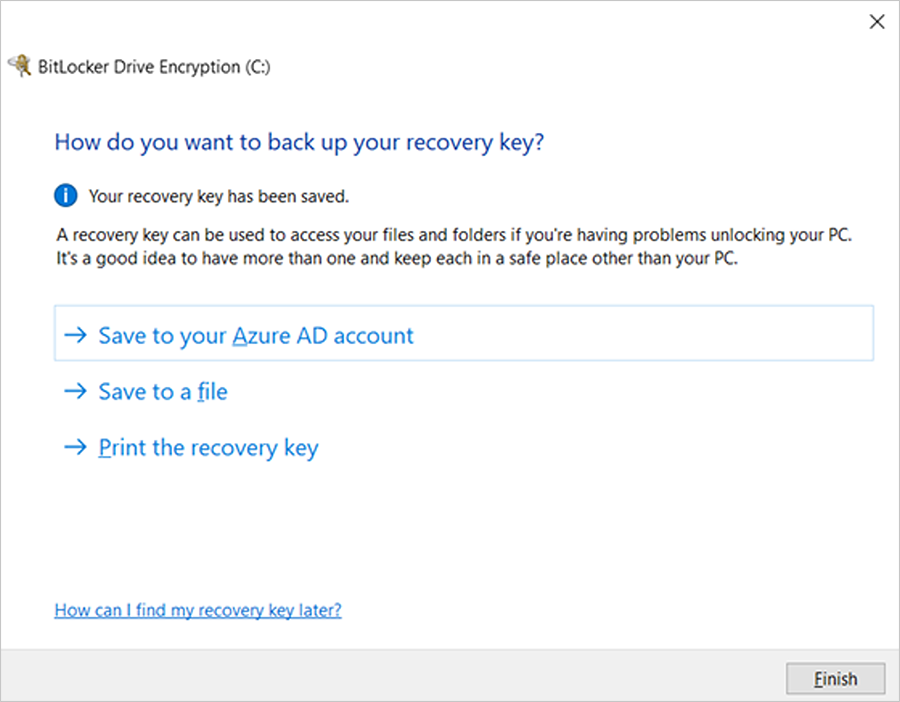
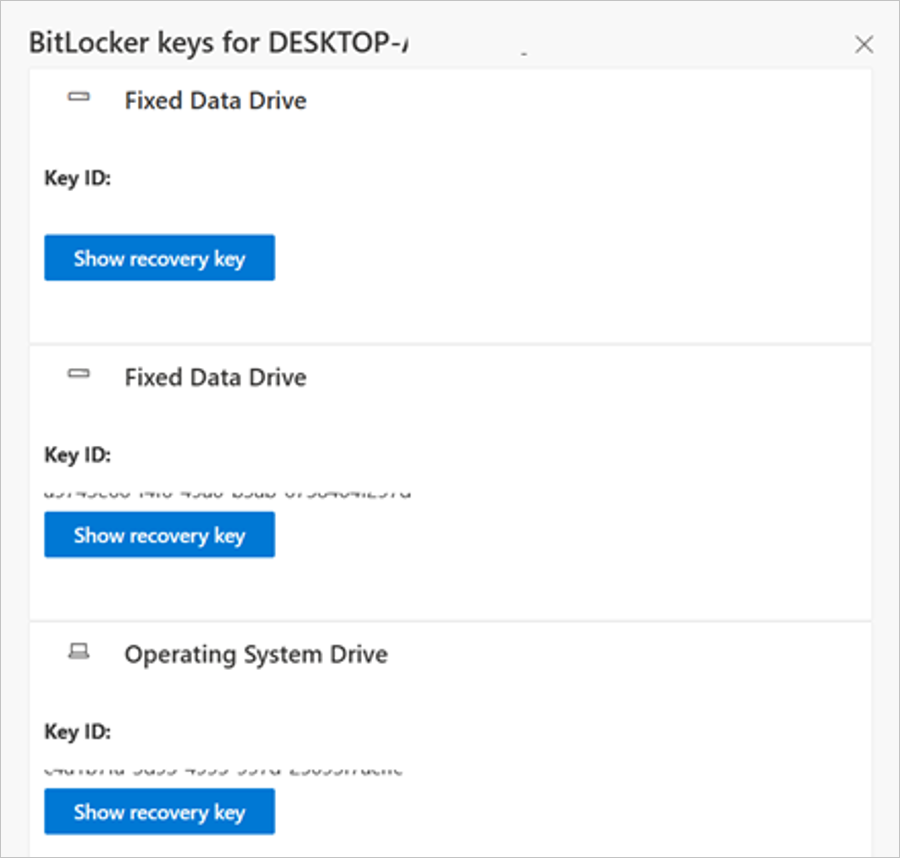
    A) See this portal to ensure your BitLocker keys are backed up before your next reboot for your selfhost device. In the unlikely event that device becomes inoperable after receiving the update, the hard drive can still be unlocked.

    B) If the keys are backed up, the UI should resemble the following:

    bS00MDU1MzI0LTU1MTA1MGk5NzY0QzRENjdBQkYwRkE2


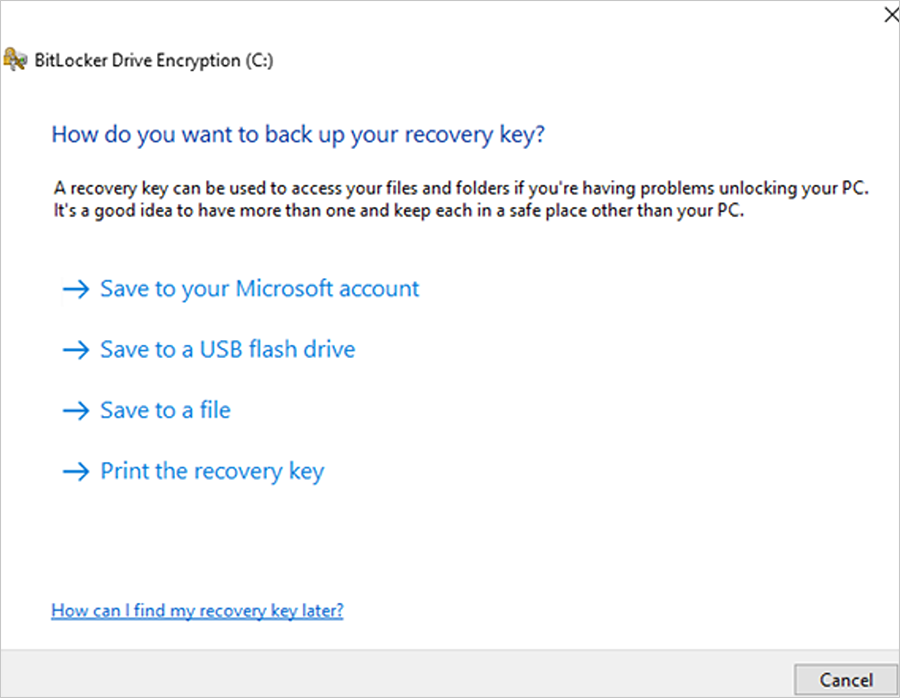
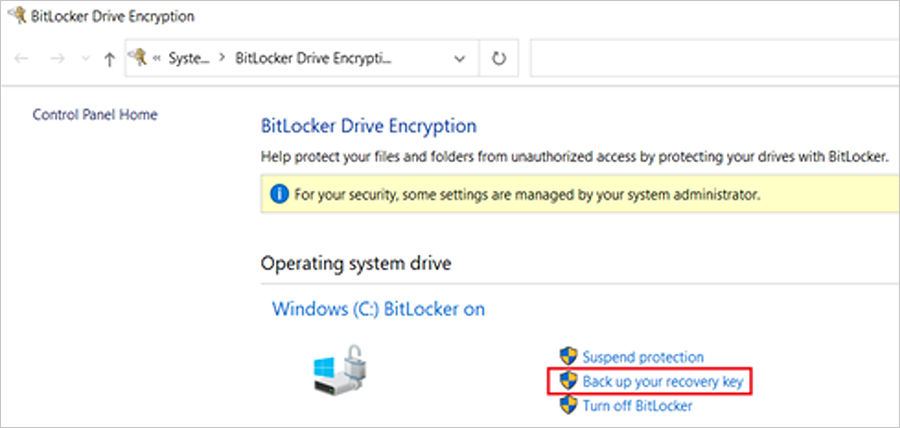
    C) If the keys are not backed up, please open Windows Search to search for “Manage BitLocker” and select Back up your recovery key followed by Save to your Azure AD or MSA account.
    bS00MDU1MzI0LTU1MTA1MWlEQkZDQTZDNDBDOEQwNzMy


    bS00MDU1MzI0LTU1MTA1Mmk5QjE2MDRBRTAyMUE1MDQ5


    bS00MDU1MzI0LTU1MTA1M2k2MzgxMUE1NEQ5NjEzREE4
For users that use a local account instead of an Azure Active Directory (AAD) or Microsoft account (MSA), you can print your recovery password, save to a file, and store it in a secure location.


 Formal DB update steps

  1. Apply the February 2024 (or later) security update.
  2. Open a PowerShell console and ensure that PowerShell is running as an administrator before running the following commands:
    1. Set the registry key to:

      Set-ItemProperty -Path "HKLM:\SYSTEM\CurrentControlSet\Control\SecureBoot" -Name "AvailableUpdates" -Value 0x40
    2. Run the following scheduled task as:

      Start-ScheduledTask -TaskName "\Microsoft\Windows\PI\Secure-Boot-Update"
  3. Reboot the machine twice after running these commands to confirm that the machine is booting with the updated DB.
  4. To verify that the Secure Boot DB update was successful, open a PowerShell console and ensure that PowerShell is running as an administrator before running the following command:

    [System.Text.Encoding]::ASCII.GetString((Get-SecureBootUEFI db).bytes) -match ‘Windows UEFI CA 2023’

    bS00MDU1MzI0LTU1MTA1NGlGNjJBRDlDRTNCRDJCQTIw
If the command returns “True”, the update was successful. In the case of errors while applying the DB update, please refer to the article, KB5016061: Addressing vulnerable and revoked Boot Managers.


 Source:


See also:
 
Last edited:
You got me. This PS feature only rolled out in the Feb 2026 Preview. Two steps forward, one step back...
 

My Computer

System One

  • OS
    Windows 7
This whole thing is such a cluster...., it's ridiculous.
 

My Computer

System One

  • OS
    Windows 11 Pro 25H2
    Computer type
    Laptop
    Manufacturer/Model
    HP
    CPU
    Gen 11 Core i5
    Memory
    16GB
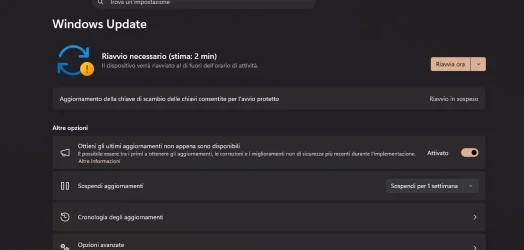
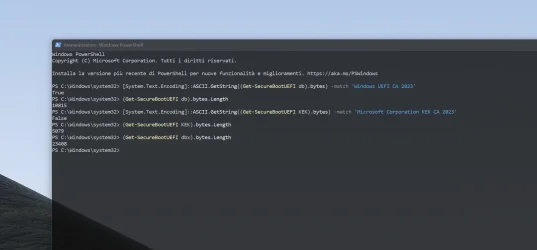
Received a few moments ago :-)
 

Attachments

  • Screenshot 2026-03-21 103610.webp
    Screenshot 2026-03-21 103610.webp
    28.1 KB · Views: 4
  • Screenshot 2026-03-21 110638.webp
    Screenshot 2026-03-21 110638.webp
    75.8 KB · Views: 3

My Computer

System One

  • OS
    Microsoft Windows 11 Pro 25H2 build 26200.8037
    Computer type
    PC/Desktop
    CPU
    Intel i9 9900K
    Motherboard
    ASUS ROG Strix Z390-E gaming
    Memory
    64 Gb DDR4 (4x16 Gb) HyperX Predator RGB @3200 MHz Cl16
    Graphics Card(s)
    ASUS ROG Strix GeForce RTX 2070 Super 8G GDDR6
    Monitor(s) Displays
    1 - SAMSUNG LED U28E590D 4K 60Hz <----> 2 - SAMSUNG ODYSSEY LC27G75TQSUXEN 2K GSYNC 240 Hz
    Screen Resolution
    1 - 3840x2160 2 - 2560x1440
    Hard Drives
    raid 0:
    -) SAMSUNG SSD 1 TB Serie 970 EVO PLUS M. 2
    -) SAMSUNG SSD 1 TB Serie 970 EVO PLUS M. 2
    PSU
    ASUS ROG-THOR-850P
    Case
    ASUS ROG Strix Helios
    Cooling
    ASUS ROG RYUO 240
    Keyboard
    ASUS ROG Strix Flare Red
    Mouse
    ASUS ROG Pugio II
    Internet Speed
    FTTH 2,5 Giga
    Browser
    Microsoft Edge
No problems/headaches when on a Legacy-bios ............... 🛠️
ASUS Z97-K ( with latest bios-update ; 2902 )
EUFI is recommended for Win11 , though my Legacy works ( boots within 40 seconds ) very good , no pain with Winupdates also............ :wink:
 
Last edited:

My Computer

System One

  • OS
    Windows11 Pro 25H2
    Computer type
    PC/Desktop
    Manufacturer/Model
    Asus
    CPU
    i7
    Motherboard
    z97k
    Memory
    32GB
    Graphics Card(s)
    nVidia
    Sound Card
    Realtek
    Hard Drives
    3
    Cooling
    air
    Browser
    Edge
    Antivirus
    ESET

My Computers

System One System Two

  • OS
    Windows 11 Pro for Workstations
    Computer type
    PC/Desktop
    Manufacturer/Model
    Custom self build
    CPU
    Intel i7-8700K 5 GHz
    Motherboard
    ASUS ROG Maximus XI Formula Z390
    Memory
    64 GB (4x16GB) G.SKILL TridentZ RGB DDR4 3600 MHz (F4-3600C18D-32GTZR)
    Graphics Card(s)
    ASUS ROG-STRIX-GTX1080TI-O11G-GAMING (11GB GDDR5X)
    Sound Card
    Integrated Digital Audio (S/PDIF)
    Monitor(s) Displays
    2 x Samsung Odyssey G75 27"
    Screen Resolution
    2560x1440
    Hard Drives
    1TB Samsung 990 PRO M.2,
    4TB Samsung 990 PRO M.2,
    TerraMaster F8 SSD Plus NAS
    PSU
    Seasonic Prime Titanium 850W
    Case
    Thermaltake Core P3 wall mounted
    Cooling
    Corsair Hydro H115i
    Keyboard
    Amazon Basics Wired Full Keyboard MD005
    Mouse
    Logitech MX Master 4
    Internet Speed
    2 Gbps Download and 100 Mbps Upload
    Browser
    Chrome and Edge
    Antivirus
    Microsoft Defender
    Other Info
    Logitech Z625 speaker system,
    Logitech BRIO 4K Pro webcam,
    HP Color LaserJet Pro MFP M477fdn,
    CyberPower CP1500PFCLCD
    Galaxy S23 Plus phone
  • Operating System
    Windows 11 Pro
    Computer type
    Laptop
    Manufacturer/Model
    Surface Laptop 7 Copilot+ PC
    CPU
    Snapdragon X Elite (12 core) 3.42 GHz
    Memory
    16 GB LPDDR5x-7467 MHz
    Monitor(s) Displays
    15" HDR
    Screen Resolution
    2496 x 1664
    Hard Drives
    1 TB SSD
    Internet Speed
    Wi-Fi 7 and Bluetooth 5.4
    Browser
    Chrome and Edge
    Antivirus
    Microsoft Defender

Other than showing a Green icon, it's not useful for detailed troubleshooting. Great job, MS!
Not yet updated

Your device is running with an older Secure Boot certificate. The Secure Boot certificate update is expected to be applied automatically through Windows Update. Make sure your device is connected to the internet and has the latest Windows updates installed.

Starting in May 2026, in addition to informational text about your device’s Secure Boot status, a yellow caution badge might appear if additional action is required. This can happen when the update is blocked by a device's hardware or firmware limitation.
Requires Action

A security update exists for the Windows boot experience that cannot be delivered to your device's current boot configuration. This state appears only after a security vulnerability that affects the boot process is discovered and cannot be serviced on devices that have not yet received the updated certificates.
This could occur as early as June 2026, when some of the current Secure Boot certificates begin to expire. When this occurs, the Secure Boot badge changes to a red stop icon.

In order for MS to display the new Secure Boot status icons, Windows Update must push a new version of KB5007651 (SecurityHealthUI) as a mandatory security update. Stay tuned...
 

My Computer

System One

  • OS
    Windows 7
I am having trouble getting those PowerShell scripts to run...
cmd not recognized.
to check for the SecureBoot update status?
having trouble finding that thread..

I guess its a good thing I disabled SecureBoot when I installed Win10/11(updated) at that point years ago...
I just want to make sure those new certificates are installed and ready in case I need to re-enable it.
 

My Computers

System One System Two

  • OS
    Windows 11 Pro (x64)(v25H2)(26200.8524)
    Computer type
    PC/Desktop
    Manufacturer/Model
    [Self-built](custom-build)(June 2020)
    CPU
    AMD Ryzen 9 3900X 12-Core/24-threads
    Motherboard
    Asus PRIME X570-PRO (BIOS_r5044 [01/04/2026])
    Memory
    64GB, 2x G.Skill 32GB (PC3200)(DDR4-2137)
    Graphics Card(s)
    ASUS PRIME GeForce RTX 5070 12GB OC Edition, GPU by NVIDIA.
    Sound Card
    Realtek® ALC1220A 8-Channel High Definition Audio CODEC
    Monitor(s) Displays
    24" DELL Gaming Monitor - G2422HS - DisplayPort used
    Screen Resolution
    1920x1080p at 165Hz (16:9 Aspect Ratio)
    Hard Drives
    2TB Samsung 980 Pro (NVMe)(SSD)
    4TB Samsung 990 Pro (NVMe)(SSD)
    2TB Samsung 870 EVO (SSD)

    NVMe 2TB
    -- OS(Win11 Pro x64),
    -- programs,
    -- programming(MS Visual Studios 2022 Community Ed.),
    -- music

    NVMe 4TB
    video game installs.

    #3 FILE Server!
    PSU
    Thermaltake TOUGHPOWER DPS G RGB Titanium Certified 1250Watt
    Case
    Corsair Graphite Series 780T Full Tower PC Case
    Cooling
    AMD Wraith cooler (stock) & 3x Corsair case fans
    Keyboard
    Redragon K580 VATA RGB LED Backlit Mechanical Gaming Keyboard (brown switches).
    Mouse
    Redragon M602 RGB Wired USB Gaming mouse
    Internet Speed
    2,100Mbps Download, 300Mbps Upload
    Browser
    Firefox & Google Chrome
    Antivirus
    n/a aka "ABOVE TOP SECRET!" lol ;)
    Other Info
    My System is the ULTIMATE GAMING RIG ^_^
    TP-Link BE9300 Tri-Band Wi-Fi 7 Wireless 2.5Gigabit Router
    Model Archer BE550 (v1.0)
    Arris S34 Cable Modem
    Nvidia GFX Drivers: (v596.49)
    Realtek UAD Drivers: (v6.0.9977.1)
    Realtek LAN Drivers:(v1125.29.50.202)(2026-04-19)
    Intel LAN Drivers: (v14.01.24.00)(2025-10-03)
  • Operating System
    Windows 11 Pro x64
    Computer type
    Laptop
    Manufacturer/Model
    DELL G15 Ryzen edition, model 5515
    CPU
    AMD Ryzen 7 5800H
    Motherboard
    DELL G15 Ryzen edition
    Memory
    32GB GSkill DDR4 2x 16GB sticks
    Graphics card(s)
    Ryzen 7 5800H integrated AMD Radeon Graphics and Nvidia GeForce 3060 6GB
    Sound Card
    Realtek ALC3254 with Nahimic 3D Audio for Gamers
    Monitor(s) Displays
    built-in
    Screen Resolution
    1920x1080
    Hard Drives
    512GB NVMe SSD, 1TB Samsung 970 EVO NVMe SSD
    PSU
    unknown
    Case
    laptop
    Keyboard
    built-in
    Mouse
    Logitech B100 USB
    Internet Speed
    2,100Mbps download, 300Mbps upload
    Browser
    Firefox & Google Chrome
I am having trouble getting those PowerShell scripts to run...
cmd not recognized.
to check for the SecureBoot update status?
having trouble finding that thread..

I guess its a good thing I disabled SecureBoot when I installed Win10/11(updated) at that point years ago...
I just want to make sure those new certificates are installed and ready in case I need to re-enable it.
You might not have the right PowerShell execution policy permissions, but you can download this set of scripts:
garlin's PowerShell scripts for updating Secure Boot CA 2023

Run Check-UEFI.bat and that should work for everyone.
 

My Computer

System One

  • OS
    Windows 7
Last edited:

My Computers

System One System Two

  • OS
    Windows 11 Pro (x64)(v25H2)(26200.8524)
    Computer type
    PC/Desktop
    Manufacturer/Model
    [Self-built](custom-build)(June 2020)
    CPU
    AMD Ryzen 9 3900X 12-Core/24-threads
    Motherboard
    Asus PRIME X570-PRO (BIOS_r5044 [01/04/2026])
    Memory
    64GB, 2x G.Skill 32GB (PC3200)(DDR4-2137)
    Graphics Card(s)
    ASUS PRIME GeForce RTX 5070 12GB OC Edition, GPU by NVIDIA.
    Sound Card
    Realtek® ALC1220A 8-Channel High Definition Audio CODEC
    Monitor(s) Displays
    24" DELL Gaming Monitor - G2422HS - DisplayPort used
    Screen Resolution
    1920x1080p at 165Hz (16:9 Aspect Ratio)
    Hard Drives
    2TB Samsung 980 Pro (NVMe)(SSD)
    4TB Samsung 990 Pro (NVMe)(SSD)
    2TB Samsung 870 EVO (SSD)

    NVMe 2TB
    -- OS(Win11 Pro x64),
    -- programs,
    -- programming(MS Visual Studios 2022 Community Ed.),
    -- music

    NVMe 4TB
    video game installs.

    #3 FILE Server!
    PSU
    Thermaltake TOUGHPOWER DPS G RGB Titanium Certified 1250Watt
    Case
    Corsair Graphite Series 780T Full Tower PC Case
    Cooling
    AMD Wraith cooler (stock) & 3x Corsair case fans
    Keyboard
    Redragon K580 VATA RGB LED Backlit Mechanical Gaming Keyboard (brown switches).
    Mouse
    Redragon M602 RGB Wired USB Gaming mouse
    Internet Speed
    2,100Mbps Download, 300Mbps Upload
    Browser
    Firefox & Google Chrome
    Antivirus
    n/a aka "ABOVE TOP SECRET!" lol ;)
    Other Info
    My System is the ULTIMATE GAMING RIG ^_^
    TP-Link BE9300 Tri-Band Wi-Fi 7 Wireless 2.5Gigabit Router
    Model Archer BE550 (v1.0)
    Arris S34 Cable Modem
    Nvidia GFX Drivers: (v596.49)
    Realtek UAD Drivers: (v6.0.9977.1)
    Realtek LAN Drivers:(v1125.29.50.202)(2026-04-19)
    Intel LAN Drivers: (v14.01.24.00)(2025-10-03)
  • Operating System
    Windows 11 Pro x64
    Computer type
    Laptop
    Manufacturer/Model
    DELL G15 Ryzen edition, model 5515
    CPU
    AMD Ryzen 7 5800H
    Motherboard
    DELL G15 Ryzen edition
    Memory
    32GB GSkill DDR4 2x 16GB sticks
    Graphics card(s)
    Ryzen 7 5800H integrated AMD Radeon Graphics and Nvidia GeForce 3060 6GB
    Sound Card
    Realtek ALC3254 with Nahimic 3D Audio for Gamers
    Monitor(s) Displays
    built-in
    Screen Resolution
    1920x1080
    Hard Drives
    512GB NVMe SSD, 1TB Samsung 970 EVO NVMe SSD
    PSU
    unknown
    Case
    laptop
    Keyboard
    built-in
    Mouse
    Logitech B100 USB
    Internet Speed
    2,100Mbps download, 300Mbps upload
    Browser
    Firefox & Google Chrome
Untitled.webp

If your Device has that green check mark on the shut down symbol you have the update.
 

My Computers

System One System Two

  • OS
    Windows11 Pro 26200.8524
    Computer type
    PC/Desktop
    Manufacturer/Model
    Dell Alienware Aurora R16
    CPU
    Intel Core i9 14900F (24 -Core, 68 MB Total Cache)
    Motherboard
    Dell Alienware
    Memory
    32GB DDR5
    Graphics Card(s)
    RTX 4080 Super w/581.95
    Sound Card
    Realtec
    Monitor(s) Displays
    Corsair XENEON 32QHD165
    Screen Resolution
    2560 X 1440
    Hard Drives
    1-2TB Samsung 990 Pro PCIe NVMe M2 SSD
    1-4TB Samsung 990 Pro PCIe NVMe M2 SSD
    PSU
    1000 Watt Platinum Dell
    Case
    Alienware
    Cooling
    Liquid Closed Loop
    Keyboard
    Logitech MK270 Wireless Keyboard
    Mouse
    Logitech MK270 Wireless
    Internet Speed
    100Gb's Down-20 Up
    Browser
    Firefox 151.0.2
    Antivirus
    Defender
    Other Info
    Very Quiet And Fast
    CyberPower UPS CP1500PFCLCD
  • Operating System
    PClinuxOS Mate (2025.7)
    Computer type
    PC/Desktop
    Manufacturer/Model
    Intel
    CPU
    13th Gen Inter(R) Core(TM) i3-1315U
    Motherboard
    Intel
    Memory
    64 GB DDR4 @3200 MHz.
    Graphics card(s)
    Internal
    Sound Card
    None
    Monitor(s) Displays
    Dell 2419HGCF
    Screen Resolution
    1920 X 1080
    Hard Drives
    SAMSUNG 980 PRO SSD 2TB, PCIe 4.0 M.2 2280
    PSU
    Chicony 30 Watt
    Case
    Small
    Keyboard
    Dell
    Mouse
    Razor
    Internet Speed
    1GB
    Browser
    Slimjet

My Computers

System One System Two

  • OS
    Windows 11 Pro (x64)(v25H2)(26200.8524)
    Computer type
    PC/Desktop
    Manufacturer/Model
    [Self-built](custom-build)(June 2020)
    CPU
    AMD Ryzen 9 3900X 12-Core/24-threads
    Motherboard
    Asus PRIME X570-PRO (BIOS_r5044 [01/04/2026])
    Memory
    64GB, 2x G.Skill 32GB (PC3200)(DDR4-2137)
    Graphics Card(s)
    ASUS PRIME GeForce RTX 5070 12GB OC Edition, GPU by NVIDIA.
    Sound Card
    Realtek® ALC1220A 8-Channel High Definition Audio CODEC
    Monitor(s) Displays
    24" DELL Gaming Monitor - G2422HS - DisplayPort used
    Screen Resolution
    1920x1080p at 165Hz (16:9 Aspect Ratio)
    Hard Drives
    2TB Samsung 980 Pro (NVMe)(SSD)
    4TB Samsung 990 Pro (NVMe)(SSD)
    2TB Samsung 870 EVO (SSD)

    NVMe 2TB
    -- OS(Win11 Pro x64),
    -- programs,
    -- programming(MS Visual Studios 2022 Community Ed.),
    -- music

    NVMe 4TB
    video game installs.

    #3 FILE Server!
    PSU
    Thermaltake TOUGHPOWER DPS G RGB Titanium Certified 1250Watt
    Case
    Corsair Graphite Series 780T Full Tower PC Case
    Cooling
    AMD Wraith cooler (stock) & 3x Corsair case fans
    Keyboard
    Redragon K580 VATA RGB LED Backlit Mechanical Gaming Keyboard (brown switches).
    Mouse
    Redragon M602 RGB Wired USB Gaming mouse
    Internet Speed
    2,100Mbps Download, 300Mbps Upload
    Browser
    Firefox & Google Chrome
    Antivirus
    n/a aka "ABOVE TOP SECRET!" lol ;)
    Other Info
    My System is the ULTIMATE GAMING RIG ^_^
    TP-Link BE9300 Tri-Band Wi-Fi 7 Wireless 2.5Gigabit Router
    Model Archer BE550 (v1.0)
    Arris S34 Cable Modem
    Nvidia GFX Drivers: (v596.49)
    Realtek UAD Drivers: (v6.0.9977.1)
    Realtek LAN Drivers:(v1125.29.50.202)(2026-04-19)
    Intel LAN Drivers: (v14.01.24.00)(2025-10-03)
  • Operating System
    Windows 11 Pro x64
    Computer type
    Laptop
    Manufacturer/Model
    DELL G15 Ryzen edition, model 5515
    CPU
    AMD Ryzen 7 5800H
    Motherboard
    DELL G15 Ryzen edition
    Memory
    32GB GSkill DDR4 2x 16GB sticks
    Graphics card(s)
    Ryzen 7 5800H integrated AMD Radeon Graphics and Nvidia GeForce 3060 6GB
    Sound Card
    Realtek ALC3254 with Nahimic 3D Audio for Gamers
    Monitor(s) Displays
    built-in
    Screen Resolution
    1920x1080
    Hard Drives
    512GB NVMe SSD, 1TB Samsung 970 EVO NVMe SSD
    PSU
    unknown
    Case
    laptop
    Keyboard
    built-in
    Mouse
    Logitech B100 USB
    Internet Speed
    2,100Mbps download, 300Mbps upload
    Browser
    Firefox & Google Chrome
My desktop PC doesn't show it at all.. its not there. a SecureBoot entry.
That requires a newer version of Security Center which not everyone has yet.

While you're waiting, can you run Check-UEFI.bat -Verbose and post the output? And if you have time, can you shutdown and take a look at your BIOS screens? Check if there's a menu option for manual key enrollment, you could be in luck for manual updates.
 

My Computer

System One

  • OS
    Windows 7
C:\Temp_SecureBootCheck>Check-UEFI.bat -verbose
PowerShell 7.6.0
Windows 11 25H2 (26200.8117)

Secure Boot: OFF
Virtualization Based Security: OFF
BitLocker on (C:) OFF

BIOS Firmware
-------------
System manufacturer System Product Name
Version: 5044
Date: 2026-01-03

Factory Default UEFI PK Cert
----------------------------
ASUSTeK MotherBoard PK Certificate

UEFI PK Cert
------------
ASUSTeK MotherBoard PK Certificate
[KEK CA 2023] Update is available from ASUS or Microsoft.

Factory Default UEFI KEK Certs
------------------------------
Microsoft Corporation KEK CA 2011
Microsoft Corporation KEK 2K CA 2023
ASUSTeK MotherBoard KEK Certificate

UEFI KEK Certs
--------------
Microsoft Corporation KEK CA 2011
Canonical Ltd. Master Certificate Authority
ASUSTeK MotherBoard KEK Certificate

Factory Default UEFI DB Certs
-----------------------------
Microsoft Corporation UEFI CA 2011
Microsoft Windows Production PCA 2011
Microsoft Option ROM UEFI CA 2023
Microsoft UEFI CA 2023
Windows UEFI CA 2023
ASUSTeK MotherBoard SW Key Certificate
ASUSTeK Notebook SW Key Certificate

UEFI DB Certs
-------------
Microsoft Corporation UEFI CA 2011
Microsoft Windows Production PCA 2011
Canonical Ltd. Master Certificate Authority
ASUSTeK MotherBoard SW Key Certificate
ASUSTeK Notebook SW Key Certificate

Factory Default UEFI DBX Certs
------------------------------
(NONE)
EFI_CERT_SHA256_GUID Signatures: 430

UEFI DBX Certs
--------------
(NONE)
Windows BootMgr SVN is MISSING.
EFI_CERT_SHA256_GUID Signatures: 272

EFI Files
---------
Disk 1: Windows Boot Manager [Production PCA 2011] is ALLOWED.
bootmgfw.efi File version: 26100.30227

Registry: WindowsUEFICA2023Capable = 0
[Windows UEFI CA 2023] not in UEFI DB.


REQUIRED ACTION
===============

OPTION 1: DO NOTHING. Windows will apply the UEFI updates in 2026 (supported BIOS).

OPTION 2: To install [UEFI CA 2023] certs WITHOUT REVOKING the [PCA 2011] cert, run the commands:

reg add HKEY_LOCAL_MACHINE\SYSTEM\CurrentControlSet\Control\Secureboot /v AvailableUpdates /t REG_DWORD /d 0x5944 /f
powershell Start-ScheduledTask -TaskName "\Microsoft\Windows\PI\Secure-Boot-Update"

OPTION 3: To install [UEFI CA 2023] certs and REVOKE the [PCA 2011] cert, run the commands:

reg add HKEY_LOCAL_MACHINE\SYSTEM\CurrentControlSet\Control\Secureboot /v AvailableUpdates /t REG_DWORD /d 0x5bc6 /f
powershell Start-ScheduledTask -TaskName "\Microsoft\Windows\PI\Secure-Boot-Update"
 

My Computers

System One System Two

  • OS
    Windows 11 Pro (x64)(v25H2)(26200.8524)
    Computer type
    PC/Desktop
    Manufacturer/Model
    [Self-built](custom-build)(June 2020)
    CPU
    AMD Ryzen 9 3900X 12-Core/24-threads
    Motherboard
    Asus PRIME X570-PRO (BIOS_r5044 [01/04/2026])
    Memory
    64GB, 2x G.Skill 32GB (PC3200)(DDR4-2137)
    Graphics Card(s)
    ASUS PRIME GeForce RTX 5070 12GB OC Edition, GPU by NVIDIA.
    Sound Card
    Realtek® ALC1220A 8-Channel High Definition Audio CODEC
    Monitor(s) Displays
    24" DELL Gaming Monitor - G2422HS - DisplayPort used
    Screen Resolution
    1920x1080p at 165Hz (16:9 Aspect Ratio)
    Hard Drives
    2TB Samsung 980 Pro (NVMe)(SSD)
    4TB Samsung 990 Pro (NVMe)(SSD)
    2TB Samsung 870 EVO (SSD)

    NVMe 2TB
    -- OS(Win11 Pro x64),
    -- programs,
    -- programming(MS Visual Studios 2022 Community Ed.),
    -- music

    NVMe 4TB
    video game installs.

    #3 FILE Server!
    PSU
    Thermaltake TOUGHPOWER DPS G RGB Titanium Certified 1250Watt
    Case
    Corsair Graphite Series 780T Full Tower PC Case
    Cooling
    AMD Wraith cooler (stock) & 3x Corsair case fans
    Keyboard
    Redragon K580 VATA RGB LED Backlit Mechanical Gaming Keyboard (brown switches).
    Mouse
    Redragon M602 RGB Wired USB Gaming mouse
    Internet Speed
    2,100Mbps Download, 300Mbps Upload
    Browser
    Firefox & Google Chrome
    Antivirus
    n/a aka "ABOVE TOP SECRET!" lol ;)
    Other Info
    My System is the ULTIMATE GAMING RIG ^_^
    TP-Link BE9300 Tri-Band Wi-Fi 7 Wireless 2.5Gigabit Router
    Model Archer BE550 (v1.0)
    Arris S34 Cable Modem
    Nvidia GFX Drivers: (v596.49)
    Realtek UAD Drivers: (v6.0.9977.1)
    Realtek LAN Drivers:(v1125.29.50.202)(2026-04-19)
    Intel LAN Drivers: (v14.01.24.00)(2025-10-03)
  • Operating System
    Windows 11 Pro x64
    Computer type
    Laptop
    Manufacturer/Model
    DELL G15 Ryzen edition, model 5515
    CPU
    AMD Ryzen 7 5800H
    Motherboard
    DELL G15 Ryzen edition
    Memory
    32GB GSkill DDR4 2x 16GB sticks
    Graphics card(s)
    Ryzen 7 5800H integrated AMD Radeon Graphics and Nvidia GeForce 3060 6GB
    Sound Card
    Realtek ALC3254 with Nahimic 3D Audio for Gamers
    Monitor(s) Displays
    built-in
    Screen Resolution
    1920x1080
    Hard Drives
    512GB NVMe SSD, 1TB Samsung 970 EVO NVMe SSD
    PSU
    unknown
    Case
    laptop
    Keyboard
    built-in
    Mouse
    Logitech B100 USB
    Internet Speed
    2,100Mbps download, 300Mbps upload
    Browser
    Firefox & Google Chrome
Factory Default UEFI KEK Certs
------------------------------
Microsoft Corporation KEK CA 2011
Microsoft Corporation KEK 2K CA 2023
ASUSTeK MotherBoard KEK Certificate

UEFI KEK Certs
--------------
Microsoft Corporation KEK CA 2011
Canonical Ltd. Master Certificate Authority
ASUSTeK MotherBoard KEK Certificate
This is interesting. Your BIOS does have the KEK CA 2023 cert in the factory defaults. But it's not currently applied!

Factory Default UEFI DB Certs
-----------------------------
Microsoft Corporation UEFI CA 2011
Microsoft Windows Production PCA 2011
Microsoft Option ROM UEFI CA 2023
Microsoft UEFI CA 2023
Windows UEFI CA 2023
ASUSTeK MotherBoard SW Key Certificate
ASUSTeK Notebook SW Key Certificate

UEFI DB Certs
-------------
Microsoft Corporation UEFI CA 2011
Microsoft Windows Production PCA 2011
Canonical Ltd. Master Certificate Authority
ASUSTeK MotherBoard SW Key Certificate
ASUSTeK Notebook SW Key Certificate
Same problem here, more CA 2023 certs in the factory defaults but missing in the live variable.

Factory Default UEFI DBX Certs
------------------------------
(NONE)
EFI_CERT_SHA256_GUID Signatures: 430

UEFI DBX Certs
--------------
(NONE)
Windows BootMgr SVN is MISSING.
EFI_CERT_SHA256_GUID Signatures: 272
Wow. This is a FRESHLY WRITTEN BIOS!!

ASUS provided 430 DBX EFI signatures which is great since it was the officially MS tally as of last summer. Most vendors don't even come close to 430 entries, someone did a fine job on this BIOS update.

Since there is a factory KEK CA 2023, I'm guessing the update script might just work fine. Try this first:
Code:
Update-UEFI.bat

Now the script might still complain it can't add the KEK CA 2023.

But you can go into the UEFI Secure Boot menu, and do a "Reset to factory" since your firmware is very recent. Everything will be added for you. The one catch is I see is the Canonical cert. Did you install an Ubuntu at some point?

Resetting from the factory will remove the Canonical cert. But Secure Boot is currently disabled, so you could boot into Ubuntu and re-add this cert if you're still using Linux.
 

My Computer

System One

  • OS
    Windows 7
I never installed or used Ubuntu on this PC..
I installed it once on an old 2008 Toshiba satellite laptop.
don't know why that is there.


my desktop PC's BIOS is from January this year...
v5044

The BIOS settings get reset to default after every update...
I really don't want to lose all my settings all over again.
 

My Computers

System One System Two

  • OS
    Windows 11 Pro (x64)(v25H2)(26200.8524)
    Computer type
    PC/Desktop
    Manufacturer/Model
    [Self-built](custom-build)(June 2020)
    CPU
    AMD Ryzen 9 3900X 12-Core/24-threads
    Motherboard
    Asus PRIME X570-PRO (BIOS_r5044 [01/04/2026])
    Memory
    64GB, 2x G.Skill 32GB (PC3200)(DDR4-2137)
    Graphics Card(s)
    ASUS PRIME GeForce RTX 5070 12GB OC Edition, GPU by NVIDIA.
    Sound Card
    Realtek® ALC1220A 8-Channel High Definition Audio CODEC
    Monitor(s) Displays
    24" DELL Gaming Monitor - G2422HS - DisplayPort used
    Screen Resolution
    1920x1080p at 165Hz (16:9 Aspect Ratio)
    Hard Drives
    2TB Samsung 980 Pro (NVMe)(SSD)
    4TB Samsung 990 Pro (NVMe)(SSD)
    2TB Samsung 870 EVO (SSD)

    NVMe 2TB
    -- OS(Win11 Pro x64),
    -- programs,
    -- programming(MS Visual Studios 2022 Community Ed.),
    -- music

    NVMe 4TB
    video game installs.

    #3 FILE Server!
    PSU
    Thermaltake TOUGHPOWER DPS G RGB Titanium Certified 1250Watt
    Case
    Corsair Graphite Series 780T Full Tower PC Case
    Cooling
    AMD Wraith cooler (stock) & 3x Corsair case fans
    Keyboard
    Redragon K580 VATA RGB LED Backlit Mechanical Gaming Keyboard (brown switches).
    Mouse
    Redragon M602 RGB Wired USB Gaming mouse
    Internet Speed
    2,100Mbps Download, 300Mbps Upload
    Browser
    Firefox & Google Chrome
    Antivirus
    n/a aka "ABOVE TOP SECRET!" lol ;)
    Other Info
    My System is the ULTIMATE GAMING RIG ^_^
    TP-Link BE9300 Tri-Band Wi-Fi 7 Wireless 2.5Gigabit Router
    Model Archer BE550 (v1.0)
    Arris S34 Cable Modem
    Nvidia GFX Drivers: (v596.49)
    Realtek UAD Drivers: (v6.0.9977.1)
    Realtek LAN Drivers:(v1125.29.50.202)(2026-04-19)
    Intel LAN Drivers: (v14.01.24.00)(2025-10-03)
  • Operating System
    Windows 11 Pro x64
    Computer type
    Laptop
    Manufacturer/Model
    DELL G15 Ryzen edition, model 5515
    CPU
    AMD Ryzen 7 5800H
    Motherboard
    DELL G15 Ryzen edition
    Memory
    32GB GSkill DDR4 2x 16GB sticks
    Graphics card(s)
    Ryzen 7 5800H integrated AMD Radeon Graphics and Nvidia GeForce 3060 6GB
    Sound Card
    Realtek ALC3254 with Nahimic 3D Audio for Gamers
    Monitor(s) Displays
    built-in
    Screen Resolution
    1920x1080
    Hard Drives
    512GB NVMe SSD, 1TB Samsung 970 EVO NVMe SSD
    PSU
    unknown
    Case
    laptop
    Keyboard
    built-in
    Mouse
    Logitech B100 USB
    Internet Speed
    2,100Mbps download, 300Mbps upload
    Browser
    Firefox & Google Chrome
Not the entire BIOS settings, there should be a sub menu for resetting Secure Boot keys. Right now, Secure Boot is not enabled so it will not have any impact on booting Windows.
 

My Computer

System One

  • OS
    Windows 7
This is interesting. Your BIOS does have the KEK CA 2023 cert in the factory defaults. But it's not currently applied!
Is this machine below properly updated or do I still miss something?
I still cannot boot Build 29558, it gets "Error code 0xc0000428" when trying to verify the signature of winload.efi.
It only has the "Microsoft Development PCA 2014" which cannot be verified by DELL BIOS.
Same problem with Build 28020.1797 when trying to boot WinRE.
Winload.efi in WinRE only has Microsoft Development PCA 2014. 😵‍💫🤷‍♂️

1775190949856.webp

1775191984081.webp
 

My Computer

System One

  • OS
    Windows 11 Pro 25H2
    Computer type
    PC/Desktop
    Manufacturer/Model
    Dell XPS 8930
    CPU
    Intel I9-9900K
    Memory
    64GB
    Graphics Card(s)
    NVIDIA RTX 2060
    Sound Card
    NVIDIA High Definition Audio
    Monitor(s) Displays
    4k Samsung
    Screen Resolution
    3840 x 2160
    Hard Drives
    512GB NVMe, ADATA SU 800, 2TB HDD
Is this machine below properly updated or do I still miss something?
I still cannot boot Build 29558, it gets "Error code 0xc0000428" when trying to verify the signature of winload.efi.
It only has the "Microsoft Development PCA 2014" which cannot be verified by DELL BIOS.
Same problem with Build 28020.1797 when trying to boot WinRE.
Winload.efi in WinRE only has Microsoft Development PCA 2014. 😵‍💫🤷‍♂️
From a Secure Boot point of view, you're good.
I've checked and there is no Microsoft Development PCA 2014 as a Secure Boot cert.

It could be one of the policy files like SiPolicy.p7b or SkuSiPolicy.p7b.

1. Shutdown Windows.
2. Disable Secure Boot.

3. Restart Windows.
Code:
mountvol S: /s
cd /d S:\EFI\Microsoft\Boot
ren SiPolicy.p7b RENAMED_SiPolicy.p7b
ren SkuSiPolicy.p7b RENAMED_SkuSiPolicy.p7b

4. Restart Windows once more.
5. Re-enable Secure Boot.

If that doesn't work, then you can restore the two policy files back as their normal filenames.
 

My Computer

System One

  • OS
    Windows 7
@garlin
ok I did the remove and add of certs in the BIOS.
then enabled the Secure Boot check in the BIOS..
it says it is enabled in Windows now..
it tried to enable encryption to my system.. egad.. I put a stop to that possible insanity...


here is a new check using your script.
---------------

C:\Temp_SecureBootCheck>Check-UEFI.bat -Verbose
PowerShell 7.6.0
Windows 11 25H2 (26200.8117)

Secure Boot: ON
Virtualization Based Security: OFF
BitLocker on (C:) OFF

BIOS Firmware
-------------
System manufacturer System Product Name
Version: 5044
Date: 2026-01-03

Factory Default UEFI PK Cert
----------------------------
ASUSTeK MotherBoard PK Certificate

UEFI PK Cert
------------
ASUSTeK MotherBoard PK Certificate

Factory Default UEFI KEK Certs
------------------------------
Microsoft Corporation KEK CA 2011
Microsoft Corporation KEK 2K CA 2023
ASUSTeK MotherBoard KEK Certificate

UEFI KEK Certs
--------------
Microsoft Corporation KEK CA 2011
Microsoft Corporation KEK 2K CA 2023
ASUSTeK MotherBoard KEK Certificate

Factory Default UEFI DB Certs
-----------------------------
Microsoft Corporation UEFI CA 2011
Microsoft Windows Production PCA 2011
Microsoft Option ROM UEFI CA 2023
Microsoft UEFI CA 2023
Windows UEFI CA 2023
ASUSTeK MotherBoard SW Key Certificate
ASUSTeK Notebook SW Key Certificate

UEFI DB Certs
-------------
Microsoft Corporation UEFI CA 2011
Microsoft Windows Production PCA 2011
Microsoft Option ROM UEFI CA 2023
Microsoft UEFI CA 2023
Windows UEFI CA 2023
ASUSTeK MotherBoard SW Key Certificate
ASUSTeK Notebook SW Key Certificate

Factory Default UEFI DBX Certs
------------------------------
(NONE)
EFI_CERT_SHA256_GUID Signatures: 430

UEFI DBX Certs
--------------
(NONE)
Windows BootMgr SVN is MISSING.
EFI_CERT_SHA256_GUID Signatures: 430

EFI Files
---------
Disk 1: Windows Boot Manager [Production PCA 2011] is ALLOWED.
bootmgfw.efi File version: 26100.30227

Registry: WindowsUEFICA2023Capable = 1
[Windows UEFI CA 2023] in UEFI DB.


REQUIRED ACTION
===============

OPTION 1: DO NOTHING. Windows will apply the UEFI updates in 2026 (supported BIOS).

OPTION 2: To install Windows Boot Manager [UEFI CA 2023], run the commands:

reg add HKEY_LOCAL_MACHINE\SYSTEM\CurrentControlSet\Control\Secureboot /v AvailableUpdates /t REG_DWORD /d 0x100 /f
powershell Start-ScheduledTask -TaskName "\Microsoft\Windows\PI\Secure-Boot-Update"

OPTION 3: To install [UEFI CA 2023] certs and REVOKE the [PCA 2011] cert, run the commands:

reg add HKEY_LOCAL_MACHINE\SYSTEM\CurrentControlSet\Control\Secureboot /v AvailableUpdates /t REG_DWORD /d 0x282 /f
powershell Start-ScheduledTask -TaskName "\Microsoft\Windows\PI\Secure-Boot-Update"


--------------------------

My desktop PC still seems to be using the 2011 certs though...
 

My Computers

System One System Two

  • OS
    Windows 11 Pro (x64)(v25H2)(26200.8524)
    Computer type
    PC/Desktop
    Manufacturer/Model
    [Self-built](custom-build)(June 2020)
    CPU
    AMD Ryzen 9 3900X 12-Core/24-threads
    Motherboard
    Asus PRIME X570-PRO (BIOS_r5044 [01/04/2026])
    Memory
    64GB, 2x G.Skill 32GB (PC3200)(DDR4-2137)
    Graphics Card(s)
    ASUS PRIME GeForce RTX 5070 12GB OC Edition, GPU by NVIDIA.
    Sound Card
    Realtek® ALC1220A 8-Channel High Definition Audio CODEC
    Monitor(s) Displays
    24" DELL Gaming Monitor - G2422HS - DisplayPort used
    Screen Resolution
    1920x1080p at 165Hz (16:9 Aspect Ratio)
    Hard Drives
    2TB Samsung 980 Pro (NVMe)(SSD)
    4TB Samsung 990 Pro (NVMe)(SSD)
    2TB Samsung 870 EVO (SSD)

    NVMe 2TB
    -- OS(Win11 Pro x64),
    -- programs,
    -- programming(MS Visual Studios 2022 Community Ed.),
    -- music

    NVMe 4TB
    video game installs.

    #3 FILE Server!
    PSU
    Thermaltake TOUGHPOWER DPS G RGB Titanium Certified 1250Watt
    Case
    Corsair Graphite Series 780T Full Tower PC Case
    Cooling
    AMD Wraith cooler (stock) & 3x Corsair case fans
    Keyboard
    Redragon K580 VATA RGB LED Backlit Mechanical Gaming Keyboard (brown switches).
    Mouse
    Redragon M602 RGB Wired USB Gaming mouse
    Internet Speed
    2,100Mbps Download, 300Mbps Upload
    Browser
    Firefox & Google Chrome
    Antivirus
    n/a aka "ABOVE TOP SECRET!" lol ;)
    Other Info
    My System is the ULTIMATE GAMING RIG ^_^
    TP-Link BE9300 Tri-Band Wi-Fi 7 Wireless 2.5Gigabit Router
    Model Archer BE550 (v1.0)
    Arris S34 Cable Modem
    Nvidia GFX Drivers: (v596.49)
    Realtek UAD Drivers: (v6.0.9977.1)
    Realtek LAN Drivers:(v1125.29.50.202)(2026-04-19)
    Intel LAN Drivers: (v14.01.24.00)(2025-10-03)
  • Operating System
    Windows 11 Pro x64
    Computer type
    Laptop
    Manufacturer/Model
    DELL G15 Ryzen edition, model 5515
    CPU
    AMD Ryzen 7 5800H
    Motherboard
    DELL G15 Ryzen edition
    Memory
    32GB GSkill DDR4 2x 16GB sticks
    Graphics card(s)
    Ryzen 7 5800H integrated AMD Radeon Graphics and Nvidia GeForce 3060 6GB
    Sound Card
    Realtek ALC3254 with Nahimic 3D Audio for Gamers
    Monitor(s) Displays
    built-in
    Screen Resolution
    1920x1080
    Hard Drives
    512GB NVMe SSD, 1TB Samsung 970 EVO NVMe SSD
    PSU
    unknown
    Case
    laptop
    Keyboard
    built-in
    Mouse
    Logitech B100 USB
    Internet Speed
    2,100Mbps download, 300Mbps upload
    Browser
    Firefox & Google Chrome

Latest Support Threads

Back
Top Bottom