Updating Microsoft Secure Boot keys before expiration in June 2026


UPDATE 4/02:

UPDATE 2/10:


 Windows IT Pro Blog:

Secure Boot playbook for certificates expiring in 2026

The first set of tools and steps are now available to help you proactively update your Secure Boot certificates before they expire in June of 2026.

Secure Boot is more mature and robust today than it was some years ago. Coupled with the Unified Extensible Firmware Interface (UEFI) firmware signing process, Secure Boot uses cryptographic keys, known as certificate authorities (CAs), to validate that firmware modules come from a trusted source. This helps prevent malware from running early in the startup sequence of a Windows device.

Secure Boot certificates have always had expiration dates. New certificates help ensure that your devices stay up to date with the latest security protections. That is why your organization will need to install the 2023 CAs before the 2011 CAs start expiring in June of 2026.

Note: Need a refresher on why updating Secure Boot certificates is so important?
Many Windows PCs manufactured since 2024 already have the updated 2023 certificates. For the remaining devices, Microsoft is delivering new Secure Boot certificates through Windows monthly updates, with partner original equipment manufacturers (OEMs) making firmware updates available to help ensure compatibility.

If you wish to proactively update your Secure Boot certificates, this post contains initial steps you can take and tools you can use, with more scalable approaches coming soon. At a minimum, we encourage you to monitor the progress of your device fleet from the start.

Let’s get started. Here’s a summary of what you can do today to prepare:
  • Step 1: Inventory and prepare your environment
  • Step 2: Monitor and check your devices for Secure Boot status
  • Step 3: Apply OEM firmware updates before Microsoft updates
  • Step 4: Plan and pilot Secure Boot certificate deployments
  • Step 5: Troubleshoot and remediate common issues

Step 1: Inventory and prepare your environment​

For most devices in your organization, Microsoft will automatically update high-confidence devices via Windows Update. However, you can validate and actively roll out these updates, in which case, you would start by conducting an inventory.

Inventory

Most devices manufactured since 2012 have Secure Boot enabled, but you should always verify that. You should also check the status of the Secure Boot certificates with sample inventory PowerShell commands or by checking the value of the UEFICA2023Status registry key (it should ultimately be “updated”). Out of the devices that show up as not updated, build a small, representative sample. We recommend that you focus on the less common devices, for which high confidence determination isn’t automatic. Then follow the rest of the steps outlined in this post to pilot the certificate updates and help ensure that deployment is successful

Prepare select devices

To prepare devices for Secure Boot certificate deployment, consider how you’ll manage it. There are several approaches to managing Secure Boot certificate updates. Today, you can use registry keys or Group Policy. A Configuration Service Provider (CSP) for mobile device management (MDM), such as Microsoft Intune, is coming soon. Bookmark Windows Secure Boot certificate expiration and CA updates - Microsoft Support for the latest updates.
  1. The primary method is to deploy the certificates to devices that have been validated as ready for the update. See Step 4 when you’re ready to deploy these updates!
  2. For the more common device configurations in your environment, you can utilize two “assists” to manage your deployment:
    • Get new certificates through monthly Windows updates for high-confidence devices. This option is enabled by default for devices that are ready for new certificates. Microsoft will update these devices for you unless you opt out. To opt out, set the HighConfidenceOptOut registry key<a href="Secure Boot playbook for certificates expiring in 2026 - Windows IT Pro Blog" target="_self" rel="nofollow noopener noreferrer">ii</a> value to 1 or set the Automatic Certificate Deployment via Updates Group Policy to Disabled.
    • Opt devices in to Microsoft-managed controlled feature rollout. With registry keys, set the value of MicrosoftUpdateManagedOptIn to 1 to opt in to Microsoft-managed controlled feature rollout. The value of 0 or non-existent key means that you’re opted out. With Group Policy, configure the Certificate Deployment via Controlled Feature Rollout policy to Enabled. Note: To opt in, please configure devices to share required diagnostic data with Microsoft.
Important: All Secure Boot registry keys are under these two paths:

HKEY_LOCAL_MACHINE\SYSTEM\CurrentControlSet\Control\SecureBoot
HKEY_LOCAL_MACHINE\SYSTEM\CurrentControlSet\Control\SecureBoot\Servicing


See Registry key updates for Secure Boot: Windows devices with IT-managed updates for more details.

Group Policy settings are available to you under the following path: Computer Configuration > Administrative Templates > Windows Components > Secure Boot. To get the updates that include the Group Policy for deploying Secure Boot certificate updates, download the latest Administrative Templates (.admx) for Windows 11 and Windows Server.

Step 2: Monitor and check your devices for Secure Boot status​

Check the Secure Boot status of your devices before and after deployment. Soon, you will be able to use your preferred management and reporting tools. For now, you can use registry keys or Windows Event Log events to identify which devices already have new certificates and which ones need attention.

Deployment progress

The text value of the UEFICA2023Status registry key will indicate if your certificate deployment status is not started, in progress, or updated. The value will change progressively until all new certificates and the new boot manager have been deployed successfully.

Successful deployment
  • Audit the Windows System Event Log events for Event ID 1808. This informational event indicates that the device has the required new Secure Boot certificates applied to the device’s firmware.
  • Audit the UEFICA2023Error registry key for issues. This key should not exist unless an error is pending.
  • Check that the text value of the UEFICA2023Status registry key reads as “Updated.”
Errors during deployment
  • Audit the Windows System Event Log for Event ID 1801.This error event indicates that the updated certificates have not been applied to the device. Analyze details specific to the device, including device attributes, that will help you in correlating which devices still need updating.
  • Check if the UEFICA2023Error registry key exists. If so, it indicates an error in certificate deployment. The error itself won’t appear in the Event Log. Trace related issues through Secure Boot DB and DBX variable update events.

Step 3: Apply OEM firmware updates before Microsoft updates​

Updated firmware can help prevent compatibility problems and ensure new Secure Boot certificates are accepted. If your organization has identified Secure Boot update issues or your OEM recommends a firmware update, apply the latest BIOS/UEFI update before installing Secure Boot–related Windows updates.

Some OEMs provide firmware updates that include important fixes and updated certificate stores. These updates help Secure Boot function correctly with new Windows certificates. Microsoft works closely with OEM partners to ensure these updates integrate smoothly with Windows.

Step 4: Plan and pilot Secure Boot certificate deployments​

As you’ve seen in Step 1, Microsoft can assist with your Secure Boot updates if you enable diagnostic data.

You can also deploy new Secure Boot certificates yourself for devices that don’t already have them. Choose a way to do this with registry keys, via Windows Configuration System (WinCS) command-line interface (CLI), or using Group Policy today. Pilot your desired method first on a representative set of devices to gain confidence.

In a typical enterprise deployment, whatever option you choose, allow approximately 48 hours and one or more restarts after changing configuration for updates to fully apply. See How updates are deployed for more details. For testing scenarios, you can accelerate the experience by following the steps outlined in Device Testing Using Registry Keys.

Important: Avoid mixing deployment methods on the same device. For additional technical recommendations to help you plan and deploy your Secure Boot updates, see Deployment strategies.

Option 1: Deploy certificates with registry keys​

Find the AvailableUpdates registry key located under this registry path:

HKEY_LOCAL_MACHINE\SYSTEM\CurrentControlSet\Control\SecureBoot

Set its value to 0x5944 to deploy all needed certificates and update to the Windows UEFI CA 2023 signed boot manager. This key corresponds to the Group Policy setting Enable Secure Boot certificate deployment. For details, see Registry key updates for Secure Boot: Windows devices with IT-managed updates.

Option 2: Deploy certificates via Windows Configuration System (WinCS)​

New command-line tools are now available for domain-joined clients on Windows 11, versions 25H2, 24H2, and 23H2.

These include both a traditional executable and a PowerShell module to query and apply Secure Boot configurations locally to a device. For step-by-step guidance, see Windows Configuration System (WinCS) APIs for Secure Boot.

Deploy the Secure Boot updates via WinCS:
  • Feature name: Feature_AllKeysAndBootMgrByWinCS
  • WinCS key value: F33E0C8E002
  • Secure Boot configuration state: Enabled

Option 3: Deploy certificates using Group Policy​

Group Policy settings are available by navigating to Computer Configuration > Administrative Templates > Windows Components > Secure Boot.

To apply Secure Boot updates to devices using Group Policy, set the Enable Secure Boot certificate deployment policy to Enabled. This lets Windows automatically begin the certificate deployment process. This setting corresponds to the registry key AvailableUpdates.

Be sure to get the latest version of the .admx for Windows 11 and Windows Server. For more details, see Group Policy Objects (GPO) method of Secure Boot for Windows devices with IT-managed updates.

Option 4: Deploy certificates using mobile device management (coming soon)​

Soon, you’ll be able to manage Secure Boot updates using MDM solutions, such as Microsoft Intune. When this method is available, we will post updated guidance at Windows Secure Boot certificate expiration and CA updates - Microsoft Support.

Step 5. Troubleshoot and remediate common issues​

You can also use registry keys and Windows Event Log events to identify and resolve common issues:
  • The UEFICA2023Error registry key doesn’t exist if there are no errors. If it exists with a value other than 0, check your remediation recommendations in Secure Boot DB and DBX variable update events.
  • The AvailableUpdates registry key on a device is set to 0x4104. If it doesn’t clear the 0x0004 bit even after multiple restarts, the device doesn’t progress past deploying the new Key Exchange Key (KEK) certificate. If you encounter this error, check with your OEM to confirm they have followed the steps outlined in Windows Secure Boot Key Creation and Management Guidance.
  • If Event Viewer Windows Logs for System registers an Event ID 1795, it means that there was an error when Windows attempted to hand off the certificates to firmware. Check with the OEM to see if there is a firmware update available for the device to resolve this issue.

Your update strategy begins today​

Today, you can start preparing, monitoring, deploying, and troubleshooting Secure Boot certificates in advance of the June 2026 expiration date. The new registry keys, WinCS, Group Policy, and Windows Log tools are here to support you and are just the beginning. More tools for additional scenarios are in development.

For the latest information, bookmark Windows Secure Boot certificate expiration and CA updates. Looking for a specific topic?

 Source:


 Windows IT Pro Blog:

Updating Microsoft Secure Boot keys​

Microsoft, in collaboration with our ecosystem partners, is preparing to roll out replacement certificates that’ll set new Unified Extensible Firmware Interface (UEFI) Certificate Authorities (CAs) trust anchors in Secure Boot for the future. Look out for Secure Boot database updates rolling out in phases to add trust for the new database (DB) and Key Exchange Key (KEK) certificates. This new DB update is available as an optional servicing update for all Secure Boot enabled devices from February 13, 2024.

What is Secure Boot?​

Secure Boot is a security feature in the UEFI that helps ensure that only trusted software runs during the system’s boot sequence. It works by verifying the digital signature of any software against a set of trusted digital keys stored in the UEFI. As an industry standard, UEFI’s Secure Boot defines how platform firmware manages certificates, authenticates firmware, and how the operating system (OS) interfaces with this process. For more details on UEFI and Secure Boot, please refer to this article.

Secure Boot was first introduced to Windows systems with the Windows 8 release to protect against the emerging pre-boot malware (bootkit) threat at that time. Since then, Secure Boot has continued to be a part of Microsoft's Trusted Boot security architecture. Secure Boot authenticates modules such as UEFI firmware drivers, bootloaders, applications, and option ROMs (Read-Only Memory), which are firmware run by the PC BIOS during platform initialization, before they are all executed. As the final step of the Secure Boot process, the firmware verifies the Windows boot loader is trusted by Secure Boot and then passes control to the boot loader which in turn verifies, loads into memory, and launches Windows. This process coupled with the UEFI firmware signing process helps to ensure that only verified code executes before Windows, preventing attackers from utilizing the boot path as an attack vector. To learn more about how Secure Boot fits in with the overall Windows chip-t-cloud security, please refer to the Windows Security Book RWMyFE.

Trust and authenticity in Secure Boot are built using the Public-Key Infrastructure (PKI). This establishes a certificate management system which utilizes CAs to store digital certificates. These CAs, consisting of Original Equipment Manufacturer (OEM) or their delegates and Microsoft, generate key pairs that form the root of trust of a system.
bS00MDU1MzI0LTU1MTA0OWlGOEI2MDY4MzMyRDJDNzBC


Secure Boot “root of trust”: Setting trust anchors for the future​

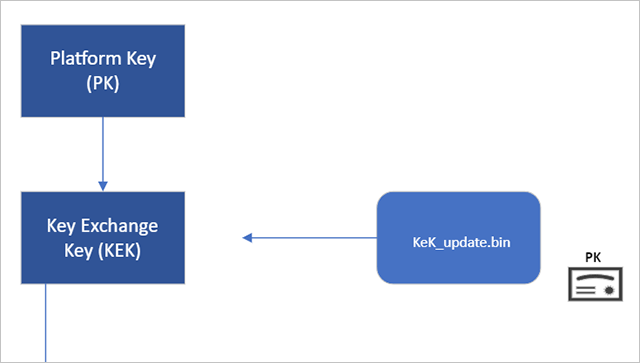
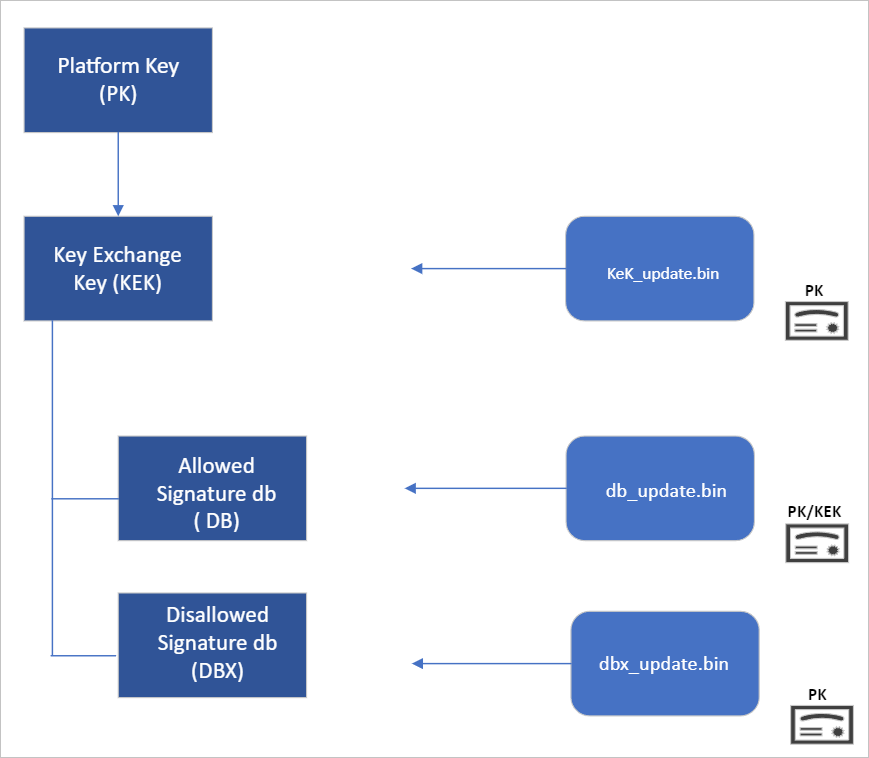
Secure Boot’s root of trust utilizes a hierarchical system, where the Platform Key (PK) is typically managed by the OEM and used to sign updates to the KEK database. The KEK in turn signs updates to both the Allowed Signature DB and the Forbidden Signature Database (DBX).

The Secure Boot Allowed Signature DB and the DBX are integral to the functionality of Secure Boot. Bootloader modules’ signing authority must be allowlisted by the Secure Boot DB, while the DBX is used for revoking previously trusted boot components. Updates to the DB and DBX must be signed by a KEK in the Secure Boot KEK database.

The configuration of Secure Boot DB and KEK for Windows devices has remained the same since Windows 8. Microsoft requires every OEM to include the same three certificates managed by Microsoft for Windows and in support of the third-party hardware and OS ecosystem. These include the Microsoft Corporation KEK CA 2011 stored in the KEK database, and two certificates stored in the DB called the Microsoft Windows Production PCA 2011, which signs the Windows bootloader, and the Microsoft UEFI CA 2011 (or third-party UEFI CA), which signs third-party OS and hardware driver components.

All three of these Microsoft certificates expire in 2026. So, in collaboration with our ecosystem partners, Microsoft is preparing to roll out replacement certificates that will set new UEFI CA trust anchors for the future. Microsoft will be rolling out Secure Boot database updates in phases to add trust for the new DB and KEK certificates. The first DB update will add the Microsoft Windows UEFI CA 2023 to the system DB. The new Microsoft Windows UEFI CA 2023 will be used to sign Windows boot components prior to the expiration of the Windows Production CA 2011. This DB update will be optional for the February 2024 servicing and preview updates, and can be manually applied to devices. Microsoft will slowly roll out this DB update as we validate devices and firmware compatibility globally. The full DB update’s controlled-rollout process to all Windows customers will begin during the 2024 April servicing and preview updates, ahead of the certificate expiration in 2026. Meanwhile, efforts to update the Microsoft UEFI CA 2011 (aka third-party UEFI CA) and Microsoft Corporation KEK CA 2011 will begin late 2024, and will follow a similar controlled rollout process as this DB update.

While Microsoft has frequently performed DBX updates globally since the inception of Secure Boot, this will be the first DB update performed on such a large scale. We’re actively collaborating with our OEM partners to identify and address bugs in firmware implementation that could result in unbootable systems or render a device unreceptive to the DB update. To ensure a successful rollout, devices with identified issues will be suspended from receiving the update until a fix is released.

Microsoft is taking a very deliberate and cautious approach to rolling out this update. With this DB update, Microsoft will sustain its ability to service all Windows devices’ boot components.

Guidance to manually apply DB update​

The DB update is available on February 13, 2024, along with manual steps to allow customers to test for firmware compatibility, especially for organizations with fleets of devices. If you would like to manually apply the DB update to validate that your system is compatible, please read the following instructions. These actions should be completed with non-critical hardware representing devices in your environment.

Pre-requisite checks​

Before attempting the DB update, please ensure to perform the necessary pre-requisite checks:
  1. If you intend to manually apply this update to a large group of devices, we advise that you begin by rolling out to individual devices with the same firmware and specifications first to minimize the risks in the case of firmware bugs in your devices.
  2. Please verify that your UEFI firmware version is the most recent available version by your firmware vendor or OEM.
  3. For data backup steps, please refer to this guide.
  4. If you use BitLocker or if your enterprise has deployed BitLocker on your machine, ensure to backup BitLocker Keys:

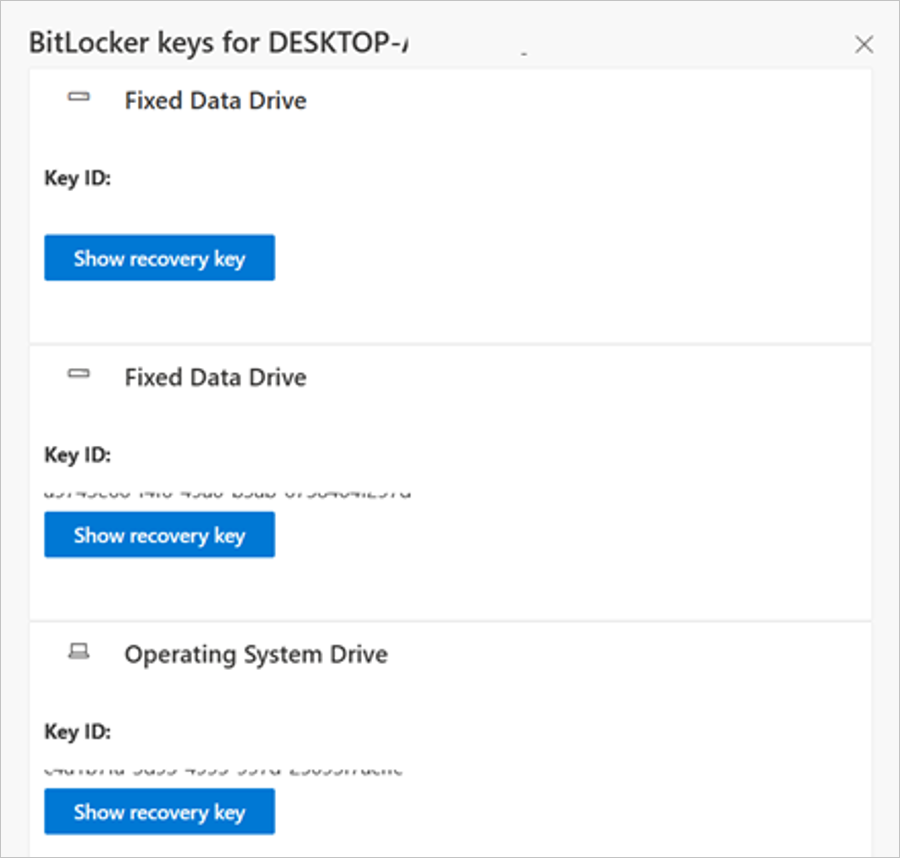
    A) See this portal to ensure your BitLocker keys are backed up before your next reboot for your selfhost device. In the unlikely event that device becomes inoperable after receiving the update, the hard drive can still be unlocked.

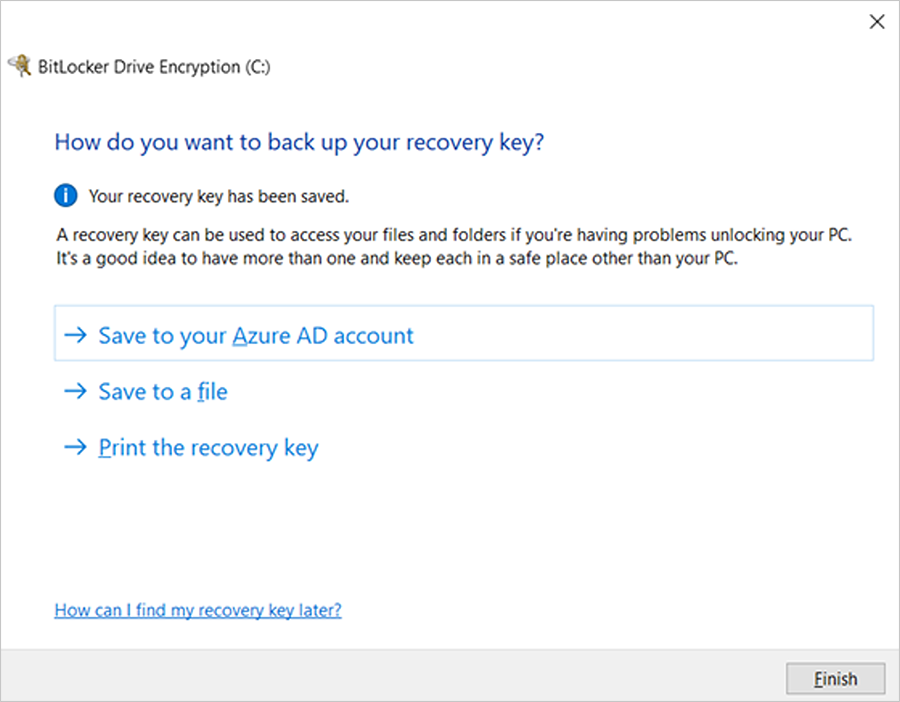
    B) If the keys are backed up, the UI should resemble the following:

    bS00MDU1MzI0LTU1MTA1MGk5NzY0QzRENjdBQkYwRkE2


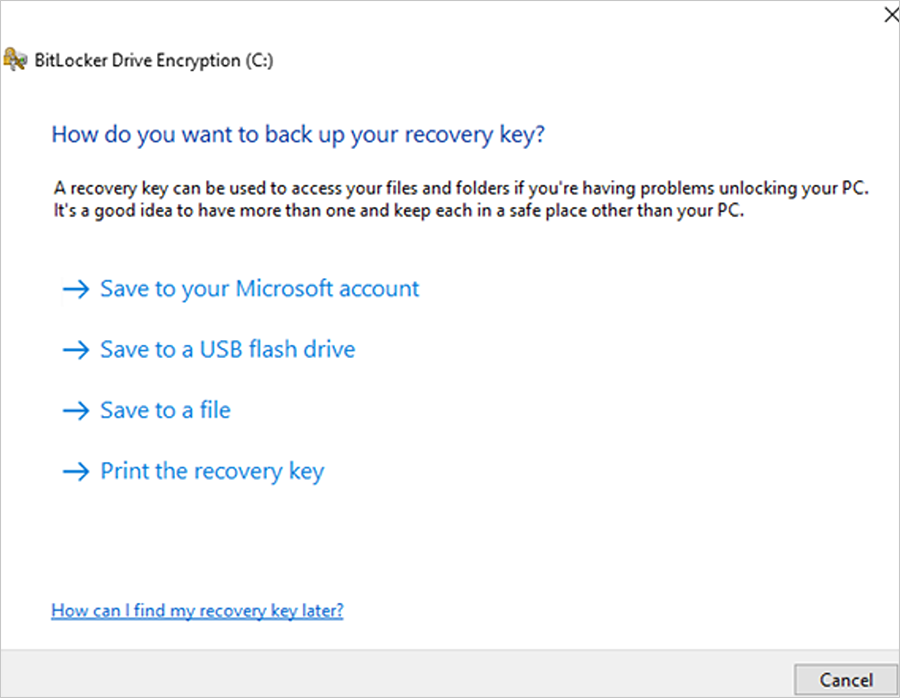
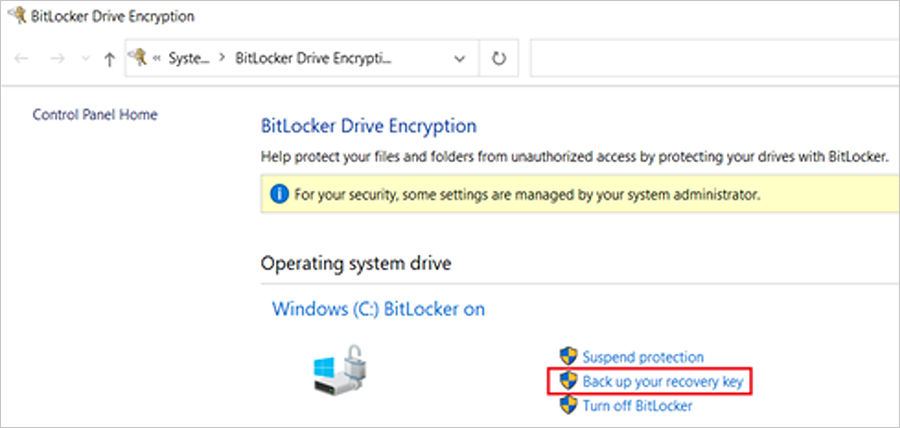
    C) If the keys are not backed up, please open Windows Search to search for “Manage BitLocker” and select Back up your recovery key followed by Save to your Azure AD or MSA account.
    bS00MDU1MzI0LTU1MTA1MWlEQkZDQTZDNDBDOEQwNzMy


    bS00MDU1MzI0LTU1MTA1Mmk5QjE2MDRBRTAyMUE1MDQ5


    bS00MDU1MzI0LTU1MTA1M2k2MzgxMUE1NEQ5NjEzREE4
For users that use a local account instead of an Azure Active Directory (AAD) or Microsoft account (MSA), you can print your recovery password, save to a file, and store it in a secure location.


 Formal DB update steps

  1. Apply the February 2024 (or later) security update.
  2. Open a PowerShell console and ensure that PowerShell is running as an administrator before running the following commands:
    1. Set the registry key to:

      Set-ItemProperty -Path "HKLM:\SYSTEM\CurrentControlSet\Control\SecureBoot" -Name "AvailableUpdates" -Value 0x40
    2. Run the following scheduled task as:

      Start-ScheduledTask -TaskName "\Microsoft\Windows\PI\Secure-Boot-Update"
  3. Reboot the machine twice after running these commands to confirm that the machine is booting with the updated DB.
  4. To verify that the Secure Boot DB update was successful, open a PowerShell console and ensure that PowerShell is running as an administrator before running the following command:

    [System.Text.Encoding]::ASCII.GetString((Get-SecureBootUEFI db).bytes) -match ‘Windows UEFI CA 2023’

    bS00MDU1MzI0LTU1MTA1NGlGNjJBRDlDRTNCRDJCQTIw
If the command returns “True”, the update was successful. In the case of errors while applying the DB update, please refer to the article, KB5016061: Addressing vulnerable and revoked Boot Managers.


 Source:


See also:
 
Last edited:
because the Linux Firmware Foundation released it as a firmware update for all Linux systems
i updated two Windows 11 systems using a live Ubuntu USB created with persistence to update
the system certs to 2023. i did post earlier about this but but i don't think anybody took any notice.

best of luck Steve ..
Would you be so kind to point me to it? I think I missed it... hope it's easier than the rest of the methodology I've seen...
 

My Computers

System One System Two

  • OS
    Windows 11 Pro 25H2
    Computer type
    PC/Desktop
    Manufacturer/Model
    Built PC
    CPU
    AMD Ryzen 5 5600G @ 3.9/4.4Ghz
    Motherboard
    MSI B550M-PRO-WiFi Ver. 1.4
    Memory
    2 x 16 GB DDR4 Kingston Fury Beast 3200 Mhz
    Graphics Card(s)
    AMD Radeon RX 6600 XT MSI Mech 2X OC Edition 8 GB
    Sound Card
    Realtek High Definition Audio (Integrated)
    Monitor(s) Displays
    Samsung C50Rx 27" LED / HP S2031 20" LCD
    Screen Resolution
    1920 x 1080 px / 1600 x 900 px
    Hard Drives
    WD Blue SN570 NVME M.2 SSD [1 TB] -- External Drives: - WD Scorpion Blue 250 GB 5400 RPM (Data Backup) - Hitachi 500 GB 5400 RPM (Software / ISOs Backup) - Toshiba MQ01ABD100 1 TB 5400 RPM (OS Images) - HGST TravelStar 7K1000 1 TB, 7200 RPM USB 3.0 - ADATA SU800 2TB SSD USB 3.0
    PSU
    Corsair RM750e 750W Fully Modular
    Case
    Naceb Hydra NA-1602
    Cooling
    Naceb Orpheus x 3 (Front) + Naceb Cepheus 1200 RPM Max (Rear) + ThemalRight Assasin X 90 SE (CPU)
    Keyboard
    Logitech MK470 Wireless
    Mouse
    Logitech MK470 Wireless
    Internet Speed
    120 MB Symetrical
    Browser
    Firefox / Brave / Edge
    Antivirus
    Windows Defender
    Other Info
    - VMs: WMware Player - Windows 8.1 Pro x64 / Windows 11 Pro
    - Wacom Intuos Pro Small Tablet PTH-460
  • Operating System
    Windows 11 Pro 25H2
    Computer type
    Laptop
    Manufacturer/Model
    HP Pavilion 15-eh3000la (80M53LA)
    CPU
    AMD Ryzen 7 7730U @ 2.0/4.5 Ghz
    Motherboard
    HP 8BC7
    Memory
    2 x 16 GB Kingston Fury Impact DDR4 3200 Mhz
    Graphics card(s)
    Radeon (tm) Graphics Vega 8 (512 MB)
    Sound Card
    Realtek High Definition Audio (Integrated)
    Monitor(s) Displays
    AU Optronics
    Screen Resolution
    1920 x 1080 px (125% size)
    Hard Drives
    WD Blue SN570 1TB NVME M.2 Drive
    PSU
    45 Watt Charger
    Cooling
    Laptop Cooling Pad
    Keyboard
    Free Wolf Foldable Portable Keyboard
    Mouse
    Free Wolf Wireless Mouse
    Internet Speed
    120 MB Symetrical
    Browser
    Firefox / Brave / Edge
    Antivirus
    Windows Defender
    Other Info
    - 41mWh battery.
    - Wacom Intuos Pro Small Tablet PTH-460
What would be funny or PISSSSSS a lot of people off is ms just rewrites the ca 2011 and pushes it via a wu, all of this hard work and time up and gone like a fart in the wind .
Actually there are many reports from company workers that their laptops not booting up. IT departments having panick attacks now and updating hundreds of notebooks manually.

It is frustrating to see how all these basic users on earth manage to update 2023 certificates properly...
 

My Computers

System One System Two

  • OS
    windows 11 home 23H2 22631.6199
    Computer type
    Laptop
    Manufacturer/Model
    HP
    CPU
    Intel core i7 (2nd gen) Turbo 3.10 ghz
    Memory
    6gb
    Graphics Card(s)
    Amd Radeon HD 7400m 1GB & Intel hd graphics
    Sound Card
    BeatsAudio
    Hard Drives
    128gb SSD
  • Operating System
    macOS Sequoia
    Computer type
    PC/Desktop
    Manufacturer/Model
    iMac 24"
    CPU
    M1 3.2 ghz
    Memory
    8gb onboard
    Graphics card(s)
    igpu
    Monitor(s) Displays
    Retina 4.5K
    Screen Resolution
    4480x2520
    Hard Drives
    512gb SSD
So I did update the Windows 11 PRO to 26200.7019. Event Viewer shows now:
1761750185043.webp

I did run the PowerShell script from this thread and it showed True. And I have quite a new computer, this Asus 2025 Laptop.
 

My Computer

System One

  • OS
    Windows 11 PRO, VM: Windows 11 EDU, Windows Server, Debian, Kali, Arch, FreeBSD, OpenBSD
    Computer type
    PC/Desktop
    Manufacturer/Model
    Custom Build
    CPU
    Intel i9 9900k
    Motherboard
    Asus Maximus XI Hero
    Memory
    32GB Kingston DDR4
    Graphics Card(s)
    Asus ROG 2080Ti
    Sound Card
    Integrated
    Monitor(s) Displays
    Asus 27" PG279Q
    Screen Resolution
    1440p
    Hard Drives
    m.2: Samsung 970 Evo Plus 1TB, SATA: Samsung 860 Evo 512GB, WD Black HDD 4TB, USB-C: Samsung 970 Evo Plus 1TB
    PSU
    Seasonic 1000Watt
    Case
    Asus ROG Strix
    Cooling
    Noctua NH14D
    Keyboard
    Razer Huntsman
    Mouse
    Razer Viper 8KHz
    Internet Speed
    D: 409,6Mbit/s U: 51,2Mbit/s
So I did update the Windows 11 PRO to 26200.7019. Event Viewer shows now:
View attachment 150801

I did run the PowerShell script from this thread and it showed True. And I have quite a new computer, this Asus 2025 Laptop.
There is a thread which discuss all these issues

For the above said issue follow these

Manu
 

My Computers

System One System Two

  • OS
    Windows 11 Pro
    Computer type
    PC/Desktop
    Manufacturer/Model
    Custom Made
    CPU
    Intel 14100
    Motherboard
    Gigabyte B760M D2H
    Memory
    G.Skill Trident Z5 Neo RGB 32GB (2x16GB) DDR5 6000
    Graphics Card(s)
    Integrated
    Sound Card
    Built-in
    Monitor(s) Displays
    40Inch Blaupunkt 1920X1080 & Acer 24Inch 1920X1080
    Screen Resolution
    1920 X 1080
    Hard Drives
    Samsung 990Pro 1TB &
    Western Digital WD Black SN850X NVMe 1TB
    PSU
    550W Corsair
    Case
    Chiptronix
    Cooling
    Default
    Keyboard
    Logitech Wireless
    Mouse
    Logitech Wireless
    Internet Speed
    500Mbps
    Browser
    Brave
    Antivirus
    Kaspersky Premium
  • Operating System
    Windows 11 Pro
    Computer type
    PC/Desktop
    Manufacturer/Model
    Custom Built
    CPU
    Intel G7600
    Motherboard
    Asus PRIME-H610M-E-D4
    Memory
    16GB Corsair Vengeance
    Graphics card(s)
    Integrated
    Sound Card
    In Built
    Monitor(s) Displays
    Samsung 22Inch
    Screen Resolution
    1920 X 1080
    Hard Drives
    Samsung Evo 970 Pro 500GB
    PSU
    CoolerMaster 450W
    Case
    Normal
    Cooling
    Default
    Keyboard
    Logitech Wireless
    Mouse
    Logitech Wireless
    Internet Speed
    500Mbps
    Browser
    Brave
    Antivirus
    Kaspersky Total Security
Just got a Secure Boot Allowed Signature Database (DB) Update.

Secure_Boot.webp
 

My Computers

System One System Two

  • OS
    Windows 11 Pro for Workstations
    Computer type
    PC/Desktop
    Manufacturer/Model
    Custom self build
    CPU
    Intel i7-8700K 5 GHz
    Motherboard
    ASUS ROG Maximus XI Formula Z390
    Memory
    64 GB (4x16GB) G.SKILL TridentZ RGB DDR4 3600 MHz (F4-3600C18D-32GTZR)
    Graphics Card(s)
    ASUS ROG-STRIX-GTX1080TI-O11G-GAMING (11GB GDDR5X)
    Sound Card
    Integrated Digital Audio (S/PDIF)
    Monitor(s) Displays
    2 x Samsung Odyssey G75 27"
    Screen Resolution
    2560x1440
    Hard Drives
    1TB Samsung 990 PRO M.2,
    4TB Samsung 990 PRO M.2,
    TerraMaster F8 SSD Plus NAS
    PSU
    Seasonic Prime Titanium 850W
    Case
    Thermaltake Core P3 wall mounted
    Cooling
    Corsair Hydro H115i
    Keyboard
    Amazon Basics Wired Full Keyboard MD005
    Mouse
    Logitech MX Master 4
    Internet Speed
    2 Gbps Download and 100 Mbps Upload
    Browser
    Chrome and Edge
    Antivirus
    Microsoft Defender
    Other Info
    Logitech Z625 speaker system,
    Logitech BRIO 4K Pro webcam,
    HP Color LaserJet Pro MFP M477fdn,
    CyberPower CP1500PFCLCD
    Galaxy S23 Plus phone
  • Operating System
    Windows 11 Pro
    Computer type
    Laptop
    Manufacturer/Model
    Surface Laptop 7 Copilot+ PC
    CPU
    Snapdragon X Elite (12 core) 3.42 GHz
    Memory
    16 GB LPDDR5x-7467 MHz
    Monitor(s) Displays
    15" HDR
    Screen Resolution
    2496 x 1664
    Hard Drives
    1 TB SSD
    Internet Speed
    Wi-Fi 7 and Bluetooth 5.4
    Browser
    Chrome and Edge
    Antivirus
    Microsoft Defender

My Computers

System One System Two

  • OS
    Windows 11 Pro for Workstations
    Computer type
    PC/Desktop
    Manufacturer/Model
    Custom self build
    CPU
    Intel i7-8700K 5 GHz
    Motherboard
    ASUS ROG Maximus XI Formula Z390
    Memory
    64 GB (4x16GB) G.SKILL TridentZ RGB DDR4 3600 MHz (F4-3600C18D-32GTZR)
    Graphics Card(s)
    ASUS ROG-STRIX-GTX1080TI-O11G-GAMING (11GB GDDR5X)
    Sound Card
    Integrated Digital Audio (S/PDIF)
    Monitor(s) Displays
    2 x Samsung Odyssey G75 27"
    Screen Resolution
    2560x1440
    Hard Drives
    1TB Samsung 990 PRO M.2,
    4TB Samsung 990 PRO M.2,
    TerraMaster F8 SSD Plus NAS
    PSU
    Seasonic Prime Titanium 850W
    Case
    Thermaltake Core P3 wall mounted
    Cooling
    Corsair Hydro H115i
    Keyboard
    Amazon Basics Wired Full Keyboard MD005
    Mouse
    Logitech MX Master 4
    Internet Speed
    2 Gbps Download and 100 Mbps Upload
    Browser
    Chrome and Edge
    Antivirus
    Microsoft Defender
    Other Info
    Logitech Z625 speaker system,
    Logitech BRIO 4K Pro webcam,
    HP Color LaserJet Pro MFP M477fdn,
    CyberPower CP1500PFCLCD
    Galaxy S23 Plus phone
  • Operating System
    Windows 11 Pro
    Computer type
    Laptop
    Manufacturer/Model
    Surface Laptop 7 Copilot+ PC
    CPU
    Snapdragon X Elite (12 core) 3.42 GHz
    Memory
    16 GB LPDDR5x-7467 MHz
    Monitor(s) Displays
    15" HDR
    Screen Resolution
    2496 x 1664
    Hard Drives
    1 TB SSD
    Internet Speed
    Wi-Fi 7 and Bluetooth 5.4
    Browser
    Chrome and Edge
    Antivirus
    Microsoft Defender
That's good then.

Snipaste_2025-11-04_15-07-44.webp
 

My Computers

System One System Two

  • OS
    Win 11 Pro
    Computer type
    Laptop
    Manufacturer/Model
    ASUS Vivobook
    CPU
    AMD Ryzen™ 7 7730U
    Motherboard
    M1605YA
    Memory
    24GB Dual-Channel DDR4 @ 1596MHz (22-22-22-52)
    Graphics Card(s)
    512MB ATI AMD Radeon Graphics (ASUStek Computer Inc)
    Monitor(s) Displays
    Generic PnP Monitor (1920x1200@60Hz) - P1 PLUS (1920x1080@59Hz)
    Screen Resolution
    1920 X 1200
    Hard Drives
    953GB Western Digital WD
    PSU
    45 Watts
    Mouse
    Lenovo Bluetooth.
    Internet Speed
    500 Mbps
    Browser
    Edge
    Antivirus
    Defender
  • Operating System
    Windows 11
    Computer type
    Laptop
    Manufacturer/Model
    ACER NITRO
    CPU
    AMD Ryzen 7 5800H / 3.2 GHz
    Motherboard
    CZ Scala_CAS (FP6)
    Memory
    32 GB DDR4 SDRAM 3200 MHz
    Graphics card(s)
    NVIDIA GeForce RTX 3060 6 GB GDDR6 SDRAM
    Sound Card
    Realtek Audio. NVIDIA High Definition Audio
    Monitor(s) Displays
    15.6" LED backlight 1920 x 1080 (Full HD) 144 Hz
    Screen Resolution
    1920 x 1080 (Full HD)
    Hard Drives
    Samsung 970 Evo Plus 2TB NVMe M.2
    PSU
    180 Watt, 19.5 V
    Mouse
    Lenovo Bluetooth
    Internet Speed
    500 Mbps
    Browser
    Edge
    Antivirus
    Defender
Just got a Secure Boot Allowed Signature Database (DB) Update.

View attachment 151540

@Brink, Does this update do all that is needed to resolve the outdated secure boot keys issue, or are there more steps that will need to be taken to prepare for their expiration? How can one tell what keys are currently installed in one's system?
 

My Computers

System One System Two

  • OS
    Windows 11 25H2
    Computer type
    PC/Desktop
    Manufacturer/Model
    Dell Tower Plus EBT2250
    CPU
    Intel Core Ultra 7 265
    Memory
    32GB
    Graphics Card(s)
    NVIDIA GeForce RTX 3050 6GB
    Monitor(s) Displays
    2x Dell U2419H
    Hard Drives
    NVMe Phison 521GB SSD
    Seagate 2TB HDD
    (Dell installed them RAID enabled using Intel VMD)
  • Operating System
    Windows 11 25H2
    Computer type
    Laptop
    Manufacturer/Model
    HP
    CPU
    Intel Core i5-1334U
    Motherboard
    HP 8DD7 - Intel Alder Lake-P PCH
    Memory
    8 GB
    Graphics card(s)
    Intel Raptor Lake-U - Integrated Graphics
    Hard Drives
    512 GB
@Brink, Does this update do all that is needed to resolve the outdated secure boot keys issue, or are there more steps that will need to be taken to prepare for their expiration? How can one tell what keys are currently installed in one's system?

The update (if you get one) should do it all automatically.

To verify that the Secure Boot DB update was successful, open a PowerShell console and ensure that PowerShell is running as an administrator before running the following command:

[System.Text.Encoding]::ASCII.GetString((Get-SecureBootUEFI db).bytes) -match ‘Windows UEFI CA 2023’

bS00MDU1MzI0LTU1MTA1NGlGNjJBRDlDRTNCRDJCQTIw


If the command returns “True”, the update was successful. In the case of errors while applying the DB update, please refer to the article, KB5016061: Addressing vulnerable and revoked Boot Managers.
 

My Computers

System One System Two

  • OS
    Windows 11 Pro for Workstations
    Computer type
    PC/Desktop
    Manufacturer/Model
    Custom self build
    CPU
    Intel i7-8700K 5 GHz
    Motherboard
    ASUS ROG Maximus XI Formula Z390
    Memory
    64 GB (4x16GB) G.SKILL TridentZ RGB DDR4 3600 MHz (F4-3600C18D-32GTZR)
    Graphics Card(s)
    ASUS ROG-STRIX-GTX1080TI-O11G-GAMING (11GB GDDR5X)
    Sound Card
    Integrated Digital Audio (S/PDIF)
    Monitor(s) Displays
    2 x Samsung Odyssey G75 27"
    Screen Resolution
    2560x1440
    Hard Drives
    1TB Samsung 990 PRO M.2,
    4TB Samsung 990 PRO M.2,
    TerraMaster F8 SSD Plus NAS
    PSU
    Seasonic Prime Titanium 850W
    Case
    Thermaltake Core P3 wall mounted
    Cooling
    Corsair Hydro H115i
    Keyboard
    Amazon Basics Wired Full Keyboard MD005
    Mouse
    Logitech MX Master 4
    Internet Speed
    2 Gbps Download and 100 Mbps Upload
    Browser
    Chrome and Edge
    Antivirus
    Microsoft Defender
    Other Info
    Logitech Z625 speaker system,
    Logitech BRIO 4K Pro webcam,
    HP Color LaserJet Pro MFP M477fdn,
    CyberPower CP1500PFCLCD
    Galaxy S23 Plus phone
  • Operating System
    Windows 11 Pro
    Computer type
    Laptop
    Manufacturer/Model
    Surface Laptop 7 Copilot+ PC
    CPU
    Snapdragon X Elite (12 core) 3.42 GHz
    Memory
    16 GB LPDDR5x-7467 MHz
    Monitor(s) Displays
    15" HDR
    Screen Resolution
    2496 x 1664
    Hard Drives
    1 TB SSD
    Internet Speed
    Wi-Fi 7 and Bluetooth 5.4
    Browser
    Chrome and Edge
    Antivirus
    Microsoft Defender

My Computers

System One System Two

  • OS
    Win 11 Pro 25H2 26200.8524
    Computer type
    PC/Desktop
    Manufacturer/Model
    Self Built
    CPU
    Intel® Core™ i7-14700K
    Motherboard
    ASUS TUF Z690-PLUS WIFI BIOS 4505 11/29/25
    Memory
    G.SKILL Ripjaws S5 Series 64GB (2 x 32GB) DDR5
    Graphics Card(s)
    ASUS GeForce RTX 4070 Super 12GB
    Sound Card
    Sound Blaster AE-5 Plus
    Monitor(s) Displays
    ASUS TUF Gaming 27" 2K HDR Gaming
    Screen Resolution
    2560 x 1440
    Hard Drives
    Samsung 990 Pro 1TB NVMe (Win 11 25H2)
    SK hynix P41 500GB NVMe 25H2 DEV/Games
    SK hynix P41 2TB NVMe (x3)
    Crucial P3 Plus 4TB
    PSU
    Corsair RM850x Shift
    Case
    Antec Dark Phantom DP502 FLUX
    Cooling
    Corsair Nautilus 360 RS AIO
    Keyboard
    Logitech MK 320
    Mouse
    Razer Basilisk V3
    Internet Speed
    350Mbs
    Browser
    Firefox
    Antivirus
    Winows Security
    Other Info
    MR 8.1 Home

    System 3 Specs
    Win 11 Pro 25H2 26200.8524
    ASUS PRIME Z370-P II BIOS 3004 7/12/21
    Intel Core i7-8700 CPU @ 3.20GHz
    32GB DDR4 RAM (4x8)
    iGPU Intel UHD Graphics 630
  • Operating System
    Win 11 Pro 25H2 26200.8524
    Computer type
    PC/Desktop
    Manufacturer/Model
    Self Built
    CPU
    Intel Core i7-11700F
    Motherboard
    Asus TUF Gaming Z590 Plus WiFi (BIOS 2803)
    Memory
    64 GB DDR4
    Graphics card(s)
    MSI GeForce RTX 3060 Ventus 2X 12GB
    Sound Card
    SoundBlaster Audigy Fx V2
    Monitor(s) Displays
    Samsung F27T350
    Screen Resolution
    1920x1080
    Hard Drives
    Samsung 980 Pro 1TB
    Samsung 970 EVO Plus 2TB
    Samsung 870 EVO 500GB SSD
    PSU
    Corsair HX750
    Case
    Cougar MX330-G Window
    Cooling
    Thermalright Frozen Edge 240 Black AIO
    Internet Speed
    350Mbps
    Browser
    Firefox
    Antivirus
    Windows Security

My Computers

System One System Two

  • OS
    Windows 11 Pro for Workstations
    Computer type
    PC/Desktop
    Manufacturer/Model
    Custom self build
    CPU
    Intel i7-8700K 5 GHz
    Motherboard
    ASUS ROG Maximus XI Formula Z390
    Memory
    64 GB (4x16GB) G.SKILL TridentZ RGB DDR4 3600 MHz (F4-3600C18D-32GTZR)
    Graphics Card(s)
    ASUS ROG-STRIX-GTX1080TI-O11G-GAMING (11GB GDDR5X)
    Sound Card
    Integrated Digital Audio (S/PDIF)
    Monitor(s) Displays
    2 x Samsung Odyssey G75 27"
    Screen Resolution
    2560x1440
    Hard Drives
    1TB Samsung 990 PRO M.2,
    4TB Samsung 990 PRO M.2,
    TerraMaster F8 SSD Plus NAS
    PSU
    Seasonic Prime Titanium 850W
    Case
    Thermaltake Core P3 wall mounted
    Cooling
    Corsair Hydro H115i
    Keyboard
    Amazon Basics Wired Full Keyboard MD005
    Mouse
    Logitech MX Master 4
    Internet Speed
    2 Gbps Download and 100 Mbps Upload
    Browser
    Chrome and Edge
    Antivirus
    Microsoft Defender
    Other Info
    Logitech Z625 speaker system,
    Logitech BRIO 4K Pro webcam,
    HP Color LaserJet Pro MFP M477fdn,
    CyberPower CP1500PFCLCD
    Galaxy S23 Plus phone
  • Operating System
    Windows 11 Pro
    Computer type
    Laptop
    Manufacturer/Model
    Surface Laptop 7 Copilot+ PC
    CPU
    Snapdragon X Elite (12 core) 3.42 GHz
    Memory
    16 GB LPDDR5x-7467 MHz
    Monitor(s) Displays
    15" HDR
    Screen Resolution
    2496 x 1664
    Hard Drives
    1 TB SSD
    Internet Speed
    Wi-Fi 7 and Bluetooth 5.4
    Browser
    Chrome and Edge
    Antivirus
    Microsoft Defender
I suspect machines that are already up to date will not see this update.
You might be correct. The computer I'm on now didn't get the update but when I ran the command, it came up True.
 

My Computers

System One System Two

  • OS
    Windows 11 Pro 25H2
    Computer type
    PC/Desktop
    Manufacturer/Model
    PowerSpec B746
    CPU
    Intel Core i7-10700K
    Motherboard
    ASRock Z490 Phantom Gaming 4/ax
    Memory
    16GB (8GB PC4-19200 DDR4 SDRAM x2)
    Graphics Card(s)
    NVIDIA GeForce GTX 1050 TI
    Sound Card
    Realtek Audio
    Monitor(s) Displays
    #1. LG ULTRAWIDE 34" #2. AOC Q32G2WG3 32"
    Screen Resolution
    #1. 3440 X 1440 #2. 1920 x 1080
    Hard Drives
    NVMe WDC WDS100T2B0C-00PXH0 1TB
    Samsung SSD 860 EVO 1TB
    PSU
    750 Watts (62.5A)
    Case
    PowerSpec/Lian Li ATX 205
    Keyboard
    Logitech K270
    Mouse
    Logitech M185
    Browser
    Microsoft Edge and Firefox
    Antivirus
    Webroot SecureAnywhere CE 26.1
  • Operating System
    Windows 11 Canary Channel
    Computer type
    PC/Desktop
    Manufacturer/Model
    PowerSpec G156
    CPU
    Intel Core i5-8400 CPU @ 2.80GHz
    Motherboard
    AsusTeK Prime B360M-A
    Memory
    16 MB DDR 4-2666
    Monitor(s) Displays
    23" Speptre HDMI 75Hz
    Screen Resolution
    1920x1080
    Hard Drives
    Samsung 970 EVO 500GB NVMe
    Keyboard
    Logitek K270
    Mouse
    Logitek M185
    Browser
    Firefox, Edge and Edge Canary
    Antivirus
    Windows Defender
I just found something out about PowerShell that I didn't know. When I pasted the command into PowerShell (x86) the two apostrophes didn't appear as I knew they wouldn't. I hit the up arrow on my keyboard and the appeared right where they were supposed to be.
 

My Computers

System One System Two

  • OS
    Windows 11 Pro 25H2
    Computer type
    PC/Desktop
    Manufacturer/Model
    PowerSpec B746
    CPU
    Intel Core i7-10700K
    Motherboard
    ASRock Z490 Phantom Gaming 4/ax
    Memory
    16GB (8GB PC4-19200 DDR4 SDRAM x2)
    Graphics Card(s)
    NVIDIA GeForce GTX 1050 TI
    Sound Card
    Realtek Audio
    Monitor(s) Displays
    #1. LG ULTRAWIDE 34" #2. AOC Q32G2WG3 32"
    Screen Resolution
    #1. 3440 X 1440 #2. 1920 x 1080
    Hard Drives
    NVMe WDC WDS100T2B0C-00PXH0 1TB
    Samsung SSD 860 EVO 1TB
    PSU
    750 Watts (62.5A)
    Case
    PowerSpec/Lian Li ATX 205
    Keyboard
    Logitech K270
    Mouse
    Logitech M185
    Browser
    Microsoft Edge and Firefox
    Antivirus
    Webroot SecureAnywhere CE 26.1
  • Operating System
    Windows 11 Canary Channel
    Computer type
    PC/Desktop
    Manufacturer/Model
    PowerSpec G156
    CPU
    Intel Core i5-8400 CPU @ 2.80GHz
    Motherboard
    AsusTeK Prime B360M-A
    Memory
    16 MB DDR 4-2666
    Monitor(s) Displays
    23" Speptre HDMI 75Hz
    Screen Resolution
    1920x1080
    Hard Drives
    Samsung 970 EVO 500GB NVMe
    Keyboard
    Logitek K270
    Mouse
    Logitek M185
    Browser
    Firefox, Edge and Edge Canary
    Antivirus
    Windows Defender
I hit the up arrow on my keyboard and the appeared right where they were supposed to be.
That didn't work for me. All I got was "exit" when I hit the Up arrow on both x86 and x64 PowerShell
 

My Computer

System One

  • OS
    Windows 11 Pro 25H2
    Computer type
    Laptop
    Manufacturer/Model
    HP 15s-fq5xxx
    CPU
    12th Gen Intel(R) Core(TM) i7-1255U (1.70 GHz
    Memory
    16.0 GB
    Graphics Card(s)
    Intel iRIS Xe
    Screen Resolution
    1920 x 1080
    Hard Drives
    Samsung SSD 512 GB
    Mouse
    Logitech Pebble
    Internet Speed
    500/50 Mb/sec
    Browser
    Chrome
    Antivirus
    Defender

My Computer

System One

  • OS
    Windows 11 Pro 25H2 26200.7922
    Computer type
    PC/Desktop
    Manufacturer/Model
    Local shop built (KC Computers Ltd)
    CPU
    Intel Core i9 13900F
    Motherboard
    Gigabyte Z690 Gaming X (rev. 1.0/1.1) - (BIOS: F32 09 18 2025)
    Memory
    2 x Kingston Fury 32gb DDR5 5600 Beast
    Graphics Card(s)
    Gigabyte Eagle (Nvidia) RTX 3060
    Sound Card
    Chord Async USB 44.1kHz - 384kHz 2Qute DAC
    Monitor(s) Displays
    Gigabyte AORUS FO32U2 32” OLED Flat Gaming Monitor, 0.03ms, KVM, 250 cd/m2, FreeSync Premium Pro, HDR True Black 400
    Screen Resolution
    3840 x 2160 (UHD), 240Hz
    Hard Drives
    1 x KINGSTON NVMe M.2 SSDSKC3000D2048G 2TB
    1 x Samsung SSD 870 EVO 250GB
    2 x Crucial CT4000MX500SSD1 4TB
    2 x Crucial CT2000MX500SSD1 2TB
    1 x Crucial CT250MX500SSD1 250.0 GB
    PSU
    Gigabyte 750w
    Case
    Fractal Torrent
    Cooling
    Stock Intel CPU, 2 x Fractal 180mm PWM (front), 3 x Fractal 140mm PWM (bottom)
    Keyboard
    Logitech MX Mechanical Wireless Illuminated Performance Keyboard
    Mouse
    Logitech MX Master 3S Wireless Performance Mouse
    Internet Speed
    900 Mbps/900 Mbps Trooli FTTP
    Browser
    Firefox
    Antivirus
    Eset Nod32
That didn't work for me. All I got was "exit" when I hit the Up arrow on both x86 and x64 PowerShell
I wonder why it worked for me?
Edit: I just tried it again and it worked. To see if I'm doing something different then you, I'm running Win 11 Pro 25H2 on my desktop computer. When I run PowerShell (x86) I run it as admin. If your doing just like me then I don't know what's going on.
 

My Computers

System One System Two

  • OS
    Windows 11 Pro 25H2
    Computer type
    PC/Desktop
    Manufacturer/Model
    PowerSpec B746
    CPU
    Intel Core i7-10700K
    Motherboard
    ASRock Z490 Phantom Gaming 4/ax
    Memory
    16GB (8GB PC4-19200 DDR4 SDRAM x2)
    Graphics Card(s)
    NVIDIA GeForce GTX 1050 TI
    Sound Card
    Realtek Audio
    Monitor(s) Displays
    #1. LG ULTRAWIDE 34" #2. AOC Q32G2WG3 32"
    Screen Resolution
    #1. 3440 X 1440 #2. 1920 x 1080
    Hard Drives
    NVMe WDC WDS100T2B0C-00PXH0 1TB
    Samsung SSD 860 EVO 1TB
    PSU
    750 Watts (62.5A)
    Case
    PowerSpec/Lian Li ATX 205
    Keyboard
    Logitech K270
    Mouse
    Logitech M185
    Browser
    Microsoft Edge and Firefox
    Antivirus
    Webroot SecureAnywhere CE 26.1
  • Operating System
    Windows 11 Canary Channel
    Computer type
    PC/Desktop
    Manufacturer/Model
    PowerSpec G156
    CPU
    Intel Core i5-8400 CPU @ 2.80GHz
    Motherboard
    AsusTeK Prime B360M-A
    Memory
    16 MB DDR 4-2666
    Monitor(s) Displays
    23" Speptre HDMI 75Hz
    Screen Resolution
    1920x1080
    Hard Drives
    Samsung 970 EVO 500GB NVMe
    Keyboard
    Logitek K270
    Mouse
    Logitek M185
    Browser
    Firefox, Edge and Edge Canary
    Antivirus
    Windows Defender
I wonder why it worked for me?
Edit: I just tried it again and it worked. To see if I'm doing something different then you, I'm running Win 11 Pro 25H2 on my desktop computer. When I run PowerShell (x86) I run it as admin. If your doing just like me then I don't know what's going on.
Just tried again and same result "exit" after pressing Up arrow BUT if I leave the PowerShell window open and try it again it works. Go figure.
Windows 11 Pro 26200.7019. HP Laptop.
I'm in Australia so using English UK version but US keyboard, don't know if that's got something to do with it.
 

My Computer

System One

  • OS
    Windows 11 Pro 25H2
    Computer type
    Laptop
    Manufacturer/Model
    HP 15s-fq5xxx
    CPU
    12th Gen Intel(R) Core(TM) i7-1255U (1.70 GHz
    Memory
    16.0 GB
    Graphics Card(s)
    Intel iRIS Xe
    Screen Resolution
    1920 x 1080
    Hard Drives
    Samsung SSD 512 GB
    Mouse
    Logitech Pebble
    Internet Speed
    500/50 Mb/sec
    Browser
    Chrome
    Antivirus
    Defender
I'm in Australia


That's the problem. In Australia everything is upside-down. :-)


Anyway, here's ten points for filling out your computer specs...
 

My Computers

System One System Two

  • OS
    Win 11 Home ♦♦♦26200.8457 ♦♦♦♦♦♦♦25H2
    Computer type
    PC/Desktop
    Manufacturer/Model
    Built by Ghot® [May 2020]
    CPU
    AMD Ryzen 7 3700X
    Motherboard
    Asus Pro WS X570-ACE (BIOS 5302)
    Memory
    G.Skill (F4-3200C14D-16GTZKW)
    Graphics Card(s)
    EVGA RTX 2070 (08G-P4-2171-KR)
    Sound Card
    Realtek ALC1220P / ALC S1220A
    Monitor(s) Displays
    Dell U3011 30"
    Screen Resolution
    2560 x 1600
    Hard Drives
    2x Samsung 860 EVO 500GB,
    WD 4TB Black FZBX - SATA III,
    WD 8TB Black FZBX - SATA III,
    DRW-24B1ST CD/DVD Burner
    PSU
    PC Power & Cooling 750W Quad EPS12V
    Case
    Cooler Master ATCS 840 Tower
    Cooling
    CM Hyper 212 EVO (push/pull)
    Keyboard
    Ducky DK9008 Shine II Blue LED
    Mouse
    Logitech Optical M-100
    Internet Speed
    300/300
    Browser
    Firefox (latest)
    Antivirus
    Bitdefender Total Security
    Other Info
    Speakers: Klipsch Pro Media 2.1
  • Operating System
    Windows XP Pro 32bit w/SP3
    Computer type
    PC/Desktop
    Manufacturer/Model
    Built by Ghot® (not in use)
    CPU
    AMD Athlon 64 X2 5000+ (OC'd @ 3.2Ghz)
    Motherboard
    ASUS M2N32-SLI Deluxe Wireless Edition
    Memory
    TWIN2X2048-6400C4DHX (2 x 1GB, DDR2 800)
    Graphics card(s)
    EVGA 256-P2-N758-TR GeForce 8600GT SSC
    Sound Card
    Onboard
    Monitor(s) Displays
    ViewSonic G90FB Black 19" Professional (CRT)
    Screen Resolution
    up to 2048 x 1536
    Hard Drives
    WD 36GB 10,000rpm Raptor SATA
    Seagate 80GB 7200rpm SATA
    Lite-On LTR-52246S CD/RW
    Lite-On LH-18A1P CD/DVD Burner
    PSU
    PC Power & Cooling Silencer 750 Quad EPS12V
    Case
    Generic Beige case, 80mm fans
    Cooling
    ZALMAN 9500A 92mm CPU Cooler
    Keyboard
    Logitech Classic Keybooard 200
    Mouse
    Logitech Optical M-BT96a
    Internet Speed
    300/300
    Browser
    Firefox 3.x ??
    Antivirus
    Symantec (Norton)
    Other Info
    Still assembled, still runs. Haven't turned it on for 15 years?
That's the problem. In Australia everything is upside-down. :-)

LOL. Well, logically then I need to press the down arrow to get the desired effect but Hey that achieved absolutely nothing !!! :ROFLMAO::ROFLMAO:
 

My Computer

System One

  • OS
    Windows 11 Pro 25H2
    Computer type
    Laptop
    Manufacturer/Model
    HP 15s-fq5xxx
    CPU
    12th Gen Intel(R) Core(TM) i7-1255U (1.70 GHz
    Memory
    16.0 GB
    Graphics Card(s)
    Intel iRIS Xe
    Screen Resolution
    1920 x 1080
    Hard Drives
    Samsung SSD 512 GB
    Mouse
    Logitech Pebble
    Internet Speed
    500/50 Mb/sec
    Browser
    Chrome
    Antivirus
    Defender
Back
Top Bottom