This tutorial will show you how to use the Copilot Vision feature in Microsoft Edge and Copilot app to share screen with Copilot on Windows 10 and Windows 11.
Copilot Vision on Windows lets you share any browser or app window on your screen and talking about it with Copilot. Copilot can then help analyze, offer insights, or answer your questions, coaching you through it aloud. Copilot can hear your voice and respond like a friend in a conversation. This requires the Copilot app update (version 1.25034.133.0 and higher) rolling out across all Insider Channels via the Microsoft Store. Copilot Vision on Windows will first roll out to Insiders in the U.S., and file search will roll out to Insiders worldwide. Not all Insiders will get the update right away.
Microsoft Copilot Vision is a new way to have AI work with you as you navigate the web in Microsoft Edge. When you activate Copilot Vision, it uses voice to answer questions about what the page you are reading and can suggest what to do next.
Starting with Copilot app (version 1.25044.92.0 and higher), now when you share a single browser or app window using Copilot Vision, Copilot can guide, navigate, and coach you to complete a specific task using visual cues. Just ask Copilot to “show me how”, and Copilot will highlight where in the shared browser or app to click to help you accomplish your task. Today, Highlights works with a single app. Press the stop button to stop the Copilot highlights and resume your normal Vision session. Copilot Vision on Windows now supports sharing up to two applications. Copilot can then help analyze, offer insights, and answer your questions across the shared apps.
Starting with Copilot app (version 1.25071.125 and higher), the new features below are beginning to roll out across all Insider Channels via the Microsoft Store. These updates will first roll out to Insiders in markets where Windows Vision is enabled. The above-mentioned features are gradually rolling out so not all Insiders will get the update right away.
- Desktop Share: Now you can choose to share your whole desktop with Copilot. When you share your desktop (or any specific browser or app window), Copilot can see what you see and talk to you about it in real time. It can help analyze content, provide insights, and answer your questions, coaching you through it aloud. Get tips on making improvements to your creative project, help with improving your resume, or guidance while navigating a new game. To get started click the glasses icon in your composer, select the desktop that you’d like to share, and ask Copilot to help with whatever you’re working on. To stop sharing, press ‘Stop’ or ‘X’ in the composer.
- Access Vision from your Voice conversation: Now you can turn on Vision from a Voice conversation. When you’re talking with Copilot and want to provide additional context on whatever you’re working on, simply click on the glasses icon and share your screen.
Starting with Copilot app (version 1.25103.107 and higher), Windows Insiders can now converse with Copilot Vision using text, with Copilot responding in text within the same chat window. Previously you could only use Vision using voice, and Copilot would coach you through it aloud. Share any app or screen, and Copilot can help analyze, offer insights, or answer your questions.
References:
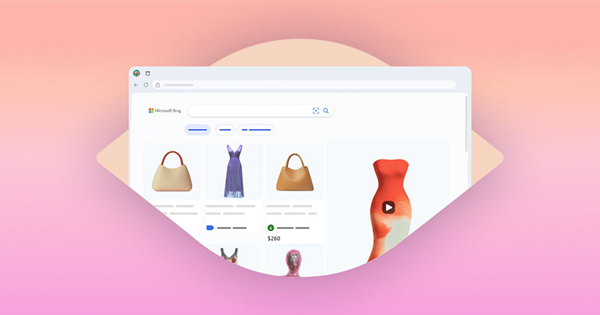
[Copilot Vision] - A Copilot Labs experiment
See and browse the world with your AI companion and get advice and insights on what you're seeing.

Copilot Vision on Windows with Highlights is now available in the U.S. | Microsoft Copilot Blog
For an optimal mobile viewing experience, use landscape mode. We’re excited to announce that Copilot Vision on Windows with Highlights is now available in the US.
www.microsoft.com
Using Copilot Vision with Microsoft Copilot | Microsoft Support
Microsoft Copilot Vision helps you navigate the web by finding relevant information and answering questions.
 support.microsoft.com

Copilot on Windows: Vision and file search begin rolling out to Windows Insiders
Hello Windows Insiders, we are beginning to roll out an update for the Microsoft Copilot app on Windows via the Microsoft Store which introduces the following changes and improvements: File search: You can now find, open and ask que
 blogs.windows.com

Copilot on Windows: Windows Insiders can now use Vision with 2 apps and new Highlights feature with 1 app
Hello Windows Insiders, we are beginning to roll out an update today for the Microsoft Copilot app on Windows via the Microsoft Store which introduces the following changes and improvements to Copilot Vision on Windows: Highlights:
blogs.windows.com

Copilot on Windows: Vision Desktop Share begins rolling out to Windows Insiders
Hello Windows Insiders, we are beginning to roll out an update for the Microsoft Copilot app on Windows via the Microsoft Store which introduces the following changes and improvements to Copilot Vision on Windows: Desktop S
blogs.windows.com
Copilot on Windows: Vision with text input begins rolling out to Windows Insiders
Hello Windows Insiders, we are excited to begin rolling out a new update for the Microsoft Copilot app on Windows that introduces the following changes and improvements: Vision with text-in, text-out: Win
blogs.windows.com
Contents
- Option One: Use Copilot Vision in Copilot app
- Option Two: Use Copilot Vision in Microsoft Edge
EXAMPLE: Copilot Vision on Windows
1 Open the Copilot app on Windows 11.
2 Sign in to Copilot with your Microsoft account if not already.
3 When you want to share an open browser or app window on your screen with Copilot, click/tap on the Share screen with Copilot (glasses) button on the composer bar. (see screenshot below)
4 Click/tap on the Screen on Share button for the window or app you want to share with Copilot. (see screenshot below)
5 You can now have a voice conversation with Copilot about the shared window to ask Copilot to help with whatever you’re working on. (see screenshot below)
6 During the conversation with Copilot, you can: (see screenshot below)
- Click/tap on the Voice (microphone) button to toggle the microphone on/off.
- Click/tap on the Share screen with Copilot (glasses) button to share a different window with Copilot.
- Click/tap on the Stop button or X to stop sharing the window with Copilot, and end the Vision session.
1 Open Microsoft Edge.
2 Sign in to Microsoft Edge with your Microsoft account if not already.
3 When you want to share a web page with Copilot, click/tap on the Copilot button on the toolbar. (see screenshot below)
4 Click/tap on the Talk to Copilot (microphone) button. (see screenshot below)
5 You can now have a voice conversation with Copilot about the content of the page. (see screenshot below)
While a Vision session is ongoing, your browser frame will change hue indicating that you are in an active Vision session. The bottom Copilot Composer will show a set of red eyeglasses to indicate Copilot Vision is active on the page. Copilot Vision is only active when you initiate a Vision session. Copilot Vision will remain on while you browse until you end the Vision session.
6 During the conversation with Copilot, you can: (see screenshot below)
- Click/tap on the microphone button to toggle mute and unmute.
- Click/tap on the Settings button to select a different voice for Copilot.
- Click/tap on the X button to stop sharing the page with Copilot, and end the Vision session.
That's it,
Shawn Brink
Related Tutorials
- Enable or Disable Highlights in Copilot Vision in Windows 11
- Enable or Disable Share with Copilot Vision Controls on Taskbar in Windows 11
- Start Voice Conversation with Copilot in Windows 11
- Add or Remove "Ask Copilot" Context Menu in Windows 11 and 10
- Enable or Disable Copilot to Read and Edit Text in Shared Apps in Windows 11
Last edited: