Using wildcards in Event Trigger Query


exodia508766

Member
Local time
11:42 AM
Posts
24
OS
Windows 11
I have a bunch of tasks that share the same beginning text, DUTY, in this case, with different endings like DUTY1, DUTY2. How do I use wildcards so whenever any task with DUTY-beginning runs, this task will trigger. I've tried DUTY*, *DUTY* even %DUTY%, but they don't work.
XML:
<QueryList>
  <Query Id="0" Path="Microsoft-Windows-TaskScheduler/Operational">
    <Select Path="Microsoft-Windows-TaskScheduler/Operational">*[EventData[@Name='TaskSuccessEvent'][Data[@Name='TaskName']='\DUTY']]</Select>
  </Query>
</QueryList>
 

My Computer My Computer

At a glance

Windows 11i5 1335U8
OS
Windows 11
Computer type
Laptop
Manufacturer/Model
DELL Inspiron 16 5630
CPU
i5 1335U
Memory
8
Unfortunately, wildcards aren't supported (likely for performance reasons).

If there aren't too many DUTY* tasknames, then trigger based on searching for:
Code:
<QueryList>
    <Query Id="0">
        <Select Path="Microsoft-Windows-TaskScheduler/Operational">
            *[EventData[@Name='TaskSuccessEvent'][Data[@Name='TaskName']='DUTY1']]
            or *[EventData[@Name='TaskSuccessEvent'][Data[@Name='TaskName']='DUTY2']]
            or *[EventData[@Name='TaskSuccessEvent'][Data[@Name='TaskName']='DUTY3']]
            or *[EventData[@Name='TaskSuccessEvent'][Data[@Name='TaskName']='DUTY4']]
        </Select>
    </Query>
</QueryList>
 

My Computer My Computer

At a glance

Windows 7
OS
Windows 7

My Computer My Computer

At a glance

Windows 11i5 1335U8
OS
Windows 11
Computer type
Laptop
Manufacturer/Model
DELL Inspiron 16 5630
CPU
i5 1335U
Memory
8
The real question isn't whether a generic XML query supports "contains(text(),...)" --but rather if the Event Logger facility does.

You can give that Reddit suggestion a shot, but I don't see the OP confirm if it worked. If it did work, that query would be terrible for performance.
 

My Computer My Computer

At a glance

Windows 7
OS
Windows 7
What would the correct layout look like ? Like this ? [Data[@Name='TaskName']=[contains(text(), '\DUTY']] ??
 

My Computer My Computer

At a glance

Windows 11i5 1335U8
OS
Windows 11
Computer type
Laptop
Manufacturer/Model
DELL Inspiron 16 5630
CPU
i5 1335U
Memory
8
Can you please demonstrate an example ?
 

My Computer My Computer

At a glance

Windows 11i5 1335U8
OS
Windows 11
Computer type
Laptop
Manufacturer/Model
DELL Inspiron 16 5630
CPU
i5 1335U
Memory
8
Did you read the posted link? Event Logger doesn't support contains() in XPath queries ("//").
 

My Computer My Computer

At a glance

Windows 7
OS
Windows 7
So if I have 50 Duty tasks, ill have to put them one by one into the Query in task scheduler. This is crazy...
 

My Computer My Computer

At a glance

Windows 11i5 1335U8
OS
Windows 11
Computer type
Laptop
Manufacturer/Model
DELL Inspiron 16 5630
CPU
i5 1335U
Memory
8
Of course, because it's the wrong way to solve this problem. Your tasks would call eventcreate to register the same custom event source. Then you can use one event trigger to find all of them.
 

My Computer My Computer

At a glance

Windows 7
OS
Windows 7
How do I do that ?
 

My Computer My Computer

At a glance

Windows 11i5 1335U8
OS
Windows 11
Computer type
Laptop
Manufacturer/Model
DELL Inspiron 16 5630
CPU
i5 1335U
Memory
8
DUTY1 Task:
Code:
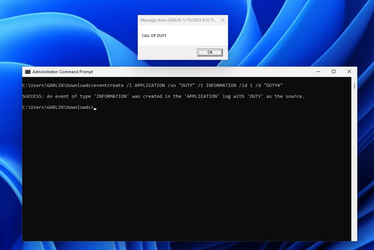
eventcreate /l APPLICATION /so "DUTY" /t INFORMATION /id 1 /d "DUTY1"
blah-blah script commands blah

DUTY2 Task:
Code:
eventcreate /l APPLICATION /so "DUTY" /t INFORMATION /id 1 /d "DUTY2"
blah-blah script commands blah

DUTY6 Task:
Code:
eventcreate /l APPLICATION /so "DUTY" /t INFORMATION /id 1 /d "DUTY6"
blah-blah script commands blah
 

Attachments

  • Capture1.PNG
    Capture1.PNG
    34.8 KB · Views: 3
  • Capture2.PNG
    Capture2.PNG
    23.4 KB · Views: 2
  • Capture3.PNG
    Capture3.PNG
    98.4 KB · Views: 2

My Computer My Computer

At a glance

Windows 7
OS
Windows 7
This command is confusing, I do not know how to use it and its not triggering a task when previous task has run.
 

My Computer My Computer

At a glance

Windows 11i5 1335U8
OS
Windows 11
Computer type
Laptop
Manufacturer/Model
DELL Inspiron 16 5630
CPU
i5 1335U
Memory
8
I think you need to learn about using custom EventID's. eventcreate allows any task (or script) to inject their own events in the log, where your watcher task triggers on them. With a shared EventID, then you don't need to filter on a given TaskName. It's done by the specific source/EventID.

The examples are to demonstrate how to force a trigger when a task runs, without knowing its name.
 

My Computer My Computer

At a glance

Windows 7
OS
Windows 7
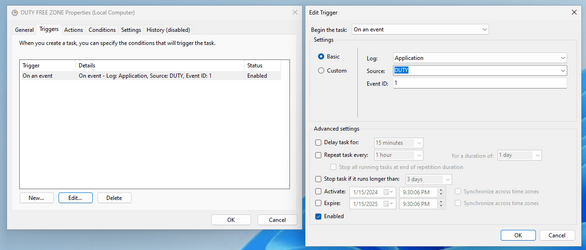
Your 1st screenshot, does SOURCE mean the scheduled task, which in my case was called DUTY, because theres a long list to choose from in the arrow
 

My Computer My Computer

At a glance

Windows 11i5 1335U8
OS
Windows 11
Computer type
Laptop
Manufacturer/Model
DELL Inspiron 16 5630
CPU
i5 1335U
Memory
8
Event logs are categorized into SYSTEM (Windows) or Application logs. Within a log, you have Event sources and ID's. You're free to make up your own sources/ID's, and pick any random Name or ID #.

The screen doesn't mean literally "What is the name of your application?" "DUTY".
It means Event Log = Application, Source (my random Name) = Duty
 

My Computer My Computer

At a glance

Windows 7
OS
Windows 7
I have tried everything, after using your command above, I even tried "ATTACH TASK TO THIS EVENT" after creating the custom event ID. I just don't how to make it work. Nothing is running. Even tried eventcreate.exe /l APPLICATION /so "DUTY" /t SUCCESS /id 1 /d "DUTY2"
 
Last edited:

My Computer My Computer

At a glance

Windows 11i5 1335U8
OS
Windows 11
Computer type
Laptop
Manufacturer/Model
DELL Inspiron 16 5630
CPU
i5 1335U
Memory
8
exodia,

I don't want to interrupt garlin's excellent guidance but do note that there are general EventCreate explanations in
- The command's built in Help. In any Terminal, Command prompt window enter this command & copy the response into a text file for retention
EventCreate /?
or, to send it straight to a text file using a path of your own choosing instead of my example path,
EventCreate /? >F:\Scripting\EventCreate\EventCreate.txt
- EventCreate - MSLearn
- EventCreate - SS64


All the best,
Denis
 

My Computer My Computer

At a glance

Windows 11 Home x64 Version 25H2 Build 26200....
OS
Windows 11 Home x64 Version 25H2 Build 26200.8037
I have looked at those but it does not further indicate how /SO is used. Its too little information.
 

My Computer My Computer

At a glance

Windows 11i5 1335U8
OS
Windows 11
Computer type
Laptop
Manufacturer/Model
DELL Inspiron 16 5630
CPU
i5 1335U
Memory
8
I've created 4 tasks as a study example.

Worker tasks:
- "Notepad Task"
- "Calculator Task"
- "Paint Task"

Watcher task:
- "Watcher Task"

All three worker tasks launch a single app, and write to the event log with their unique names. Watcher task opens a msg box, and it's passed the /d {string} value.

1705549939817.png

Normally, when you create a task in Task Scheduler UI it won't allow you pass the EventData info. But if you export the Watcher task to XML, add a few lines, and import it again, then will pass EventData for you.
Code:
    <EventTrigger>
...
      <ValueQueries>
          <Value name="EventData">Event/EventData/Data</Value>
      </ValueQueries>
 ...
    </EventTrigger>

Now you can use $(EventData) as an argument in your task commands for the Watcher.

Task scheduler – Event Log Trigger – Include Event Data in mail
 

Attachments

My Computer My Computer

At a glance

Windows 7
OS
Windows 7

Latest Support Threads

Back
Top Bottom