What is the new "Source image" option in Schneegans Unattend-generator for?


rafaelsouzams

Member
Local time
8:51 PM
Posts
17
OS
Windows 11
I noticed that Schneegans' Unattend-Generator gained a new option called "Source Image," but I confess I don't understand its utility and real application. Could someone explain it to me?

1750877277509.webp
 
Windows Build/Version
26000

My Computer My Computer

At a glance

Windows 11Core i9 1090064gbRTX 4070TI
OS
Windows 11
Computer type
PC/Desktop
Manufacturer/Model
Asus
CPU
Core i9 10900
Motherboard
Asus Z490-H Gaming
Memory
64gb
Graphics Card(s)
RTX 4070TI
Hard Drives
Samsung Evo 970 1Tb
When your install image has multiple editions, the unattended file can pre-select which image to install.

Four methods are supported:
1. Provide a generic install key (Pro -> VK7JG-NPHTM-C97JM-9MPGT-3V66T) or a specific activation license.
2. Select by the image's index number.
3. Select by the image's display name.
4. Select by the image's long description. Many times the description will match the display name.

If you don't pre-select an image, Setup will allow you to pick any edition to install unless there's an existing OEM product key found in the BIOS. For those cases, selecting the exact image in the unattended file will override this logic.
 
Last edited:

My Computer My Computer

At a glance

Windows 7
OS
Windows 7
I see Garlin already responded while I was typing the below. Here is just a little added detail...

Let's assume that you are working with a standard US English Windows 11 ISO image. In that ISO image you will find 11 editions of Windows which include Home, Pro, etc. The option that you are pointing out are various ways to select which edition you are targeting. For example, you can specify the generic key for Pro to tell Windows setup that you intend to use the Pro edition of Windows.

That works great if there is only one Pro edition of Windows in the image (as there would be on the standard ISO image). But what happens if you have multiple Pro editions in your ISO image? The key would be insufficient then because while you selected Pro, there are several different pro images on your ISO, so that won't be enough to tell setup which one to install. In that case you can specify the precise image by means of index, name, or description. In this scenario, if you merely used a Pro generic key, setup would find multiple editions of pro and stop, asking you specify which one of the pro editions to install.

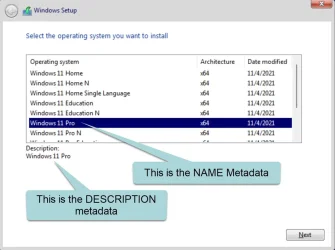
INDEX: Every edition of Windows within the ISO gets a unique index number starting from 1 and going up: 1, 2, 3, 4, etc.

NAME and DESCRIPTION: When you install Windows and it gives you an option to select an edition to install, you may have seen something like this:
Picture1.webp


So, that option will allow you to select the edition to be installed based upon that name or description. The idea here is that if you are building a custom ISO image, you might give every edition a unique name and description.

Just to give an idea, I've created single ISO images with over 30 editions of Windows including both x86 (32-bit) and x64 (64-bit) editions and as many as 5 or 6 different editions of Windows Pro all on the same ISO image so this becomes a necessary option!

The bottom line is that for standard Windows ISO images, you really don't need to worry about this. Using the generic key is sufficient. But if you plan to make a lot of customized ISO images, that is where this option will help.

 

My Computers My Computers

  • At a glance

    Win11 Pro 25H2 (RTM+)Intel i7-14650HX32 GBNo GPU - Built-in Intel Graphics
    OS
    Win11 Pro 25H2 (RTM+)
    Computer type
    PC/Desktop
    Manufacturer/Model
    Acemagic
    CPU
    Intel i7-14650HX
    Memory
    32 GB
    Graphics Card(s)
    No GPU - Built-in Intel Graphics
    Sound Card
    Integrated
    Monitor(s) Displays
    Varies as machine will often be moved to locations with different monitors
    Screen Resolution
    Varies
    Hard Drives
    1 x 1TB Gen 4 NVMe SSD
    PSU
    120W Power Brick
    Keyboard
    Corsair K70 Max RGB Magnetic Keyboard
    Mouse
    Logitech MX Master 3
    Internet Speed
    1Gb Up / 1 Gb Down
    Browser
    Edge
    Antivirus
    Windows Defender
  • At a glance

    Win11 Pro 25H2 (RTM+)Intel i7-1255U16 GBIntel Iris Xe Graphics
    Operating System
    Win11 Pro 25H2 (RTM+)
    Computer type
    Laptop
    Manufacturer/Model
    Lenovo ThinkBook 13x Gen 2
    CPU
    Intel i7-1255U
    Memory
    16 GB
    Graphics card(s)
    Intel Iris Xe Graphics
    Sound Card
    Realtek® ALC3306-CG codec
    Monitor(s) Displays
    13.3-inch IPS Display
    Screen Resolution
    WQXGA (2560 x 1600)
    Hard Drives
    2 TB 4 x 4 NVMe SSD
    PSU
    USB-C / Thunderbolt 4 Power / Charging
    Keyboard
    Backlit, spill resistant keyboard
    Mouse
    Buttonless Glass Precision Touchpad
    Internet Speed
    1Gb Up / 1Gb Down
    Browser
    Edge
    Antivirus
    Windows Defender
    Other Info
    WiFi 6e / Bluetooth 5.1 / Facial Recognition / Fingerprint Sensor / ToF (Time of Flight) Human Presence Sensor
And what would be the difference from the option right before it, called "Windows Edition" where I can also select which edition of the system I will install? It seems to me that the 2 options do exactly the same thing! Is there any difference between them?

1750880927687.webp
 

My Computer My Computer

At a glance

Windows 11Core i9 1090064gbRTX 4070TI
OS
Windows 11
Computer type
PC/Desktop
Manufacturer/Model
Asus
CPU
Core i9 10900
Motherboard
Asus Z490-H Gaming
Memory
64gb
Graphics Card(s)
RTX 4070TI
Hard Drives
Samsung Evo 970 1Tb
I'm not sure why he allows conflicting settings. You'll have to ask the dev.
Code:
        <component name="Microsoft-Windows-Setup" processorArchitecture="amd64" publicKeyToken="31bf3856ad364e35" language="neutral" versionScope="nonSxS">
            <ImageInstall>
                <OSImage>
                    <InstallFrom>
                        <MetaData wcm:action="add">
                            <Key>/IMAGE/INDEX</Key>
                            <Value>1</Value>
                        </MetaData>
                    </InstallFrom>
                </OSImage>
            </ImageInstall>
            <UserData>
                <ProductKey>
                    <Key>VK7JG-NPHTM-C97JM-9MPGT-3V66T</Key>
                    <WillShowUI>OnError</WillShowUI>
                </ProductKey>
                <AcceptEula>true</AcceptEula>
            </UserData>

Offhand, I have no idea which one of the two "wins" based on higher priority. I don't believe MS has documented this detail.
 

My Computer My Computer

At a glance

Windows 7
OS
Windows 7
Offhand, I have no idea which one of the two "wins" based on higher priority. I don't believe MS has documented this detail.

24H2 Modern (New) Client
  • Setup will not display the image selection screen (expected behavior)
  • <ProductKey> always wins
<InstallFrom><ProductKey>Listed editionsInstalled Edition
<Key>/IMAGE/INDEX</Key>
<Value>1</Value>
<Key>VK7JG-NPHTM-C97JM-9MPGT-3V66T</Key>NoneWindows 11 Pro
<Key>/IMAGE/NAME</Key>
<Value>Windows 11 Home</Value>
<Key>VK7JG-NPHTM-C97JM-9MPGT-3V66T</Key>NoneWindows 11 Pro
<Key>/IMAGE/DESCRIPTION</Key>
<Value>Windows 11 Home</Value>
<Key>VK7JG-NPHTM-C97JM-9MPGT-3V66T</Key>NoneWindows 11 Pro


24H2 Legacy Client (using boot.wim hack)
  • Setup will pause at the image selection screen (unexpected behavior), but won't begin installing until you click on Next
  • <ProductKey> always wins
<InstallFrom><ProductKey>Listed editionsInstalled Edition
<Key>/IMAGE/INDEX</Key>
<Value>1</Value>
<Key>VK7JG-NPHTM-C97JM-9MPGT-3V66T</Key>Windows 11 ProWindows 11 Pro
<Key>/IMAGE/NAME</Key>
<Value>Windows 11 Home</Value>
<Key>VK7JG-NPHTM-C97JM-9MPGT-3V66T</Key>Windows 11 ProWindows 11 Pro
<Key>/IMAGE/DESCRIPTION</Key>
<Value>Windows 11 Home</Value>
<Key>VK7JG-NPHTM-C97JM-9MPGT-3V66T</Key>Windows 11 ProWindows 11 Pro


<ProductKey> wins over <InstallFrom>. So it's pointless to include both settings in the same unattended file.
 

My Computer My Computer

At a glance

Windows 7
OS
Windows 7
Back
Top Bottom


