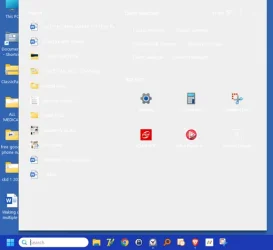
when I click the search box at bottom of screen everything is white


lnjr

Well-known member
Member
Local time
4:21 AM
Posts
62
OS
windows 11 Pro
Everything was fine yesterday. This morning when I go to the search box at the bottom left of my screen and type something in all the words are now white on the screen that comes up. I have not changed anything since last night and I can't figure out how to be able to see what the search shows since I can't read it. How can I fix this?
I am running Windows 11Pro Version 23H2 (OS Build 22631.7276). I have attached what I get now.
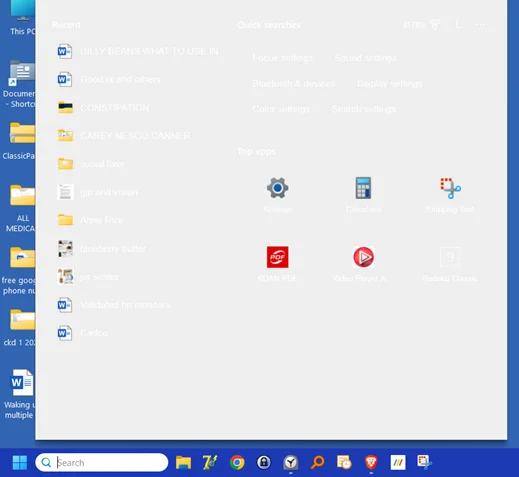
1784905732849.webp

1784905732849.webp
Thank You
 

My Computers My Computers

  • At a glance

    windows 11 Pro11th Gen Intel Core i7-11390H (4 Cores, 8 Thr...32GB dual channel (DDR4)Intel® Iris® Xe
    OS
    windows 11 Pro
    Computer type
    PC/Desktop
    Manufacturer/Model
    geekom mini IT11
    CPU
    11th Gen Intel Core i7-11390H (4 Cores, 8 Threads, 12M
    Memory
    32GB dual channel (DDR4)
    Graphics Card(s)
    Intel® Iris® Xe
    Monitor(s) Displays
    HP S2031
    Hard Drives
    1TB SSD
  • At a glance

    Windows 11 ProIntel Core i7-13620HDDR4: SO-DIMM 32GB
    Operating System
    Windows 11 Pro
    Computer type
    PC/Desktop
    Manufacturer/Model
    Geekom Mini PC XT13 Pro
    CPU
    Intel Core i7-13620H
    Memory
    DDR4: SO-DIMM 32GB
    Monitor(s) Displays
    HPS2031
    Hard Drives
    M.2 1TB

My Computer My Computer

At a glance

Windows 11AMD Ryzen 7 5700GMicron Technology DDR4-3200 16GBNVIDIA GeForce RTX 3060
OS
Windows 11
Computer type
PC/Desktop
Manufacturer/Model
HP Pavilion
CPU
AMD Ryzen 7 5700G
Motherboard
Erica6
Memory
Micron Technology DDR4-3200 16GB
Graphics Card(s)
NVIDIA GeForce RTX 3060
Sound Card
Realtek ALC671
Monitor(s) Displays
Samsung SyncMaster U28E590
Screen Resolution
3840 x 2160
Hard Drives
SAMSUNG MZVLQ1T0HALB-000H1
Thanks!

I tried running Power Shell from admin and nothing happened. This is all I got
Windows PowerShell
Copyright (C) Microsoft Corporation. All rights reserved.

Install the latest PowerShell for new features and improvements! Windows PowerShell update message FAQ - PowerShell

PS C:\windows\system32> Get-AppxPackage Microsoft.Windows.Search | Reset-AppxPackage
PS C:\windows\system32>

So I typed exit and closed the screen.


I clicked on the next thing suggested - download the batch file and it took me to this screen
1784912069419.webp

If I click on either of those it simply gives me the option to copy file name

I thought that before I go any further I should wait to see what I am missing.

I did click that last thing listed and that takes me to a page to

Reset Windows Search PowerShell script - but that states it is for windows 10?​


My Computers My Computers

  • At a glance

    windows 11 Pro11th Gen Intel Core i7-11390H (4 Cores, 8 Thr...32GB dual channel (DDR4)Intel® Iris® Xe
    OS
    windows 11 Pro
    Computer type
    PC/Desktop
    Manufacturer/Model
    geekom mini IT11
    CPU
    11th Gen Intel Core i7-11390H (4 Cores, 8 Threads, 12M
    Memory
    32GB dual channel (DDR4)
    Graphics Card(s)
    Intel® Iris® Xe
    Monitor(s) Displays
    HP S2031
    Hard Drives
    1TB SSD
  • At a glance

    Windows 11 ProIntel Core i7-13620HDDR4: SO-DIMM 32GB
    Operating System
    Windows 11 Pro
    Computer type
    PC/Desktop
    Manufacturer/Model
    Geekom Mini PC XT13 Pro
    CPU
    Intel Core i7-13620H
    Memory
    DDR4: SO-DIMM 32GB
    Monitor(s) Displays
    HPS2031
    Hard Drives
    M.2 1TB
I did try running the DISM.exe /Online /Cleanup-image /Restorehealth and then sfc /scannow
The dism command gave me
The restore operation completed successfully.

The operation completed successfully.

The sfc /scannow results were
Windows Resource Protection found corrupt files and successfully repaired them.

For online repairs, details are included in the CBS log file located at

windir\Logs\CBS\CBS.log. For example C:\Windows\Logs\CBS\CBS.log. For offline

repairs, details are included in the log file provided by the /OFFLOGFILE flag.
 

My Computers My Computers

  • At a glance

    windows 11 Pro11th Gen Intel Core i7-11390H (4 Cores, 8 Thr...32GB dual channel (DDR4)Intel® Iris® Xe
    OS
    windows 11 Pro
    Computer type
    PC/Desktop
    Manufacturer/Model
    geekom mini IT11
    CPU
    11th Gen Intel Core i7-11390H (4 Cores, 8 Threads, 12M
    Memory
    32GB dual channel (DDR4)
    Graphics Card(s)
    Intel® Iris® Xe
    Monitor(s) Displays
    HP S2031
    Hard Drives
    1TB SSD
  • At a glance

    Windows 11 ProIntel Core i7-13620HDDR4: SO-DIMM 32GB
    Operating System
    Windows 11 Pro
    Computer type
    PC/Desktop
    Manufacturer/Model
    Geekom Mini PC XT13 Pro
    CPU
    Intel Core i7-13620H
    Memory
    DDR4: SO-DIMM 32GB
    Monitor(s) Displays
    HPS2031
    Hard Drives
    M.2 1TB
You have to extract the files from .zip archive and double-click Reset_Windows_Search.batfile.
 

My Computer My Computer

At a glance

Windows 11AMD Ryzen 7 5700GMicron Technology DDR4-3200 16GBNVIDIA GeForce RTX 3060
OS
Windows 11
Computer type
PC/Desktop
Manufacturer/Model
HP Pavilion
CPU
AMD Ryzen 7 5700G
Motherboard
Erica6
Memory
Micron Technology DDR4-3200 16GB
Graphics Card(s)
NVIDIA GeForce RTX 3060
Sound Card
Realtek ALC671
Monitor(s) Displays
Samsung SyncMaster U28E590
Screen Resolution
3840 x 2160
Hard Drives
SAMSUNG MZVLQ1T0HALB-000H1
Sorry for the delay in replying - had some company for a couple days and I didn't do much on computer.

I went to that link again and saw the arrow in the upper left corner and selected download and it downloaded to my computer. I did mess with personalization and did get the search to show the items now, but the colors have changed and now my taskbar is a very pal blue from the darker color, but if need be, I can learn to deal with that.

I did find information at which seems to look like what I was seeing and I read through it, but the only thing I followed was the part to do this: Win+I -> Personalization -> Colors -> Choose your default Windows mode -> Toggle between Light & Dark a few times ---- I did this multiple times and I can now see the words instead of just getting what looks like white on light grey.

Still going to do as suggested here to see if that help. Will let you know how it goes. Thank You.
 

My Computers My Computers

  • At a glance

    windows 11 Pro11th Gen Intel Core i7-11390H (4 Cores, 8 Thr...32GB dual channel (DDR4)Intel® Iris® Xe
    OS
    windows 11 Pro
    Computer type
    PC/Desktop
    Manufacturer/Model
    geekom mini IT11
    CPU
    11th Gen Intel Core i7-11390H (4 Cores, 8 Threads, 12M
    Memory
    32GB dual channel (DDR4)
    Graphics Card(s)
    Intel® Iris® Xe
    Monitor(s) Displays
    HP S2031
    Hard Drives
    1TB SSD
  • At a glance

    Windows 11 ProIntel Core i7-13620HDDR4: SO-DIMM 32GB
    Operating System
    Windows 11 Pro
    Computer type
    PC/Desktop
    Manufacturer/Model
    Geekom Mini PC XT13 Pro
    CPU
    Intel Core i7-13620H
    Memory
    DDR4: SO-DIMM 32GB
    Monitor(s) Displays
    HPS2031
    Hard Drives
    M.2 1TB
I did run that bat file as suggested and nothing has changed. But maybe that is because I found a work around. Now to just see if I can find a way to get the taskbar at the bottom of the monitor to change to something other than that very light blue. At least it isn't that light grey with white wording now so that I can read everything.

Thanks!
 

My Computers My Computers

  • At a glance

    windows 11 Pro11th Gen Intel Core i7-11390H (4 Cores, 8 Thr...32GB dual channel (DDR4)Intel® Iris® Xe
    OS
    windows 11 Pro
    Computer type
    PC/Desktop
    Manufacturer/Model
    geekom mini IT11
    CPU
    11th Gen Intel Core i7-11390H (4 Cores, 8 Threads, 12M
    Memory
    32GB dual channel (DDR4)
    Graphics Card(s)
    Intel® Iris® Xe
    Monitor(s) Displays
    HP S2031
    Hard Drives
    1TB SSD
  • At a glance

    Windows 11 ProIntel Core i7-13620HDDR4: SO-DIMM 32GB
    Operating System
    Windows 11 Pro
    Computer type
    PC/Desktop
    Manufacturer/Model
    Geekom Mini PC XT13 Pro
    CPU
    Intel Core i7-13620H
    Memory
    DDR4: SO-DIMM 32GB
    Monitor(s) Displays
    HPS2031
    Hard Drives
    M.2 1TB

My Computer My Computer

At a glance

Windows 11 Insider Experimental (26H2)Intel Core i5-1140032Gb (DDR4 SDRAM)Intel(R) UHD Graphics 730
OS
Windows 11 Insider Experimental (26H2)
Computer type
PC/Desktop
Manufacturer/Model
Gigabyte Technology Co., Ltd.
CPU
Intel Core i5-11400
Motherboard
Z590 AORUS PRO AX
Memory
32Gb (DDR4 SDRAM)
Graphics Card(s)
Intel(R) UHD Graphics 730
Sound Card
Realtek USB Audio
Monitor(s) Displays
LG 27US500-W 4K UHD UltraFine™
Screen Resolution
3840x2160
Hard Drives
Samsung SSD 980 PRO 1TB
WDC WD7501AALS
PSU
Montech CENTURY, 650W, 80+ Gold
Case
Cougar Airface ECO RGB
Cooling
ID-COOLING SE-224-XTS BLACK
Keyboard
Microsoft SideWinder X6 Keyboard
Mouse
Microsoft SideWinder Mouse
Internet Speed
Internet speed of 1 Gbit/s
Browser
Vivaldi browser
Antivirus
Windows Defender
I did see that when trying to find out what the heck suddenly happened to my search bar. Thanks. After reading all the comments and suggestions I just went with the option to do this : Win+I -> Personalization -> Colors -> Choose your default Windows mode -> Toggle between Light & Dark a few times ---- I did this multiple times and I can now see the words instead of just getting what looks like white on light grey.

Only thing is that it also changed the color of the taskbar at the bottom of the screen so it is now a very light blue. I did manage to change that to black so it is easier for me to see (have some vision issues). I will just have to accept that color until I can figure out how to change the color of that taskbar and keep my other settings as well.

Thank You!
 

My Computers My Computers

  • At a glance

    windows 11 Pro11th Gen Intel Core i7-11390H (4 Cores, 8 Thr...32GB dual channel (DDR4)Intel® Iris® Xe
    OS
    windows 11 Pro
    Computer type
    PC/Desktop
    Manufacturer/Model
    geekom mini IT11
    CPU
    11th Gen Intel Core i7-11390H (4 Cores, 8 Threads, 12M
    Memory
    32GB dual channel (DDR4)
    Graphics Card(s)
    Intel® Iris® Xe
    Monitor(s) Displays
    HP S2031
    Hard Drives
    1TB SSD
  • At a glance

    Windows 11 ProIntel Core i7-13620HDDR4: SO-DIMM 32GB
    Operating System
    Windows 11 Pro
    Computer type
    PC/Desktop
    Manufacturer/Model
    Geekom Mini PC XT13 Pro
    CPU
    Intel Core i7-13620H
    Memory
    DDR4: SO-DIMM 32GB
    Monitor(s) Displays
    HPS2031
    Hard Drives
    M.2 1TB

Latest Support Threads

Latest Tutorials

Back
Top Bottom