Solved Windows 10 & 11 create tons of empty folders in System32


I wish I had not deleted them. Revo uninstaller would not start, shift+reset would not launch recovery and Defender updates would not install. In the end, I did a repair install of Windows. Currently I have 16,000 empty folders! I am running Disk Cleanup now and will report back when it finishes.
 

My Computers

System One System Two

  • OS
    Windows 11 Pro 25H2 26200.8524
    Computer type
    Laptop
    Manufacturer/Model
    Acemagic LX15PRO
    CPU
    AMD Ryzen 7 5825U with Radeon Graphics
    Memory
    16GB
    Screen Resolution
    1920 x 1080
    Hard Drives
    SSD 2TB
    Internet Speed
    30 Mbps
    Browser
    Brave
    Antivirus
    Webroot Secure Anywhere
    Other Info
    System 3

    Acer Swift SF114-34 laptop
    OS Windows 11 Pro 26200.8524
    CPU Pentium Silver N6000
    RAM 4GB
    SSD Samsung 970 EVO Plus SSD 2TB (an upgrade)
  • Operating System
    Windows 11 Pro 23H2 22631.2506
    Computer type
    Laptop
    Manufacturer/Model
    HP Mini 210-1090NR PC (bought in late 2009!)
    CPU
    Atom N450 1.66GHz
    Memory
    2GB
    Browser
    Brave
    Antivirus
    Webroot
There was a discussion over at Bleeping Computer about this issue over a year ago. @JohnC_21 provided me with a batch file to delete those folders, which I have been doing weekly ever since without any adverse repercussions.

Code:
@echo off
del "C:\Windows\System32\config\systemprofile\AppData\Local\*.tmp" /s /q /f
FOR /d %%p IN ("C:\Windows\System32\config\systemprofile\AppData\Local\*.tmp") DO rmdir "%%p" /s /q

Have a great day.

Regards,
Phil
 

My Computers

System One System Two

  • OS
    Windows 11 Pro Version 25H2 (Build 26200.8457
    Computer type
    PC/Desktop
    Manufacturer/Model
    Dell XPS8930 SE
    CPU
    Intel i7-9700K 4700 MHz
    Motherboard
    Dell XPS 8930
    Memory
    32 GB (4 x 8GB SK Hynix DDR4 @1333 MHz) (2666 MHz)
    Graphics Card(s)
    NVIDIA GeForce RTX 2060 (6 GB) GDDR6 300 MHz
    Sound Card
    None
    Monitor(s) Displays
    Dell UltraSharp U2518D 25"
    Screen Resolution
    2560 x 1440
    Hard Drives
    NVMe Intel 1024 TB
    Seagate 2 TB, SATA-III
    Western Digital Black 4TB
    PSU
    850 W Gold Standard
    Case
    Dell XPS 8930 Base (Special Edition)
    Cooling
    Air
    Keyboard
    Dell 0G4D2W
    Mouse
    Dell MOCZUL
    Internet Speed
    Download 553 Mbps, Upload 686 Mbps
    Browser
    Google Chrome
    Antivirus
    ESET Smart Security Premium, plus Malwarebytes Premium
    Other Info
    BIOS Version 1.1.31
  • Operating System
    Windows 11 Pro Version 25H2 (Build 26200.8457)
    Computer type
    Laptop
    Manufacturer/Model
    Dell XPS 15 7590
    CPU
    i7-9750H 4.5 GHz
    Motherboard
    Dell XPS 15 7590
    Memory
    16 GB (2 x 8GB @ 1333 MHz) DDR4-2666 MHz
    Graphics card(s)
    NVIDIA GeForce 1650 4 GB GDDR5
    Sound Card
    None
    Monitor(s) Displays
    Dell XPS 15 7590, 15.6" InfinityEdge Anti-Glare, Non-Touch
    Screen Resolution
    1920 x 1080
    Hard Drives
    512 GB M.2 PCle NVMe SK Hynix
    PSU
    130W Power Adapter
    Case
    Dell XPS 15 7590
    Cooling
    Air
    Keyboard
    Laptop
    Mouse
    Logitech M510
    Internet Speed
    Download: 400 Mbps, Upload: 203 Mbps
    Browser
    Google Chrome
    Antivirus
    ESET Smart Security Premium, plus Malwarebytes Premium
    Other Info
    BIOS Version 1.35.0
@garioch7 - A quick question re your post #242: -
In your experience how long does the batch file take to run if done weekly? Are you able to see the folder deletion process happening?

The reason I ask is that I created the batch file with the code copy/pasted into it and then I ran it. A window flashed up on the screen but it disappeared within 1/4 of a second. Too quick to read if anything was executed. I put this down to my having deleted 3826 of these folders manually an hour beforehand so there would have been nothing to find and delete. It had taken 2 1/2 years for that number of folders to be created since I had last deleted them. Or, it could be that the batch file isn't executing at all.
I am wondering that if I allow them to grow again then the window should stay on the screen longer and I will be able to see the batch file in operation.
 

My Computers

System One System Two

  • OS
    Windows 11 Pro
    Computer type
    PC/Desktop
    Manufacturer/Model
    GMKtec K11
    CPU
    AMD Ryzen 9 8945HS
    Memory
    32GB DDR5 SO-DIMM
    Graphics Card(s)
    Integrated AMD Radeon 780M (4.00 GHz)
    Monitor(s) Displays
    Benq 2250HM
    Screen Resolution
    1920 x 1080
    Hard Drives
    1 TB PCIe 4.0 NVMe M.2 SSD
  • Operating System
    Windows 11 Home
    Computer type
    Laptop
    Manufacturer/Model
    ASUS Zenbook 14 OLED 14" Laptop - UX3405CA-QL192W
    CPU
    Intel® Core™ Ultra 7 - 255H processor
    Memory
    16 GB LPDDR5 SDRAM
    Graphics card(s)
    Intel Arc 140T onboard graphics
    Screen Resolution
    1920 x 1200 (16:10 WUXGA resolution) OLED Touchscreen
    Hard Drives
    1TB SSD
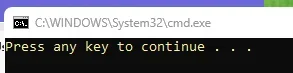
@wiganken You can put a pause at the end of the batch file. It will stop at the end and wait for you to press a key, so you can see what happened.

But in terms of how long it should run, it really shouldn't take much time to delete empty folders.
 

My Computer

System One

  • OS
    Windows 11 Pro 25H2
    Computer type
    PC/Desktop
    Manufacturer/Model
    Intel NUC12WSHi7
    CPU
    12th Gen Core i7-1260P
    Motherboard
    NUC12WSBi7
    Memory
    64 GB Micron PC4-25600
    Graphics Card(s)
    Intel Iris Xe Graphics
    Sound Card
    on-board Realtek HD Audio
    Monitor(s) Displays
    Dell U3219Q
    Screen Resolution
    3840 x 2160
    Hard Drives
    Samsung SSD 990 PRO 1TB
    Crucial MX500 2 TB
    Antivirus
    Microsoft Defender
You can put a pause at the end of the batch file.
Thank you. I did that and it worked but I see that it could not find *.tmp?
The path is correct and it is true that there are no .tmp folders or any .tmp files
Question - Is the "Could not find...." referring to .tmp files and folders?

To confirm it works I will allow some empty folders to build up again and then run it again but I was just wondering, since it may be some while until that happens. It would be nice to know now rather than wait.

Could not find.webp
 

My Computers

System One System Two

  • OS
    Windows 11 Pro
    Computer type
    PC/Desktop
    Manufacturer/Model
    GMKtec K11
    CPU
    AMD Ryzen 9 8945HS
    Memory
    32GB DDR5 SO-DIMM
    Graphics Card(s)
    Integrated AMD Radeon 780M (4.00 GHz)
    Monitor(s) Displays
    Benq 2250HM
    Screen Resolution
    1920 x 1080
    Hard Drives
    1 TB PCIe 4.0 NVMe M.2 SSD
  • Operating System
    Windows 11 Home
    Computer type
    Laptop
    Manufacturer/Model
    ASUS Zenbook 14 OLED 14" Laptop - UX3405CA-QL192W
    CPU
    Intel® Core™ Ultra 7 - 255H processor
    Memory
    16 GB LPDDR5 SDRAM
    Graphics card(s)
    Intel Arc 140T onboard graphics
    Screen Resolution
    1920 x 1200 (16:10 WUXGA resolution) OLED Touchscreen
    Hard Drives
    1TB SSD
@garioch7 - A quick question re your post #242: -
In your experience how long does the batch file take to run if done weekly? Are you able to see the folder deletion process happening?

The reason I ask is that I created the batch file with the code copy/pasted into it and then I ran it. A window flashed up on the screen but it disappeared within 1/4 of a second. Too quick to read if anything was executed. I put this down to my having deleted 3826 of these folders manually an hour beforehand so there would have been nothing to find and delete. It had taken 2 1/2 years for that number of folders to be created since I had last deleted them. Or, it could be that the batch file isn't executing at all.
I am wondering that if I allow them to grow again then the window should stay on the screen longer and I will be able to see the batch file in operation.
@wiganken hi there,
If you go to Task scheduler, down the left had column navigate to:
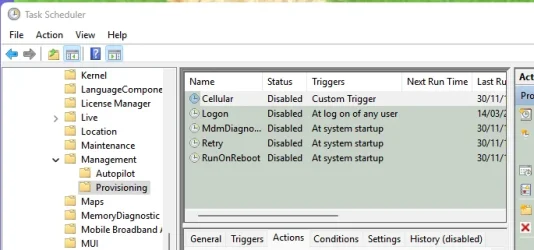
Task Schedular Library >Microsoft> Windows>Management>Provisioning
In the center column you will find: Cellular, Logon, MdmDiag...., Retry and Run OnRestart Disable these and that will stop the folders reappearing, you only need to check the original folder then after major updates, Mine has been like that for ages and all works fine.
Rod BTW read post #34
 

My Computers

System One System Two

  • OS
    Windows 11 Pro
    Computer type
    Laptop
    Manufacturer/Model
    Alienware M18 R1
    CPU
    13th Gen Core i9 13900HX
    Memory
    32GB DDR5 @4800MHz 2x16GB
    Graphics Card(s)
    Geforce RTX 4090HX 16GB
    Sound Card
    Nvidia HD / Realtek ALC3254
    Monitor(s) Displays
    18" QHD+
    Screen Resolution
    25660 X 1600
    Hard Drives
    C: KIOXIA (Toshiba) 2TB KXG80ZNV2T04 NVMe PCIe M.2 SSD
    D: KIOXIA (Toshiba) 2TB KXG80ZNV2T04 NVMe PCIe M.2 SSD
    Case
    Dark Metallic Moon
    Keyboard
    Alienware M Series per-key AlienFX RGB
    Mouse
    Alienware AW610M
    Browser
    Chrome and Firefox
    Antivirus
    Norton
    Other Info
    Killer E3000 Ethernet Controller
    Killer Killer AX1690 Wi-Fi Network Adaptor Wi-Fi 6E
    Bluetooth 5.2
    Alienware Z01G Graphic Amplifier
  • Operating System
    Windows 11 Pro
    Computer type
    Laptop
    Manufacturer/Model
    Alienware Area 51m R2
    CPU
    10th Gen i-9 10900 K
    Memory
    32Gb Dual Channel DDR4 @ 8843MHz
    Graphics card(s)
    Nvidia RTX 2080 Super
    Sound Card
    Nvidia
    Screen Resolution
    1920 x 1080
    Hard Drives
    Hard Drive C: Samsung 2TB SSD PM981a NVMe
    Hard Drive D:Samsung 2TB SSD 970 EVO Plus
    Mouse
    Alienware 610M
    Browser
    Chrome
    Antivirus
    Norton
@wiganken Both of those commands seem to run silently. I don't get any output at all on my system when I run them, even if there are no files or folders present. I notice, though, that your command prompt window does not appear to be running as Administrator. That could be the source of the "file not found" type messages.

But the first command, the del line, is the one that deletes files. The second line deletes directories.

I was in that discussion at Bleeping Computer that garioch7 mentioned, and I found that it seemed to be coming from the provisioning tasks that The-Hive mentioned. I do the same thing @The-Hive does, and just disabled the scheduled tasks. Hasn't had an effect on me since that discussion at BC, nearly two three years ago.

 
Last edited:

My Computer

System One

  • OS
    Windows 11 Pro 25H2
    Computer type
    PC/Desktop
    Manufacturer/Model
    Intel NUC12WSHi7
    CPU
    12th Gen Core i7-1260P
    Motherboard
    NUC12WSBi7
    Memory
    64 GB Micron PC4-25600
    Graphics Card(s)
    Intel Iris Xe Graphics
    Sound Card
    on-board Realtek HD Audio
    Monitor(s) Displays
    Dell U3219Q
    Screen Resolution
    3840 x 2160
    Hard Drives
    Samsung SSD 990 PRO 1TB
    Crucial MX500 2 TB
    Antivirus
    Microsoft Defender
I notice, though, that your command prompt window does not appear to be running as Administrator
If I run the batch file as Administrator (by right-clicking on it and selecting 'Run as administrator') this is what I see: -

Run as Administrator.webp

If I run it by double-clicking on it I see as shown in post #245.

Does that seem right?

the first command, the del line, is the one that deletes files. The second line deletes directories.
Thanks for the explanation.

@The-Hive - Thank you. I will try doing that.
 

My Computers

System One System Two

  • OS
    Windows 11 Pro
    Computer type
    PC/Desktop
    Manufacturer/Model
    GMKtec K11
    CPU
    AMD Ryzen 9 8945HS
    Memory
    32GB DDR5 SO-DIMM
    Graphics Card(s)
    Integrated AMD Radeon 780M (4.00 GHz)
    Monitor(s) Displays
    Benq 2250HM
    Screen Resolution
    1920 x 1080
    Hard Drives
    1 TB PCIe 4.0 NVMe M.2 SSD
  • Operating System
    Windows 11 Home
    Computer type
    Laptop
    Manufacturer/Model
    ASUS Zenbook 14 OLED 14" Laptop - UX3405CA-QL192W
    CPU
    Intel® Core™ Ultra 7 - 255H processor
    Memory
    16 GB LPDDR5 SDRAM
    Graphics card(s)
    Intel Arc 140T onboard graphics
    Screen Resolution
    1920 x 1200 (16:10 WUXGA resolution) OLED Touchscreen
    Hard Drives
    1TB SSD
@The-Hive - I did that. All Provisioning tasks are now disabled. Hope that works (until the next feature update resets things). :crossedSee photo: -
Provisioning tasks all disabled.webp
 
Last edited:

My Computers

System One System Two

  • OS
    Windows 11 Pro
    Computer type
    PC/Desktop
    Manufacturer/Model
    GMKtec K11
    CPU
    AMD Ryzen 9 8945HS
    Memory
    32GB DDR5 SO-DIMM
    Graphics Card(s)
    Integrated AMD Radeon 780M (4.00 GHz)
    Monitor(s) Displays
    Benq 2250HM
    Screen Resolution
    1920 x 1080
    Hard Drives
    1 TB PCIe 4.0 NVMe M.2 SSD
  • Operating System
    Windows 11 Home
    Computer type
    Laptop
    Manufacturer/Model
    ASUS Zenbook 14 OLED 14" Laptop - UX3405CA-QL192W
    CPU
    Intel® Core™ Ultra 7 - 255H processor
    Memory
    16 GB LPDDR5 SDRAM
    Graphics card(s)
    Intel Arc 140T onboard graphics
    Screen Resolution
    1920 x 1200 (16:10 WUXGA resolution) OLED Touchscreen
    Hard Drives
    1TB SSD
Does that seem right?
Seems right to me, yep. I have no such files or folders in my systems, and those commands run without complaint.
 

My Computer

System One

  • OS
    Windows 11 Pro 25H2
    Computer type
    PC/Desktop
    Manufacturer/Model
    Intel NUC12WSHi7
    CPU
    12th Gen Core i7-1260P
    Motherboard
    NUC12WSBi7
    Memory
    64 GB Micron PC4-25600
    Graphics Card(s)
    Intel Iris Xe Graphics
    Sound Card
    on-board Realtek HD Audio
    Monitor(s) Displays
    Dell U3219Q
    Screen Resolution
    3840 x 2160
    Hard Drives
    Samsung SSD 990 PRO 1TB
    Crucial MX500 2 TB
    Antivirus
    Microsoft Defender
Everything Search found 6,622 on my Win 11 system. I can't open the folders or delete them, don't have sufficient authority.
 

My Computer

System One

  • OS
    Windows 11 Pro X64 25H2 Build 26200.7019
    Computer type
    PC/Desktop
    Manufacturer/Model
    Dell Vostro 3910
    CPU
    12th Gen Intel Core i7-12700, 2.1Ghz
    Memory
    32.0GB PC3-12800 DDR3 SDRAM
    Graphics Card(s)
    EVGA GeForce GTX 780
    Sound Card
    Realtek HD Audio
    Monitor(s) Displays
    Visio 32" TV
    Screen Resolution
    1920x1080
    Hard Drives
    2TB Samsung NVME SSD 990 PRO with Heatsink
    4TB Fanxiang 2.5" SATA III SSD S101Q
    PSU
    ?
    Keyboard
    Dell USB SK-8115
    Mouse
    Microsoft Sculpt Mobile Mouse 1569
    Internet Speed
    374.10MB Down, 11.75MB Up
    Browser
    Edge - eM Client Pro for E-Mail
    Antivirus
    Windows Security
    Other Info
    Purchased December 2013, many upgrades since then
If I run the batch file as Administrator (by right-clicking on it and selecting 'Run as administrator') this is what I see: -

View attachment 128260

If I run it by double-clicking on it I see as shown in post #245.

Does that seem right?


Thanks for the explanation.

@The-Hive - Thank you. I will try doing that.
The other way to do it is to open Terminal in Administrator mode by right clicking on the Start Menu, then after that, open a command prompt and then run the batch file from the command prompt window itself.
 

My Computer

System One

  • OS
    WindowsXP/7/8/8.1/10/11,Linux,Android,FreeBSD Unix
    Computer type
    Laptop
    Manufacturer/Model
    Dell XPS 15 9570
    CPU
    Intel® Core™ i7-8750H 8th Gen 2.2Ghz up to 4.1Ghz
    Motherboard
    Dell XPS 15 9570
    Memory
    64GB using 2x32GB CL16 Mushkin redLine modules
    Graphics Card(s)
    Intel UHD 630 & NVIDIA GeForce GTX 1050 Ti with 4GB DDR5
    Sound Card
    Realtek ALC3266-CG
    Monitor(s) Displays
    15.6" 4K Touch UltraHD 3840x2160 made by Sharp
    Screen Resolution
    3840x2160 4K UltraHD
    Hard Drives
    Samsung MZ-V9P4T0B/AM 990 PRO 4TB PCIe®4.0 NVMe™ M.2 SSD was Toshiba KXG60ZNV1T02 NVMe 1TB SSD
    PSU
    Dell XPS 15 9570
    Case
    Dell XPS 15 9570
    Cooling
    Stock
    Keyboard
    Stock
    Mouse
    SwitftPoint ProPoint
    Internet Speed
    Comcast/XFinity 1.44Gbps/42.5Mbps
    Browser
    Microsoft EDGE (Chromium based) & Google Chrome
    Antivirus
    Windows Defender that came with Windows
This issue has existed in every release of 11 since 2021. The last time I deleted all mine was when I went to 23h2 and didn't think to check when I went to 24h2. This thread reminded me of it. I had 1500 of these suckers. It's easy to take care of stopping it and deleting what you have, though, so I can't see why anyone would need a batch file.
 

My Computers

System One System Two

  • OS
    Windows 11 Pro 25H2
    Computer type
    PC/Desktop
    Manufacturer/Model
    Dell Optiplex 7080
    CPU
    i9-10900 10 core 20 threads
    Motherboard
    DELL 0J37VM
    Memory
    32 gb
    Graphics Card(s)
    none-Intel UHD Graphics 630
    Sound Card
    Integrated Realtek
    Monitor(s) Displays
    Benq 27
    Screen Resolution
    2560x1440
    Hard Drives
    2x1tb Solidigm m.2 nvme /External drives 512gb Samsung m.2 sata+2tb Kingston m2.nvme
    PSU
    500w
    Case
    MT
    Cooling
    Dell Premium
    Keyboard
    Logitech wired
    Mouse
    Logitech wireless
    Internet Speed
    so slow I'm too embarrassed to tell
    Browser
    #1 Edge #2 Firefox
    Antivirus
    Defender+MWB Premium
  • Operating System
    Windows 11 Pro 24H2 26200.8457
    Computer type
    PC/Desktop
    Manufacturer/Model
    Beelink Mini PC SER5
    CPU
    AMD Ryzen 7 6800U
    Memory
    32 gb
    Graphics card(s)
    integrated
    Sound Card
    integrated
    Monitor(s) Displays
    Benq 27
    Screen Resolution
    2560x1440
    Hard Drives
    1TB Crucial nvme
    Keyboard
    Logitech wired
    Mouse
    Logitech wireless
    Internet Speed
    still too embarrassed to tell
    Browser
    Firefox
    Antivirus
    Defender
    Other Info
    System 3 is non compliant Dell 9020 i7-4770/24gb ram Win11 PRO 26200.8457
It's easy to take care of stopping it and deleting what you have, though, so I can't see why anyone would need a batch file.
Totally with you. But it’s a comfort thing. Some people are okay with deleting things after they’re aged and unnecessary. Some people are comfortable with disabling the scheduled tasks. Do what makes sense for you.
 

My Computer

System One

  • OS
    Windows 11 Pro 25H2
    Computer type
    PC/Desktop
    Manufacturer/Model
    Intel NUC12WSHi7
    CPU
    12th Gen Core i7-1260P
    Motherboard
    NUC12WSBi7
    Memory
    64 GB Micron PC4-25600
    Graphics Card(s)
    Intel Iris Xe Graphics
    Sound Card
    on-board Realtek HD Audio
    Monitor(s) Displays
    Dell U3219Q
    Screen Resolution
    3840 x 2160
    Hard Drives
    Samsung SSD 990 PRO 1TB
    Crucial MX500 2 TB
    Antivirus
    Microsoft Defender
I missed following this topic. Sorry about that @wiganken . All I see when I execute that batch file is a command prompt flash very briefly on the screen, but the files are gone after.

Thank you, @Brink and @pseymour . I have disabled those scheduled tasks. I was not aware of that option.

I am very grateful for the expertise here being shared so generously with all of us.

Have a great day.

Regards,
Phil
 

My Computers

System One System Two

  • OS
    Windows 11 Pro Version 25H2 (Build 26200.8457
    Computer type
    PC/Desktop
    Manufacturer/Model
    Dell XPS8930 SE
    CPU
    Intel i7-9700K 4700 MHz
    Motherboard
    Dell XPS 8930
    Memory
    32 GB (4 x 8GB SK Hynix DDR4 @1333 MHz) (2666 MHz)
    Graphics Card(s)
    NVIDIA GeForce RTX 2060 (6 GB) GDDR6 300 MHz
    Sound Card
    None
    Monitor(s) Displays
    Dell UltraSharp U2518D 25"
    Screen Resolution
    2560 x 1440
    Hard Drives
    NVMe Intel 1024 TB
    Seagate 2 TB, SATA-III
    Western Digital Black 4TB
    PSU
    850 W Gold Standard
    Case
    Dell XPS 8930 Base (Special Edition)
    Cooling
    Air
    Keyboard
    Dell 0G4D2W
    Mouse
    Dell MOCZUL
    Internet Speed
    Download 553 Mbps, Upload 686 Mbps
    Browser
    Google Chrome
    Antivirus
    ESET Smart Security Premium, plus Malwarebytes Premium
    Other Info
    BIOS Version 1.1.31
  • Operating System
    Windows 11 Pro Version 25H2 (Build 26200.8457)
    Computer type
    Laptop
    Manufacturer/Model
    Dell XPS 15 7590
    CPU
    i7-9750H 4.5 GHz
    Motherboard
    Dell XPS 15 7590
    Memory
    16 GB (2 x 8GB @ 1333 MHz) DDR4-2666 MHz
    Graphics card(s)
    NVIDIA GeForce 1650 4 GB GDDR5
    Sound Card
    None
    Monitor(s) Displays
    Dell XPS 15 7590, 15.6" InfinityEdge Anti-Glare, Non-Touch
    Screen Resolution
    1920 x 1080
    Hard Drives
    512 GB M.2 PCle NVMe SK Hynix
    PSU
    130W Power Adapter
    Case
    Dell XPS 15 7590
    Cooling
    Air
    Keyboard
    Laptop
    Mouse
    Logitech M510
    Internet Speed
    Download: 400 Mbps, Upload: 203 Mbps
    Browser
    Google Chrome
    Antivirus
    ESET Smart Security Premium, plus Malwarebytes Premium
    Other Info
    BIOS Version 1.35.0
@The-Hive - I did that. All Provisioning tasks are now disabled. Hope that works (until the next feature update resets things). :crossedSee photo: -
View attachment 128262
I'm running Insider Canary builds and update almost weekly. I just checked and the settings are still set to Disabled.
 

My Computers

System One System Two

  • OS
    Windows 11 Pro 25H2
    Computer type
    PC/Desktop
    Manufacturer/Model
    PowerSpec B746
    CPU
    Intel Core i7-10700K
    Motherboard
    ASRock Z490 Phantom Gaming 4/ax
    Memory
    16GB (8GB PC4-19200 DDR4 SDRAM x2)
    Graphics Card(s)
    NVIDIA GeForce GTX 1050 TI
    Sound Card
    Realtek Audio
    Monitor(s) Displays
    #1. LG ULTRAWIDE 34" #2. AOC Q32G2WG3 32"
    Screen Resolution
    #1. 3440 X 1440 #2. 1920 x 1080
    Hard Drives
    NVMe WDC WDS100T2B0C-00PXH0 1TB
    Samsung SSD 860 EVO 1TB
    PSU
    750 Watts (62.5A)
    Case
    PowerSpec/Lian Li ATX 205
    Keyboard
    Logitech K270
    Mouse
    Logitech M185
    Browser
    Microsoft Edge and Firefox
    Antivirus
    Webroot SecureAnywhere CE 26.1
  • Operating System
    Windows 11 Canary Channel
    Computer type
    PC/Desktop
    Manufacturer/Model
    PowerSpec G156
    CPU
    Intel Core i5-8400 CPU @ 2.80GHz
    Motherboard
    AsusTeK Prime B360M-A
    Memory
    16 MB DDR 4-2666
    Monitor(s) Displays
    23" Speptre HDMI 75Hz
    Screen Resolution
    1920x1080
    Hard Drives
    Samsung 970 EVO 500GB NVMe
    Keyboard
    Logitek K270
    Mouse
    Logitek M185
    Browser
    Firefox, Edge and Edge Canary
    Antivirus
    Windows Defender
I missed following this topic. Sorry about that @wiganken . All I see when I execute that batch file is a command prompt flash very briefly on the screen, but the files are gone after.

Thank you, @Brink and @pseymour . I have disabled those scheduled tasks. I was not aware of that option.

I am very grateful for the expertise here being shared so generously with all of us.

Have a great day.

Regards,
Phil
Like I said in a earlier comment, if you want to see what is in the batch file's output, open the administrator command prompt first and then run the batch file from the command prompt since there is a difference when you are running the batch file from a command prompt and running it from Windows itself as the former is an opened window that will never close until you close it and the later will be a window that will disappear once the batch file finishes as it's only there to run the batch file and not for you to see what happens inside the window unless you decide to log the output to a text file.
 
Last edited:

My Computer

System One

  • OS
    WindowsXP/7/8/8.1/10/11,Linux,Android,FreeBSD Unix
    Computer type
    Laptop
    Manufacturer/Model
    Dell XPS 15 9570
    CPU
    Intel® Core™ i7-8750H 8th Gen 2.2Ghz up to 4.1Ghz
    Motherboard
    Dell XPS 15 9570
    Memory
    64GB using 2x32GB CL16 Mushkin redLine modules
    Graphics Card(s)
    Intel UHD 630 & NVIDIA GeForce GTX 1050 Ti with 4GB DDR5
    Sound Card
    Realtek ALC3266-CG
    Monitor(s) Displays
    15.6" 4K Touch UltraHD 3840x2160 made by Sharp
    Screen Resolution
    3840x2160 4K UltraHD
    Hard Drives
    Samsung MZ-V9P4T0B/AM 990 PRO 4TB PCIe®4.0 NVMe™ M.2 SSD was Toshiba KXG60ZNV1T02 NVMe 1TB SSD
    PSU
    Dell XPS 15 9570
    Case
    Dell XPS 15 9570
    Cooling
    Stock
    Keyboard
    Stock
    Mouse
    SwitftPoint ProPoint
    Internet Speed
    Comcast/XFinity 1.44Gbps/42.5Mbps
    Browser
    Microsoft EDGE (Chromium based) & Google Chrome
    Antivirus
    Windows Defender that came with Windows
@Almighty1 - I just added Pause at the end of the batch file as advised by @pseymour in post 244 and that is a lot easier than opening a command windows and copy/pasting the code into it.
I have disabled all Provisioning tasks so, hopefully I won't need to run the batch file but it is handy to run it occasionally as a check.
 

My Computers

System One System Two

  • OS
    Windows 11 Pro
    Computer type
    PC/Desktop
    Manufacturer/Model
    GMKtec K11
    CPU
    AMD Ryzen 9 8945HS
    Memory
    32GB DDR5 SO-DIMM
    Graphics Card(s)
    Integrated AMD Radeon 780M (4.00 GHz)
    Monitor(s) Displays
    Benq 2250HM
    Screen Resolution
    1920 x 1080
    Hard Drives
    1 TB PCIe 4.0 NVMe M.2 SSD
  • Operating System
    Windows 11 Home
    Computer type
    Laptop
    Manufacturer/Model
    ASUS Zenbook 14 OLED 14" Laptop - UX3405CA-QL192W
    CPU
    Intel® Core™ Ultra 7 - 255H processor
    Memory
    16 GB LPDDR5 SDRAM
    Graphics card(s)
    Intel Arc 140T onboard graphics
    Screen Resolution
    1920 x 1200 (16:10 WUXGA resolution) OLED Touchscreen
    Hard Drives
    1TB SSD
@Almighty1 - I just added Pause at the end of the batch file as advised by @pseymour in post 244 and that is a lot easier than opening a command windows and copy/pasting the code into it.
I have disabled all Provisioning tasks so, hopefully I won't need to run the batch file but it is handy to run it occasionally as a check.
No one told you to copy and paste the code as don't you already have the batch file with the code in it, open the command window:
filename.bat
is all you have to type so if it was named 1.bat then you type only 1.bat and then hit enter and it will still pause like before which may or may not be needed, depending how much output there really is. Why would you need to copy and paste code as you are using the same exact batch file you were using before except instead of clicking on it, you just have to type the name of the batch file. You spent more time writing the above message. See exactly what post #252 says... Where did I even say you had to copy and paste anything? When people try to help you, it pays to actually *read* what is said rather than responding and adding you have to copy and paste the code when I had never said that anywhere and instead making it sound more complicated than reality. Besides, the batch file already contains the commands so all you need to do is run the batch file.
 
Last edited:

My Computer

System One

  • OS
    WindowsXP/7/8/8.1/10/11,Linux,Android,FreeBSD Unix
    Computer type
    Laptop
    Manufacturer/Model
    Dell XPS 15 9570
    CPU
    Intel® Core™ i7-8750H 8th Gen 2.2Ghz up to 4.1Ghz
    Motherboard
    Dell XPS 15 9570
    Memory
    64GB using 2x32GB CL16 Mushkin redLine modules
    Graphics Card(s)
    Intel UHD 630 & NVIDIA GeForce GTX 1050 Ti with 4GB DDR5
    Sound Card
    Realtek ALC3266-CG
    Monitor(s) Displays
    15.6" 4K Touch UltraHD 3840x2160 made by Sharp
    Screen Resolution
    3840x2160 4K UltraHD
    Hard Drives
    Samsung MZ-V9P4T0B/AM 990 PRO 4TB PCIe®4.0 NVMe™ M.2 SSD was Toshiba KXG60ZNV1T02 NVMe 1TB SSD
    PSU
    Dell XPS 15 9570
    Case
    Dell XPS 15 9570
    Cooling
    Stock
    Keyboard
    Stock
    Mouse
    SwitftPoint ProPoint
    Internet Speed
    Comcast/XFinity 1.44Gbps/42.5Mbps
    Browser
    Microsoft EDGE (Chromium based) & Google Chrome
    Antivirus
    Windows Defender that came with Windows
Okay, so I don't understand what you mean so let's leave it that. I am happy with having the batch file with Pause added at the end. It only takes a double-click to execute it if I need to. I'll leave the room now.
 

My Computers

System One System Two

  • OS
    Windows 11 Pro
    Computer type
    PC/Desktop
    Manufacturer/Model
    GMKtec K11
    CPU
    AMD Ryzen 9 8945HS
    Memory
    32GB DDR5 SO-DIMM
    Graphics Card(s)
    Integrated AMD Radeon 780M (4.00 GHz)
    Monitor(s) Displays
    Benq 2250HM
    Screen Resolution
    1920 x 1080
    Hard Drives
    1 TB PCIe 4.0 NVMe M.2 SSD
  • Operating System
    Windows 11 Home
    Computer type
    Laptop
    Manufacturer/Model
    ASUS Zenbook 14 OLED 14" Laptop - UX3405CA-QL192W
    CPU
    Intel® Core™ Ultra 7 - 255H processor
    Memory
    16 GB LPDDR5 SDRAM
    Graphics card(s)
    Intel Arc 140T onboard graphics
    Screen Resolution
    1920 x 1200 (16:10 WUXGA resolution) OLED Touchscreen
    Hard Drives
    1TB SSD

Latest Support Threads

Back
Top Bottom