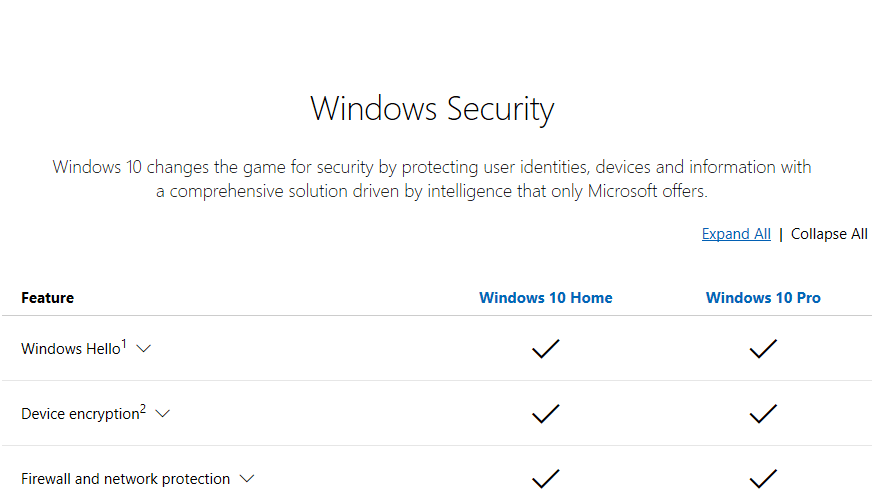
Windows 11 Home - TPM Encryption


Le symbole de superposition doit être présent. Jamais vu sans. Mais ne fait pas de différence après tout
Bonjour,

Je vous expose mon problème.

Je viens d’acheter un ordinateur portable. Il avait la version Windows 10 Home.
J’ai pu désactiver le chiffrement de l’appareil (dans confidentialités et sécurité) donc Device Encryption était présent.

J’ai fait toutes les mises à jour du Bios, puis les mises de Windows.

Il m’a installé la version de Windows 11 Home, 22H2.

J’ai voulu chiffre mes données, mais le menu Device encryption a disparu.

Voilà tout ce que j’ai vérifié :
TPM activé,
Mode veille moderne activé,
Nom du SSD : c:

J’ai fait cela :

*********************************************************************************
« manage-bde -status : »

Chiffrement de lecteur BitLocker : outil de configuration version 10.0.22621
Copyright (C) 2013 Microsoft Corporation. Tous droits réservés.

Volumes de disques pouvant être protégés avec le
Chiffrement de lecteur BitLocker :
Volume C : [OS]
[Volume du système d’exploitation]

Taille : 457,52 Go
Version de BitLocker : Aucun
État de la conversion : Intégralement déchiffré
Pourcentage chiffré : 0,0%
Méthode de chiffrement : Aucun
État de la protection : Protection désactivée
État du verrouillage : Déverrouillé
Champ d’identification : Aucun
Protecteurs de clés : Aucun trouvé
***********************************************************************************
« manage-bde -on C: »

Chiffrement de lecteur BitLocker : outil de configuration version 10.0.22621
Copyright (C) 2013 Microsoft Corporation. Tous droits réservés.
Volume C : [OS]
[Volume du système d’exploitation]
ERREUR : une erreur s’est produite (code 0x8031005a) :
Cette version de Windows ne prend pas en charge cette fonctionnalité du chiffrement de lecteur BitLocker. Pour utiliser cette fonctionnalité, mettez à niveau le système d’exploitation.

REMARQUE : si le commutateur -on n’a pas pu ajouter des protecteurs de clé ou n’a pas
démarré le chiffrement, vous devrez peut-être appeler « manage-bde -off » avant de tenter -on une nouvelle fois.
***********************************************************************************
« manage-bde -off C: »

Chiffrement de lecteur BitLocker : outil de configuration version 10.0.22621
Copyright (C) 2013 Microsoft Corporation. Tous droits réservés.
ERREUR : une erreur s’est produite (code 0x80310008) :
Le chiffrement de lecteur BitLocker n’est pas activé sur ce lecteur. Activez le chiffrement de lecteur.
***********************************************************************************
« manage-bde -on C: »

Toujours le même code erreur : (code 0x8031005a)
***********************************************************************************
« manage-bde -on c: -used »

Chiffrement de lecteur BitLocker : outil de configuration version 10.0.22621
Copyright (C) 2013 Microsoft Corporation. Tous droits réservés.

Volume C : [OS]
[Volume du système d’exploitation]
ERREUR : une erreur s’est produite (code 0x8031005a) :
Cette version de Windows ne prend pas en charge cette fonctionnalité du chiffrement de lecteur BitLocker. Pour utiliser cette fonctionnalité, mettez à niveau le système d’exploitation.

REMARQUE : si le commutateur -on n’a pas pu ajouter des protecteurs de clé ou n’a pas
démarré le chiffrement, vous devrez peut-être appeler « manage-bde -off » avant de tenter -on une nouvelle fois.
**********************************************************************************

Je suis bloquée.

En vous remerciant par avance pour votre aide.
 

My Computer My Computer

At a glance

Windows 11 Home
OS
Windows 11 Home
Here is my article that shows how to use bitlocker on Win10/11 Home despite the lack of "modern standby" or whatever MS thinks is needed:
Hello,

I'll tell you my problem.

I just bought a laptop. It had Windows 10 Home version.
I was able to disable device encryption (in privacy and security) so Device Encryption was present.

I did all the Bios updates, then the Windows updates.

It installed Windows 11 Home version, 22H2.

I wanted to encrypt my data, but the Device encryption menu disappeared.

This is all I checked:
TPM activated,
Modern standby mode enabled,
SSD name: c:

I did this:

************************************************** *******************************
"manage-bde -status:"

BitLocker Drive Encryption: Configuration Tool version 10.0.22621
Copyright (C) 2013 Microsoft Corporation. All rights reserved.

Disk volumes that can be protected with the
BitLocker Drive Encryption:
Volume C: [OS]
[Operating System Volume]

Size: 457.52 GB
BitLocker Version: None
Conversion Status: Fully Decrypted
Numerical percentage: 0.0%
Encryption Method: None
Protection Status: Protection Disabled
Lock Status: Unlocked
Identification field: None
Key protectors: None found
************************************************** *********************************
“manage-bde -on C:”

BitLocker Drive Encryption: Configuration Tool version 10.0.22621
Copyright (C) 2013 Microsoft Corporation. All rights reserved.
Volume C: [OS]
[Operating System Volume]
ERROR: An error has occurred (code 0x8031005a):
This version of Windows does not support this feature of BitLocker Drive Encryption. To use this feature, upgrade the operating system.

NOTE: If the -on switch was unable to add key protectors or did not
started the encryption, you may need to call "manage-bde -off" before trying -on again.
************************************************** *********************************
“manage-bde -off C:”

BitLocker Drive Encryption: Configuration Tool version 10.0.22621
Copyright (C) 2013 Microsoft Corporation. All rights reserved.
ERROR: An error has occurred (code 0x80310008):
BitLocker Drive Encryption is not enabled on this drive. Enable drive encryption.
************************************************** *********************************
“manage-bde -on C:”

Still the same error code: (code 0x8031005a)
************************************************** *********************************
“manage-bde -on c: -used”

BitLocker Drive Encryption: Configuration Tool version 10.0.22621
Copyright (C) 2013 Microsoft Corporation. All rights reserved.

Volume C: [OS]
[Operating System Volume]
ERROR: An error has occurred (code 0x8031005a):
This version of Windows does not support this feature of BitLocker Drive Encryption. To use this feature, upgrade the operating system.

NOTE: If the -on switch was unable to add key protectors or did not
started the encryption, you may need to call "manage-bde -off" before trying -on again.
************************************************** *******************************

I am blocked.

Thanking you in advance for your help.
 

My Computer My Computer

At a glance

Windows 11 Home
OS
Windows 11 Home
bro follow guide carefully i can confirm this guide even works with windows 10 home and no Modern standby
i ran this command after boot in recovery drive “manage-bde -on c: -used”
 

My Computer My Computer

At a glance

Windows 10 Home
OS
Windows 10 Home
bro follow guide carefully i can confirm this guide even works with windows 10 home and no Modern standby
i ran this command after boot in recovery drive “manage-bde -on c: -used”
You just replied to a post over 1 year old.
 

My Computer My Computer

At a glance

Windows 11 Pro + Win11 Canary VM.I9 13th gen i9-13900H 2.60 GHZ16 GB solderedIntegrated Intel Iris XE
OS
Windows 11 Pro + Win11 Canary VM.
Computer type
Laptop
Manufacturer/Model
ASUS Zenbook 14
CPU
I9 13th gen i9-13900H 2.60 GHZ
Motherboard
Yep, Laptop has one.
Memory
16 GB soldered
Graphics Card(s)
Integrated Intel Iris XE
Sound Card
Realtek built in
Monitor(s) Displays
laptop OLED screen
Screen Resolution
2880x1800 touchscreen
Hard Drives
1 TB NVME SSD (only weakness is only one slot)
PSU
Internal + 65W thunderbolt USB4 charger
Case
Yep, got one
Cooling
Stella Artois (UK pint cans - 568 ml) - extra cost.
Keyboard
Built in UK keybd
Mouse
Bluetooth , wireless dongled, wired
Internet Speed
900 mbs (ethernet), wifi 6 typical 350-450 mb/s both up and down
Browser
Edge
Antivirus
Defender
Other Info
TPM 2.0, 2xUSB4 thunderbolt, 1xUsb3 (usb a), 1xUsb-c, hdmi out, 3.5 mm audio out/in combo, ASUS backlit trackpad (inc. switchable number pad)

Macrium Reflect Home V8
Office 365 Family (6 users each 1TB onedrive space)
Hyper-V (a vm runs almost as fast as my older laptop)
manage-bde -on fails with error 0x8031005a on Windows 11 Home — this is expected; Home edition has no command-line BitLocker re-enable, use Settings > Device Encryption instead

Symptom: You ran manage-bde -off C: (or any volume) to fully decrypt a drive for maintenance, and now want to turn protection back on with manage-bde -on C: — but get:

ERROR: An error occurred (code 0x8031005a):

This version of Windows does not support this feature of BitLocker Drive Encryption.

To use this feature, upgrade the operating system.

Root cause: Windows 11/10 Home edition does not support full BitLocker Drive Encryption management. What protects your drives on Home edition is Device Encryption — a simplified, automatic consumer feature that uses the same underlying mechanism and looks identical in manage-bde -status output (Numerical Password + External Key protectors), but can only be toggled via Settings, never via manage-bde -on. The -off command works fine on Home (it's just removing protection), but -on is Pro/Enterprise/Education-only.

Confirm your edition:

Get-WindowsEdition -Online

Returns Core for Home edition (Professional for Pro, etc.) — Core is Microsoft's internal SKU name and is what you'll see in this and related diagnostic tools.

Fix:

Settings → Privacy & security → Device encryption → toggle On.

If your hardware previously qualified (it did, if it was encrypted before you ran -off), this often re-activates automatically within a sign-in cycle or two without any manual action.

Important follow-up — your recovery key has changed: Every time encryption is turned off and back on, a brand-new 48-digit recovery key is generated. Your old saved key is now stale. Get and save the current one:

manage-bde -protectors -get C:

Also confirm it's backed up to your Microsoft account (Home edition auto-uploads it there on activation): https://account.microsoft.com/devices/recoverykey
 

My Computer My Computer

At a glance

Windows 11 Home
OS
Windows 11 Home
Computer type
Tablet
Manufacturer/Model
Microsoft Surface Pro 11
Back
Top Bottom