
Hello,
I am using Windows 11, and I am trying to recover from a user profile issue that happened after I attempted to change my Windows user account name and user profile folder name.
My original user profile folder was:
C:\Users\[Original Korean Username]
I wanted to change it to:
C:\Users\[Target English Username]
I know now that changing a Windows user profile folder manually is risky. At this point, I am not trying to continue the rename. I only want to safely recover or locate the files that used to be inside the original user profile folder.
Here is exactly what I did.
1. I opened Command Prompt as administrator and enabled the built-in Administrator account:
net user Administrator /active:yes
2. I rebooted and logged into the built-in Administrator account.
3. In the Administrator account, I opened netplwiz.
4. In netplwiz, I double-clicked the user account that I wanted to rename.
5. In the General tab, I changed the user name and full name from the original Korean username to the target English username.
Original name:
[Original Korean Username]
Target name:
[Target English Username]
6. In the Group Membership tab, I selected Administrator and applied the change.(Didn't have to change)
7. Then I opened Command Prompt as administrator and tried to rename the user profile folder with:
ren C:\Users\[Original Korean Username] [Target English Username]
However, this failed with an “Access is denied” message.
Because of that, I skipped this step. So the actual folder name under C:\Users was not successfully renamed at that point.
8. After that, I opened Registry Editor and went to:
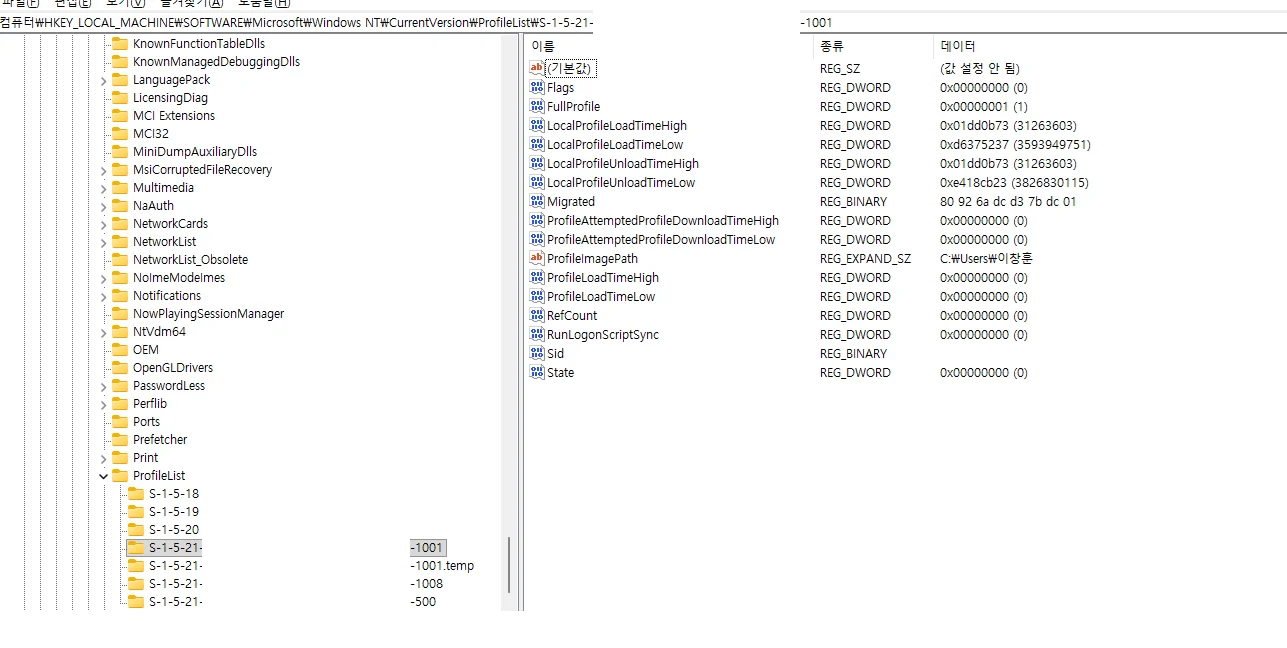
HKEY_LOCAL_MACHINE\SOFTWARE\Microsoft\Windows NT\CurrentVersion\ProfileList
9. I found the SID subkey where ProfileImagePath pointed to the original user profile folder:
C:\Users\[Original Korean Username]
10. I edited ProfileImagePath and changed only the folder name part to the target English username:
From:
C:\Users\[Original Korean Username]
To:
C:\Users\[Target English Username]
11. I restarted the computer.
After restarting, Windows tried to load the renamed profile, but the login/loading process took an unusually long time. It looked like the profile load failed or got stuck.
I then pressed Windows + L and went back into the built-in Administrator account. (I guess this part made the problem)
12. From the Administrator account, I reverted the ProfileImagePath value back from the target English username to the original Korean username:
From:
C:\Users\[Target English Username]
Back to:
C:\Users\[Original Korean Username]
13. I also opened netplwiz again and changed the account name back to the original Korean username.
After reverting these values, I checked the following from the affected user account:
echo %USERPROFILE%
It correctly shows:
C:\Users\[Original Korean Username]
I also checked:
whoami /user
The SID appears to match the SID under:
HKEY_LOCAL_MACHINE\SOFTWARE\Microsoft\Windows NT\CurrentVersion\ProfileList
And that SID’s ProfileImagePath currently points to:
C:\Users\[Original Korean Username]
So the profile mapping now seems to be back to the original Korean profile path.
I also checked and edited some Shell Folders / User Shell Folders registry entries according to a blog post, including locations such as:
HKEY_CURRENT_USER\Software\Microsoft\Windows\CurrentVersion\Explorer\Shell Folders
HKEY_CURRENT_USER\Software\Microsoft\Windows\CurrentVersion\Explorer\User Shell Folders
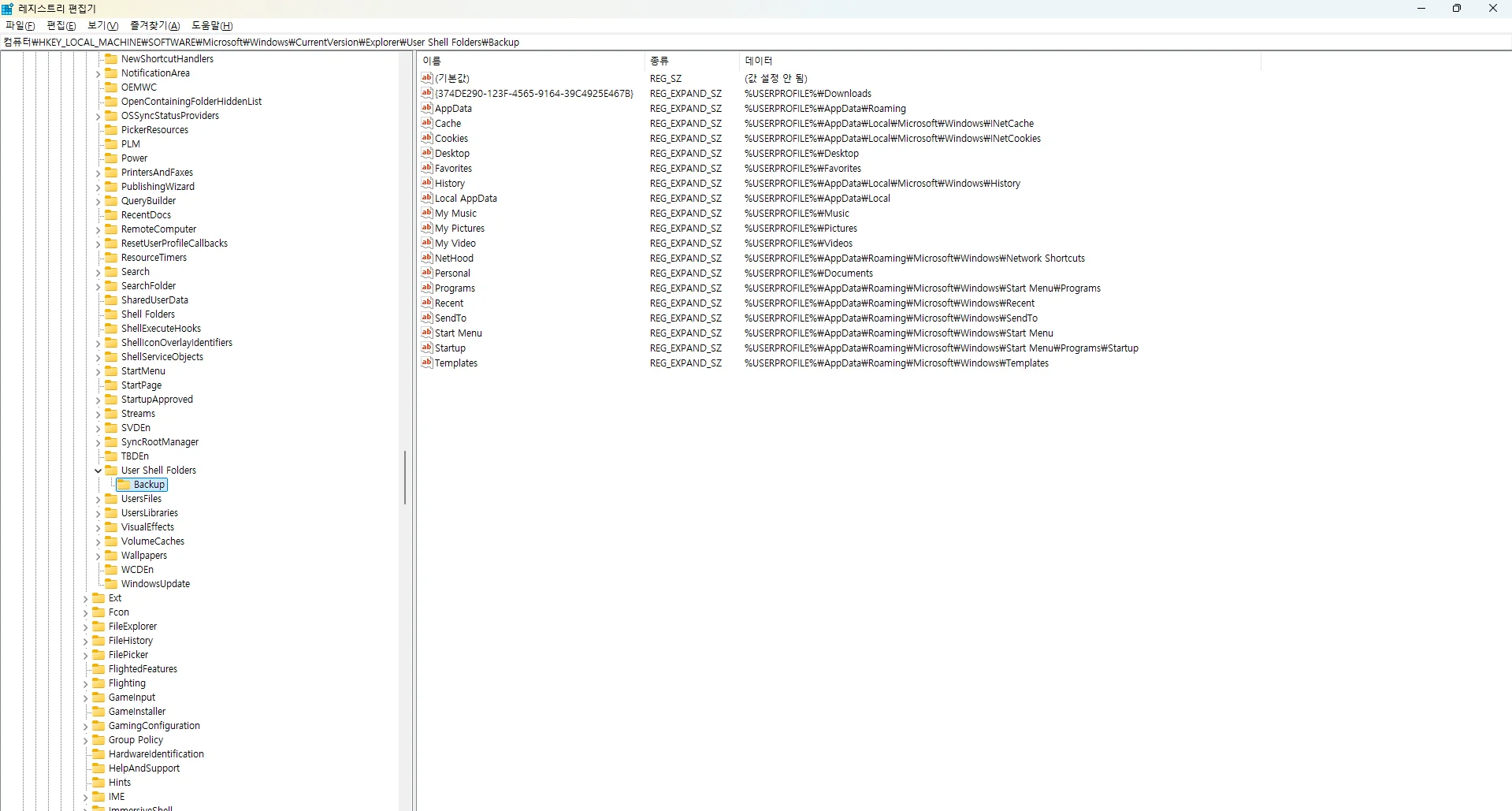
HKEY_LOCAL_MACHINE\SOFTWARE\Microsoft\Windows\CurrentVersion\Explorer\Shell Folders
HKEY_LOCAL_MACHINE\SOFTWARE\Microsoft\Windows\CurrentVersion\Explorer\User Shell Folders
The HKCU Shell Folders and HKCU User Shell Folders entries now appear to point to the original user profile path correctly.
For example, Desktop, Personal/Documents, Downloads, AppData, Local AppData, Pictures, Music, and Videos appear to point to paths under:
C:\Users\[Original Korean Username]
However, the main problem is this:
When I log into the built-in Administrator account and open:
C:\Users\[Original Korean Username]
the folder name appears to be back to the original Korean name, but many files that should be inside the user folder are missing or not visible.
However, when I right-click the folder and check Properties, the folder still shows that it is using around 20 GB of disk space.
So it looks like the data may still exist somewhere, but I cannot see or access the expected files normally.
I have also tried scanning the drive with DMDE and EaseUS Data Recovery. These programs show many of the missing files during the scan. However, when I try to recover individual files using the recovery button, many of the recovered files are damaged, unreadable, or corrupted. I have not tried the paid versions.
I have not intentionally deleted the original user folder.
I have not formatted the drive.
I have not reinstalled Windows.
I have not intentionally moved the files to another drive.
I have not deleted any SID keys from ProfileList.
I have not deleted the duplicate or temporary profile folders yet.
I will attach screenshots of the registry locations I checked, including:
- ProfileList and ProfileImagePath
- HKCU Shell Folders
- HKCU User Shell Folders
- HKLM Shell Folders
- HKLM User Shell Folders
- C:\Users folder list
- Folder Properties showing the size
At this point, I am not trying to continue the account rename. My only goal is to safely recover or locate the original files and confirm that the Windows profile mapping is correct.
Could someone please help me understand what likely happened and what I should check next?
The folder still shows about 20 GB in Properties, but every expected files are not visible except the files in onedrive. I am not sure whether this is caused by a profile mapping issue, hidden files, NTFS permissions/ownership, another user profile/SID, or something else.
I would like to avoid making things worse, so I would appreciate guidance on the safest way to inspect and copy the remaining data before I make any further registry changes, permission changes, or recovery attempts.
Thank you.
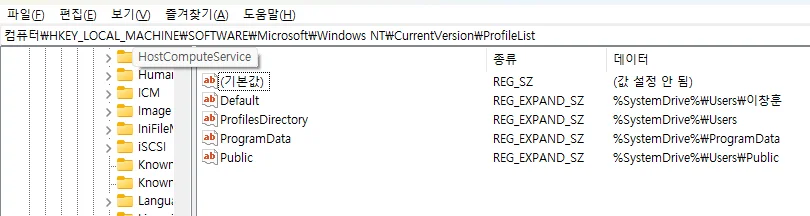
tried changing Default
And ProfileImagePath
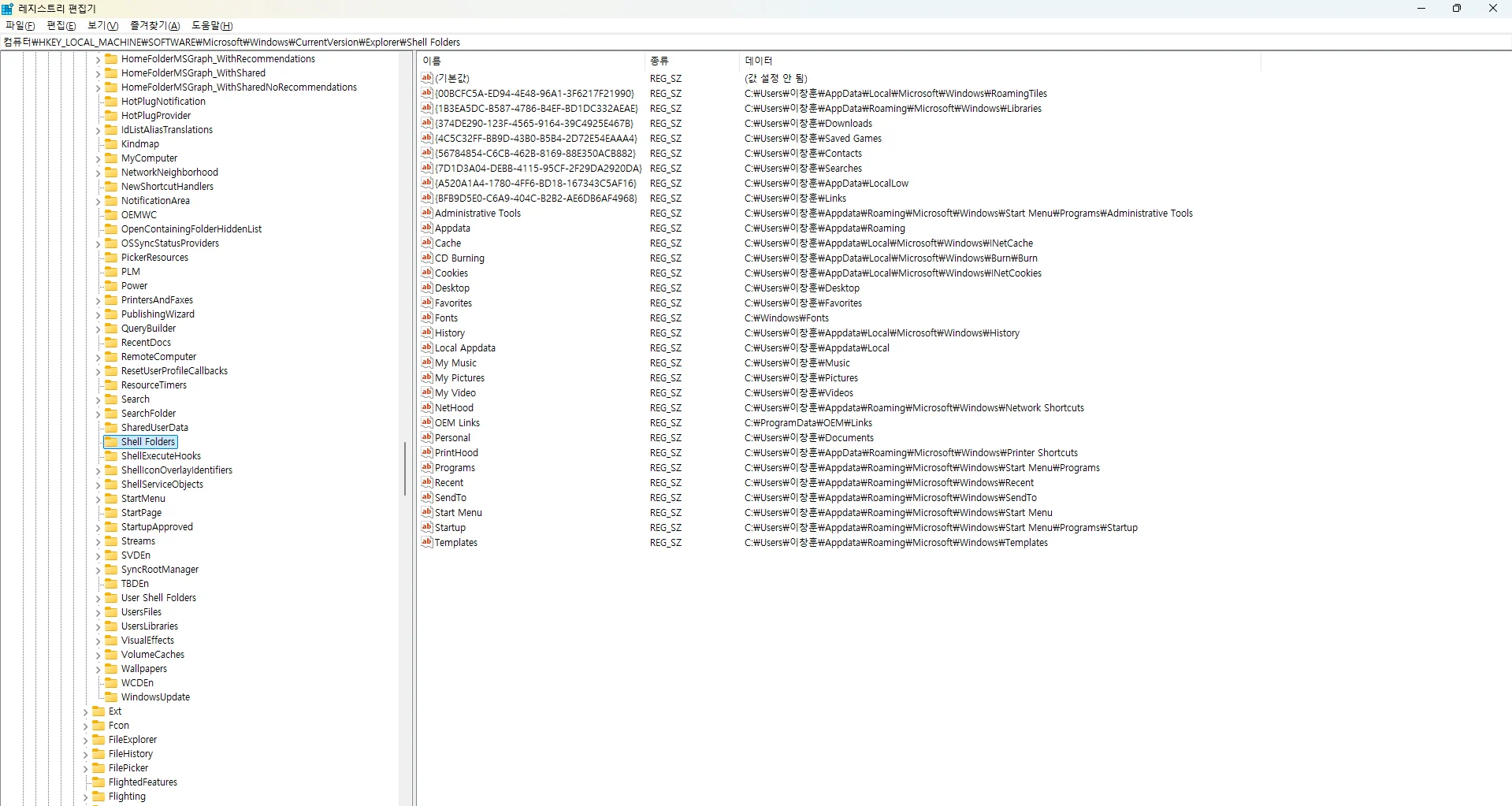
Changed names from Common Video -> to My Video and data roots to original korean user name
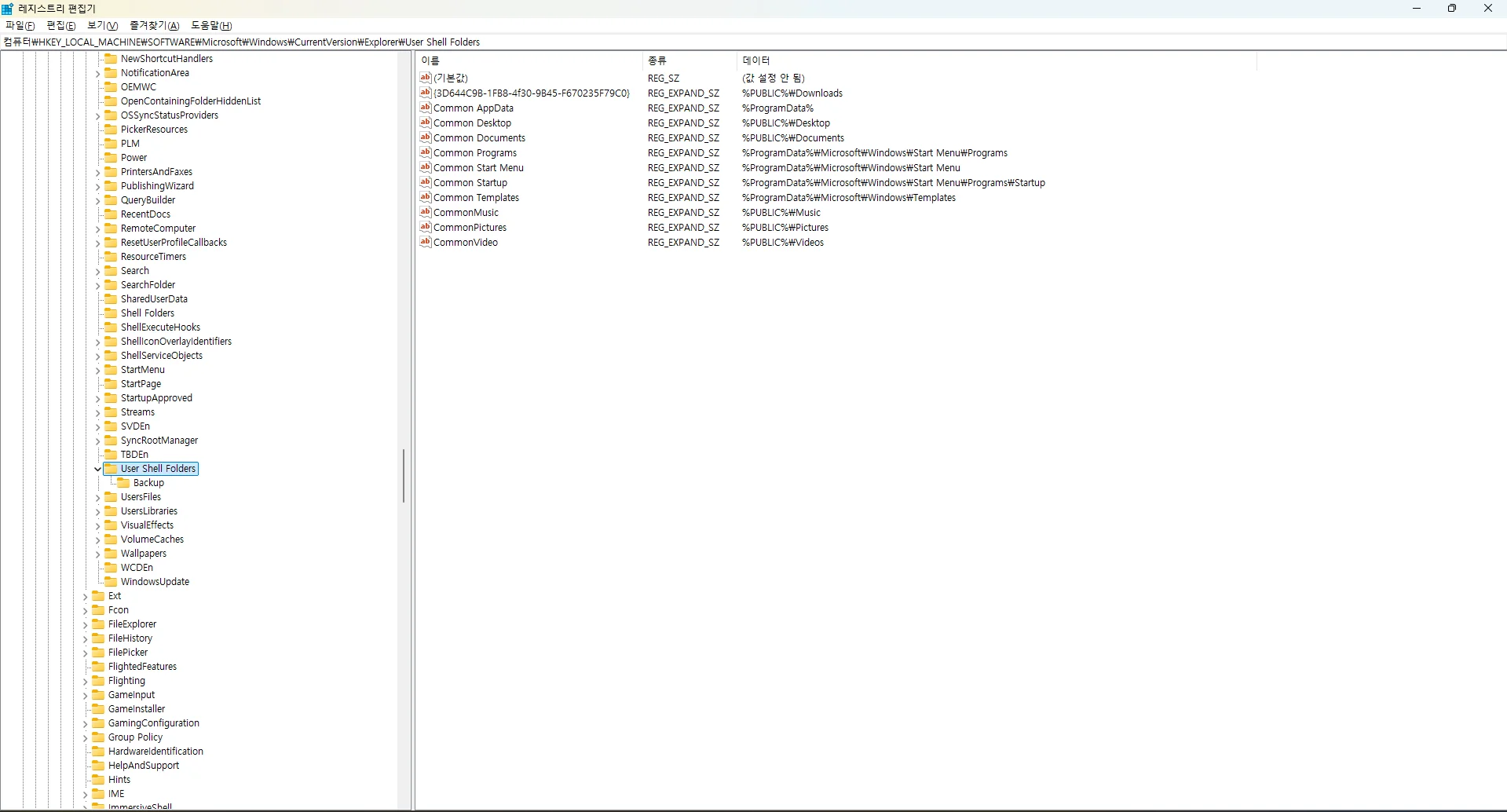
Haven't touched the datas one below two screenshots
I am using Windows 11, and I am trying to recover from a user profile issue that happened after I attempted to change my Windows user account name and user profile folder name.
My original user profile folder was:
C:\Users\[Original Korean Username]
I wanted to change it to:
C:\Users\[Target English Username]
I know now that changing a Windows user profile folder manually is risky. At this point, I am not trying to continue the rename. I only want to safely recover or locate the files that used to be inside the original user profile folder.
Here is exactly what I did.
1. I opened Command Prompt as administrator and enabled the built-in Administrator account:
net user Administrator /active:yes
2. I rebooted and logged into the built-in Administrator account.
3. In the Administrator account, I opened netplwiz.
4. In netplwiz, I double-clicked the user account that I wanted to rename.
5. In the General tab, I changed the user name and full name from the original Korean username to the target English username.
Original name:
[Original Korean Username]
Target name:
[Target English Username]
6. In the Group Membership tab, I selected Administrator and applied the change.(Didn't have to change)
7. Then I opened Command Prompt as administrator and tried to rename the user profile folder with:
ren C:\Users\[Original Korean Username] [Target English Username]
However, this failed with an “Access is denied” message.
Because of that, I skipped this step. So the actual folder name under C:\Users was not successfully renamed at that point.
8. After that, I opened Registry Editor and went to:
HKEY_LOCAL_MACHINE\SOFTWARE\Microsoft\Windows NT\CurrentVersion\ProfileList
9. I found the SID subkey where ProfileImagePath pointed to the original user profile folder:
C:\Users\[Original Korean Username]
10. I edited ProfileImagePath and changed only the folder name part to the target English username:
From:
C:\Users\[Original Korean Username]
To:
C:\Users\[Target English Username]
11. I restarted the computer.
After restarting, Windows tried to load the renamed profile, but the login/loading process took an unusually long time. It looked like the profile load failed or got stuck.
I then pressed Windows + L and went back into the built-in Administrator account. (I guess this part made the problem)
12. From the Administrator account, I reverted the ProfileImagePath value back from the target English username to the original Korean username:
From:
C:\Users\[Target English Username]
Back to:
C:\Users\[Original Korean Username]
13. I also opened netplwiz again and changed the account name back to the original Korean username.
After reverting these values, I checked the following from the affected user account:
echo %USERPROFILE%
It correctly shows:
C:\Users\[Original Korean Username]
I also checked:
whoami /user
The SID appears to match the SID under:
HKEY_LOCAL_MACHINE\SOFTWARE\Microsoft\Windows NT\CurrentVersion\ProfileList
And that SID’s ProfileImagePath currently points to:
C:\Users\[Original Korean Username]
So the profile mapping now seems to be back to the original Korean profile path.
I also checked and edited some Shell Folders / User Shell Folders registry entries according to a blog post, including locations such as:
HKEY_CURRENT_USER\Software\Microsoft\Windows\CurrentVersion\Explorer\Shell Folders
HKEY_CURRENT_USER\Software\Microsoft\Windows\CurrentVersion\Explorer\User Shell Folders
HKEY_LOCAL_MACHINE\SOFTWARE\Microsoft\Windows\CurrentVersion\Explorer\Shell Folders
HKEY_LOCAL_MACHINE\SOFTWARE\Microsoft\Windows\CurrentVersion\Explorer\User Shell Folders
The HKCU Shell Folders and HKCU User Shell Folders entries now appear to point to the original user profile path correctly.
For example, Desktop, Personal/Documents, Downloads, AppData, Local AppData, Pictures, Music, and Videos appear to point to paths under:
C:\Users\[Original Korean Username]
However, the main problem is this:
When I log into the built-in Administrator account and open:
C:\Users\[Original Korean Username]
the folder name appears to be back to the original Korean name, but many files that should be inside the user folder are missing or not visible.
However, when I right-click the folder and check Properties, the folder still shows that it is using around 20 GB of disk space.
So it looks like the data may still exist somewhere, but I cannot see or access the expected files normally.
I have also tried scanning the drive with DMDE and EaseUS Data Recovery. These programs show many of the missing files during the scan. However, when I try to recover individual files using the recovery button, many of the recovered files are damaged, unreadable, or corrupted. I have not tried the paid versions.
I have not intentionally deleted the original user folder.
I have not formatted the drive.
I have not reinstalled Windows.
I have not intentionally moved the files to another drive.
I have not deleted any SID keys from ProfileList.
I have not deleted the duplicate or temporary profile folders yet.
I will attach screenshots of the registry locations I checked, including:
- ProfileList and ProfileImagePath
- HKCU Shell Folders
- HKCU User Shell Folders
- HKLM Shell Folders
- HKLM User Shell Folders
- C:\Users folder list
- Folder Properties showing the size
At this point, I am not trying to continue the account rename. My only goal is to safely recover or locate the original files and confirm that the Windows profile mapping is correct.
Could someone please help me understand what likely happened and what I should check next?
The folder still shows about 20 GB in Properties, but every expected files are not visible except the files in onedrive. I am not sure whether this is caused by a profile mapping issue, hidden files, NTFS permissions/ownership, another user profile/SID, or something else.
I would like to avoid making things worse, so I would appreciate guidance on the safest way to inspect and copy the remaining data before I make any further registry changes, permission changes, or recovery attempts.
Thank you.
tried changing Default
And ProfileImagePath
Changed names from Common Video -> to My Video and data roots to original korean user name
Haven't touched the datas one below two screenshots
- Windows Build/Version
- Windows 11 Home (25H2 OS Build 26200.8655)
Last edited:
My Computer
At a glance
Windows 11Intel(R) Core(TM) i5-12450H16GBNVIDIA GeForce RTX 3060 Laptop GPU, Intel(R) ...
- OS
- Windows 11
- Computer type
- Laptop
- Manufacturer/Model
- ASUS TUF Dash F15 FX517ZM
- CPU
- Intel(R) Core(TM) i5-12450H
- Memory
- 16GB
- Graphics Card(s)
- NVIDIA GeForce RTX 3060 Laptop GPU, Intel(R) UHD Graphics






