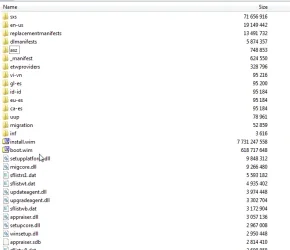
I've recently had this problem. The Rufus boot USB worked for me. But there are other options.
First boot to BIOS and make sure USB is first boot device. Second you may have to disable Secure Boot in BIOS. There are a few other possibilities
Gemini says:
To fix a Windows 11 USB not booting in UEFI mode, ensure the USB drive is formatted with the GPT partition style. Next, access your BIOS/UEFI settings to temporarily disable Secure Boot, enable UEFI mode (or CSM/Legacy if it isn't listed), and adjust the boot priority. [
1,
2]
Follow these steps to diagnose and fix the issue:
1. Verify and Recreate the Bootable USB
Windows 11 strictly requires a UEFI boot environment, which means your USB flash drive must be formatted as
GPT (not MBR). [
1,
2]
- If you created the USB using the official Microsoft Windows 11 Installation Media Tool, it will automatically configure it for UEFI.
- If you are using an ISO file and a tool like Rufus, ensure you select GPT under the Partition Scheme and UEFI (non-CSM) under the Target System. [1, 2, 3]
2. Configure BIOS/UEFI Settings
If your USB is properly created but the PC still skips it, your motherboard firmware settings are likely blocking it. Restart your computer and repeatedly press the manufacturer's boot key (usually
F12, F11, F10, F2, or Esc). Once in the BIOS/UEFI, make the following changes: [
1,
2]
- Disable Secure Boot: Secure Boot enforces UEFI, but sometimes blocks unverified or freshly created USB installers. Temporarily set it to Disabled.
- Enable UEFI Mode: Look for a setting related to Boot Mode or OS Mode and ensure it is set to UEFI (not Legacy/CSM). (Note: If your USB doesn't show up in pure UEFI mode, temporarily enable CSM/Legacy just long enough to boot into the installer).
- Change Boot Priority: Move your USB drive to the top of the boot order. Alternatively, look for a Boot Menu or Boot Override option, which lets you select the USB to boot from just once without changing permanent settings. [1, 2, 3, 4, 5]
3. Hardware and Port Troubleshooting
- Use a USB 2.0 Port: Plug your USB into a USB 2.0 port (usually black) rather than a USB 3.0 port (usually blue). Sometimes the UEFI firmware does not load USB 3.0 drivers before the operating system boots.
- Try a Different Port: If your drive is not detecting, try a different USB port on your PC (preferably the ones on the back of the motherboard if using a desktop).
- Test the USB: Insert the USB into a working computer. If it fails to show up or open there, the flash drive may be corrupted. [1, 2, 3, 4]