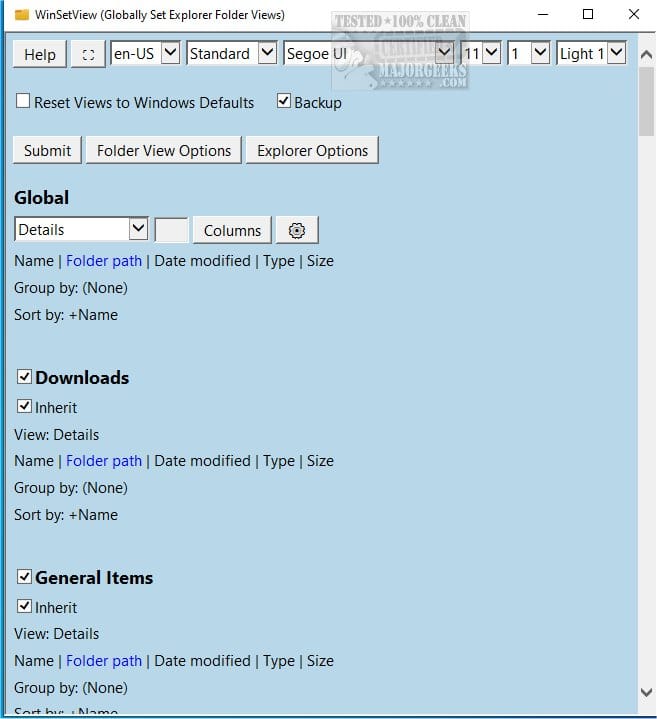
WinSetView (Tool to Globally Set Explorer Folder Views)


WinSetView is a tool that will let you easily set File Explorer default folder views (including turning off grouping everywhere if so desired). It works by setting registry values that File Explorer already supports. It does not modify Explorer or add any tasks or services.

Please follow the guide on the WinSetView web page to download the app and set your initial folder view preferences. Running the app for the first time without following the guide may lead to confusion, as there are a lot of options on the screen.
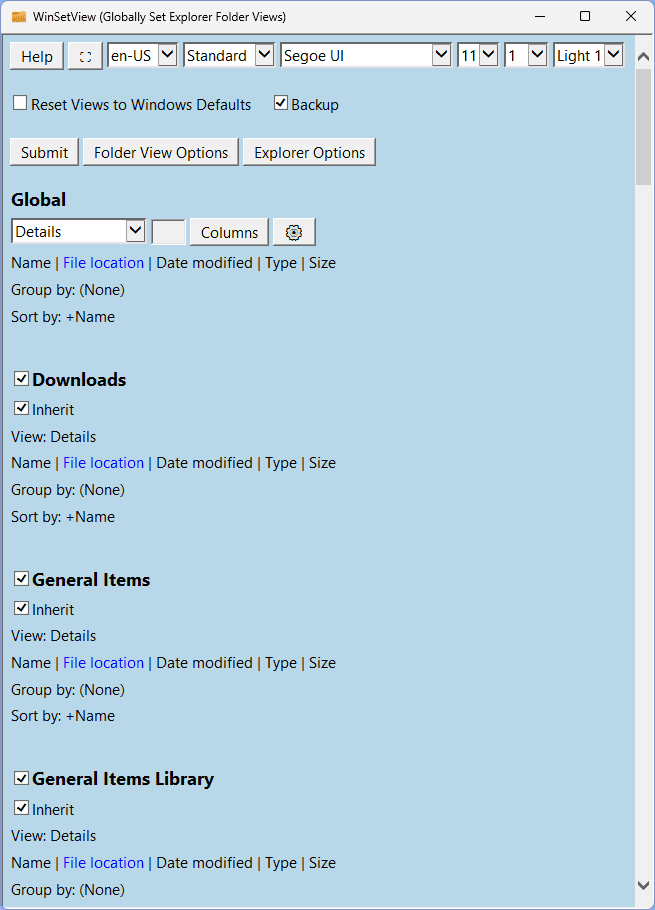
1731378491393.png

WinSetView...
  • Is a portable app. That is, it requires no installation (just unzip and run) and it saves its settings in an INI file with the app. So, you can easily run it from a flash drive or network drive to set up new computers and/or new users with consistent default views with just one click.

  • Sets default folder views for ALL folder types, not just the basic five. That is, in addition to setting the default views for General items, Documents, Pictures, Music, and Videos, it also sets the default views for Downloads, Libraries, OneDrive, Search results, Contacts, Quick Access, User files, File Open/Save dialogs, etc.

  • Sets folder views via a copy of the FolderTypes registry key which is not affected by Windows updates. A Windows repair install will remove the defaults, but then you can just run WinSetView and click Submit to re-apply your preferences.

  • Includes options to turn off Internet results in Windows search, revert the Windows 11 right-click menu to the classic layout, set a custom start folder for Explorer, disable thumbnails on folders, set the default view for phones to open in the same view you .

  • Can also be used to reset all folder views to Windows defaults.

  • Can be used via the command line (for Power users and System Administrators). See the Tools Folder section in the manual for more details.

WinSetView will correct the following conditions (when the cause is registry corruption):

1. Folder views set via File Explorer, using Apply to Folders, are not applying to all folders.
2. Folder Properties, Customize, Optimize this folder for is not working properly.
3. Folder views are reverting back to Windows defaults.

Note: Windows 11 currently has some folder view bugs in regards to setting folder type for entire folder trees on removable drives and overriding the automatically detected folder type on "Local disks". Those bugs can, for now, be eliminated by switching to the Windows 10 style Explorer.
 
Last edited:
EDIT: I don't know what happened... I just redownloaded the app... all is working.
Probably something corrupted or whatever when I copied the app folder from another location.
Oh, thank goodness. I was really scratching my head over what could be wrong.
 

My Computer My Computer

At a glance

Windows 10/11
OS
Windows 10/11
Computer type
Laptop
Manufacturer/Model
Acer
WinSetView is a tool that will let you easily set File Explorer default folder views (including turning off grouping everywhere if so desired). It works by setting registry values that File Explorer already supports. It does not modify Explorer or add any tasks or services.

Please follow the guide on the WinSetView web page to download the app and set your initial folder view preferences. Running the app for the first time without following the guide may lead to confusion, as there are a lot of options on the screen.

View attachment 115971

WinSetView...
  • Is a portable app. That is, it requires no installation (just unzip and run) and it saves its settings in an INI file with the app. So, you can easily run it from a flash drive or network drive to set up new computers and/or new users with consistent default views with just one click.

  • Sets default folder views for ALL folder types, not just the basic five. That is, in addition to setting the default views for General items, Documents, Pictures, Music, and Videos, it also sets the default views for Downloads, Libraries, OneDrive, Search results, Contacts, Quick Access, User files, File Open/Save dialogs, etc.

  • Sets folder views via a copy of the FolderTypes registry key which is not affected by Windows updates. A Windows repair install will remove the defaults, but then you can just run WinSetView and click Submit to re-apply your preferences.

  • Includes options to turn off Internet results in Windows search, revert the Windows 11 right-click menu to the classic layout, set a custom start folder for Explorer, disable thumbnails on folders, set the default view for phones to open in the same view you .

  • Can also be used to reset all folder views to Windows defaults.

  • Can be used via the command line (for Power users and System Administrators). See the Tools Folder section in the manual for more details.

WinSetView will correct the following conditions (when the cause is registry corruption):

1. Folder views set via File Explorer, using Apply to Folders, are not applying to all folders.
2. Folder Properties, Customize, Optimize this folder for is not working properly.
3. Folder views are reverting back to Windows defaults.

Note: Windows 11 currently has some folder view bugs in regards to setting folder type for entire folder trees on removable drives and overriding the automatically detected folder type on "Local disks". Those bugs can, for now, be eliminated by switching to the Windows 10 style Explorer.
What a mistake taking a chance on this terrible, low-quality PowerShell script. Exploring the 'Experimental' features now, and it is (File Explorer) is slow again. I also lost all the nice right-click submenus; it defaults to a Windows 95-era right-click. Then I thought, 'Okay, at least this amateur considered a way to return to Windows default,' but nope, it breaks everything, and File Explorer remains incredibly slow.

There should be a better quality bar. I am no super-user, but apps like this promise simple things like a global folder view, and they should actually deliver that with a clean design. What was I even looking at? This is one of the worst pieces of UI logic I have ever seen. It reminded me of a FrontPage website; very crude, simplistic, and the kind of site that shouldn't even be published. I strongly recommend not even entertaining this boomer app
 

My Computer My Computer

At a glance

Windows 11I don't knowIDKIntel
OS
Windows 11
Computer type
Laptop
Manufacturer/Model
HP
CPU
I don't know
Motherboard
IDK
Memory
IDK
Graphics Card(s)
Intel
Sound Card
?
Monitor(s) Displays
32 inches
Screen Resolution
IDK
Hard Drives
IDK
PSU
IDK
Case
HP
Cooling
?
Keyboard
Razer
Mouse
Razer
Internet Speed
Office
Browser
Windows 11
Antivirus
?
What a mistake taking a chance on this terrible, low-quality PowerShell script. Exploring the 'Experimental' features now, and it is (File Explorer) is slow again. I also lost all the nice right-click submenus; it defaults to a Windows 95-era right-click. Then I thought, 'Okay, at least this amateur considered a way to return to Windows default,' but nope, it breaks everything, and File Explorer remains incredibly slow.

There should be a better quality bar. I am no super-user, but apps like this promise simple things like a global folder view, and they should actually deliver that with a clean design. What was I even looking at? This is one of the worst pieces of UI logic I have ever seen. It reminded me of a FrontPage website; very crude, simplistic, and the kind of site that shouldn't even be published. I strongly recommend not even entertaining this boomer app
Here is the script by AI to fix his mess "

Code:
# Reset-WinSetViewDamage.ps1
# Safely reset File Explorer views + restore Windows 11 context menu

$backupRoot = "$env:USERPROFILE\Desktop\Explorer_Registry_Backup_{0}" -f (Get-Date -Format 'yyyyMMdd_HHmmss')
New-Item -Path $backupRoot -ItemType Directory -Force | Out-Null

Write-Host "Backing up registry keys to:`n$backupRoot`n"

# Backup key areas before changes
reg export "HKCU\Software\Classes\Local Settings\Software\Microsoft\Windows\Shell" `
    "$backupRoot\Shell_HKCU.reg" /y | Out-Null

reg export "HKCU\Software\Microsoft\Windows\CurrentVersion\Explorer" `
    "$backupRoot\Explorer_HKCU.reg" /y | Out-Null

reg export "HKCU\Software\Classes\CLSID" `
    "$backupRoot\CLSID_HKCU.reg" /y | Out-Null

Write-Host "Backups complete.`n"

# 1) Remove classic context menu hack (Win11 → Win10 style)
$classicKey = "HKCU:\Software\Classes\CLSID\{86ca1aa0-34aa-4e8b-a509-50c905bae2a2}"
if (Test-Path $classicKey) {
    Write-Host "Removing classic context menu override..."
    Remove-Item $classicKey -Recurse -Force
} else {
    Write-Host "No classic context menu override key found (good)."
}

# 2) Reset folder view caches (Bags / BagMRU / FolderTypes)
Write-Host "Resetting folder view settings..."

$paths = @(
    "HKCU:\Software\Classes\Local Settings\Software\Microsoft\Windows\Shell\Bags",
    "HKCU:\Software\Classes\Local Settings\Software\Microsoft\Windows\Shell\BagMRU",
    "HKCU:\Software\Classes\Local Settings\Software\Microsoft\Windows\Shell\Bags\AllFolders\Shell",
    "HKCU:\Software\Classes\Local Settings\Software\Microsoft\Windows\Shell\FolderTypes"
)

foreach ($p in $paths) {
    if (Test-Path $p) {
        Write-Host "  Removing $p"
        Remove-Item $p -Recurse -Force
    }
}

# 3) Reset Explorer Streams defaults (extra view/layout junk)
$streamsDefaults = "HKCU:\Software\Microsoft\Windows\CurrentVersion\Explorer\Streams\Defaults"
if (Test-Path $streamsDefaults) {
    Write-Host "Removing Explorer Streams Defaults..."
    Remove-Item $streamsDefaults -Recurse -Force
}

Write-Host "`nRestarting Explorer..."

Get-Process explorer -ErrorAction SilentlyContinue | Stop-Process -Force
Start-Sleep -Seconds 2
Start-Process explorer.exe

Write-Host "`nDone."
Write-Host "• Folder views reset to Windows defaults."
Write-Host "• Right-click menu back to normal Windows 11 style (after a logoff/reboot if needed)."
Write-Host "• Registry backups saved at: $backupRoot"
"
 

My Computer My Computer

At a glance

Windows 11I don't knowIDKIntel
OS
Windows 11
Computer type
Laptop
Manufacturer/Model
HP
CPU
I don't know
Motherboard
IDK
Memory
IDK
Graphics Card(s)
Intel
Sound Card
?
Monitor(s) Displays
32 inches
Screen Resolution
IDK
Hard Drives
IDK
PSU
IDK
Case
HP
Cooling
?
Keyboard
Razer
Mouse
Razer
Internet Speed
Office
Browser
Windows 11
Antivirus
?
@DuguaySarah94 It looks like you just ran it without reading the instructions. For example, it tells you to uncheck the Explorer options if you haven't reviewed those settings. The Explorer context menu default is the classic option. Just uncheck that box to keep the new context menu. There is absolutely no need for your undo PowerShell script. Just select or unselect your desired options. All options are explained in the documentation. Ten of thousands of users have used this tool with no problems. It is mature and thoroughly tested. I make no apologies for the retro interface. It works just fine. RTFM.
 

My Computer My Computer

At a glance

Windows 10/11
OS
Windows 10/11
Computer type
Laptop
Manufacturer/Model
Acer
@DuguaySarah94 P.S. If you had simply posted a polite request for help, instead of a rant, you would have quickly received instructions to get your settings as you desire without any drama.
 

My Computer My Computer

At a glance

Windows 10/11
OS
Windows 10/11
Computer type
Laptop
Manufacturer/Model
Acer
Hi Les, thank you for making WinSetView! May I suggest a UI improvement? It would be really helpful if you could add explanatory tooltips to all controls (esp. checkboxes). Yes, I know there is a manual, but it requires a full blowser window and screen estate is usually a premium. It's much more convenient when UI is self-describing (if you're familiar with NTlite, it follows that style). Thank you!
 

My Computer My Computer

At a glance

Win7,10,11,2000
OS
Win7,10,11,2000
Computer type
PC/Desktop
Here is the script by AI to fix his mess "

Code:
# Reset-WinSetViewDamage.ps1
# Safely reset File Explorer views + restore Windows 11 context menu

$backupRoot = "$env:USERPROFILE\Desktop\Explorer_Registry_Backup_{0}" -f (Get-Date -Format 'yyyyMMdd_HHmmss')
New-Item -Path $backupRoot -ItemType Directory -Force | Out-Null

Write-Host "Backing up registry keys to:`n$backupRoot`n"

# Backup key areas before changes
reg export "HKCU\Software\Classes\Local Settings\Software\Microsoft\Windows\Shell" `
    "$backupRoot\Shell_HKCU.reg" /y | Out-Null

reg export "HKCU\Software\Microsoft\Windows\CurrentVersion\Explorer" `
    "$backupRoot\Explorer_HKCU.reg" /y | Out-Null

reg export "HKCU\Software\Classes\CLSID" `
    "$backupRoot\CLSID_HKCU.reg" /y | Out-Null

Write-Host "Backups complete.`n"

# 1) Remove classic context menu hack (Win11 → Win10 style)
$classicKey = "HKCU:\Software\Classes\CLSID\{86ca1aa0-34aa-4e8b-a509-50c905bae2a2}"
if (Test-Path $classicKey) {
    Write-Host "Removing classic context menu override..."
    Remove-Item $classicKey -Recurse -Force
} else {
    Write-Host "No classic context menu override key found (good)."
}

# 2) Reset folder view caches (Bags / BagMRU / FolderTypes)
Write-Host "Resetting folder view settings..."

$paths = @(
    "HKCU:\Software\Classes\Local Settings\Software\Microsoft\Windows\Shell\Bags",
    "HKCU:\Software\Classes\Local Settings\Software\Microsoft\Windows\Shell\BagMRU",
    "HKCU:\Software\Classes\Local Settings\Software\Microsoft\Windows\Shell\Bags\AllFolders\Shell",
    "HKCU:\Software\Classes\Local Settings\Software\Microsoft\Windows\Shell\FolderTypes"
)

foreach ($p in $paths) {
    if (Test-Path $p) {
        Write-Host "  Removing $p"
        Remove-Item $p -Recurse -Force
    }
}

# 3) Reset Explorer Streams defaults (extra view/layout junk)
$streamsDefaults = "HKCU:\Software\Microsoft\Windows\CurrentVersion\Explorer\Streams\Defaults"
if (Test-Path $streamsDefaults) {
    Write-Host "Removing Explorer Streams Defaults..."
    Remove-Item $streamsDefaults -Recurse -Force
}

Write-Host "`nRestarting Explorer..."

Get-Process explorer -ErrorAction SilentlyContinue | Stop-Process -Force
Start-Sleep -Seconds 2
Start-Process explorer.exe

Write-Host "`nDone."
Write-Host "• Folder views reset to Windows defaults."
Write-Host "• Right-click menu back to normal Windows 11 style (after a logoff/reboot if needed)."
Write-Host "• Registry backups saved at: $backupRoot"
"
Dude, this just shows you don't know how to read. Go preach your AI stuff somewhere else or bring an adult here next time lol.

What you did is showing you are uncapable of reading and following instructions. I've tried this on a VM and it even resets explorer defaults, both options and views if you need so. Nothing broke. Immersive context menus work and nothing is slow.
 

My Computers My Computers

  • At a glance

    Windows 11 Pro 25H2AMD Ryzen 5 5600G @ 3.9/4.4Ghz2 x 16 GB DDR4 Kingston Fury Beast 3200 MhzAMD Radeon RX 6600 XT MSI Mech 2X OC Edition ...
    OS
    Windows 11 Pro 25H2
    Computer type
    PC/Desktop
    Manufacturer/Model
    Built PC
    CPU
    AMD Ryzen 5 5600G @ 3.9/4.4Ghz
    Motherboard
    MSI B550M-PRO-WiFi Ver. 1.4
    Memory
    2 x 16 GB DDR4 Kingston Fury Beast 3200 Mhz
    Graphics Card(s)
    AMD Radeon RX 6600 XT MSI Mech 2X OC Edition 8 GB
    Sound Card
    Realtek High Definition Audio (Integrated)
    Monitor(s) Displays
    Samsung C50Rx 27" LED / HP S2031 20" LCD
    Screen Resolution
    1920 x 1080 px / 1600 x 900 px
    Hard Drives
    WD Blue SN570 NVME M.2 SSD [1 TB] -- External Drives: - WD Scorpion Blue 250 GB 5400 RPM (Data Backup) - Hitachi 500 GB 5400 RPM (Software / ISOs Backup) - Toshiba MQ01ABD100 1 TB 5400 RPM (OS Images) - HGST TravelStar 7K1000 1 TB, 7200 RPM USB 3.0 - ADATA SU800 2TB SSD USB 3.0
    PSU
    Corsair RM750e 750W Fully Modular
    Case
    Naceb Hydra NA-1602
    Cooling
    Naceb Orpheus x 3 (Front) + Naceb Cepheus 1200 RPM Max (Rear) + ThemalRight Assasin X 90 SE (CPU)
    Keyboard
    Logitech MK470 Wireless
    Mouse
    Logitech MK470 Wireless
    Internet Speed
    120 MB Symetrical
    Browser
    Firefox / Brave / Edge
    Antivirus
    Windows Defender
    Other Info
    - VMs: WMware Player - Windows 8.1 Pro x64 / Windows 11 Pro
    - Wacom Intuos Pro Small Tablet PTH-460
  • At a glance

    Windows 11 Pro 25H2AMD Ryzen 7 7730U @ 2.0/4.5 Ghz2 x 16 GB Kingston Fury Impact DDR4 3200 MhzRadeon (tm) Graphics Vega 8 (512 MB)
    Operating System
    Windows 11 Pro 25H2
    Computer type
    Laptop
    Manufacturer/Model
    HP Pavilion 15-eh3000la (80M53LA)
    CPU
    AMD Ryzen 7 7730U @ 2.0/4.5 Ghz
    Motherboard
    HP 8BC7
    Memory
    2 x 16 GB Kingston Fury Impact DDR4 3200 Mhz
    Graphics card(s)
    Radeon (tm) Graphics Vega 8 (512 MB)
    Sound Card
    Realtek High Definition Audio (Integrated)
    Monitor(s) Displays
    AU Optronics
    Screen Resolution
    1920 x 1080 px (125% size)
    Hard Drives
    WD Blue SN570 1TB NVME M.2 Drive
    PSU
    45 Watt Charger
    Cooling
    Laptop Cooling Pad
    Keyboard
    Free Wolf Foldable Portable Keyboard
    Mouse
    Free Wolf Wireless Mouse
    Internet Speed
    120 MB Symetrical
    Browser
    Firefox / Brave / Edge
    Antivirus
    Windows Defender
    Other Info
    - 41mWh battery.
    - Wacom Intuos Pro Small Tablet PTH-460
Hi Les, thank you for making WinSetView! May I suggest a UI improvement? It would be really helpful if you could add explanatory tooltips to all controls (esp. checkboxes). Yes, I know there is a manual, but it requires a full blowser window and screen estate is usually a premium. It's much more convenient when UI is self-describing (if you're familiar with NTlite, it follows that style). Thank you!
That's something I considered, but it was a lot of work to do for 30 languages and it means making a new release any time I revise the notes, whereas the online doc I can update at any time and leave it for people to use Google translate. However, I do see the value of having the info tips right in the program and I'll put that on the feature list for the next major release (which will be a rewrite in C#).
 

My Computer My Computer

At a glance

Windows 10/11
OS
Windows 10/11
Computer type
Laptop
Manufacturer/Model
Acer
Would it make it easier for you if you had translation templates so you could concentrate in adding stuff in english, and people could contribute with translations for you? That saves a lot of time...
 

My Computers My Computers

  • At a glance

    Windows 11 Pro 25H2AMD Ryzen 5 5600G @ 3.9/4.4Ghz2 x 16 GB DDR4 Kingston Fury Beast 3200 MhzAMD Radeon RX 6600 XT MSI Mech 2X OC Edition ...
    OS
    Windows 11 Pro 25H2
    Computer type
    PC/Desktop
    Manufacturer/Model
    Built PC
    CPU
    AMD Ryzen 5 5600G @ 3.9/4.4Ghz
    Motherboard
    MSI B550M-PRO-WiFi Ver. 1.4
    Memory
    2 x 16 GB DDR4 Kingston Fury Beast 3200 Mhz
    Graphics Card(s)
    AMD Radeon RX 6600 XT MSI Mech 2X OC Edition 8 GB
    Sound Card
    Realtek High Definition Audio (Integrated)
    Monitor(s) Displays
    Samsung C50Rx 27" LED / HP S2031 20" LCD
    Screen Resolution
    1920 x 1080 px / 1600 x 900 px
    Hard Drives
    WD Blue SN570 NVME M.2 SSD [1 TB] -- External Drives: - WD Scorpion Blue 250 GB 5400 RPM (Data Backup) - Hitachi 500 GB 5400 RPM (Software / ISOs Backup) - Toshiba MQ01ABD100 1 TB 5400 RPM (OS Images) - HGST TravelStar 7K1000 1 TB, 7200 RPM USB 3.0 - ADATA SU800 2TB SSD USB 3.0
    PSU
    Corsair RM750e 750W Fully Modular
    Case
    Naceb Hydra NA-1602
    Cooling
    Naceb Orpheus x 3 (Front) + Naceb Cepheus 1200 RPM Max (Rear) + ThemalRight Assasin X 90 SE (CPU)
    Keyboard
    Logitech MK470 Wireless
    Mouse
    Logitech MK470 Wireless
    Internet Speed
    120 MB Symetrical
    Browser
    Firefox / Brave / Edge
    Antivirus
    Windows Defender
    Other Info
    - VMs: WMware Player - Windows 8.1 Pro x64 / Windows 11 Pro
    - Wacom Intuos Pro Small Tablet PTH-460
  • At a glance

    Windows 11 Pro 25H2AMD Ryzen 7 7730U @ 2.0/4.5 Ghz2 x 16 GB Kingston Fury Impact DDR4 3200 MhzRadeon (tm) Graphics Vega 8 (512 MB)
    Operating System
    Windows 11 Pro 25H2
    Computer type
    Laptop
    Manufacturer/Model
    HP Pavilion 15-eh3000la (80M53LA)
    CPU
    AMD Ryzen 7 7730U @ 2.0/4.5 Ghz
    Motherboard
    HP 8BC7
    Memory
    2 x 16 GB Kingston Fury Impact DDR4 3200 Mhz
    Graphics card(s)
    Radeon (tm) Graphics Vega 8 (512 MB)
    Sound Card
    Realtek High Definition Audio (Integrated)
    Monitor(s) Displays
    AU Optronics
    Screen Resolution
    1920 x 1080 px (125% size)
    Hard Drives
    WD Blue SN570 1TB NVME M.2 Drive
    PSU
    45 Watt Charger
    Cooling
    Laptop Cooling Pad
    Keyboard
    Free Wolf Foldable Portable Keyboard
    Mouse
    Free Wolf Wireless Mouse
    Internet Speed
    120 MB Symetrical
    Browser
    Firefox / Brave / Edge
    Antivirus
    Windows Defender
    Other Info
    - 41mWh battery.
    - Wacom Intuos Pro Small Tablet PTH-460
Would it make it easier for you if you had translation templates so you could concentrate in adding stuff in english, and people could contribute with translations for you? That saves a lot of time...
I'm using GitHub CoPilot (Claude Sonnet 4.6) in Visual Studio for all my current projects and it does a good job of translating and building out the language files. When I rewrite WinSetView, it will be done the same way.
 
Last edited:

My Computer My Computer

At a glance

Windows 10/11
OS
Windows 10/11
Computer type
Laptop
Manufacturer/Model
Acer
First of all, thanks for the great app (and great documentation!).

I'm trying to fix the chrome "Save as" window, which seems to always display as icons, when I'd rather it be in details mode. I can indeed set that for any chosen folder, but saving into a different folder it goes back to icons. I *think* I read elsewhere that Save as dialogs are determined by the app (?). Is there indeed nothing Winsetview can do for this? TY.
 

My Computer My Computer

At a glance

Windows 11
OS
Windows 11
Computer type
PC/Desktop
I'm trying to fix the chrome "Save as" window, which seems to always display as icons, when I'd rather it be in details mode. I can indeed set that for any chosen folder, but saving into a different folder it goes back to icons. I *think* I read elsewhere that Save as dialogs are determined by the app (?). Is there indeed nothing Winsetview can do for this? TY.
The file open/save dialog views are saved to the registry separate from standard Explorer views, but WinSetView does reset them as well. I use Chrome and the Save As dialog view always gets reset for me. That view is not per-app. It's shared by all applications.

If any app is still running, the file open/save dialog view that's in memory may be used, overriding what's in the registry. I haven't observed that issue with Chrome, but I have seen it with other applications.

Store apps, like Windows 11 Paint, virtualize their use of the registry and are not completely closed when X is clicked. That's why WinSetView kills such apps when you click Submit. Otherwise, they would continue to use the old view. Chrome, however, is not a Store app.

Try doing a sign out/in, or a restart, just before running WinSetView. Let's see if that fixes it. If not, we'll dig deeper.
 

My Computer My Computer

At a glance

Windows 10/11
OS
Windows 10/11
Computer type
Laptop
Manufacturer/Model
Acer
WinSetView 3.1.8

Change
: Changed some default settings to protect users that ignore documentation. This won’t affect current user’s settings.
Bug Fix: Fixed error that occurred if Paste was clicked without first clicking Copy.


My Computer My Computer

At a glance

Windows 11 ProIntel Core i9 12900KFCorsair 64GB DDR5 Vengeance C40 5200MhzASUS GeForce RTX 3090 ROG Strix OC 24GB
OS
Windows 11 Pro
Computer type
PC/Desktop
Manufacturer/Model
Custom Build
CPU
Intel Core i9 12900KF
Motherboard
ASUS ROG Maximus Z690 Hero
Memory
Corsair 64GB DDR5 Vengeance C40 5200Mhz
Graphics Card(s)
ASUS GeForce RTX 3090 ROG Strix OC 24GB
Sound Card
OnBoard
Monitor(s) Displays
Acer Predator XB323UGP 32" QHD G-SYNC-C 144Hz 1MS IPS LED
Screen Resolution
2560 x 1440
Hard Drives
1x Samsung 980 Pro Series Gen4 250GB M.2 NVMe
1x Samsung 980 Pro Series Gen4 500GB M.2 NVMe
2x Samsung 980 Pro Series Gen4 2TB M.2 NVMe
PSU
Corsair AX1200i 1200W 80PLUS Titanium Modular
Case
Corsair 4000D Black Case w/ Tempered Glass Side Panel
Cooling
Noctua NH-U12A Chromax Black CPU Cooler, 4x Noctua 120mm Fans
Keyboard
Logitech MK545
Mouse
Logitech MX Master 3
Internet Speed
Fixed Wireless 150mbps/75mbps
Browser
Firefox
Antivirus
Kaspersky
Other Info
Thrustmaster TS-PC RACER
Fanatec CSL Elite Pedals with the Load Cell Kit
Yamaha Amp with Bose Speakers
Back
Top Bottom