Microsoft 365 Insider Blog:
Hello, Microsoft 365 Insiders! I’m Mohit Beri, a Product Manager on the Word team. I’m excited to share a one-click solution for fixing all spelling and grammar errors in a document at once. You can try it out now in Word for the web.
Fix spelling and grammar faster with Microsoft 365 Copilot in Word for the web
Manually accepting each proofreading suggestion can be time-consuming and tiresome, especially with lengthy or detailed documents. Microsoft 365 Copilot in Word for the web can now apply all spelling and grammar corrections simultaneously. Now, cleaning up copy or catching mistakes is fast and simple!How it works
- Open an existing document or start a new document in Word for the web.
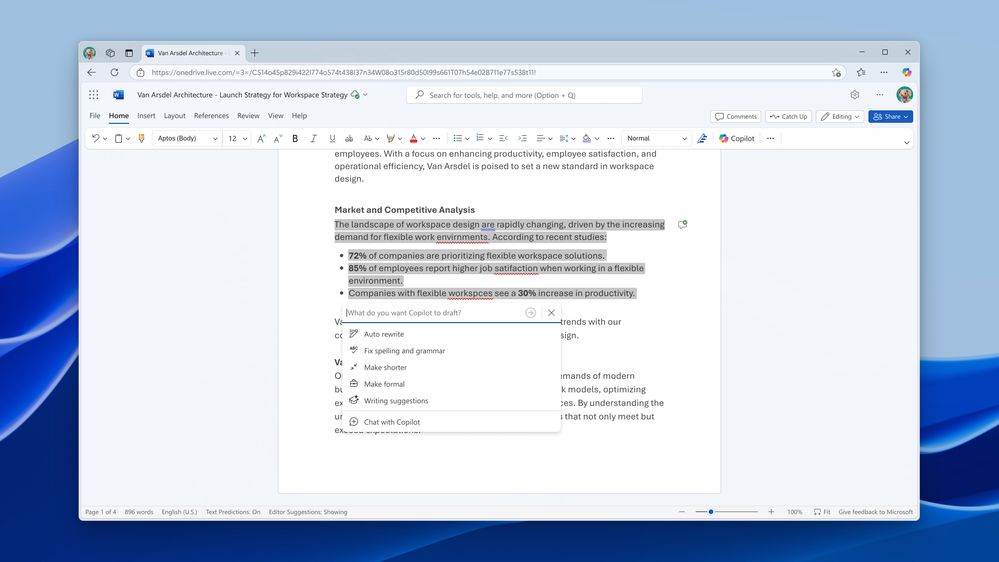
- Select a paragraph or section of text that you want to check for spelling and grammar errors, or the entire contents of the document.
- In the left margin next to your text, select the icon that looks like a pen with stars, and notice a chat box along with several quick actions appear.
- Select Fix spelling and grammar.
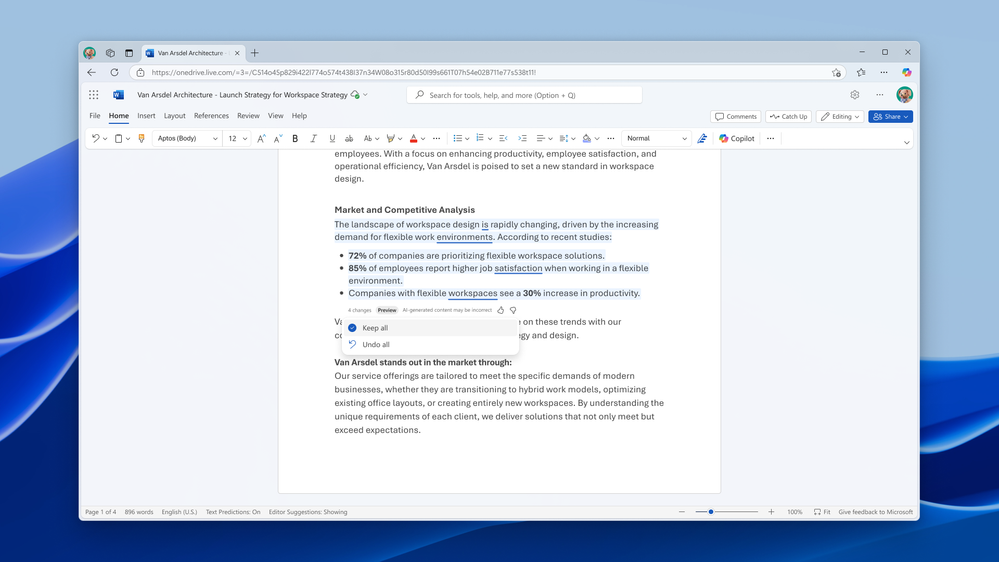
- If you’re happy with the changes, select Keep all, or to revert back to your original draft select Undo all.
Tips and tricks
- To reverse one specific suggestion made, hover over the word or phrase, then click the Undo icon.
Requirements
To use this feature, you must:- have a Copilot license (get more details on licenses for consumers and for businesses).
- be using Word for the web.
- be working in a document written in English.
Availability
This feature is currently rolling out to Word for the web users. Try it out now.Markets
This feature is only currently available to English users.Feedback
We want to hear from you! Please submit your comments and feedback by using the Copilot thumbs up or down buttons, or selecting Help > Feedback in Word for the web. Source:
Fix spelling and grammar faster with Microsoft 365 Copilot in Word for the web
Microsoft 365 Copilot in Word for the web can now apply all grammar and spelling corrections simultaneously.
 techcommunity.microsoft.com