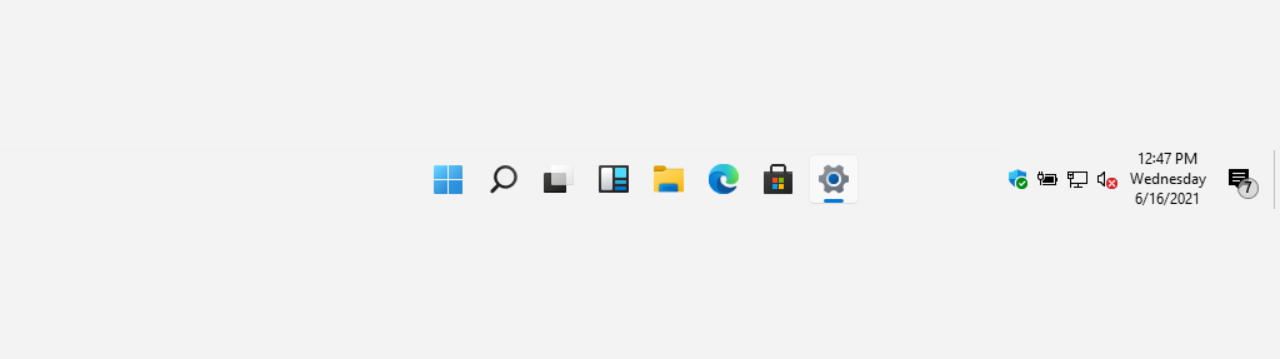
This tutorial will show you how to add or remove the Widgets button on the taskbar for your account in Windows 11.
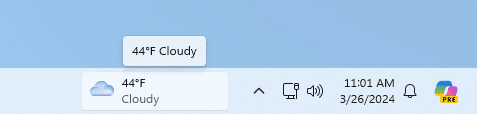
Widgets in Windows are interactive elements that display dynamic content and provide quick access to various apps and features. You can view your location's current weather conditions directly on the taskbar and hover over the icon to see concise, scannable information on topics like sports, stocks, local news, and breaking headlines. Widgets are designed to help you staying informed and organized by presenting personalized information at a glance.
Widgets are displayed on the Widgets board, which contains a collection of cards, each representing a widget with relevant information and actions related to an app. On the Widgets board you can discover, pin, unpin, arrange, resize, and customize widgets to reflect your interests.
Widgets are not intended to replace full applications but provide a convenient way to access important information and perform quick actions without launching the associated app or website. They are refreshed dynamically throughout the day to keep the content current and relevant.
Windows 11 has a Widgets button that shows on the taskbar by default, but can be removed.
Starting with Windows 11 build 22635.3420 (Beta), build 26120.1542 (Dev), and build 27695.1000 (Canary), Microsoft is beginning to roll out a new position for the Widgets entry-point on left-aligned taskbars. The taskbar entry-point will move to the left of the systems tray and will be wider so you can see richer content from Widgets on your taskbar. When you launch the Widgets board, it will fly out from the right side instead of the left side.
Reference:
Stay up to date with Widgets in Windows | Microsoft Support
Learn how to use Widgets dashboards to keep track of the things you care about.
 support.microsoft.com
Contents
- Option One: Add or Remove Widgets Button on Taskbar in Settings
- Option Two: Add or Remove Widgets Button on Taskbar using REG file
- Option Three: Add or Remove Widgets Button on Taskbar in Registry Editor
EXAMPLE: Widgets in Windows 11
1 Open Settings (Win+I). (see screenshot below)
2 Click/tap on Personalization on the left side, and click/tap on Taskbar on the right side. (see screenshot below)
3 Under Taskbar items, turn On (default) or Off Widgets for what you want. (see screenshot below)
4 You can now close Settings if you like.
This option will not work when Administrator protection is turned on.
It is required to temporarily disable the UCPD service before merging the REG files below to be able to change the TaskbarDa DWORD value in the registry.
1 Do step 2 (add) or step 3 (remove) below for what you would like to do.
2 To Add Widgets Button on Taskbar
This is the default setting.
A) Click/tap on the Download button below to download the file below, and go to step 4 below.
Add_Widgets_button_on_taskbar_in_Windows_11.reg
Download
(Contents of REG file for reference)
Code:
Windows Registry Editor Version 5.00

[HKEY_CURRENT_USER\Software\Microsoft\Windows\CurrentVersion\Explorer\Advanced]
"TaskbarDa"=dword:00000001
3 To Remove Widgets Button on Taskbar
A) Click/tap on the Download button below to download the file below, and go to step 4 below.
Remove_Widgets_button_on_taskbar_in_Windows_11.reg
Download
(Contents of REG file for reference)
Code:
Windows Registry Editor Version 5.00

[HKEY_CURRENT_USER\Software\Microsoft\Windows\CurrentVersion\Explorer\Advanced]
"TaskbarDa"=dword:00000000
4 Save the .reg file to your desktop.
5 If you have Smart App Control turned on, you will need to unblock the downloaded REG file.
6 Double click/tap on the downloaded .reg file to merge it.
7 When prompted, click/tap on Run, Yes (UAC), Yes, and OK to approve the merge.
8 You can now delete the downloaded .reg file if you like.
It is required to temporarily disable the UCPD service to be able to change the TaskbarDa DWORD value in the registry.
1 Open Registry Editor (regedit.exe).
2 Navigate to the key location below in the left pane of Registry Editor. (see screenshot below step 3)
HKEY_USERS\<SID>\Software\Microsoft\Windows\CurrentVersion\Explorer\Advanced
Substitute <SID> in the key path above with the actual SID for the account you want to apply this to.
For example:
HKEY_USERS\S-1-5-21-2498639629-3946114050-4100787084-1001\Software\Microsoft\Windows\CurrentVersion\Explorer\Advanced
3 In the right pane of the Advanced key, double click/tap on the TaskbarDa DWORD to modify it. (see screenshot below)
4 Enter 0 (remove) or 1 (add - default) for what you want, and click/tap on OK. (see screenshot below)
5 You can now close Registry Editor if you like.
That's it,
Shawn Brink
Related Tutorials
- Uninstall and Reinstall Widgets in Windows 11
- Open Widgets in Windows 11
- Pin or Unpin Widgets Board Open in Windows 11
- Sign in or Sign out of Widgets Board in Windows 11
- Add or Remove Widgets on Widgets Board in Windows 11
- Enable or Disable Widgets Feature in Windows 11
- Resize Widgets on Widgets Board in Windows 11
- Enable or Disable Feed on Widgets Board in Windows 11
- Personalize News Feed on Widgets Board in Windows 11
- Personalize Notifications for Widgets in Windows 11
- Customize Widgets in Windows 11
- Move a Widget on Widgets Board in Windows 11
- Expand and Collapse Widgets Board Full Screen View in Windows 11
- Enable or Disable Open Widgets Board on Hover in Windows 11
- Enable or Disable Announcements from Feeds on Widgets Taskbar Icon in Windows 11
- Restart Widgets in Windows 11
- Refresh Widgets in Windows 11
- Enable or Disable Copilot Discover on Widgets Board in Windows 11
Attachments
Last edited:


 tried turn off widgets if it was some odd bug, but not helped.. any registry method?