Alternative Windows 11 start menus


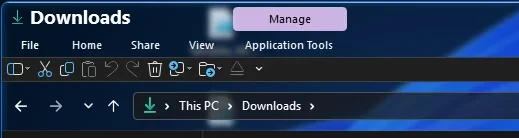
Yes, I know about these huge icons, but I don't want that thick toolbar in File Explorer just to click occasionally to cut-copy-paste. Let's hope some folks will discover the new Vive Tool commands that undo whatever Microsoft did in 8246 and be able to use Classic Explorer again. Microsoft should at least let us use legacy features at our own risk. Not just disable everything old without asking! Don't imitate Apple practices!

PS: Last time there were some incompatibilities with Open Shell and Windows 11 in conjunction with other customization tools, the Developers released this last version (4.4.196) that fixed them all. If any Developer is reading this, please issue one more Open Shell version to fix these ridiculous bugs once and for all. It is very annoying every time we update Windows 11 to fear of losing some legacy functionality. We cannot keep postponing updates forever! Thanks!
 

My Computers

System One System Two

  • OS
    Windows 11 Pro 23H2 (5699), 25H2 (8457)
    Computer type
    Laptop
    Manufacturer/Model
    Acer Extensa 5630EZ
    CPU
    Mobile DualCore Intel Core 2 Duo T7250, 2000 MHz
    Motherboard
    Acer Extensa 5630
    Memory
    4GB
    Graphics Card(s)
    Mobile Intel(R) GMA 4500M (Mobile 4 series)
    Sound Card
    Realtek ALC268 @ Intel 82801IB ICH9 - High Definition Audio Controller
    Monitor(s) Displays
    1
    Screen Resolution
    1280x800
    Hard Drives
    Samsung SSD 850 EVO 250GB SATA Device (250 GB, SATA-III)
    Internet Speed
    VDSL 50 Mbps
    Browser
    MICROSOFT EDGE
    Antivirus
    WINDOWS DEFENDER
    Other Info
    Legacy MBR installation, no TPM, no Secure Boot, no WDDM 2.0 graphics drivers, no SSE4.2, cannot get more unsupported ;) This is only my test laptop. I had installed Windows 11 here before upgrading my main PC. For my main PC I use everyday see my 2nd system specs.
  • Operating System
    Windows 11 Pro v25H2 (build 26200.8457)
    Computer type
    PC/Desktop
    Manufacturer/Model
    Custom-built PC
    CPU
    Intel Core-i7 3770 3.40GHz s1155 (3rd generation)
    Motherboard
    Asus P8H61 s1155 ATX
    Memory
    2x Kingston Hyper-X Blu 8GB DDR3-1600
    Graphics card(s)
    GIGABYTE GeForce RTX 3050 WINDFORCE OC V2 6GB (GV-N3050WF2OCV2-6GD)
    Sound Card
    Realtek HD audio (ALC887)
    Monitor(s) Displays
    Sony Bravia KDL-19L4000 19" LCD TV via VGA
    Screen Resolution
    1440x900 32-bit 60Hz
    Hard Drives
    WD Blue SA510 2.5 1000GB SSD as system disk, Western Digital Caviar Purple 4TB SATA III (WD40PURZ) as second
    PSU
    Thermaltake Litepower RGB 550W Full Wired
    Case
    SUPERCASE MIDI-TOWER
    Cooling
    Deepcool Gamma Archer CPU cooler, 1x 8cm fan at the back
    Keyboard
    Mitsumi 101-key PS/2
    Mouse
    Sunnyline OptiEye PS/2
    Internet Speed
    100Mbps
    Browser
    Microsoft Edge, Mozilla Firefox
    Antivirus
    Microsoft Windows Defender
    Other Info
    Legacy BIOS (MBR) installation, no TPM, no Secure Boot, WDDM 3.0 graphics drivers, WEI score 7.4
Yes, I know about these huge icons, but I don't want that thick toolbar in File Explorer just to click occasionally to cut-copy-paste. Let's hope some folks will discover the new Vive Tool commands that undo whatever Microsoft did in 8246 and be able to use Classic Explorer again. Microsoft should at least let us use legacy features at our own risk. Not just disable everything old without asking! Don't imitate Apple practices!

PS: Last time there were some incompatibilities with Open Shell and Windows 11 in conjunction with other customization tools, the Developers released this last version (4.4.196) that fixed them all. If any Developer is reading this, please issue one more Open Shell version to fix these ridiculous bugs once and for all. It is very annoying every time we update Windows 11 to fear of losing some legacy functionality. We cannot keep postponing updates forever! Thanks!
the Quick Access Toolbar is outlined in red. its not huge icons. they're smaller than the ClassicExplorer toolbar icons.... if you're referring to the FE ribbon, just minimize the ribbon


EDIT:
if you must have tabs and the colored icons, use SAB to get back the old FE and it will retain tab capabilities

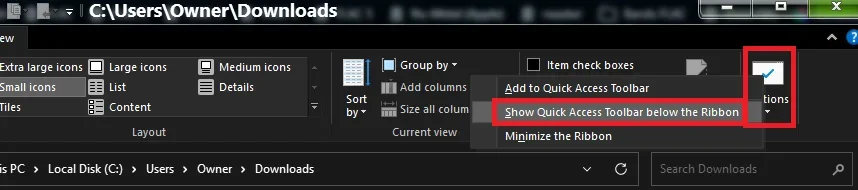
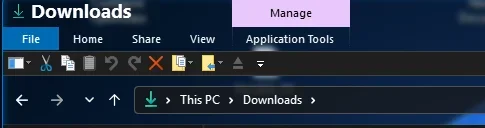
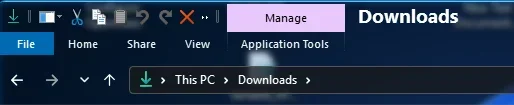
Options when using SAB win 10 explorer:
1776677630208.webp
1776677636313.webp
1776677653867.webp
1776677646571.webp


and as @Kees stated... no updates:
 
Last edited:

My Computer

System One

  • OS
    Windows 11 Pro
If any Developer is reading this, please issue one more Open Shell version to fix these ridiculous bugs once and for all.
How would any OpenShell developer (if there still are any) be able to predict what MS is will change in the Windows OS.
Last update of OpenShell 4.4.196 was May 8, 2025.

I too hope there still will be updates (for the Start Menu at least) but I am not very optimistic about it.
 

My Computer

System One

  • OS
    Windows 11 Pro 25H2 26200.8457
    Computer type
    PC/Desktop
    Manufacturer/Model
    Build by vendor to my specs
    CPU
    AMD Ryzen 7 5700G
    Motherboard
    MSI PRO B550M-P Gen3
    Memory
    Kingston FURY Beast 2x16GB DIMM DDR4 2666 CL16
    Graphics Card(s)
    MSI GeForce GT 730 2GB LP V1
    Sound Card
    Creative Sound Blaster Audigy FX
    Monitor(s) Displays
    Samsung S24E450F 24"
    Screen Resolution
    1920 x 1080
    Hard Drives
    1. SSD Crucial P5 Plus 500GB PCIe M.2
    2. SSD-SATA Crucial MX500-2TB
    PSU
    Corsair CV650W
    Case
    Cooler Master Silencio S400
    Cooling
    Cooler Master Hyper H412R with Be Quiet Pure Wings 2 PWM BL038 fan
    Keyboard
    Cherry Stream (wired, scissor keys)
    Mouse
    Asus WT465 (wireless)
    Internet Speed
    70 Mbps down / 80 Mbps up
    Browser
    Firefox 130.0
    Antivirus
    F-Secure (Internetprovider version)
    Other Info
    Router: FRITZBox 7490
    Oracle VirtualBox 7 for testing software on Win 10 or 11
The last discussion about OpenShell updates or not on Github was this one:

Other discussions are to be folowed here:

As far as those discussions are concerned, OpenShell is "as dead as a doornail". No developments / no developers at all.
 

My Computer

System One

  • OS
    Windows 11 Pro 25H2 26200.8457
    Computer type
    PC/Desktop
    Manufacturer/Model
    Build by vendor to my specs
    CPU
    AMD Ryzen 7 5700G
    Motherboard
    MSI PRO B550M-P Gen3
    Memory
    Kingston FURY Beast 2x16GB DIMM DDR4 2666 CL16
    Graphics Card(s)
    MSI GeForce GT 730 2GB LP V1
    Sound Card
    Creative Sound Blaster Audigy FX
    Monitor(s) Displays
    Samsung S24E450F 24"
    Screen Resolution
    1920 x 1080
    Hard Drives
    1. SSD Crucial P5 Plus 500GB PCIe M.2
    2. SSD-SATA Crucial MX500-2TB
    PSU
    Corsair CV650W
    Case
    Cooler Master Silencio S400
    Cooling
    Cooler Master Hyper H412R with Be Quiet Pure Wings 2 PWM BL038 fan
    Keyboard
    Cherry Stream (wired, scissor keys)
    Mouse
    Asus WT465 (wireless)
    Internet Speed
    70 Mbps down / 80 Mbps up
    Browser
    Firefox 130.0
    Antivirus
    F-Secure (Internetprovider version)
    Other Info
    Router: FRITZBox 7490
    Oracle VirtualBox 7 for testing software on Win 10 or 11
How would any OpenShell developer (if there still are any) be able to predict what MS is will change in the Windows OS.
Last update of OpenShell 4.4.196 was May 8, 2025.

I too hope there still will be updates (for the Start Menu at least) but I am not very optimistic about it.
What about converting it from "legacy toolbar" to something modern that won't be blocked by Microsoft? Isn't there any modern alternative?
 

My Computers

System One System Two

  • OS
    Windows 11 Pro 23H2 (5699), 25H2 (8457)
    Computer type
    Laptop
    Manufacturer/Model
    Acer Extensa 5630EZ
    CPU
    Mobile DualCore Intel Core 2 Duo T7250, 2000 MHz
    Motherboard
    Acer Extensa 5630
    Memory
    4GB
    Graphics Card(s)
    Mobile Intel(R) GMA 4500M (Mobile 4 series)
    Sound Card
    Realtek ALC268 @ Intel 82801IB ICH9 - High Definition Audio Controller
    Monitor(s) Displays
    1
    Screen Resolution
    1280x800
    Hard Drives
    Samsung SSD 850 EVO 250GB SATA Device (250 GB, SATA-III)
    Internet Speed
    VDSL 50 Mbps
    Browser
    MICROSOFT EDGE
    Antivirus
    WINDOWS DEFENDER
    Other Info
    Legacy MBR installation, no TPM, no Secure Boot, no WDDM 2.0 graphics drivers, no SSE4.2, cannot get more unsupported ;) This is only my test laptop. I had installed Windows 11 here before upgrading my main PC. For my main PC I use everyday see my 2nd system specs.
  • Operating System
    Windows 11 Pro v25H2 (build 26200.8457)
    Computer type
    PC/Desktop
    Manufacturer/Model
    Custom-built PC
    CPU
    Intel Core-i7 3770 3.40GHz s1155 (3rd generation)
    Motherboard
    Asus P8H61 s1155 ATX
    Memory
    2x Kingston Hyper-X Blu 8GB DDR3-1600
    Graphics card(s)
    GIGABYTE GeForce RTX 3050 WINDFORCE OC V2 6GB (GV-N3050WF2OCV2-6GD)
    Sound Card
    Realtek HD audio (ALC887)
    Monitor(s) Displays
    Sony Bravia KDL-19L4000 19" LCD TV via VGA
    Screen Resolution
    1440x900 32-bit 60Hz
    Hard Drives
    WD Blue SA510 2.5 1000GB SSD as system disk, Western Digital Caviar Purple 4TB SATA III (WD40PURZ) as second
    PSU
    Thermaltake Litepower RGB 550W Full Wired
    Case
    SUPERCASE MIDI-TOWER
    Cooling
    Deepcool Gamma Archer CPU cooler, 1x 8cm fan at the back
    Keyboard
    Mitsumi 101-key PS/2
    Mouse
    Sunnyline OptiEye PS/2
    Internet Speed
    100Mbps
    Browser
    Microsoft Edge, Mozilla Firefox
    Antivirus
    Microsoft Windows Defender
    Other Info
    Legacy BIOS (MBR) installation, no TPM, no Secure Boot, WDDM 3.0 graphics drivers, WEI score 7.4
the Quick Access Toolbar is outlined in red. its not huge icons. they're smaller than the ClassicExplorer toolbar icons.... if you're referring to the FE ribbon, just minimize the ribbon


EDIT:
if you must have tabs and the colored icons, use SAB to get back the old FE and it will retain tab capabilities

Options when using SAB win 10 explorer:
View attachment 169359
View attachment 169360
View attachment 169362
View attachment 169361


and as @Kees stated... no updates:
I have the Windows 10 style File Explorer thanks to Explorer Patcher. I just checked, in Quick Access toolbar there are no cut/copy/past icons. I can only add undo/redo/delete/rename. How can I add more icons? Do I need SAB or other tool?
 

My Computers

System One System Two

  • OS
    Windows 11 Pro 23H2 (5699), 25H2 (8457)
    Computer type
    Laptop
    Manufacturer/Model
    Acer Extensa 5630EZ
    CPU
    Mobile DualCore Intel Core 2 Duo T7250, 2000 MHz
    Motherboard
    Acer Extensa 5630
    Memory
    4GB
    Graphics Card(s)
    Mobile Intel(R) GMA 4500M (Mobile 4 series)
    Sound Card
    Realtek ALC268 @ Intel 82801IB ICH9 - High Definition Audio Controller
    Monitor(s) Displays
    1
    Screen Resolution
    1280x800
    Hard Drives
    Samsung SSD 850 EVO 250GB SATA Device (250 GB, SATA-III)
    Internet Speed
    VDSL 50 Mbps
    Browser
    MICROSOFT EDGE
    Antivirus
    WINDOWS DEFENDER
    Other Info
    Legacy MBR installation, no TPM, no Secure Boot, no WDDM 2.0 graphics drivers, no SSE4.2, cannot get more unsupported ;) This is only my test laptop. I had installed Windows 11 here before upgrading my main PC. For my main PC I use everyday see my 2nd system specs.
  • Operating System
    Windows 11 Pro v25H2 (build 26200.8457)
    Computer type
    PC/Desktop
    Manufacturer/Model
    Custom-built PC
    CPU
    Intel Core-i7 3770 3.40GHz s1155 (3rd generation)
    Motherboard
    Asus P8H61 s1155 ATX
    Memory
    2x Kingston Hyper-X Blu 8GB DDR3-1600
    Graphics card(s)
    GIGABYTE GeForce RTX 3050 WINDFORCE OC V2 6GB (GV-N3050WF2OCV2-6GD)
    Sound Card
    Realtek HD audio (ALC887)
    Monitor(s) Displays
    Sony Bravia KDL-19L4000 19" LCD TV via VGA
    Screen Resolution
    1440x900 32-bit 60Hz
    Hard Drives
    WD Blue SA510 2.5 1000GB SSD as system disk, Western Digital Caviar Purple 4TB SATA III (WD40PURZ) as second
    PSU
    Thermaltake Litepower RGB 550W Full Wired
    Case
    SUPERCASE MIDI-TOWER
    Cooling
    Deepcool Gamma Archer CPU cooler, 1x 8cm fan at the back
    Keyboard
    Mitsumi 101-key PS/2
    Mouse
    Sunnyline OptiEye PS/2
    Internet Speed
    100Mbps
    Browser
    Microsoft Edge, Mozilla Firefox
    Antivirus
    Microsoft Windows Defender
    Other Info
    Legacy BIOS (MBR) installation, no TPM, no Secure Boot, WDDM 3.0 graphics drivers, WEI score 7.4
I have the Windows 10 style File Explorer thanks to Explorer Patcher. I just checked, in Quick Access toolbar there are no cut/copy/past icons. I can only add undo/redo/delete/rename. How can I add more icons? Do I need SAB or other tool?
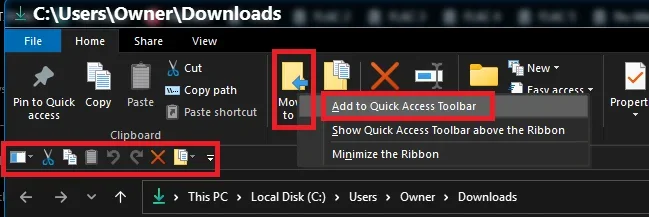
no. you can do it with any implementation of the ribbon FE. i posted screenshots showing exactly how...
 

My Computer

System One

  • OS
    Windows 11 Pro
What about converting it from "legacy toolbar" to something modern that won't be blocked by Microsoft?
If you would like to write an app for that, why not? :D

Isn't there any modern alternative?
If it were, someone here would certainly have posted a link to it. So I don't think there is.
 

My Computer

System One

  • OS
    Windows 11 Pro 25H2 26200.8457
    Computer type
    PC/Desktop
    Manufacturer/Model
    Build by vendor to my specs
    CPU
    AMD Ryzen 7 5700G
    Motherboard
    MSI PRO B550M-P Gen3
    Memory
    Kingston FURY Beast 2x16GB DIMM DDR4 2666 CL16
    Graphics Card(s)
    MSI GeForce GT 730 2GB LP V1
    Sound Card
    Creative Sound Blaster Audigy FX
    Monitor(s) Displays
    Samsung S24E450F 24"
    Screen Resolution
    1920 x 1080
    Hard Drives
    1. SSD Crucial P5 Plus 500GB PCIe M.2
    2. SSD-SATA Crucial MX500-2TB
    PSU
    Corsair CV650W
    Case
    Cooler Master Silencio S400
    Cooling
    Cooler Master Hyper H412R with Be Quiet Pure Wings 2 PWM BL038 fan
    Keyboard
    Cherry Stream (wired, scissor keys)
    Mouse
    Asus WT465 (wireless)
    Internet Speed
    70 Mbps down / 80 Mbps up
    Browser
    Firefox 130.0
    Antivirus
    F-Secure (Internetprovider version)
    Other Info
    Router: FRITZBox 7490
    Oracle VirtualBox 7 for testing software on Win 10 or 11
I just checked, in Quick Access toolbar there are no cut/copy/past icons.
But you can add them!
In the ribbon several commands for cut, copy, paste are there (as a big icon).
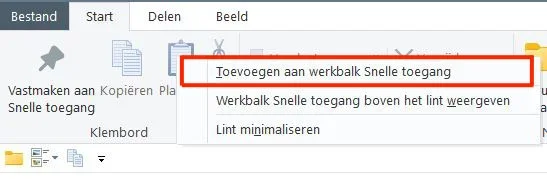
Every command can be added to the Quick Access toolbar by right-clicking that command-icon:

001356.webp

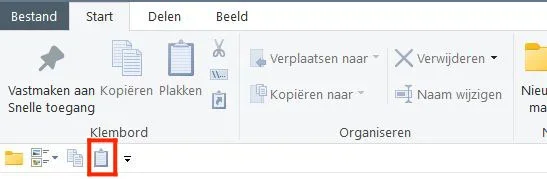
Result:

001357.webp

You cannot change the order of the icons, but you can remove all icons and then add them in the order that you like.
 

My Computer

System One

  • OS
    Windows 11 Pro 25H2 26200.8457
    Computer type
    PC/Desktop
    Manufacturer/Model
    Build by vendor to my specs
    CPU
    AMD Ryzen 7 5700G
    Motherboard
    MSI PRO B550M-P Gen3
    Memory
    Kingston FURY Beast 2x16GB DIMM DDR4 2666 CL16
    Graphics Card(s)
    MSI GeForce GT 730 2GB LP V1
    Sound Card
    Creative Sound Blaster Audigy FX
    Monitor(s) Displays
    Samsung S24E450F 24"
    Screen Resolution
    1920 x 1080
    Hard Drives
    1. SSD Crucial P5 Plus 500GB PCIe M.2
    2. SSD-SATA Crucial MX500-2TB
    PSU
    Corsair CV650W
    Case
    Cooler Master Silencio S400
    Cooling
    Cooler Master Hyper H412R with Be Quiet Pure Wings 2 PWM BL038 fan
    Keyboard
    Cherry Stream (wired, scissor keys)
    Mouse
    Asus WT465 (wireless)
    Internet Speed
    70 Mbps down / 80 Mbps up
    Browser
    Firefox 130.0
    Antivirus
    F-Secure (Internetprovider version)
    Other Info
    Router: FRITZBox 7490
    Oracle VirtualBox 7 for testing software on Win 10 or 11
the Quick Access Toolbar is outlined in red. its not huge icons. they're smaller than the ClassicExplorer toolbar icons....
Quick Access Toolbar has a whole bunch of limitations. Classic Explorer Bar lets you customize its icons sizes:

toolbar-settings-webp.164022
 

My Computers

System One System Two

  • OS
    11 Home
    Computer type
    Laptop
    Manufacturer/Model
    Asus TUF Gaming F16 (2024)
    CPU
    i7 13650HX
    Memory
    16GB DDR5
    Graphics Card(s)
    GeForce RTX 4060 Mobile
    Sound Card
    Eastern Electric MiniMax DAC Supreme; Emotiva UMC-200; Astell & Kern AK240
    Monitor(s) Displays
    Sony Bravia XR-55X90J
    Screen Resolution
    3840×2160
    Hard Drives
    512GB SSD internal
    37TB external
    PSU
    Li-ion
    Cooling
    2× Arc Flow Fans, 4× exhaust vents, 5× heatpipes
    Keyboard
    Logitech K800
    Mouse
    Logitech G402
    Internet Speed
    30Mbit/s up, 500Mbit/s down
    Browser
    FF
    Antivirus
    What's an antivirus?
  • Operating System
    11 Home
    Computer type
    Laptop
    Manufacturer/Model
    Medion S15450
    CPU
    i5 1135G7
    Memory
    16GB DDR4
    Graphics card(s)
    Intel Iris Xe
    Sound Card
    Eastern Electric MiniMax DAC Supreme; Emotiva UMC-200; Astell & Kern AK240
    Monitor(s) Displays
    Sony Bravia XR-55X90J
    Screen Resolution
    3840×2160
    Hard Drives
    2TB SSD internal
    37TB external
    PSU
    Li-ion
    Keyboard
    Logitech K800
    Mouse
    Logitech G402
    Internet Speed
    30Mbit/s up, 500Mbit/s down
    Browser
    FF
But you can add them!
In the ribbon several commands for cut, copy, paste are there (as a big icon).
Every command can be added to the Quick Access toolbar by right-clicking that command-icon:

View attachment 169369

Result:

View attachment 169370

You cannot change the order of the icons, but you can remove all icons and then add them in the order that you like.
Thanks! I haven't tried to right-click and "Add to quick access". I will do it until I fix Open Shell! Thanks.

I added them in the order I want. They are small, but I don't care for the moment. If anyone discovers Vive Tools commands to make Classic Explorer work again, please don't hesitate to post them here!
 

My Computers

System One System Two

  • OS
    Windows 11 Pro 23H2 (5699), 25H2 (8457)
    Computer type
    Laptop
    Manufacturer/Model
    Acer Extensa 5630EZ
    CPU
    Mobile DualCore Intel Core 2 Duo T7250, 2000 MHz
    Motherboard
    Acer Extensa 5630
    Memory
    4GB
    Graphics Card(s)
    Mobile Intel(R) GMA 4500M (Mobile 4 series)
    Sound Card
    Realtek ALC268 @ Intel 82801IB ICH9 - High Definition Audio Controller
    Monitor(s) Displays
    1
    Screen Resolution
    1280x800
    Hard Drives
    Samsung SSD 850 EVO 250GB SATA Device (250 GB, SATA-III)
    Internet Speed
    VDSL 50 Mbps
    Browser
    MICROSOFT EDGE
    Antivirus
    WINDOWS DEFENDER
    Other Info
    Legacy MBR installation, no TPM, no Secure Boot, no WDDM 2.0 graphics drivers, no SSE4.2, cannot get more unsupported ;) This is only my test laptop. I had installed Windows 11 here before upgrading my main PC. For my main PC I use everyday see my 2nd system specs.
  • Operating System
    Windows 11 Pro v25H2 (build 26200.8457)
    Computer type
    PC/Desktop
    Manufacturer/Model
    Custom-built PC
    CPU
    Intel Core-i7 3770 3.40GHz s1155 (3rd generation)
    Motherboard
    Asus P8H61 s1155 ATX
    Memory
    2x Kingston Hyper-X Blu 8GB DDR3-1600
    Graphics card(s)
    GIGABYTE GeForce RTX 3050 WINDFORCE OC V2 6GB (GV-N3050WF2OCV2-6GD)
    Sound Card
    Realtek HD audio (ALC887)
    Monitor(s) Displays
    Sony Bravia KDL-19L4000 19" LCD TV via VGA
    Screen Resolution
    1440x900 32-bit 60Hz
    Hard Drives
    WD Blue SA510 2.5 1000GB SSD as system disk, Western Digital Caviar Purple 4TB SATA III (WD40PURZ) as second
    PSU
    Thermaltake Litepower RGB 550W Full Wired
    Case
    SUPERCASE MIDI-TOWER
    Cooling
    Deepcool Gamma Archer CPU cooler, 1x 8cm fan at the back
    Keyboard
    Mitsumi 101-key PS/2
    Mouse
    Sunnyline OptiEye PS/2
    Internet Speed
    100Mbps
    Browser
    Microsoft Edge, Mozilla Firefox
    Antivirus
    Microsoft Windows Defender
    Other Info
    Legacy BIOS (MBR) installation, no TPM, no Secure Boot, WDDM 3.0 graphics drivers, WEI score 7.4
Quick Access Toolbar has a whole bunch of limitations. Classic Explorer Bar lets you customize its icons sizes:
Yes, but the problem is that Classic Explorer Bar (CEB) does not function anymore after certain Windows updates.
It did not appear anymore in the File Explorer window.
I had that before and gave up, @spapakons has that problem now.
If you would know any trick to make the CEB functioning again, I think he would like it very much.

For me you don't need to do it: I have accepted File Explorer as it is now, restyled by Windhawk.
 

My Computer

System One

  • OS
    Windows 11 Pro 25H2 26200.8457
    Computer type
    PC/Desktop
    Manufacturer/Model
    Build by vendor to my specs
    CPU
    AMD Ryzen 7 5700G
    Motherboard
    MSI PRO B550M-P Gen3
    Memory
    Kingston FURY Beast 2x16GB DIMM DDR4 2666 CL16
    Graphics Card(s)
    MSI GeForce GT 730 2GB LP V1
    Sound Card
    Creative Sound Blaster Audigy FX
    Monitor(s) Displays
    Samsung S24E450F 24"
    Screen Resolution
    1920 x 1080
    Hard Drives
    1. SSD Crucial P5 Plus 500GB PCIe M.2
    2. SSD-SATA Crucial MX500-2TB
    PSU
    Corsair CV650W
    Case
    Cooler Master Silencio S400
    Cooling
    Cooler Master Hyper H412R with Be Quiet Pure Wings 2 PWM BL038 fan
    Keyboard
    Cherry Stream (wired, scissor keys)
    Mouse
    Asus WT465 (wireless)
    Internet Speed
    70 Mbps down / 80 Mbps up
    Browser
    Firefox 130.0
    Antivirus
    F-Secure (Internetprovider version)
    Other Info
    Router: FRITZBox 7490
    Oracle VirtualBox 7 for testing software on Win 10 or 11
Yes, but the problem is that Classic Explorer Bar (CEB) does not function anymore after certain Windows updates.
I know. 🫤 KB5079391/KB5086672 killed it by making feature ID 42105254 (MTestUx15) image-enforced, or "Priority : ImageOverride (15)", which boils down to the fact that this feature can no longer be disabled so now we're all stuck on a XAML island.
 

My Computers

System One System Two

  • OS
    11 Home
    Computer type
    Laptop
    Manufacturer/Model
    Asus TUF Gaming F16 (2024)
    CPU
    i7 13650HX
    Memory
    16GB DDR5
    Graphics Card(s)
    GeForce RTX 4060 Mobile
    Sound Card
    Eastern Electric MiniMax DAC Supreme; Emotiva UMC-200; Astell & Kern AK240
    Monitor(s) Displays
    Sony Bravia XR-55X90J
    Screen Resolution
    3840×2160
    Hard Drives
    512GB SSD internal
    37TB external
    PSU
    Li-ion
    Cooling
    2× Arc Flow Fans, 4× exhaust vents, 5× heatpipes
    Keyboard
    Logitech K800
    Mouse
    Logitech G402
    Internet Speed
    30Mbit/s up, 500Mbit/s down
    Browser
    FF
    Antivirus
    What's an antivirus?
  • Operating System
    11 Home
    Computer type
    Laptop
    Manufacturer/Model
    Medion S15450
    CPU
    i5 1135G7
    Memory
    16GB DDR4
    Graphics card(s)
    Intel Iris Xe
    Sound Card
    Eastern Electric MiniMax DAC Supreme; Emotiva UMC-200; Astell & Kern AK240
    Monitor(s) Displays
    Sony Bravia XR-55X90J
    Screen Resolution
    3840×2160
    Hard Drives
    2TB SSD internal
    37TB external
    PSU
    Li-ion
    Keyboard
    Logitech K800
    Mouse
    Logitech G402
    Internet Speed
    30Mbit/s up, 500Mbit/s down
    Browser
    FF
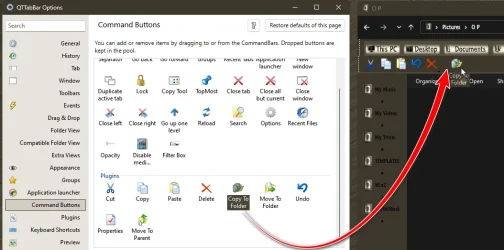
Google AI suggested QTTABBAR to create the cut/copy/paste toolbar. However I visited their site and could not understand how to do that. Anyone?
Drag and Drop...

13111.webp
 

My Computers

System One System Two

  • OS
    Windows 11 Pro
    Computer type
    PC/Desktop
    Manufacturer/Model
    ASUS ROG Strix
  • Operating System
    Windows 11 Pro
    Computer type
    Laptop
    Manufacturer/Model
    ASUS VivoBook
Thanks a lot, but since the latest 8246 changes to File Explorer, neither Open Shell's Classic Explorer nor QTTABBAR's Command Buttons work. Literally nothing extra appears at any File Explorer windows and when I click on the down arrow of the Options to enable them. there is nothing on the list!
 

My Computers

System One System Two

  • OS
    Windows 11 Pro 23H2 (5699), 25H2 (8457)
    Computer type
    Laptop
    Manufacturer/Model
    Acer Extensa 5630EZ
    CPU
    Mobile DualCore Intel Core 2 Duo T7250, 2000 MHz
    Motherboard
    Acer Extensa 5630
    Memory
    4GB
    Graphics Card(s)
    Mobile Intel(R) GMA 4500M (Mobile 4 series)
    Sound Card
    Realtek ALC268 @ Intel 82801IB ICH9 - High Definition Audio Controller
    Monitor(s) Displays
    1
    Screen Resolution
    1280x800
    Hard Drives
    Samsung SSD 850 EVO 250GB SATA Device (250 GB, SATA-III)
    Internet Speed
    VDSL 50 Mbps
    Browser
    MICROSOFT EDGE
    Antivirus
    WINDOWS DEFENDER
    Other Info
    Legacy MBR installation, no TPM, no Secure Boot, no WDDM 2.0 graphics drivers, no SSE4.2, cannot get more unsupported ;) This is only my test laptop. I had installed Windows 11 here before upgrading my main PC. For my main PC I use everyday see my 2nd system specs.
  • Operating System
    Windows 11 Pro v25H2 (build 26200.8457)
    Computer type
    PC/Desktop
    Manufacturer/Model
    Custom-built PC
    CPU
    Intel Core-i7 3770 3.40GHz s1155 (3rd generation)
    Motherboard
    Asus P8H61 s1155 ATX
    Memory
    2x Kingston Hyper-X Blu 8GB DDR3-1600
    Graphics card(s)
    GIGABYTE GeForce RTX 3050 WINDFORCE OC V2 6GB (GV-N3050WF2OCV2-6GD)
    Sound Card
    Realtek HD audio (ALC887)
    Monitor(s) Displays
    Sony Bravia KDL-19L4000 19" LCD TV via VGA
    Screen Resolution
    1440x900 32-bit 60Hz
    Hard Drives
    WD Blue SA510 2.5 1000GB SSD as system disk, Western Digital Caviar Purple 4TB SATA III (WD40PURZ) as second
    PSU
    Thermaltake Litepower RGB 550W Full Wired
    Case
    SUPERCASE MIDI-TOWER
    Cooling
    Deepcool Gamma Archer CPU cooler, 1x 8cm fan at the back
    Keyboard
    Mitsumi 101-key PS/2
    Mouse
    Sunnyline OptiEye PS/2
    Internet Speed
    100Mbps
    Browser
    Microsoft Edge, Mozilla Firefox
    Antivirus
    Microsoft Windows Defender
    Other Info
    Legacy BIOS (MBR) installation, no TPM, no Secure Boot, WDDM 3.0 graphics drivers, WEI score 7.4
Thanks a lot, but since the latest 8246 changes to File Explorer, neither Open Shell's Classic Explorer nor QTTABBAR's Command Buttons work. Literally nothing extra appears at any File Explorer windows and when I click on the down arrow of the Options to enable them. there is nothing on the list!
Yup! That's a bummer! That's why I paused Updates at .8039! 🤷‍♂️
 

My Computers

System One System Two

  • OS
    Windows 11 Pro
    Computer type
    PC/Desktop
    Manufacturer/Model
    ASUS ROG Strix
  • Operating System
    Windows 11 Pro
    Computer type
    Laptop
    Manufacturer/Model
    ASUS VivoBook
Well, I finally decided to uninstall the KB5083769 Windows update to "downgrade" from build 8246 back to 8039. I did and restarted my PC. As I suspected, the Classic Explorer Bar did not automatically work. So I run the following Vive Tools commands again, just in case, and I uninstalled Open Shell entirely. I restarted my PC and reinstalled Open Shell. The Classic Explorer Bar was not yet shown, but now there was the option to enable it when I clicked on the down arrow under Options in File Explorer! I clicked on that and it appeared again! Of course I immediately ran the Microsoft Windows Updates Show/Hide Tool and blocked the KB5083769 update so as not to automatically reinstall. I hope that by the time a new build is released there will be a working workaround to use our lovely legacy toolbars.

Vive Tool commands to undo Microsoft changes to build 8037/8039 and make Classic Explorer Bar work again:

Code:
vivetool /disable /id:57048216
vivetool /disable /id:57048237
vivetool /disable /id:58988972
 

My Computers

System One System Two

  • OS
    Windows 11 Pro 23H2 (5699), 25H2 (8457)
    Computer type
    Laptop
    Manufacturer/Model
    Acer Extensa 5630EZ
    CPU
    Mobile DualCore Intel Core 2 Duo T7250, 2000 MHz
    Motherboard
    Acer Extensa 5630
    Memory
    4GB
    Graphics Card(s)
    Mobile Intel(R) GMA 4500M (Mobile 4 series)
    Sound Card
    Realtek ALC268 @ Intel 82801IB ICH9 - High Definition Audio Controller
    Monitor(s) Displays
    1
    Screen Resolution
    1280x800
    Hard Drives
    Samsung SSD 850 EVO 250GB SATA Device (250 GB, SATA-III)
    Internet Speed
    VDSL 50 Mbps
    Browser
    MICROSOFT EDGE
    Antivirus
    WINDOWS DEFENDER
    Other Info
    Legacy MBR installation, no TPM, no Secure Boot, no WDDM 2.0 graphics drivers, no SSE4.2, cannot get more unsupported ;) This is only my test laptop. I had installed Windows 11 here before upgrading my main PC. For my main PC I use everyday see my 2nd system specs.
  • Operating System
    Windows 11 Pro v25H2 (build 26200.8457)
    Computer type
    PC/Desktop
    Manufacturer/Model
    Custom-built PC
    CPU
    Intel Core-i7 3770 3.40GHz s1155 (3rd generation)
    Motherboard
    Asus P8H61 s1155 ATX
    Memory
    2x Kingston Hyper-X Blu 8GB DDR3-1600
    Graphics card(s)
    GIGABYTE GeForce RTX 3050 WINDFORCE OC V2 6GB (GV-N3050WF2OCV2-6GD)
    Sound Card
    Realtek HD audio (ALC887)
    Monitor(s) Displays
    Sony Bravia KDL-19L4000 19" LCD TV via VGA
    Screen Resolution
    1440x900 32-bit 60Hz
    Hard Drives
    WD Blue SA510 2.5 1000GB SSD as system disk, Western Digital Caviar Purple 4TB SATA III (WD40PURZ) as second
    PSU
    Thermaltake Litepower RGB 550W Full Wired
    Case
    SUPERCASE MIDI-TOWER
    Cooling
    Deepcool Gamma Archer CPU cooler, 1x 8cm fan at the back
    Keyboard
    Mitsumi 101-key PS/2
    Mouse
    Sunnyline OptiEye PS/2
    Internet Speed
    100Mbps
    Browser
    Microsoft Edge, Mozilla Firefox
    Antivirus
    Microsoft Windows Defender
    Other Info
    Legacy BIOS (MBR) installation, no TPM, no Secure Boot, WDDM 3.0 graphics drivers, WEI score 7.4
I almost had a heart attack. Since Open Shell's Classic Explorer Bar worked again, naturally, I wanted to uninstall QTTABBAR so as not to conflict with the former. I did and after I opened a couple more File Explorer windows I realized that uninstalling QTTABBAR changed something and Classic Explorer Bar disappeared again. No problem, I thought, I just have to remove Open Shell, restart and reinstalled it. So I removed Open Shell, ran the Vive Tool commands once again, just in case, and restarted my computer. I was controlling it remotely via AnyDesk from my work PC. But it took so long to start again! I waited and waited and eventually I saw in AnyDesk it was offline! We had the cleaner at the house and I though she accidentally switched off the power station again. I had no choice but wait to go home and manually turn it on again. But when I got home I realized the power station was switched on and working properly, but my PC would not turn on! Damn! I thought the stupid cleaner had switched off the power station and it might have killed the PSU, or even worse! Panic, panic! I immediately took my PSU tester, disconnected all power cables and connected them on the tester. It was working showing not perfect, but close values (such as 11.9V instead of 12V). A hope is born... I reconnected the cables on the motherboard, switched on the PSU and it worked! Thanks Goodness! So my PC is up and running now, "downgraded" to build 8039 and with perfectly working Classic Explorer Bar! Hurray! Pour the Champagne... 🍾

1776879644591.webp
 
Last edited:

My Computers

System One System Two

  • OS
    Windows 11 Pro 23H2 (5699), 25H2 (8457)
    Computer type
    Laptop
    Manufacturer/Model
    Acer Extensa 5630EZ
    CPU
    Mobile DualCore Intel Core 2 Duo T7250, 2000 MHz
    Motherboard
    Acer Extensa 5630
    Memory
    4GB
    Graphics Card(s)
    Mobile Intel(R) GMA 4500M (Mobile 4 series)
    Sound Card
    Realtek ALC268 @ Intel 82801IB ICH9 - High Definition Audio Controller
    Monitor(s) Displays
    1
    Screen Resolution
    1280x800
    Hard Drives
    Samsung SSD 850 EVO 250GB SATA Device (250 GB, SATA-III)
    Internet Speed
    VDSL 50 Mbps
    Browser
    MICROSOFT EDGE
    Antivirus
    WINDOWS DEFENDER
    Other Info
    Legacy MBR installation, no TPM, no Secure Boot, no WDDM 2.0 graphics drivers, no SSE4.2, cannot get more unsupported ;) This is only my test laptop. I had installed Windows 11 here before upgrading my main PC. For my main PC I use everyday see my 2nd system specs.
  • Operating System
    Windows 11 Pro v25H2 (build 26200.8457)
    Computer type
    PC/Desktop
    Manufacturer/Model
    Custom-built PC
    CPU
    Intel Core-i7 3770 3.40GHz s1155 (3rd generation)
    Motherboard
    Asus P8H61 s1155 ATX
    Memory
    2x Kingston Hyper-X Blu 8GB DDR3-1600
    Graphics card(s)
    GIGABYTE GeForce RTX 3050 WINDFORCE OC V2 6GB (GV-N3050WF2OCV2-6GD)
    Sound Card
    Realtek HD audio (ALC887)
    Monitor(s) Displays
    Sony Bravia KDL-19L4000 19" LCD TV via VGA
    Screen Resolution
    1440x900 32-bit 60Hz
    Hard Drives
    WD Blue SA510 2.5 1000GB SSD as system disk, Western Digital Caviar Purple 4TB SATA III (WD40PURZ) as second
    PSU
    Thermaltake Litepower RGB 550W Full Wired
    Case
    SUPERCASE MIDI-TOWER
    Cooling
    Deepcool Gamma Archer CPU cooler, 1x 8cm fan at the back
    Keyboard
    Mitsumi 101-key PS/2
    Mouse
    Sunnyline OptiEye PS/2
    Internet Speed
    100Mbps
    Browser
    Microsoft Edge, Mozilla Firefox
    Antivirus
    Microsoft Windows Defender
    Other Info
    Legacy BIOS (MBR) installation, no TPM, no Secure Boot, WDDM 3.0 graphics drivers, WEI score 7.4
I was just notified there is a new version of Open Shell 4.4.197 and of course I upgraded. However, I would not dare to also upgrade Windows 11 to build 8246 again just to test if the Classic Explorer Bar will disappear or keep working. Maybe I will test it in a virtual machine, just in case. If everyone has newer build than 8039 and Classic Explorer Bar is working properly, please post here!
 

My Computers

System One System Two

  • OS
    Windows 11 Pro 23H2 (5699), 25H2 (8457)
    Computer type
    Laptop
    Manufacturer/Model
    Acer Extensa 5630EZ
    CPU
    Mobile DualCore Intel Core 2 Duo T7250, 2000 MHz
    Motherboard
    Acer Extensa 5630
    Memory
    4GB
    Graphics Card(s)
    Mobile Intel(R) GMA 4500M (Mobile 4 series)
    Sound Card
    Realtek ALC268 @ Intel 82801IB ICH9 - High Definition Audio Controller
    Monitor(s) Displays
    1
    Screen Resolution
    1280x800
    Hard Drives
    Samsung SSD 850 EVO 250GB SATA Device (250 GB, SATA-III)
    Internet Speed
    VDSL 50 Mbps
    Browser
    MICROSOFT EDGE
    Antivirus
    WINDOWS DEFENDER
    Other Info
    Legacy MBR installation, no TPM, no Secure Boot, no WDDM 2.0 graphics drivers, no SSE4.2, cannot get more unsupported ;) This is only my test laptop. I had installed Windows 11 here before upgrading my main PC. For my main PC I use everyday see my 2nd system specs.
  • Operating System
    Windows 11 Pro v25H2 (build 26200.8457)
    Computer type
    PC/Desktop
    Manufacturer/Model
    Custom-built PC
    CPU
    Intel Core-i7 3770 3.40GHz s1155 (3rd generation)
    Motherboard
    Asus P8H61 s1155 ATX
    Memory
    2x Kingston Hyper-X Blu 8GB DDR3-1600
    Graphics card(s)
    GIGABYTE GeForce RTX 3050 WINDFORCE OC V2 6GB (GV-N3050WF2OCV2-6GD)
    Sound Card
    Realtek HD audio (ALC887)
    Monitor(s) Displays
    Sony Bravia KDL-19L4000 19" LCD TV via VGA
    Screen Resolution
    1440x900 32-bit 60Hz
    Hard Drives
    WD Blue SA510 2.5 1000GB SSD as system disk, Western Digital Caviar Purple 4TB SATA III (WD40PURZ) as second
    PSU
    Thermaltake Litepower RGB 550W Full Wired
    Case
    SUPERCASE MIDI-TOWER
    Cooling
    Deepcool Gamma Archer CPU cooler, 1x 8cm fan at the back
    Keyboard
    Mitsumi 101-key PS/2
    Mouse
    Sunnyline OptiEye PS/2
    Internet Speed
    100Mbps
    Browser
    Microsoft Edge, Mozilla Firefox
    Antivirus
    Microsoft Windows Defender
    Other Info
    Legacy BIOS (MBR) installation, no TPM, no Secure Boot, WDDM 3.0 graphics drivers, WEI score 7.4

Latest Support Threads

Back
Top Bottom